
This document explains how to connect your Bing Webmaster Tools account to Outranker, including importing a site from Google Search Console, generating an API key in Bing, and completing the integration in Outranker.
Go to www.outranker.ai
1. Open the Integrations Menu in Outranker
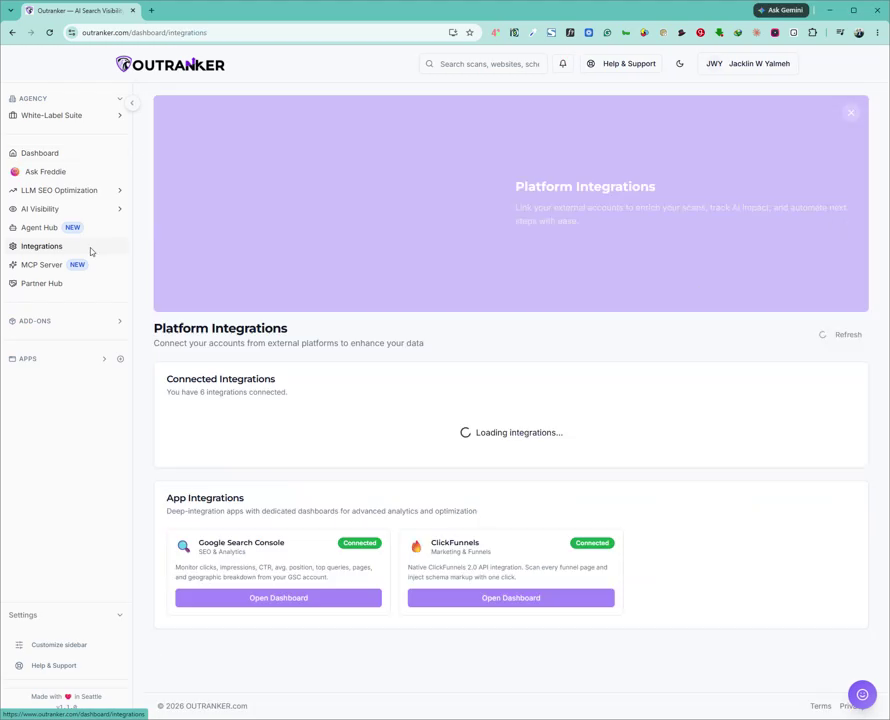
From the left-hand navigation panel in Outranker, click on the Integrations menu.
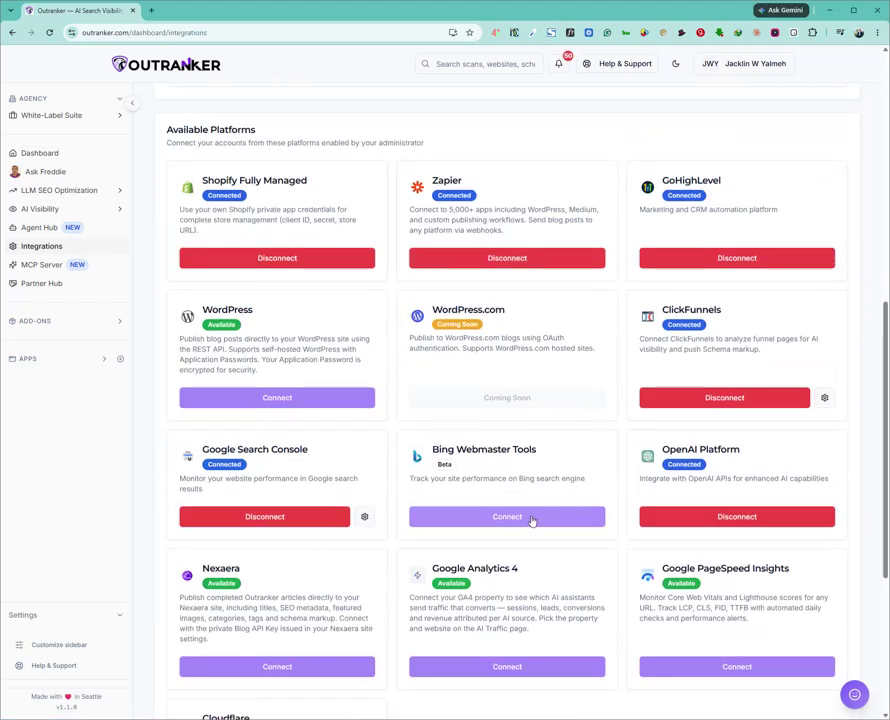
Scroll down until you find the Bing Webmaster Tools integration, then click on Connect.
2. Open Bing Webmaster Tools from Outranker
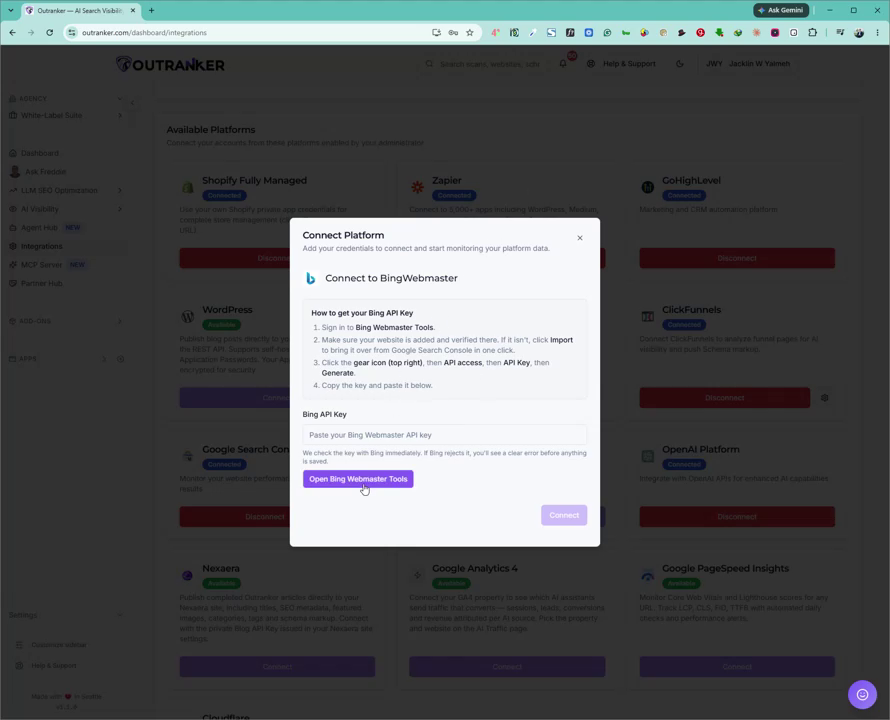
On the Bing Webmaster Tools integration page in Outranker, review the connection instructions.
Click the Open Bing Webmaster Tools button to launch Bing Webmaster Tools in a new tab.
3. Add or Import Your Website in Bing Webmaster Tools
Ensure you are already logged in to your Microsoft account in the browser where Bing Webmaster Tools opens.
If your website is not yet added in Bing Webmaster Tools, add it now.
In this example, the site is imported from Google Search Console: click to import from Google Search Console.
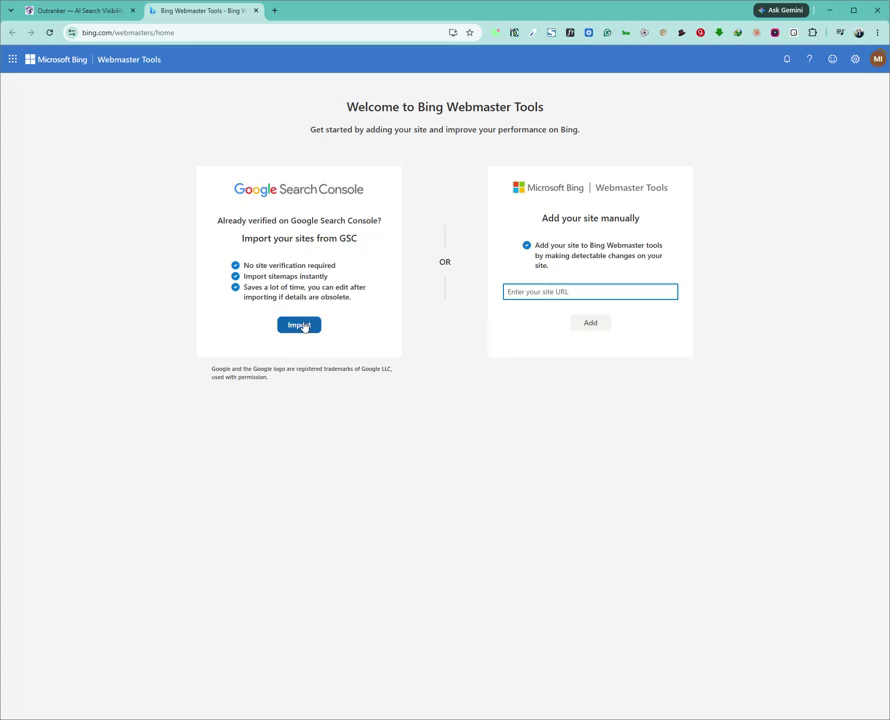
Click Import, then click Continue.
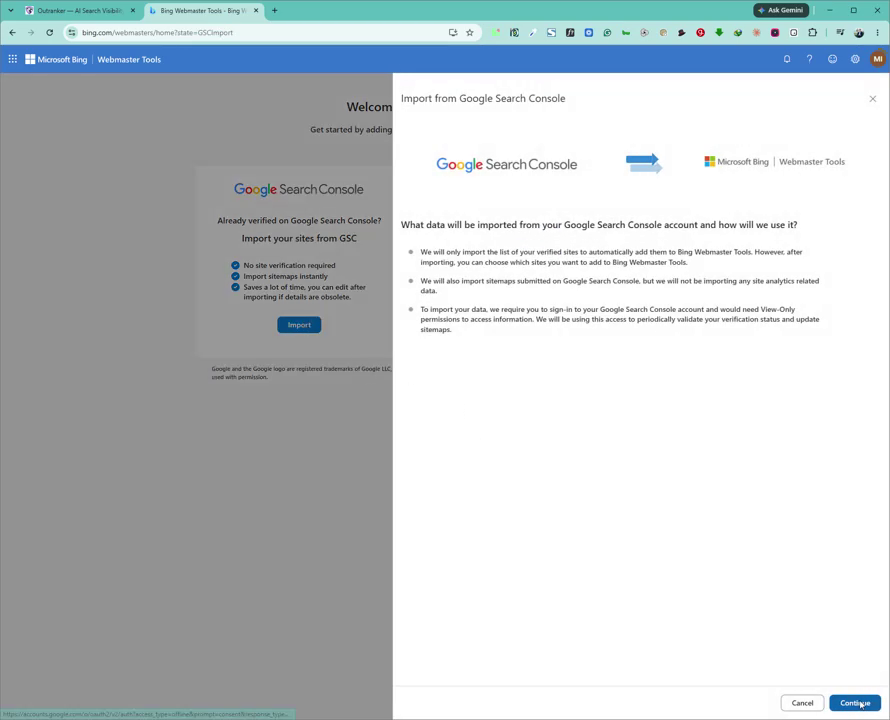
4. Authorize Access to Google Search Console
Select the Google account that contains your website in Google Search Console.
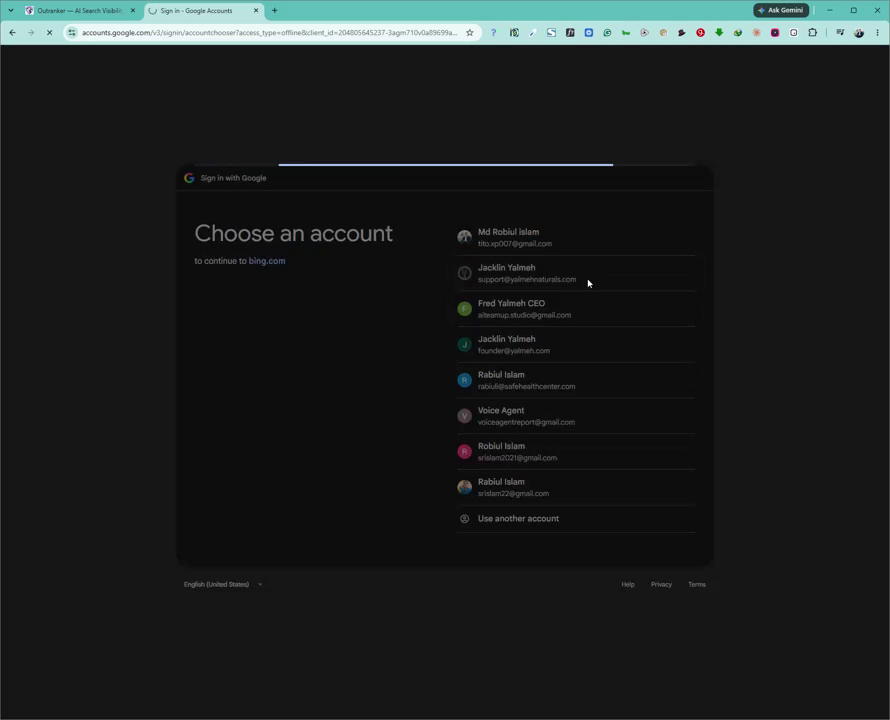
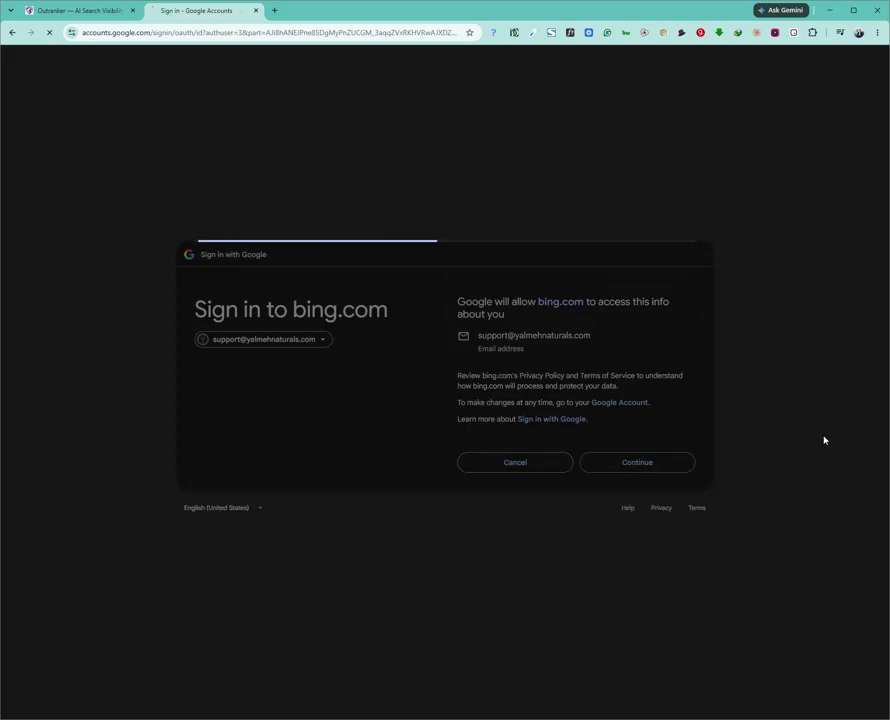
Click Continue to proceed with authorization.
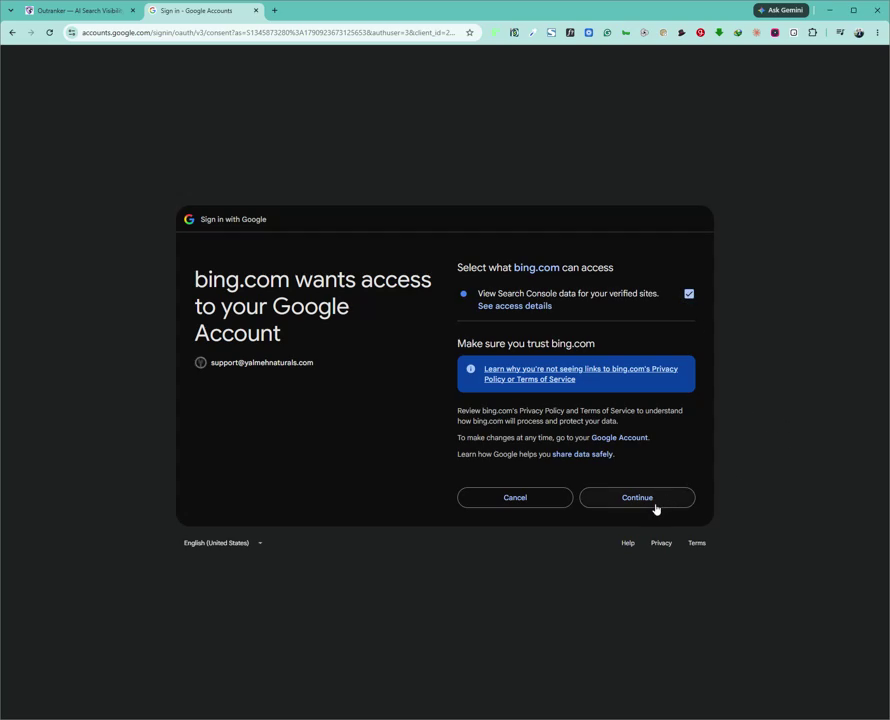
On the permission screen, check the box for View Search Console Data.
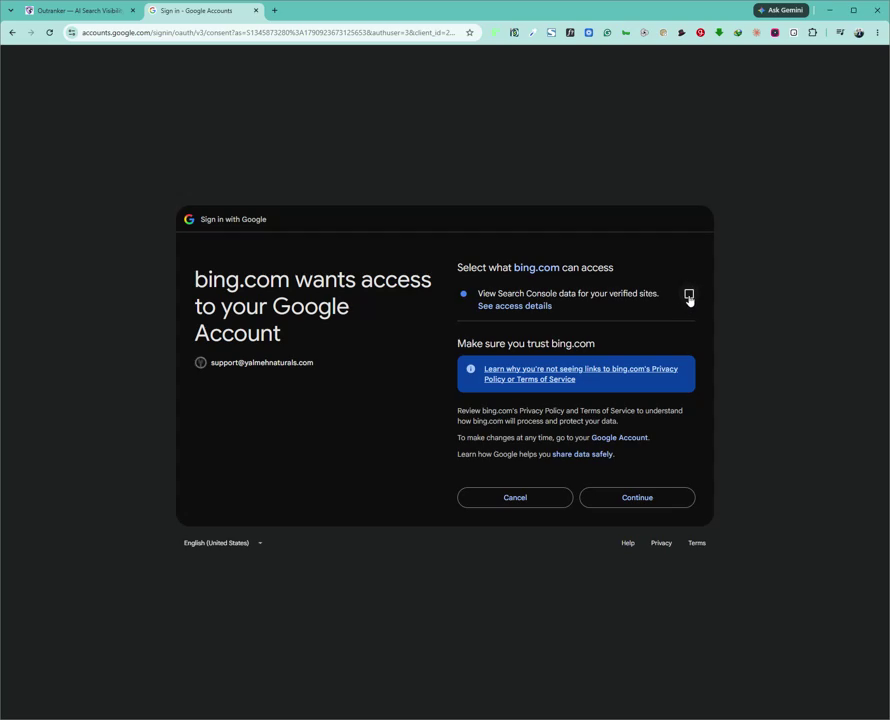
Then click Continue to grant access.
5. Complete the Import into Bing Webmaster Tools
Bing Webmaster Tools will now list the websites available from Google Search Console.
Select the relevant website and click Import.
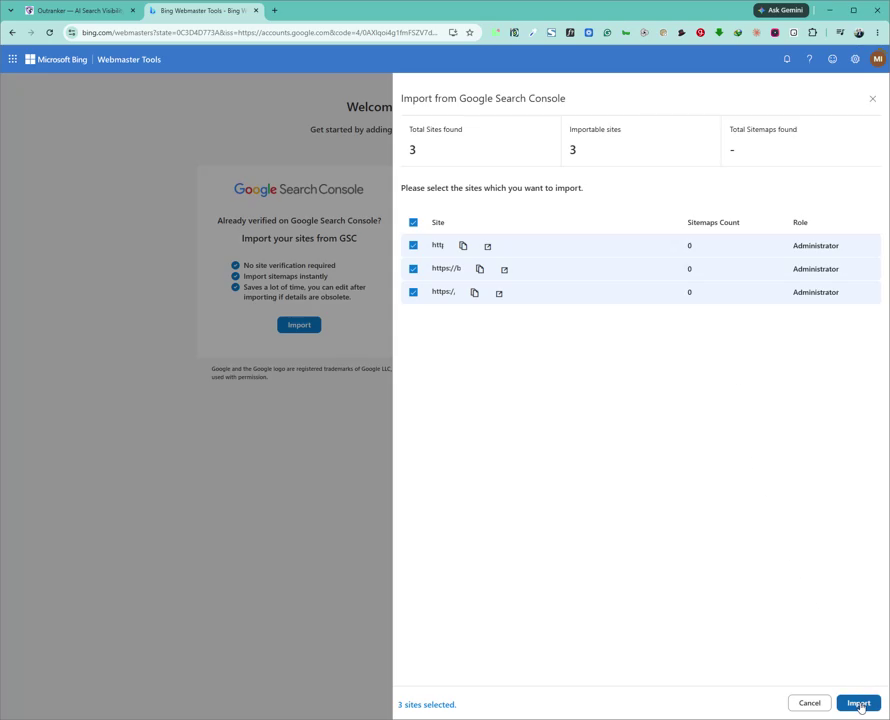
Wait a few seconds while the import completes. Once finished, you will be redirected to your Bing Webmaster Tools dashboard.
6. Generate a Bing Webmaster Tools API Key
From the Bing Webmaster Tools dashboard, click the gear icon at the top of the page to open settings.
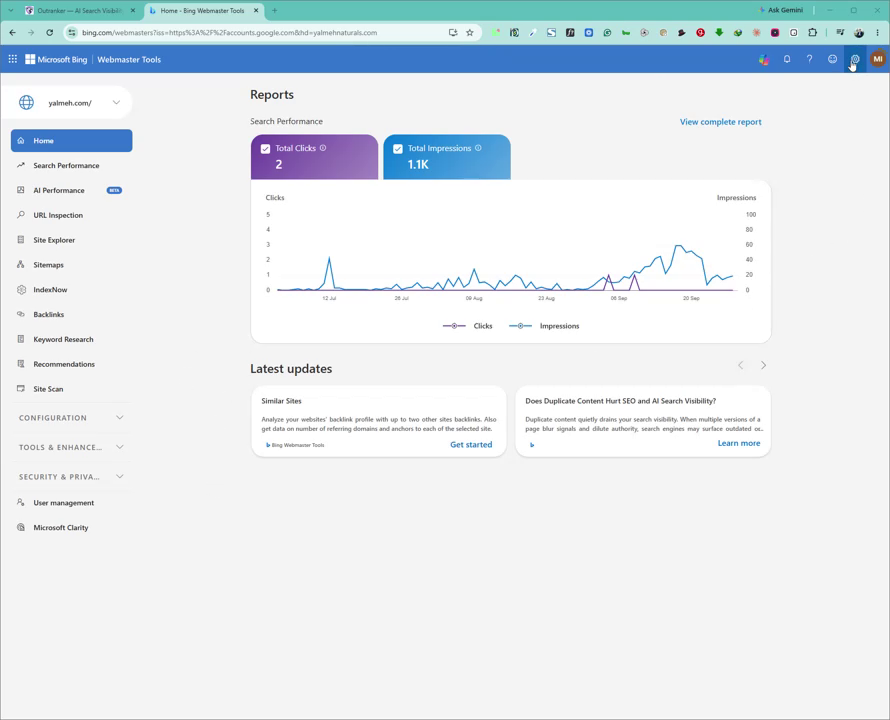
In the settings menu, click on API access.
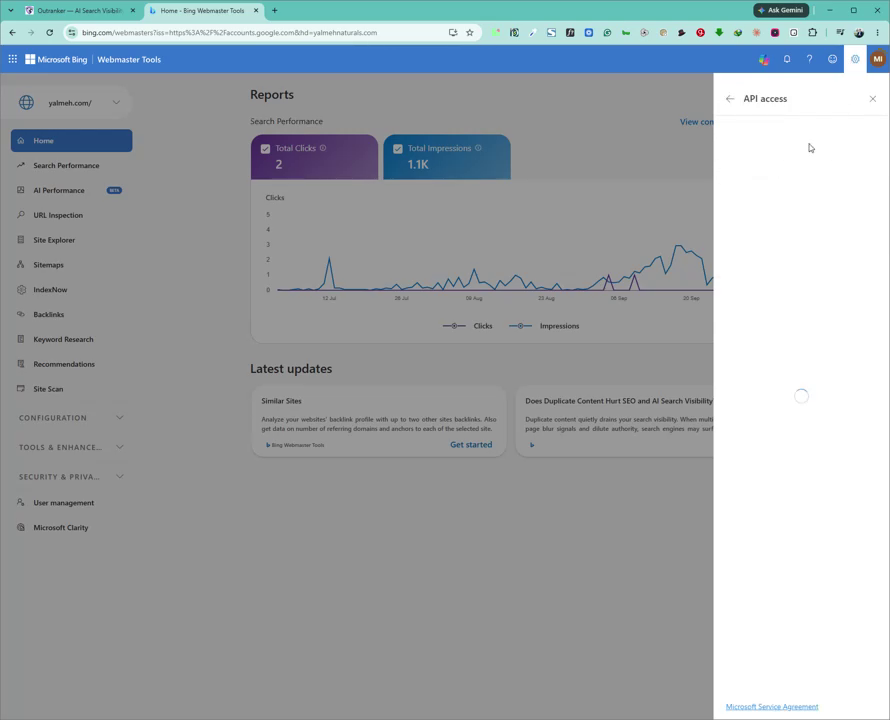
On the API access page, click API key.
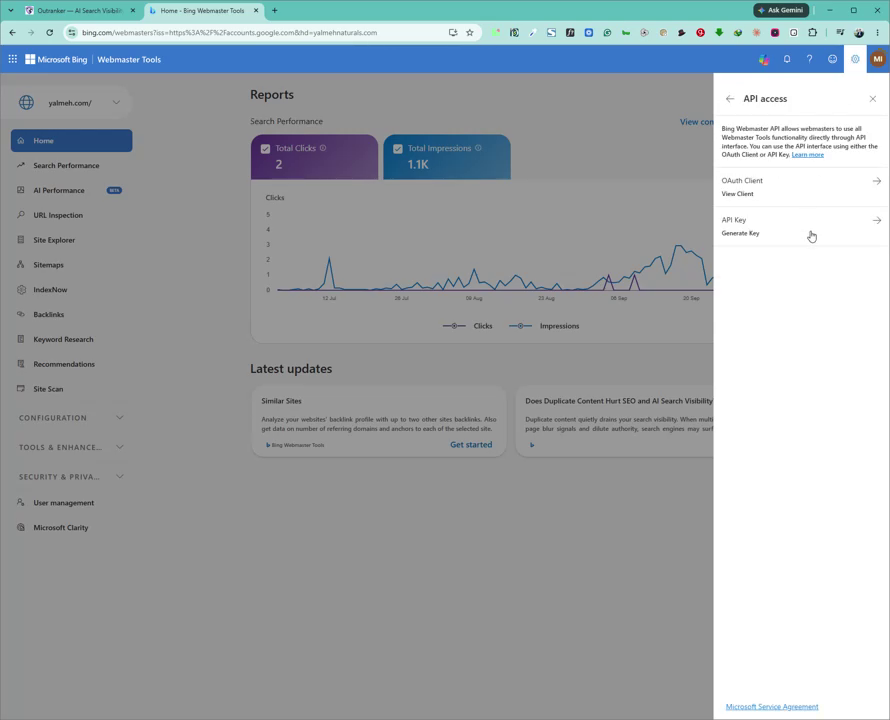
Then click Generate API key to create a new key.
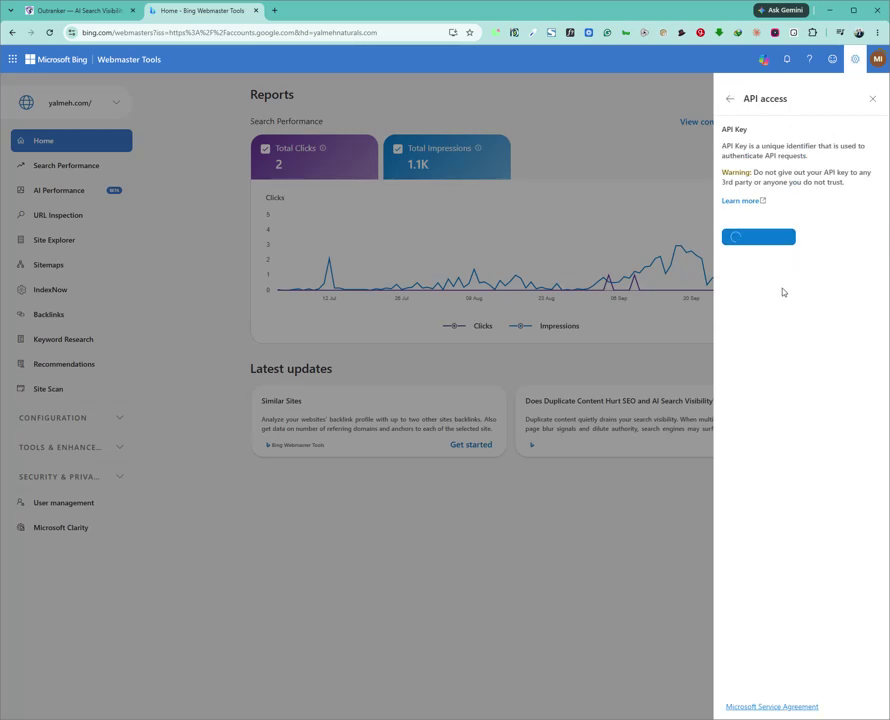
Wait a few seconds for the key to be generated, then click the Copy button to copy your new API key.
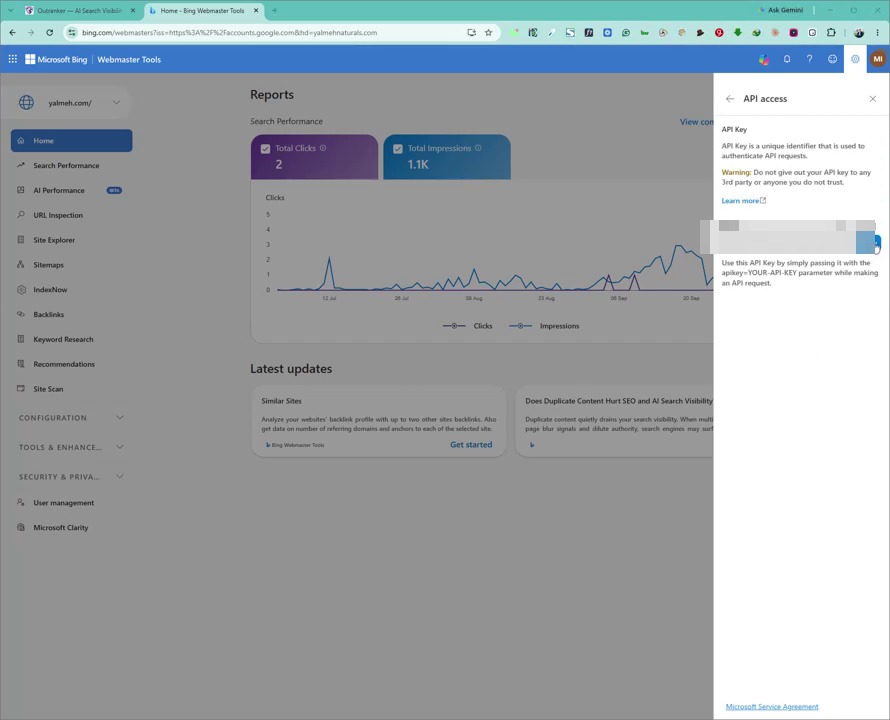
7. Connect Bing Webmaster Tools to Outranker
Return to Outranker and locate the Bing API key field in the Bing Webmaster Tools integration section.
Paste your copied API key into this field.
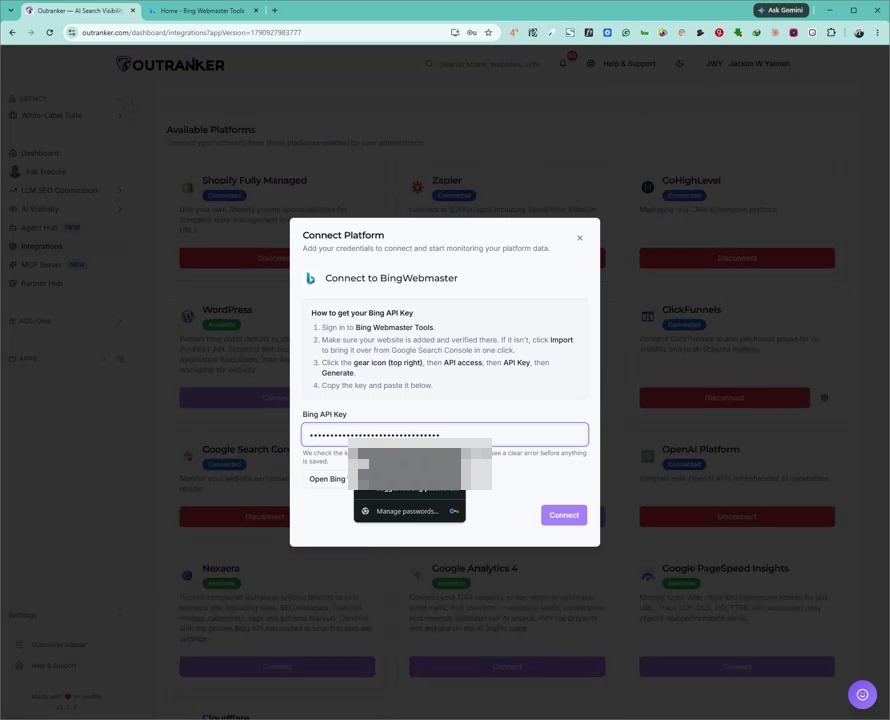
Click Connect to finalize the integration.
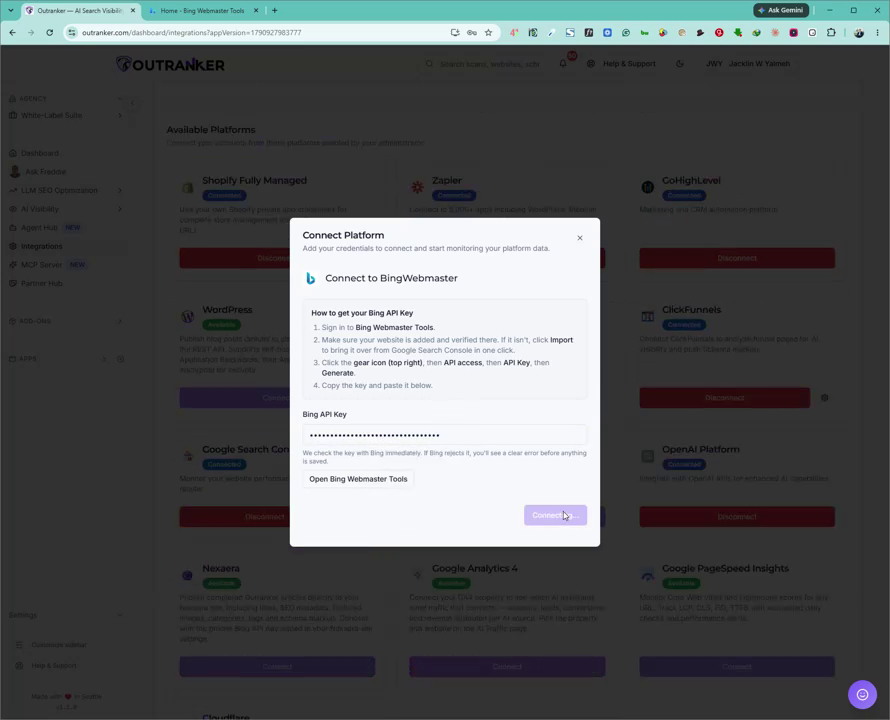
Your Bing Webmaster Tools account is now successfully connected to Outranker.
