
"In this video, you’ll learn how to connect ClickFunnels to the Outranker platform. Once the integration is complete, Outranker can work with your funnel pages for AI-powered analysis and Schema markup."
Go to www.outranker.com
1. Introduction
"Begin by signing in to your Outranker account. During this setup, you’ll authorize the correct ClickFunnels workspace and complete the connection so Outranker can access your funnel data."
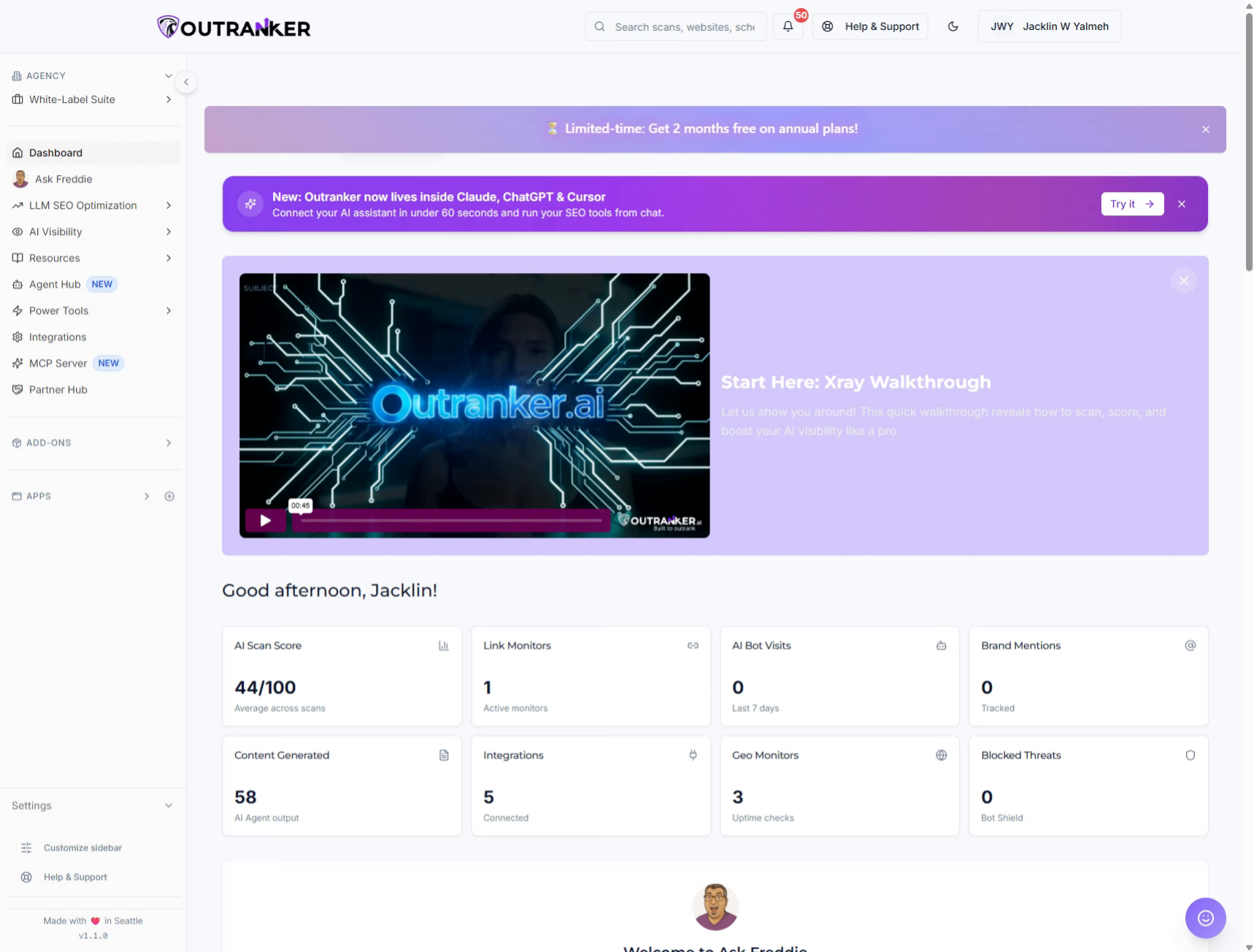
2. Access Integrations Section
"From the left-hand menu, click Integrations. This is where you can view and manage the external platforms connected to your Outranker account."
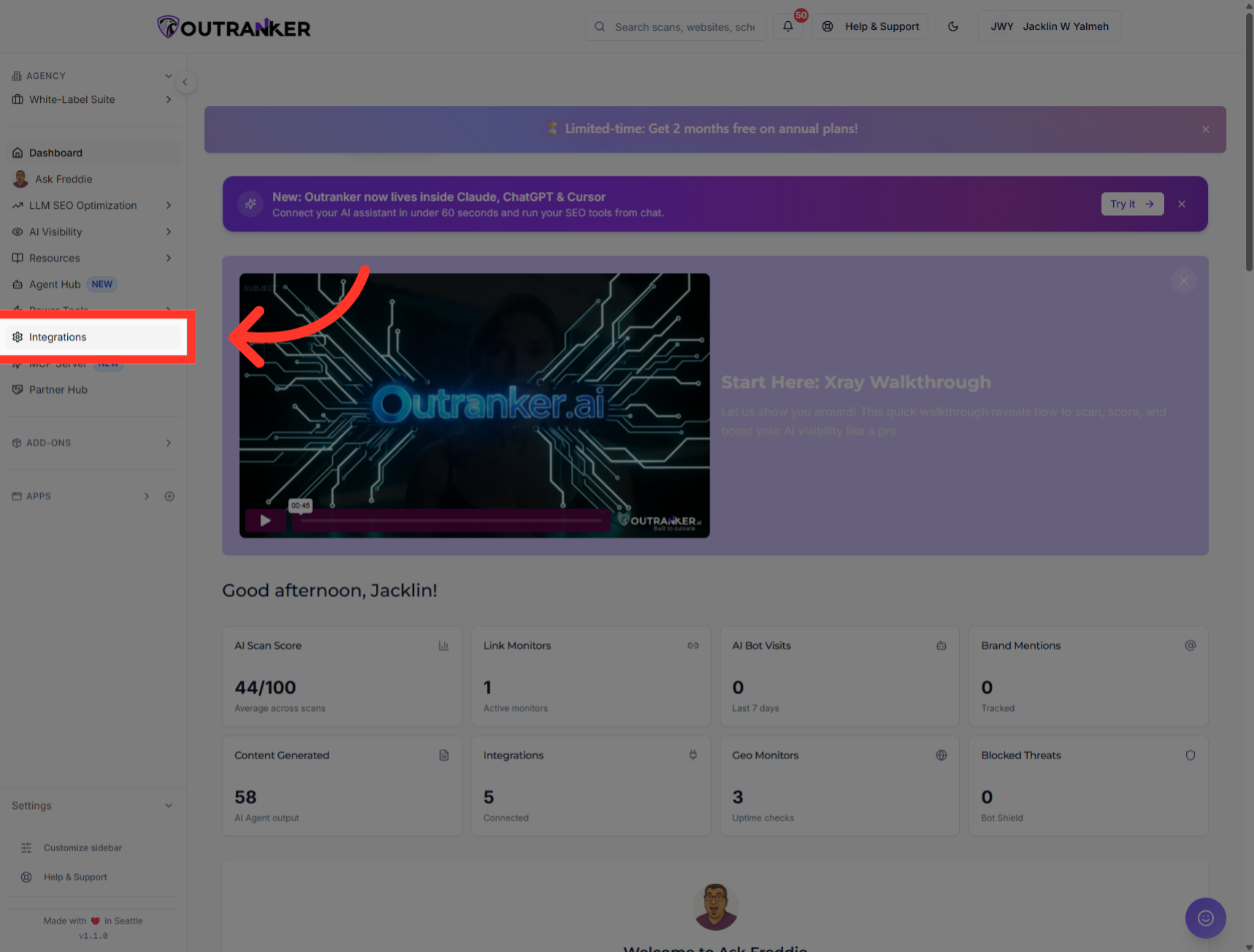
3. Initiate Connection Setup
"On the Integrations page, locate ClickFunnels under the available platforms. Click Connect to open the ClickFunnels connection window."
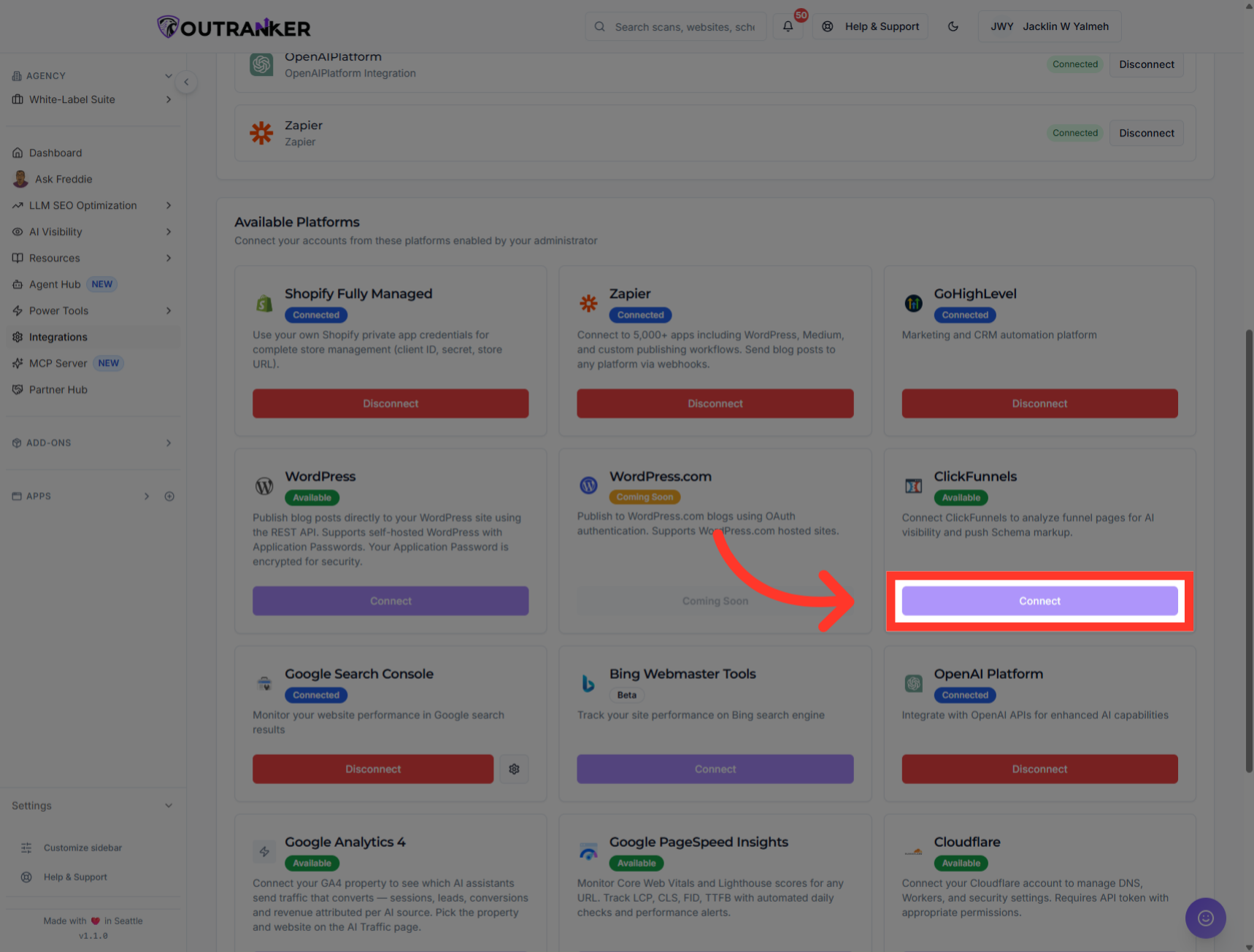
4. Open Complete Integration Guide
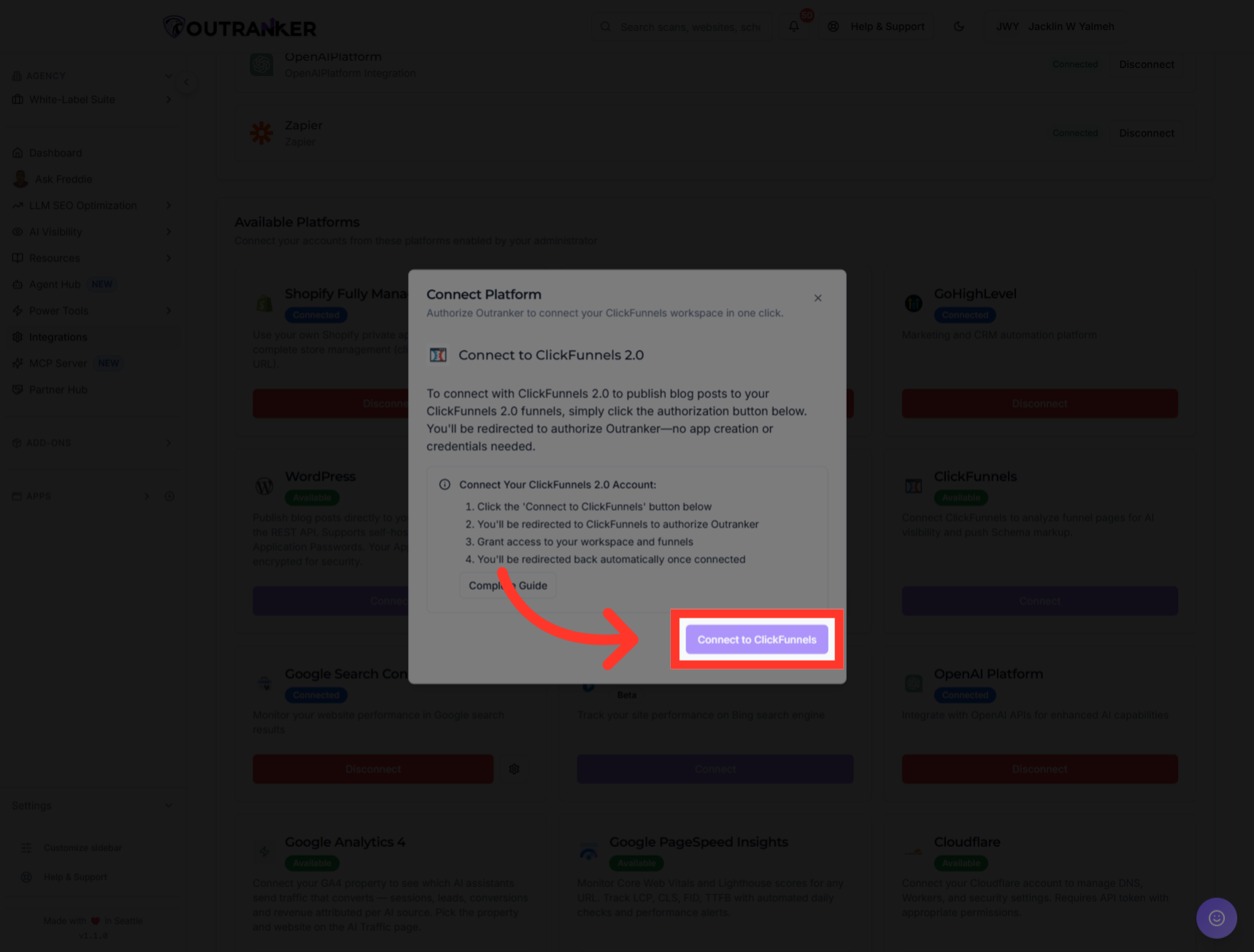
"Before continuing, click Complete Guide to review the detailed setup instructions. This is helpful if you need additional guidance or want to confirm the requirements for the integration."
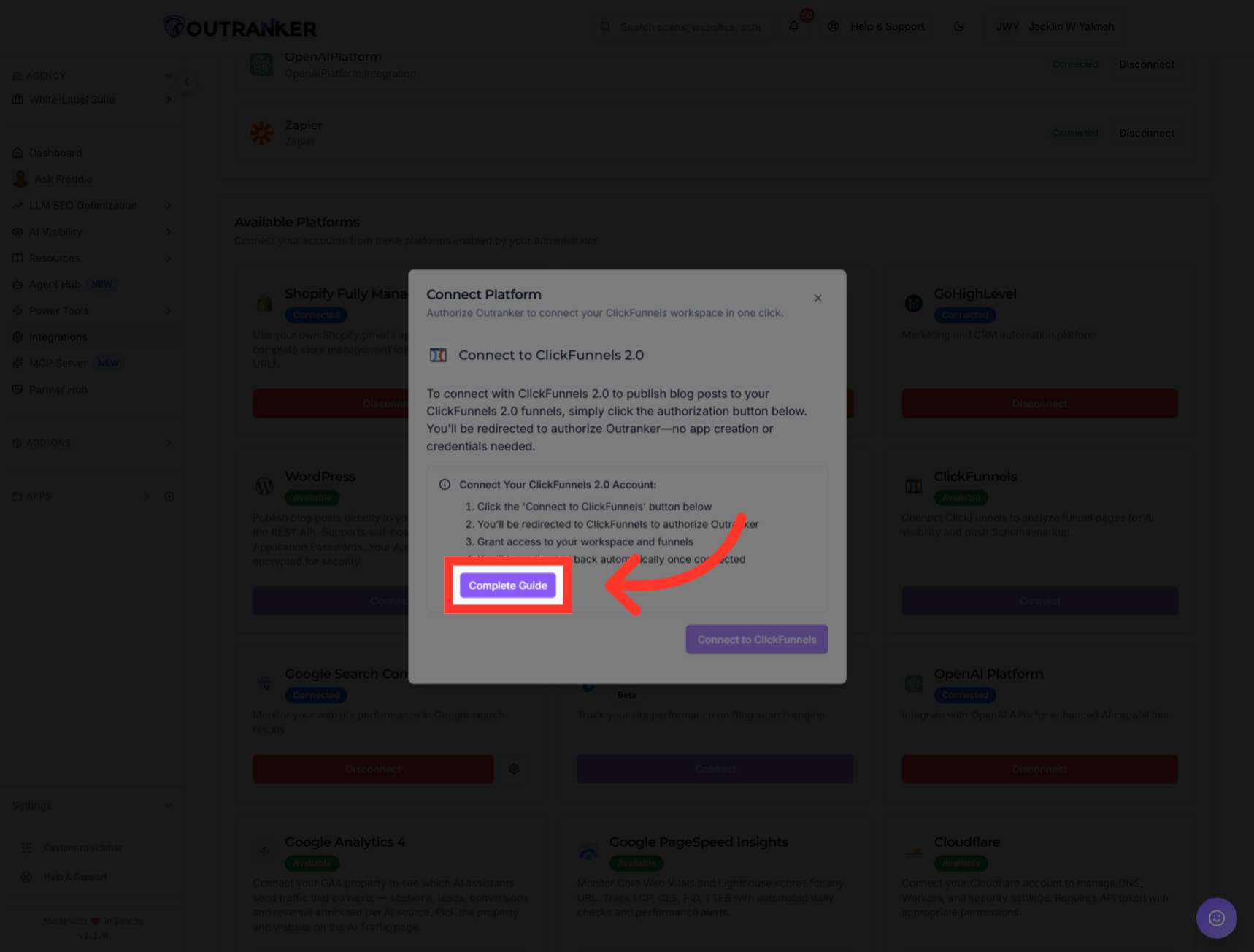
5. Start ClickFunnels Connection
"When you’re ready, click Connect to ClickFunnels. You’ll be redirected to ClickFunnels to continue the authorization process."
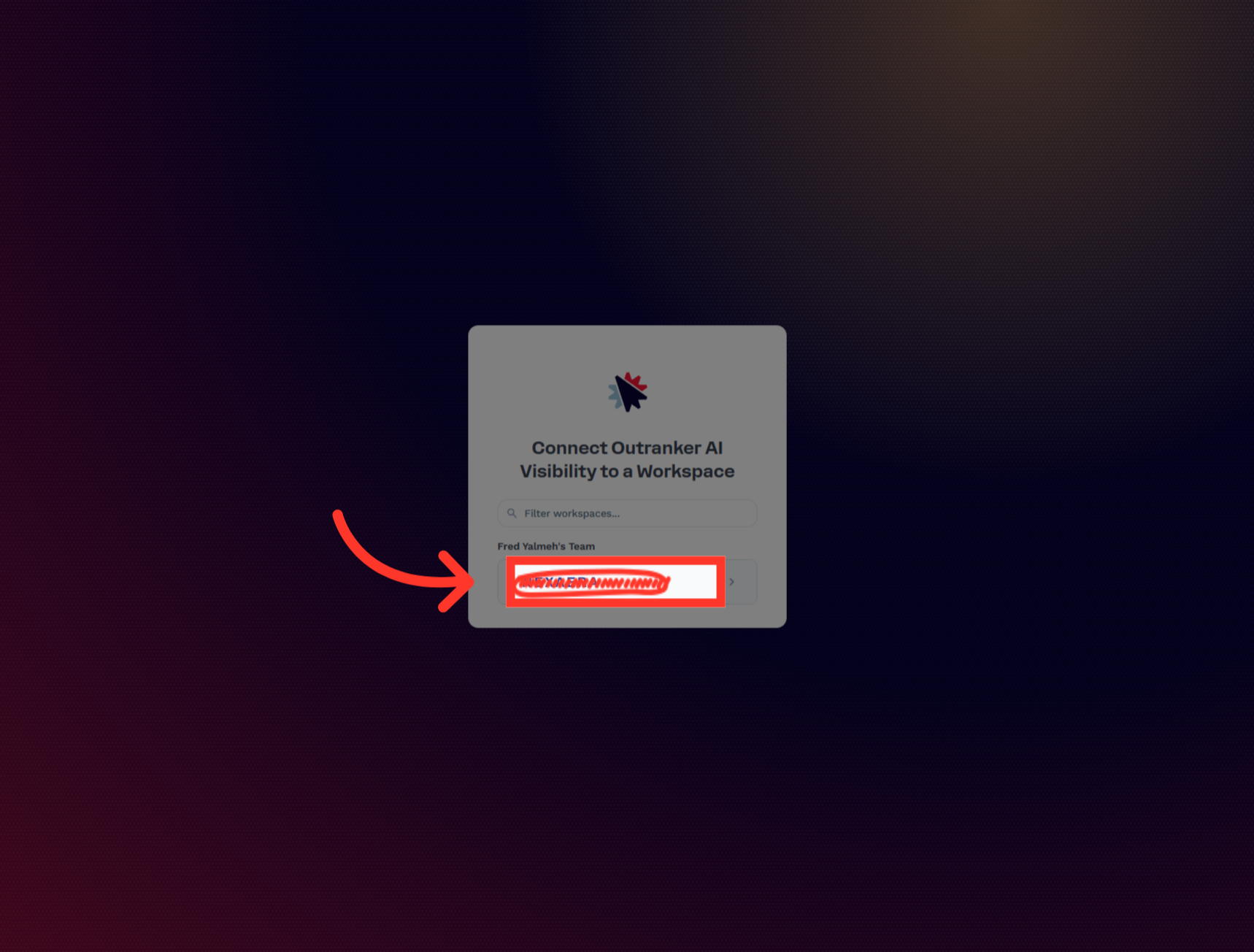
6. Select ClickFunnels Account
"Choose the ClickFunnels workspace that contains the funnels you want to connect. In this example, the selected workspace is NexaEra."
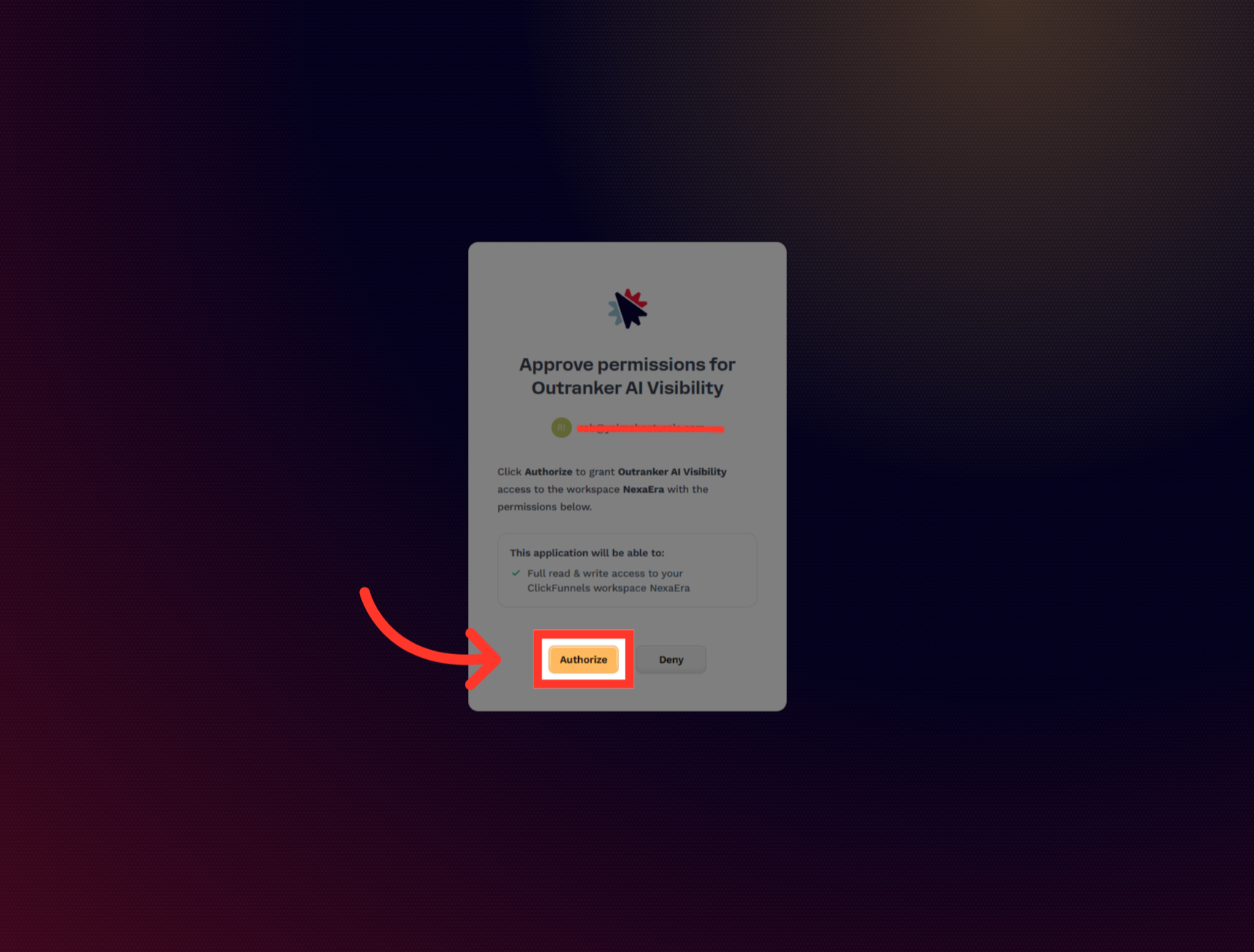
7. Authorize ClickFunnels Access
"Review the requested permissions for Outranker AI Visibility. Then click Authorize to approve access to the selected ClickFunnels workspace."
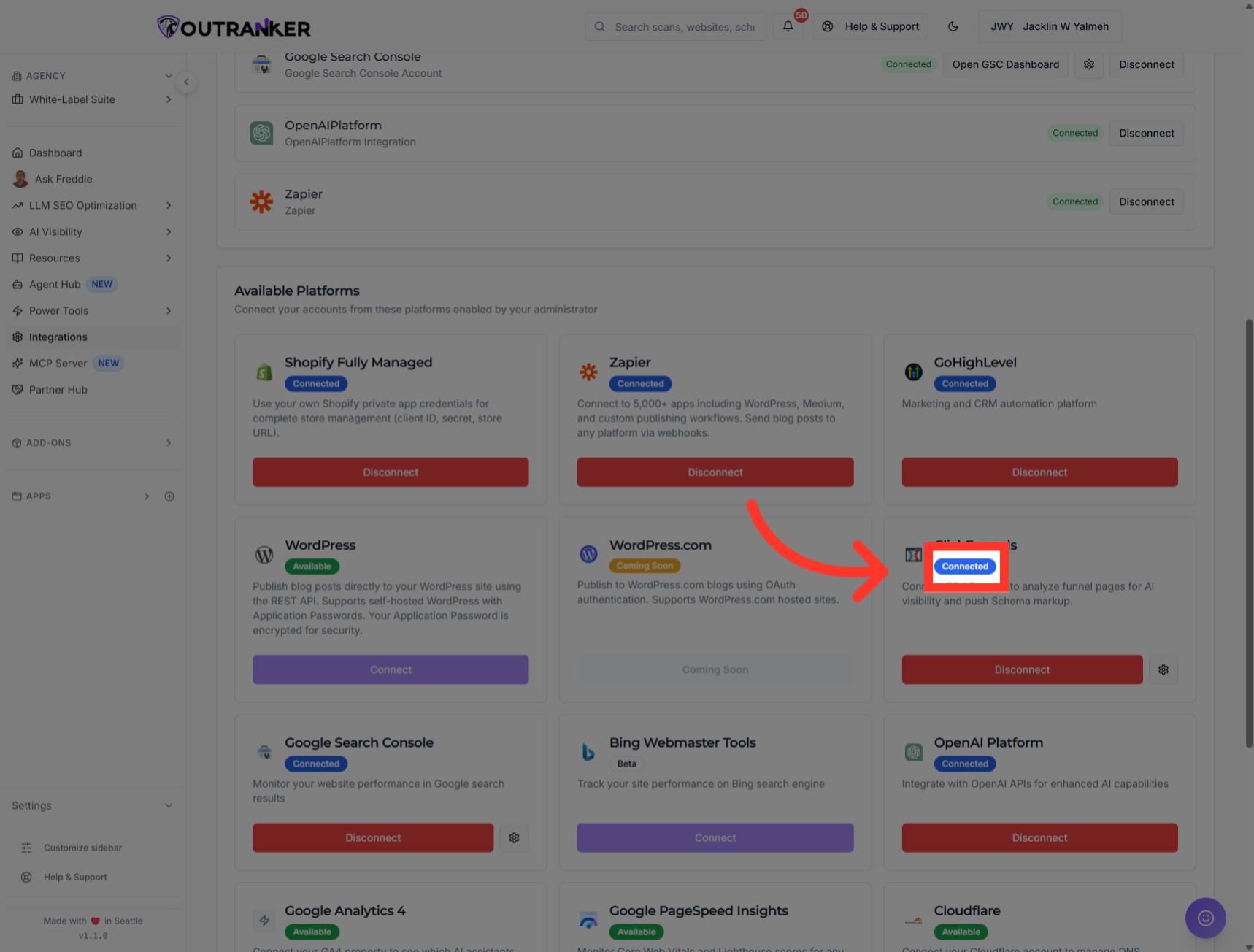
8. Complete ClickFunnels Integration
"After authorization, you’ll return to the Outranker Integrations page. Find ClickFunnels and confirm that the status now shows Connected. This confirms that the integration was completed successfully."
"You’ve now successfully connected ClickFunnels to Outranker. Your authorized workspace is ready for AI-driven funnel analysis and Schema markup. From here, you can begin reviewing and optimizing your funnel pages inside the platform."
