
This tutorial guides you through connecting your WordPress site to the Outranker AI SEO Optimization Platform.
Go to www.outranker.com
1. Introduction
“In this video, you’ll learn how to connect your WordPress website to the Outranker platform.” “This integration allows Outranker to work more closely with your website so you can manage optimization tasks more efficiently.” “We’ll walk through the full setup, including credentials, user access, and the application password needed to complete the connection.”
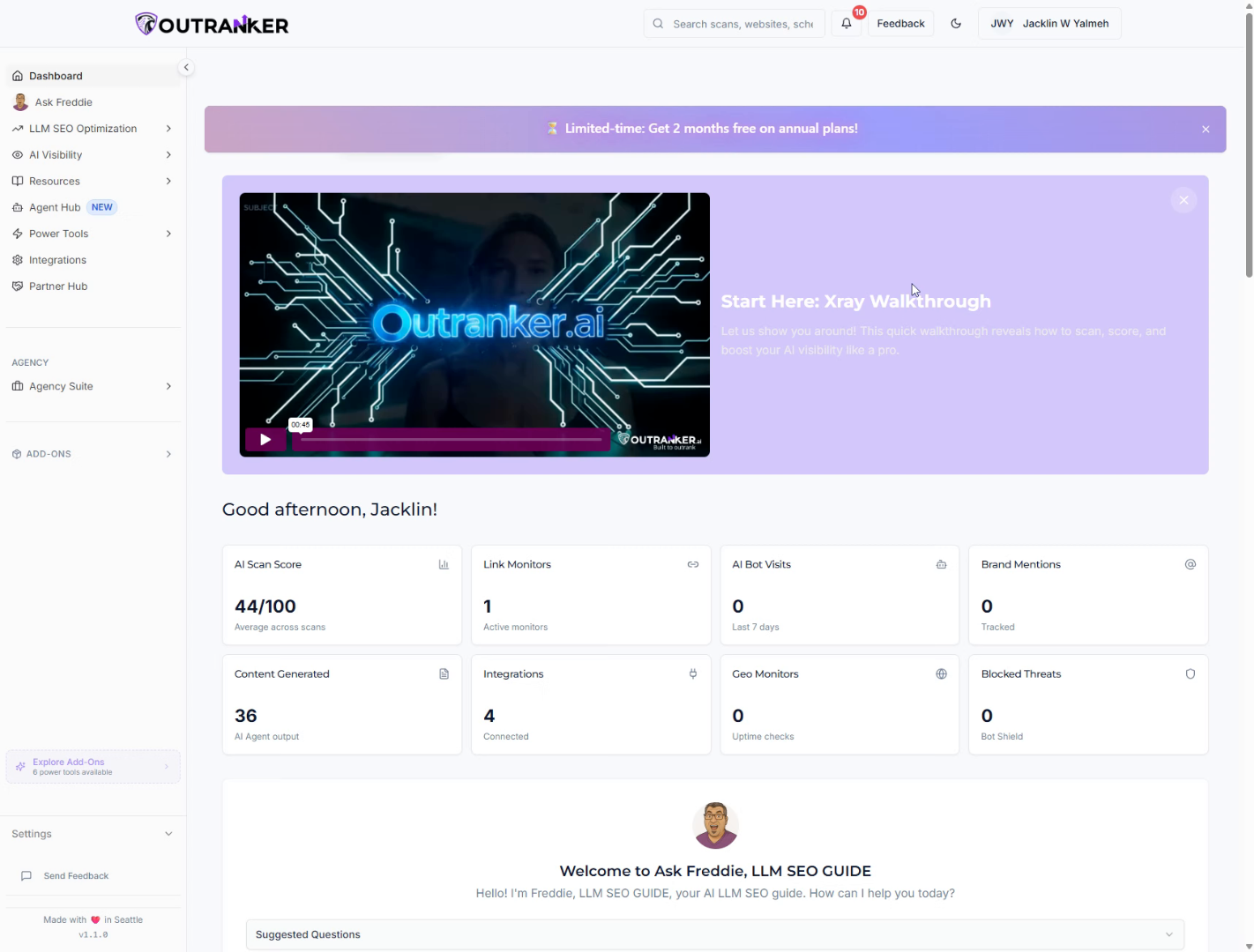
2. Access Integrations Section
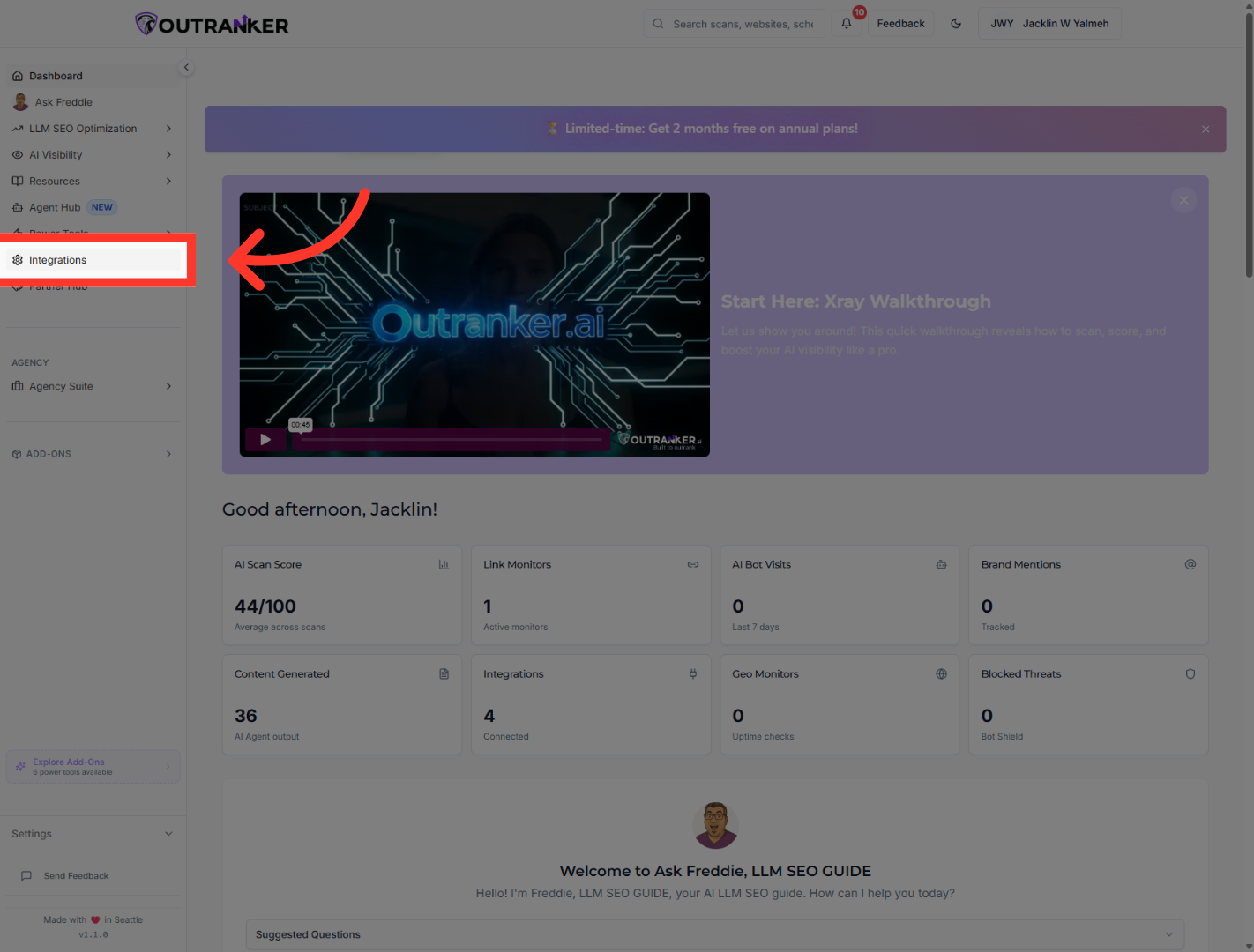
“Start from your Outranker dashboard and click Integrations.”
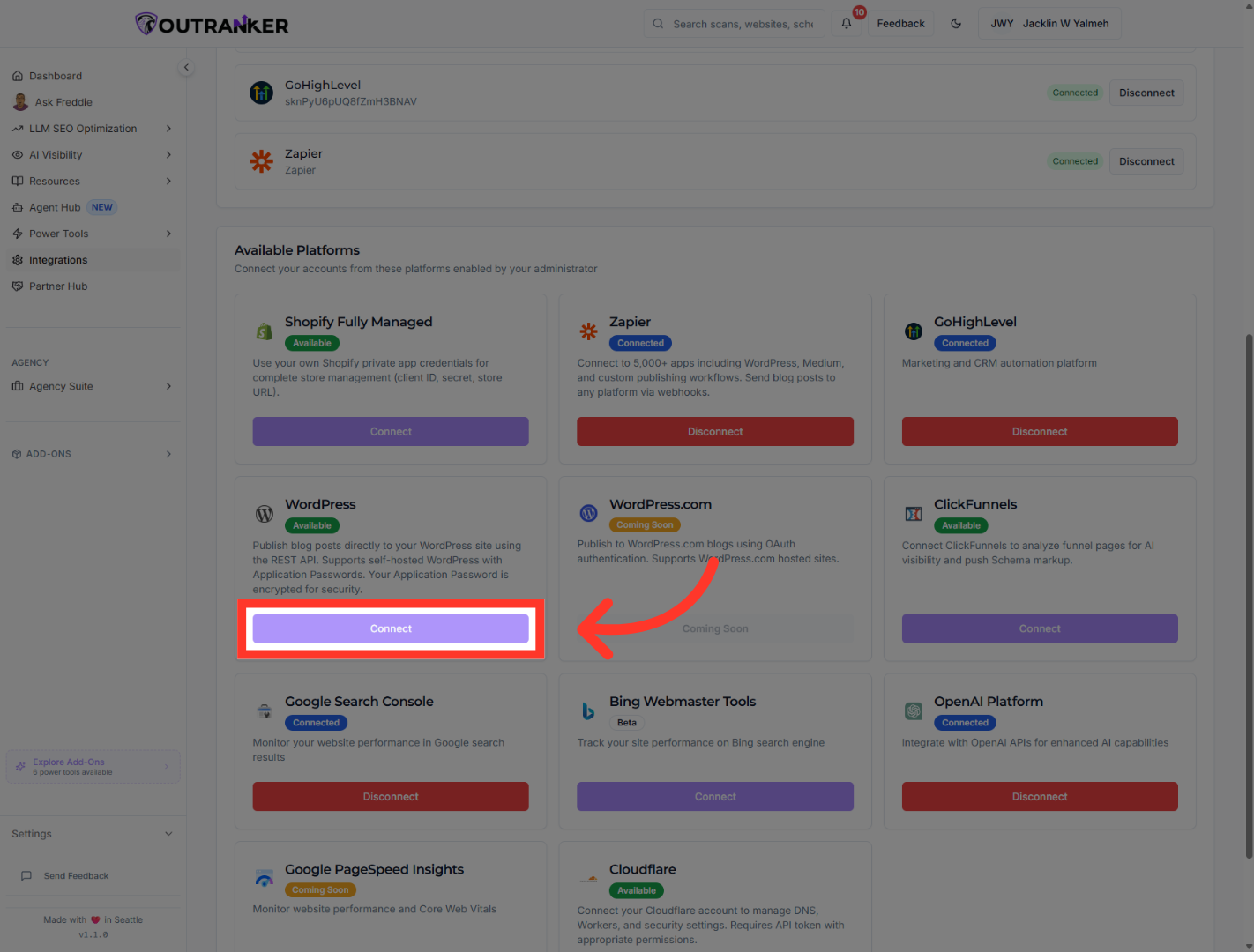
3. Initiate Connection Setup
“Inside the available platforms section, find WordPress and click Connect to begin the setup.” “This opens the connection window where you’ll enter your site details.”
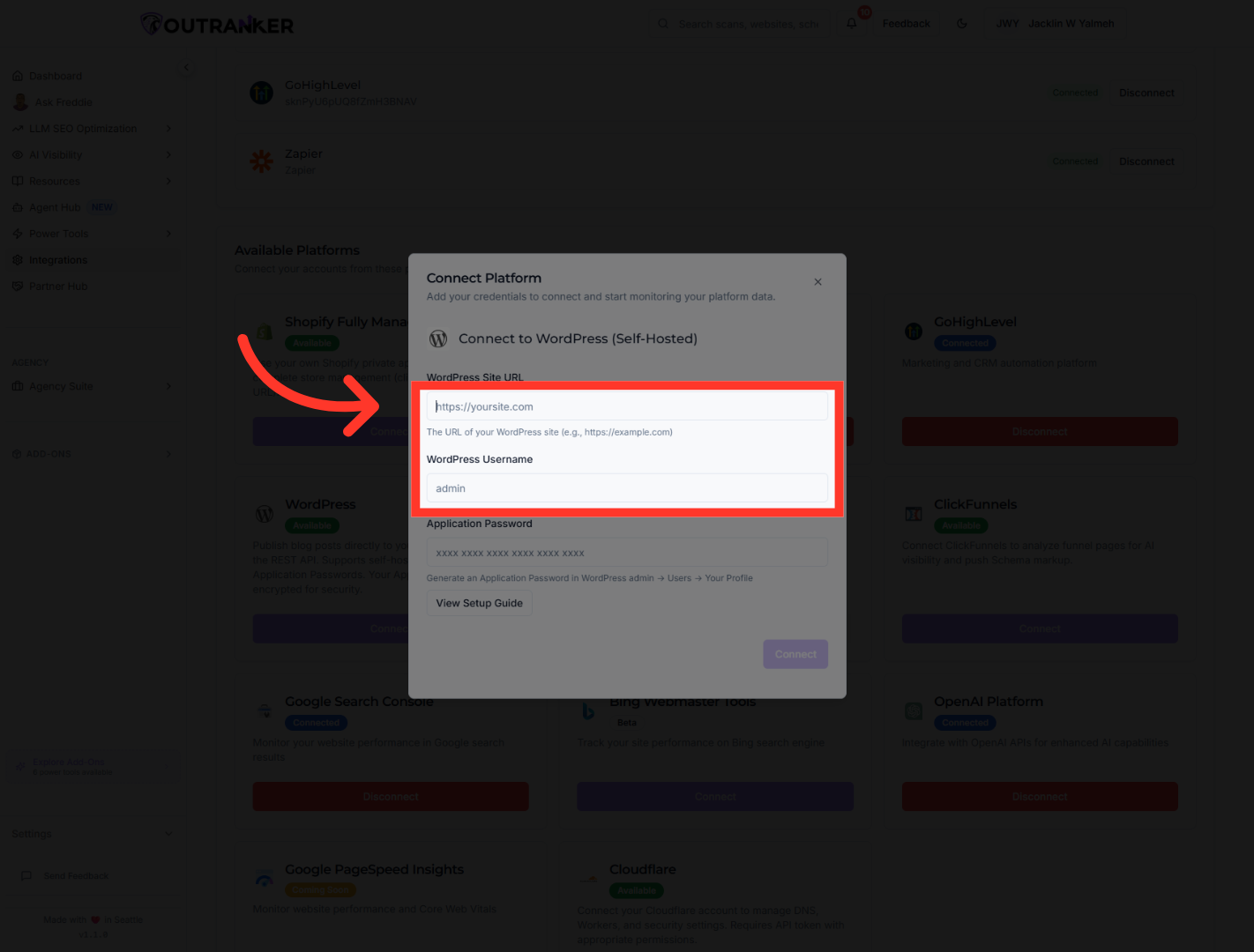
4. Select WordPress URL Field
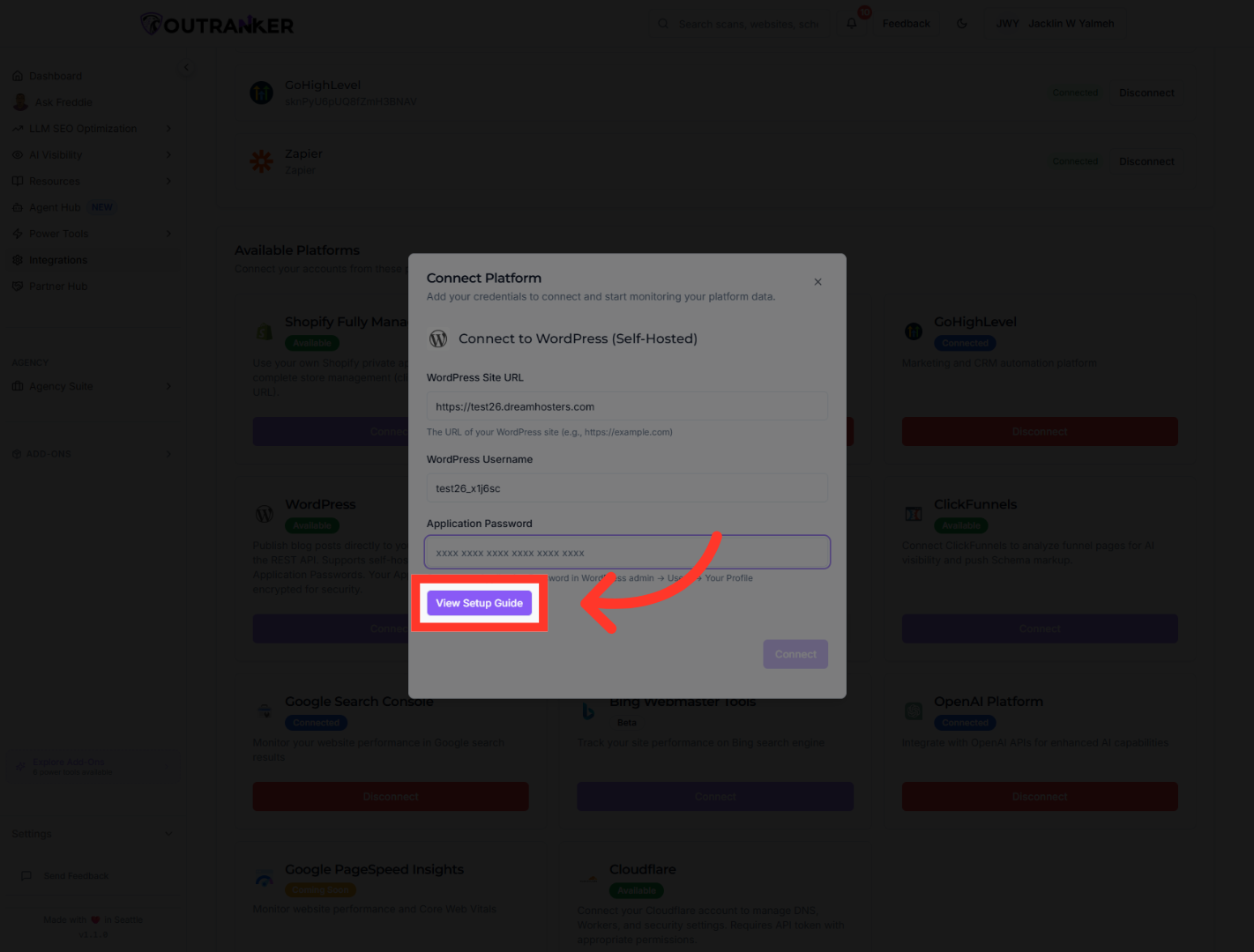
“In the connection window, enter your WordPress Site URL.” “Then enter your WordPress Username.” “These details tell Outranker which WordPress site to connect to and which user account will be used for authentication.”
5. Open Setup Guide
“Before completing the connection, click View Setup Guide.” “This guide walks you through the WordPress-side setup needed for a secure integration.” “It’s especially useful if you still need to create a dedicated WordPress user or generate an application password.”
6. Open Users Section
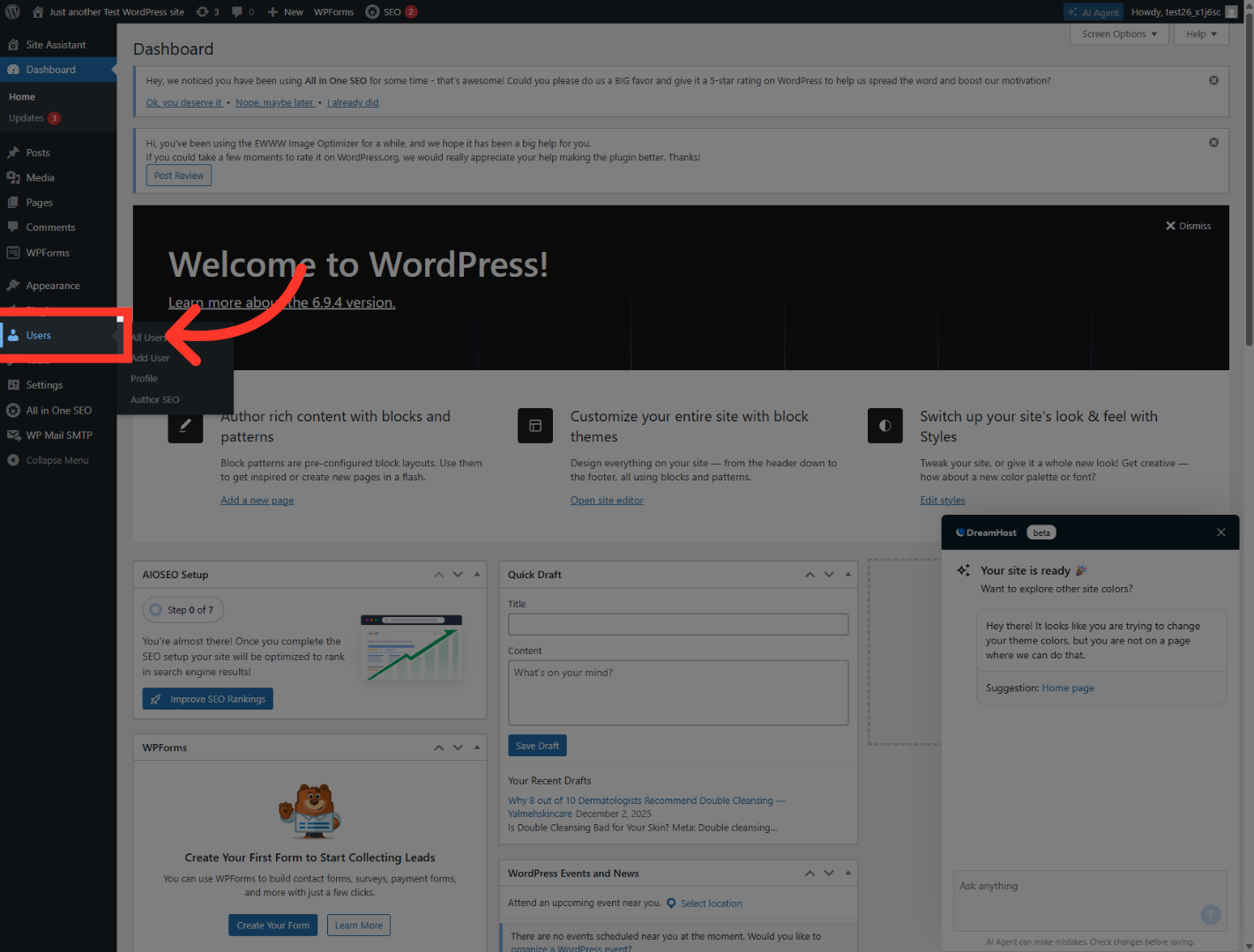
“Next, move into your WordPress dashboard.” “Open the Users section to review existing accounts.” “If needed, click Add User to create a dedicated user for Outranker.” “Using a separate user account is a cleaner and more secure way to manage this integration.”
7. Select Username Field
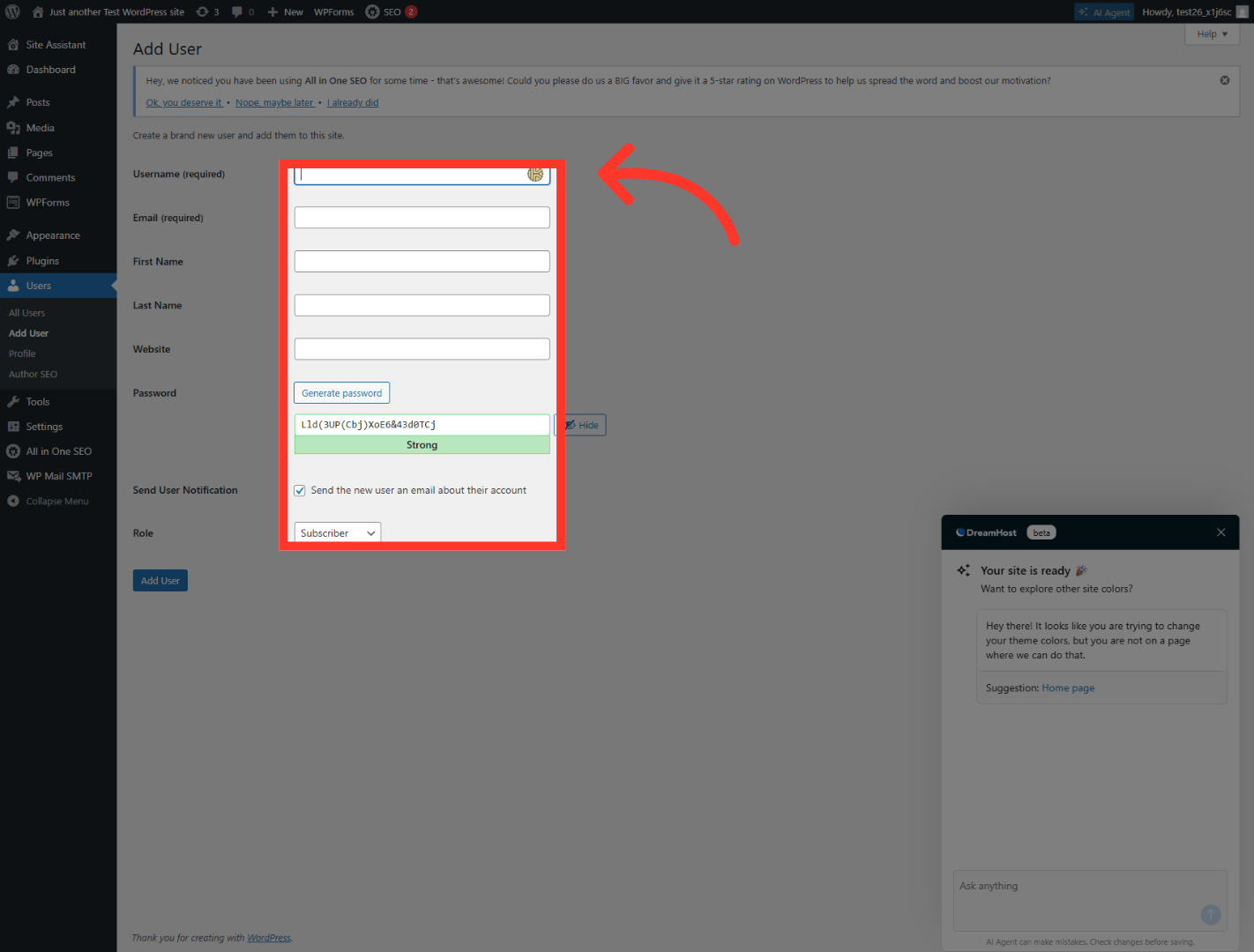
“Now enter the details for the new WordPress user.” “This includes the username, email address, name fields, website URL, and password.” “Then choose the appropriate user role based on the level of access needed.” “Once everything looks correct, click Add User to create the account.”
8. Edit User Details
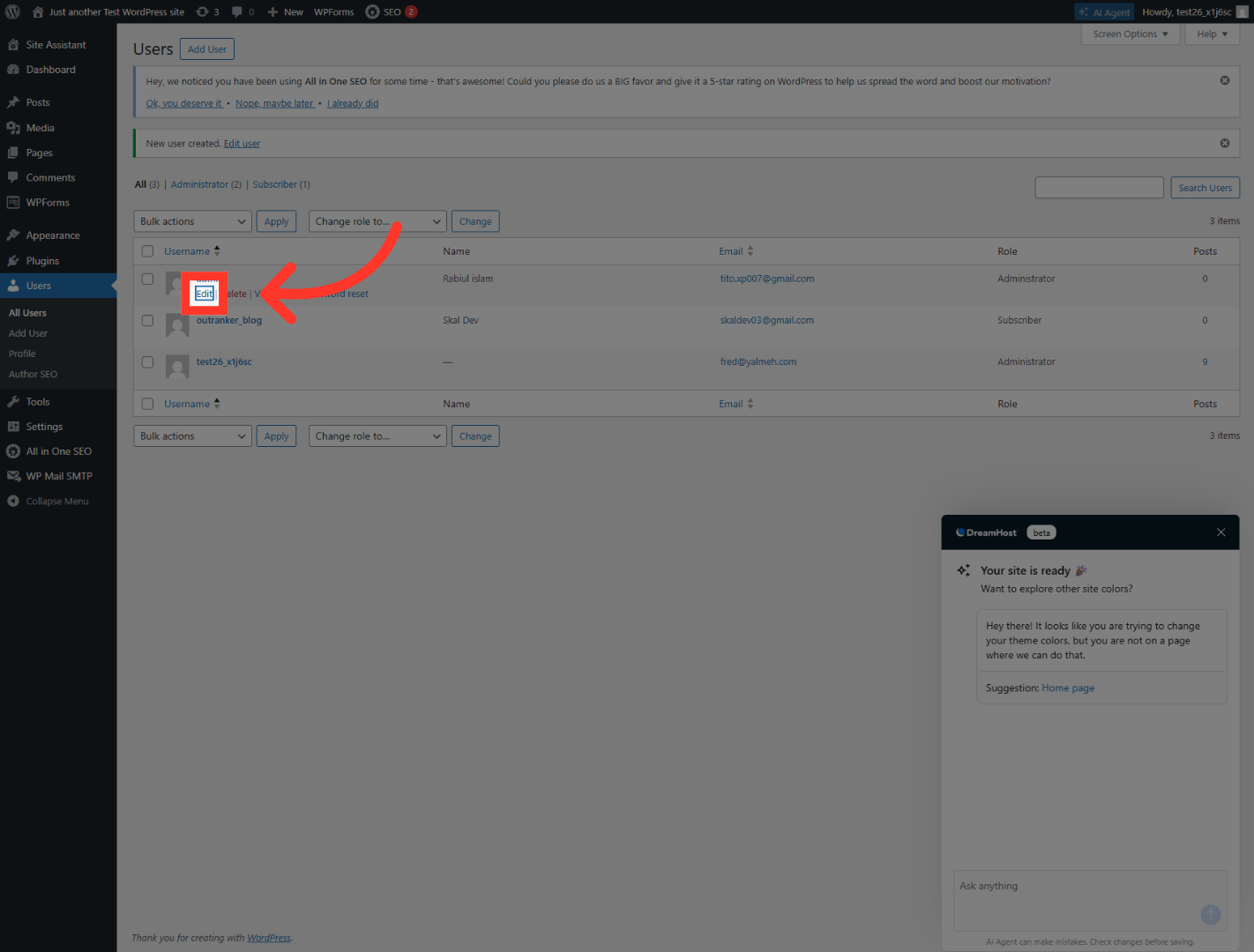
“After the user is created, open that user’s profile and click Edit.”
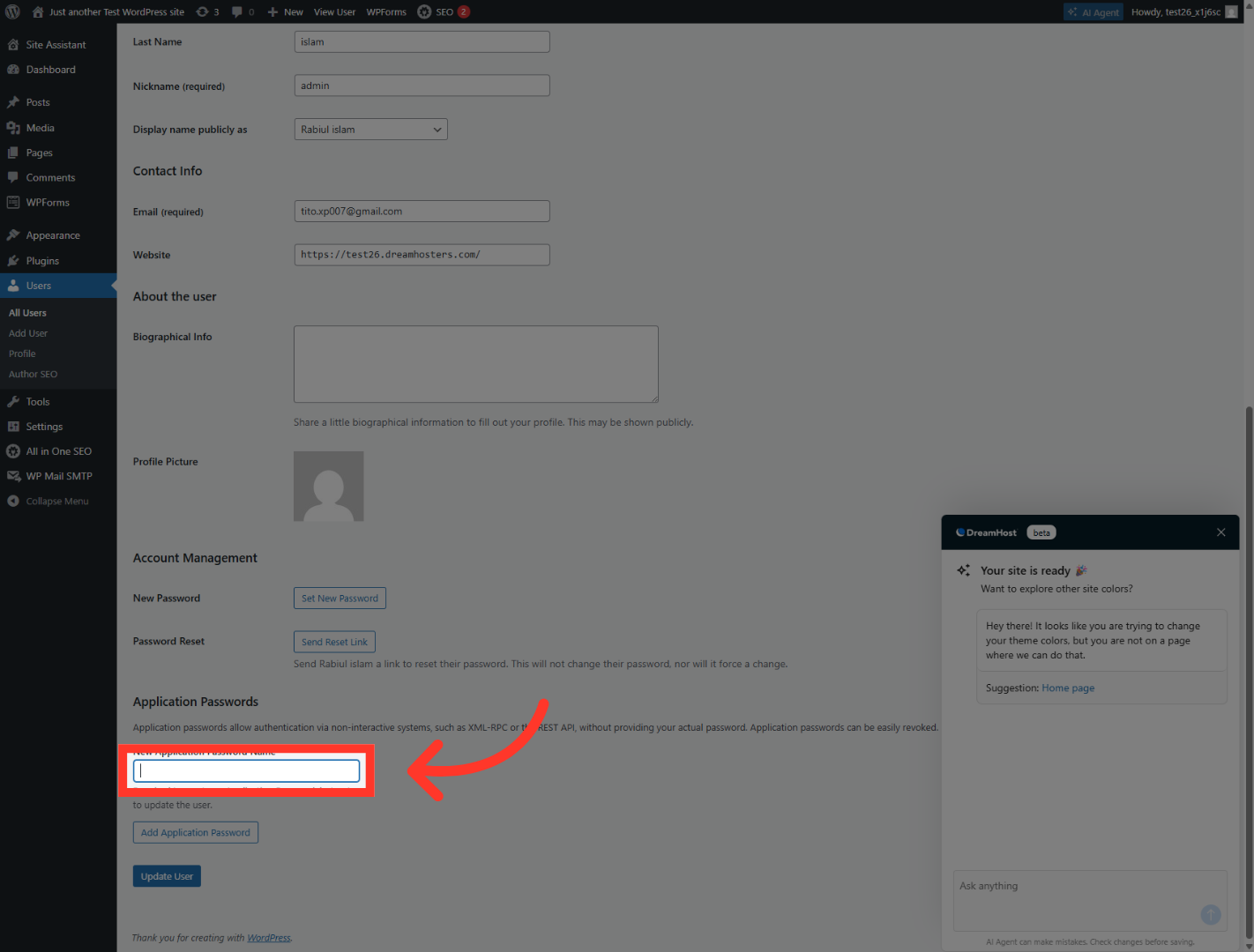
9. Name Application Password
“In the application password section, enter a clear name like Outranker.AI.”
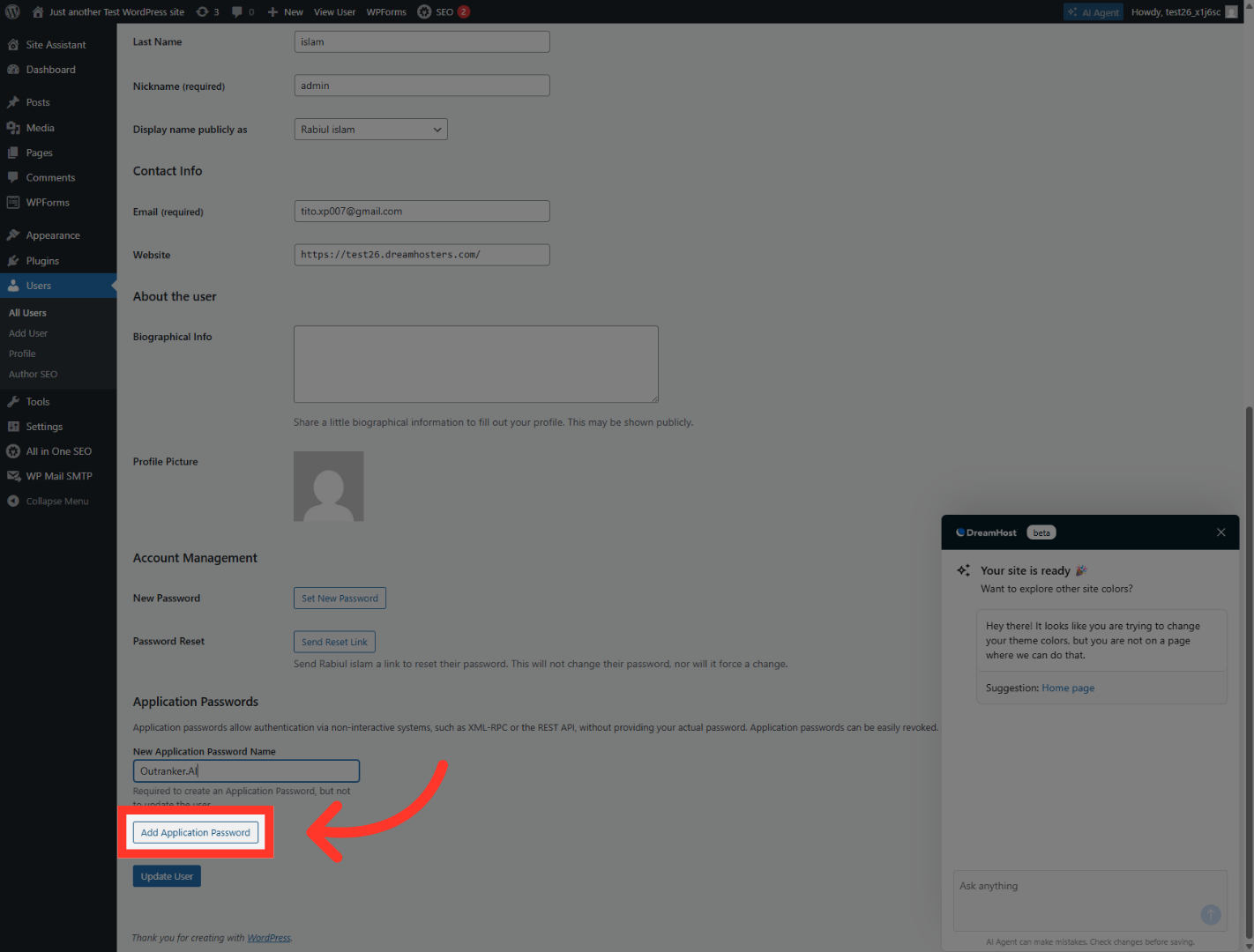
10. Add Application Password
Click "Add Application Password" to generate the password for integration.
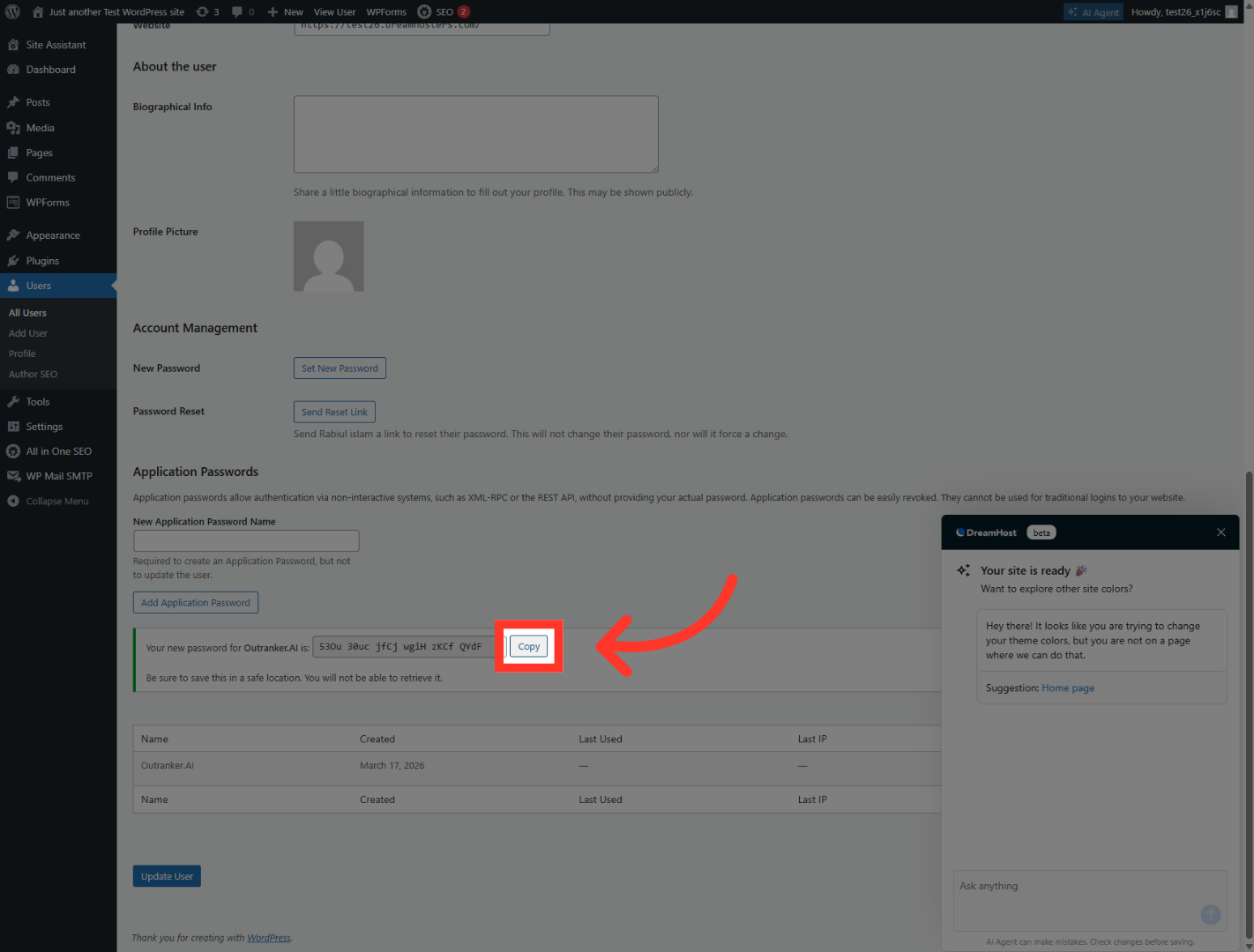
11. Copy Application Password
“Then click Add Application Password to generate a password specifically for this integration.” “Once it appears, copy the application password and save the user changes.”
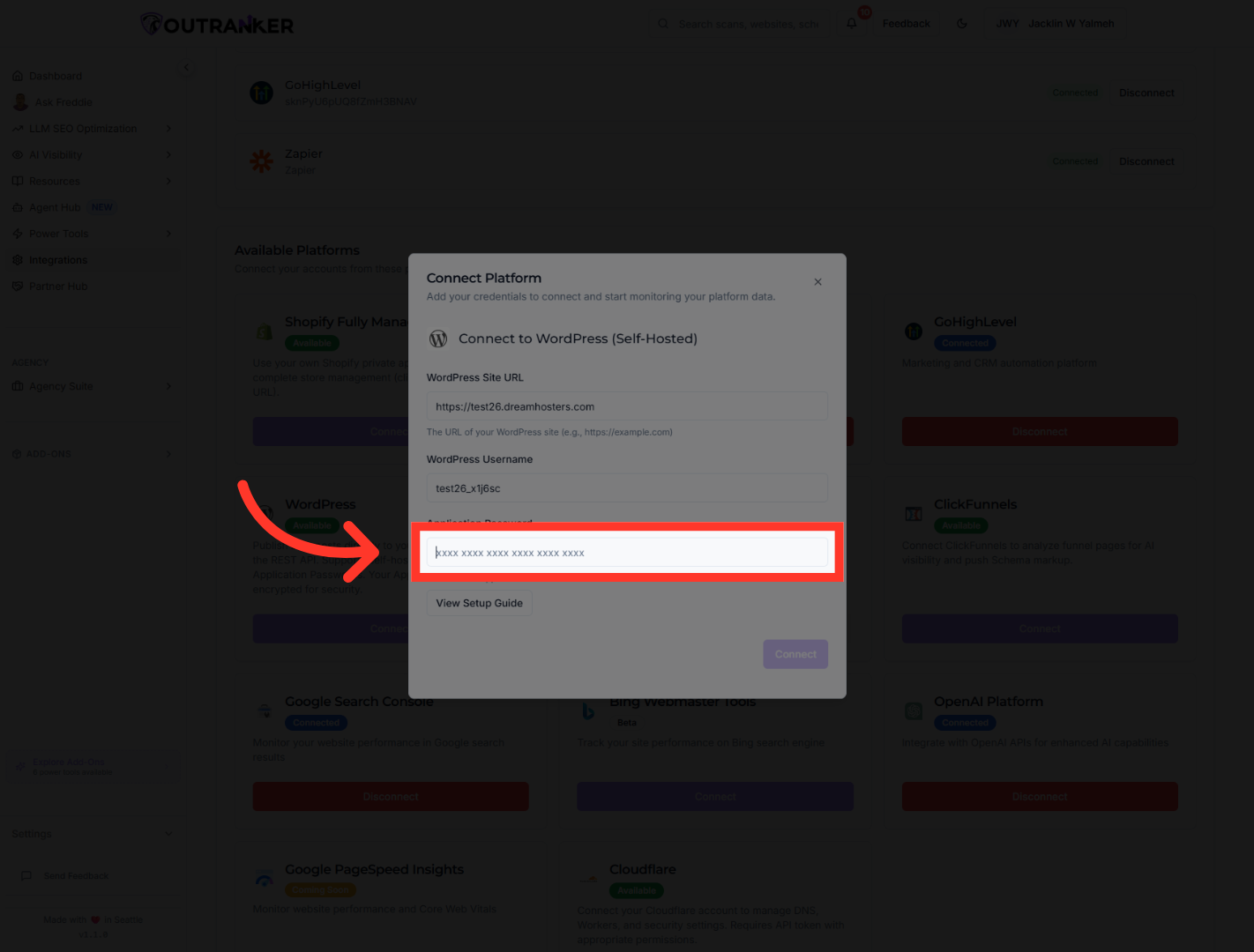
12. Access Application Password Field
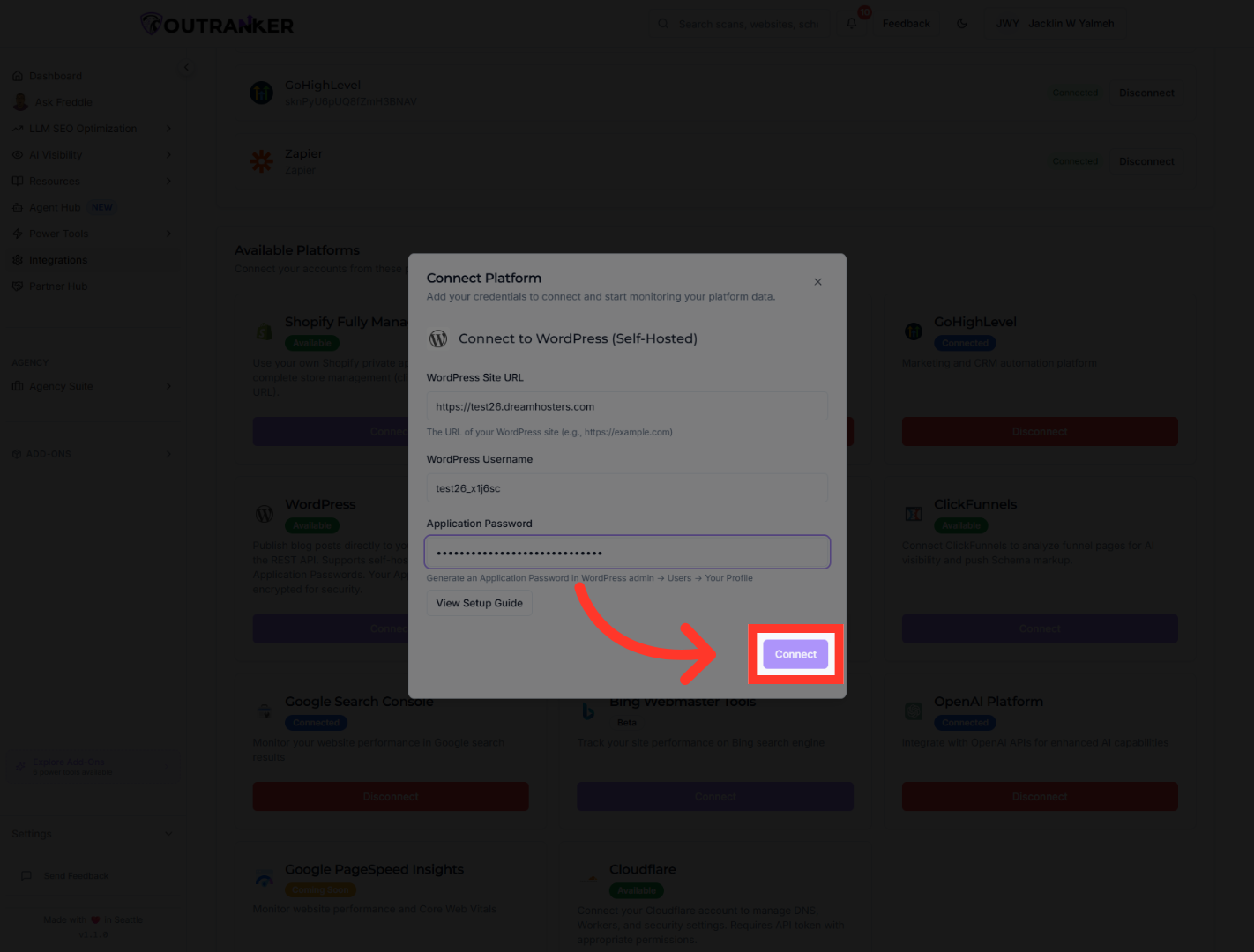
“Now return to Outranker.” “Paste the generated application password into the Application Password field.”
13. Complete Connection
“Then click Connect to complete the WordPress integration.” “Once connected, your site is ready to work with Outranker through the authenticated WordPress setup.”
“You’ve now connected your WordPress website to the Outranker platform.” “By creating the right user access and using an application password, you’ve completed a secure setup that allows Outranker to work with your WordPress site more effectively.” “In the next video, we’ll walk through how to use this integration for content publishing and optimization workflows.”
