
This tutorial explains how to effectively use the Scan history feature in the Outranker platform.
Go to www.outranker.ai
1. Introduction
“In this video, you’ll learn how to use Scan History in Outranker to track progress, review past scans, and deploy optimizations effectively.” “Scan History helps you move from one-time analysis to ongoing AI and SEO optimization.”
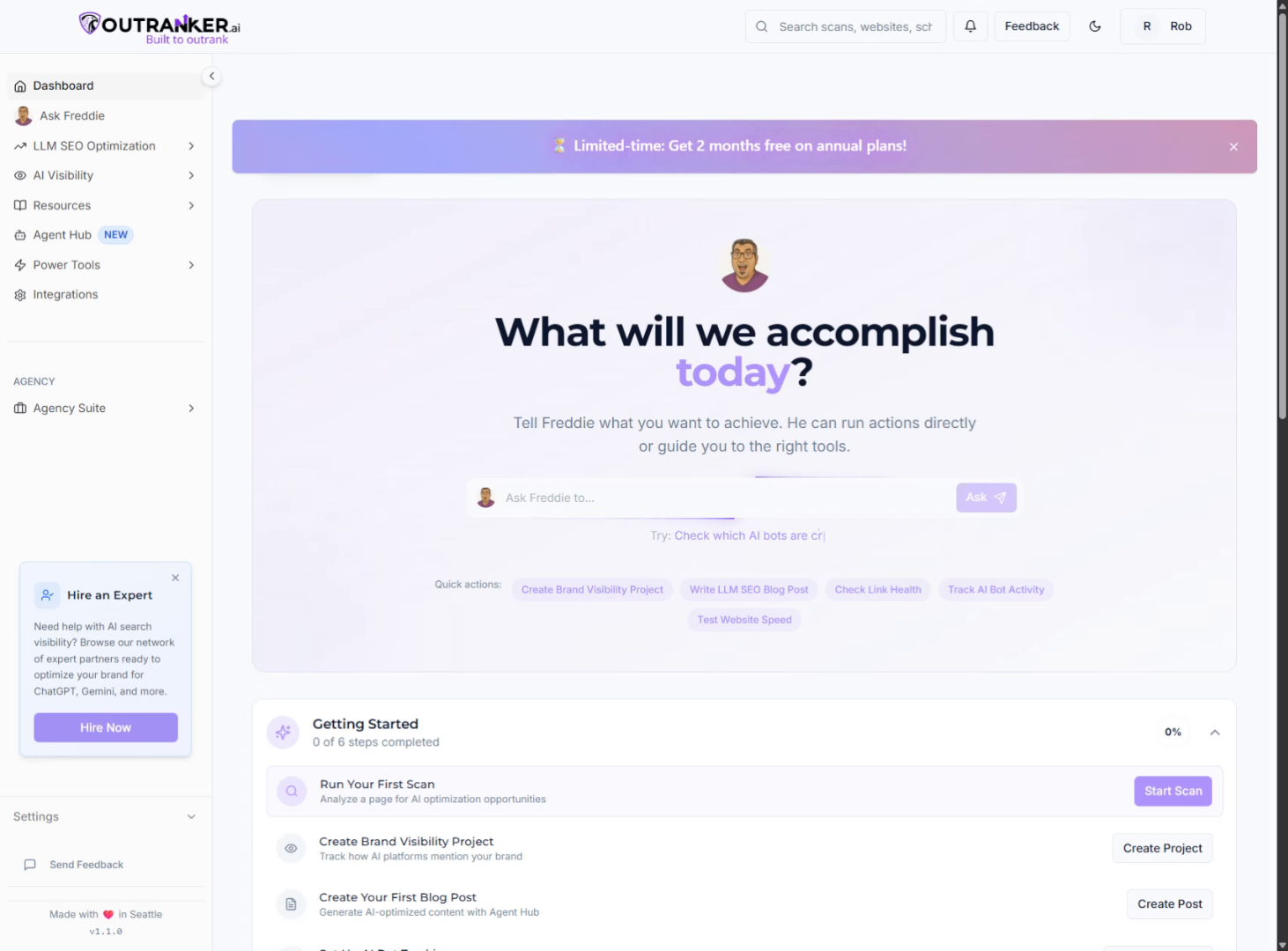
2. Open AI Optimization Scan
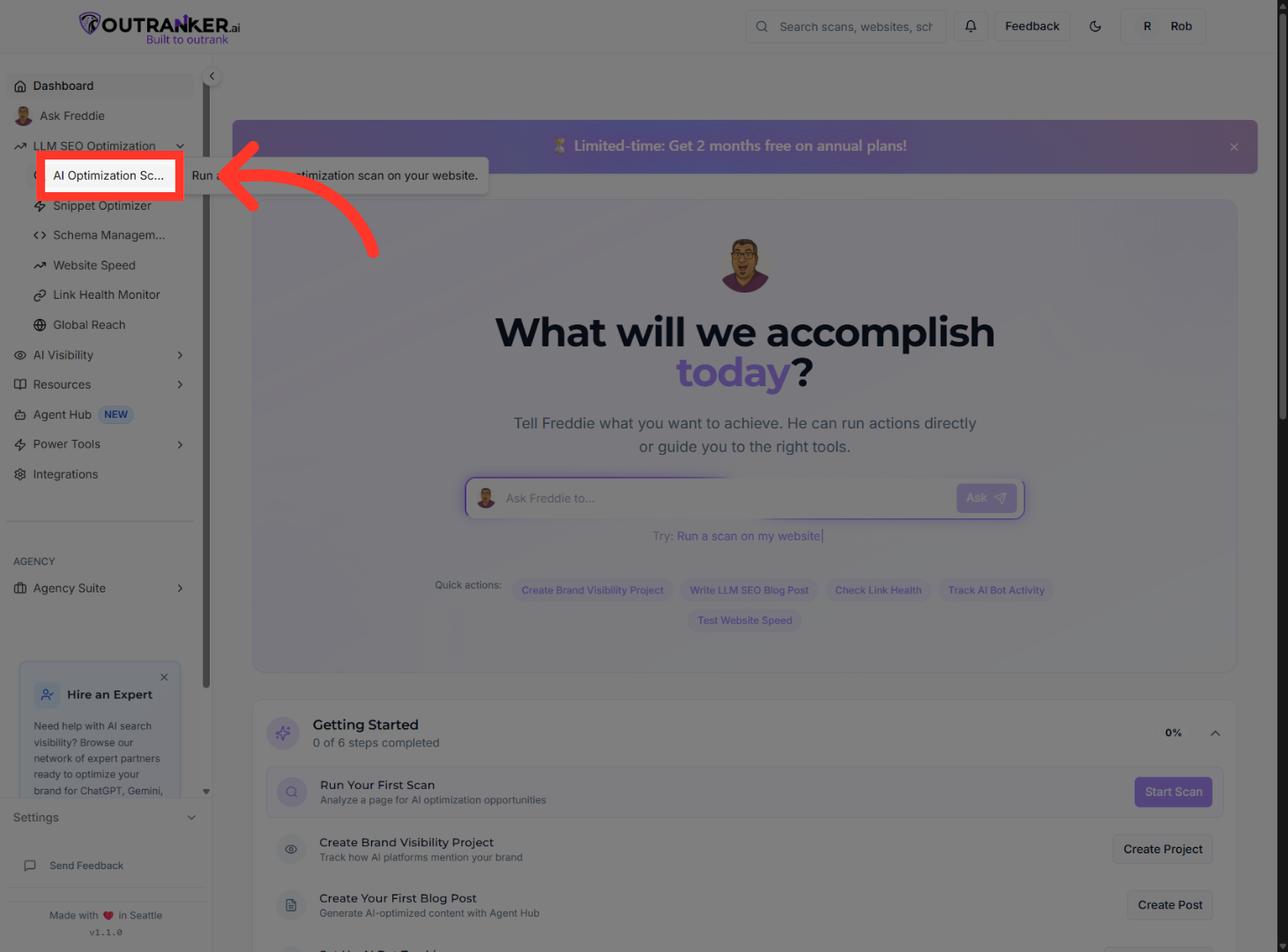
“Start by logging into your Outranker.ai account.” “From the left menu, click LLM SEO Optimization, then open AI Optimization Scan.” “This is where all your AI visibility scans are created and managed.”
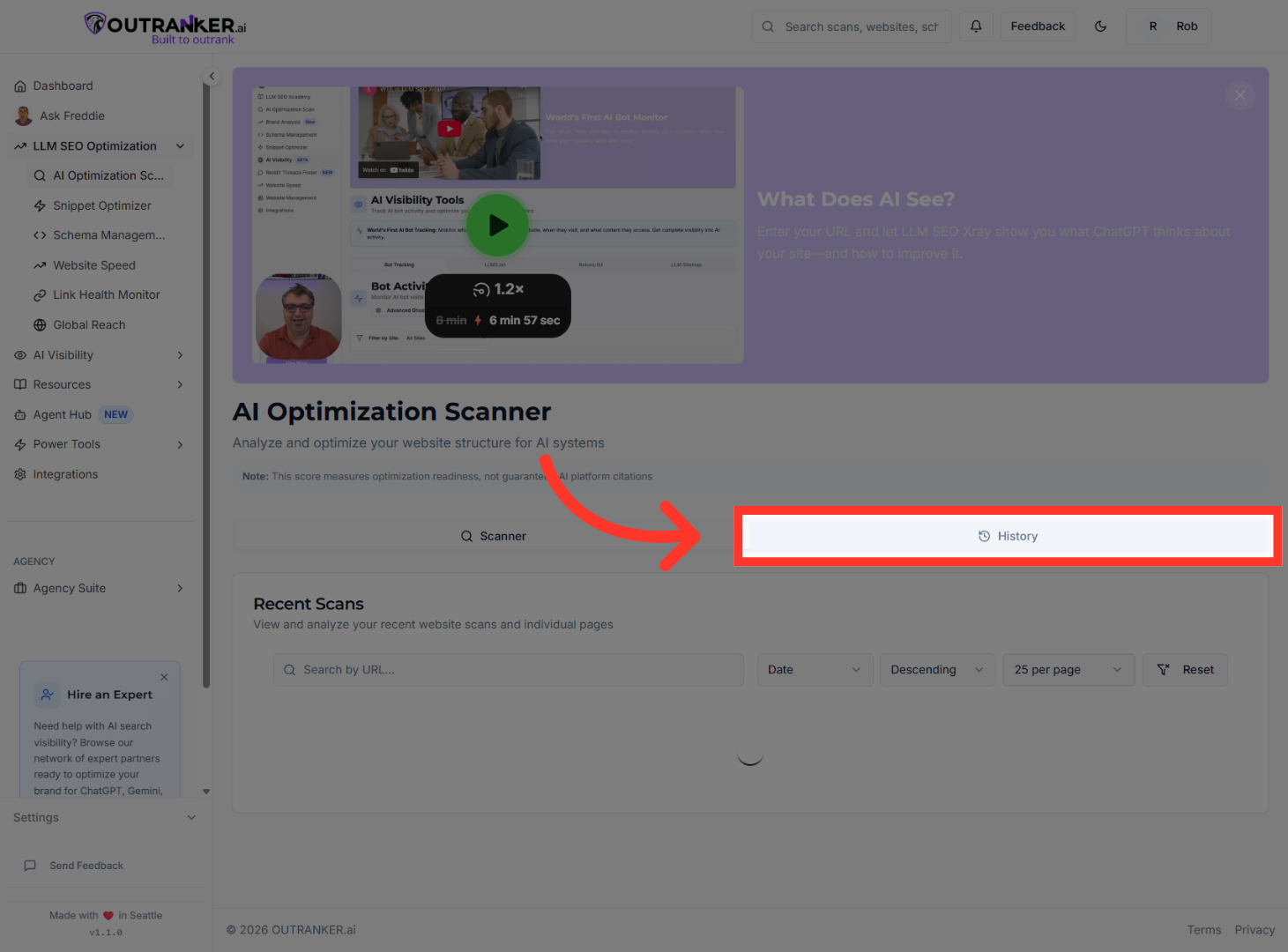
3. Access Scan History
“Next, click the History tab.” “This shows all your previous scans, allowing you to track changes and improvements over time.”
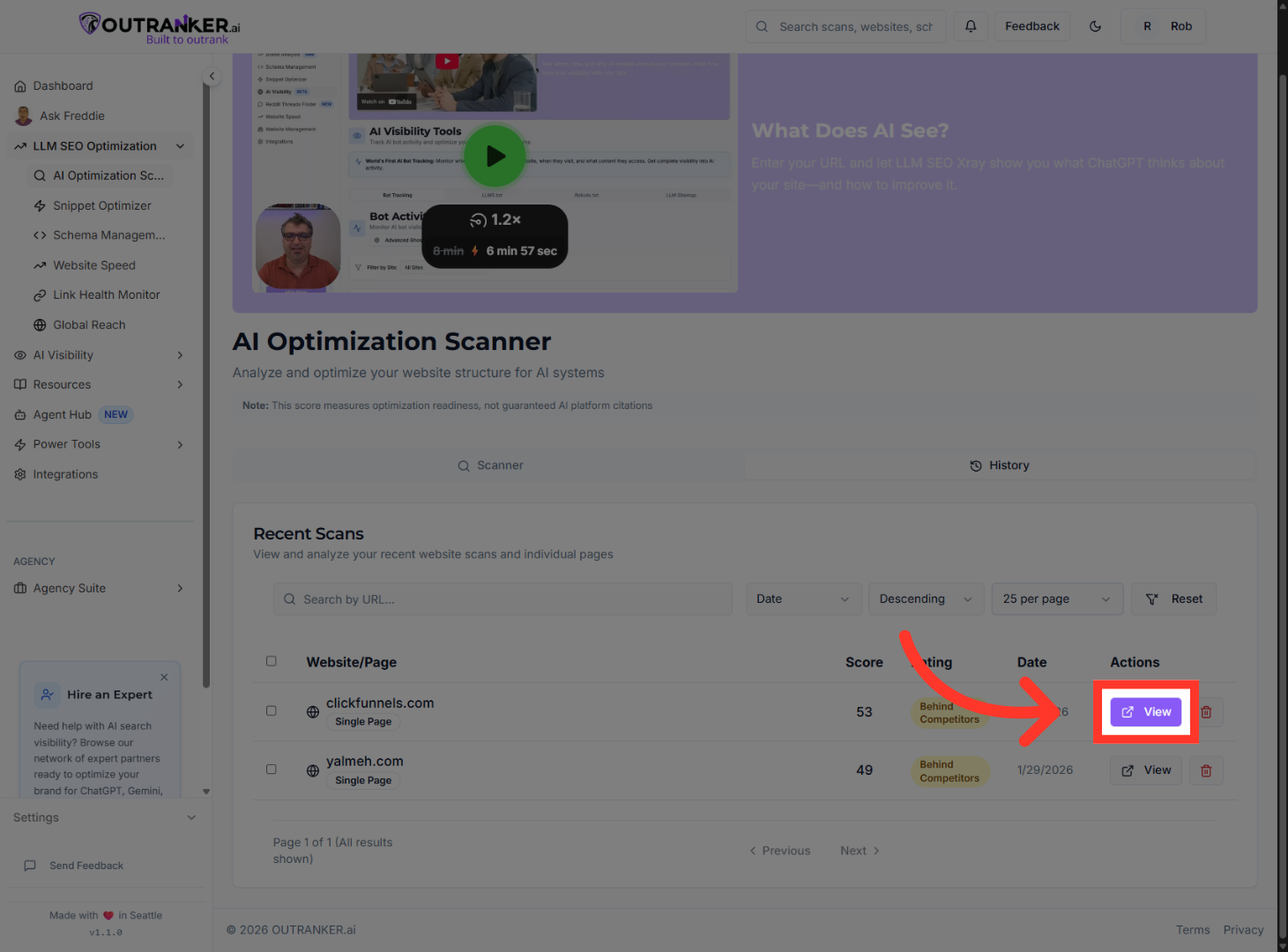
4. View Specific Scan Details
“Each scan entry includes the website or page scanned, the score, and the scan date.” “This makes it easy to compare performance across different scans and identify trends.” “To dive deeper into a scan, click View.” “This opens the full scan report, including scores, recommendations, and deployment options.”
5. Select Scan Tool File
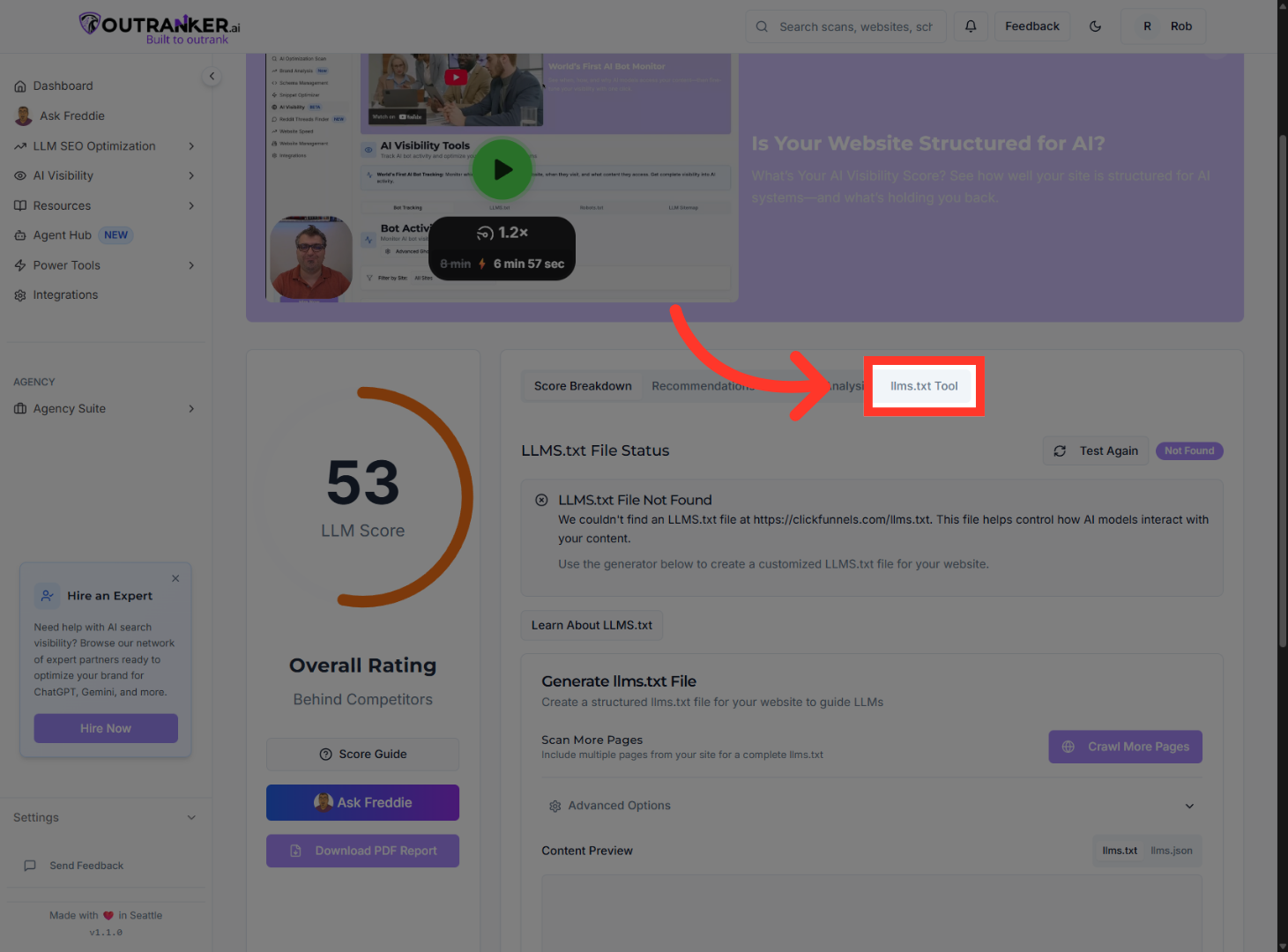
“From the scan details, open the llms.txt Tool.” “This file helps guide AI systems on how to understand and use your website content.”
“That’s how you use Scan History in Outranker to review results, deploy optimizations, and track improvements over time.” “This is how AI visibility optimization becomes a repeatable, scalable process.”
