
This tutorial guides you through performing a multi-page AI optimization scan using Outranker for LLM SEO optimization.
Go to www.outranker.ai
1. Introduction
“In this video, you’ll learn how to run a multi-page AI optimization scan in Outranker. This helps you review several important pages at once, uncover optimization opportunities faster, and move from setup to actionable recommendations in just a few steps.”
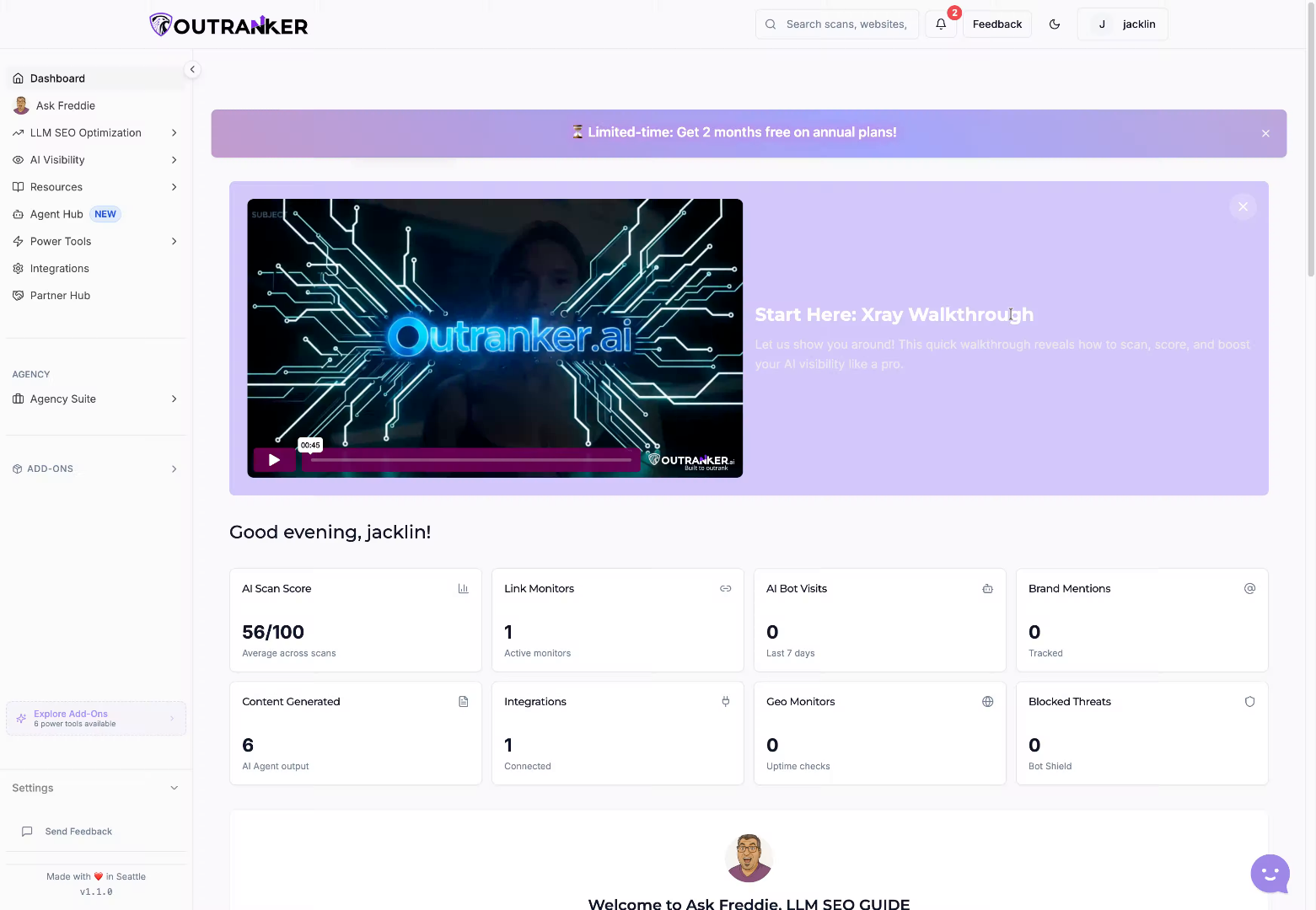
2. Open AI Optimization Scan
“Start from your Outranker dashboard and head into LLM SEO Optimization. From there, open AI Optimization Scan to access the scanning workspace. This is where you can evaluate how well your pages are structured for AI-driven search visibility and content performance.”
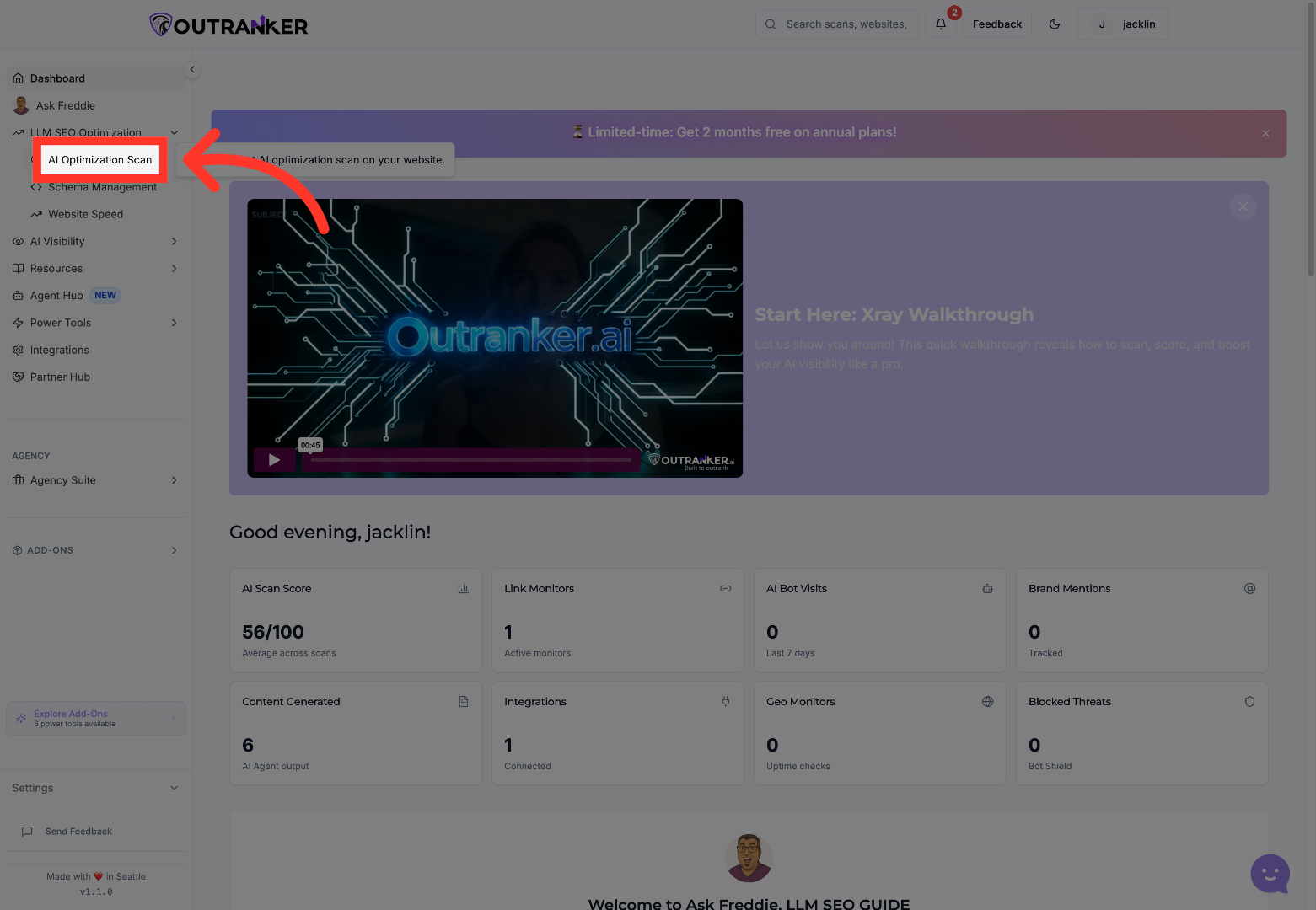
3. Select Multiple Pages Scan
“Inside the scanner, choose Multiple Pages. This option is ideal when you want to assess more than one URL in a single run, instead of reviewing pages one by one. It gives you a broader view of site-wide opportunities and makes it easier to prioritize fixes across key pages.”
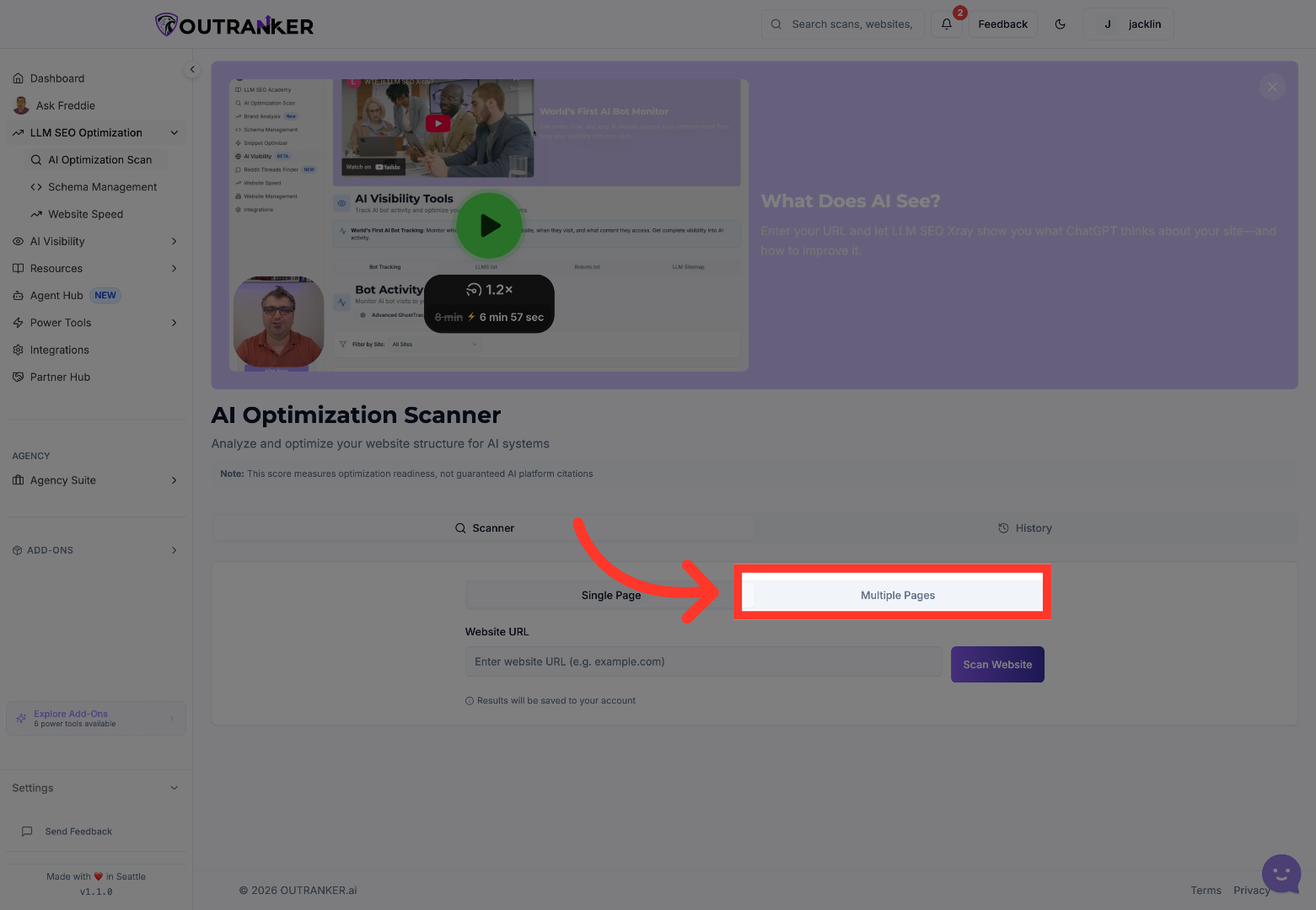
4. Enter Main Domain
“Next, enter your main website domain so Outranker knows which site you’re analyzing. You can also add a sitemap URL if you want to guide the platform toward a broader set of pages, or paste in individual page URLs when you want a more targeted review. This gives you flexibility. You can scan a structured group of pages from your sitemap, or focus only on the exact URLs that matter most right now.”
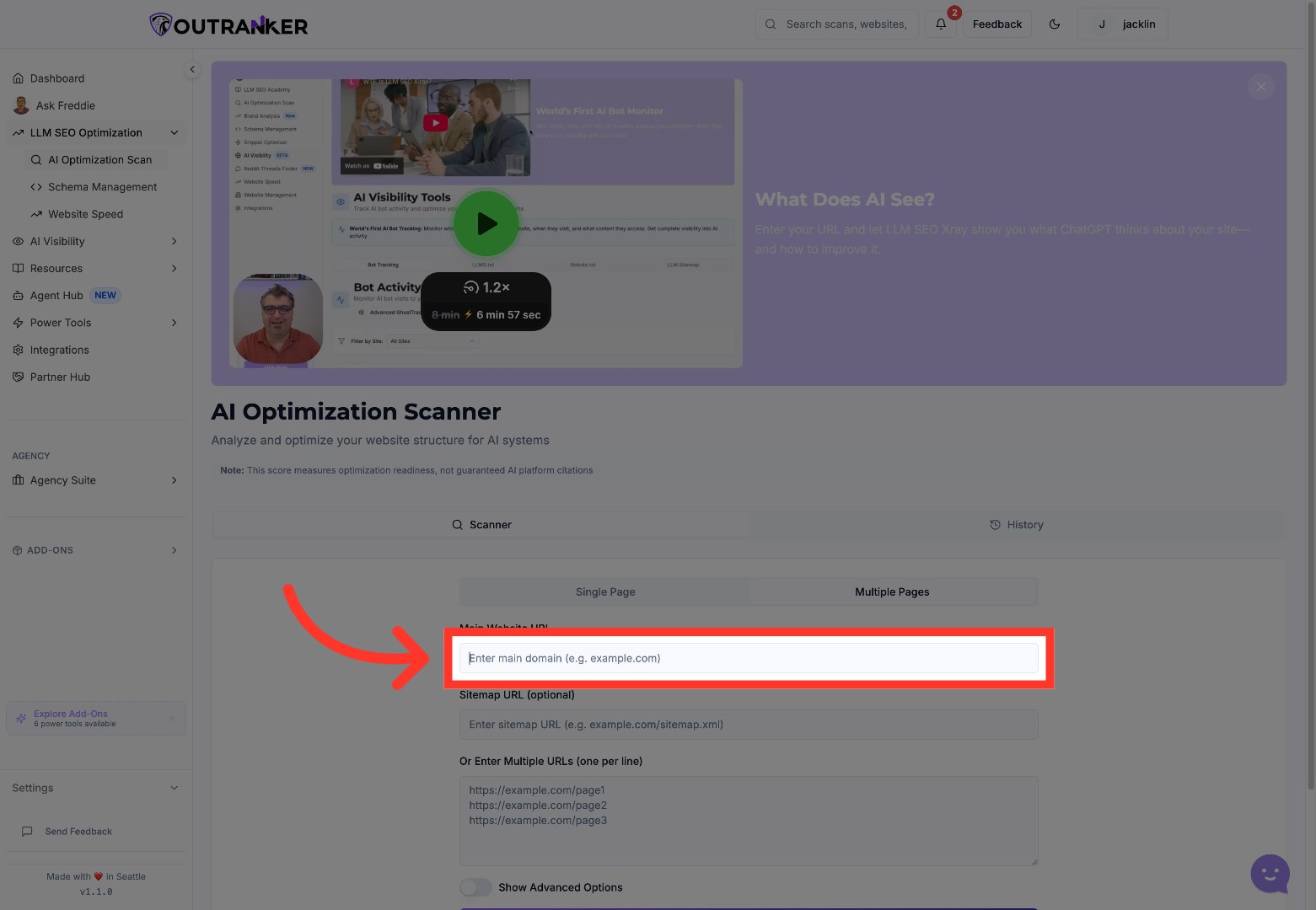
5. Define the pages with clarity
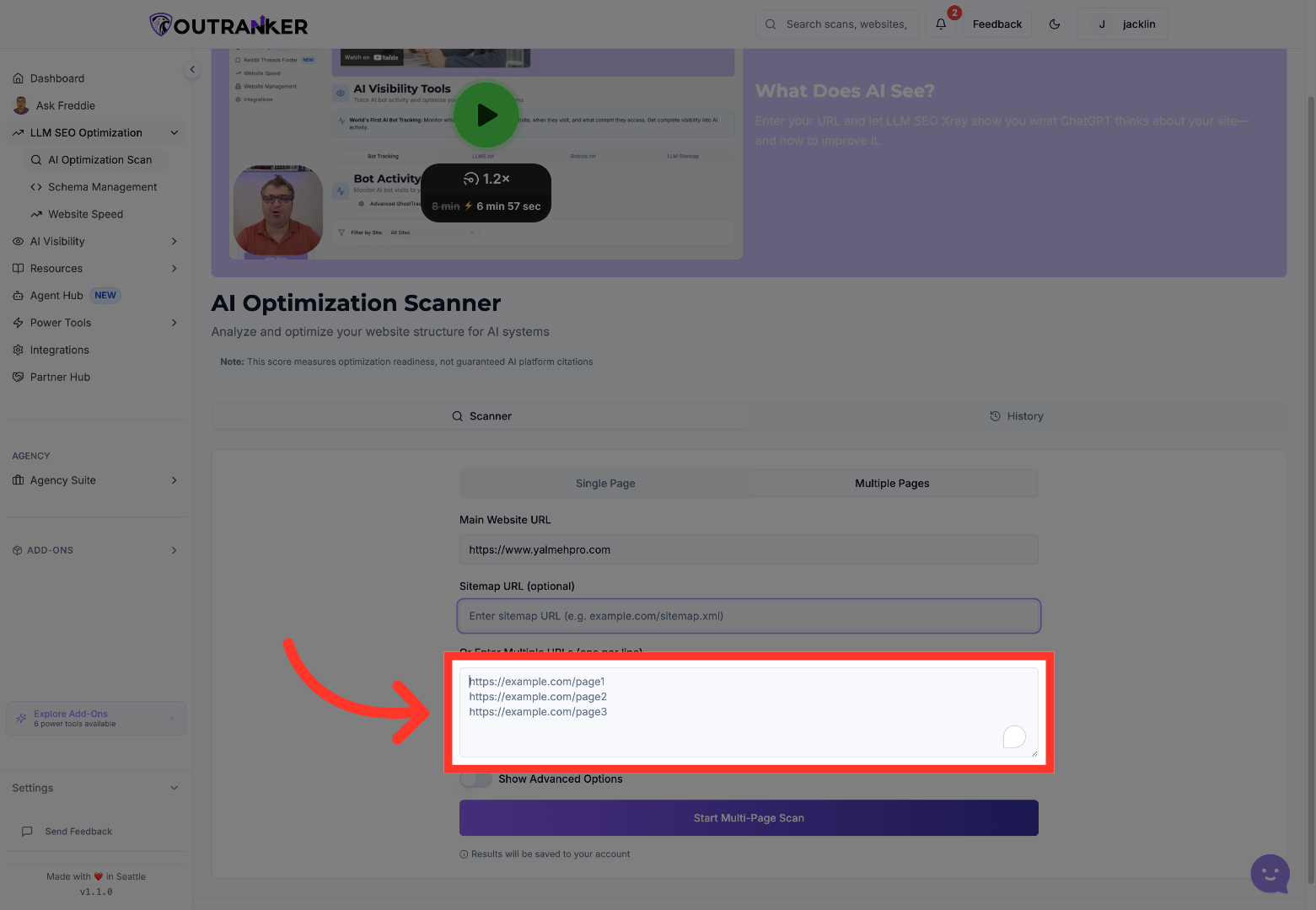
“If you’re entering page URLs manually, add each one clearly so the scan includes the exact content you want reviewed. This is especially useful when you’re analyzing high-priority pages like service pages, conversion pages, or important landing pages, and you want quick insight without scanning the entire site.”
6. Reveal Advanced Options
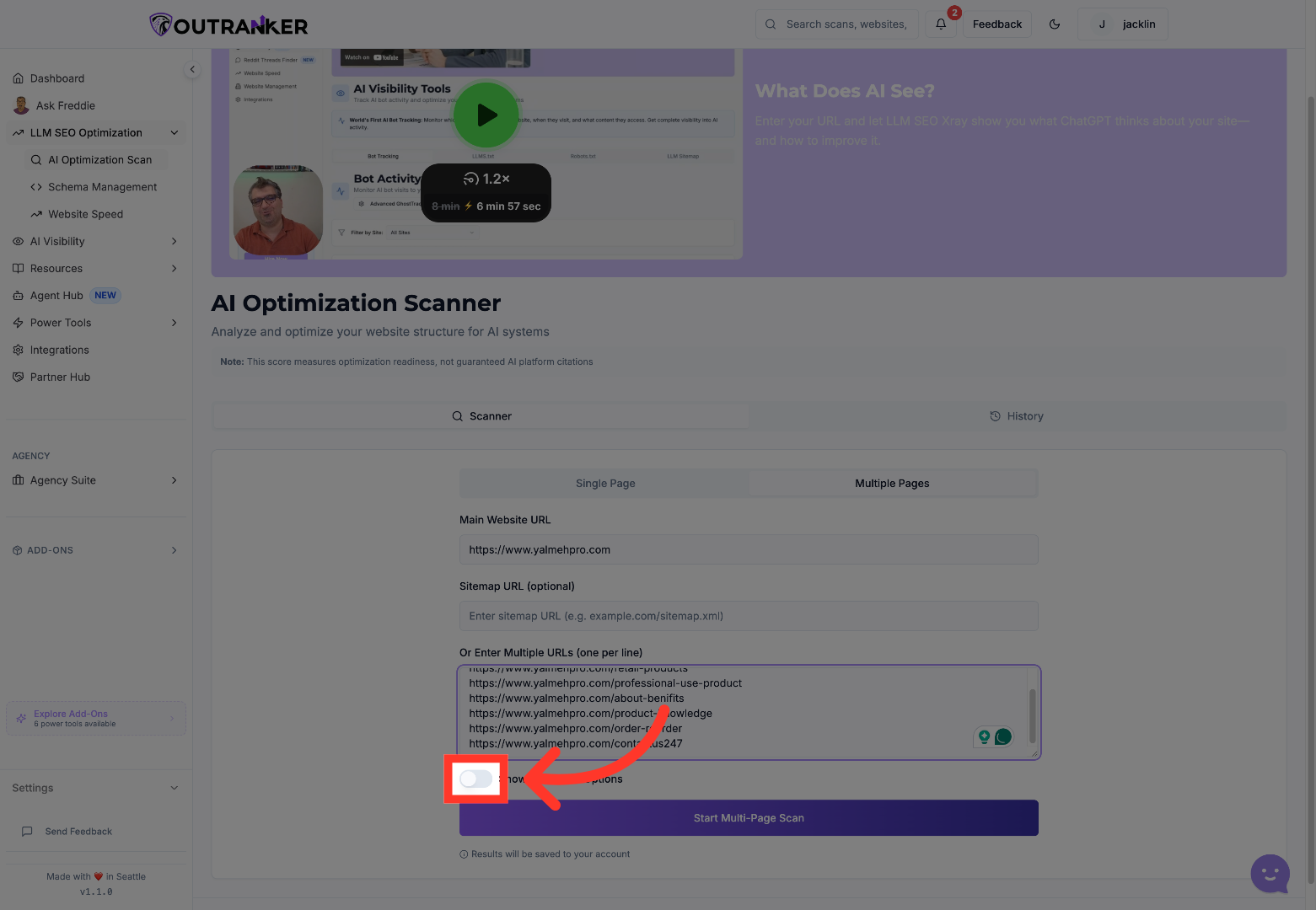
“Before launching the scan, open Advanced Options if you want more control over how the analysis runs. Here, you can adjust scan preferences such as page limits and other configuration settings that help tailor the scan to your needs. This step is helpful when you want a faster review, a more focused scan, or a setup that matches the size of the content set you’re evaluating.”
7. Start Multi-Page Scan
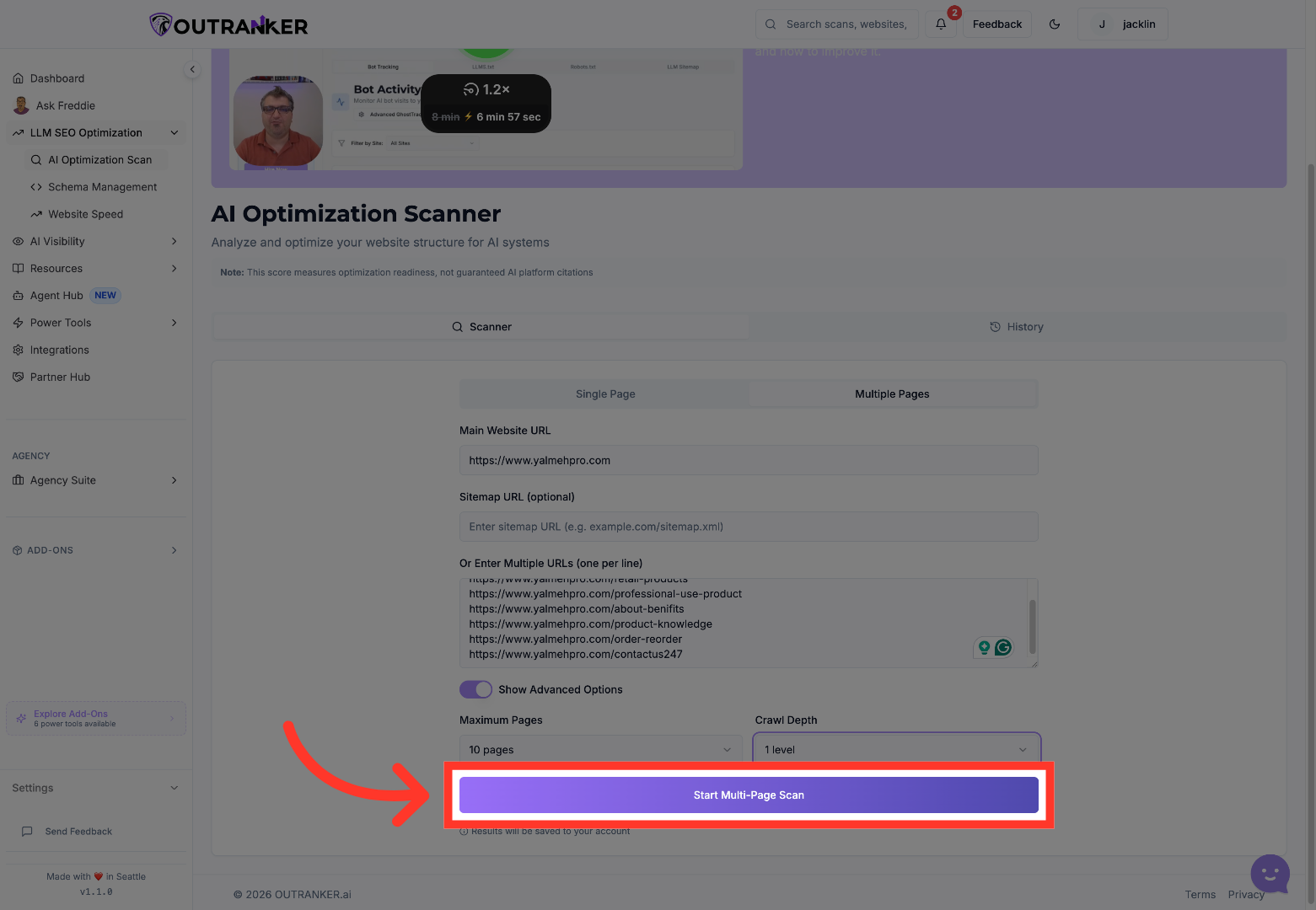
“Once your settings look right, click Start Multi-Page Scan. Outranker will begin analyzing the selected pages and building your results. As the scan runs, you can monitor progress from the results view and see how many pages have been processed. This gives you immediate visibility into the scan status before you dive into page-level insights.”
8. View Detailed Analysis
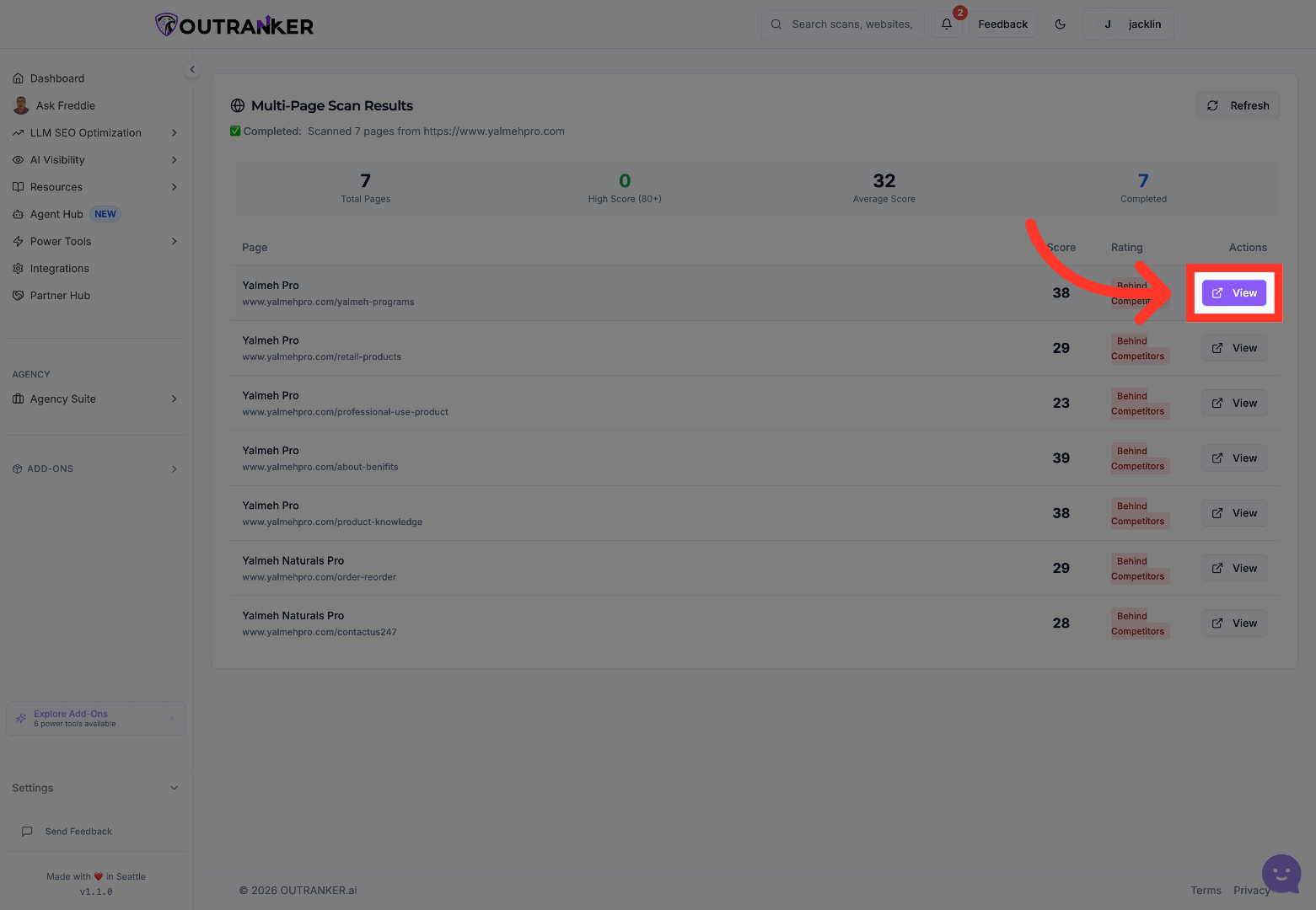
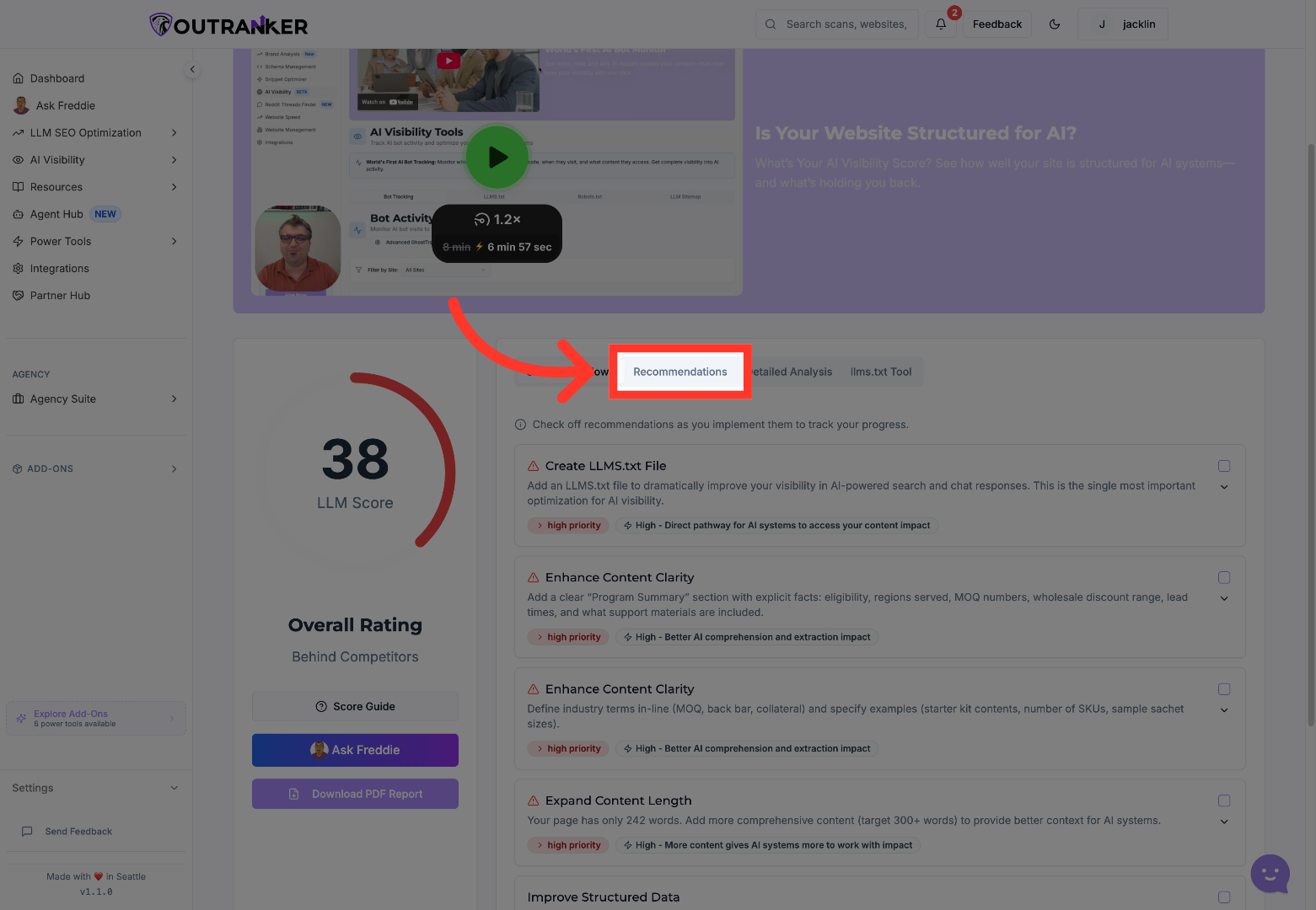
“When the results are ready, open one of the scanned pages to review its detailed findings. Start with Recommendations to see the most actionable improvement opportunities first. These suggestions help you understand where a page may be underperforming and what changes could strengthen its AI search readiness.”
9. Open Recommendations Tab
“For a closer look, move into Detailed Analysis. This section gives you a more complete breakdown of the page, including the specific areas influencing its score and optimization potential. It’s the best place to go when you want more than surface-level guidance and need a clearer picture of what to improve first.”
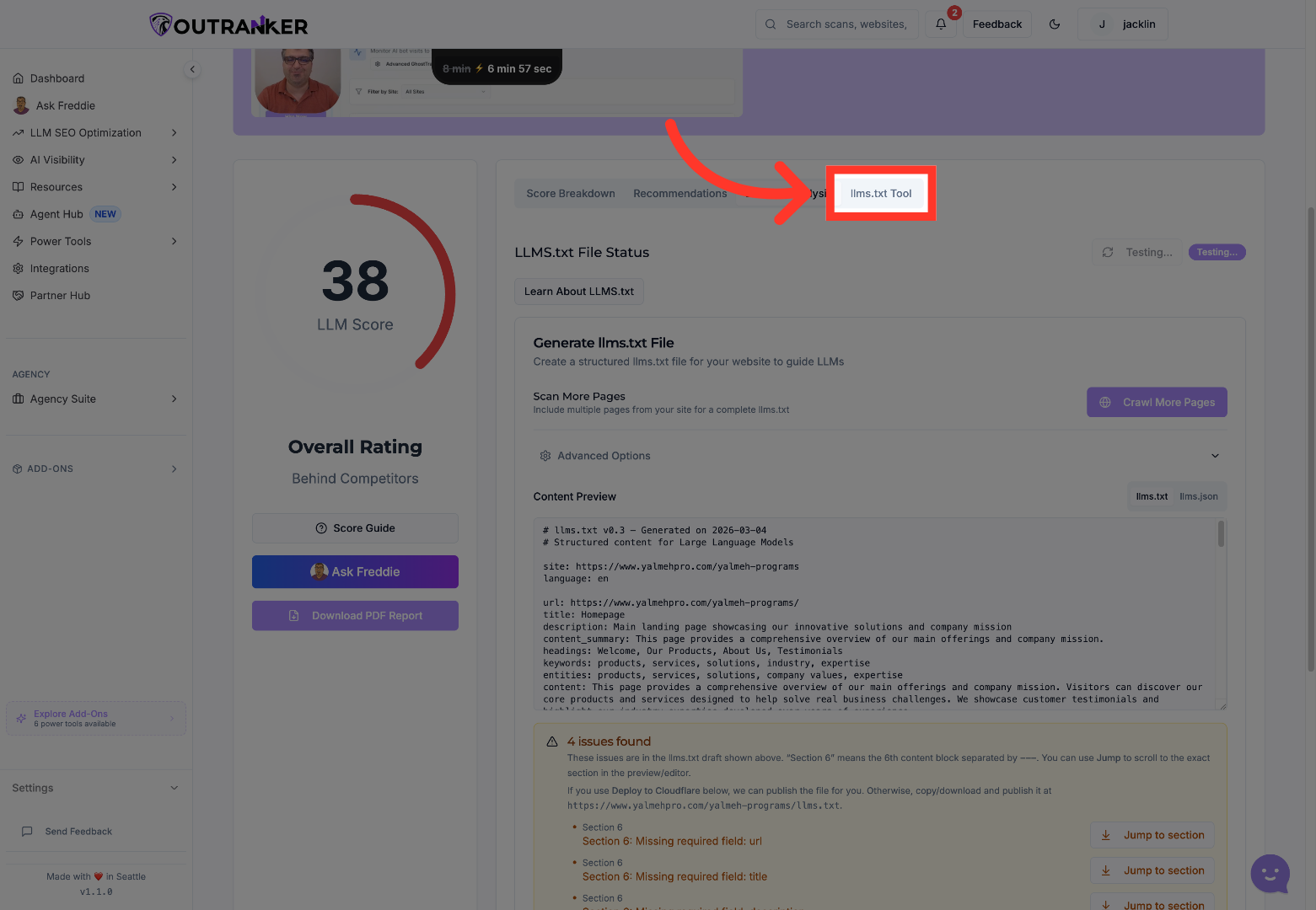
10. Use llms.txt Tool
“You can also open the llms.txt Tool to work with specialized AI SEO support inside Outranker. This helps extend the value of the scan by turning your findings into more structured optimization actions that support visibility across AI-driven discovery experiences.”
“You’ve now completed a multi-page AI optimization scan in Outranker, reviewed the results, and explored both recommendations and deeper analysis tools. From here, you can start improving the pages with the highest impact first and use those insights to strengthen your broader AI SEO strategy. In the next video, we’ll show you how to turn scan findings into a focused optimization workflow for a single page.”
