
This document explains how to access and view the Local Growth Network for your agencies within Outranker. You will learn where to find the feature, how to open it from the Agency section, and what key metrics and information are displayed on the overview screen.
Go to www.outranker.ai
1. Log In and Open the Agency Section
Log in to your Outranker account using your usual credentials.
Once you are on the main dashboard, click on the Agency section.
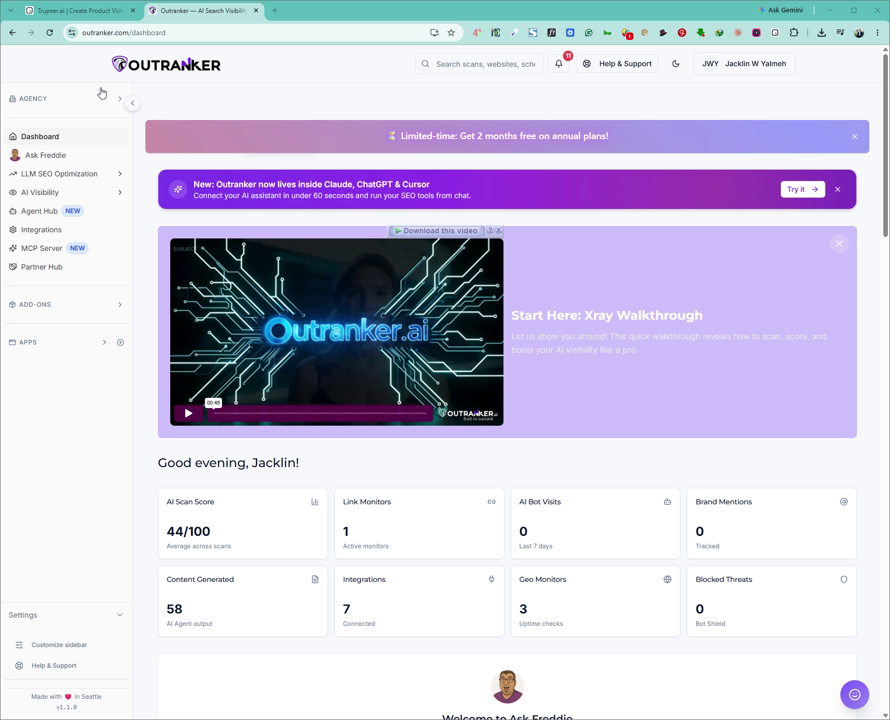
2. Navigate to the White Label Suite
Within the Agency section, click on White Label Suite to access the tools available for your agencies.
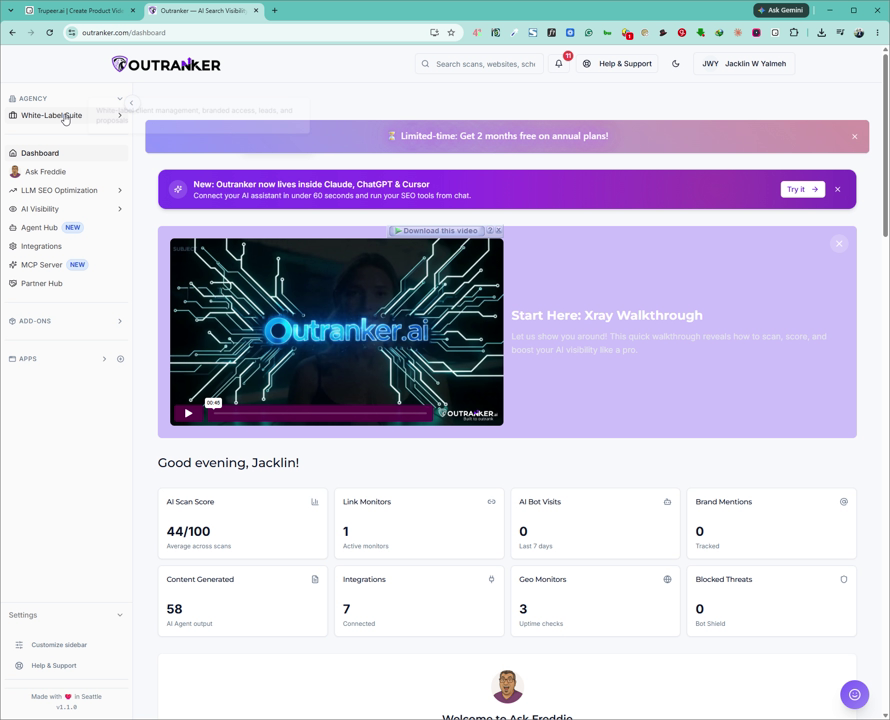
3. Open the Local Growth Network
In the White Label Suite area, locate Local Growth Network and click it to open the feature.
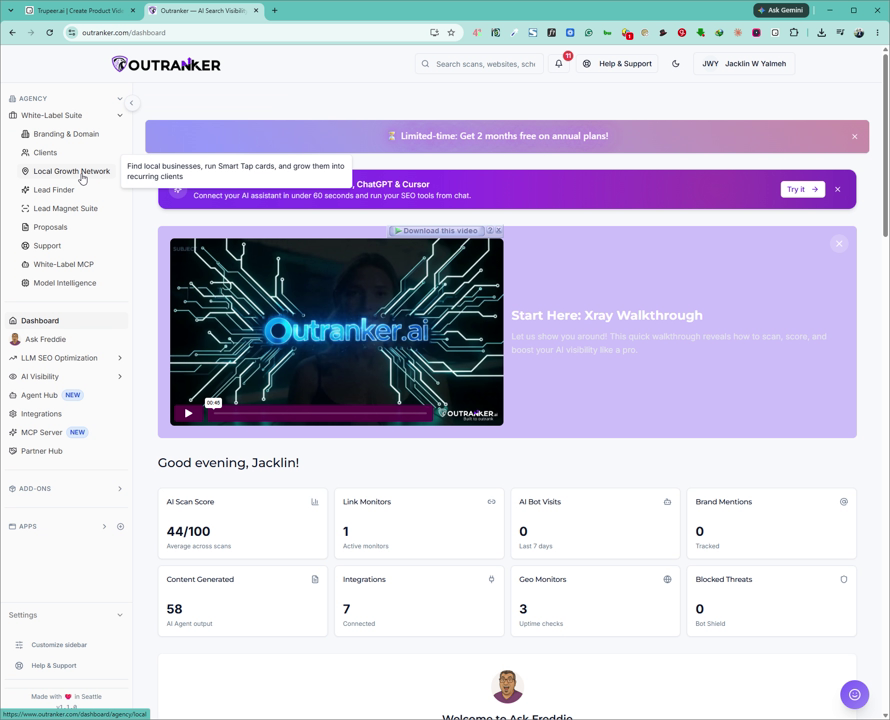
4. Review the Local Growth Network Overview
On the Overview tab of the Local Growth Network, review the “How it works” section to understand how you can use this feature for your business. Here you can see:
Number of businesses in your shared list
Prospects in progress
Businesses you manage
Protected clients
Active Smart Tap cards
Campaigns
Your directories
Activities
Use this overview to monitor the status and performance of your local growth efforts. Additional step-by-step videos will further explain each item in the top menu and how to work with them in detail.
