
This document explains how to access the Local Growth Network in Outranker, explore and add businesses to your prospect list, filter and search for target businesses, upload your own prospect list via CSV, and view your sales pipeline.
Go to www.outranker.ai
1. Access the Local Growth Network Prospects Area
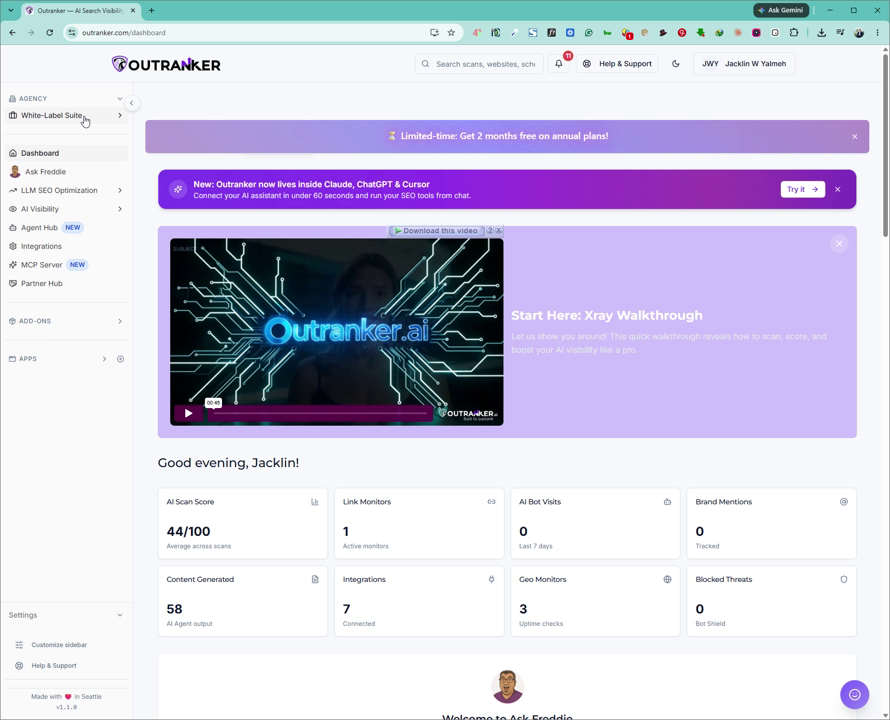
Log in to your account at outranker.com. From the left-hand menu, click on Agency, then select White Label Suite.
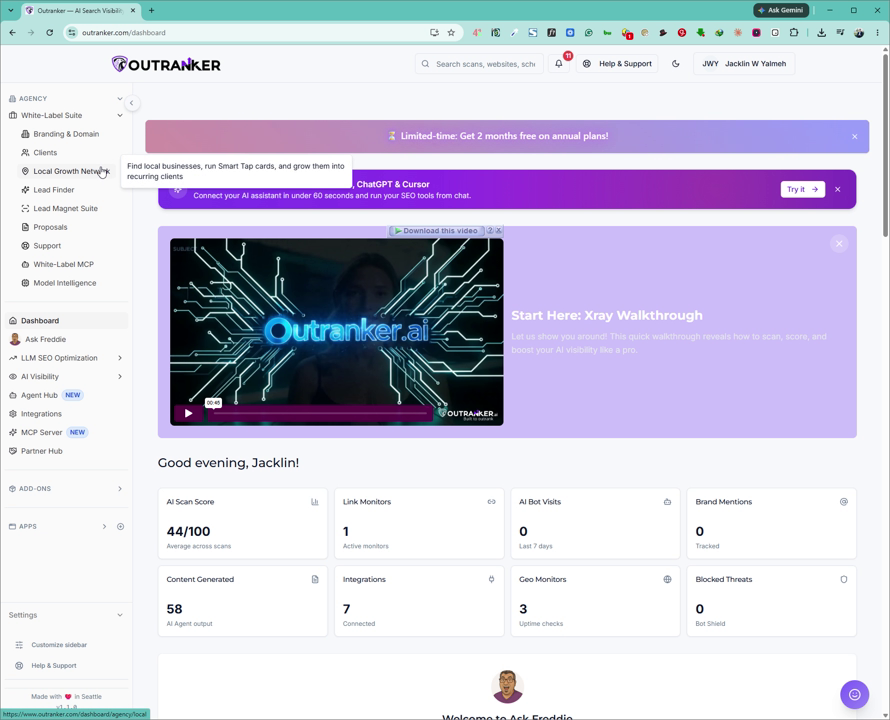
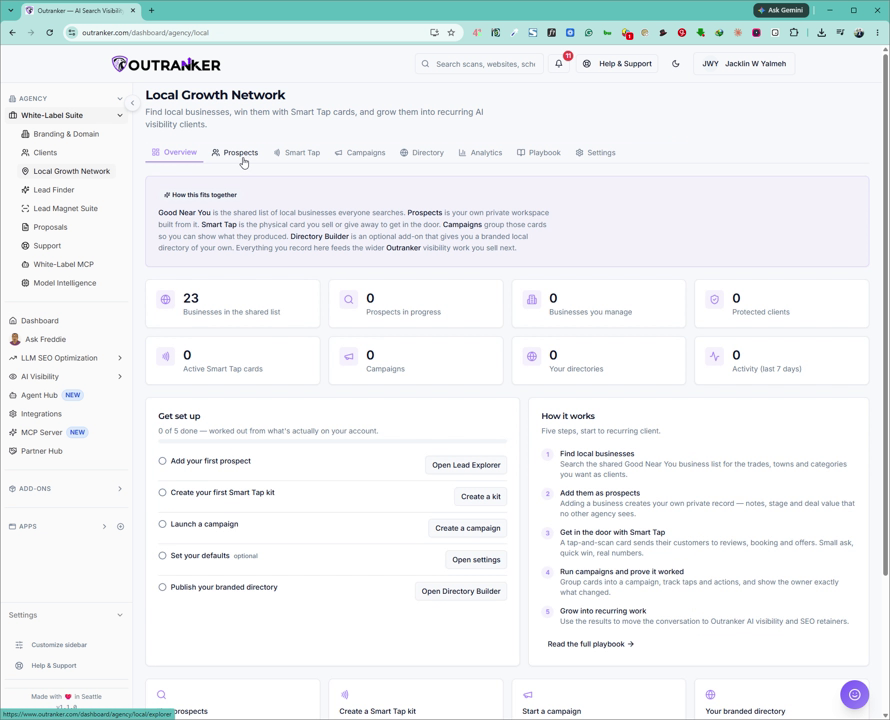
Next, go to Local Growth Network and click on Prospects.
2. Explore Shared Leads in Lead Explorer
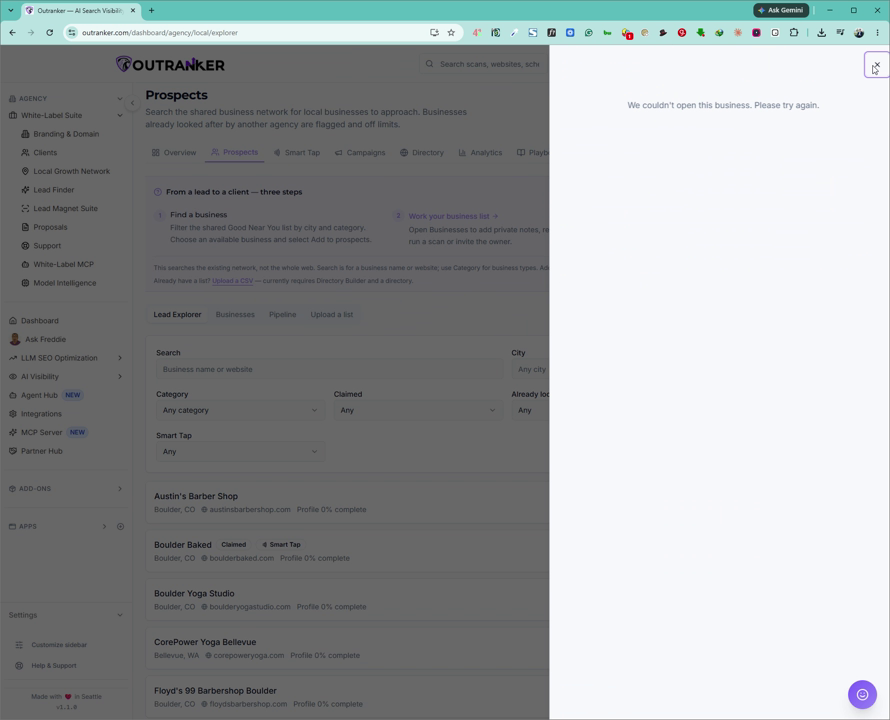
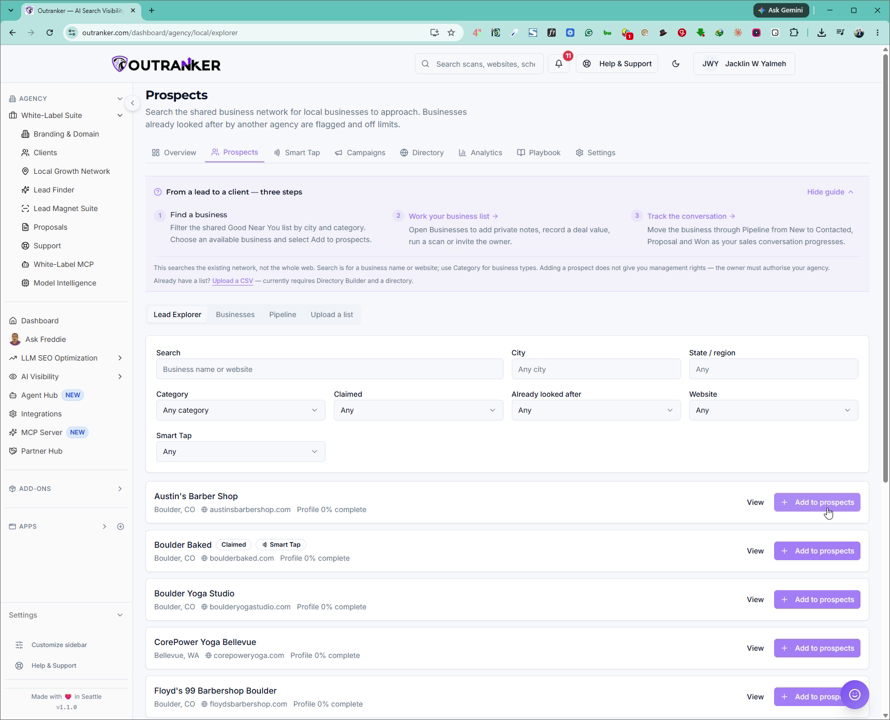
In the Lead Explorer section, review the shared list of businesses available to you. This list will continue to grow over time. You can view details for any business by clicking on it.
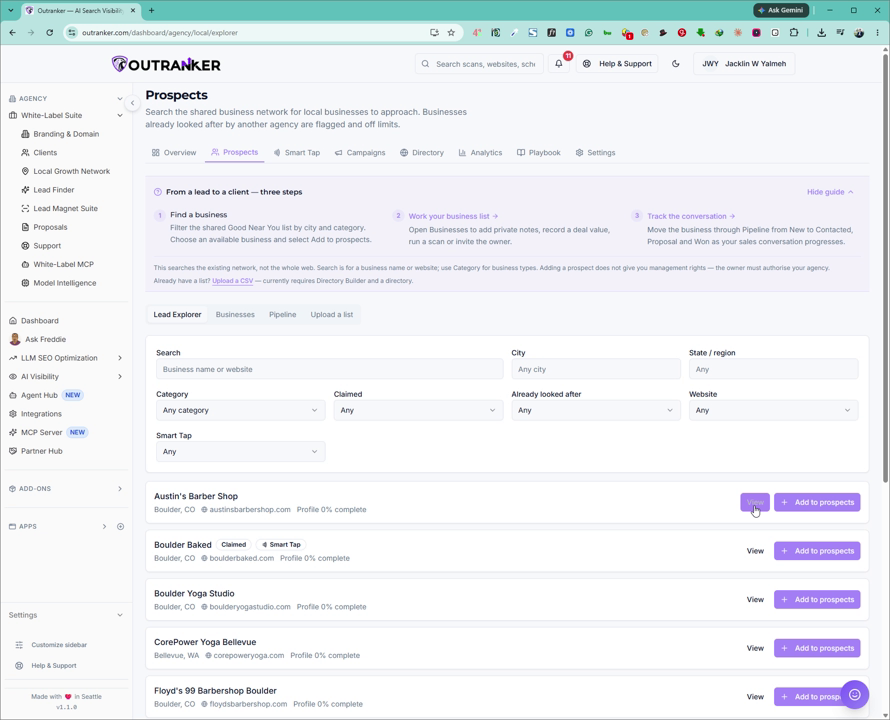
When you find a suitable business, click Add to Prospects to add it to your own prospect list.
3. Search and Filter Target Businesses
Use the search tools to refine the list of businesses you want to target. You can search by:
Business name or website
City and preferred state
Business category you would like to target
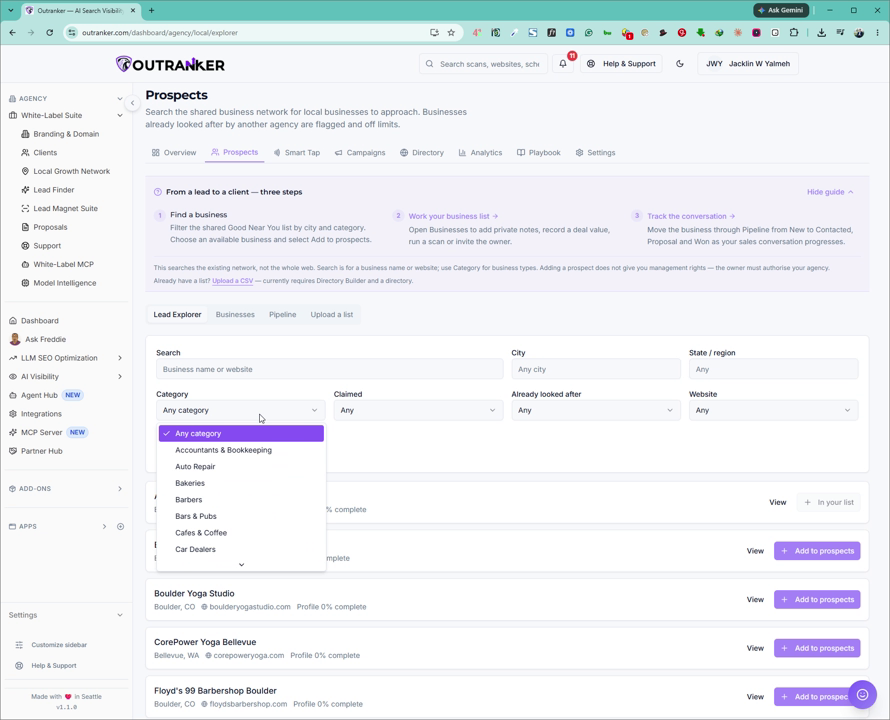
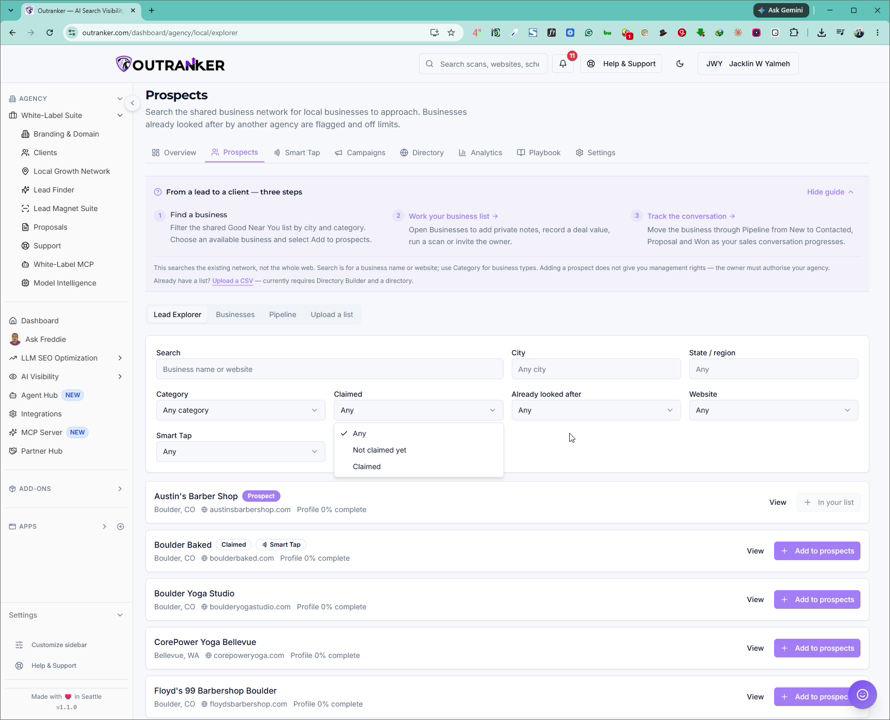
You can also filter by:
Claimed status (whether the business has already been claimed by someone)
Not already looked after
Website presence
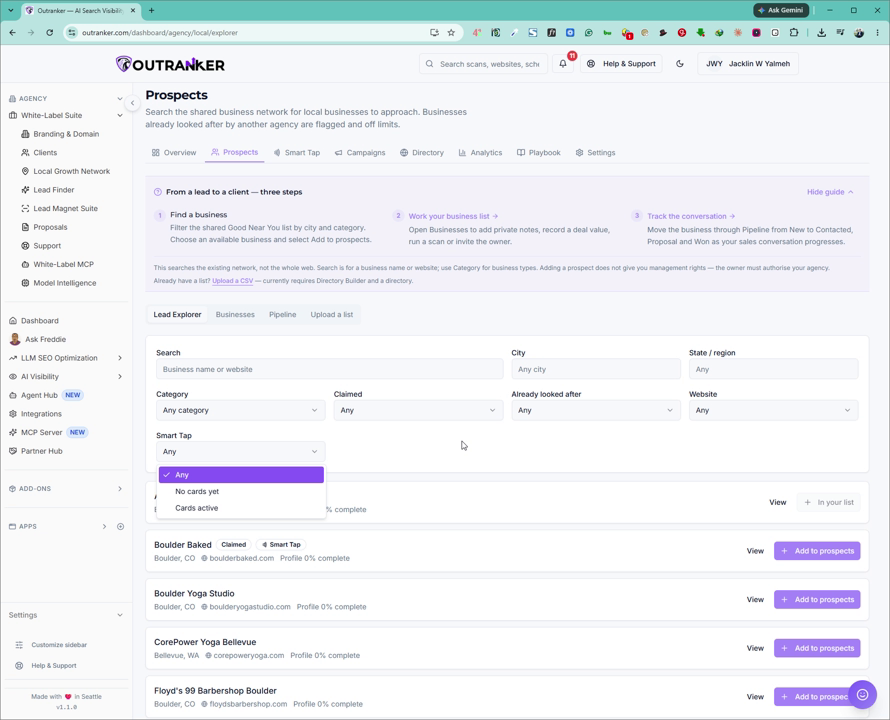
Smart filters
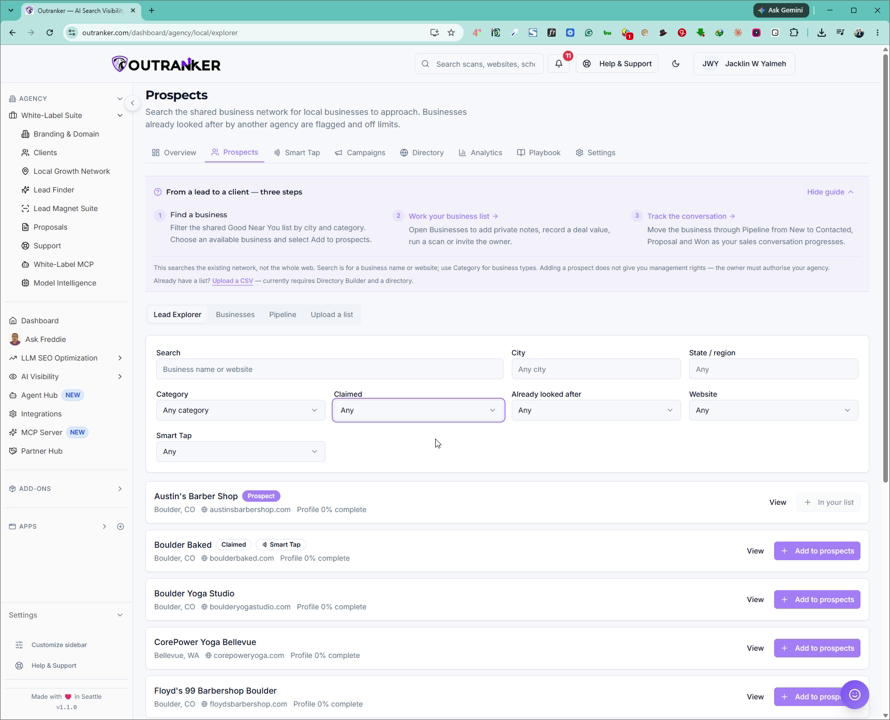
Use these filters to narrow down and select the businesses you would like to target.
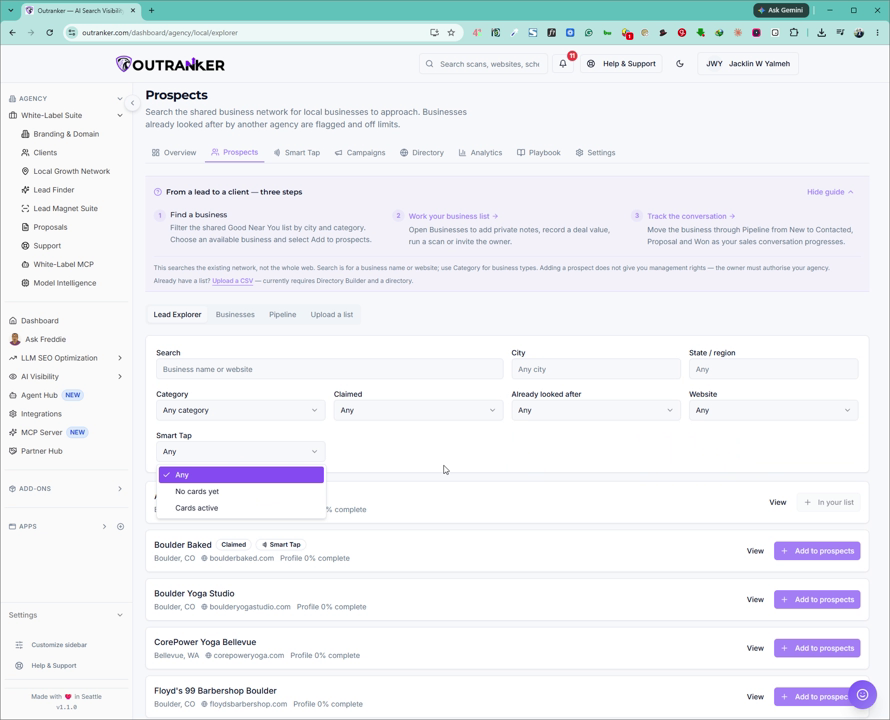
4. Review the Built-In Step-by-Step Guidance
Within the Local Growth Network area, review the detailed, built-in step-by-step guide that explains:
How to find a local business
How to work your business list
How to take and manage conversations
Read through this guide to better understand the overall workflow and best practices.
5. View and Manage Your Prospect List
Click on the Business section within Prospects.
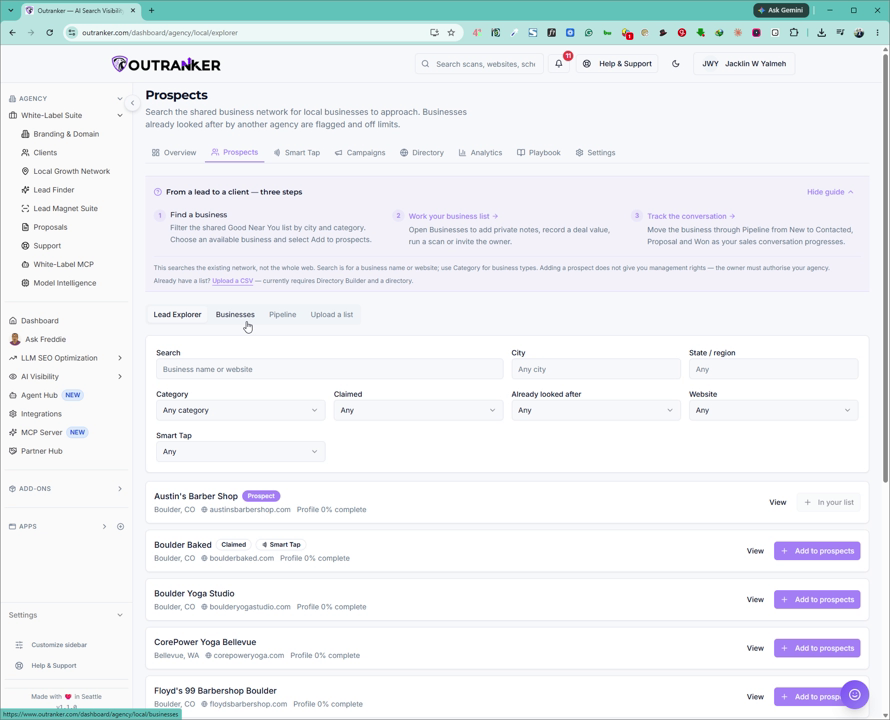
Here you can:
See the businesses you have already sent to Prospects
Upload your own list of businesses as a CSV file
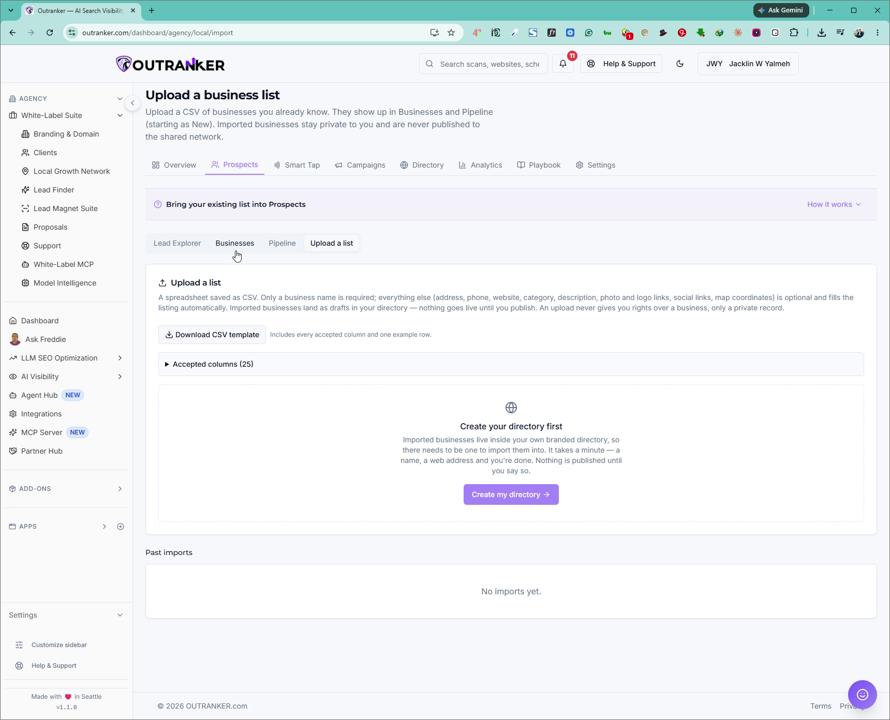
To upload your own list, click Upload as a CSV list.
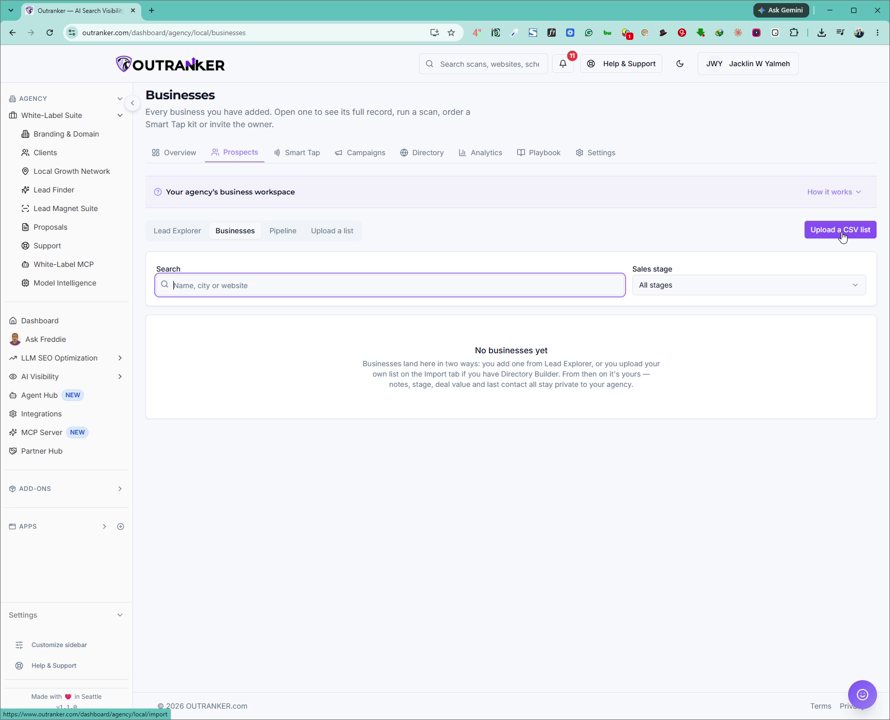
This will open the upload interface where you can select and upload your CSV file containing prospect businesses.
6. Monitor Your Sales Pipeline
Go to the Pipeline tab.
In this section, you can see the businesses currently in your pipeline that are being processed and moved toward becoming sales. Use this view to track the status and progression of your prospects.
