
This process walks you through accessing the AI and API key settings for your Outranker white label agency, so you can configure the required and optional integrations your agency will use.
Go to www.outranker.ai
1. Access the Agency Section
Log into your Outranker dashboard using your agency credentials.
From the main navigation, click on Agency.
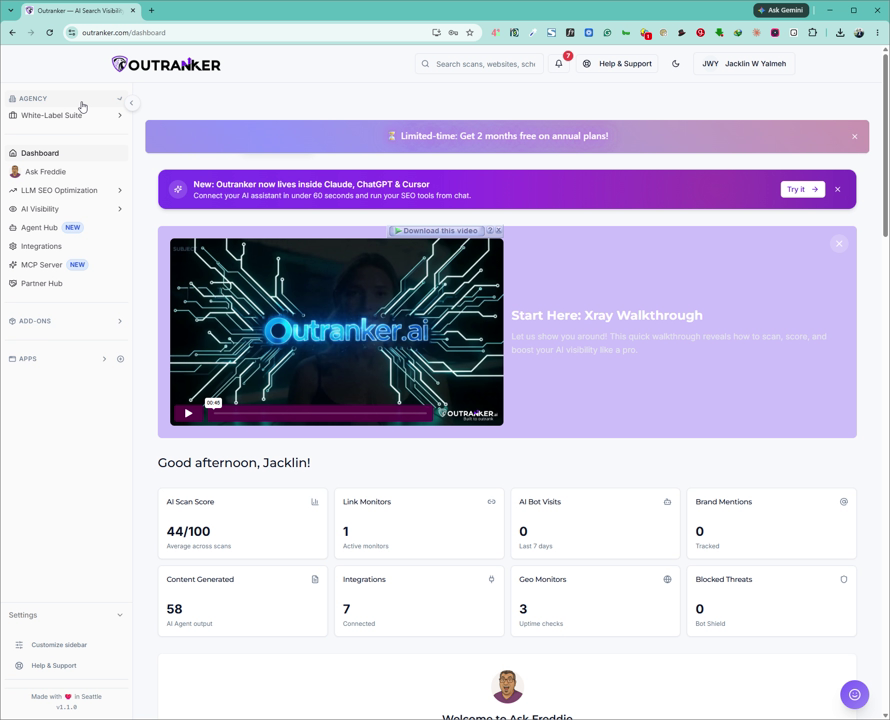
2. Open the White Label Suite and Branding & Domain
Within the Agency area, select White Label Suite to open the white label configuration options.
Next, go to Branding and Domain.
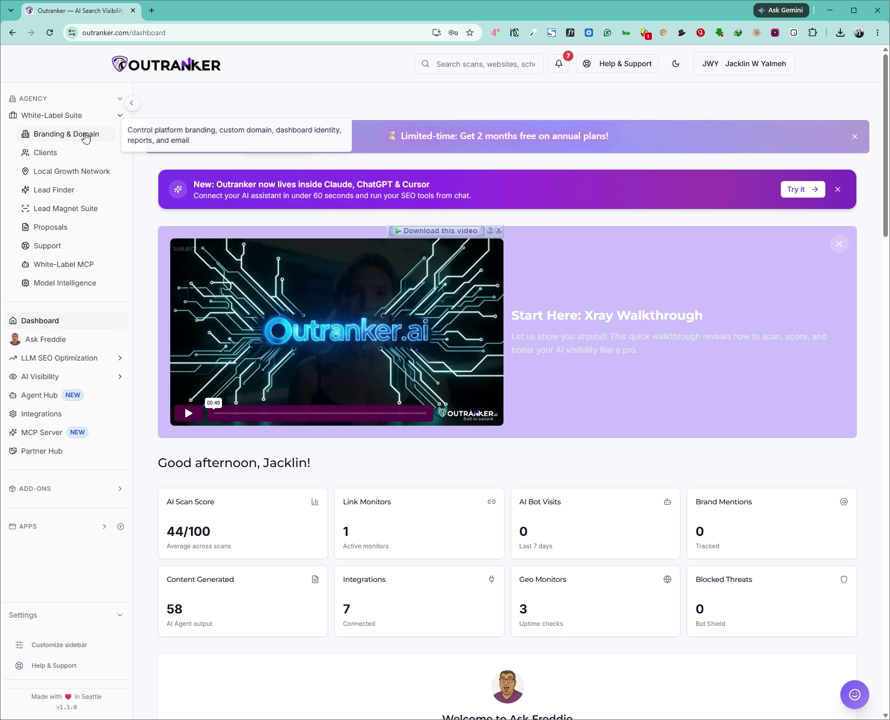
3. Navigate to AI Setup & API Keys
On the Branding and Domain page, scroll down until you find AI Setup & API Keys.
Click on AI Setup & API Keys to open the configuration screen.
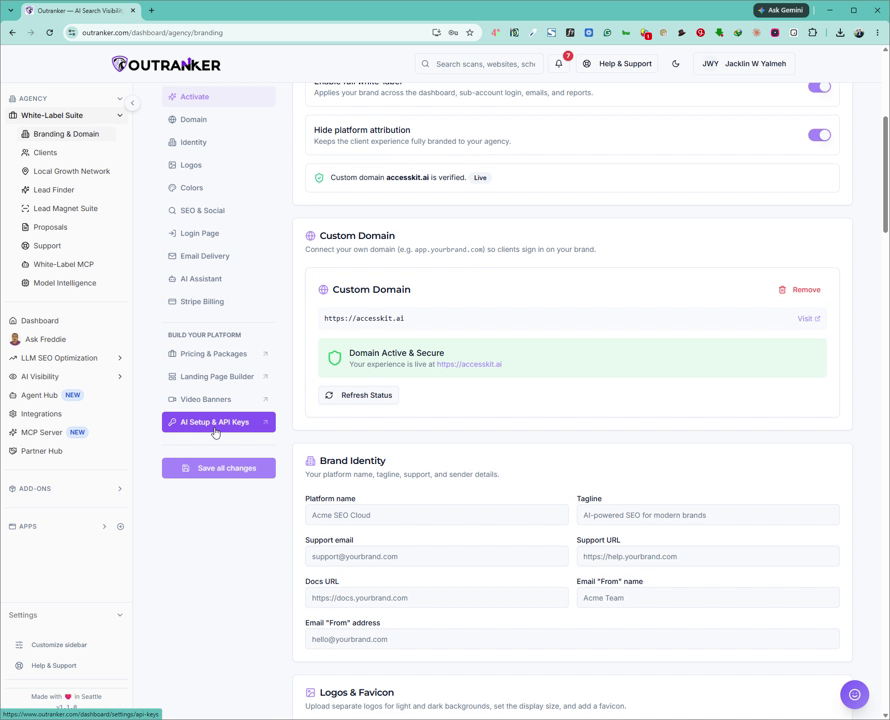
4. Review and Configure Required and Optional API Keys
On the AI Setup & API Keys page, review the list of available integrations.
You will see that the OpenAI API key is required for your agency to function properly if you intend to use AI features; if it is missing, add it here.
Configure each API key you plan to use for your agency’s services. Some keys are mandatory (such as OpenAI), while others are optional depending on which providers and features you intend to use.
5. Refer to Detailed Integration Resources
If you need help obtaining specific API keys or connecting particular service providers to Outranker, watch the corresponding integration video(s) for detailed, step-by-step instructions on each integration.
Use these resources to ensure each external service is correctly linked to your Outranker account.
