
This document explains how to enable and configure video banners for your white label agency in Outranker, including turning the feature on and adding custom video banners to specific pages.
Go to www.outranker.ai
1. Access the White Label Branding Settings
Log in to your account at outranker.com. From the main navigation, click on Agency.
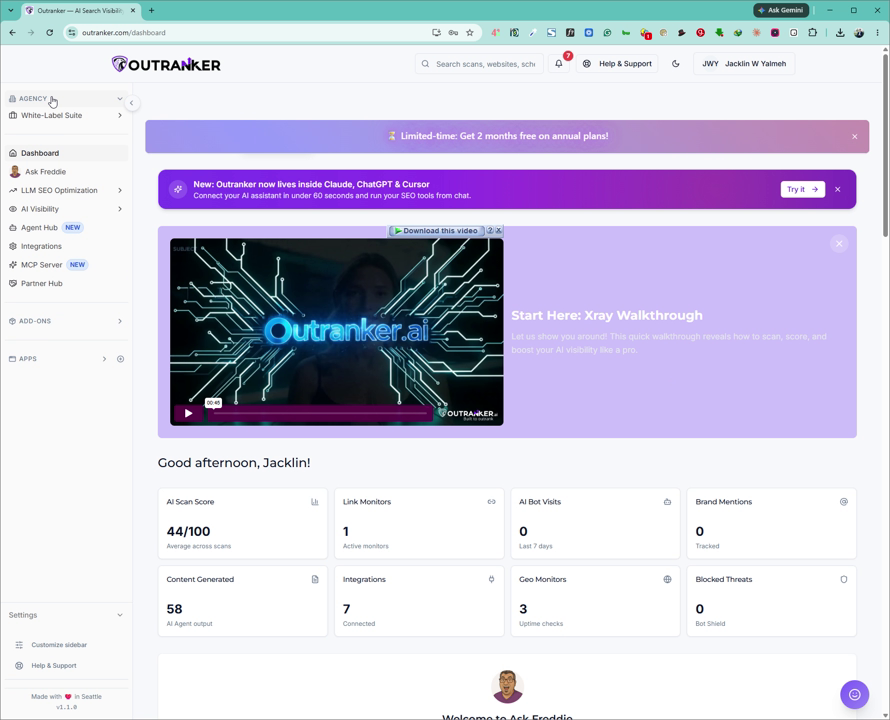
Next, select White Label Suite, then click on Branding & Domain.
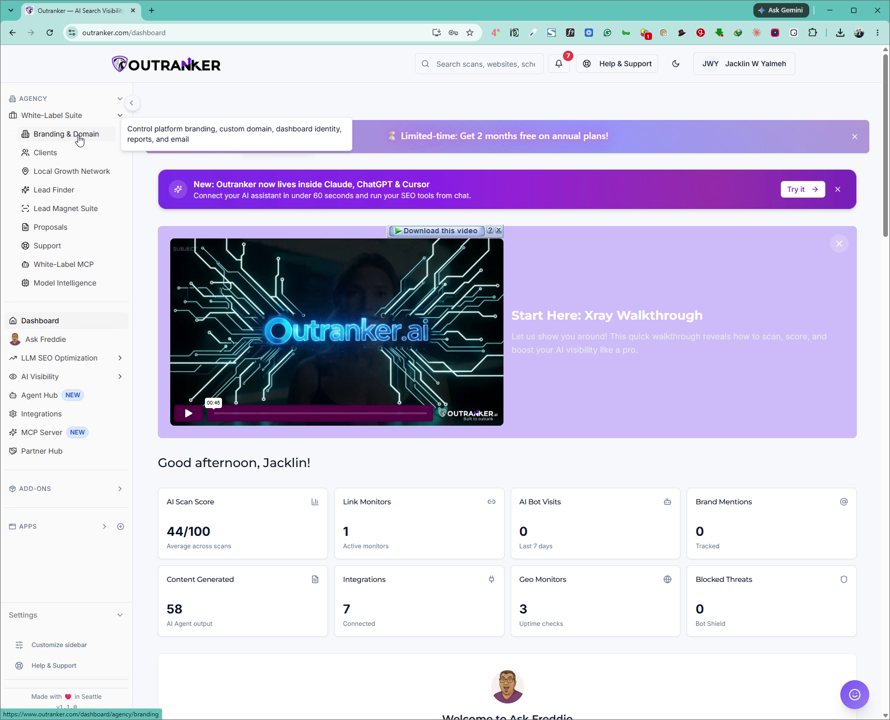
2. Open the Video Banners Section
On the Branding & Domain page, scroll down until you see the Video Banners section.
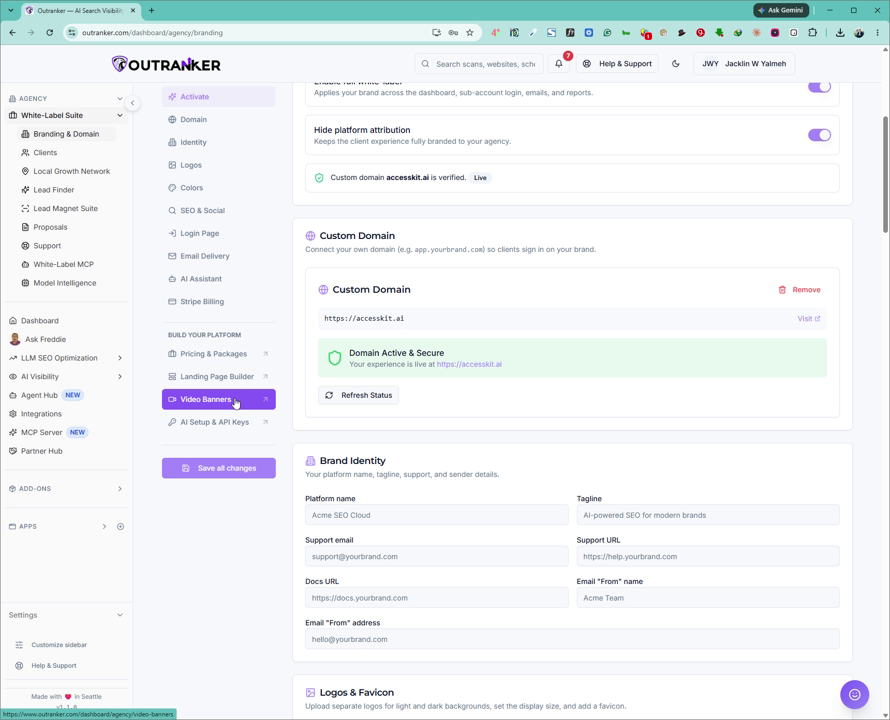
Click on Video Banners to open its settings.
3. Turn On Video Banners
In the Video Banners settings, toggle the switch to turn video banners on.
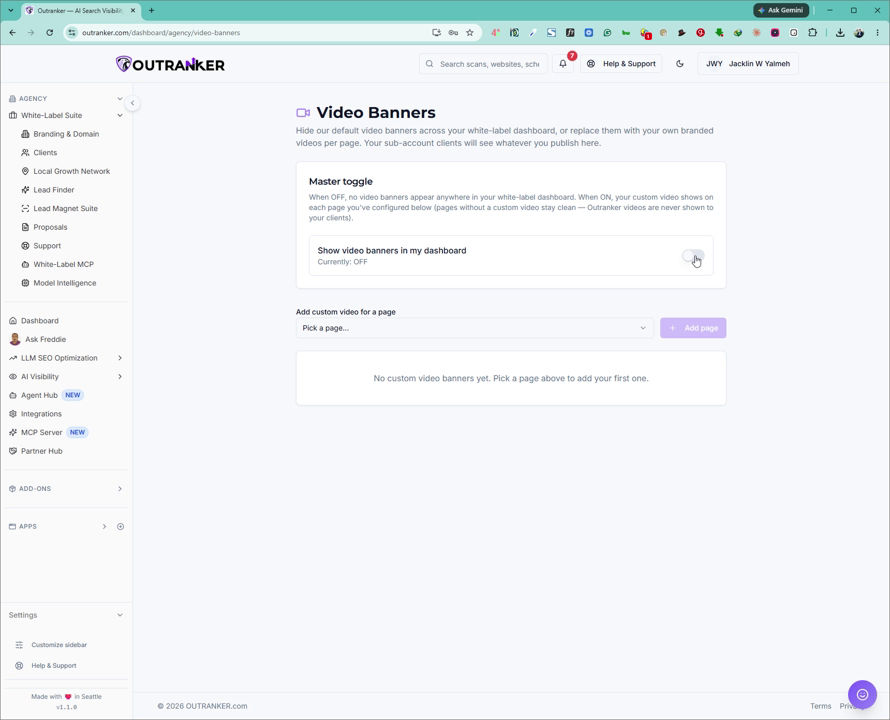
Once enabled, video banners will be activated for your white label agency pages.
4. Add a Video Banner to a Specific Page
You can add a custom video banner to any page you like. For example, to add a video banner to the AI Visibility page, select that page as your target.
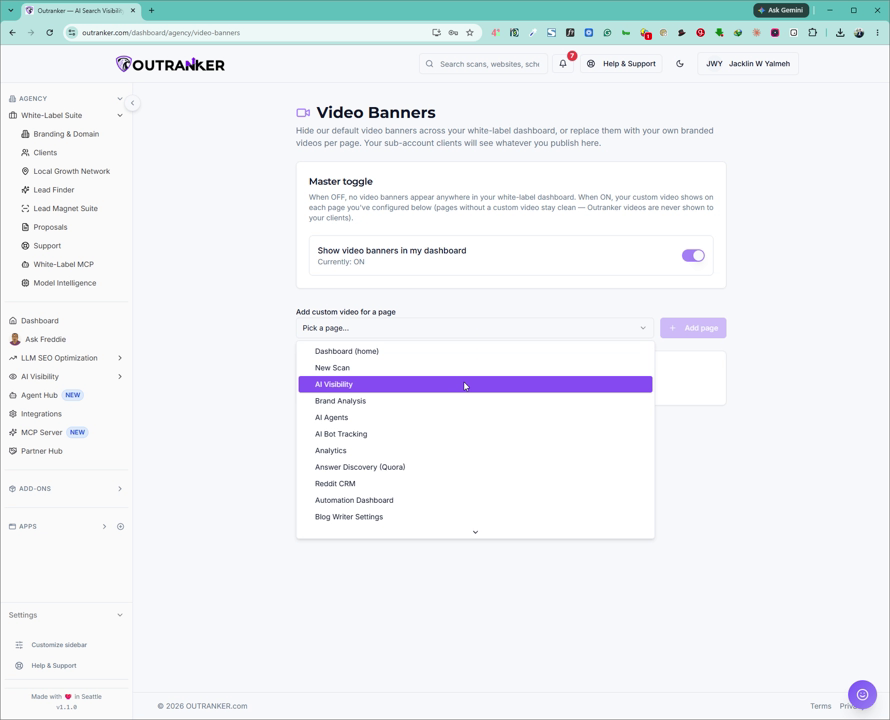
Click on Add Page.
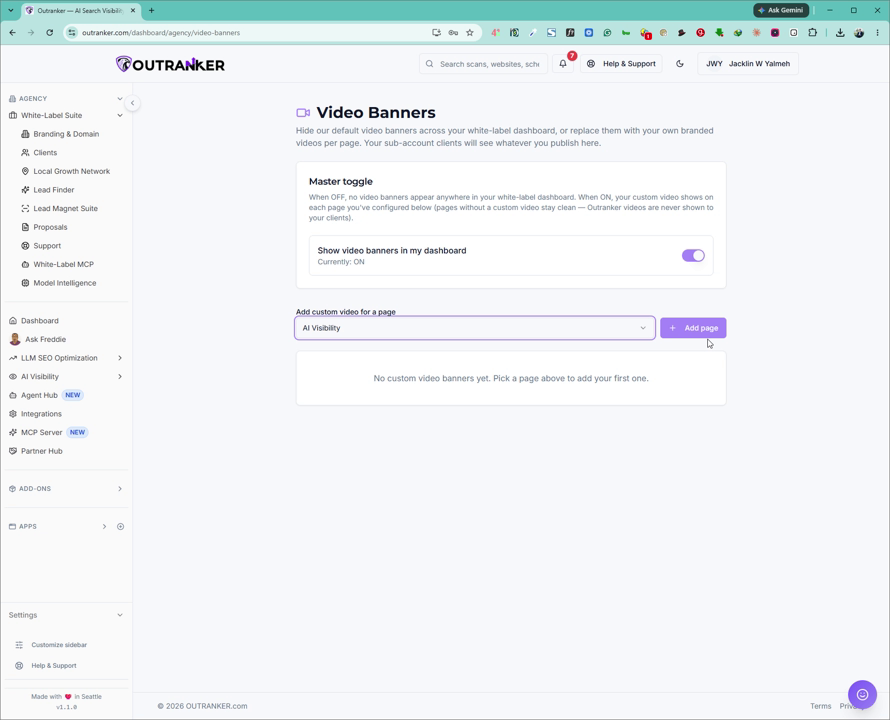
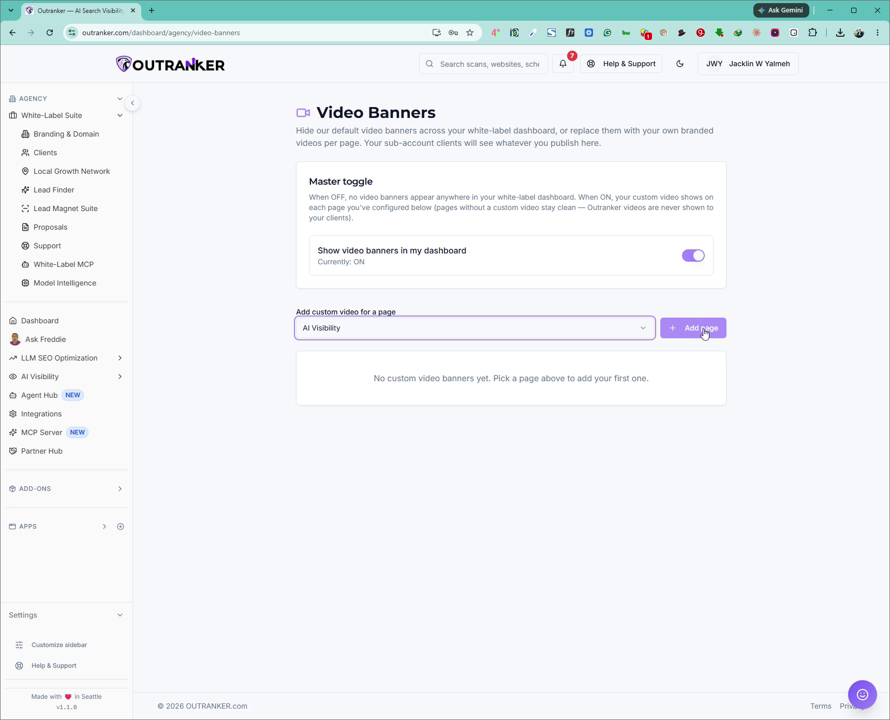
You will now see options to customize the banner’s title, background color, and description.
5. Configure Video Source and Content
Under Video Type, select your preferred source: YouTube, Loom, or Vimeo.
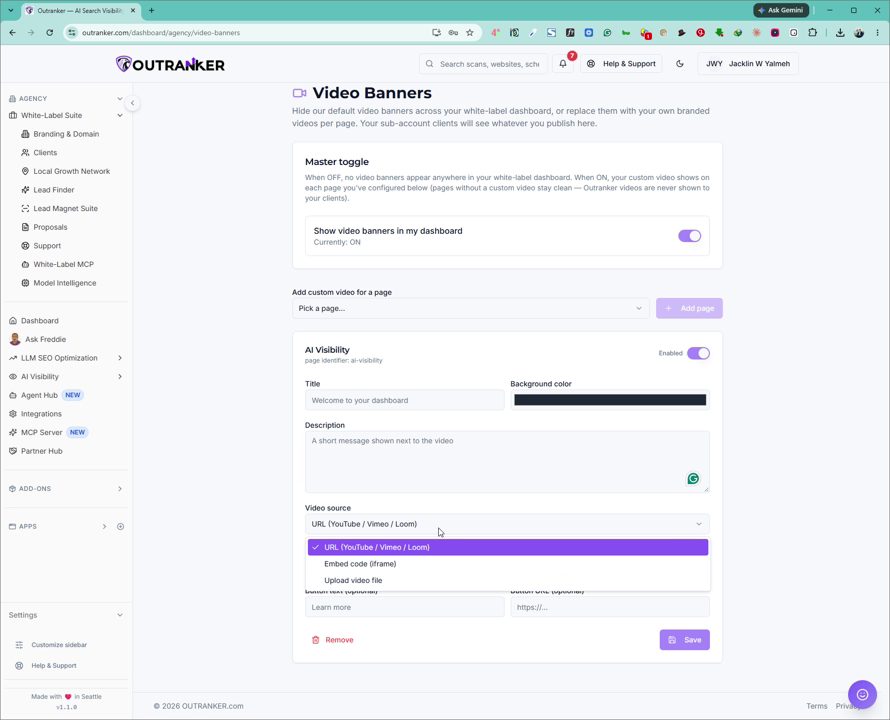
Choose the option you want (e.g., YouTube, Loom, or Vimeo).
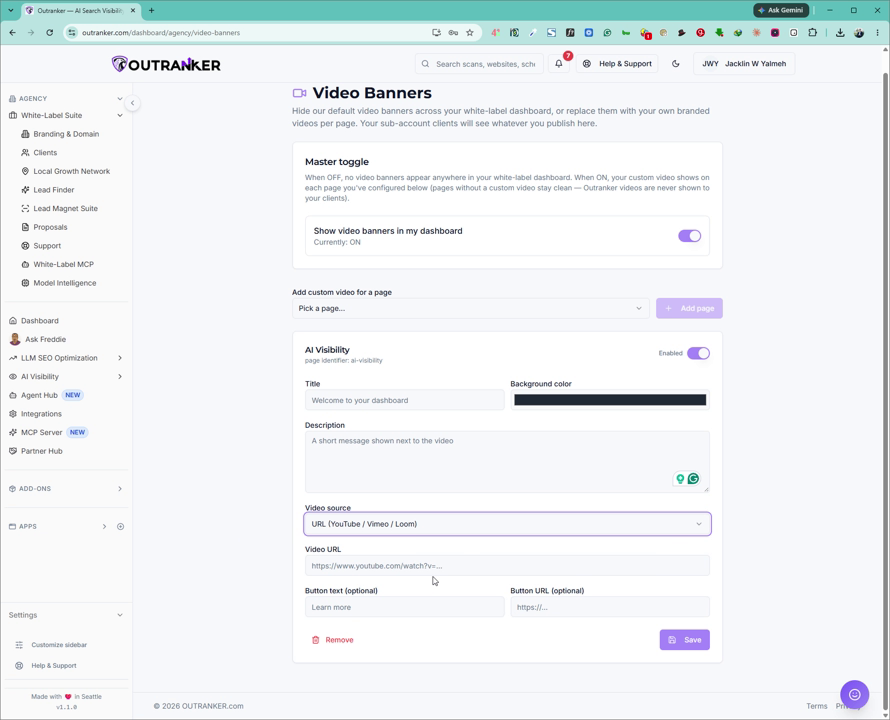
Enter the full video URL in the Video URL field. Optionally, fill in the Bottom Text and Bottom URL fields if you want additional text and a clickable link beneath the video.
6. Save Your Video Banner
After completing all required and optional fields, click Save to apply your video banner settings.
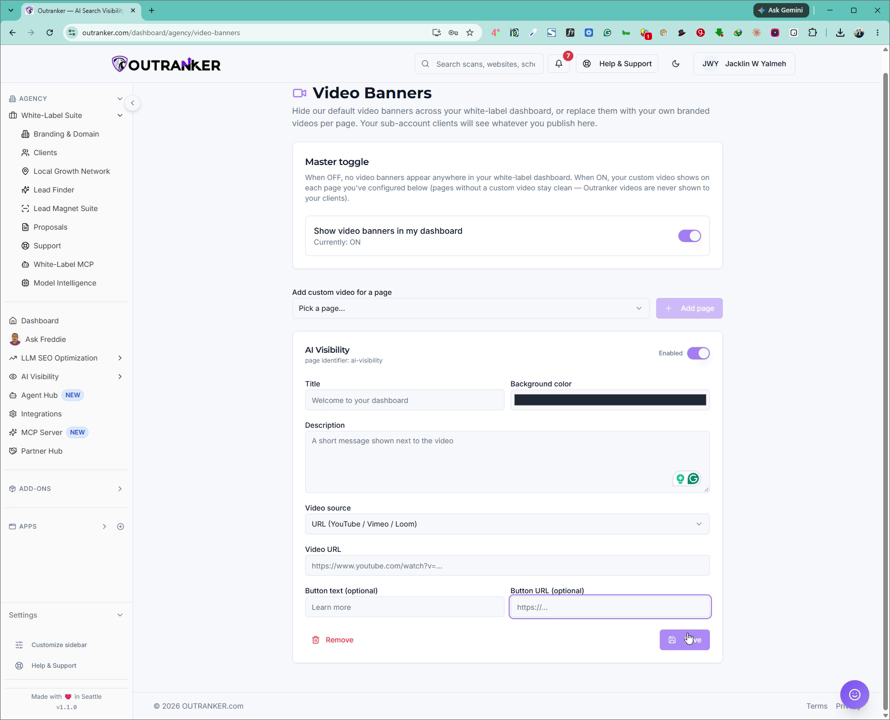
Your video banner is now enabled and configured for the selected page.
