
This document explains how to access and customize the pricing page for your white label agency inside Outranker, including layout, pricing display, and additional content such as testimonials, FAQs, and feature comparison tables.
Go to www.outranker.ai
1. Log In and Open the White Label Suite
Log in to your account at outranker.com. Once logged in, click on the Agency section to access your agency settings.
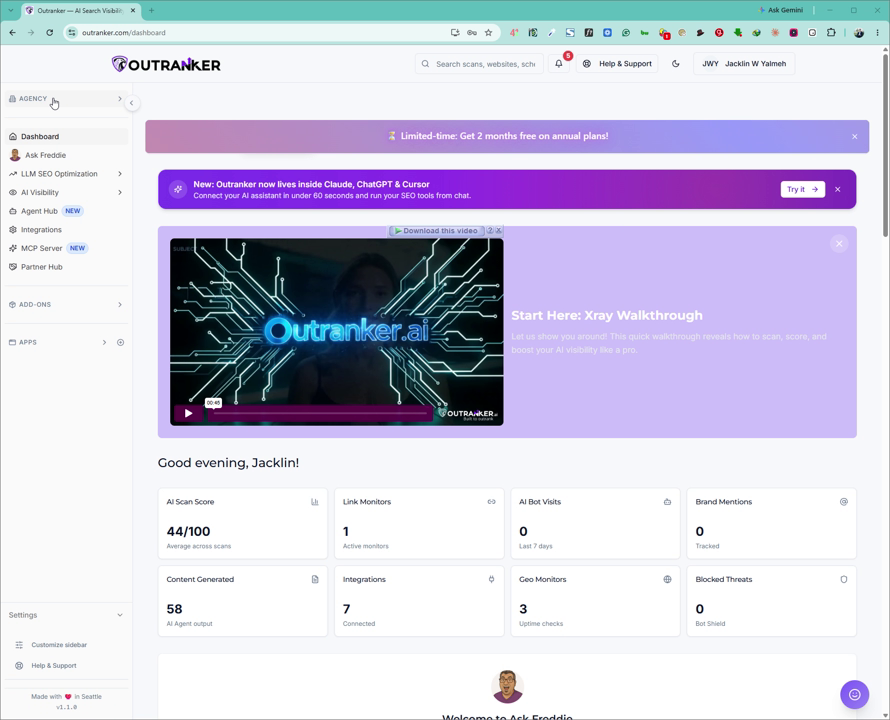
From the Agency area, navigate to the White Label Suite and click on Branding and Domain.
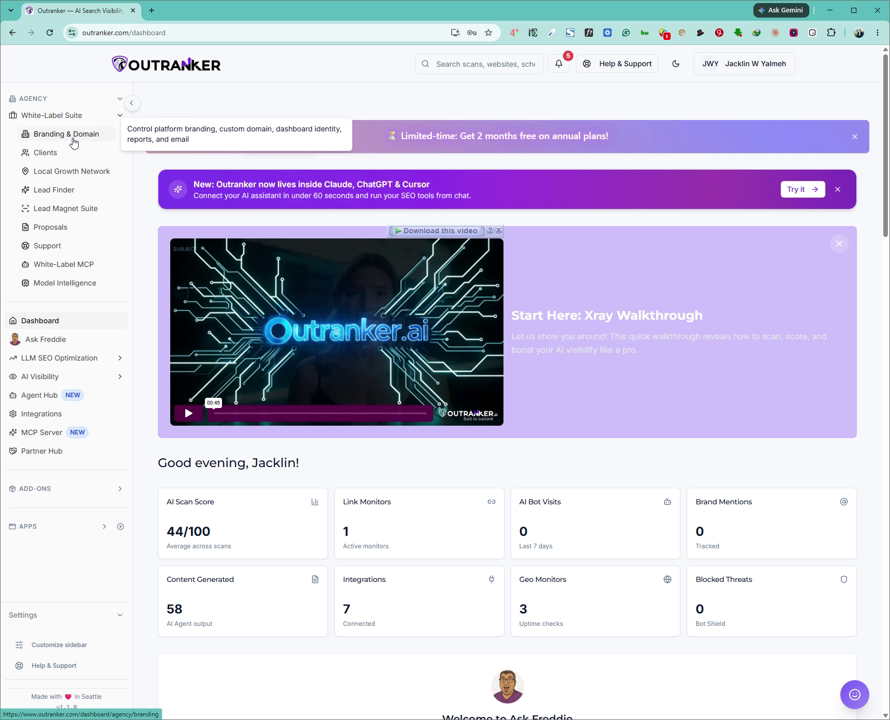
2. Navigate to Pricing and Packages
On the Branding and Domain page, scroll down slightly until you find the Pricing and Packages section. Click on it to open your pricing configuration options.
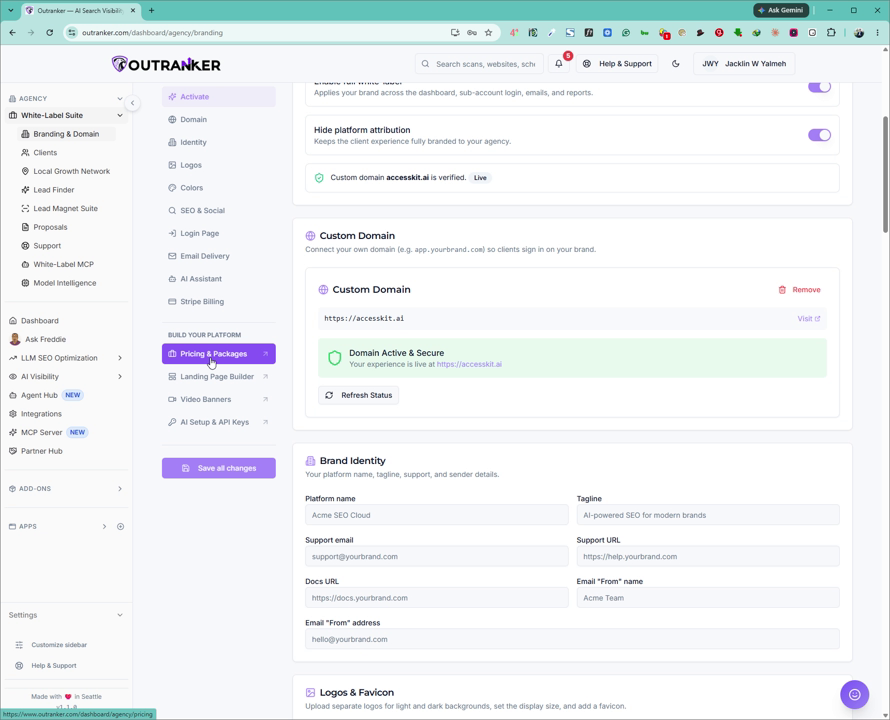
3. Open the Pricing Page Editor
Within the Pricing and Packages area, click on Pricing Page to open the editor where you can customize the pricing page your customers will see.
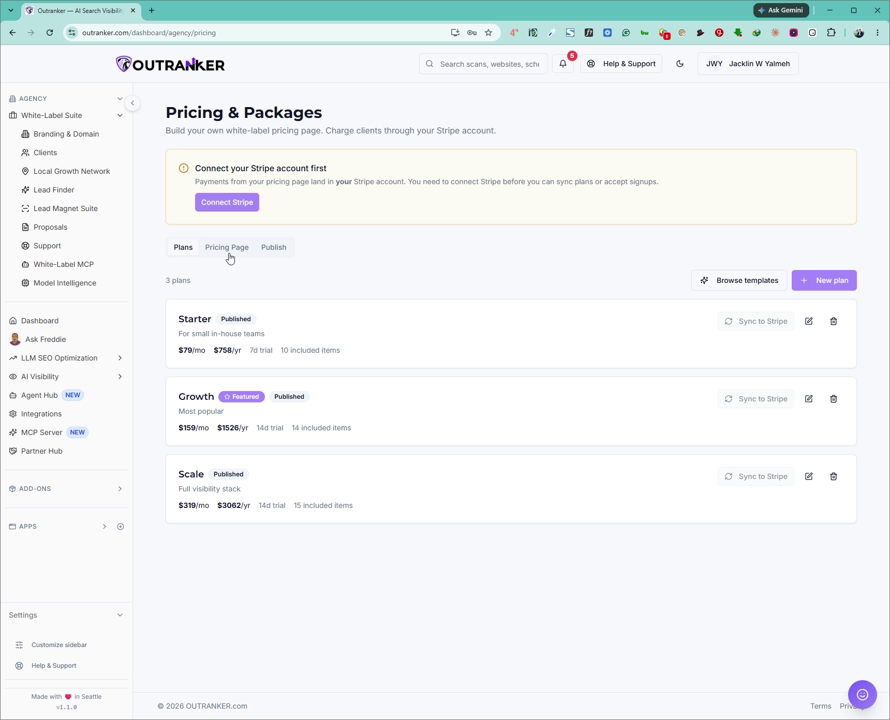
4. Customize Pricing Page Content and Layout
Use the pricing page editor to configure all visible elements of your pricing page for your white label agency:
Set or edit the headline and sub-headline text.
Configure the CTA (Call-to-Action) buttons, including their labels and behavior.
Choose whether to display monthly pricing or yearly pricing as the default view.
Adjust the column layout for your pricing plans.
You can also enrich the page with supporting content:
Add testimonials to build trust with potential customers.
Add FAQs to address common questions.
Add footer notes for any additional legal or contextual information.
If needed, enable and configure a feature comparison table so that it appears on the pricing page.
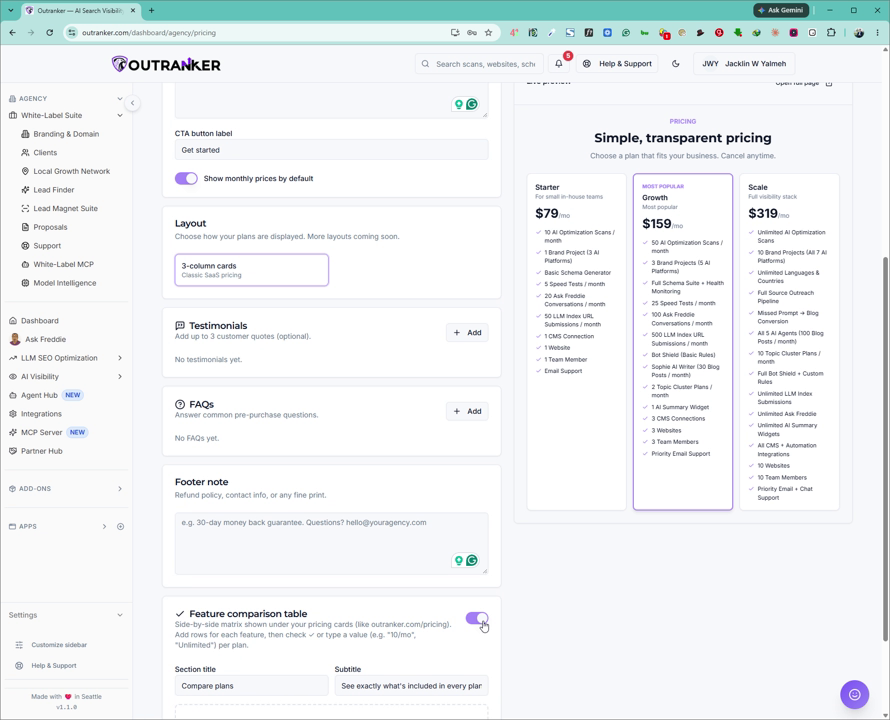
Fill in your own plan details and feature information in the comparison table fields to complete your pricing page customization.
