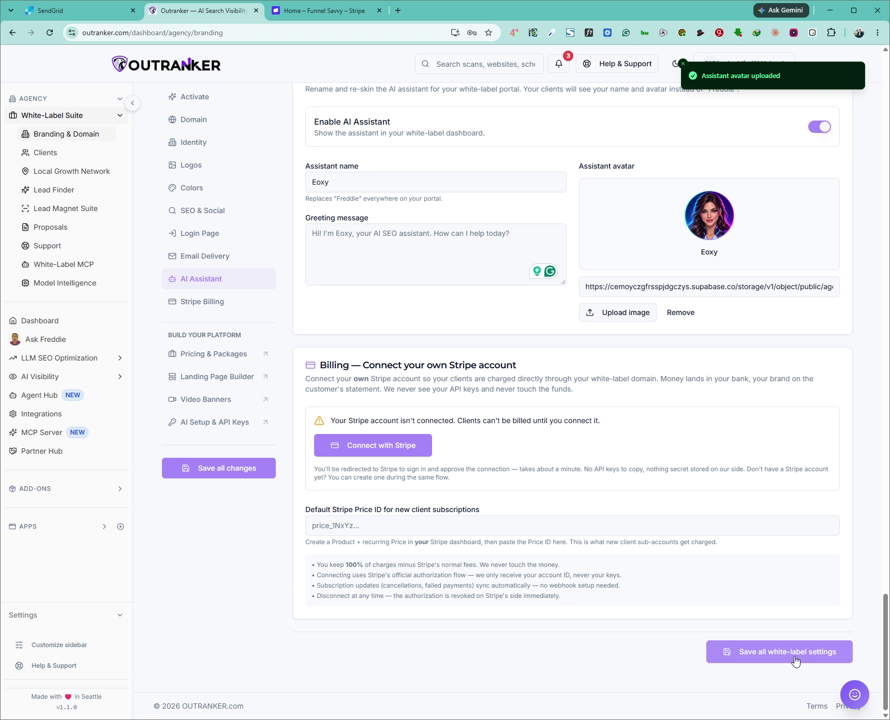
This document explains how to enable and customize the AI Assistant for your white label account in Outranker, including accessing the correct settings, turning the assistant on or off, and configuring its name, greeting message, and logo.
Go to www.outranker.ai
1. Access the White Label Suite
Log in to your Outranker account. From the main dashboard, click on Agency in the top-left corner.
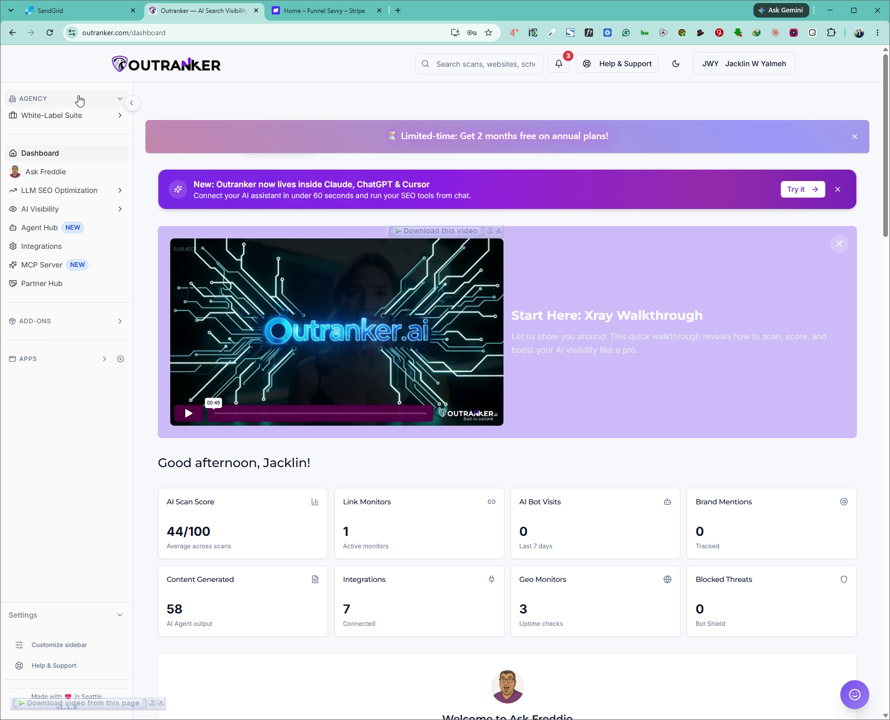
In the Agency menu, click on White Label Suite.
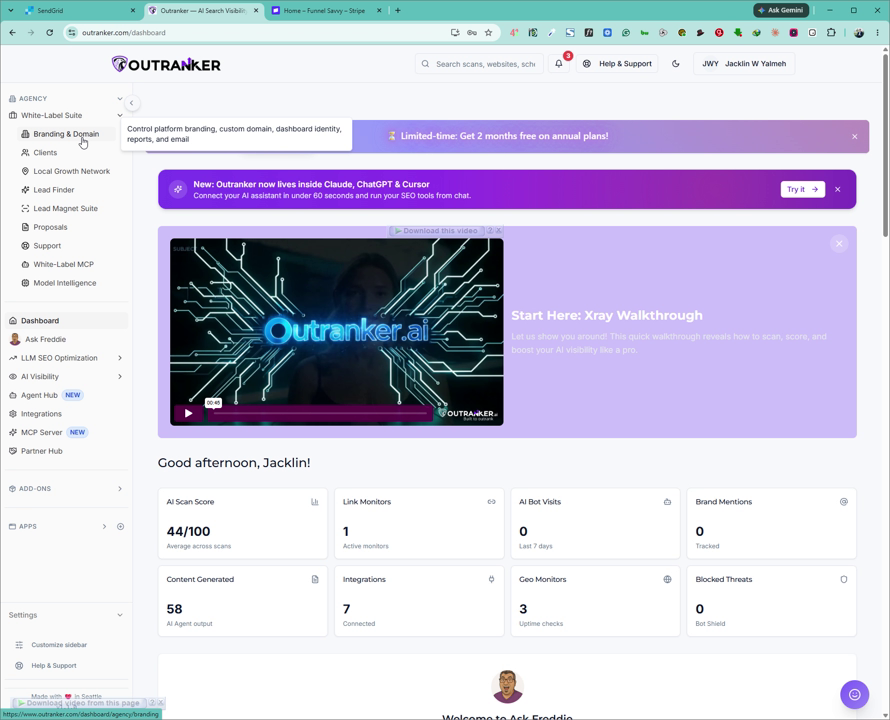
2. Open Branding and Domain Settings
Within the White Label Suite, click on Branding and Domain to open your white label branding configuration page.
3. Locate the AI Assistant Option
Scroll down the Branding and Domain page until you see the AI Assistant section. Click on the AI Assistant option to open its configuration panel.
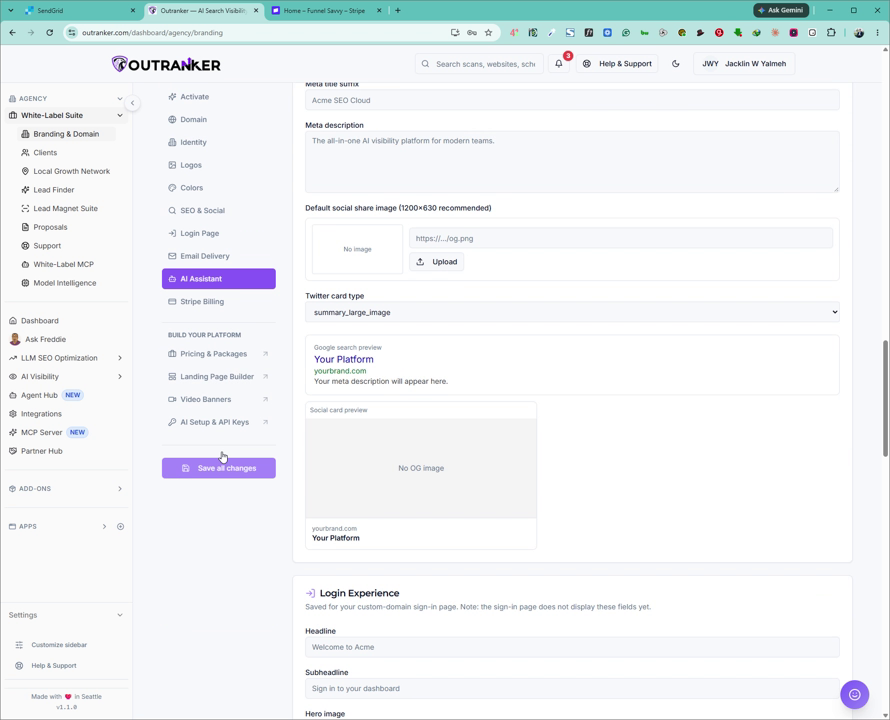
4. Enable or Disable the AI Assistant
In the AI Assistant settings, use the available toggle or control to enable or disable your AI Assistant according to your preference.
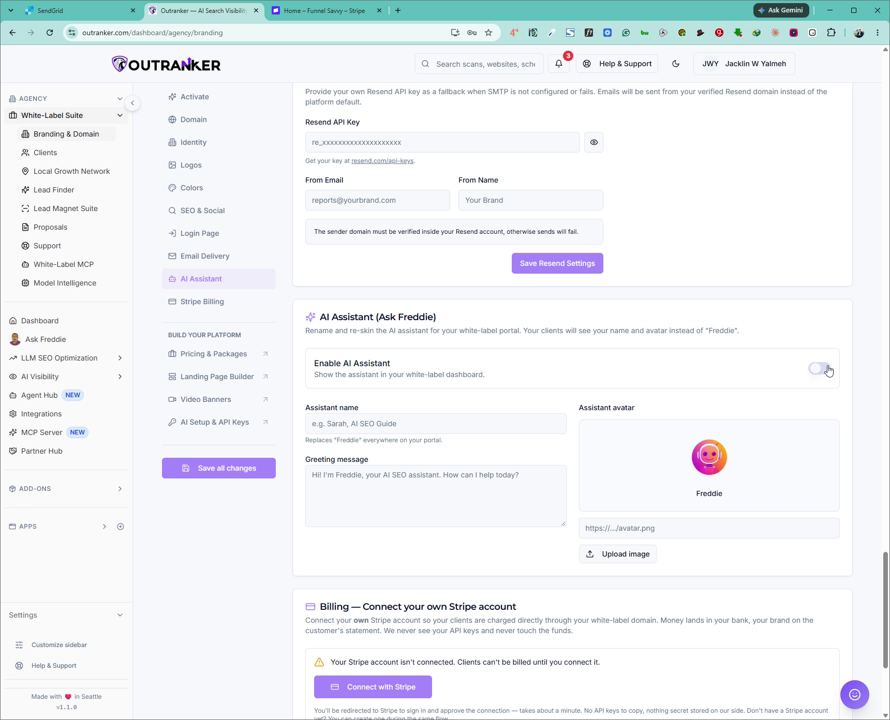
5. Configure the Assistant Name and Greeting
Enter a suitable name for your AI Assistant to match your brand.
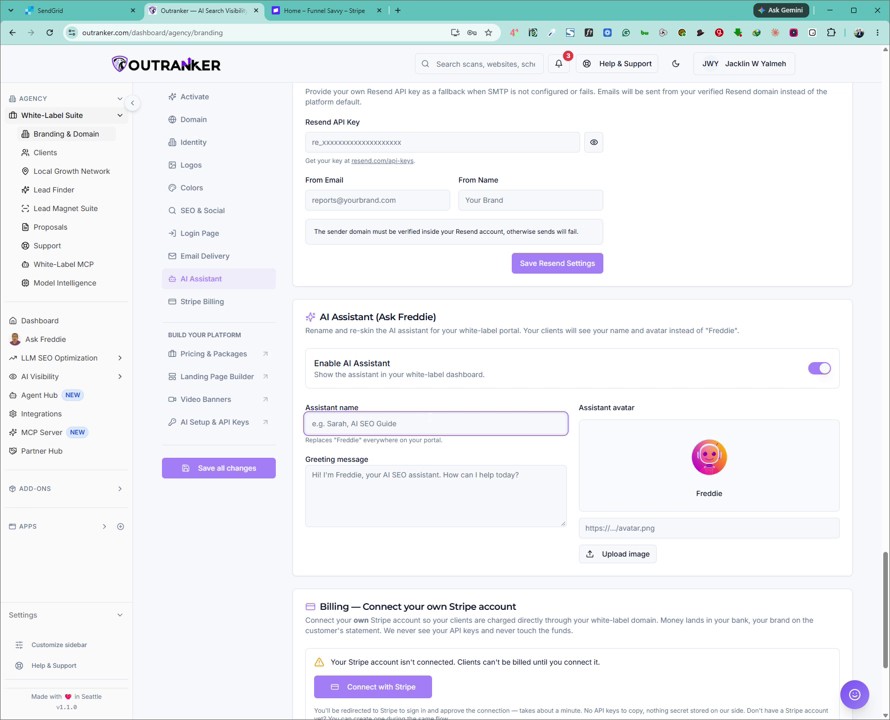
Then set a greeting message that users will see when they first interact with the assistant.
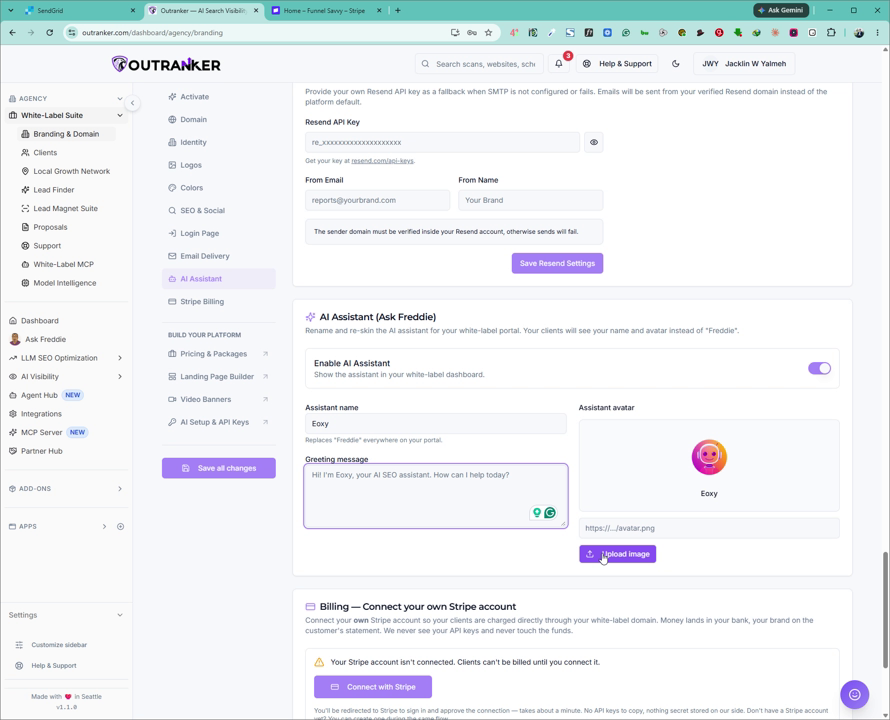
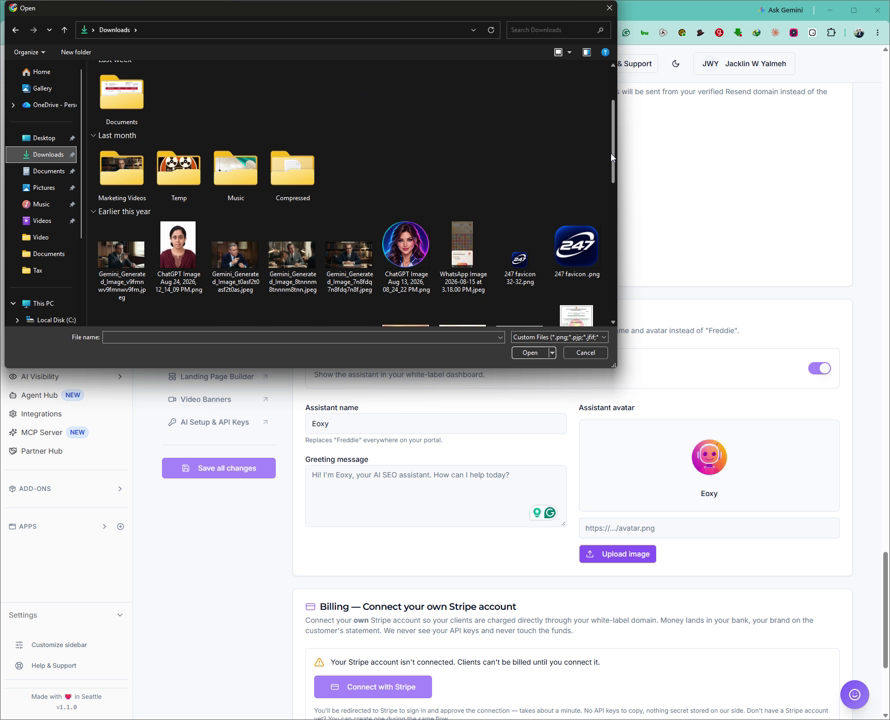
6. Upload a Custom Logo
Upload your own custom logo for the AI Assistant to align it with your white label branding.
7. Save Your White Label Settings
Once you are satisfied with all AI Assistant configurations, click Save All with White Label Settings to apply and store your changes.