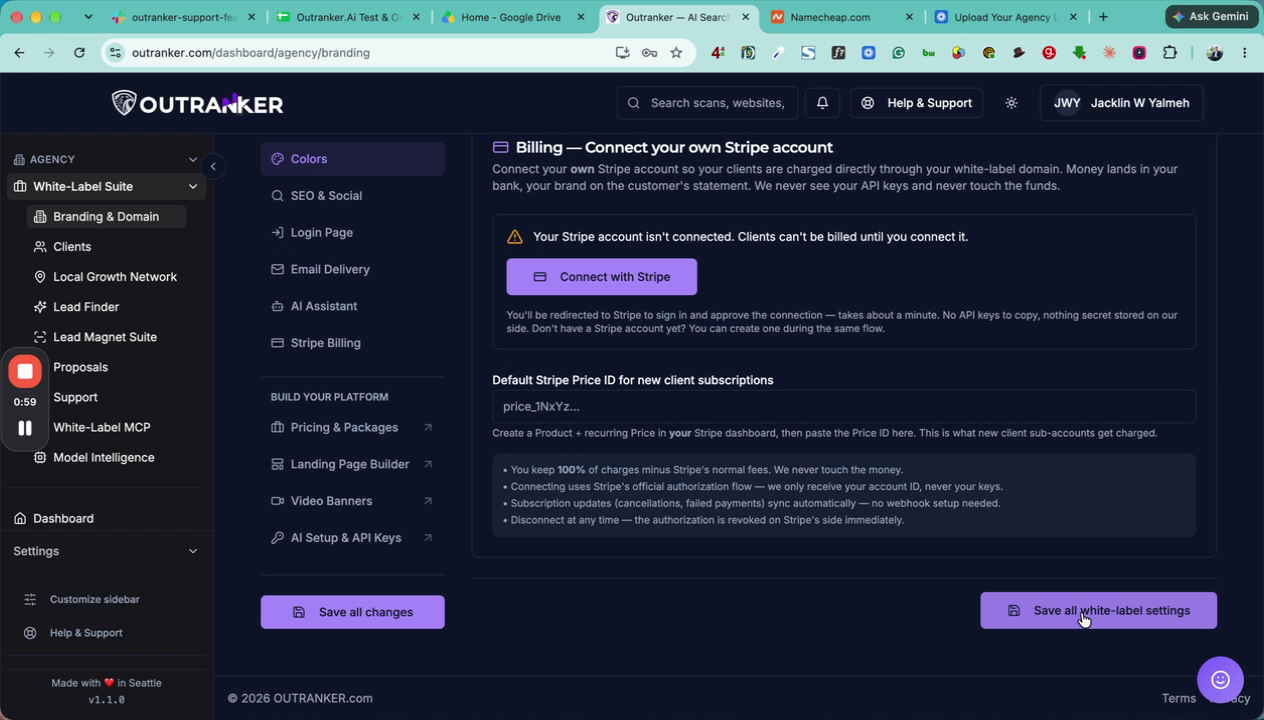
This document explains how to access, customize, and save your agency’s branding colors and button shapes within the Outranker platform.
Go to www.outranker.ai
1. Log In and Open the Agency White Label Suite
Log in to your Outranker account. From the left-hand menu, click on Agency
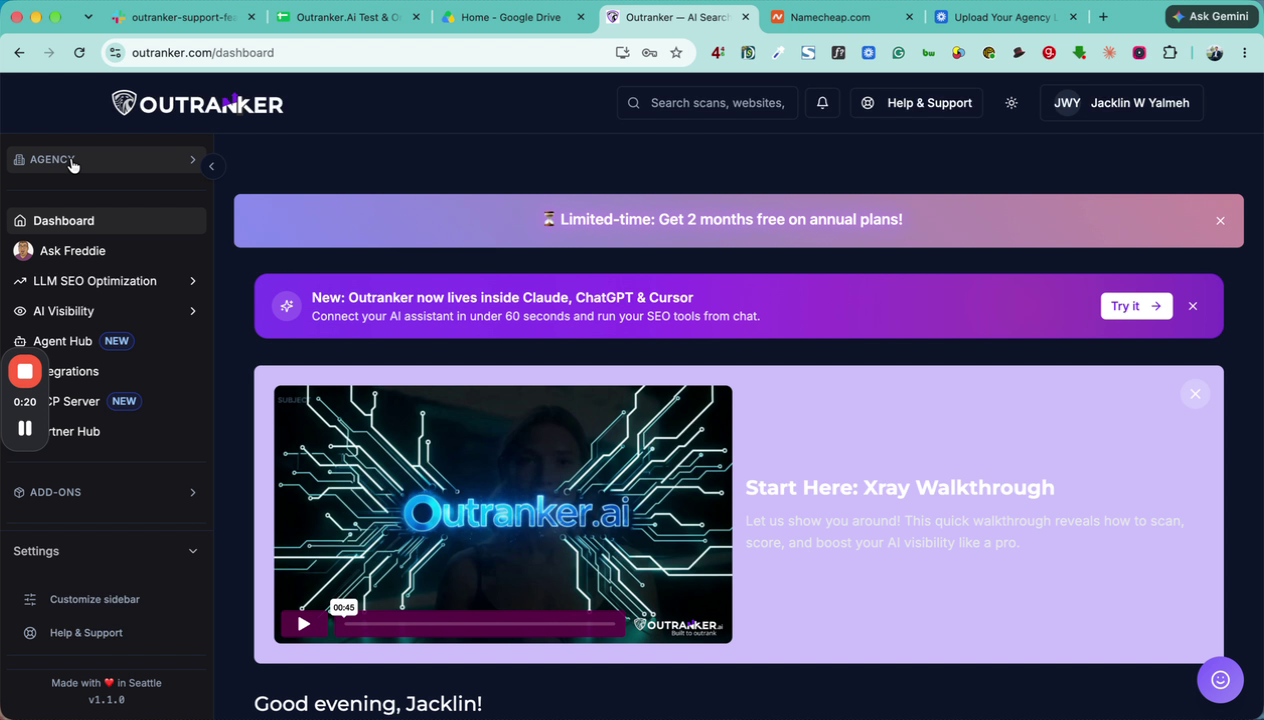
and then select White Label Suite.
2. Navigate to Branding and Domain Settings
Within the White Label Suite, click on Branding
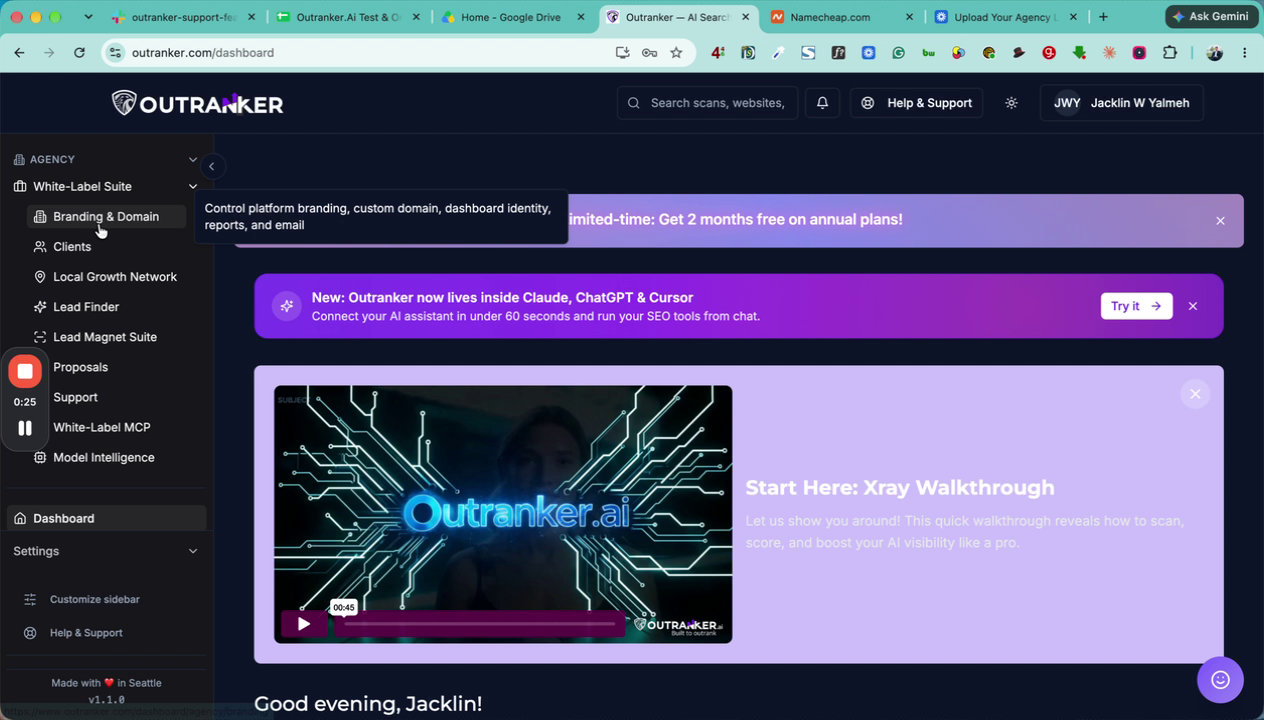
and then open the Domain section.
3. Open the Color Customization Panel
Scroll down the page until you see the Colors section. Click on the colors area on the left to open the color customization panel.
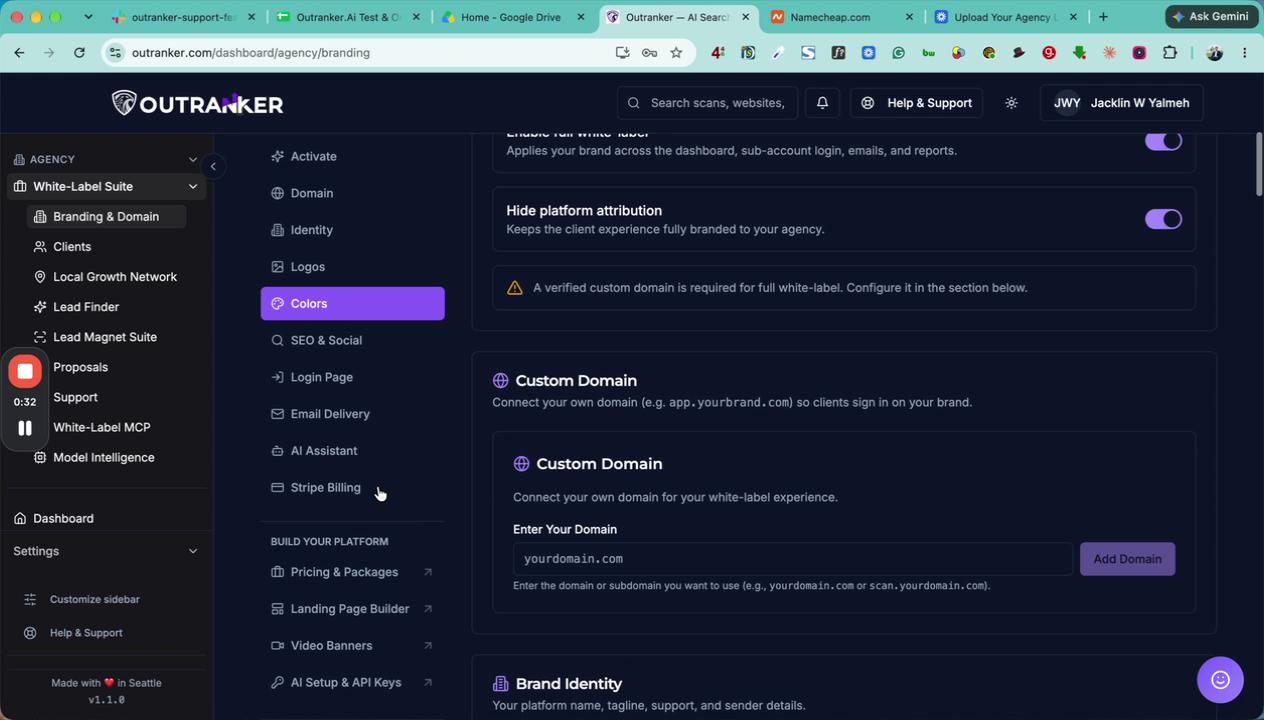
4. Configure Primary and Accent Colors
Select your Primary Color using the color picker or by entering a specific color code.
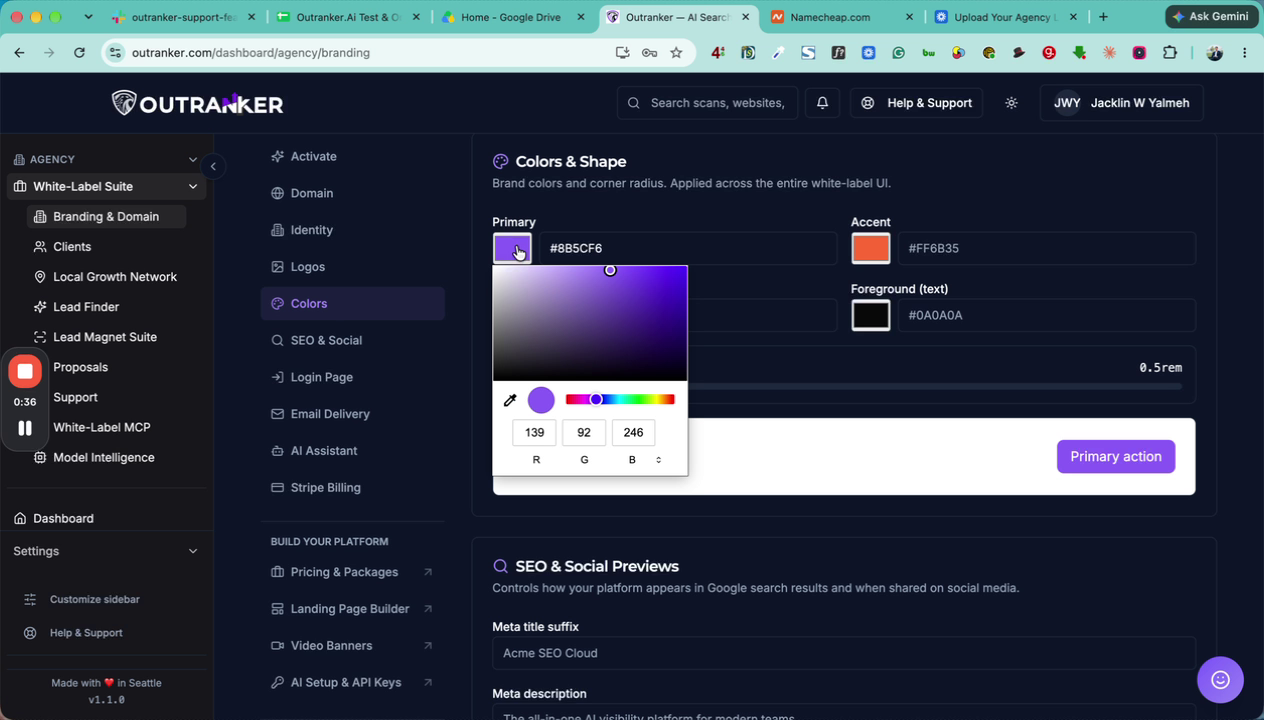
You can also define the Accent Color, Background Color, and Foreground (Text) Color in the same section.
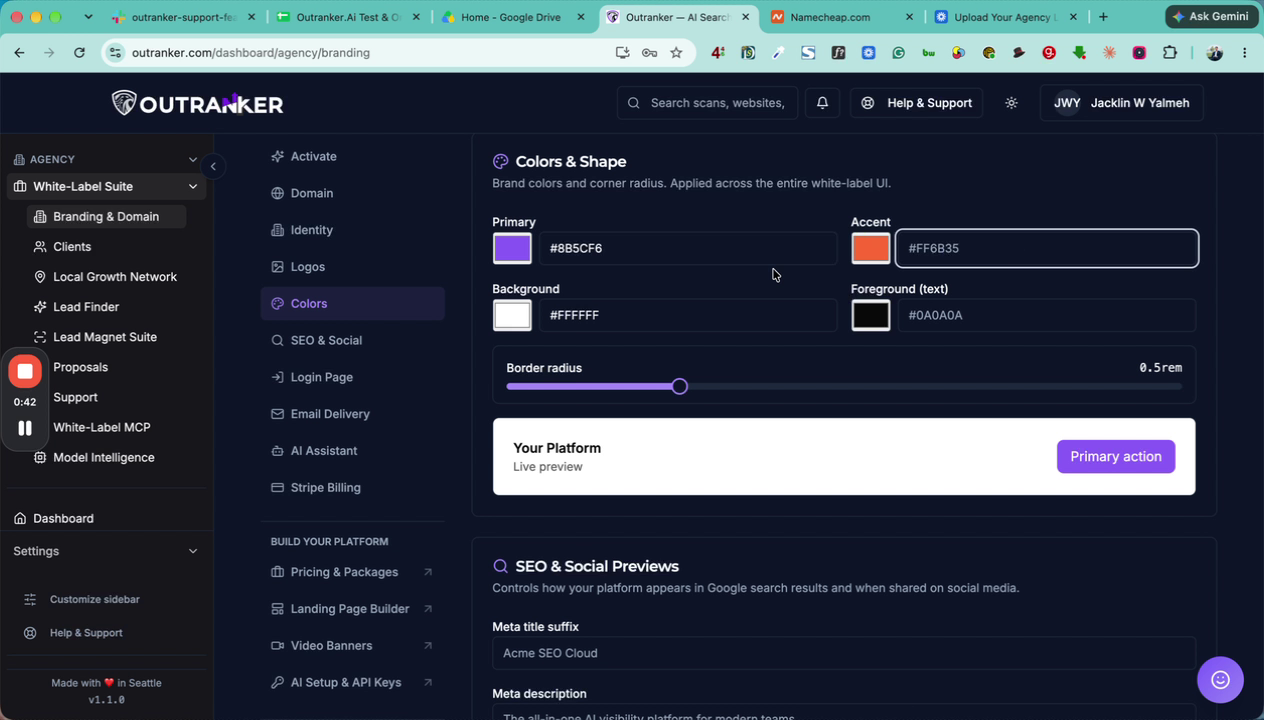
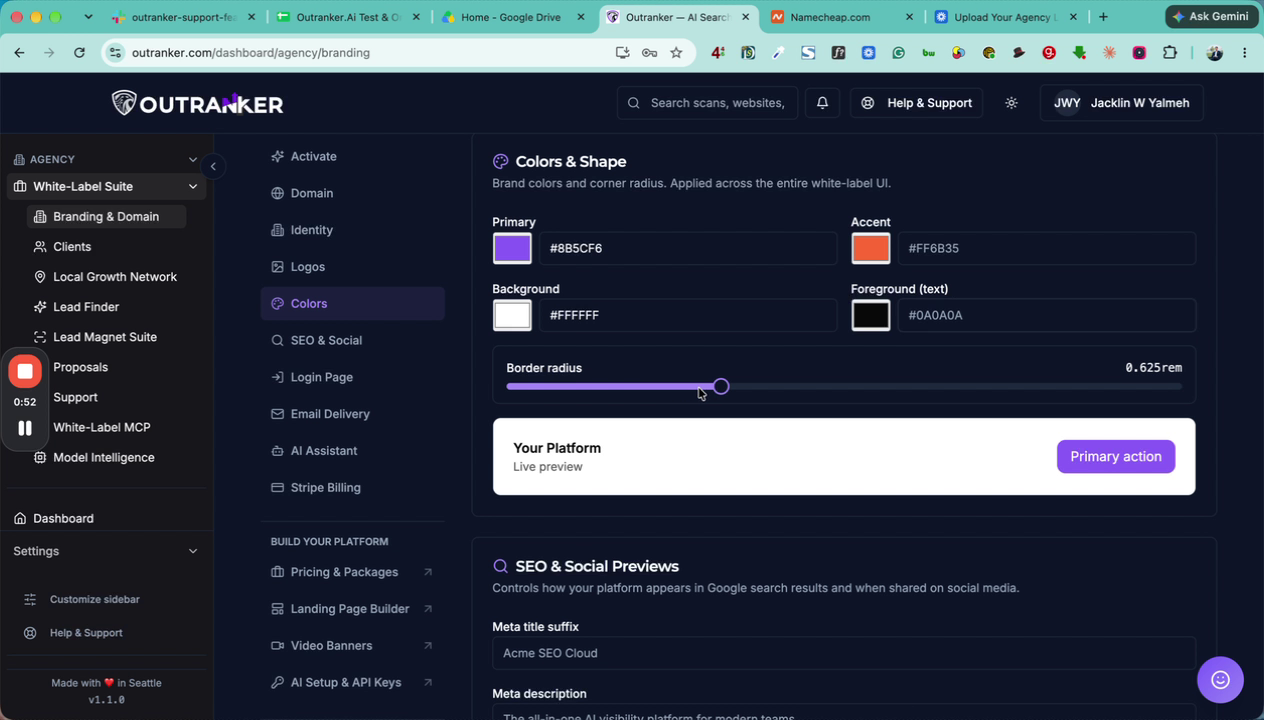
5. Adjust Button Border Radius
Set the Border Radius value to control how rounded your buttons appear. Experiment with different values until you are satisfied with the look.
6. Save Your Branding Settings
After finalizing all color and shape settings, scroll to the bottom of the page and click Save All with White Label Settings to apply your branding changes across the platform.