
This tutorial explains how to configure link health alerts in the Outranker AI SEO Optimization Platform.
Go to www.outranker.com
1. Introduction
“In this video, you’ll learn how to configure link health alerts in the Outranker platform. We’ll go step by step, so you can turn on notifications, choose when alerts should be sent, and make sure they reach the right people.”
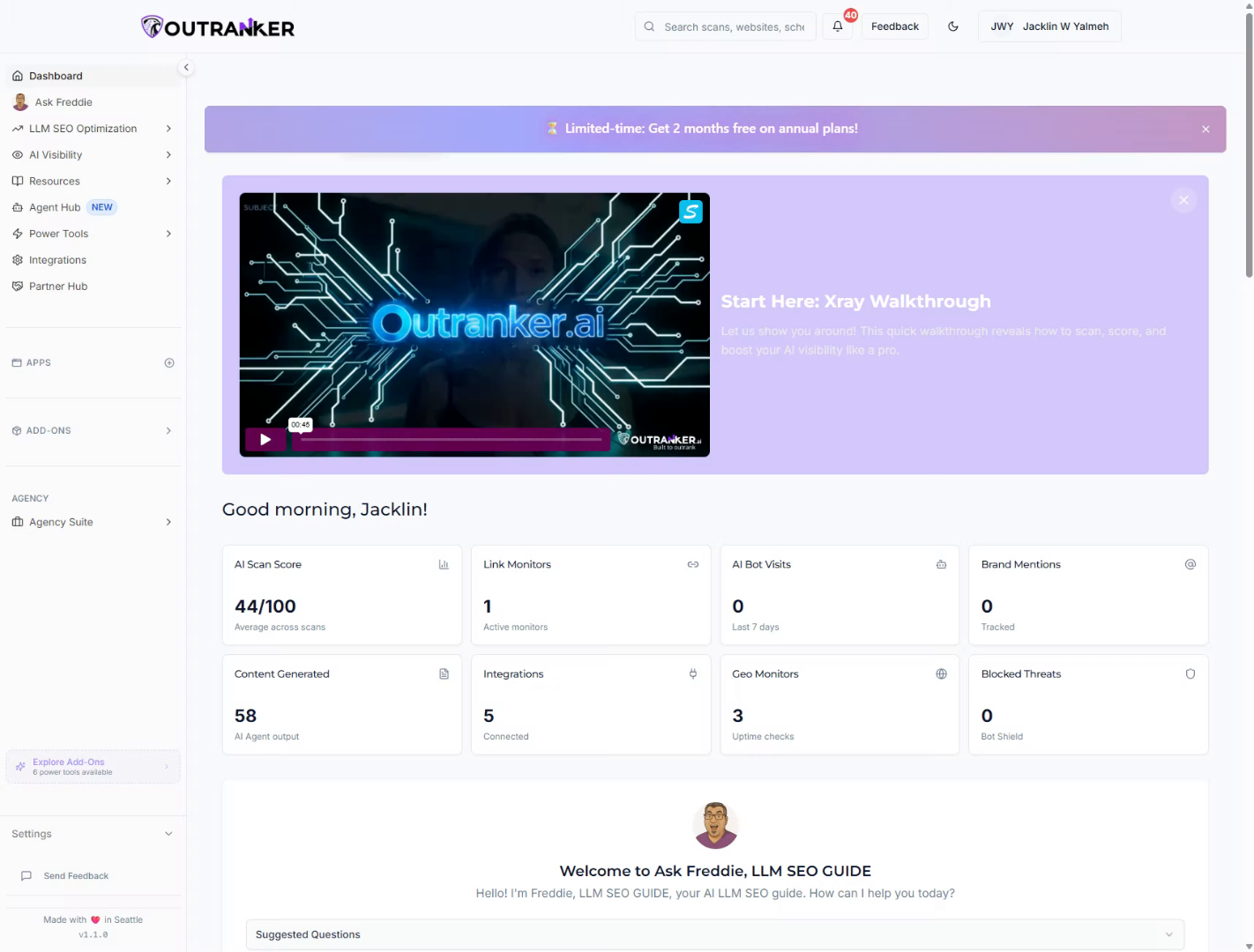
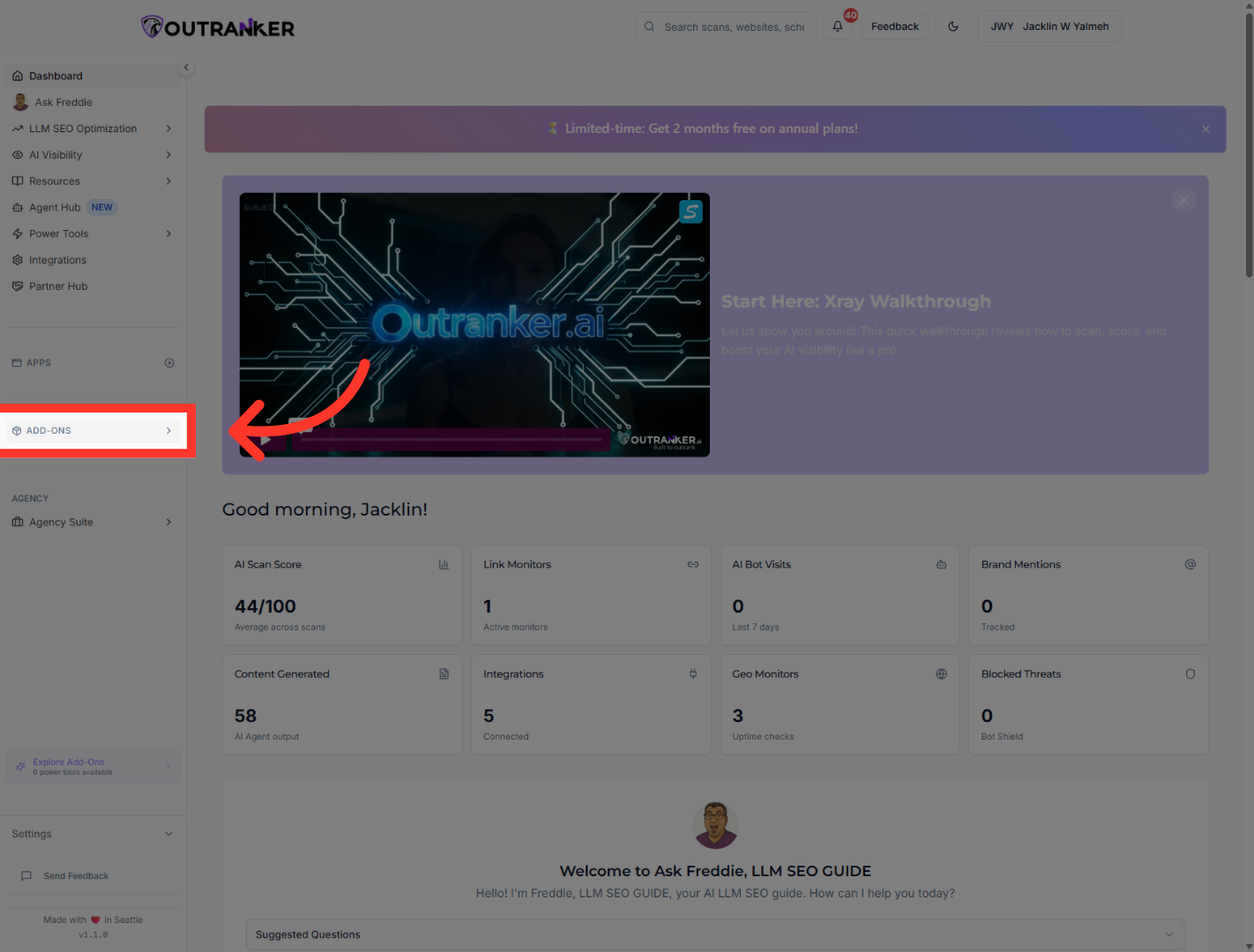
2. Access Add-Ons Section
“Start inside Outranker. In the left menu, click Add-Ons. This is where you manage extra tools and features.”
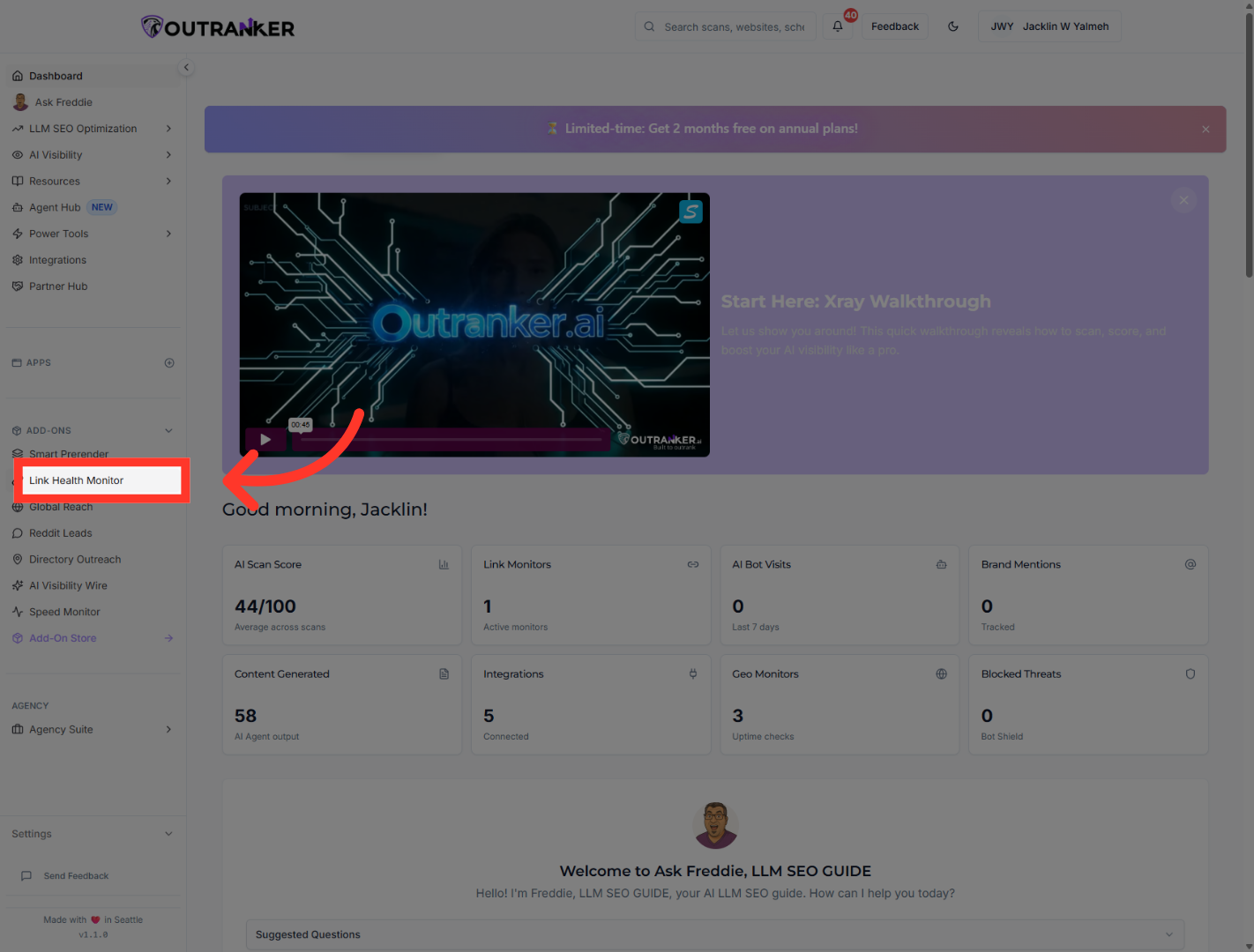
3. Open Link Health Monitor
“Next, click Link Health Monitor. This opens the area where you can manage link tracking and alert settings.”
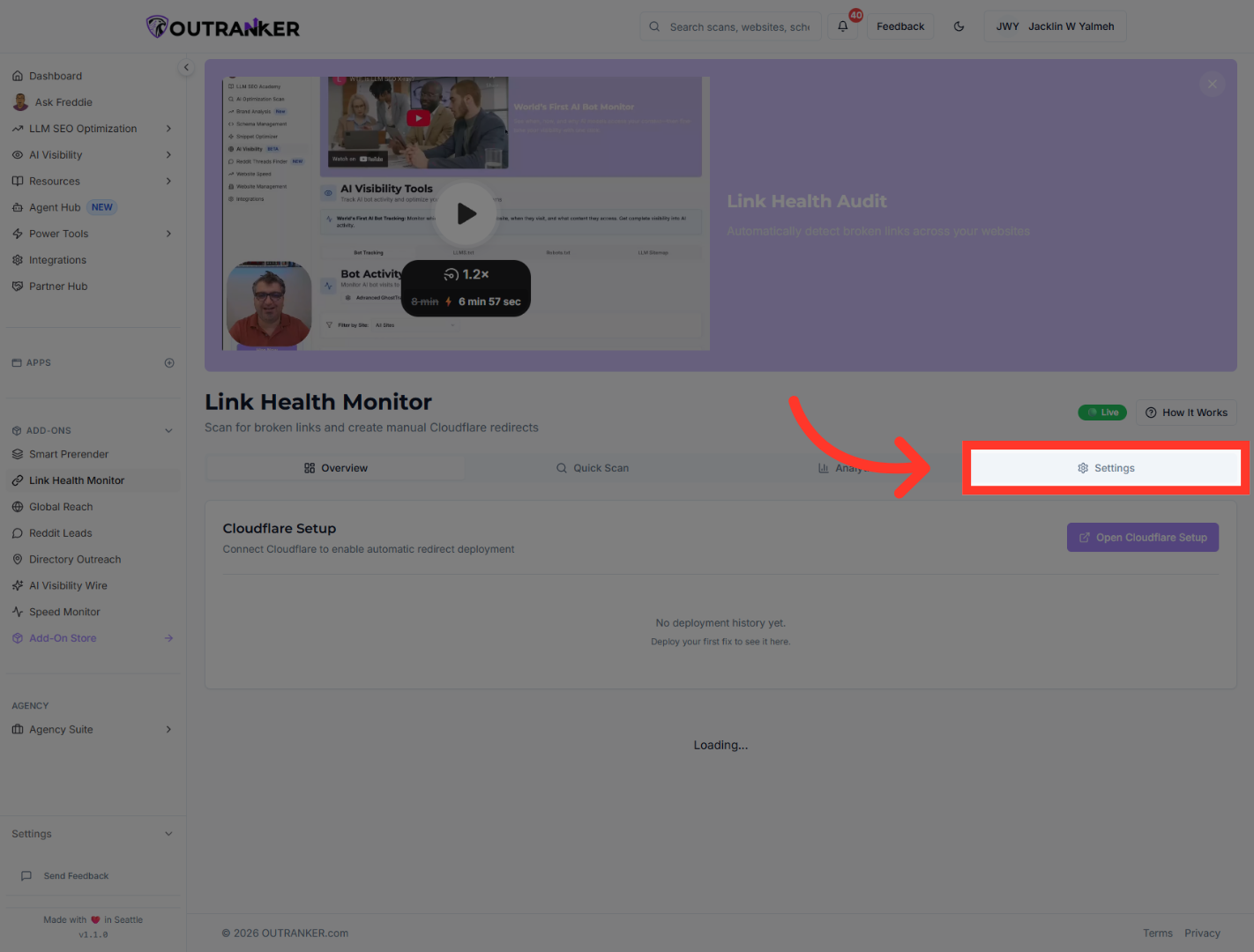
4. Open Settings Menu
“Now click Settings. This is where you can control how your link health alerts work.”
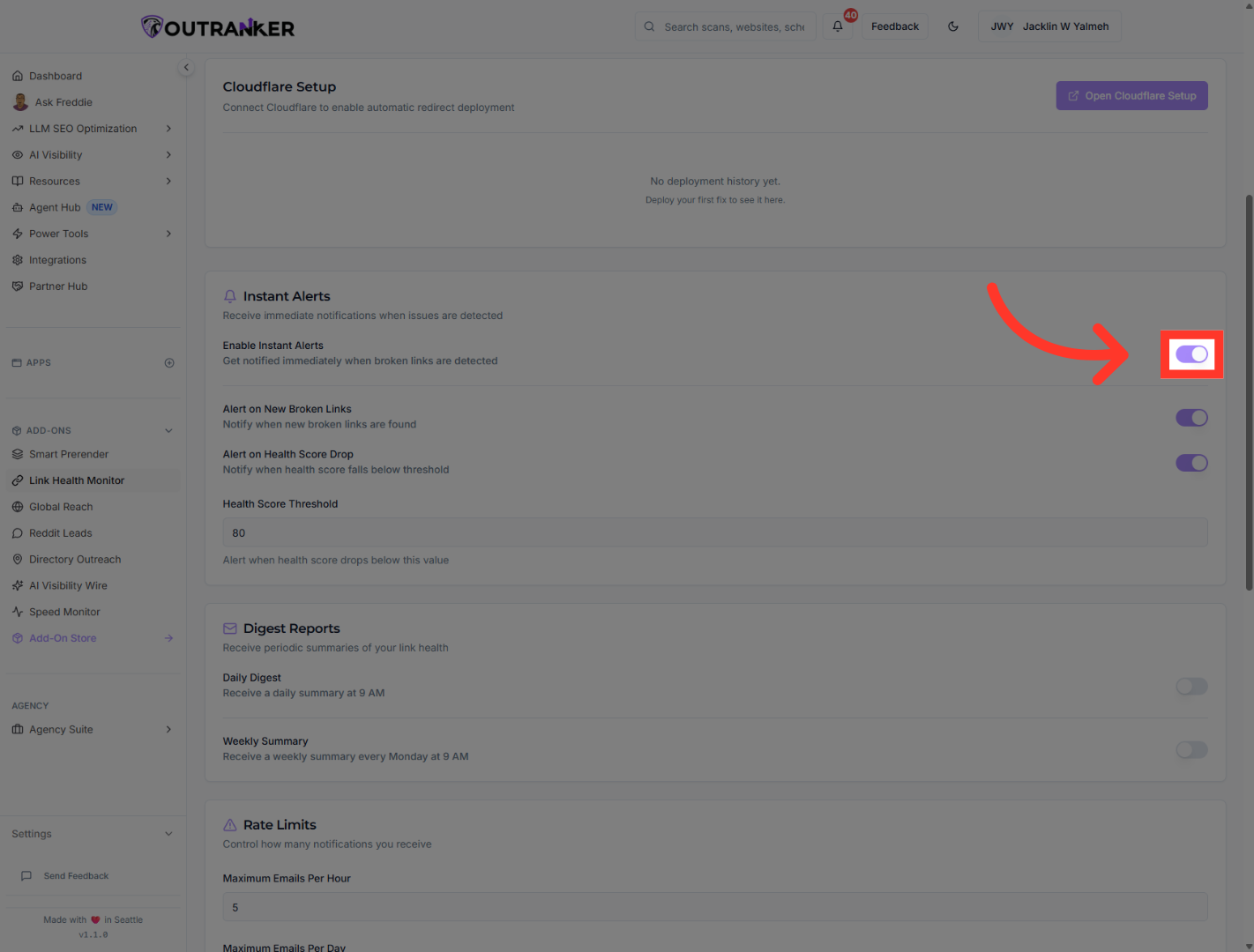
5. Enable Instant Alerts
“Find Enable Instant Alerts. Turn it on. This allows Outranker to notify you as soon as broken links are detected.”
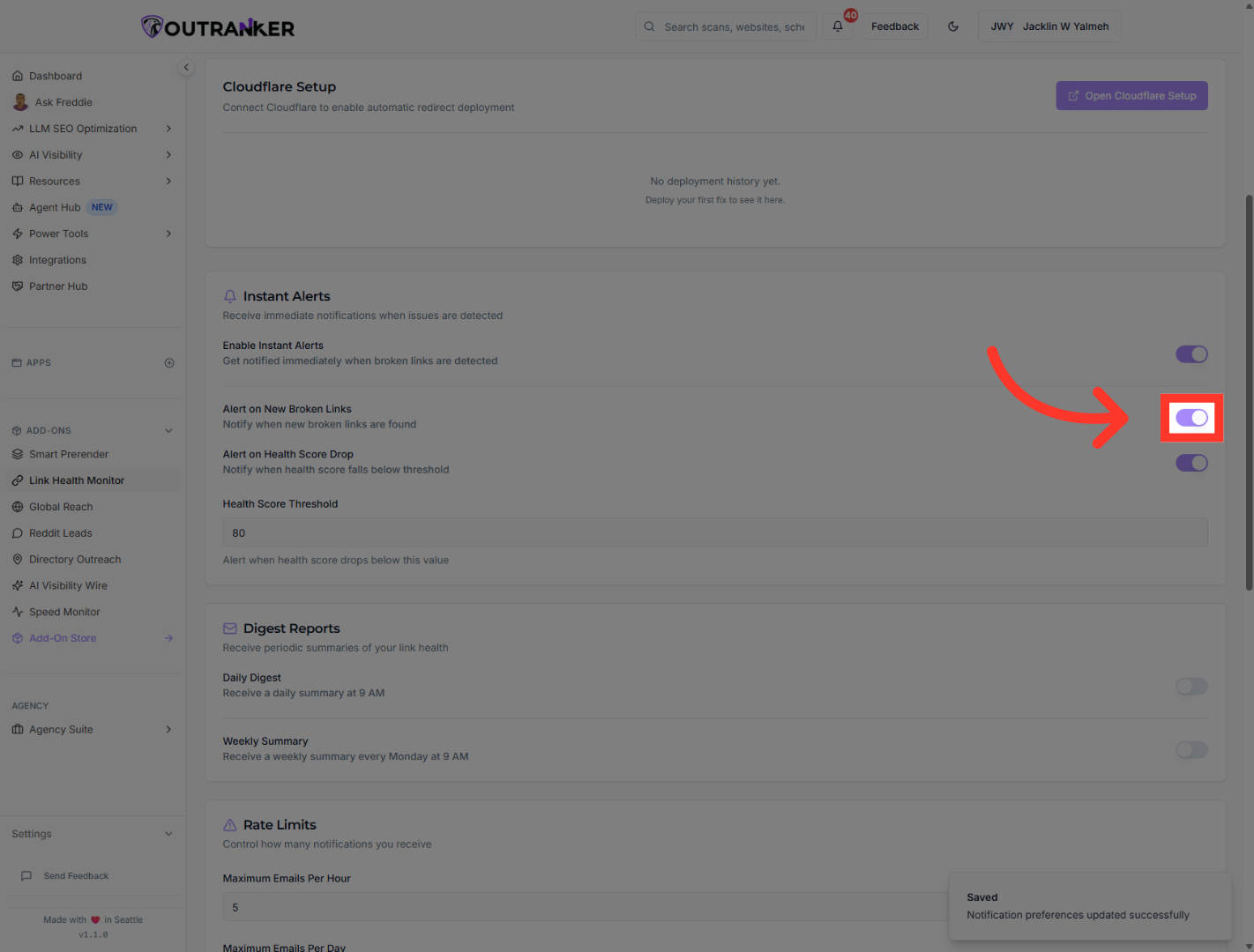
6. Activate New Broken Link Alerts
“Next, find Alert on New Broken Links. Turn it on. This lets you know when new broken links are found.”
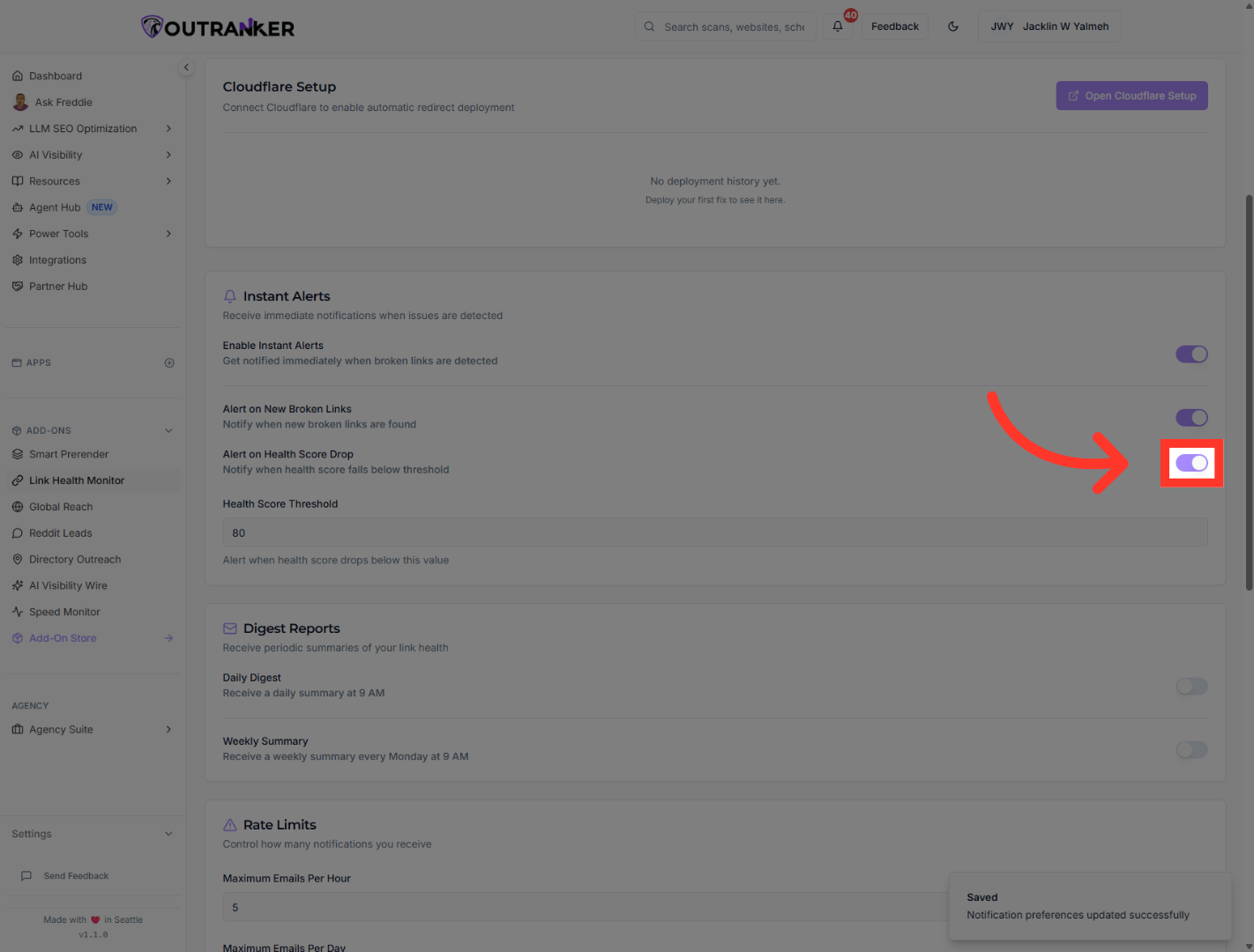
7. Enable Health Score Drop Alerts
“Now find Alert on Health Score Drop. Turn it on. This sends an alert when your link health score drops below the level you choose.”
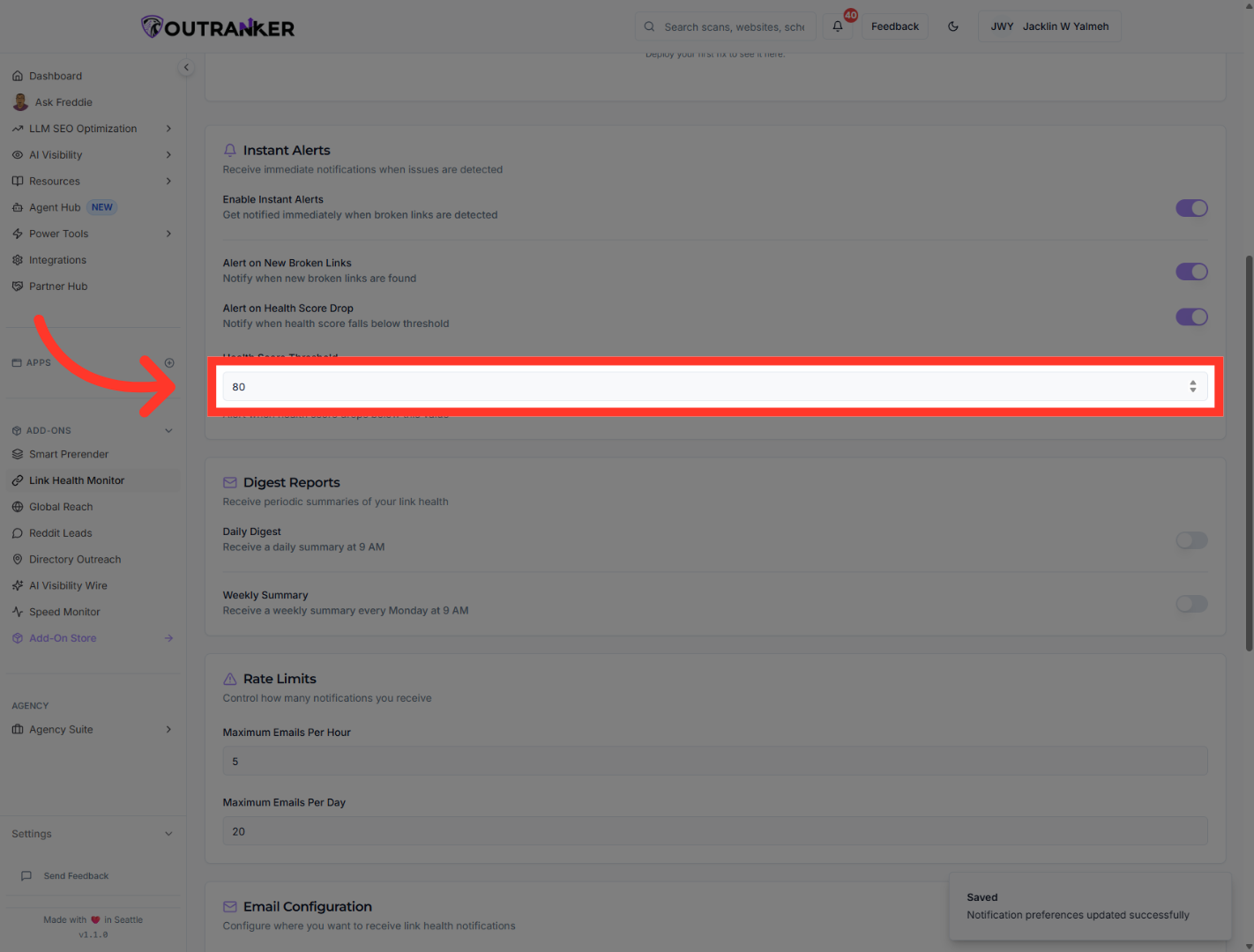
8. Set Health Score Threshold
“Click the Health Score Threshold field. Enter the minimum score that should trigger an alert. In this example, the threshold is set to 80.”
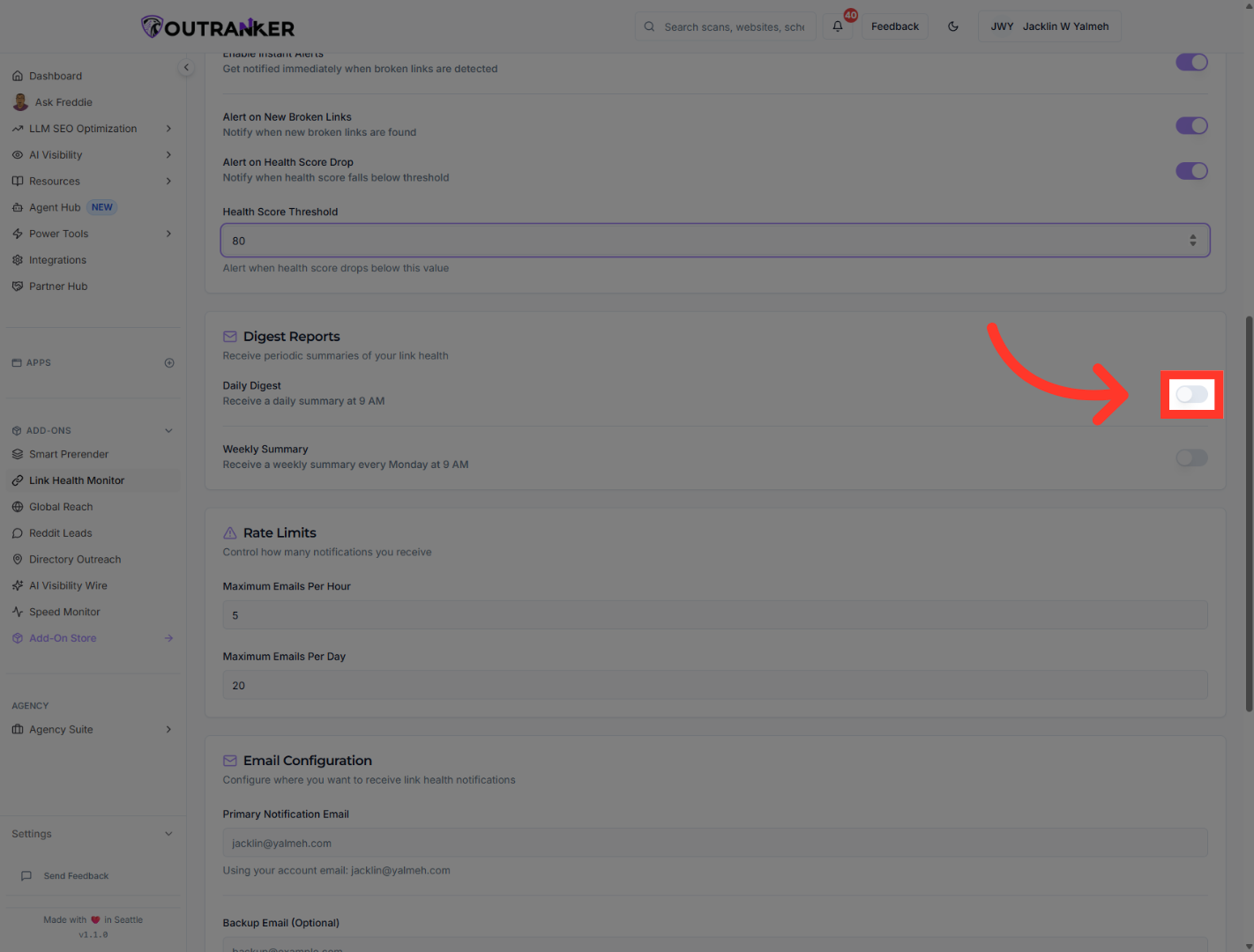
9. Enable Daily Digest
“Next, find Daily Digest. Turn it on. This sends a daily summary of your link health status. In this workflow, the summary is set for 9 AM.”
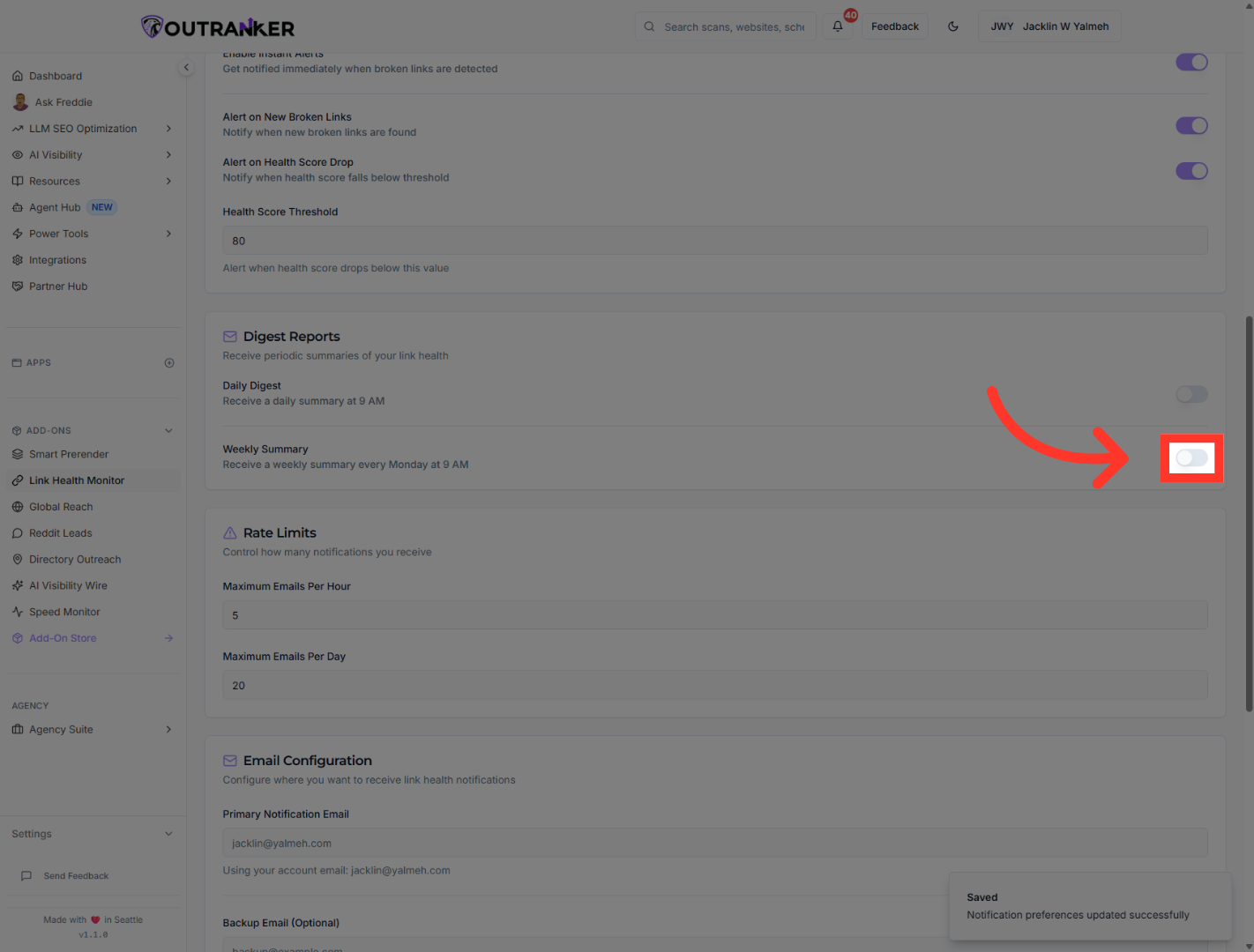
10. Enable Weekly Summary
“Now find Weekly Summary. Turn it on. This sends a weekly report so you can review link health on a regular schedule. In this setup, the weekly summary is sent every Monday at 9 AM.”
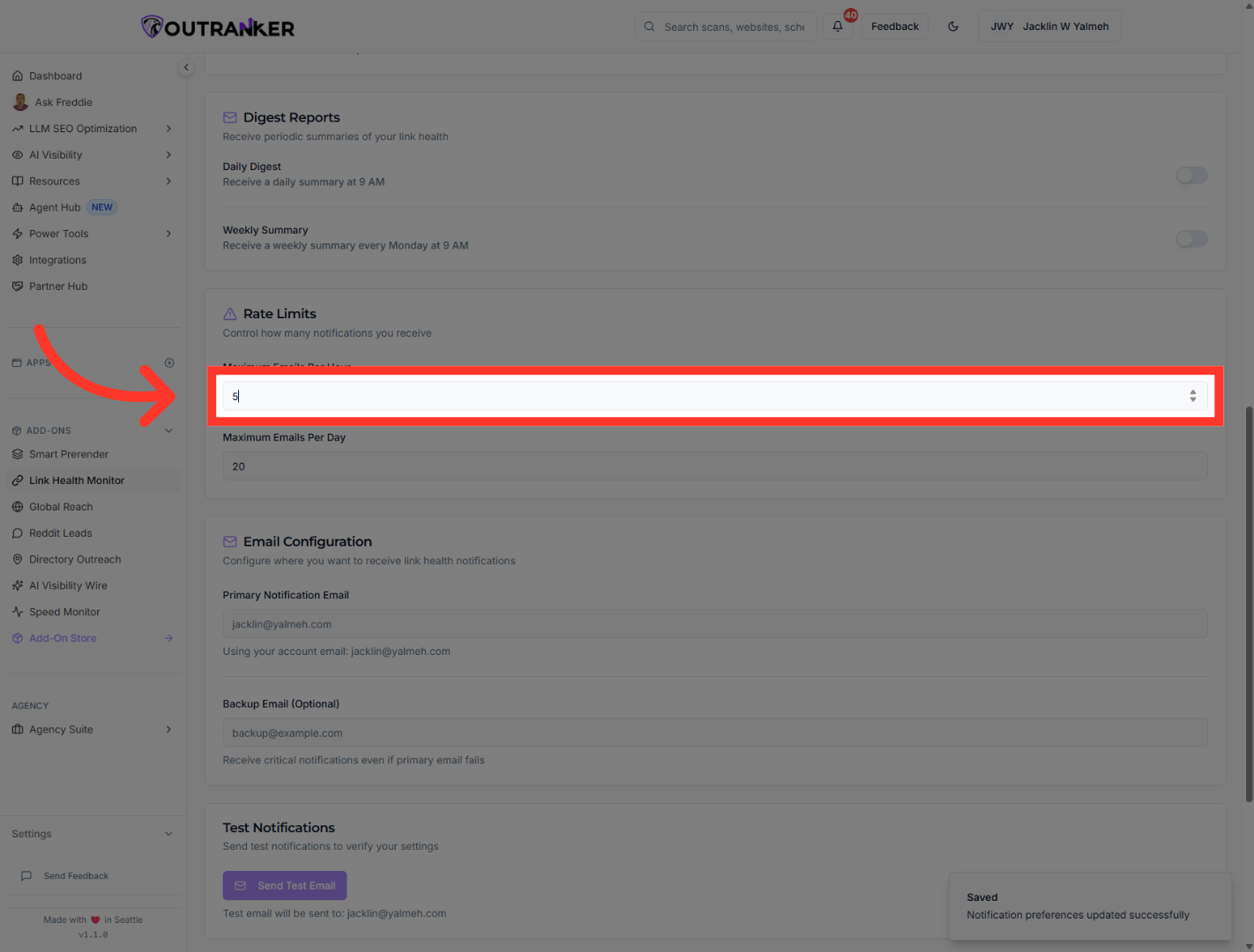
11. Set Maximum Emails Per Hour
“Scroll to the Rate Limits section. Click Maximum Emails Per Hour. Enter the number of alert emails you want to allow each hour. In this example, the value is set to 5.”
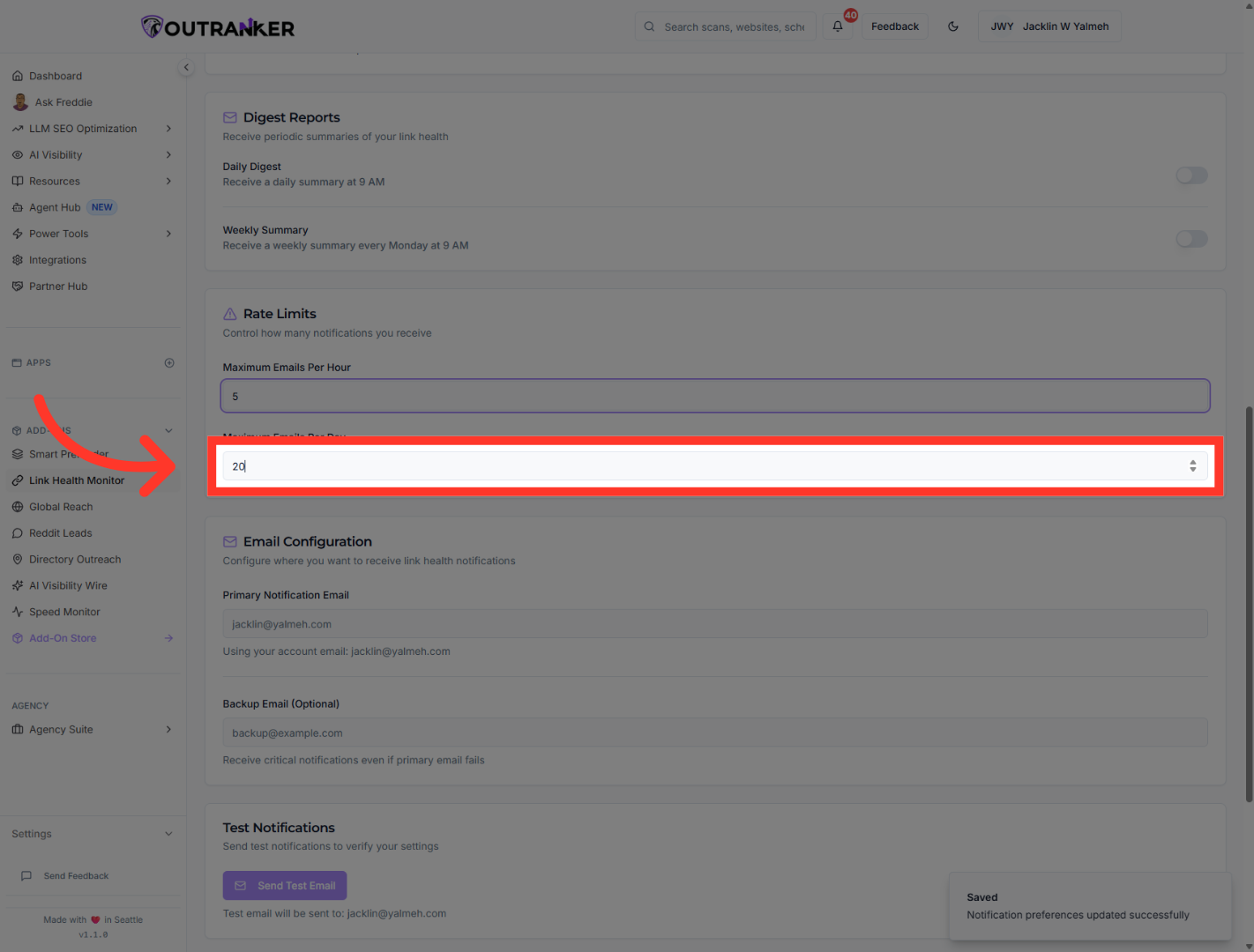
12. Set Maximum Emails Per Day
“Next, click Maximum Emails Per Day. Enter the daily limit for alert emails. In this example, the value is set to 19.”
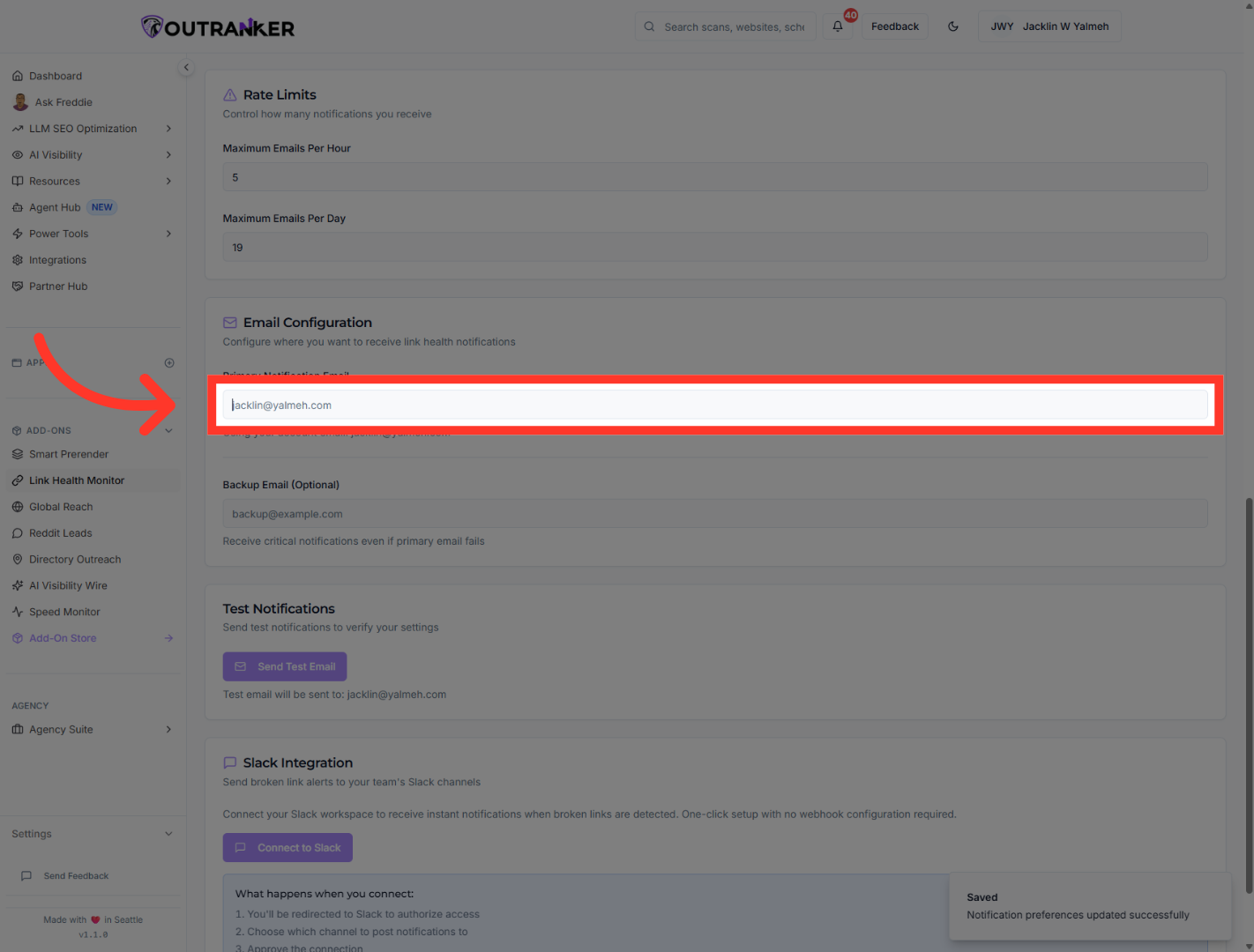
13. Select Primary Notification Email
“Now go to the Email Configuration section. Click Primary Notification Email. Enter the main email address that should receive link health alerts.”
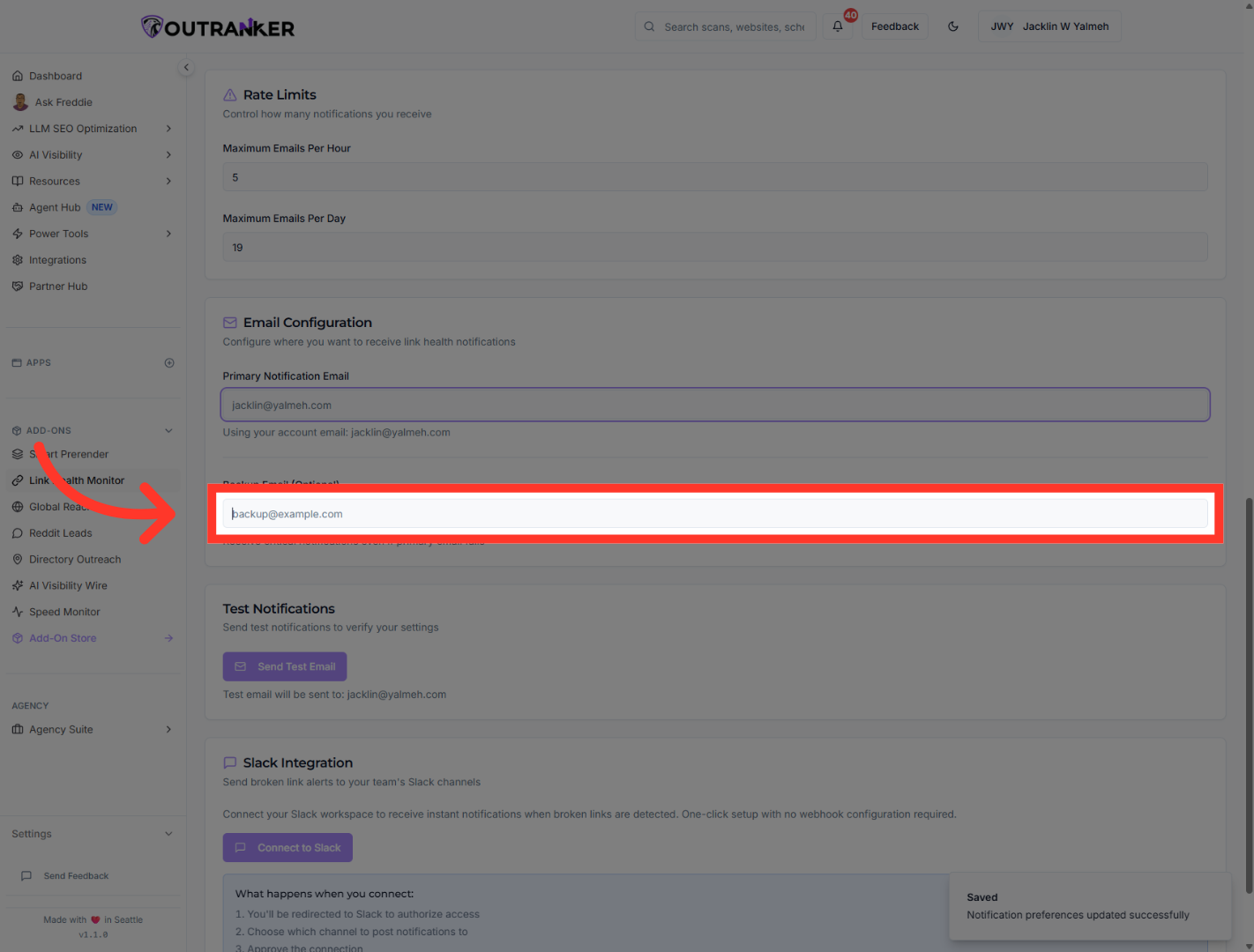
14. Select Backup Email
“Next, click Backup Email. Enter a second email address if you want a backup contact for alerts. This step is optional, but it can be helpful.”
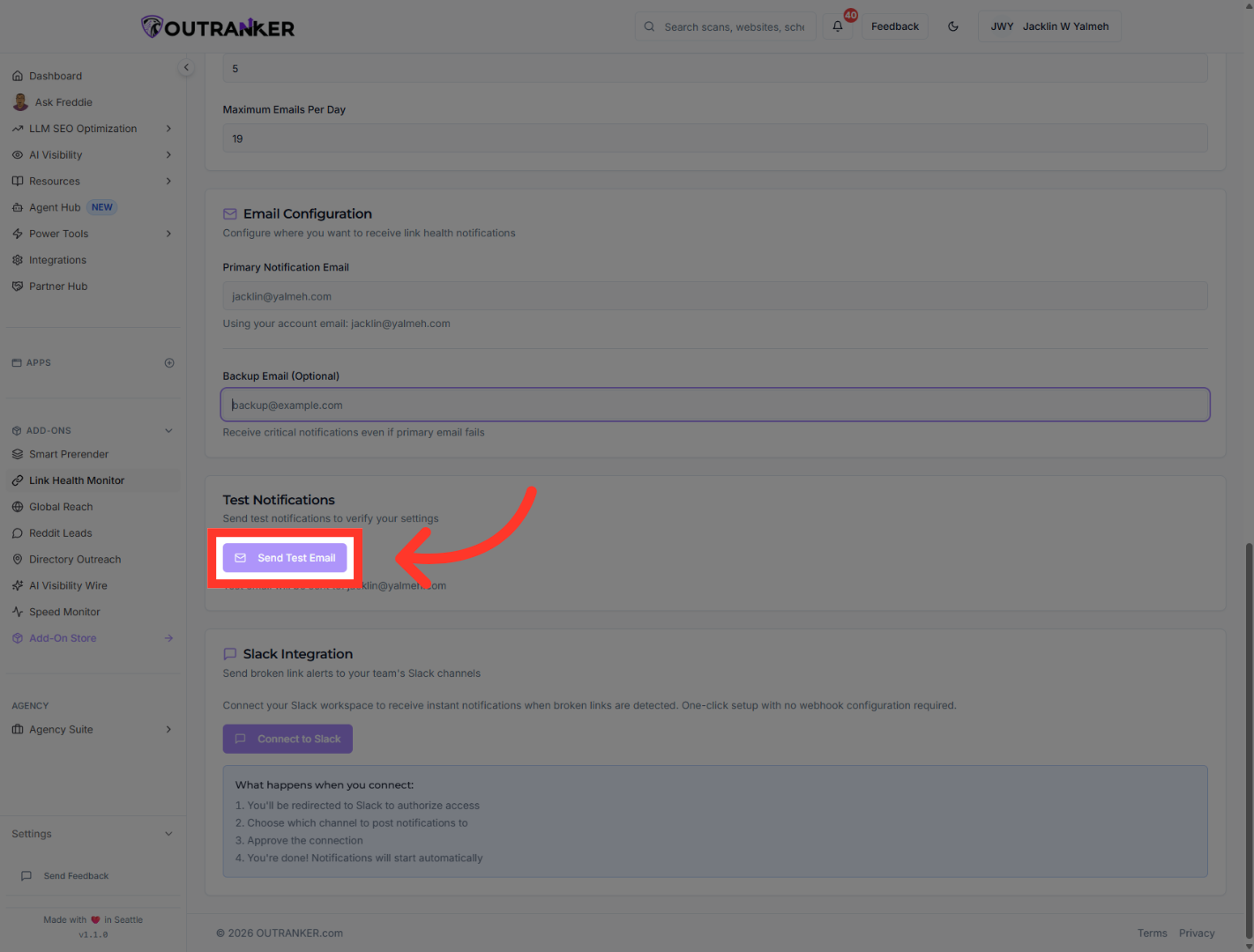
15. Send Test Email
“After your email settings are in place, click Send Test Email. This helps you confirm that notifications are working correctly before you rely on them.”
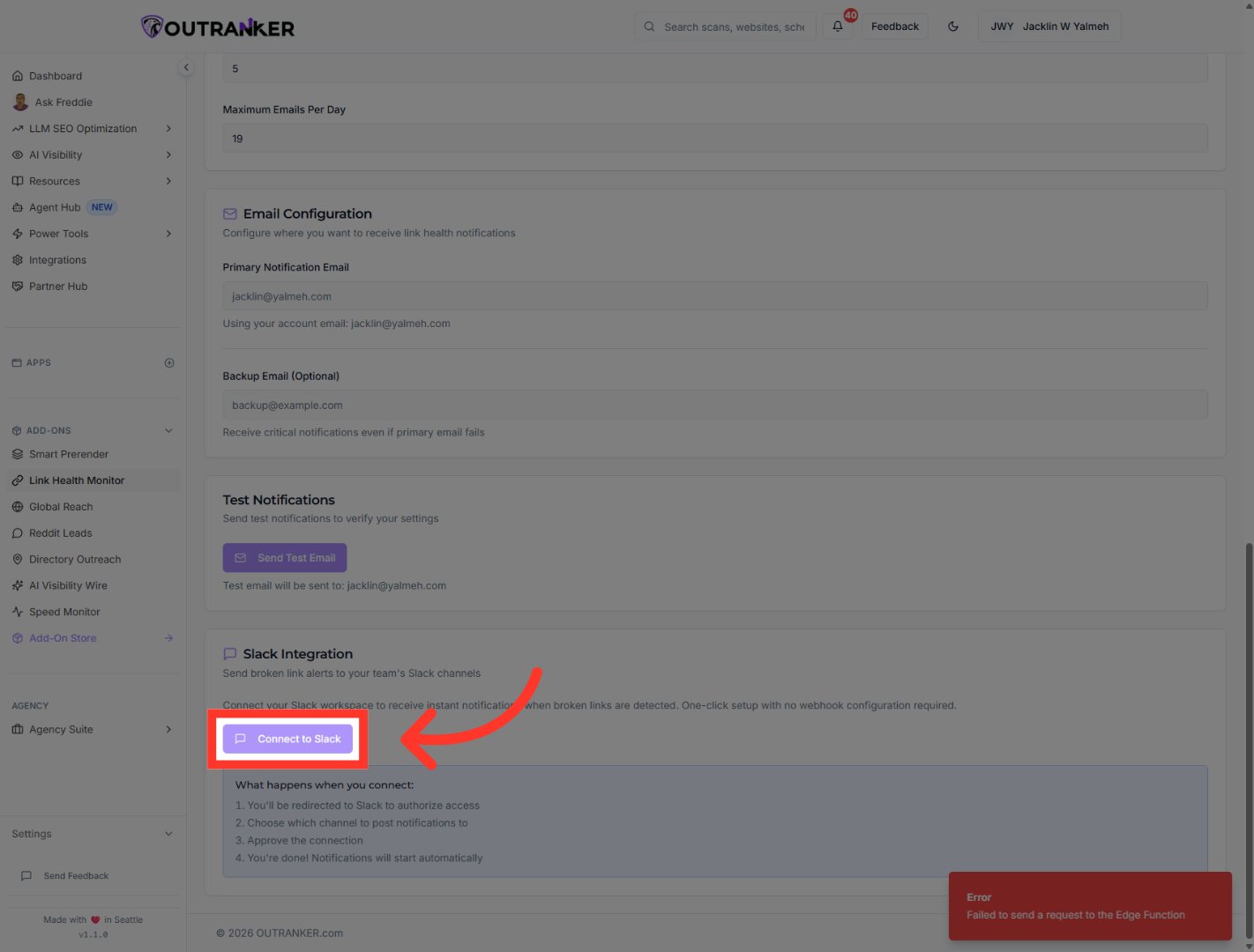
16. Connect Slack Integration
“If you also want alerts in Slack, click Connect to Slack. This links your Slack workspace so link health alerts can be sent to your channels as well.”
“You’ve now configured link health alerts in Outranker, turned on instant notifications, added daily and weekly summaries, set alert limits, and chosen where alerts should be sent. From here, you can fine-tune your thresholds and notification settings based on how closely you want to monitor your links.”
