
This tutorial guides you through setting up the Directory Outreach pipeline in Outranker.
Go to www.outranker.com
1. Introduction
"In this video, you’ll learn how to configure the Directory Outreach pipeline inside Outranker. We’ll walk through how to open the outreach workspace, add a website to your project, choose the directories you want to research, and start the research process."
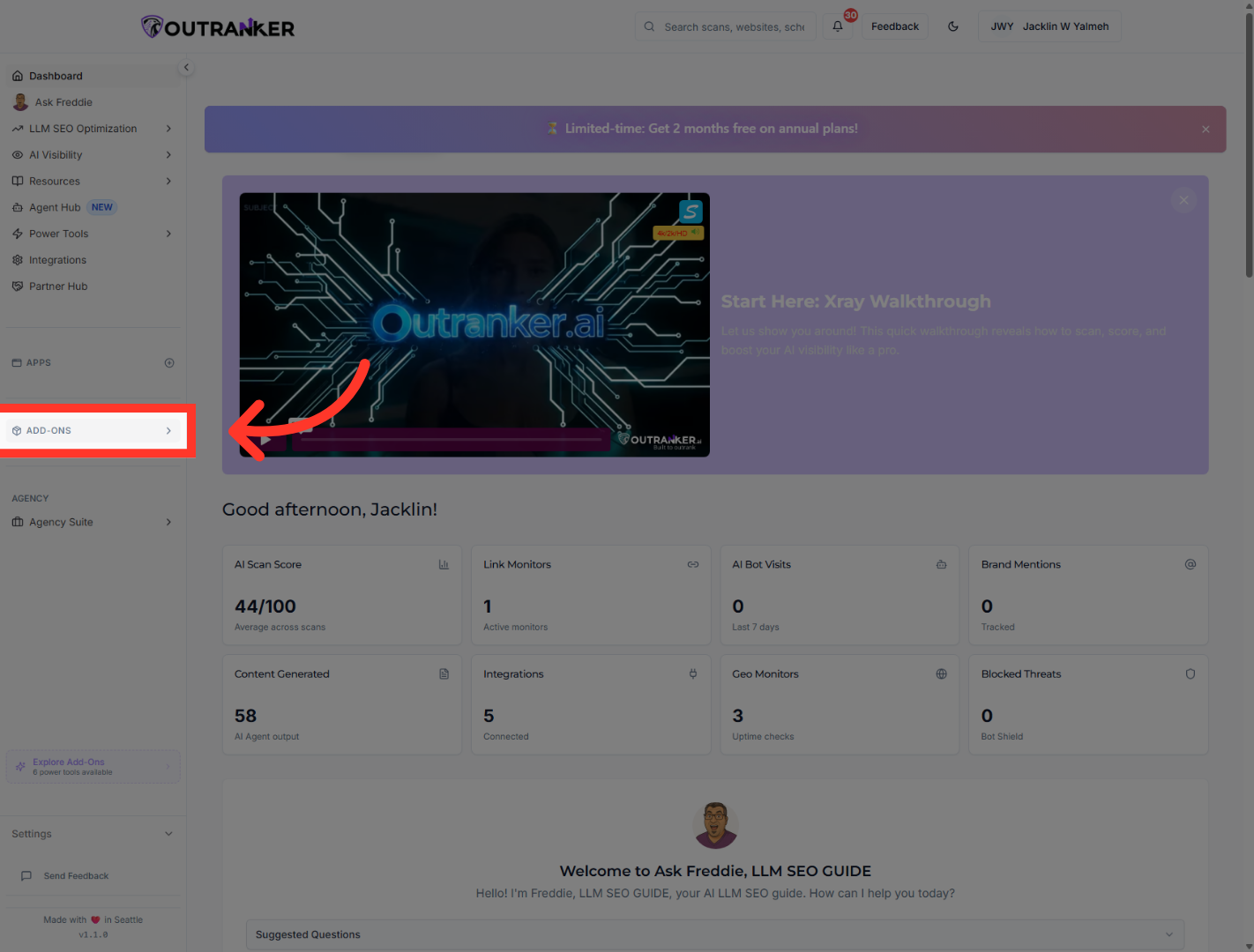
2. Access Add-Ons Section
"Start by signing in to Outranker. From the left-side menu, click Add-Ons to open the available tools inside your workspace."
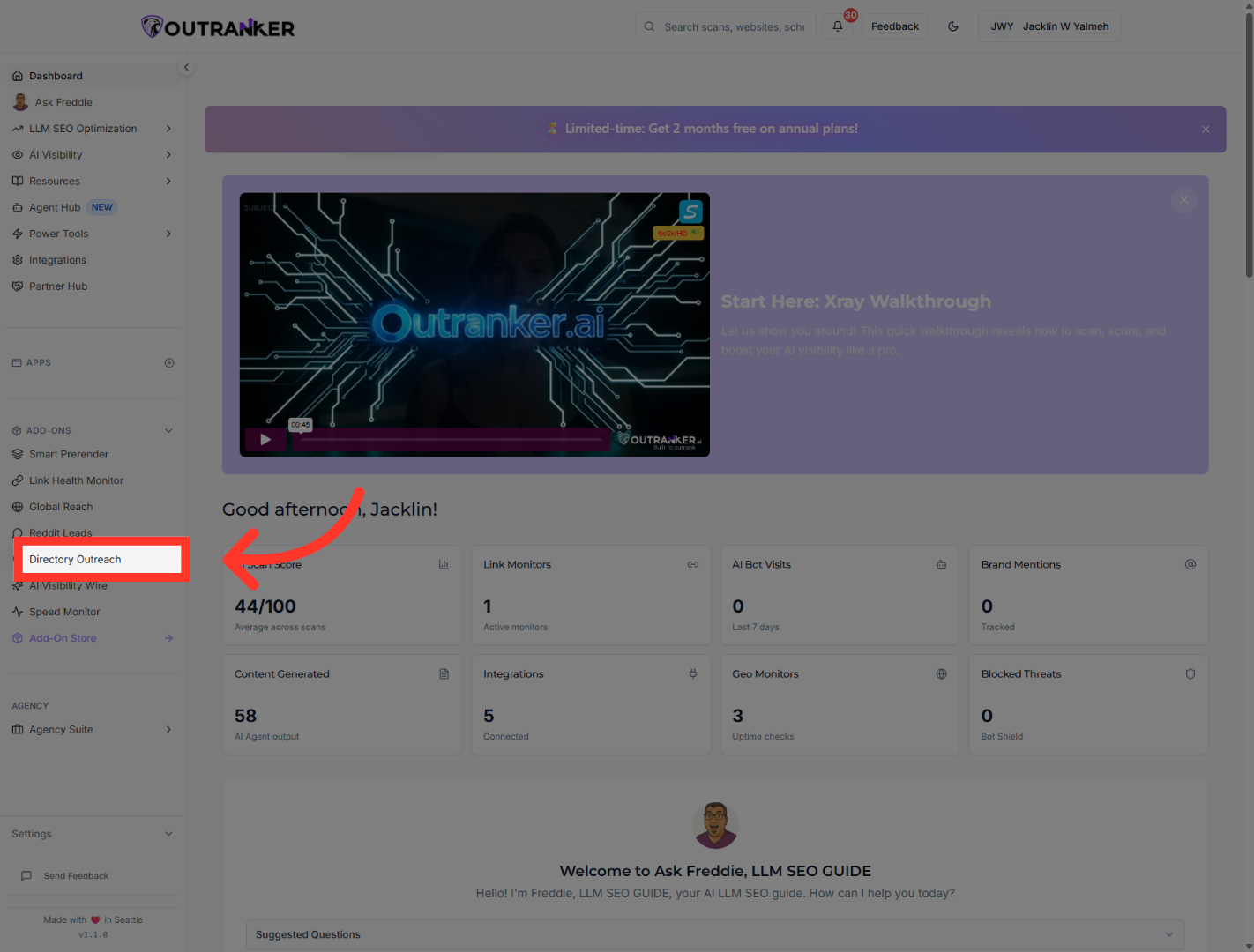
3. Open Directory Outreach
"From the Add-Ons menu, select Directory Outreach. This takes you to the area where you can manage directory research and outreach opportunities."
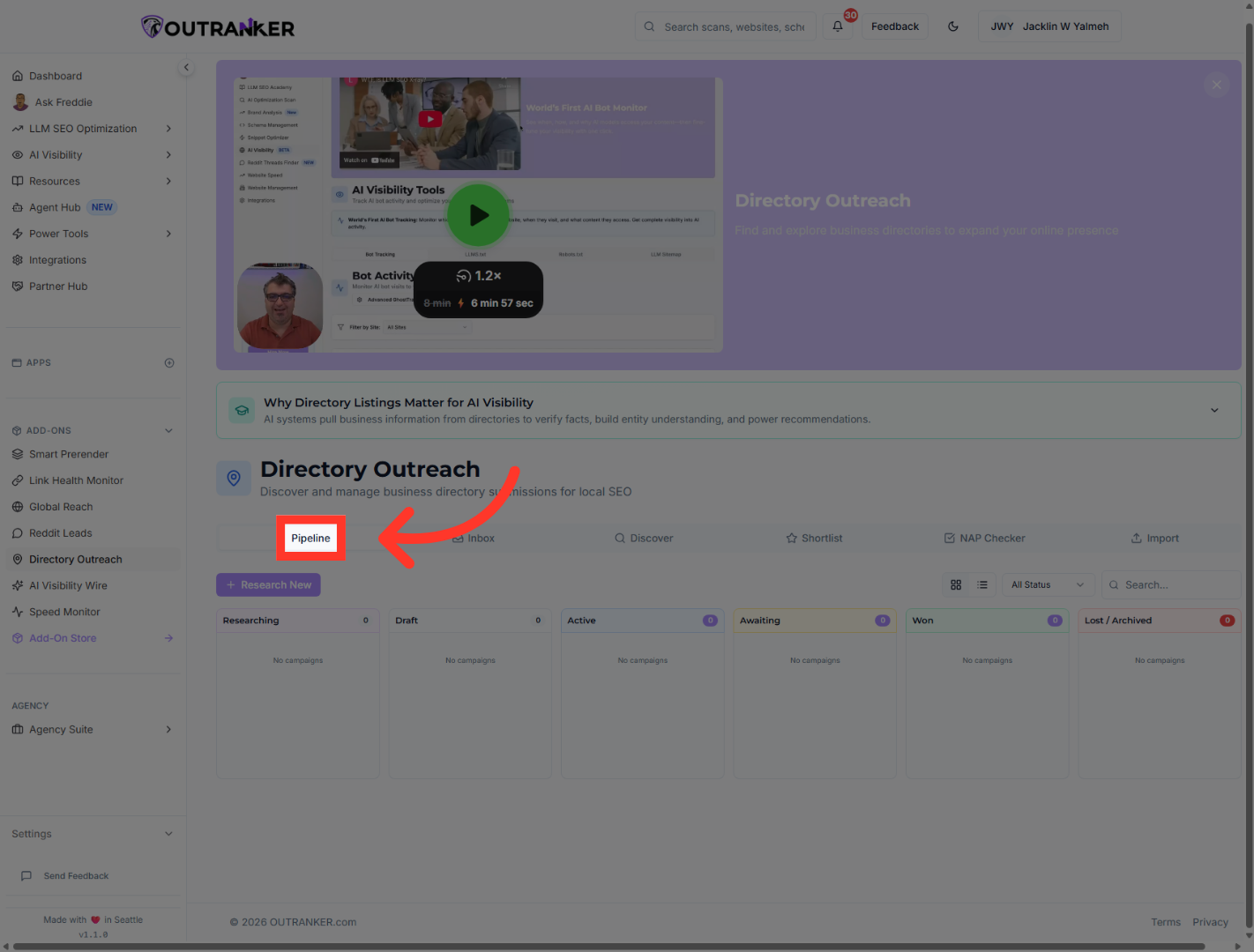
4. Go To Pipeline Tab
"Once the page opens, click the Pipeline tab. This is where your outreach research will be organized and managed."
5. Start New Research
"Next, click Research New to begin a new directory research setup."
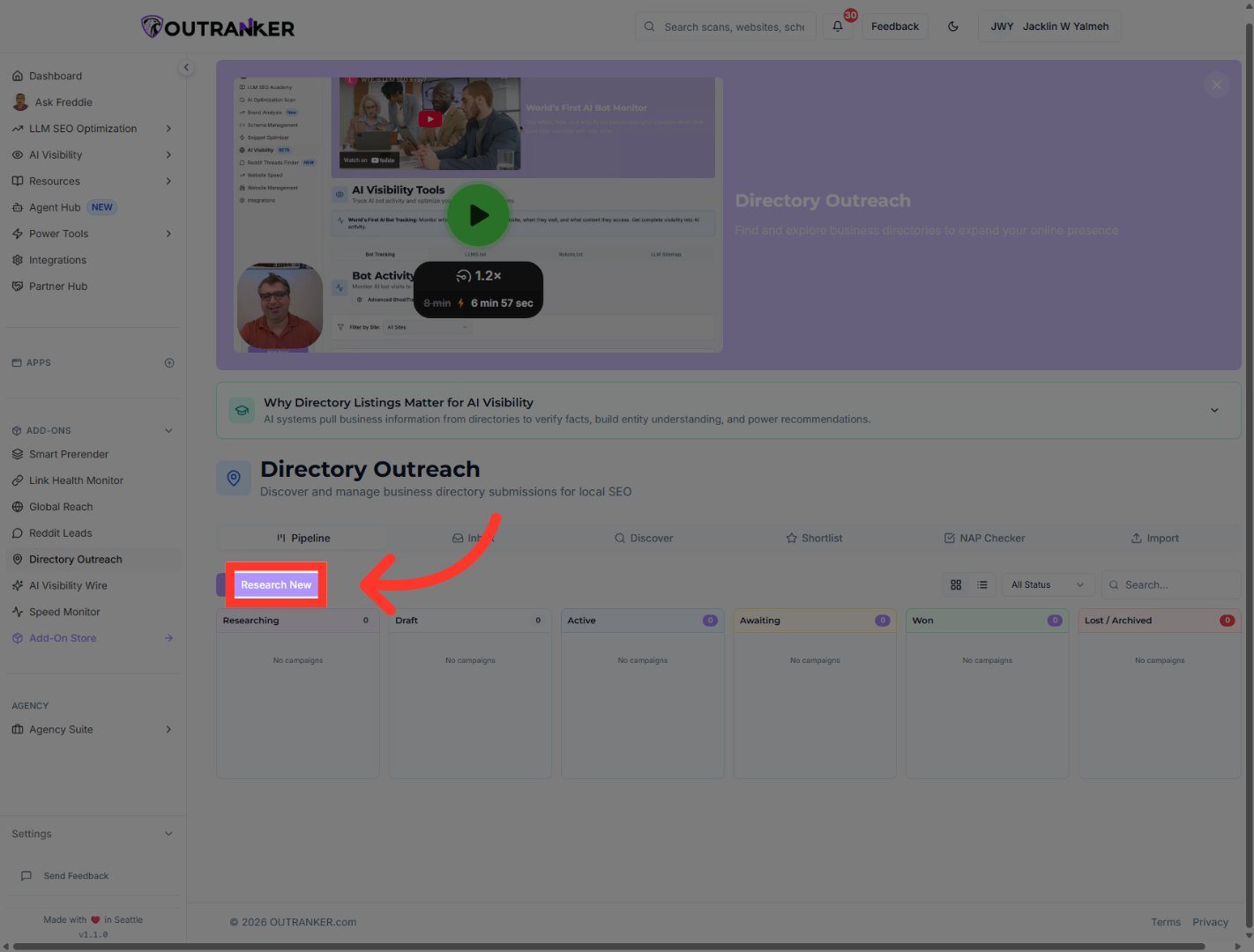
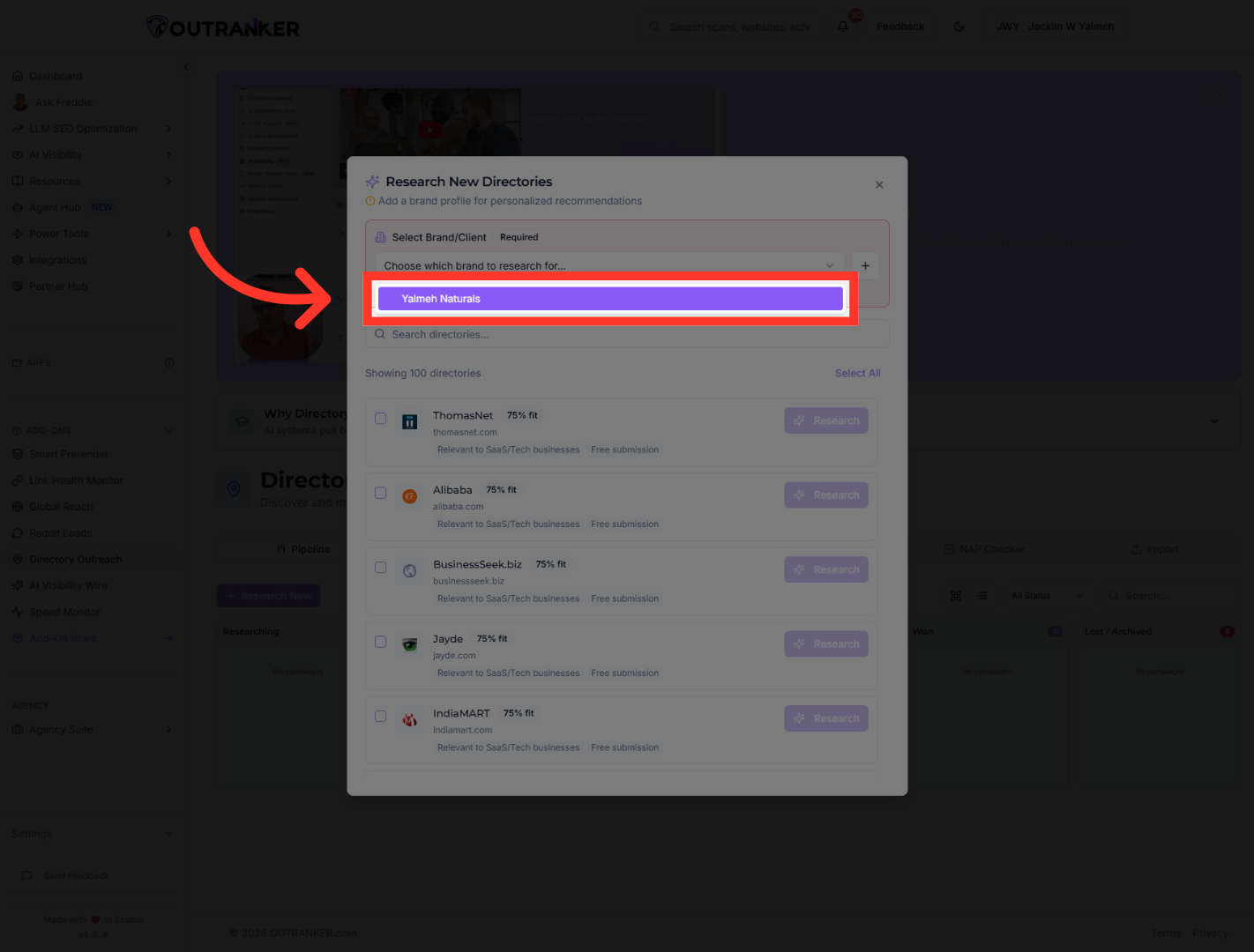
6. Select Yalmeh Naturals Project
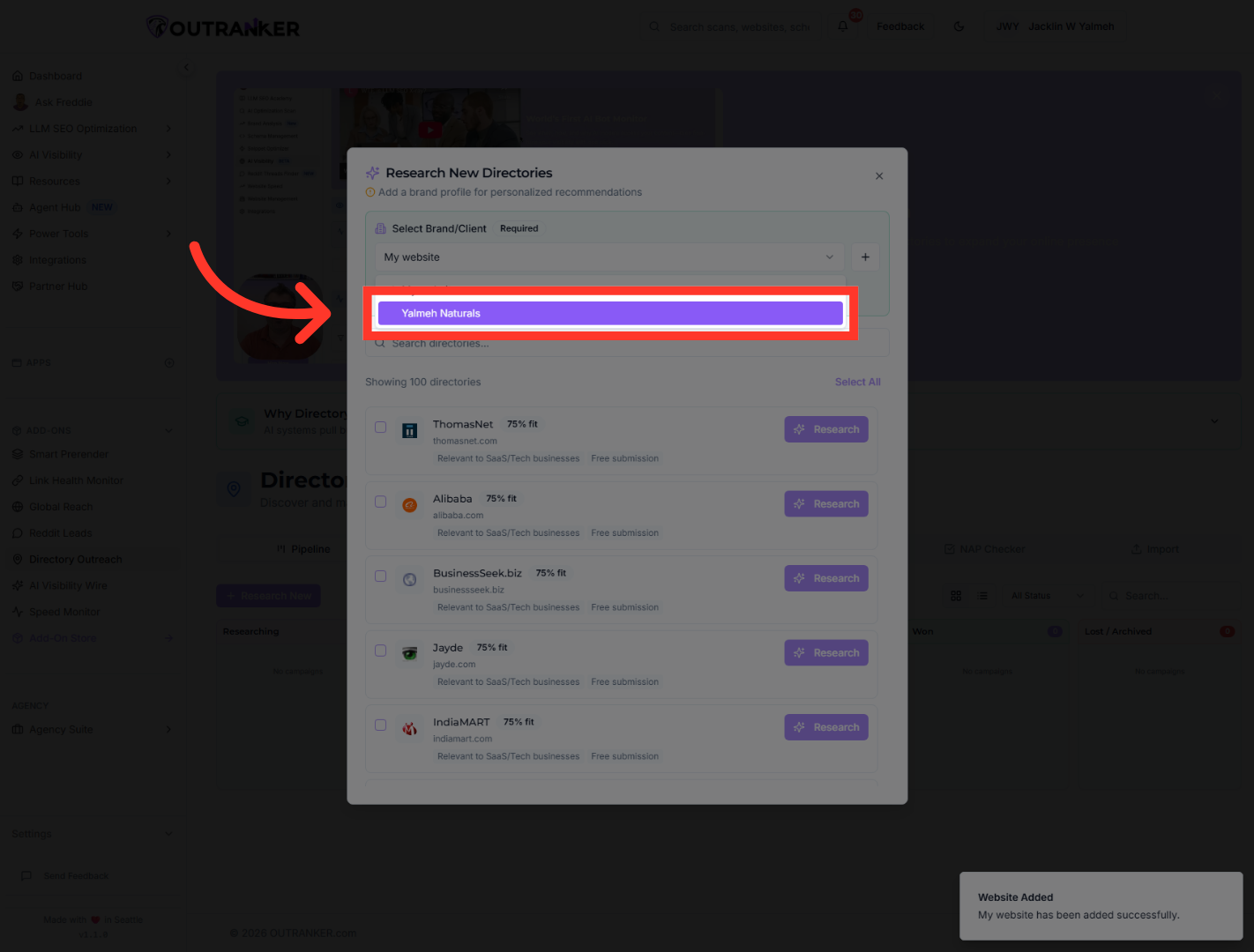
"In the setup window, select the project you want to work on. In this example, the project is Yalmeh Naturals."
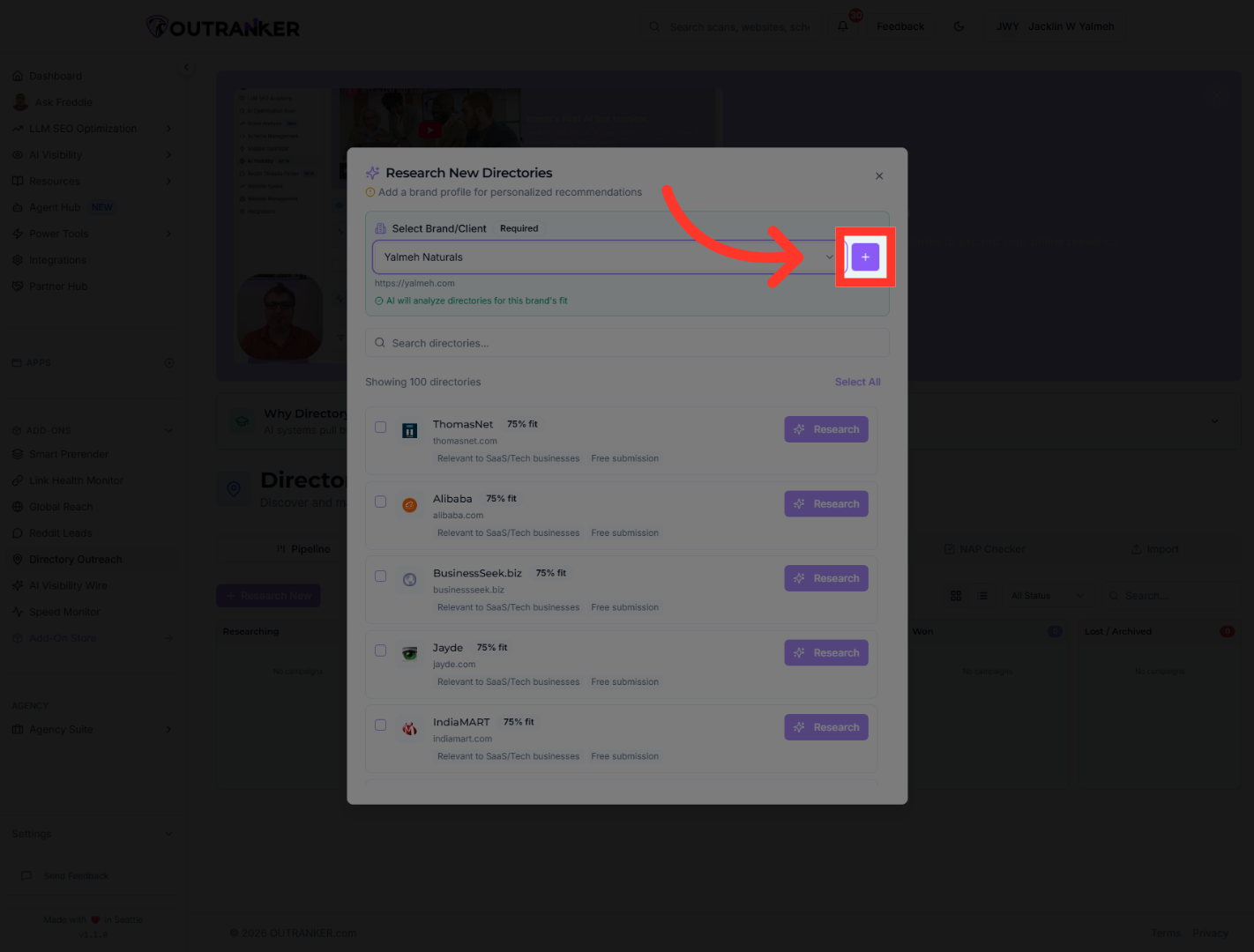
7. Initiate Website Addition
"If the website you want to research is not already listed, click the plus icon to add a new website to the project."
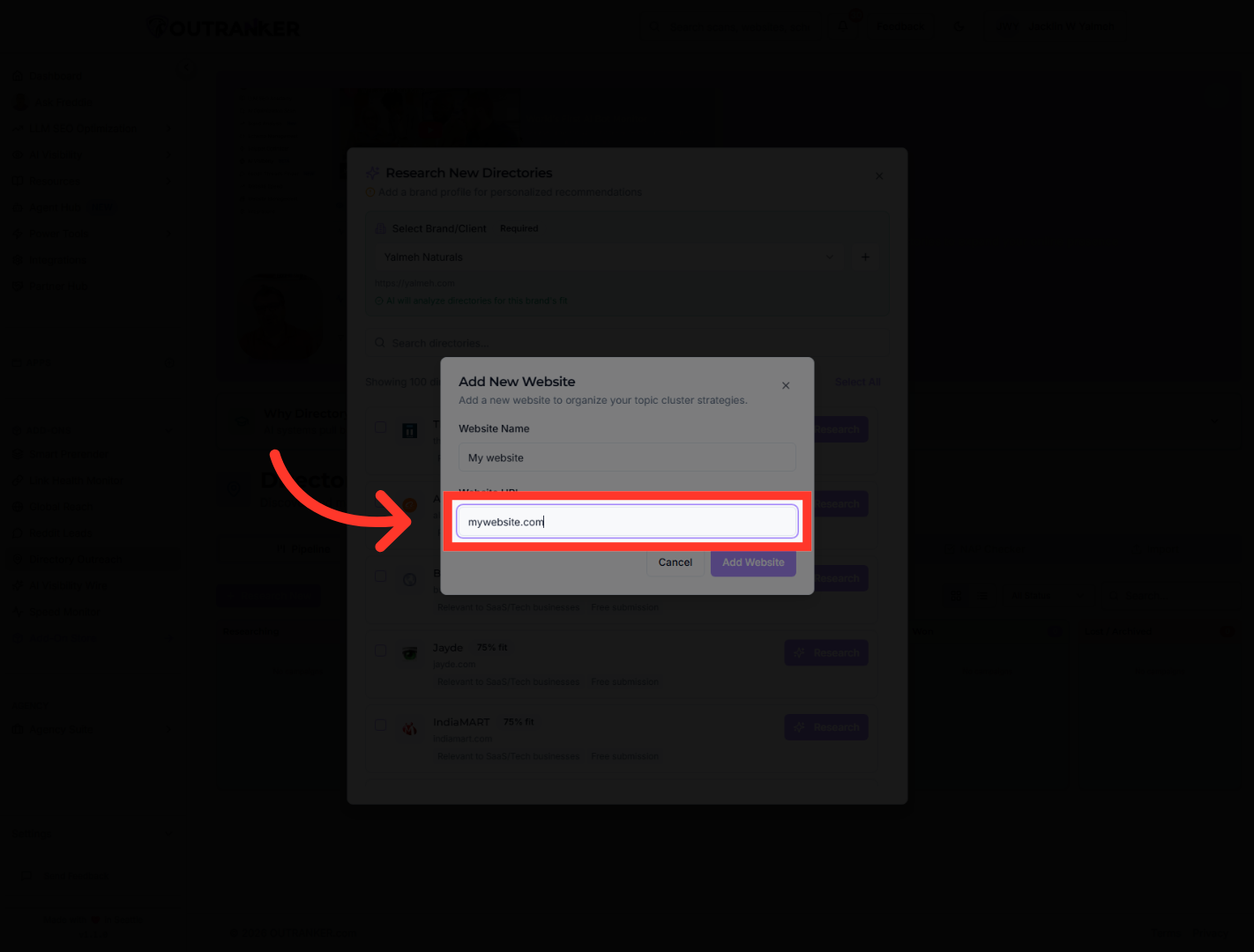
8. Enter Website URL
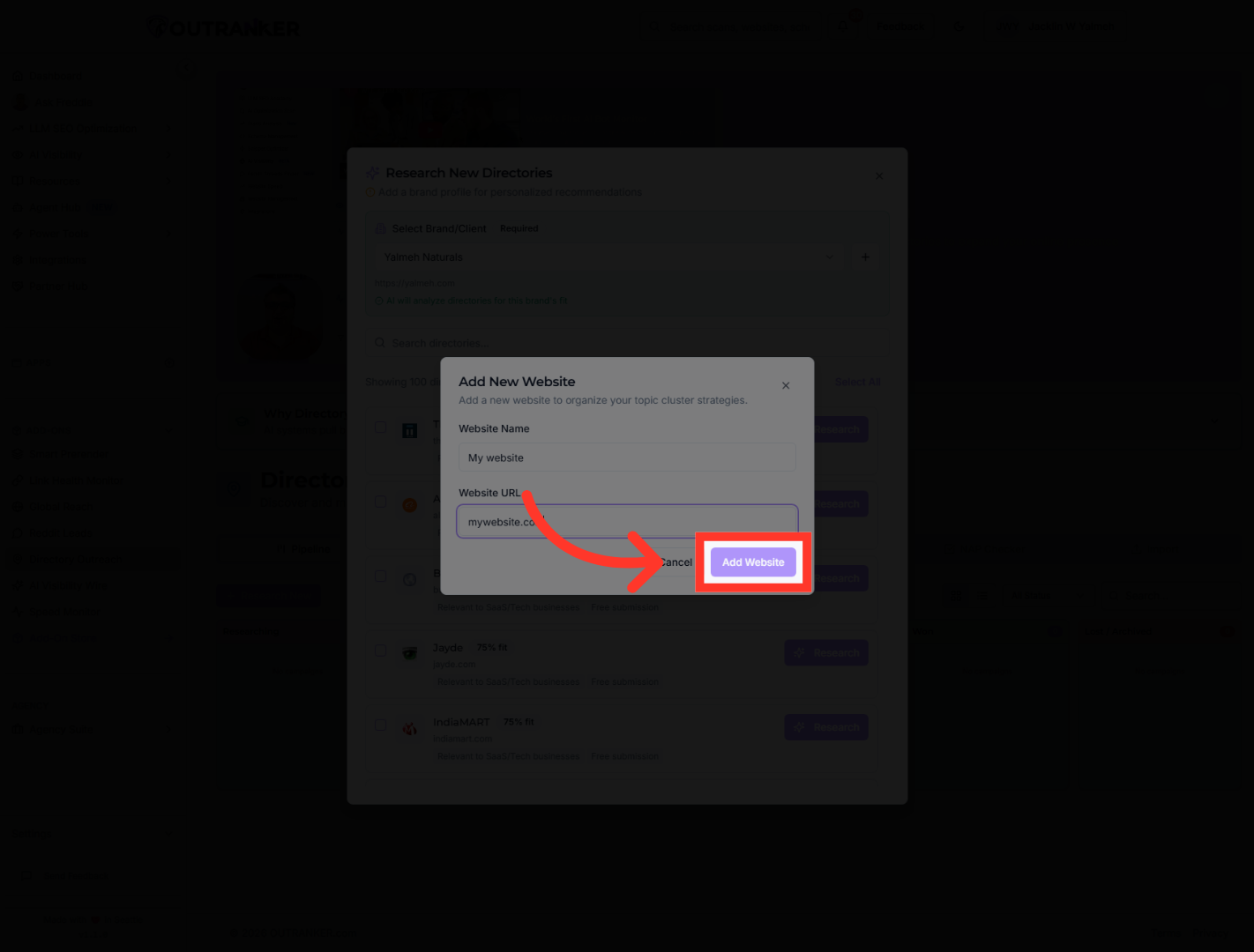
"Now enter the website information. First, type the website name. Then enter the website URL so Outranker can associate the correct site with your outreach research."
9. Add Website To Project
"After both fields are complete, click Add Website to save it to the project."
10. Reopen Yalmeh Naturals Project
"Once the website has been added, make sure your project is still selected so you can continue with the directory research setup."
11. Access Directory Search
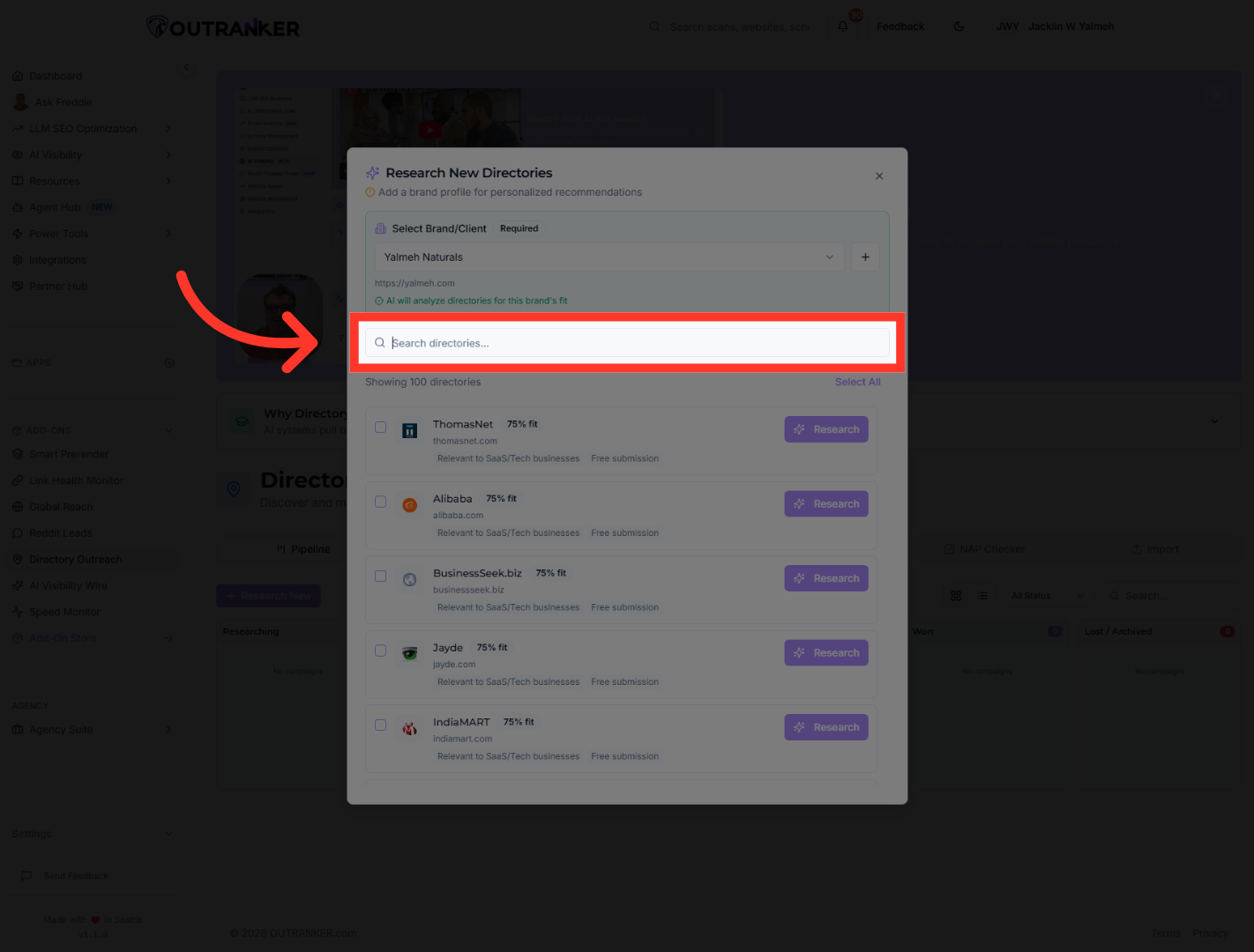
"Next, click into the Search directories field. This is where you can look for directories that match your outreach goals."
12. Select ThomasNet Directory
"Type a keyword to narrow down the list of available directories. Outranker will score and display matching options for your project."
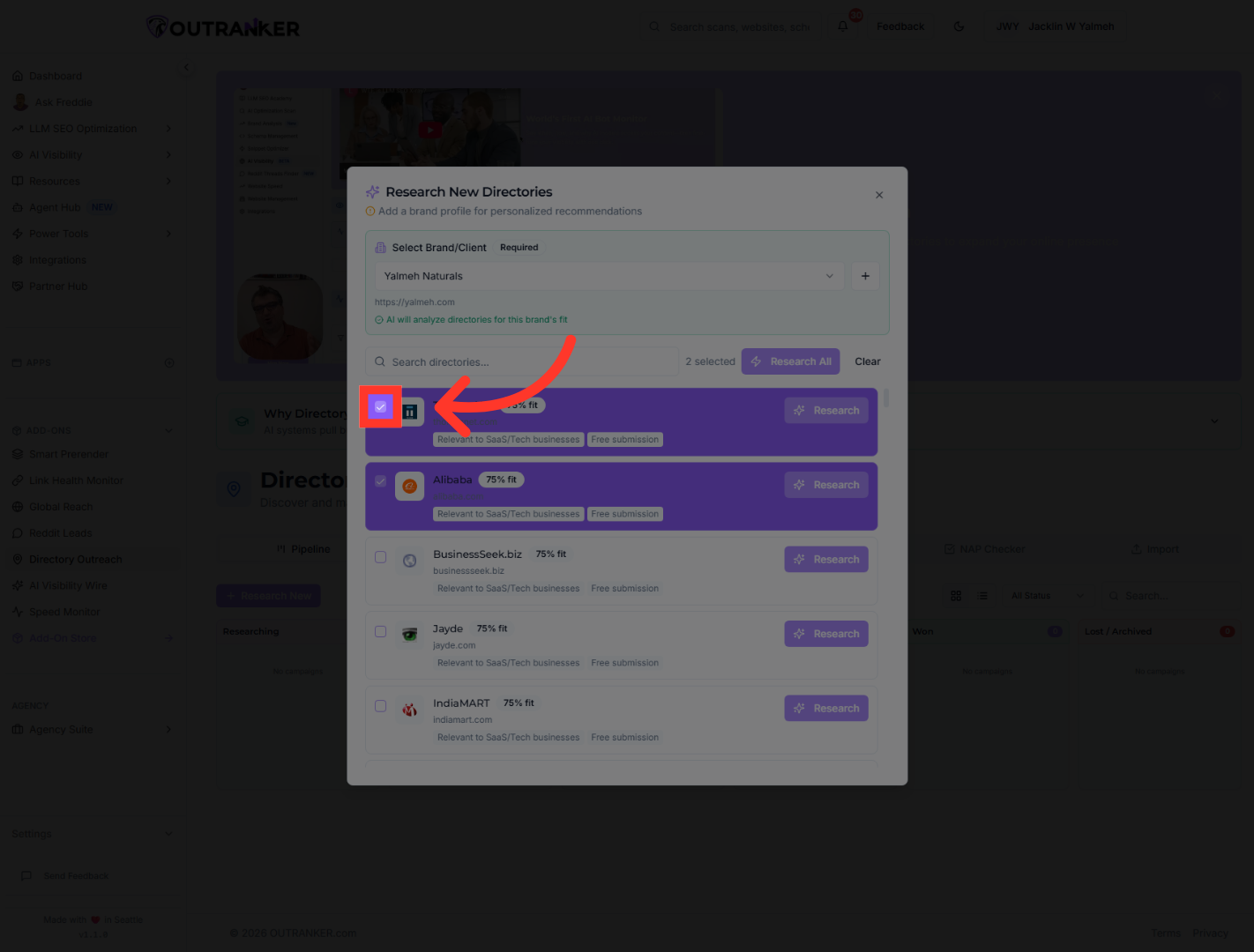
13. Re-select ThomasNet Directory
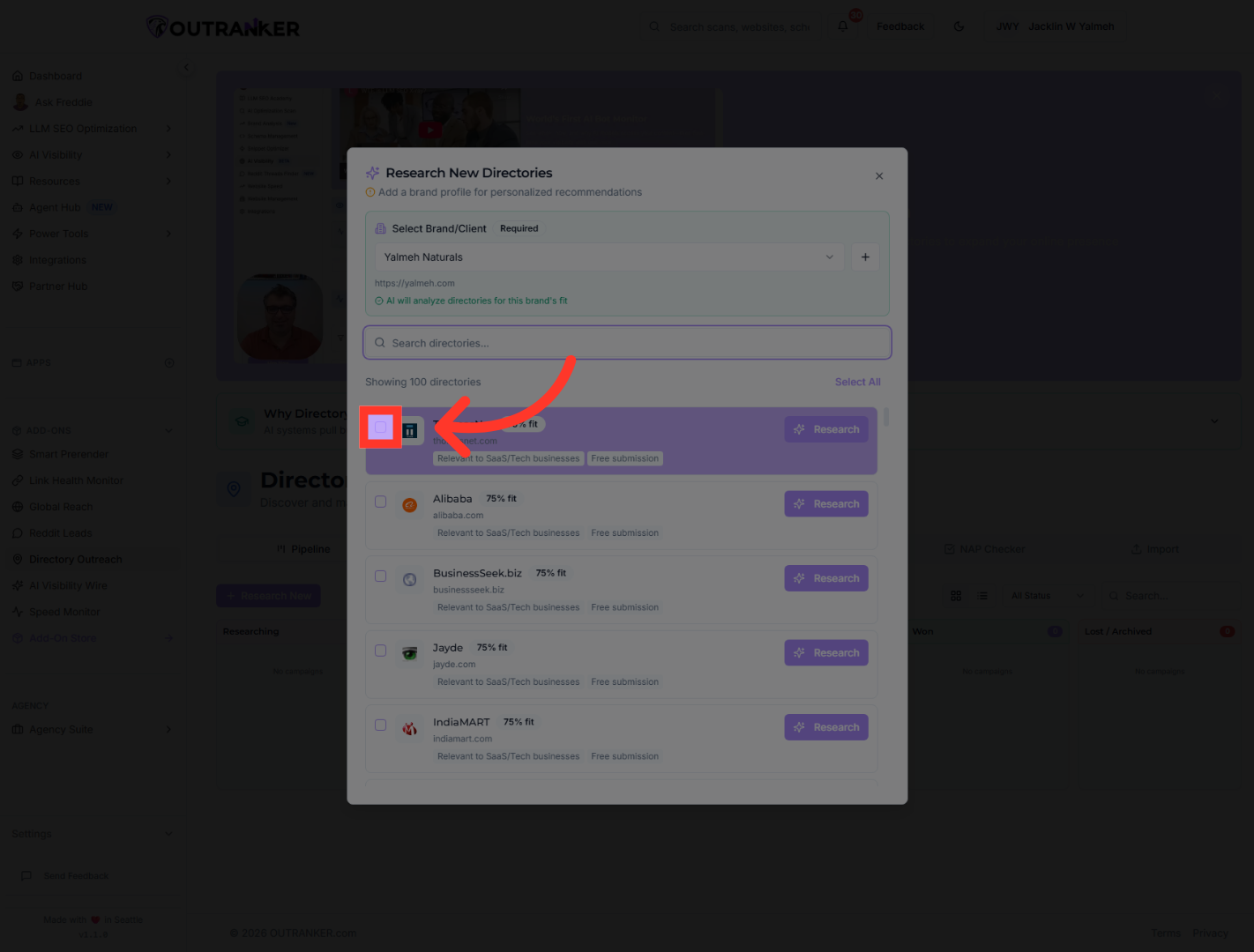
"From the results, choose your first target directory. In this example, ThomasNet is selected as one of the outreach directories."
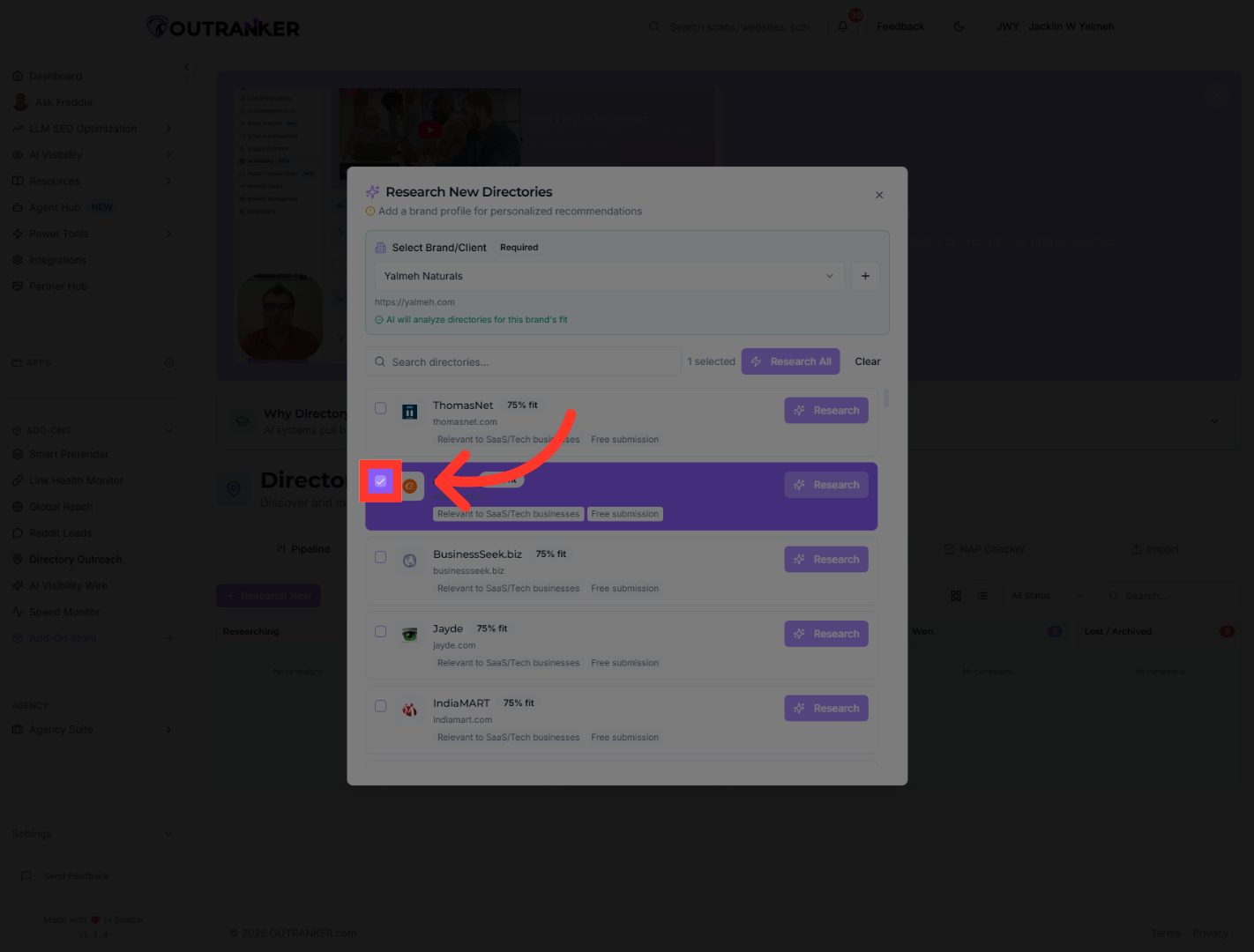
14. Re-select Alibaba Directory
"Next, continue adding more relevant directories. Here, Alibaba is also selected so the project includes multiple outreach opportunities."
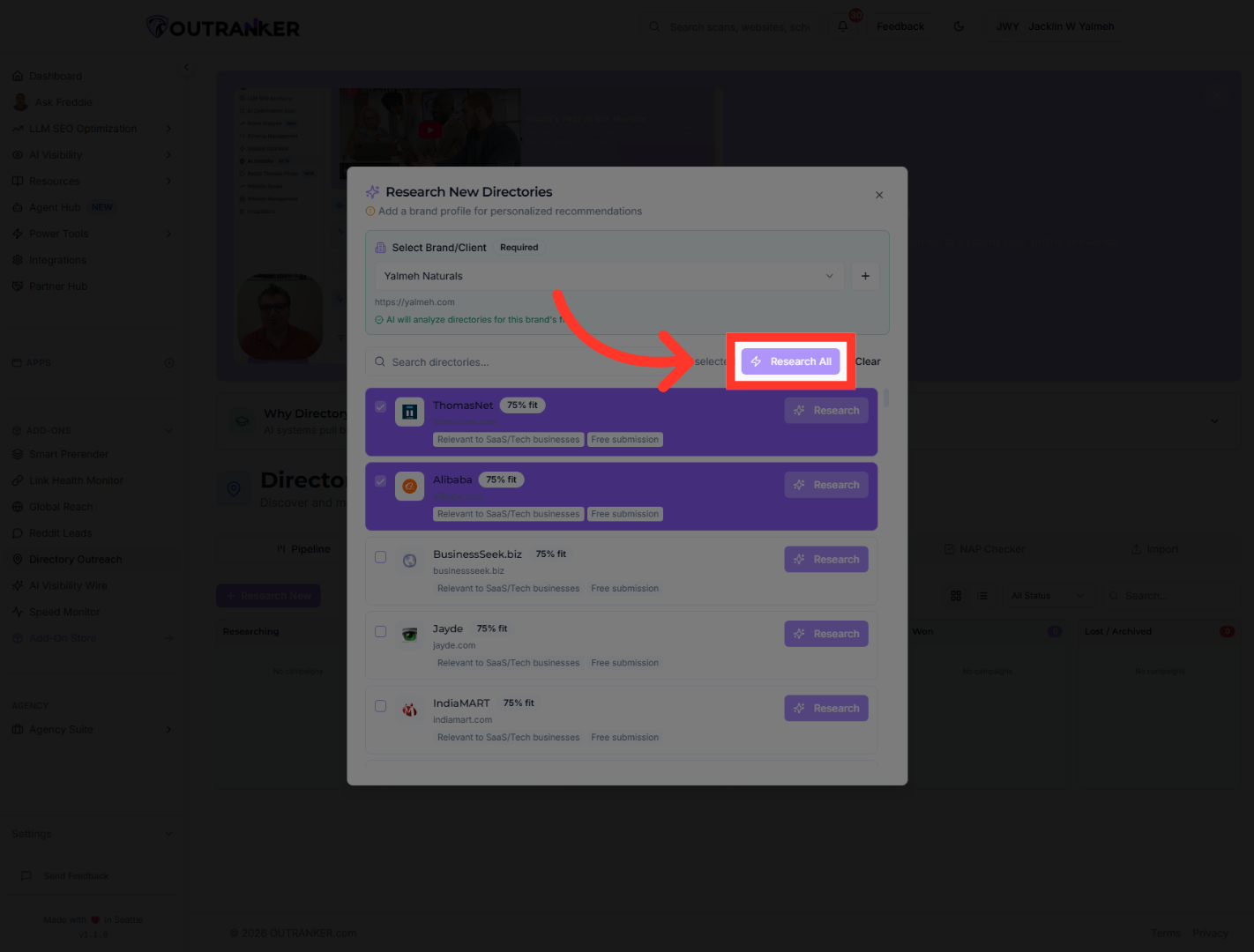
15. Execute Research All
"Once your directory list looks right, click Research All. Outranker will begin researching all selected directories for outreach opportunities."
"You’ve now successfully configured the Directory Outreach pipeline in Outranker by selecting a project, adding a website, choosing relevant directories, and starting the research process. From here, you can review the results and continue building your outreach workflow. In the next video, we can walk through how to manage and act on the research results."
