
In this tutorial, you will learn how to manage your notification performance inside OutRanker
Go to www.outranker.ai
1. Introduction
Ai. Before starting, ensure you are logged into your OutRanker.Ai account and have access to the main dashboard.
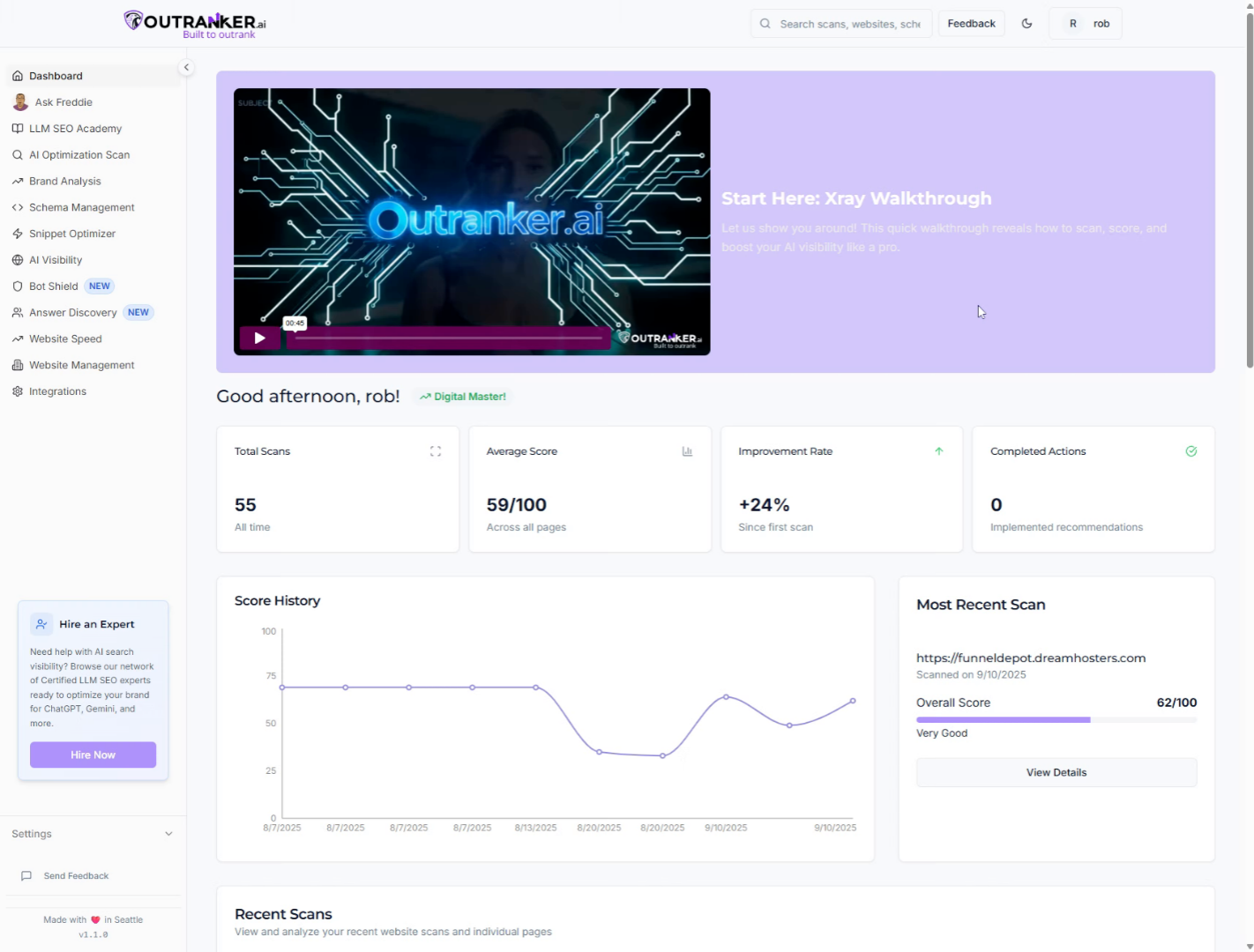
2. Click on Settings menu
Click on the Settings menu to open navigation options.
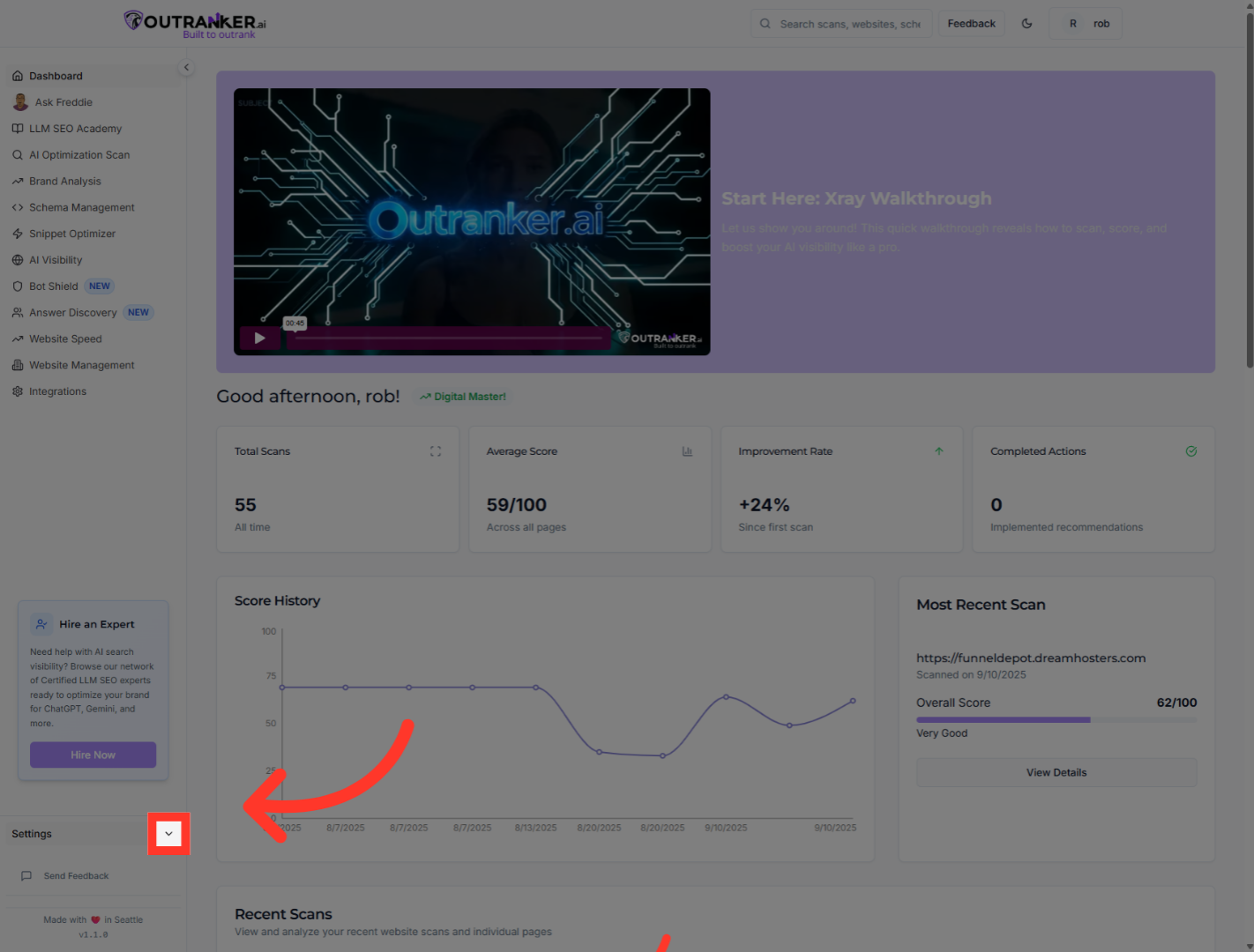
3. Click "Profile"
Click "Profile" to access your user settings.
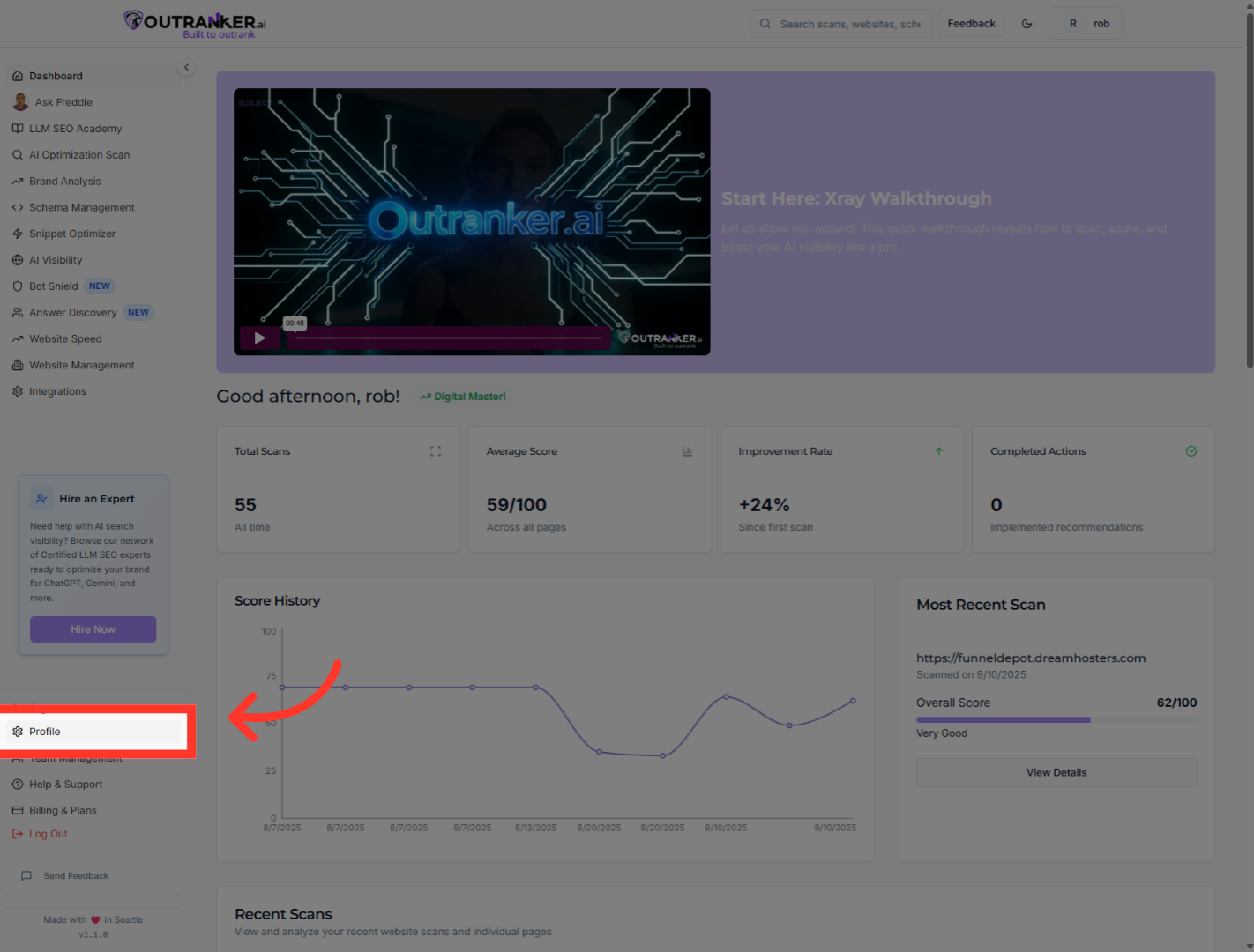
4. Click "Notifications"
Click "Notifications" to manage your notification preferences.
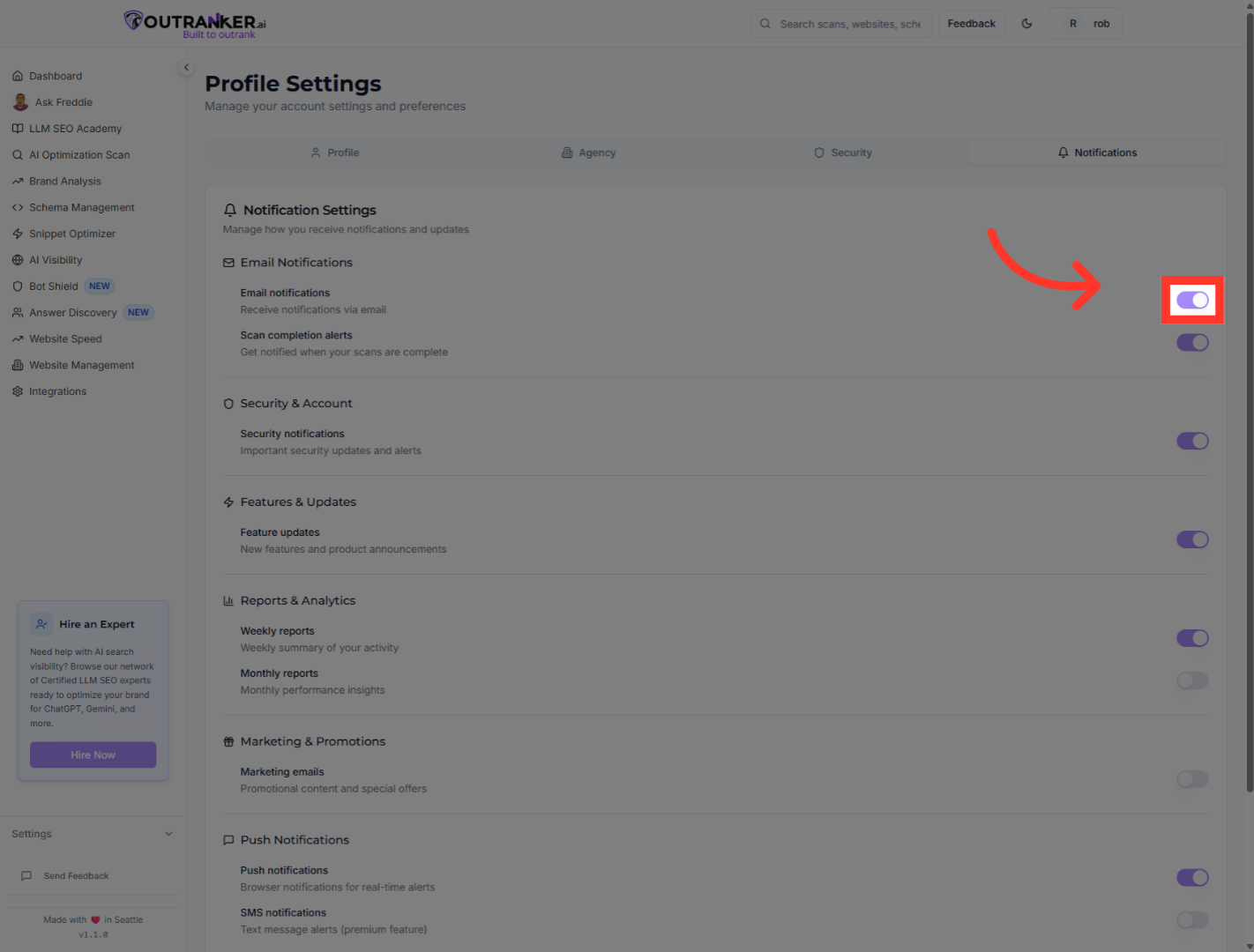
5. Click "Email notifications"
Click "Email notifications" to view and adjust your email alert settings.
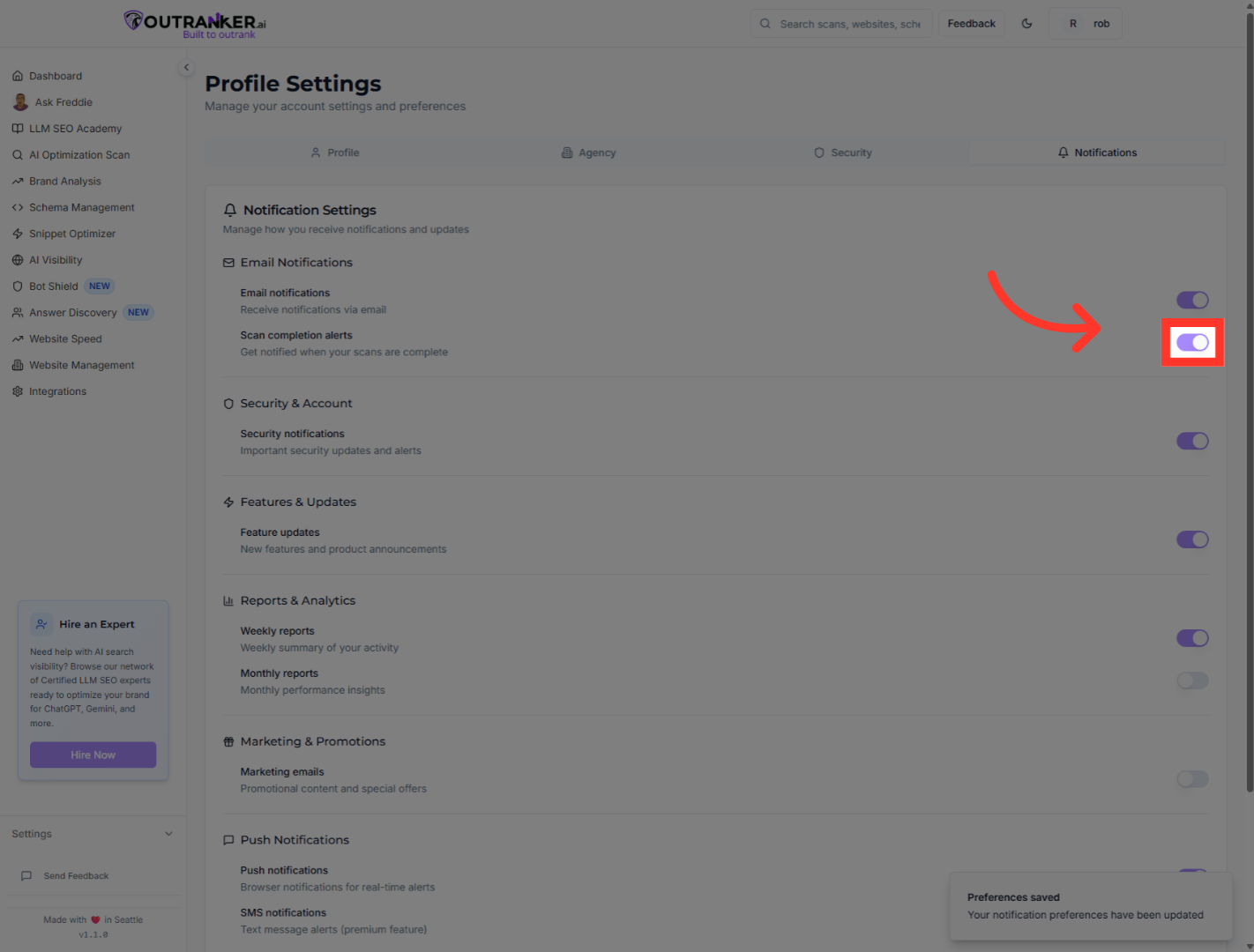
6. Click "Scan completion alerts"
Click "Scan completion alerts" to configure alerts for completed scans.
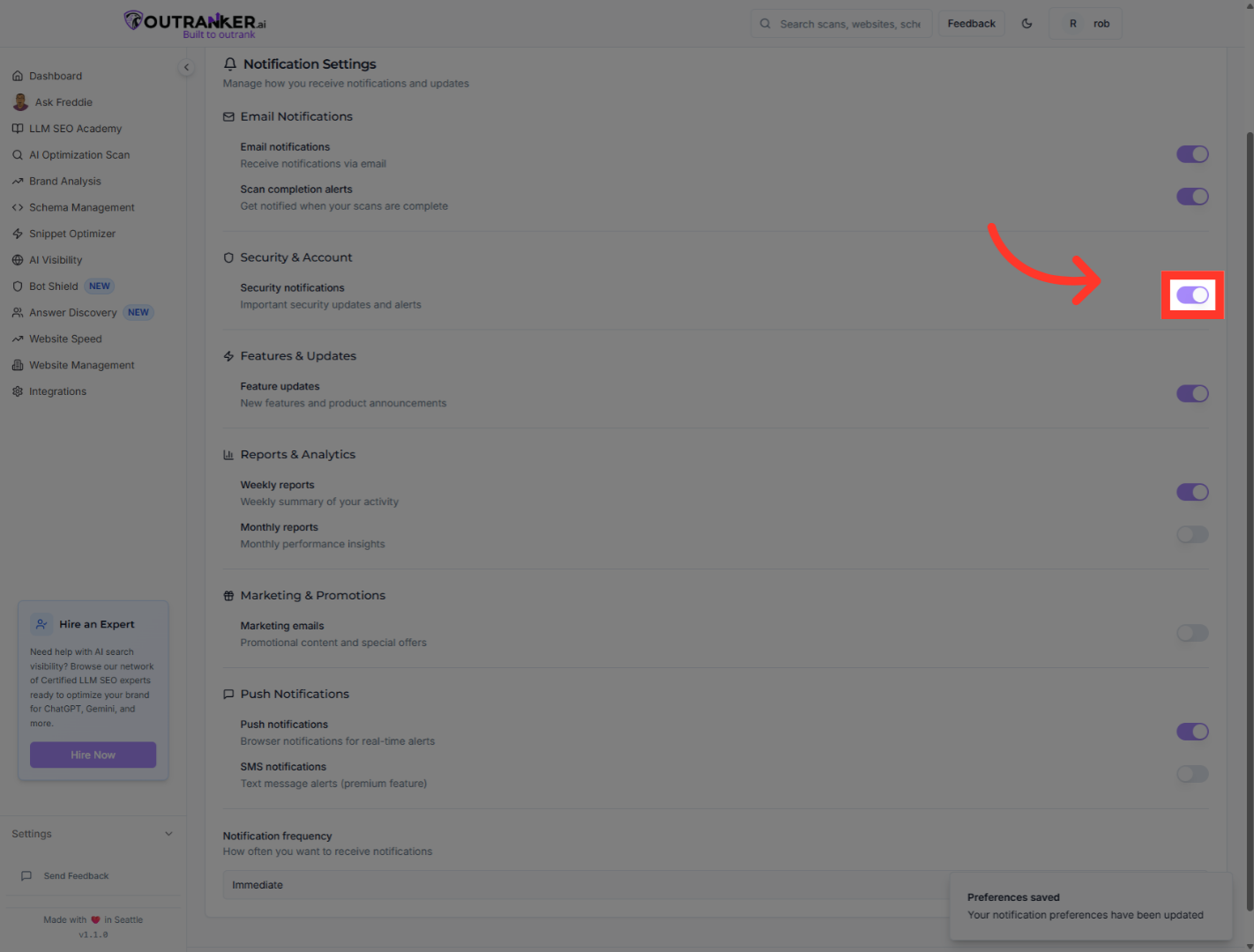
7. Click "Security notifications"
Click "Security notifications" to manage alerts related to account security.
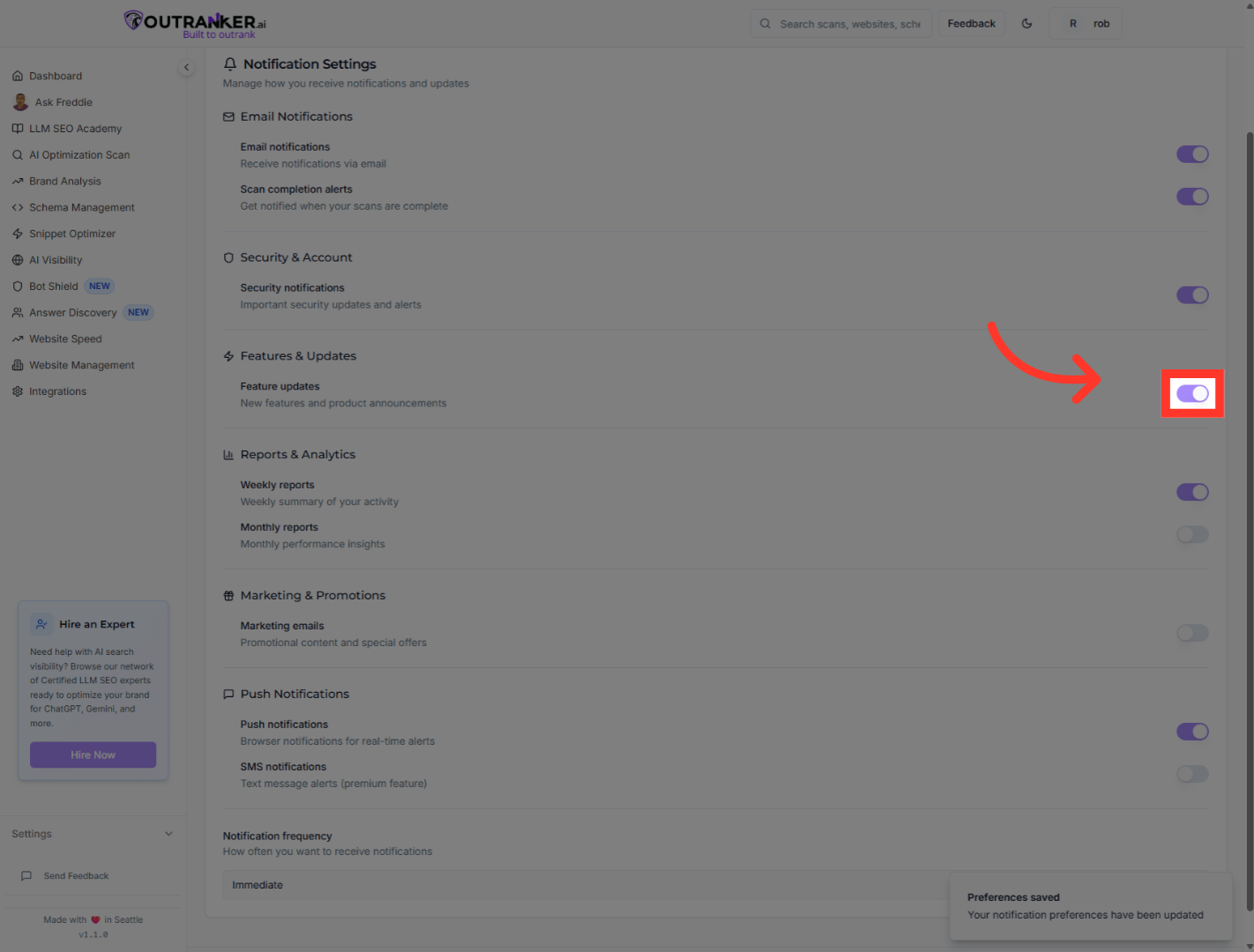
8. Click "Feature updates"
Click "Feature updates" to stay informed about new features and updates.
9. Click "Push notifications"
Click "Push notifications" to control alerts sent directly to your device.
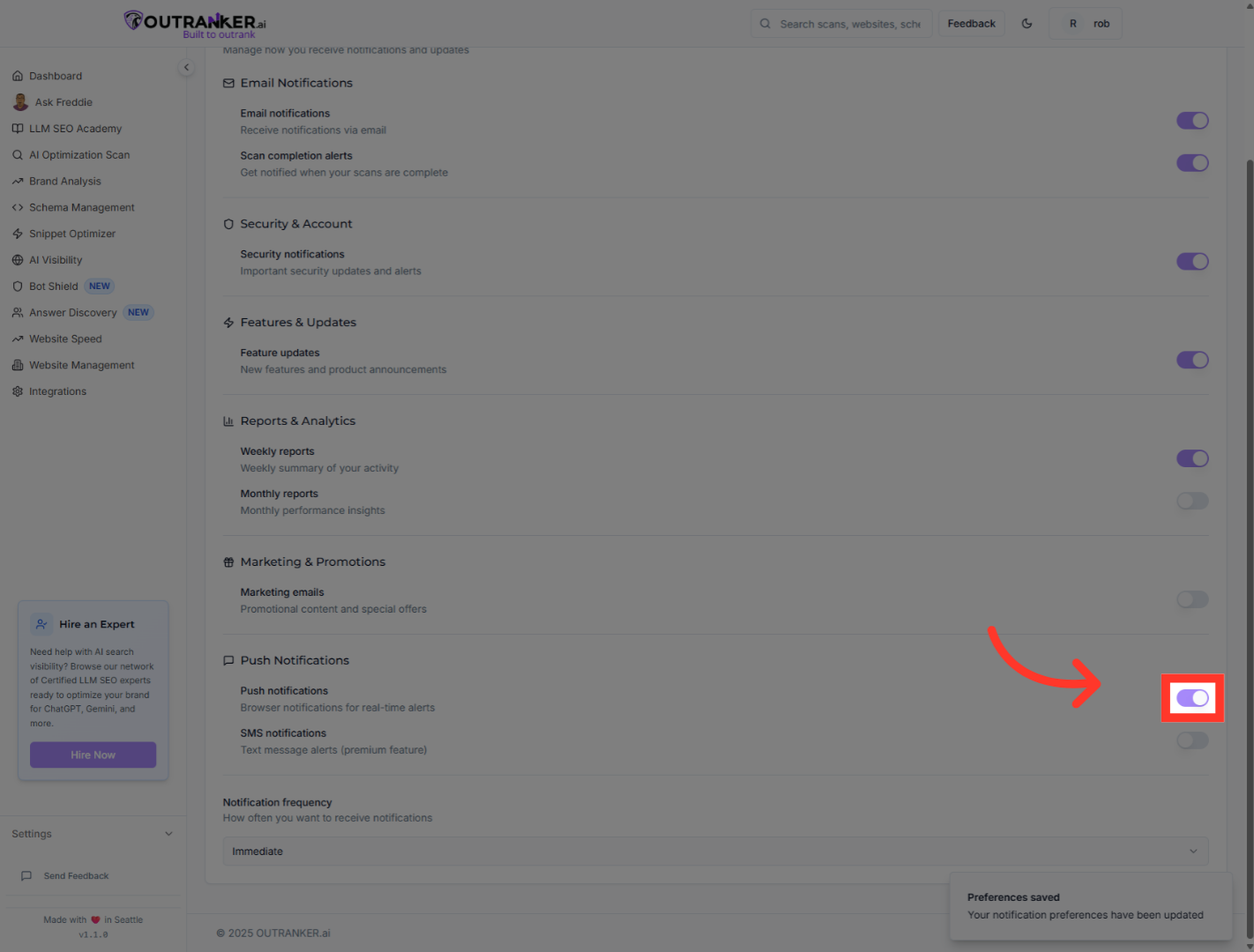
You have successfully managed your notification settings within OutRanker.Ai by navigating through profile and notification menus to customize email, security, feature update, and push notifications. To further optimize your experience, consider exploring other personalization options in your profile settings.
