
This tutorial guides you through creating a comprehensive company profile within your agency suite.
Go to www.outranker.ai
1. Introduction
“In this video, you’ll learn how to create and configure your Company Profile inside the Agency Suite.” “Your company profile powers your branding, proposals, reports, and client-facing experiences — so setting it up correctly is essential.”
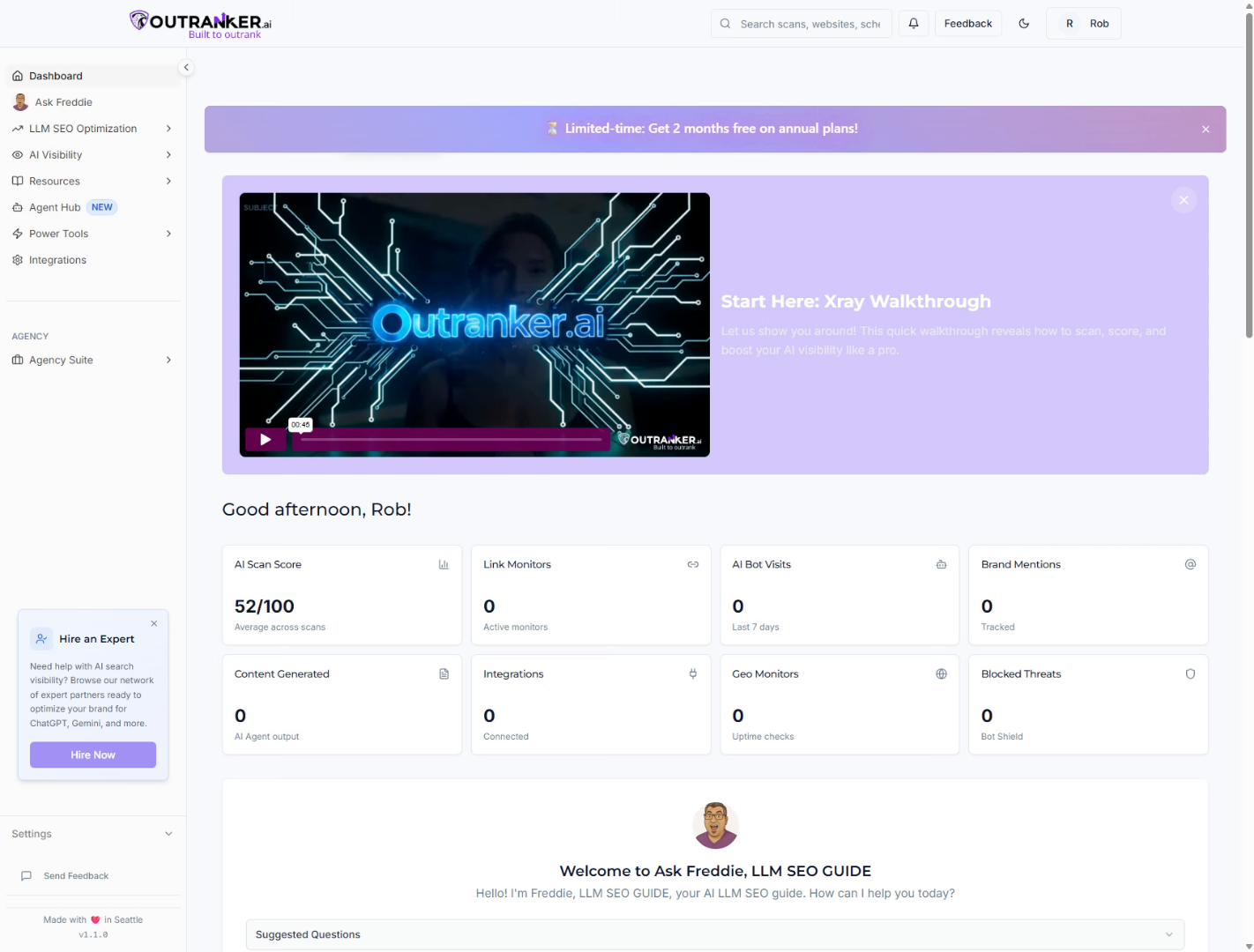
2. Access Branding Section
“Start by logging into Outranker.ai.” “From the left-hand menu, click Agency Suite and then Branding.”
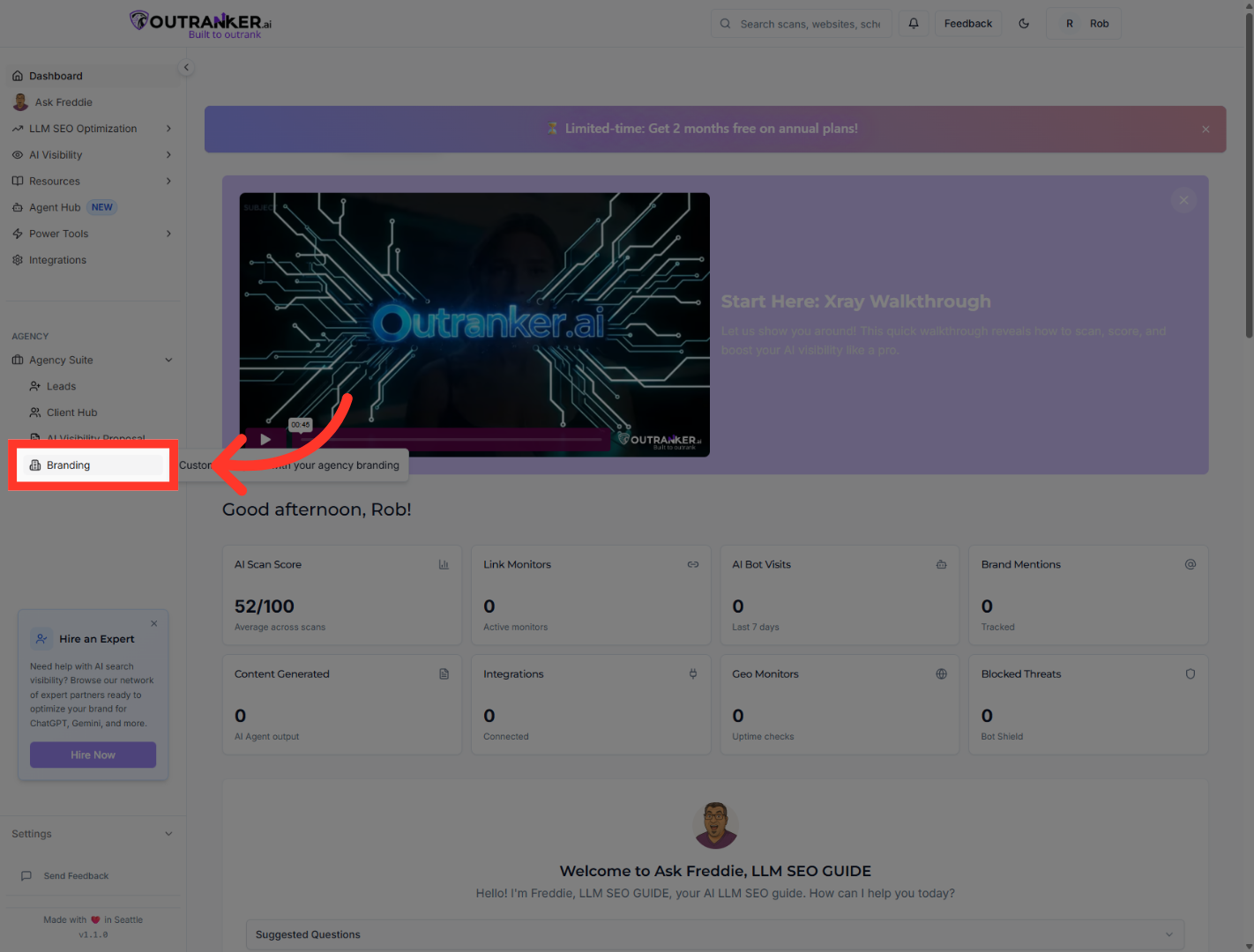
3. Open Company Profile
“Next, select Company Profile.”
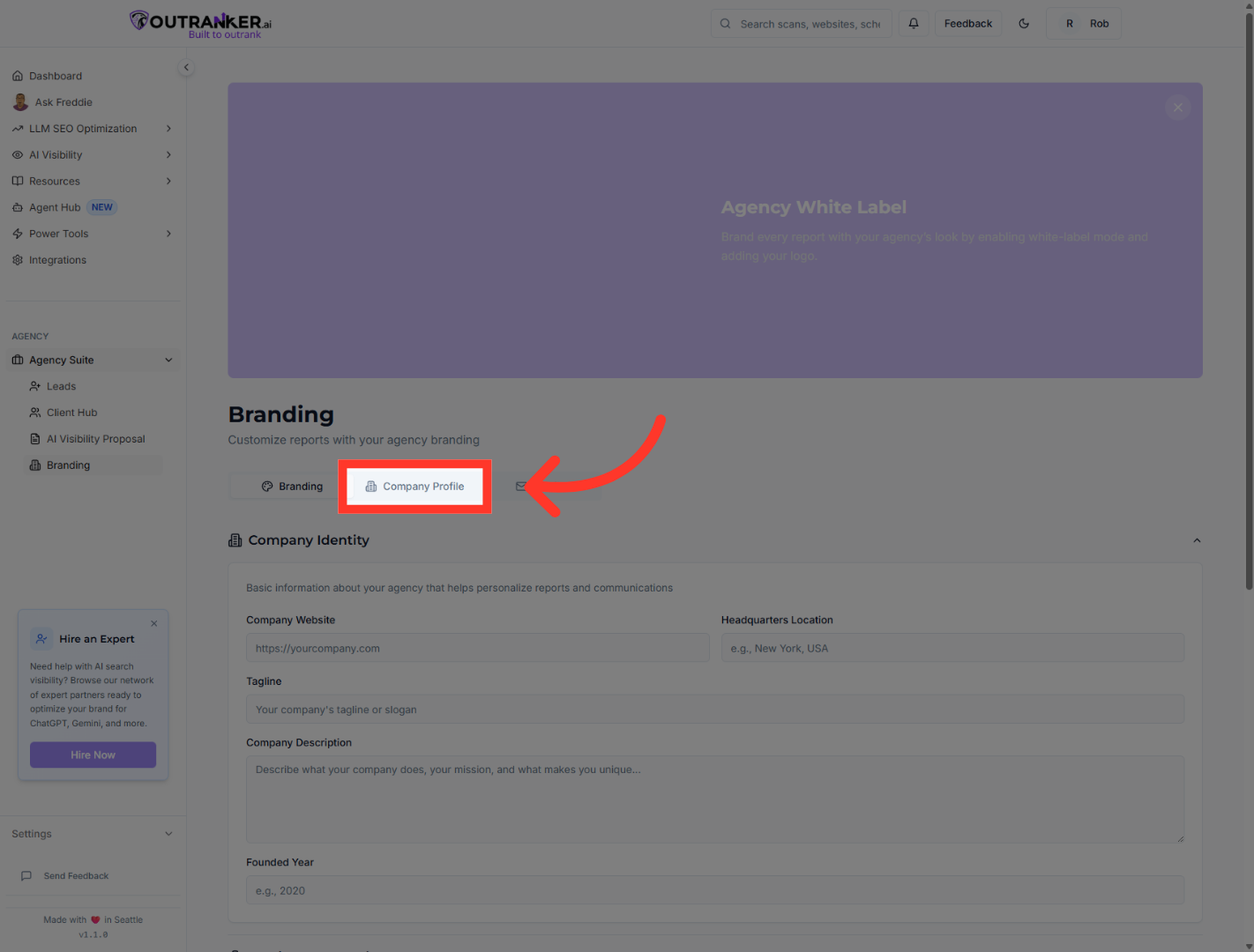
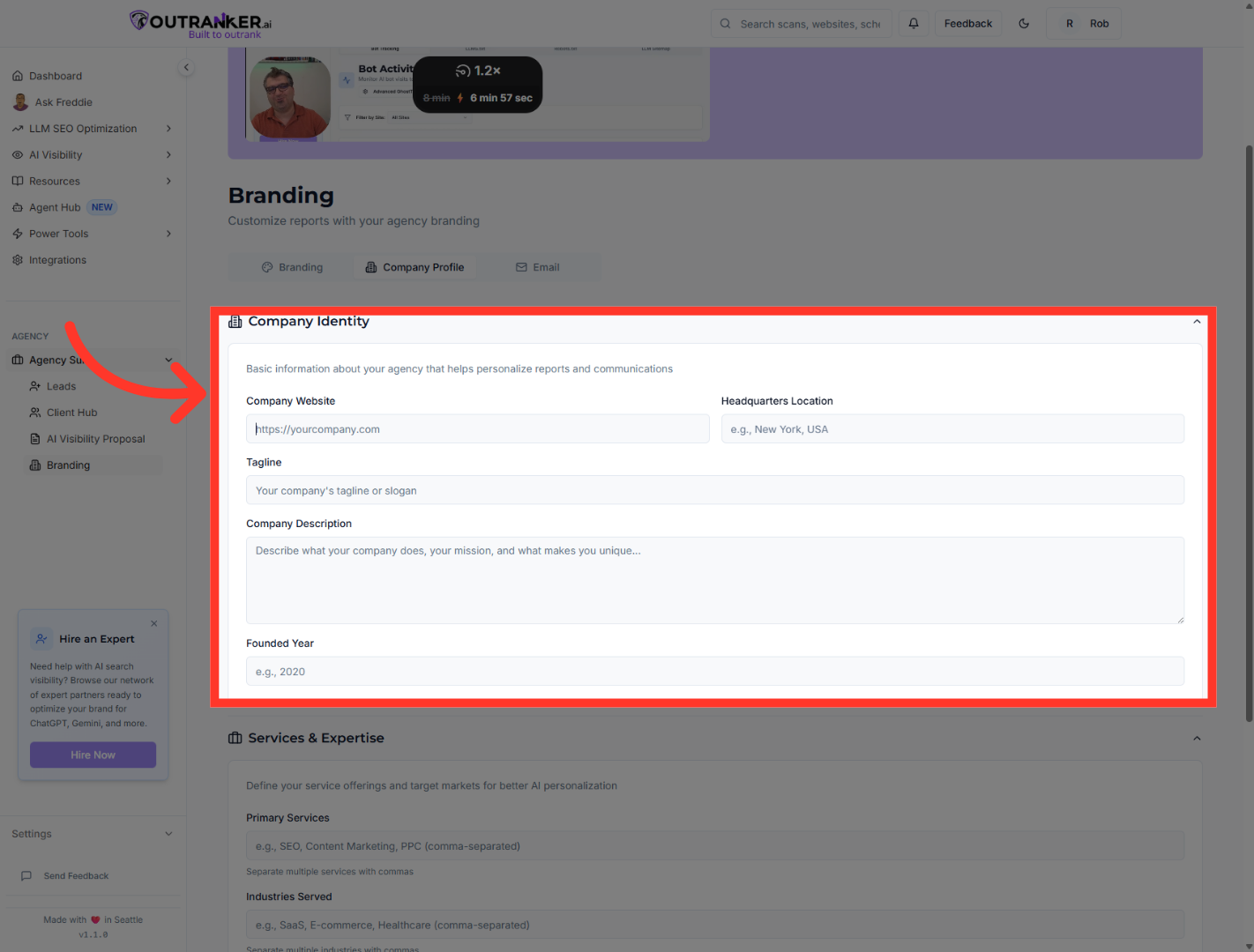
4. Select Company Website Field
“Begin by entering your core business information.” “Add your Company Website URL so clients can easily access your online presence.” “Next, specify your Headquarters Location.” “Enter a clear and memorable Tagline that represents your brand.” “Then write a detailed Company Description to explain who you are and what you offer.” “Finally, enter your Founded Year to highlight your experience.”
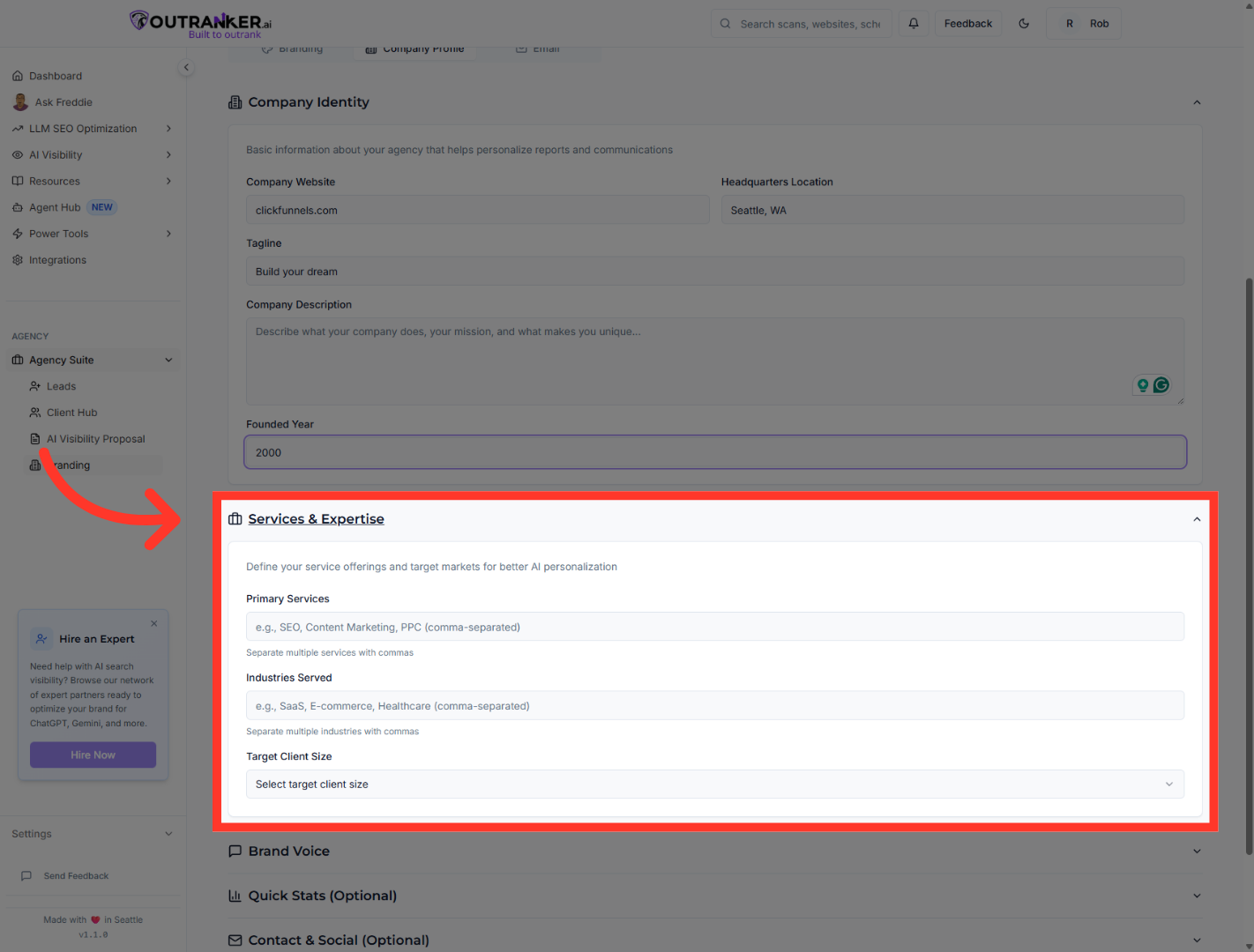
5. Access Services & Expertise
“Next, open the Services & Expertise section.” “Select your Primary Services to define what you specialize in.” “Choose the Industries Served to show the markets you focus on.” “Then select your Target Client Size, such as Small & Medium Business.” “This helps position your agency clearly and professionally.”
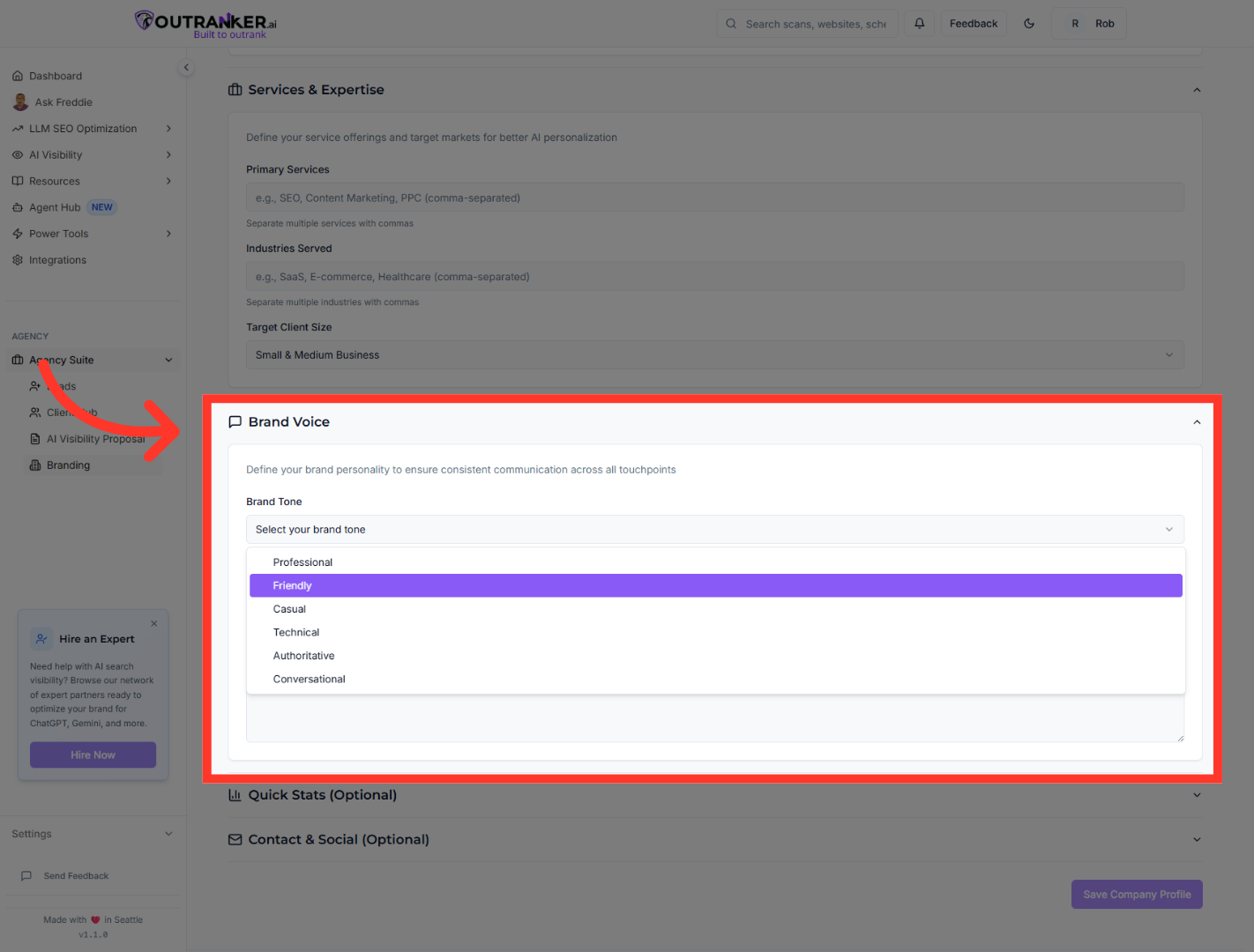
6. Choose Friendly Brand Voice
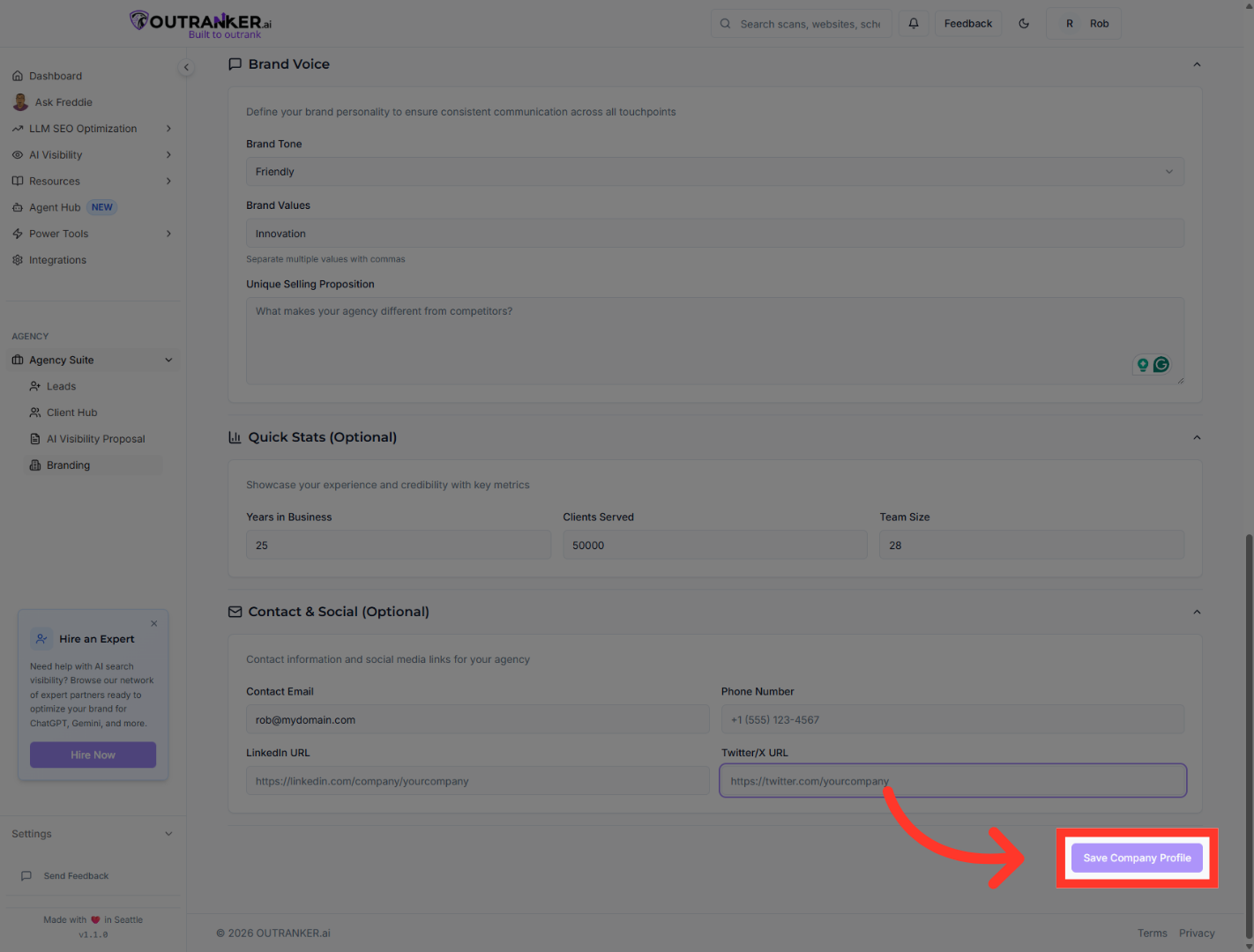
“Now configure your Brand Voice.” “Choose a tone — such as Friendly — that reflects how your agency communicates.” “Add your Brand Values to highlight what guides your company.” “Then complete your Unique Selling Proposition to clearly explain what makes you different.”
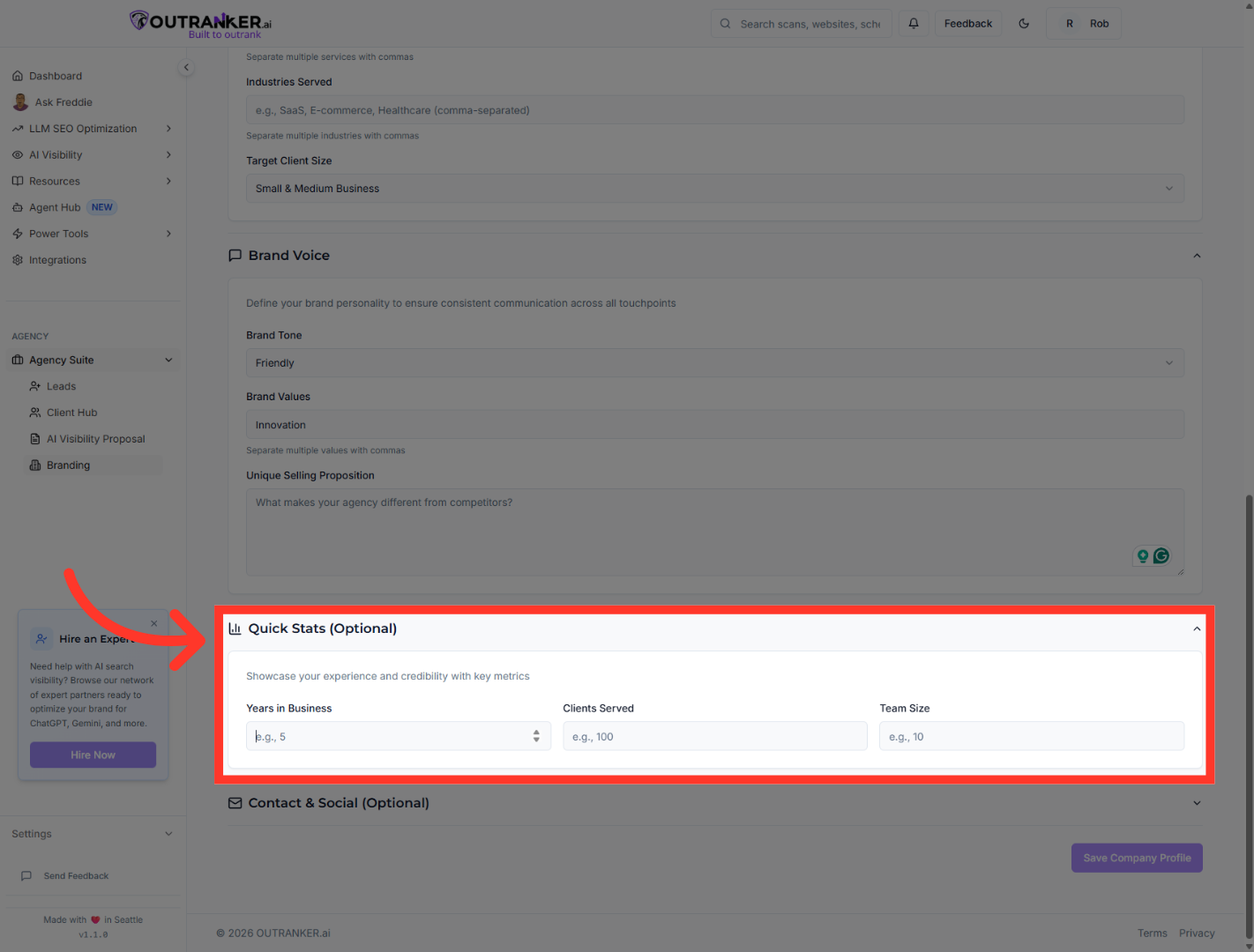
7. Select Years in Business
“Next, open the Quick Stats section.” “Enter your Years in Business.” “Add the number of Clients Served.” “And include your Team Size.” “These metrics build trust and credibility with prospects and clients.”
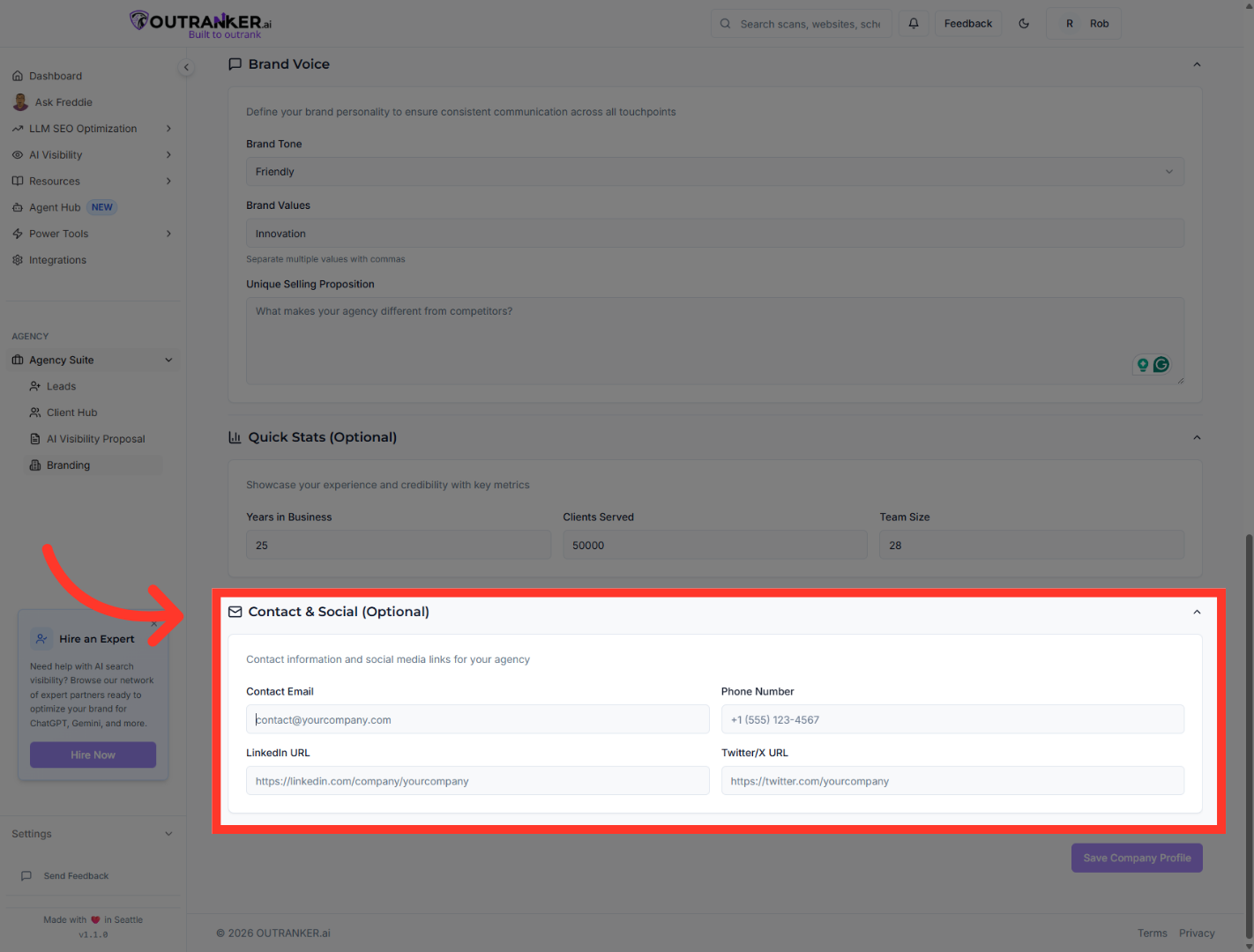
8. Select Contact Email Field
“Finally, expand the Contact & Social section.” “Enter your primary Contact Email.” “Add your Phone Number.” “And include links to your LinkedIn and Twitter/X profiles.” “This ensures clients can easily connect with your agency.”
9. Save Company Profile
“Once all sections are complete, click Save Company Profile.” “Review your information carefully and update any fields if necessary.”
“You’ve now successfully created and configured your Company Profile in the Agency Suite.” “This profile powers your branding, reports, proposals, and client experience — so keeping it accurate and professional is key.” “In the next video, we’ll show you how to leverage this profile inside proposals and white-labeled reports.”
