
This tutorial guides you through creating a new AI Visibility Proposal using the agency suite.
Go to www.outranker.ai
1. Introduction
“In this video, you’ll learn how to create and send a new AI Visibility Proposal using the Agency Suite.” “We’ll walk through selecting a proposal type, configuring client details, choosing services, setting payment terms, and sending the proposal professionally.” “This is how you turn AI visibility insights into revenue.”
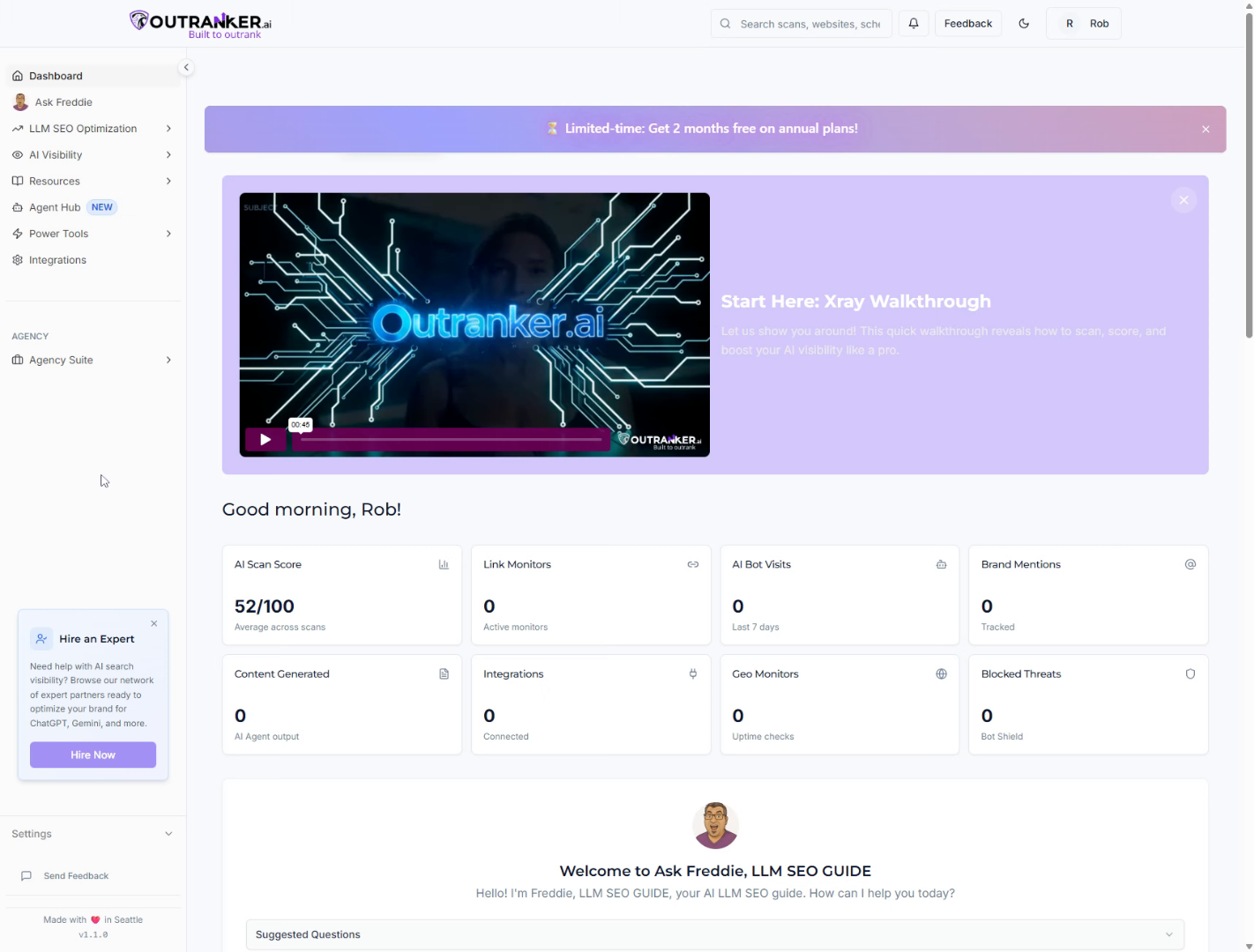
2. Open AI Visibility Proposal Section
“Start by logging into Outranker.ai.” “From the left-hand menu, click Agency Suite.” “Then open AI Visibility Proposal, and select the Proposals tab.”
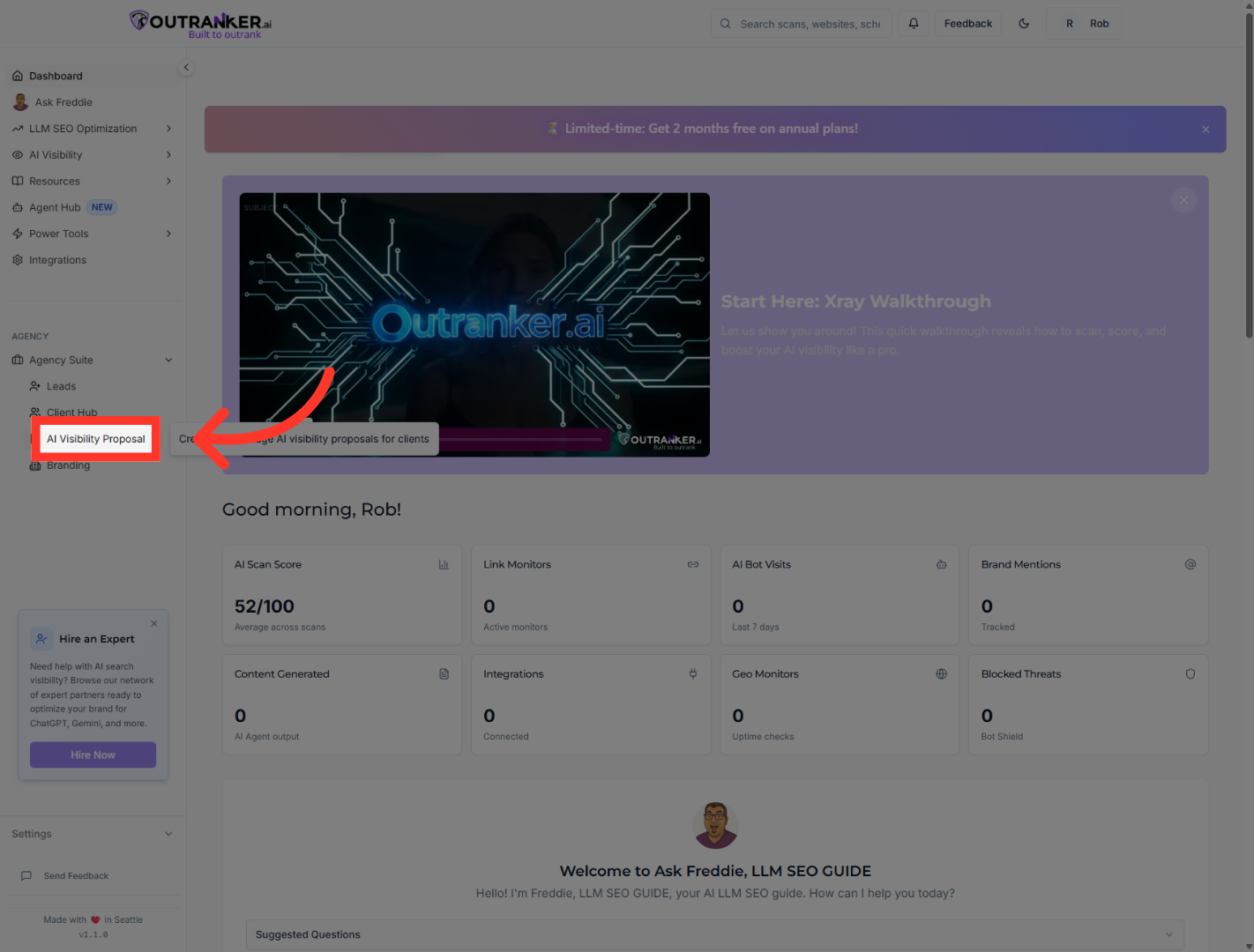
3. Initiate Proposal Creation
“Click Create Proposal to begin.”
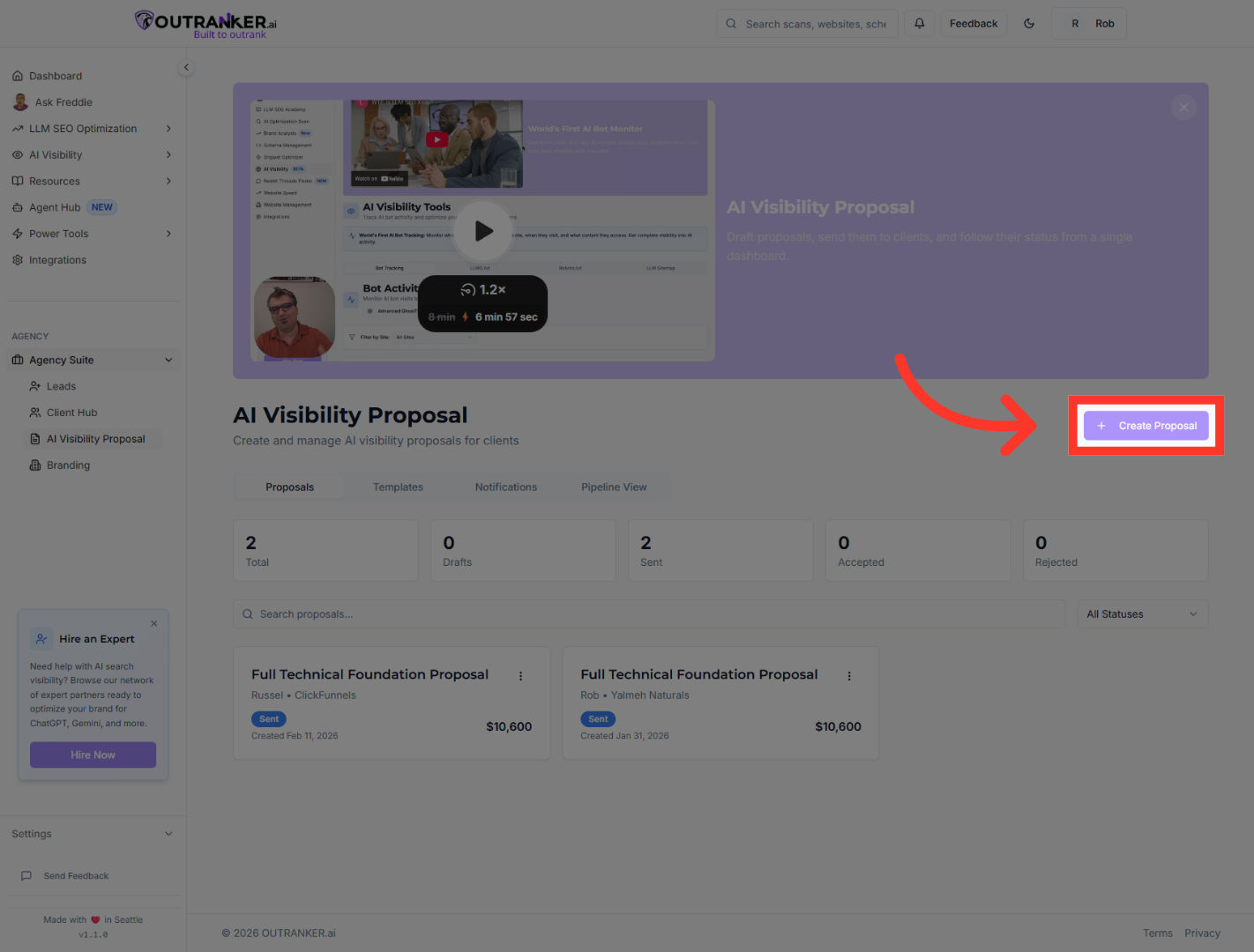
4. Select Complete Proposal Option
“Choose the proposal type that fits your offer.” “For a complete solution, select the full AI Visibility transformation option, which includes strategy, technical setup, content, and ongoing services.”
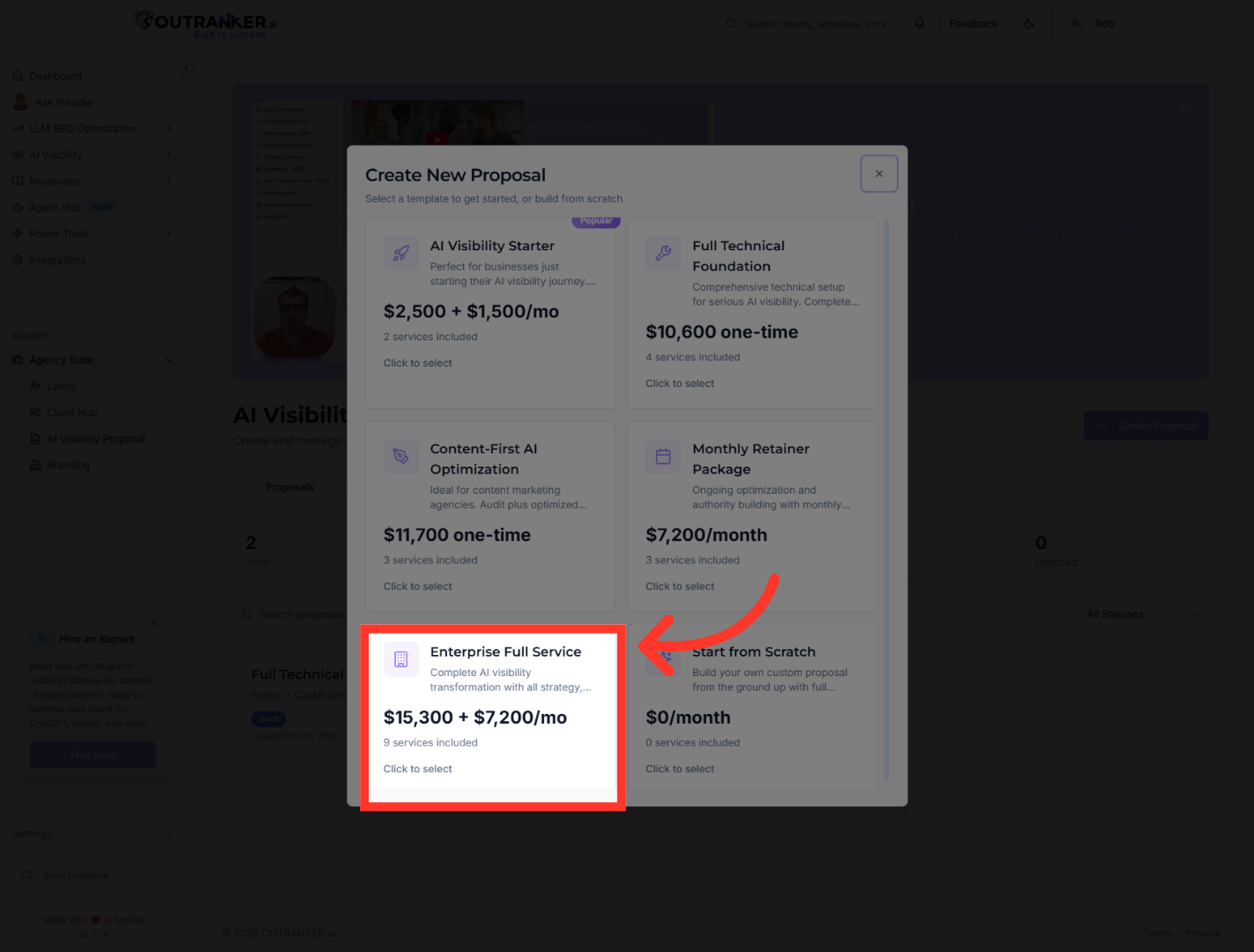
5. Open Client Selection Dropdown
“Next, select an existing client from the dropdown.” “Client details will auto-fill, saving time and reducing errors.”
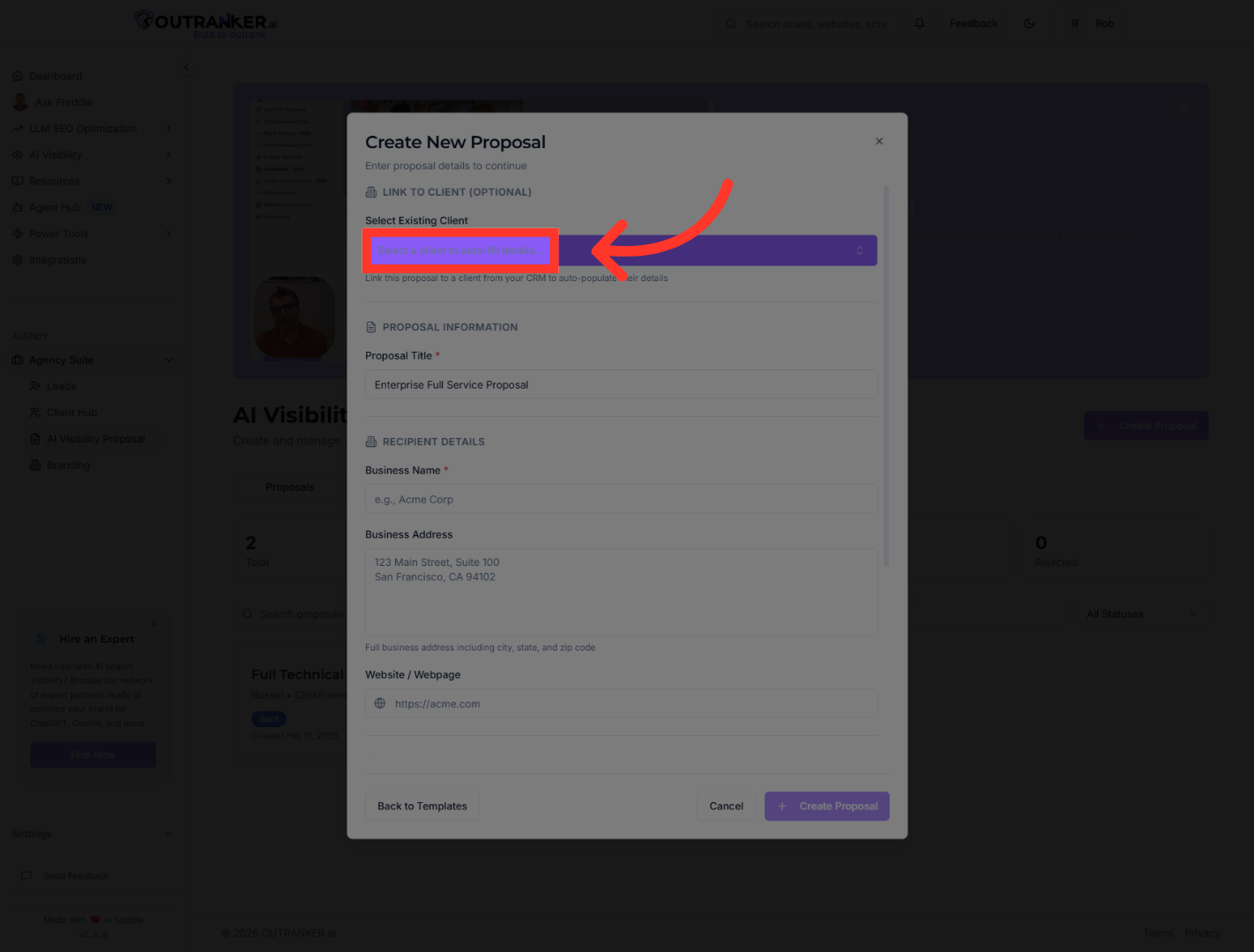
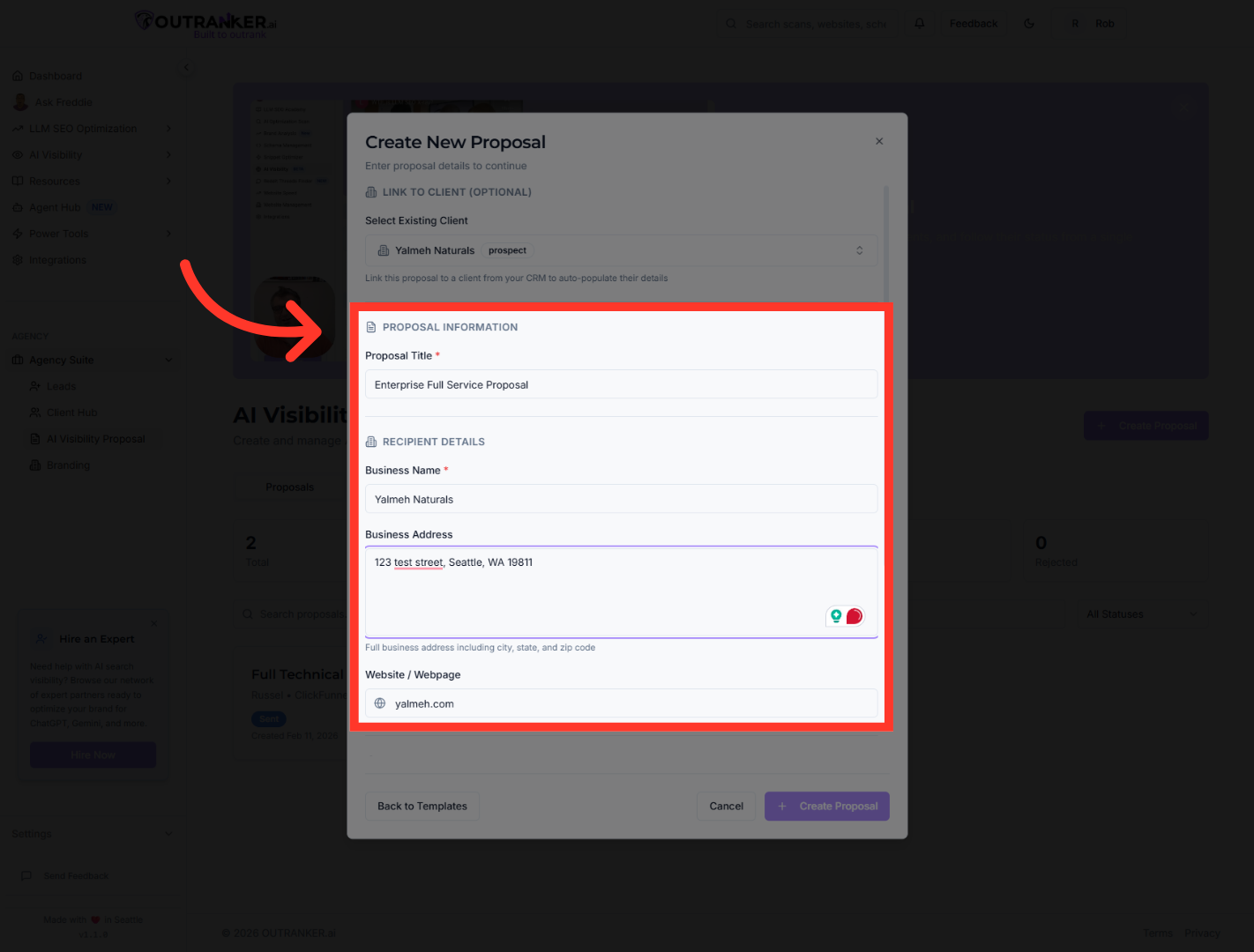
6. Review Recipient Details Section
“Enter a clear proposal title.” “Review the business name and address.” “Add the client’s website URL.” “Then enter the contact email to ensure proper delivery.”
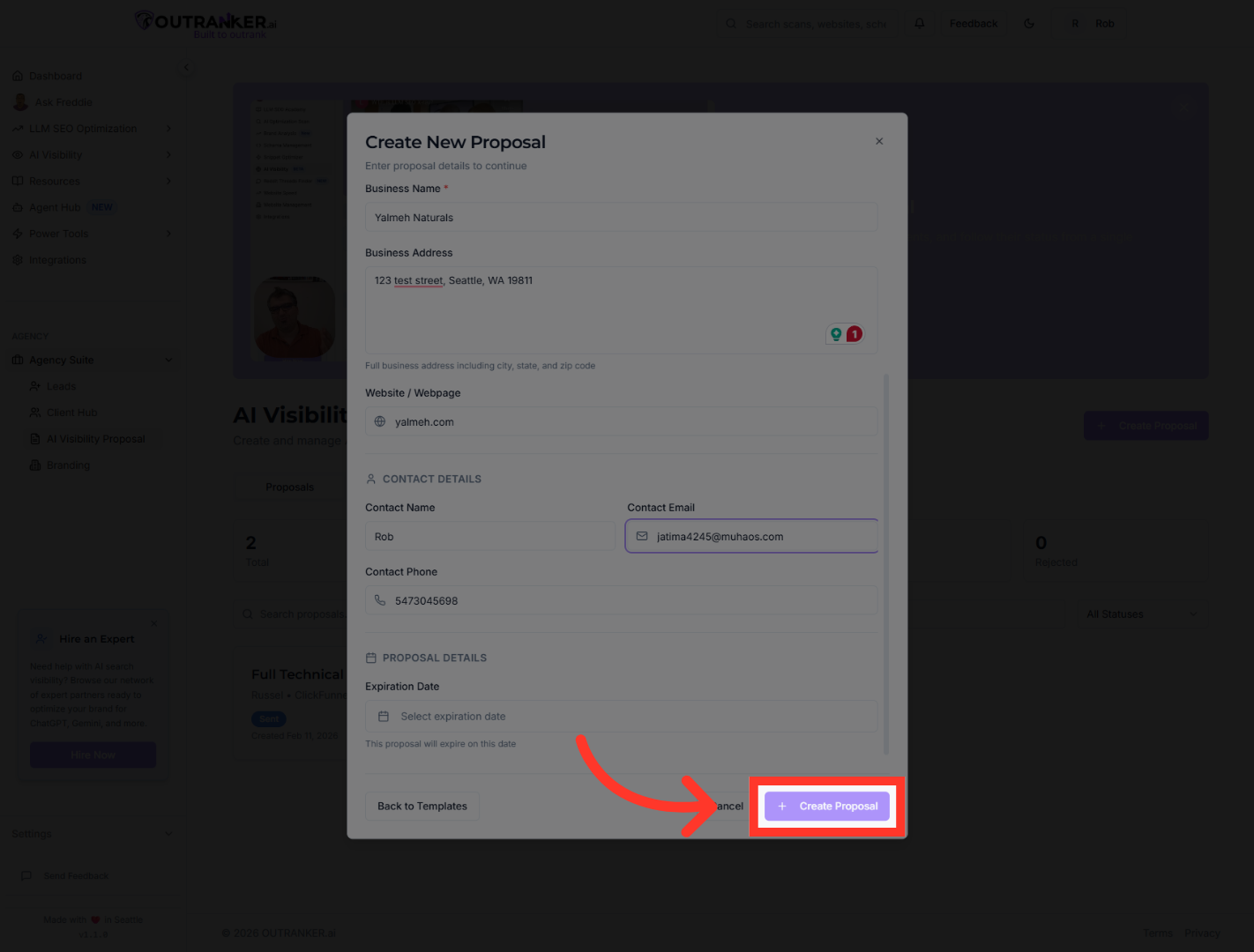
7. Confirm Proposal Creation
“Once everything looks correct, click Create Proposal.”
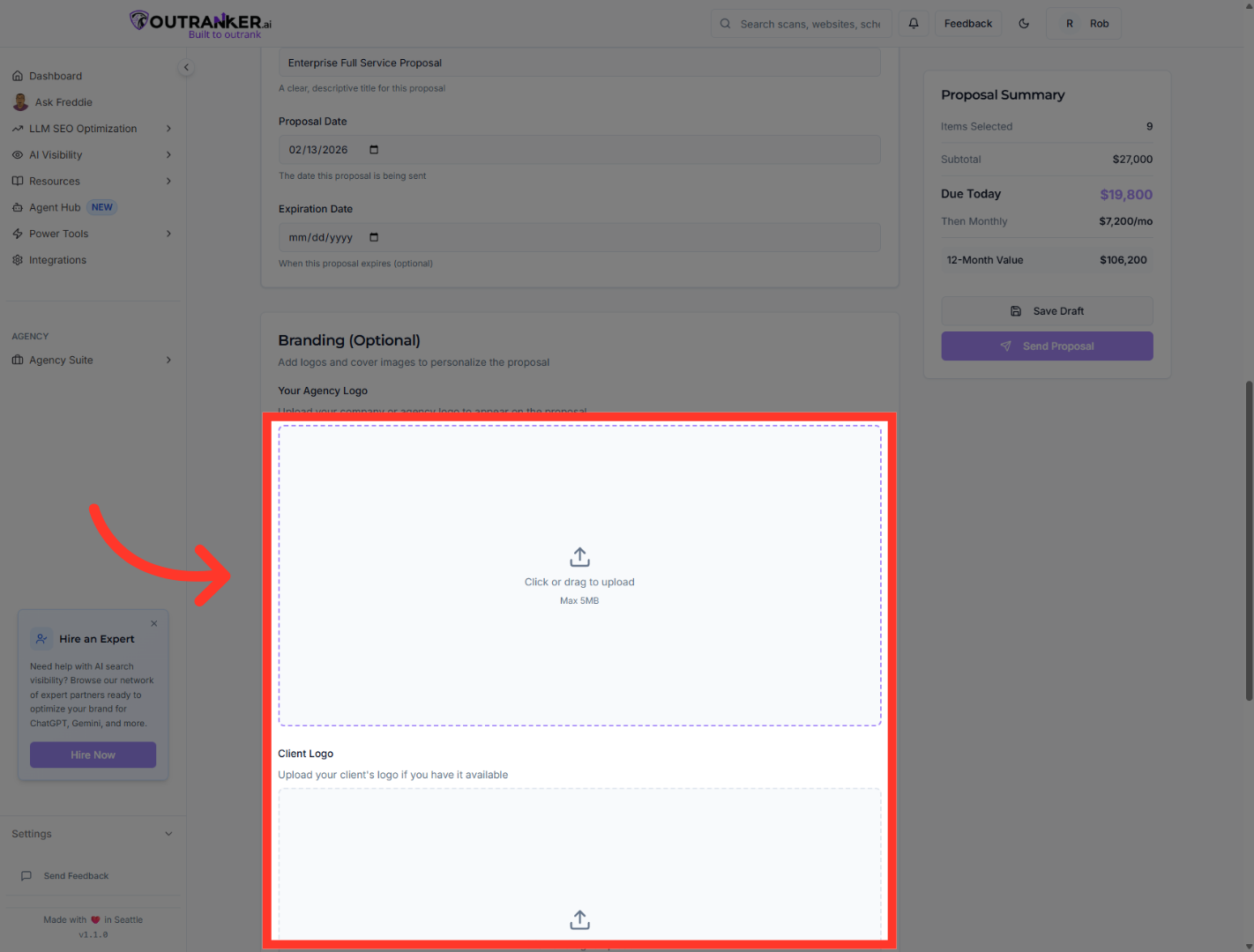
8. Open File Upload Dialog
“You can upload images or branding files to enhance the proposal presentation.” “Add logos, visuals, or supporting graphics to make your proposal more compelling.”
9. Proceed to Services Section
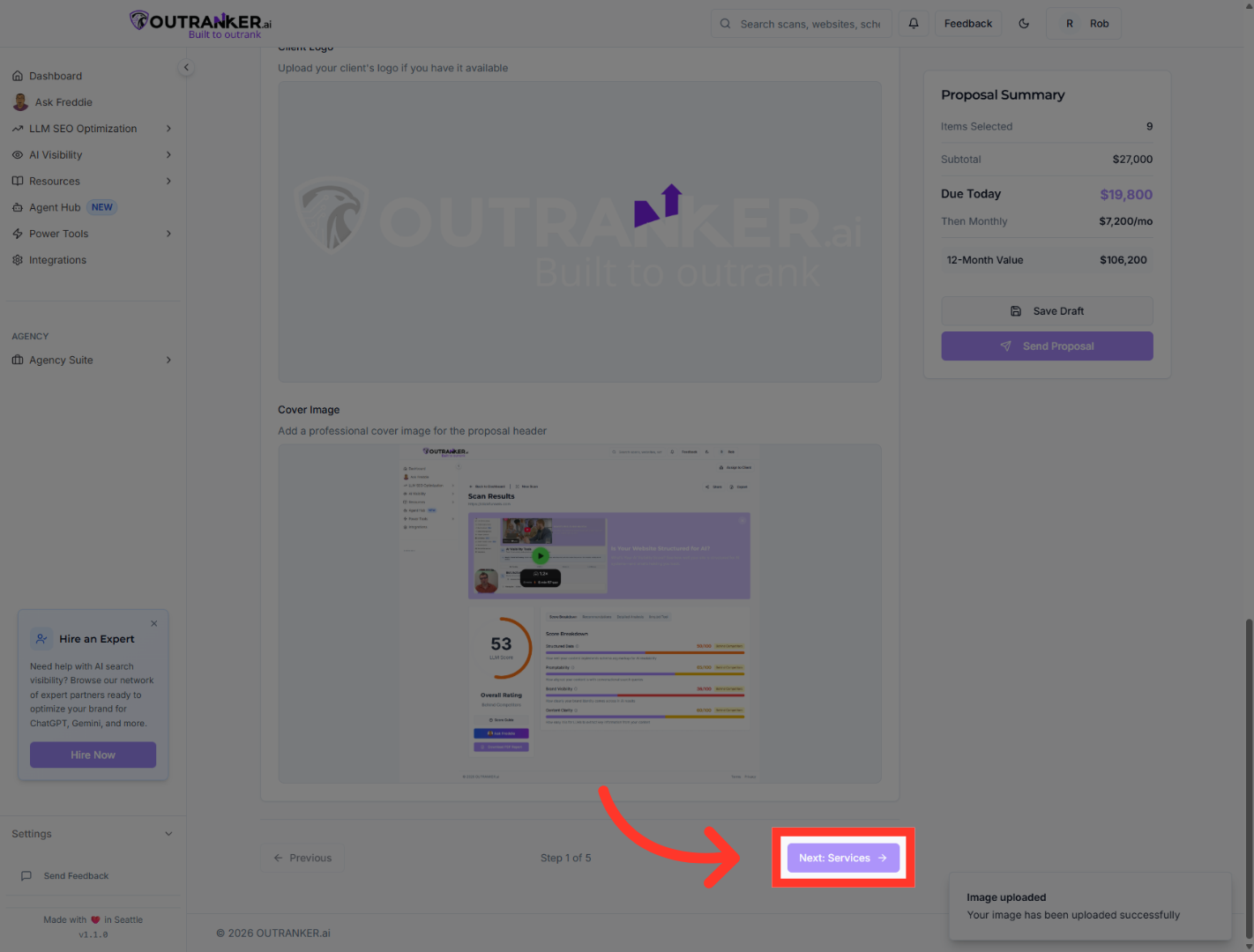
Click Next: Services to move forward to selecting services for the proposal.
10. Select First Service Option
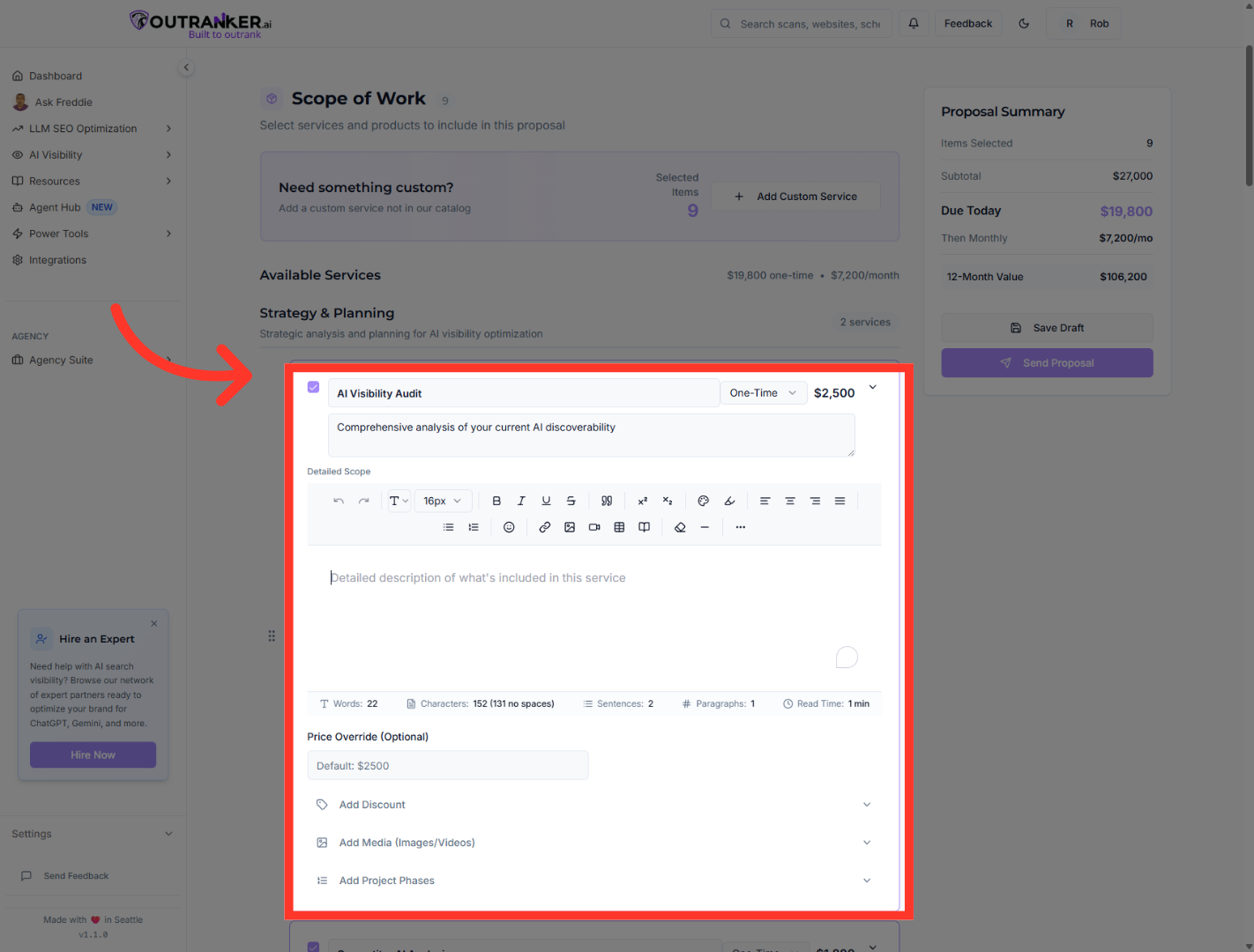
“Next, move to the Services section.” “Select the services you want to include in this proposal.” “Each service includes scope descriptions and pricing.” “Choose the combination that matches the client’s needs and your offer.”
11. Proceed to About Us Section
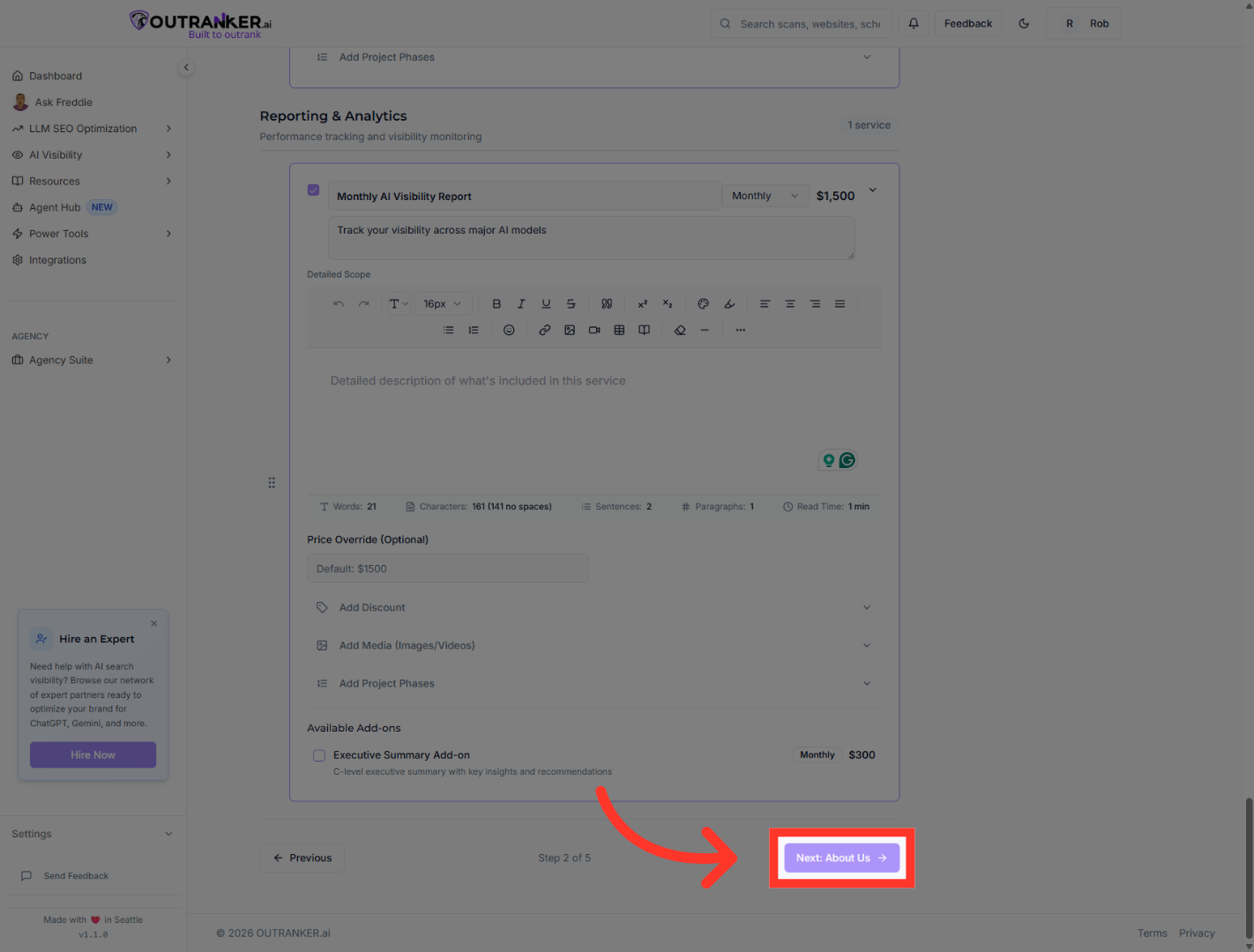
Click Next: About Us to continue to the section describing your agency.
12. Choose Agency Type
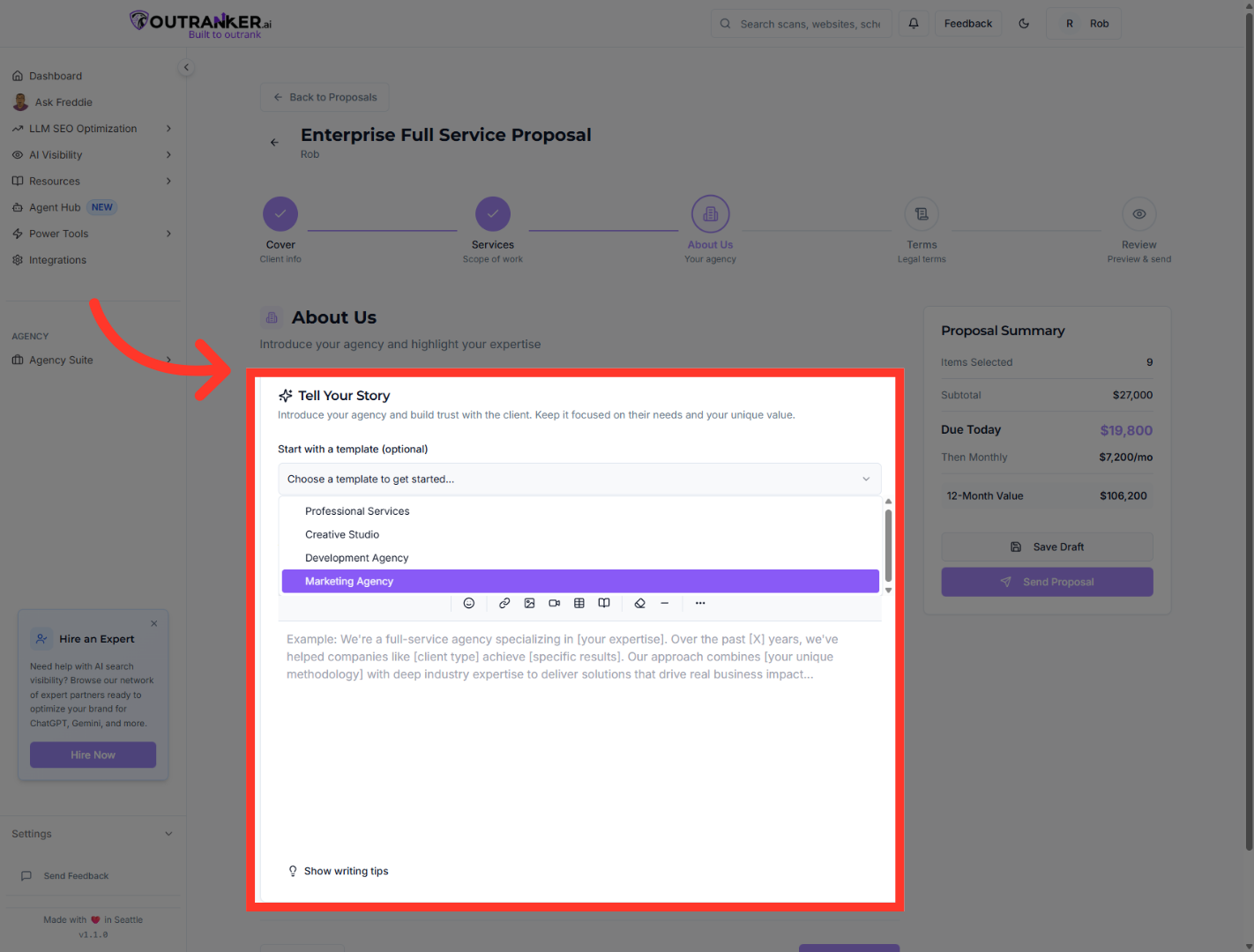
“In the About Us section, confirm your agency type and positioning.” “This helps reinforce credibility and trust.”
13. Proceed to Terms Section
Click Next: Terms to move to the proposal's terms and conditions.
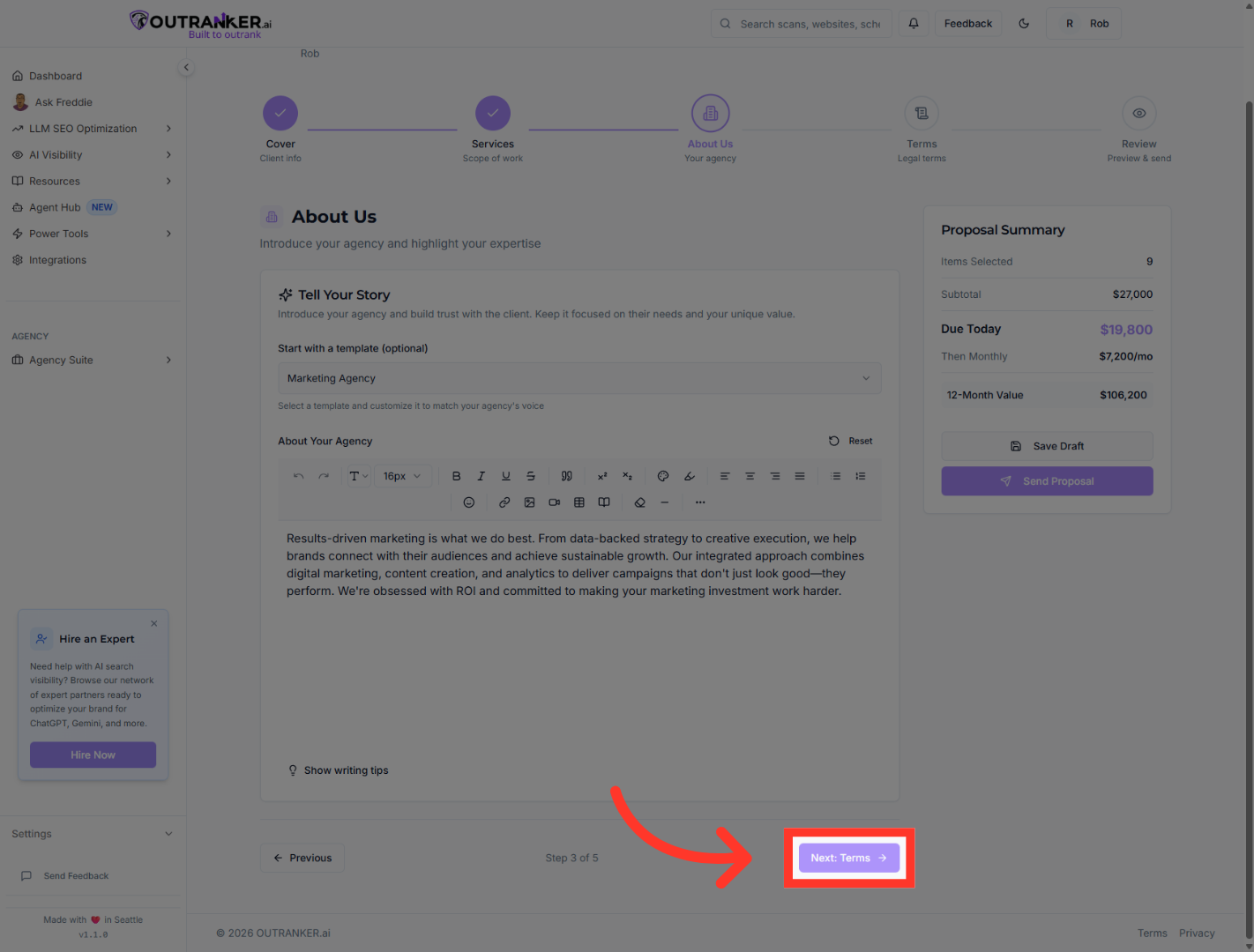
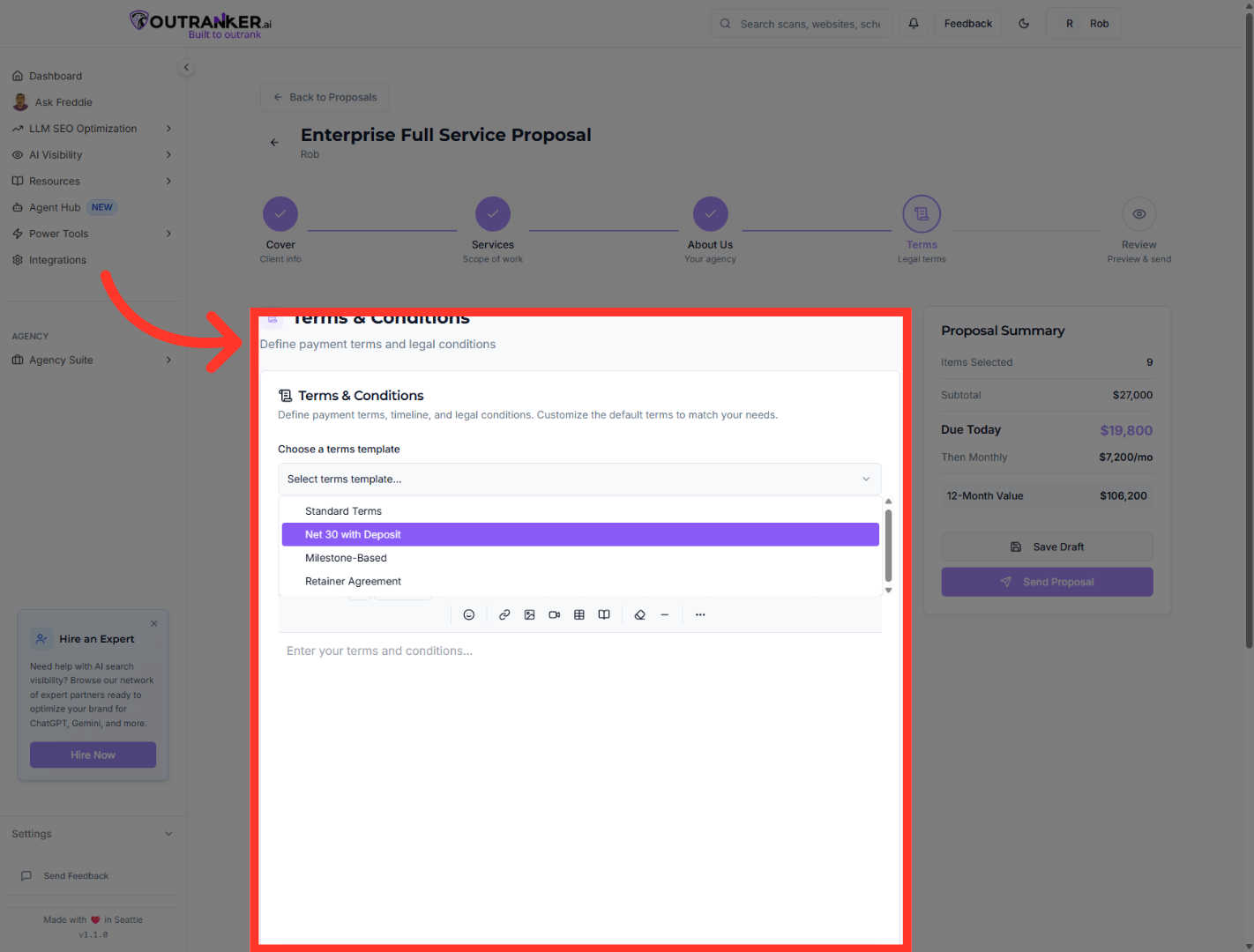
14. Select Payment Terms
“Next, configure your payment terms.” “For example, select Net 30 with deposit to clearly define billing expectations.” “Transparent terms reduce friction and speed up closing.”
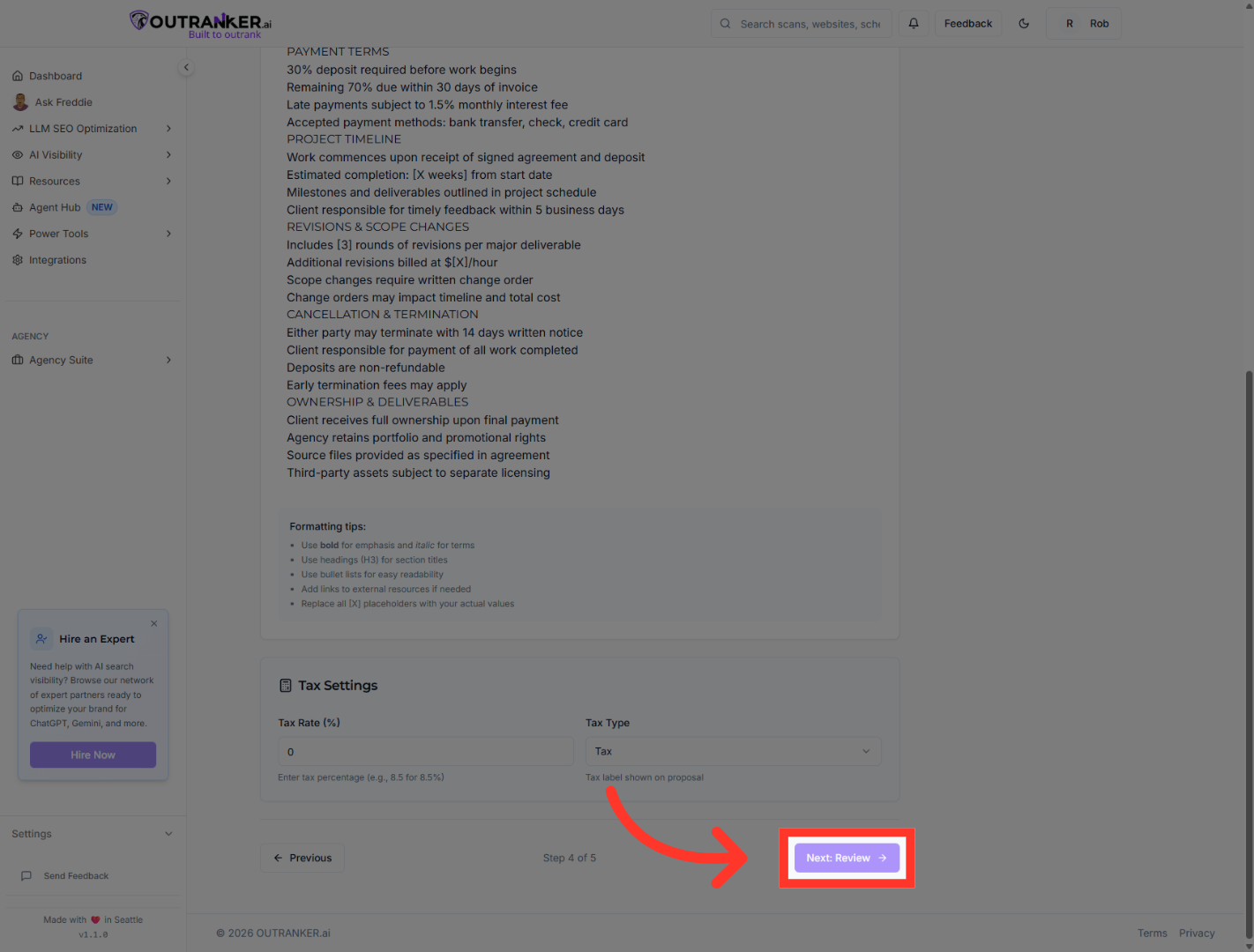
15. Proceed to Review Section
Click Next: Review to review all proposal details before sending.
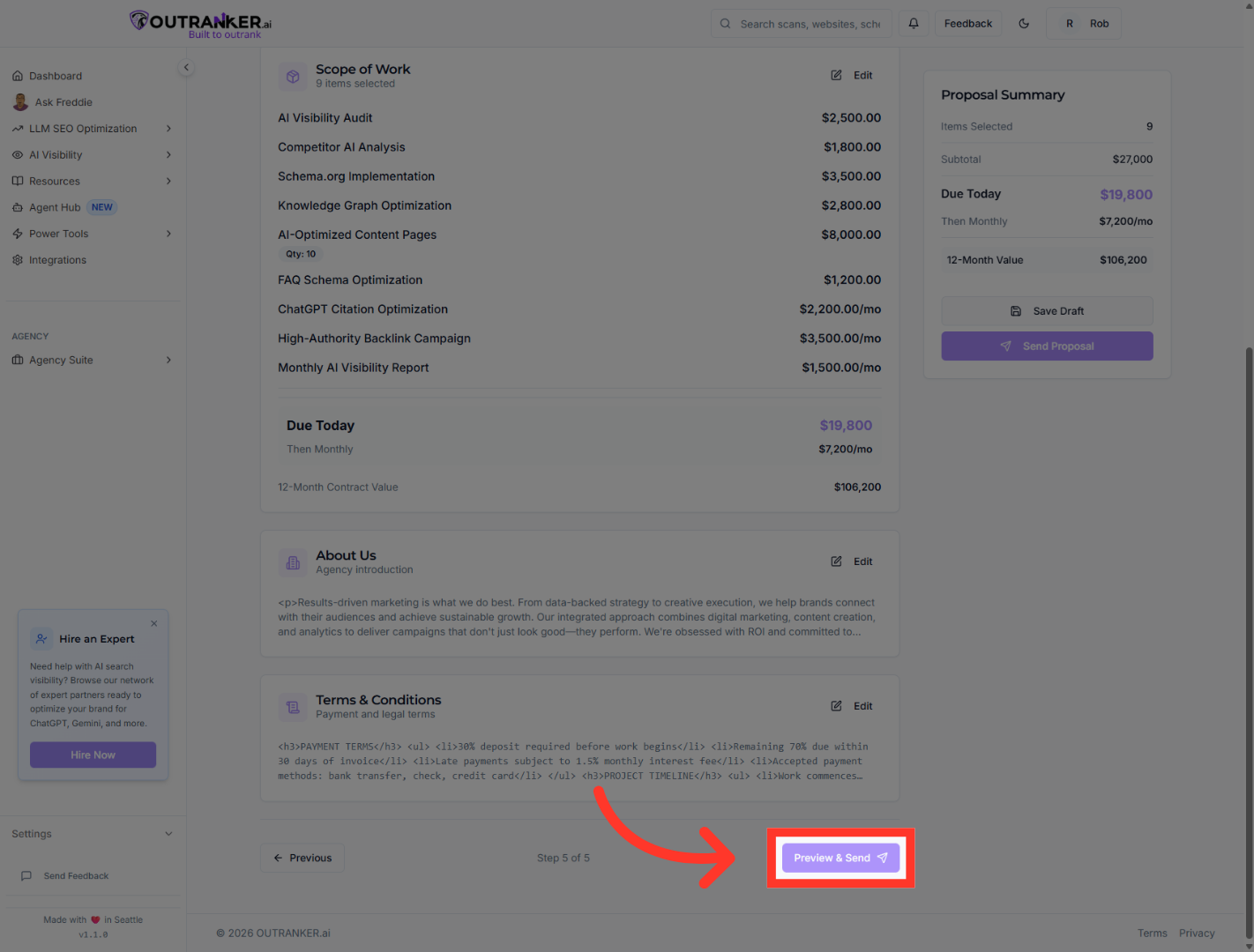
16. Open Preview and Send Options
“Click Review to verify all details.” “Then select Preview & Send.”
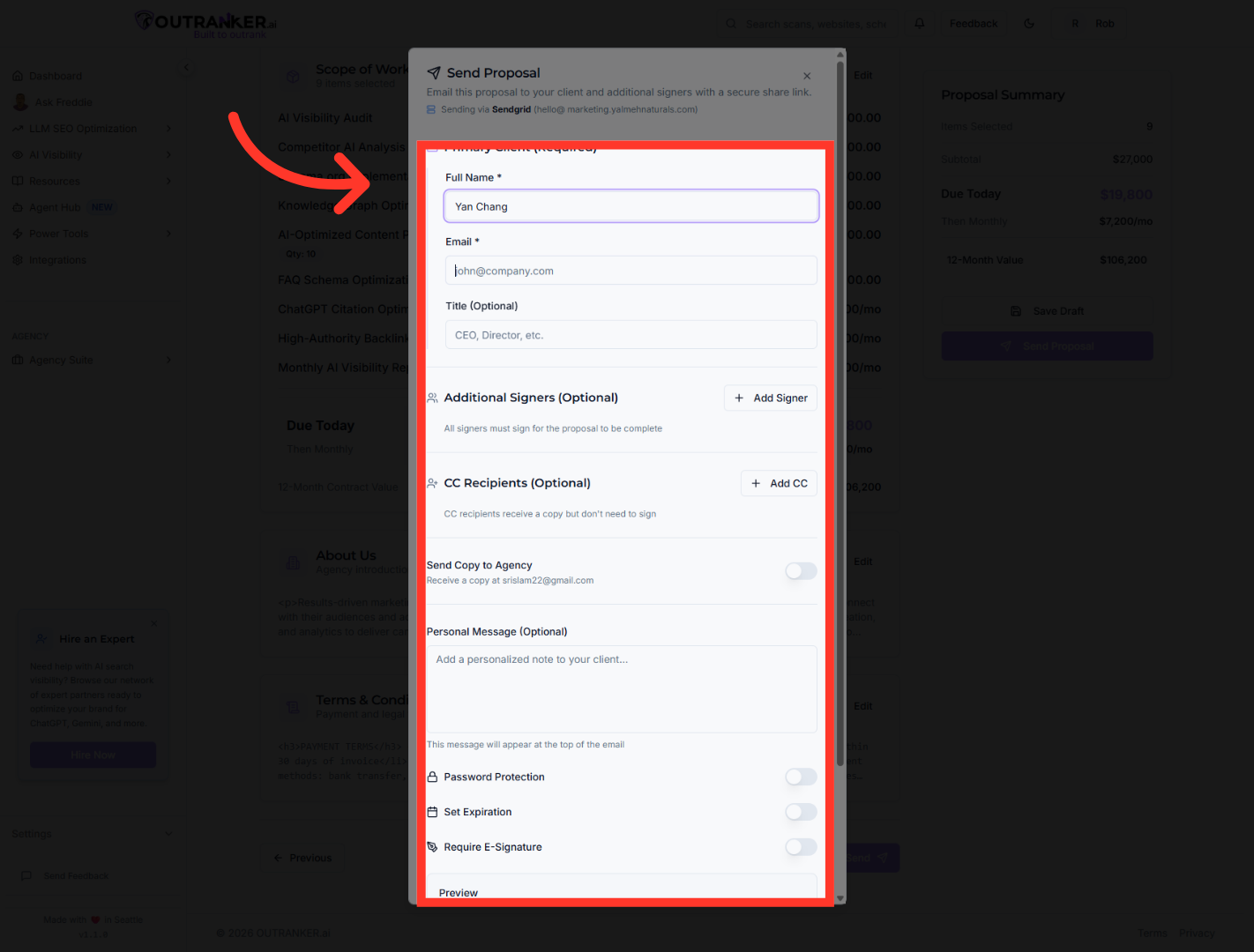
17. Access Email Field
“Enter the recipient’s name and email.” “Optionally, add their professional title.” “Include a personalized message to increase engagement.” “You can also enable ‘Send Copy to Agency’ to receive a record.” “Finally, click Send to deliver the proposal.”
18. Send Proposal to Recipients
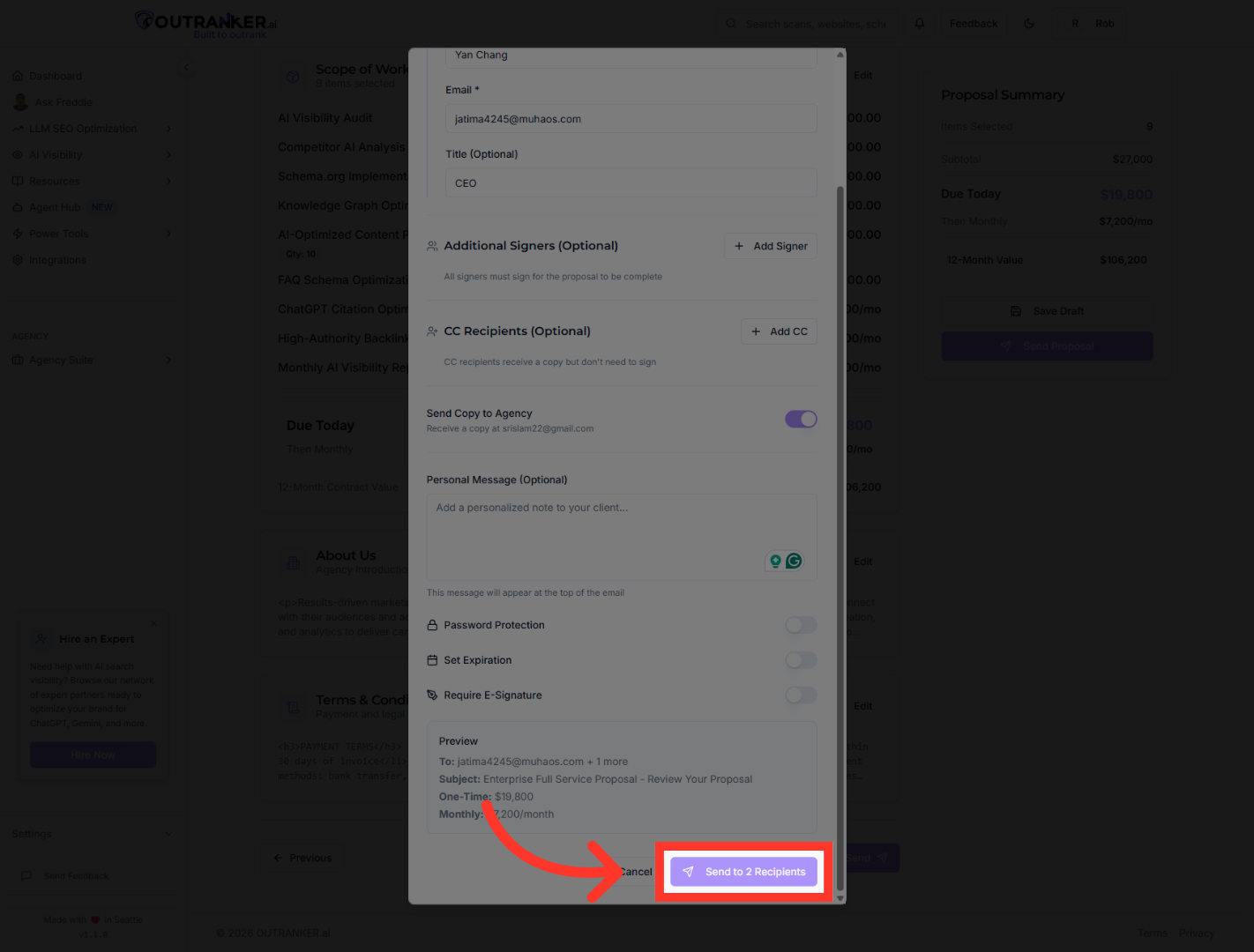
Click Send to 2 Recipients to finalize and send the proposal emails.
“You’ve now successfully created and sent an AI Visibility Proposal using the Agency Suite.” “This is how you turn AI audits into structured, professional offers that close deals.” “In the next video, we’ll show you how to track proposal status and follow up effectively.”
