
This tutorial guides you through managing your leads within Agency Suite.
Go to www.outranker.ai
1. Introduction
“In this video, you’ll learn how to manage your leads efficiently using the Agency Suite inside Outranker.ai.” “We’ll walk through how to view your leads, contact them, update their status, organize them with tags, and export your data — all from one place.”
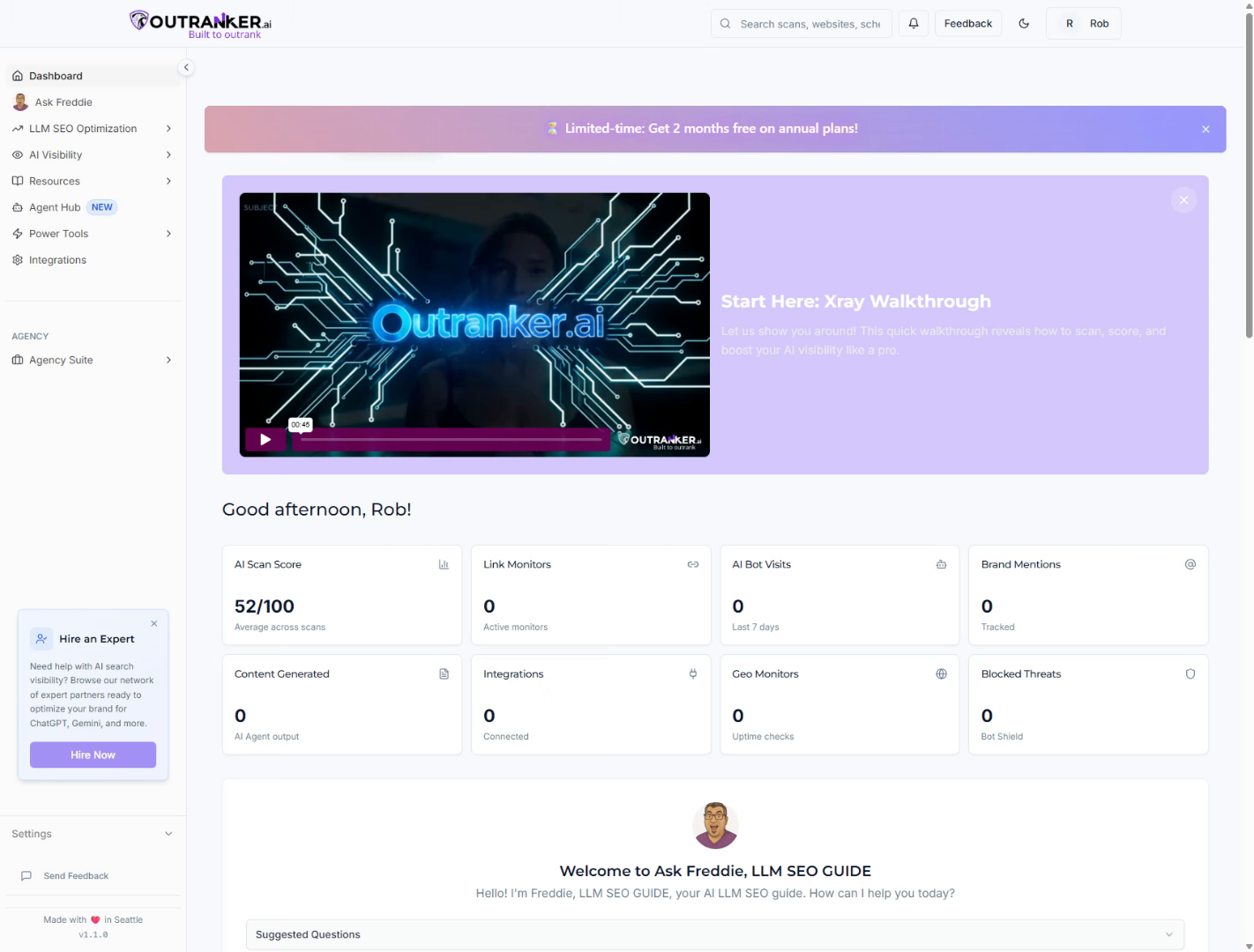
2. Open Agency Suite
Click Agency Suite to enter the section dedicated to managing your agency's operations and leads.
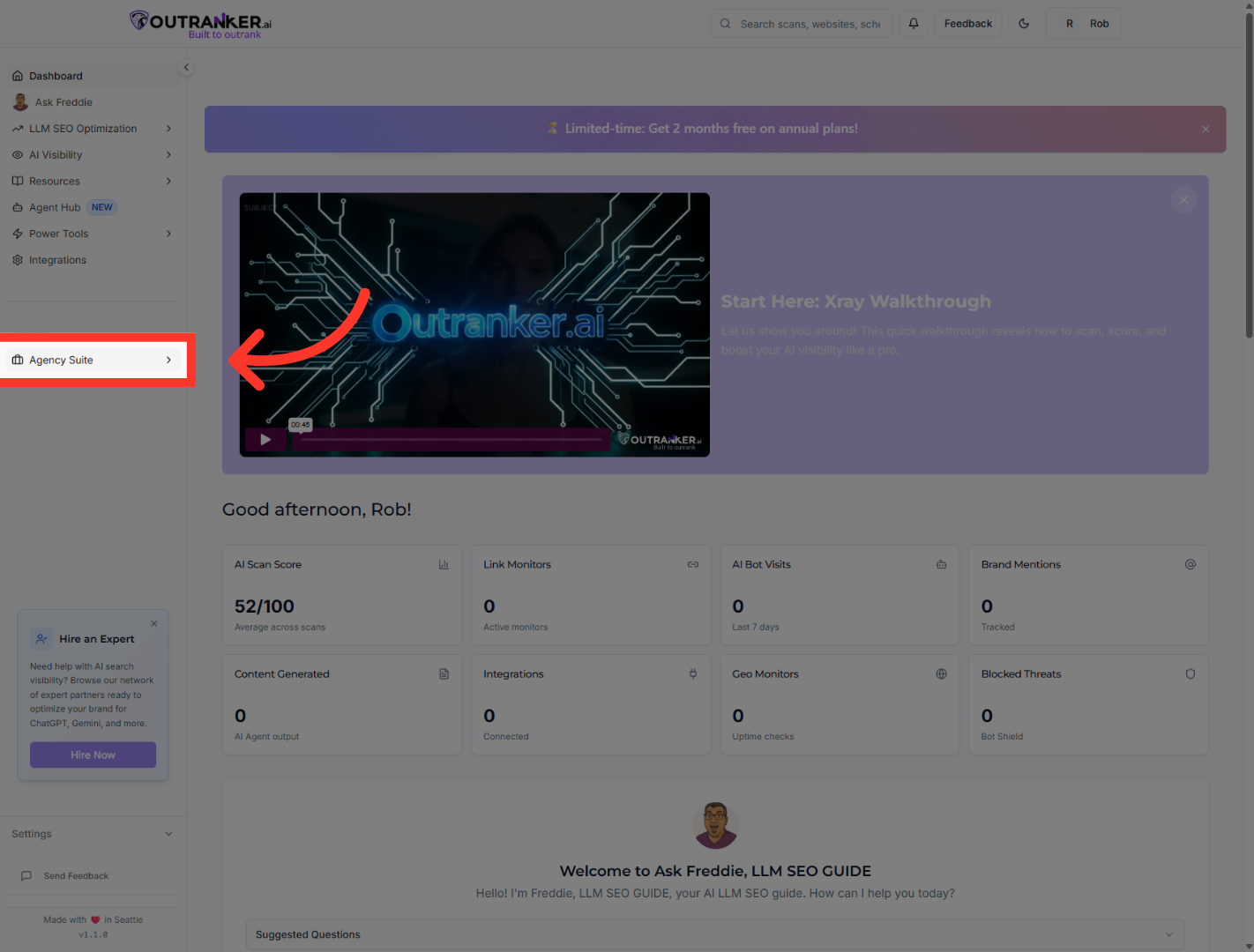
3. Access Leads Section
Click Leads to view and manage all your captured leads within the Agency Suite.
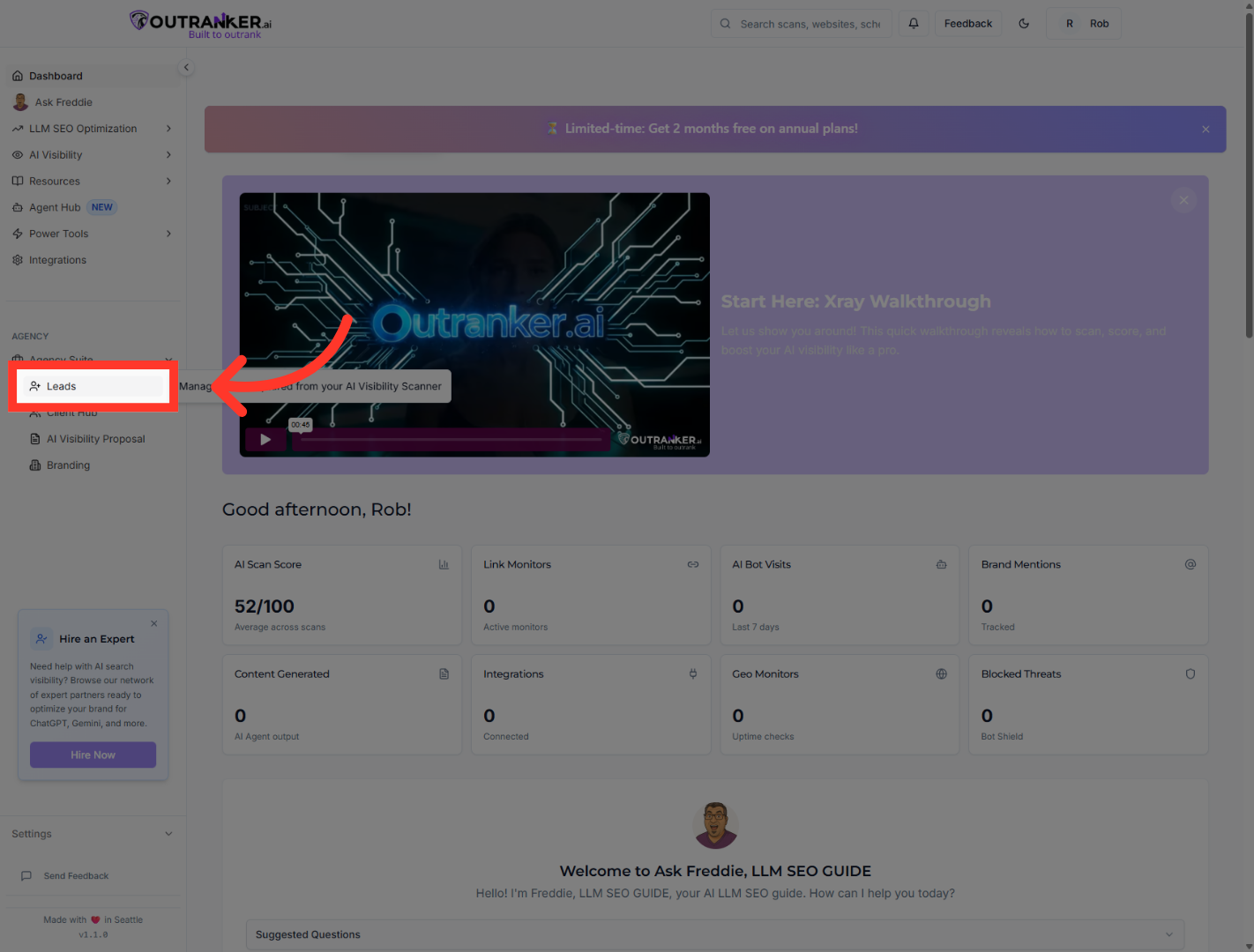
4. Select Page Two
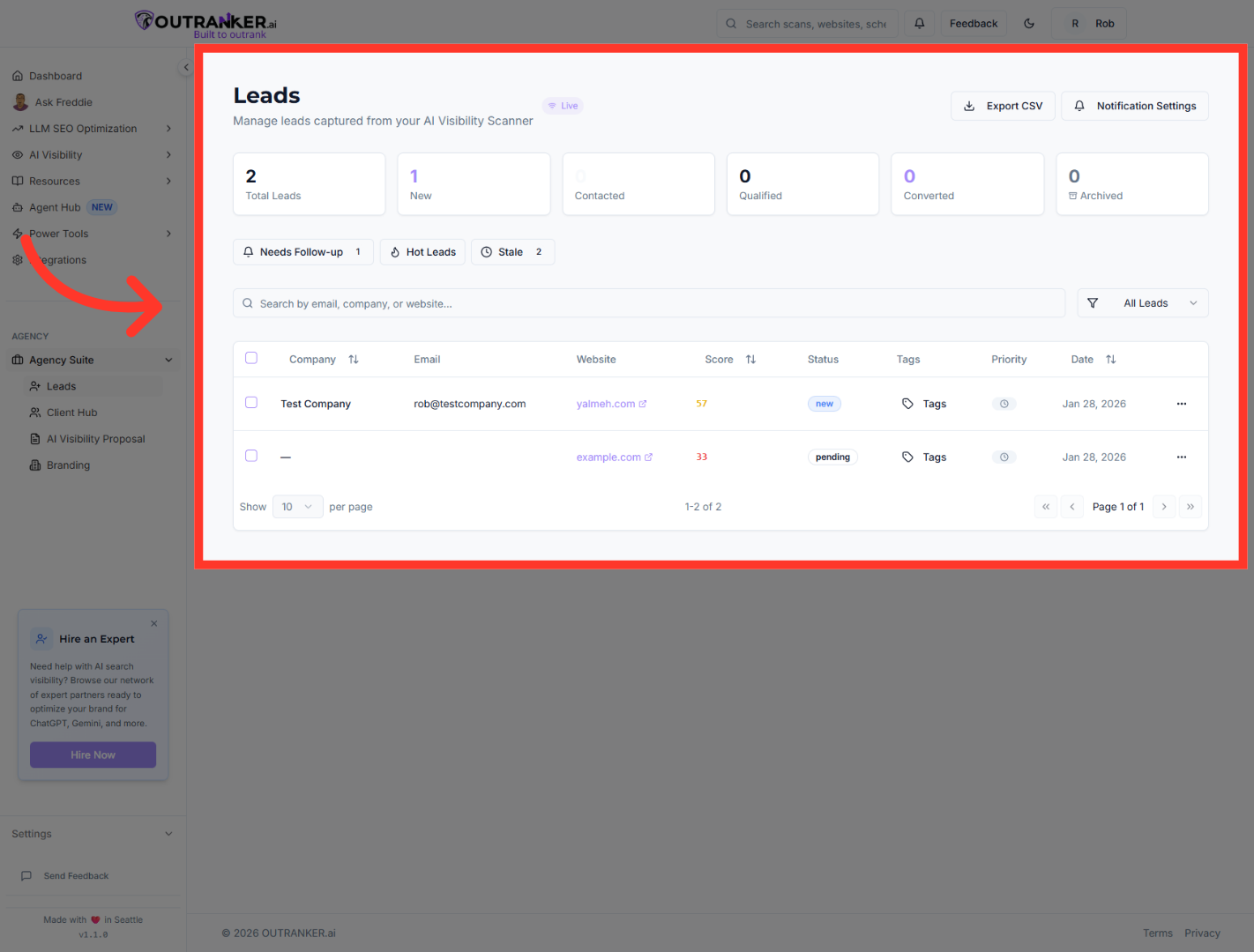
“At the top of the Leads section, you’ll see a quick overview of your pipeline.” “This includes total leads, new leads, contacted, qualified, converted, and archived.” “These metrics help you instantly understand where your opportunities stand.”
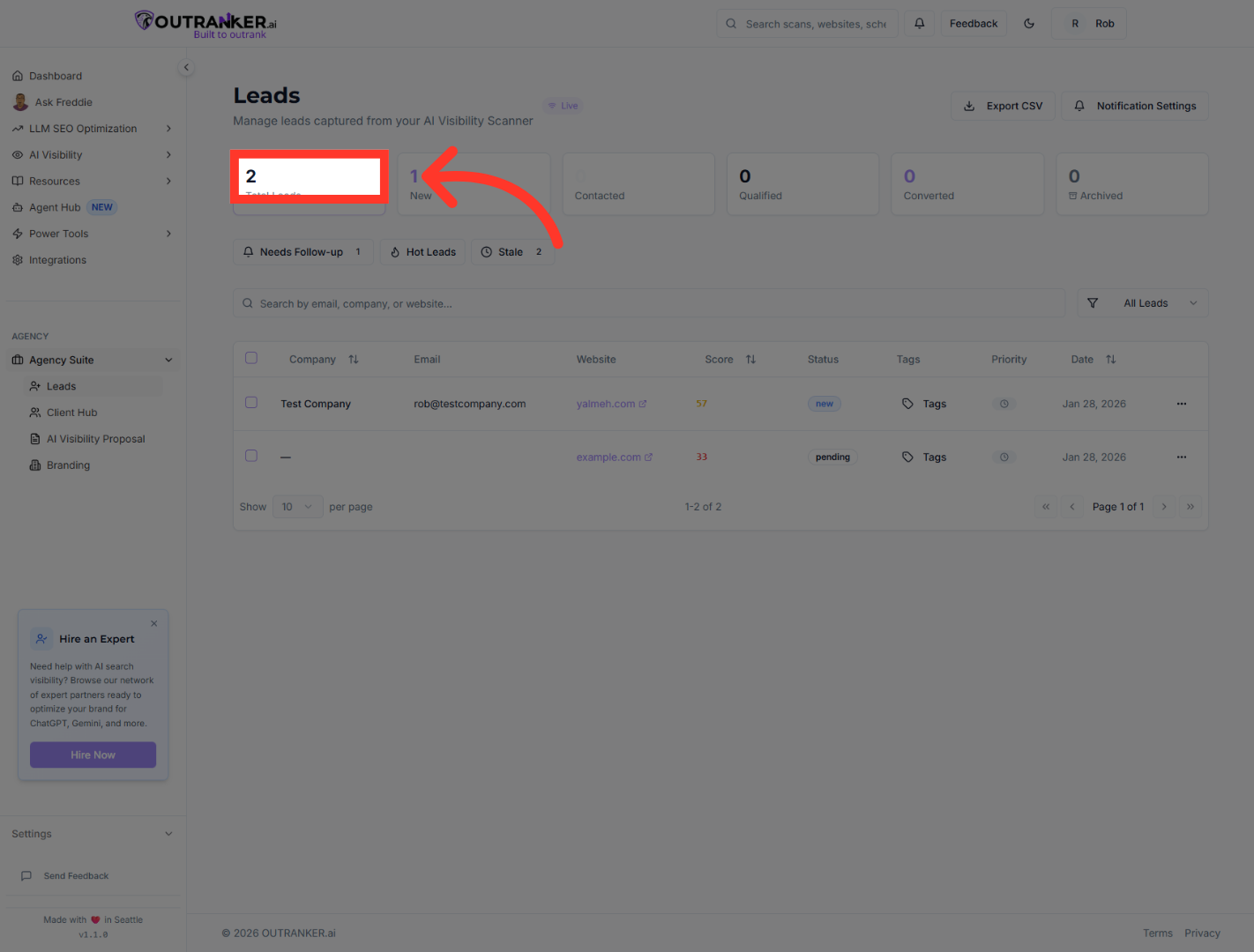
5. Open Leads Management Panel
“Below that is your leads table, where you can review company details, email addresses, websites, AI scores, and lead status.” “As your list grows, you can move between pages to review additional leads.”
6. Enable Lead Notifications
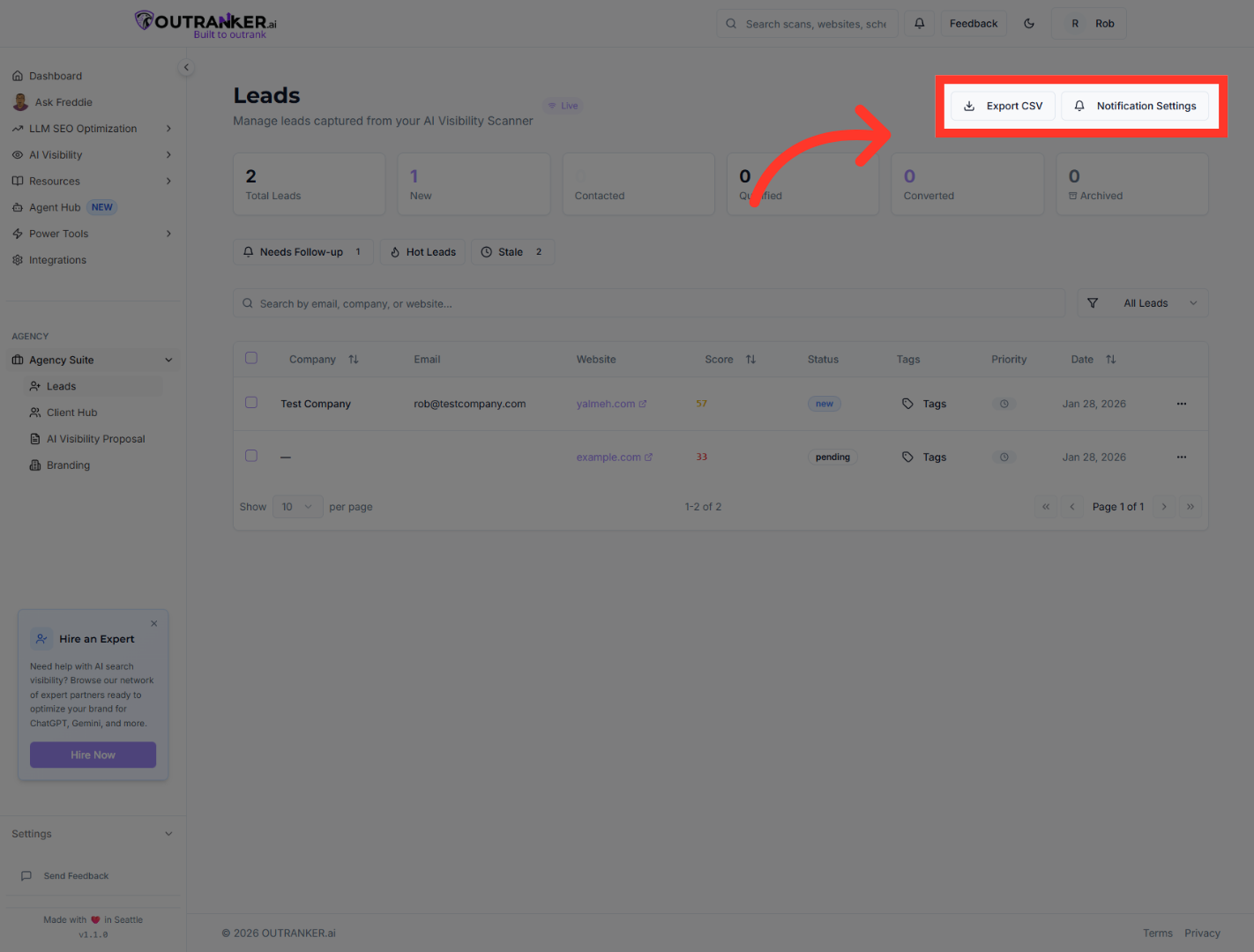
“From the Leads management panel, you can export leads, manage notifications, and control how you stay updated.” “Turning on notifications ensures you’re alerted when new leads come in or when changes happen.”
7. Initiate Email Sending
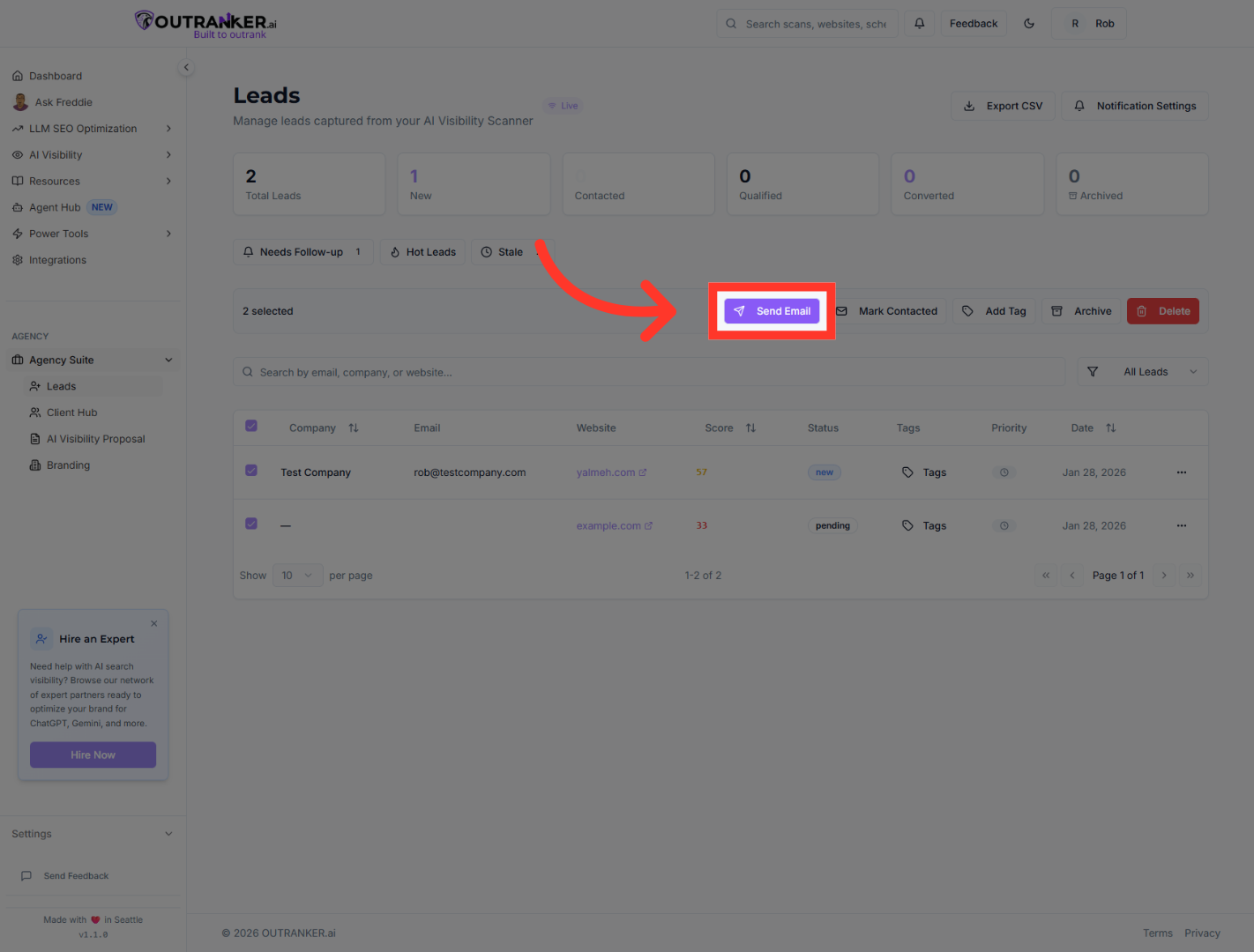
“To contact a lead, select one or more leads and click Send Email.” “You can choose from available options or send a custom email to personalize your outreach.” “This allows you to communicate with leads directly from Outranker.ai without switching tools.”
8. Mark Leads as Contacted
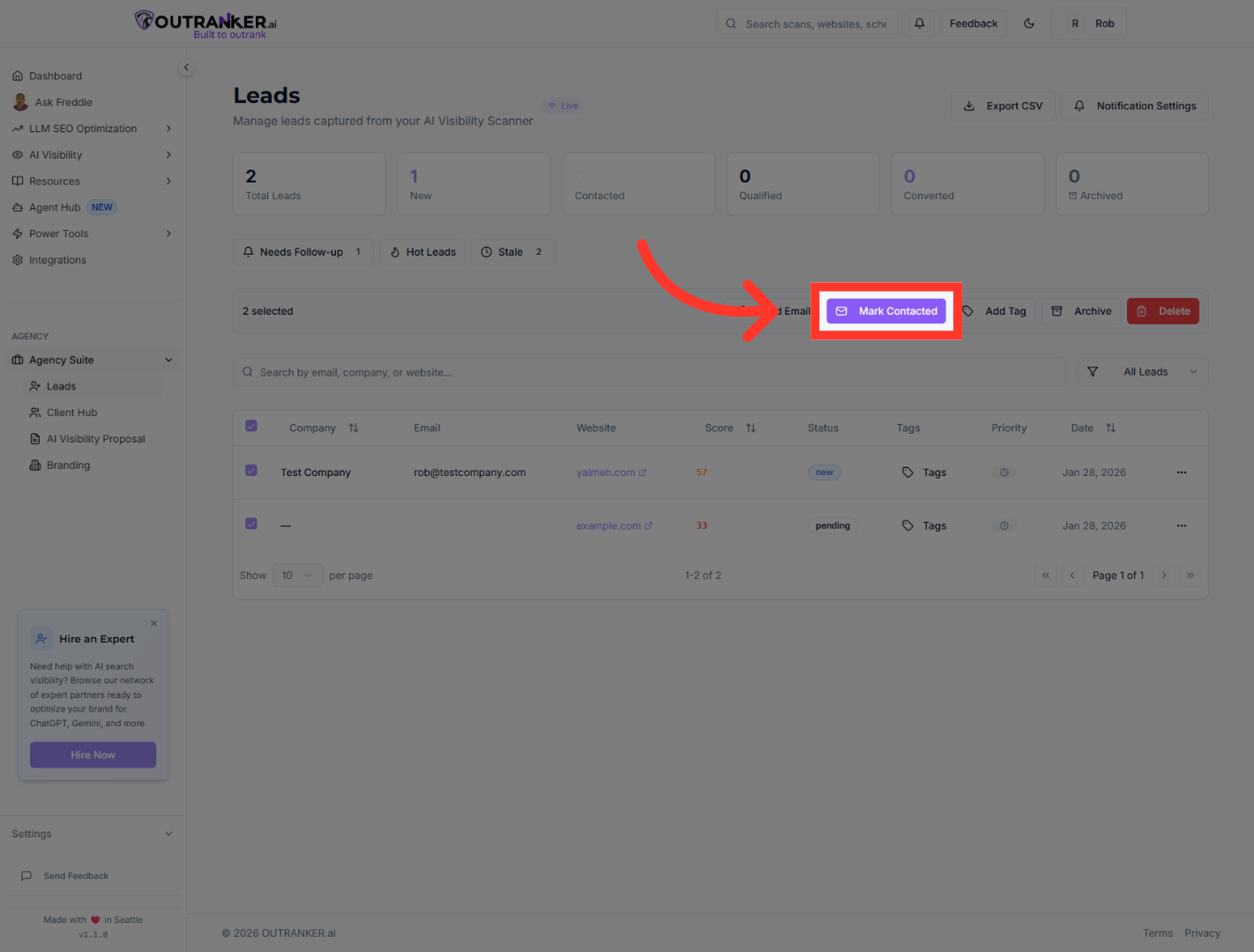
“After reaching out, mark the lead as Contacted.” “Updating lead status helps you track progress and ensures nothing falls through the cracks.”
9. Open Tag Management
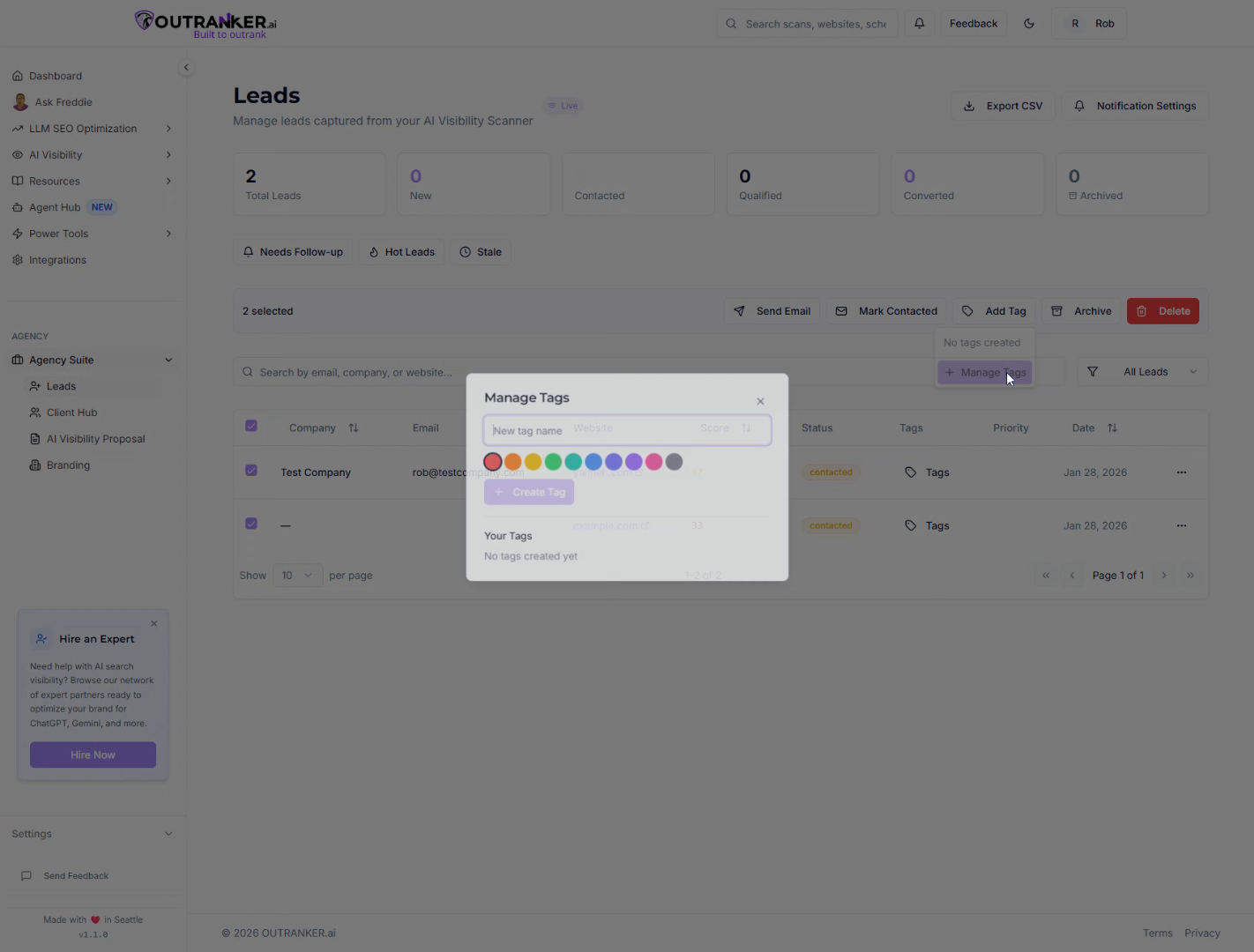
“You can also organize your leads using Tags.” “Create custom tags to group leads by niche, campaign, service type, or priority.” “This makes segmentation and follow-ups much more efficient as your pipeline grows.”
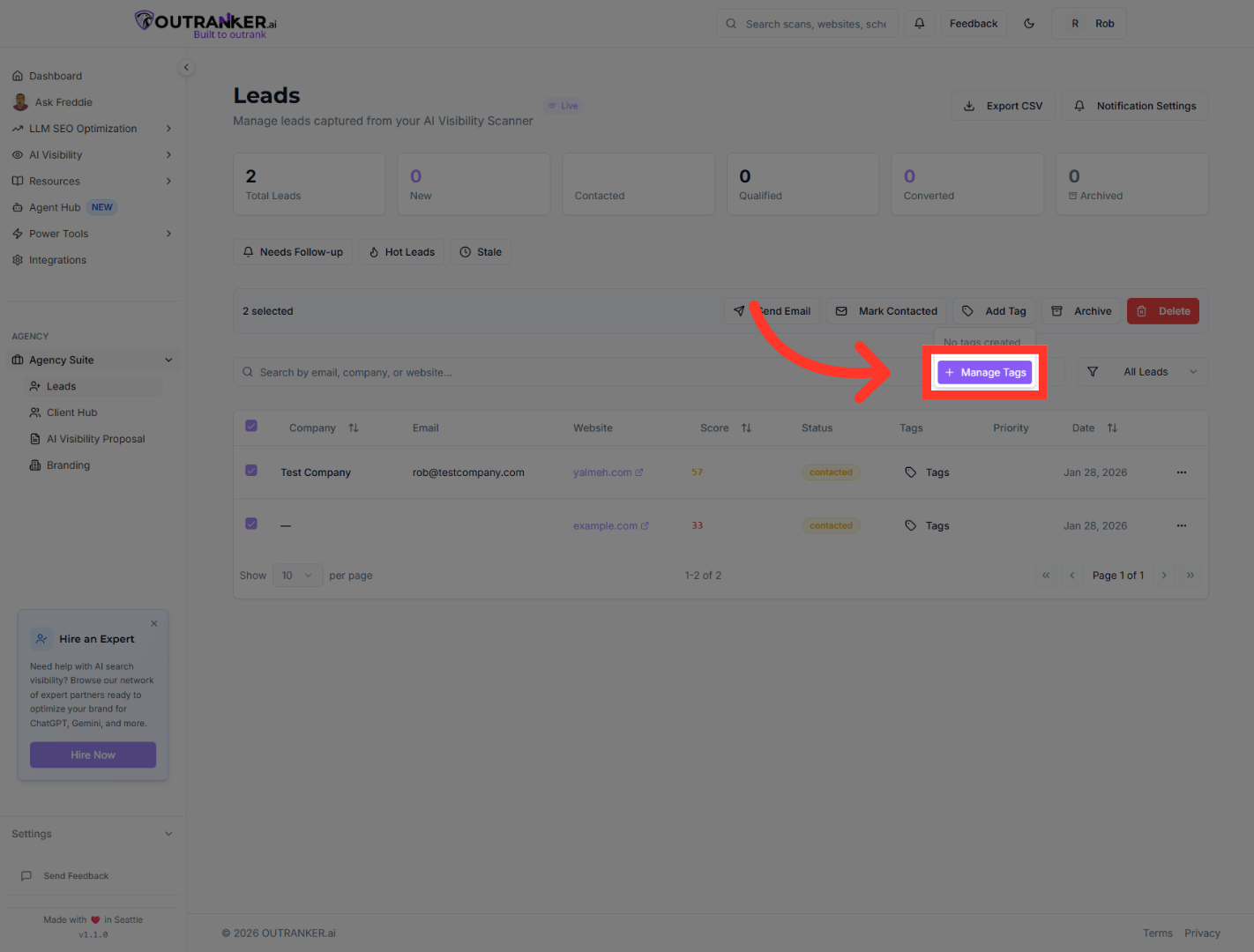
10. Enter New Tag Name
“You’ll also find additional options for managing your interface preferences and settings.” “These allow you to customize how the platform looks and behaves for your workflow.”
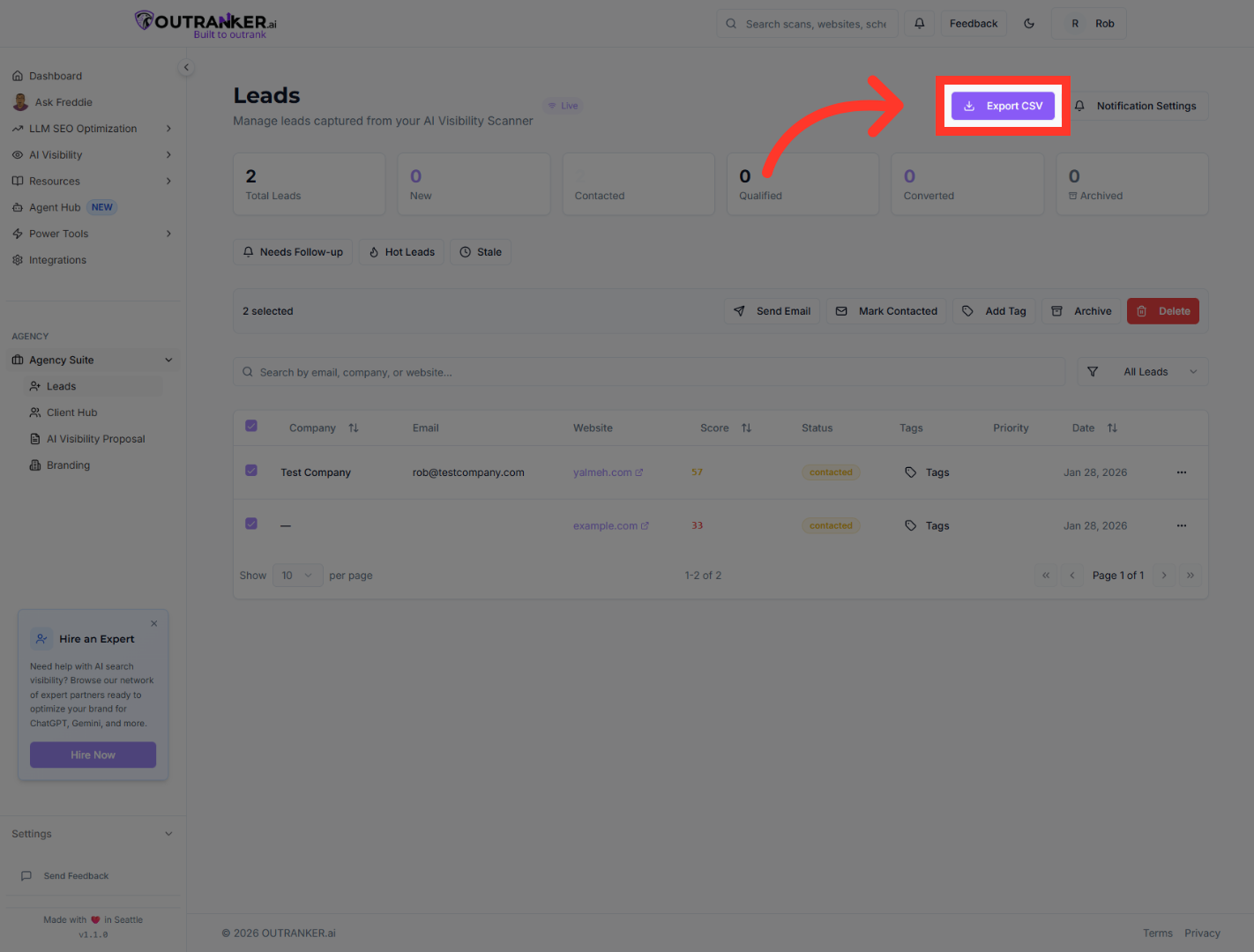
11. Export Leads CSV
“When you need your data outside the platform, click Export CSV to download your leads.” “This makes it easy to share data with your team or import it into your CRM.”
You have successfully navigated Agency Suite to manage your leads by viewing, updating statuses, organizing with tags, sending emails, and exporting data. Next, explore advanced lead analytics or integrate with your CRM for enhanced management.
