
This tutorial guides you through setting up brand tracking across multiple AI platforms using OutRanker.
Go to www.outranker.ai
1. Introduction
“In this video, you’ll learn how to start tracking your brand visibility across major AI platforms using Outranker.” “As AI tools like ChatGPT, Google Gemini, and Claude become primary search interfaces, it’s critical to understand whether — and how — your brand appears in their responses.” “We’ll walk through creating a brand visibility project, selecting platforms, configuring monitoring settings, and launching automated analysis.”
2. Open Brand Visibility Feature
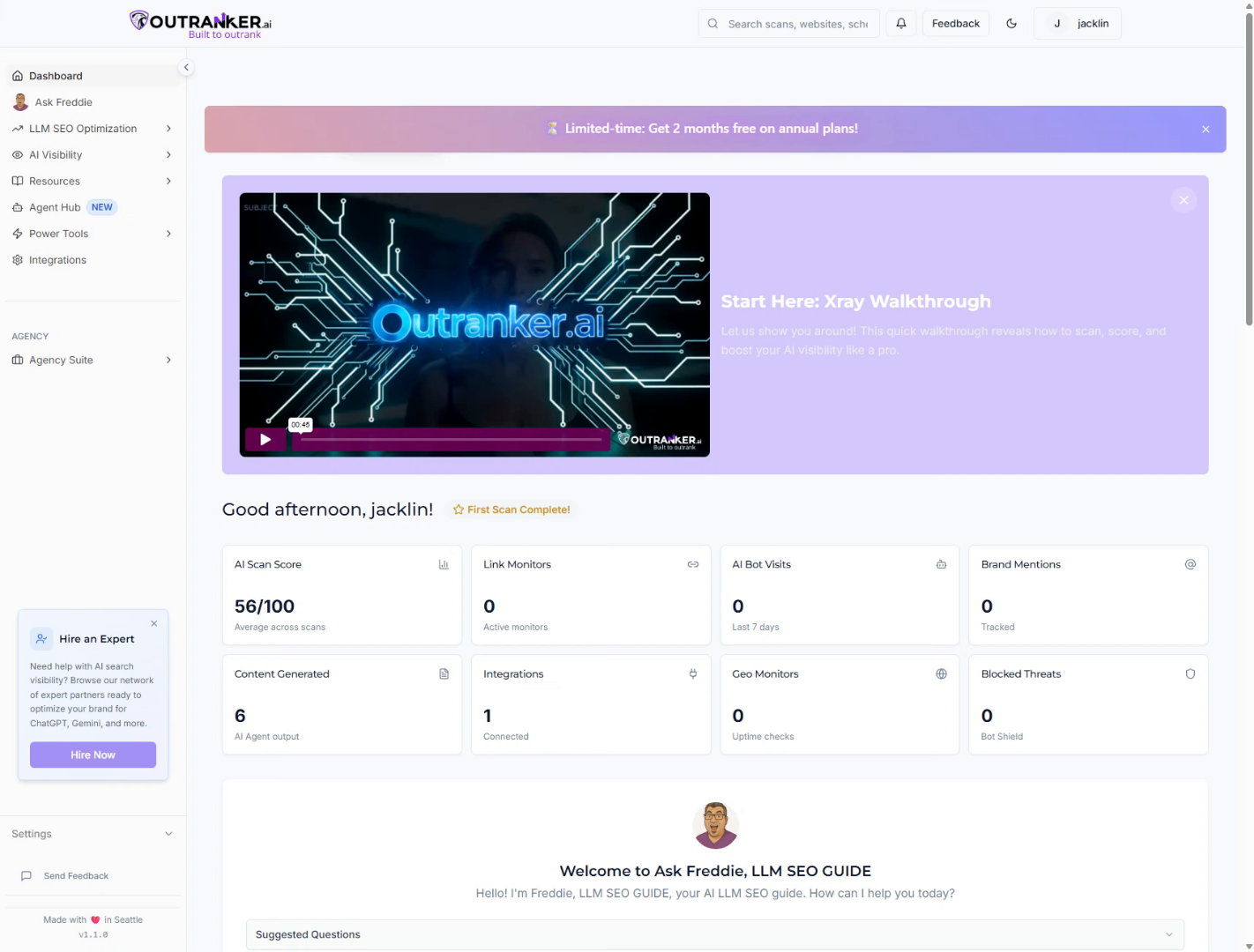
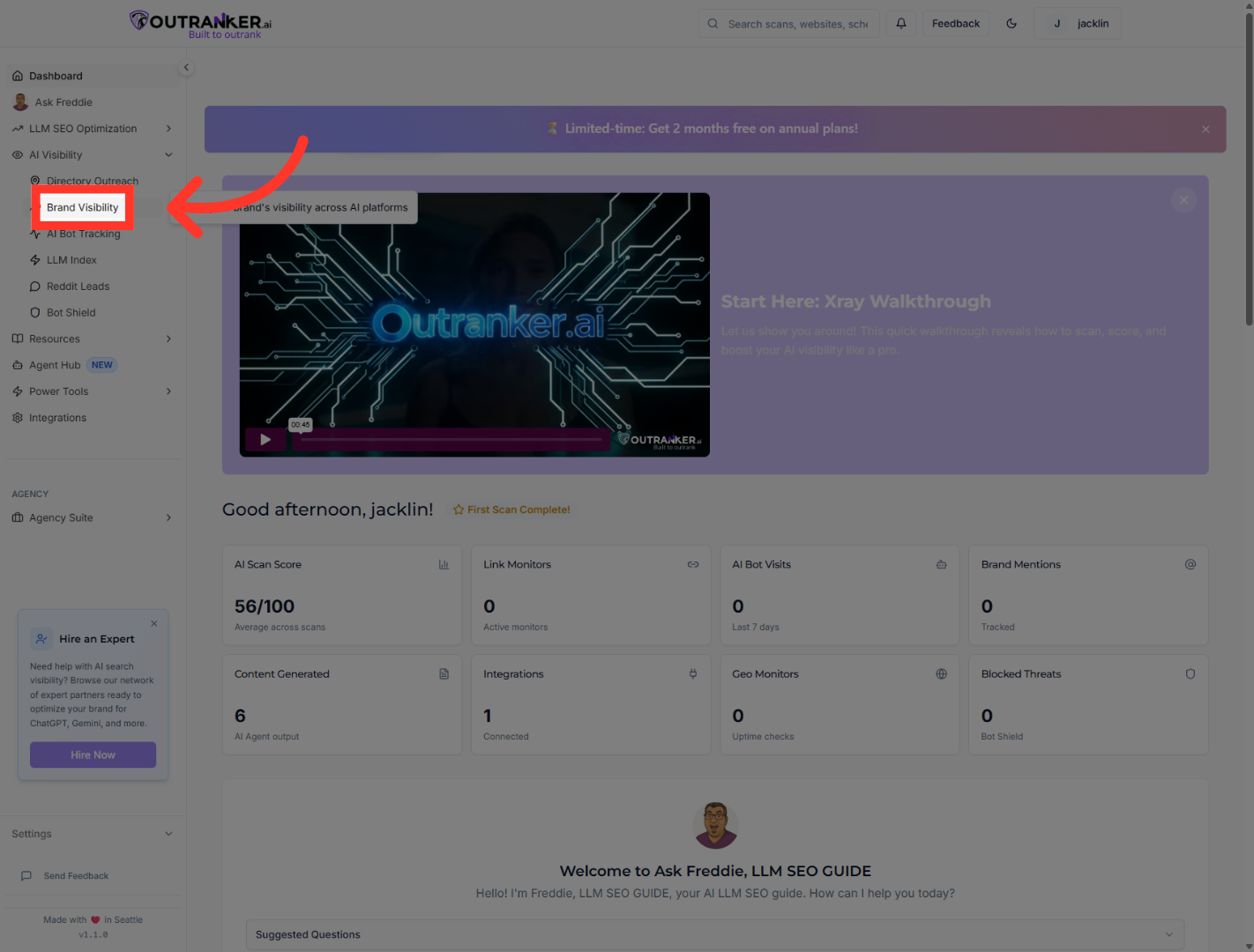
“From your dashboard, click AI Visibility.” “Then select Brand Visibility to access the monitoring feature.”
3. Create New Project
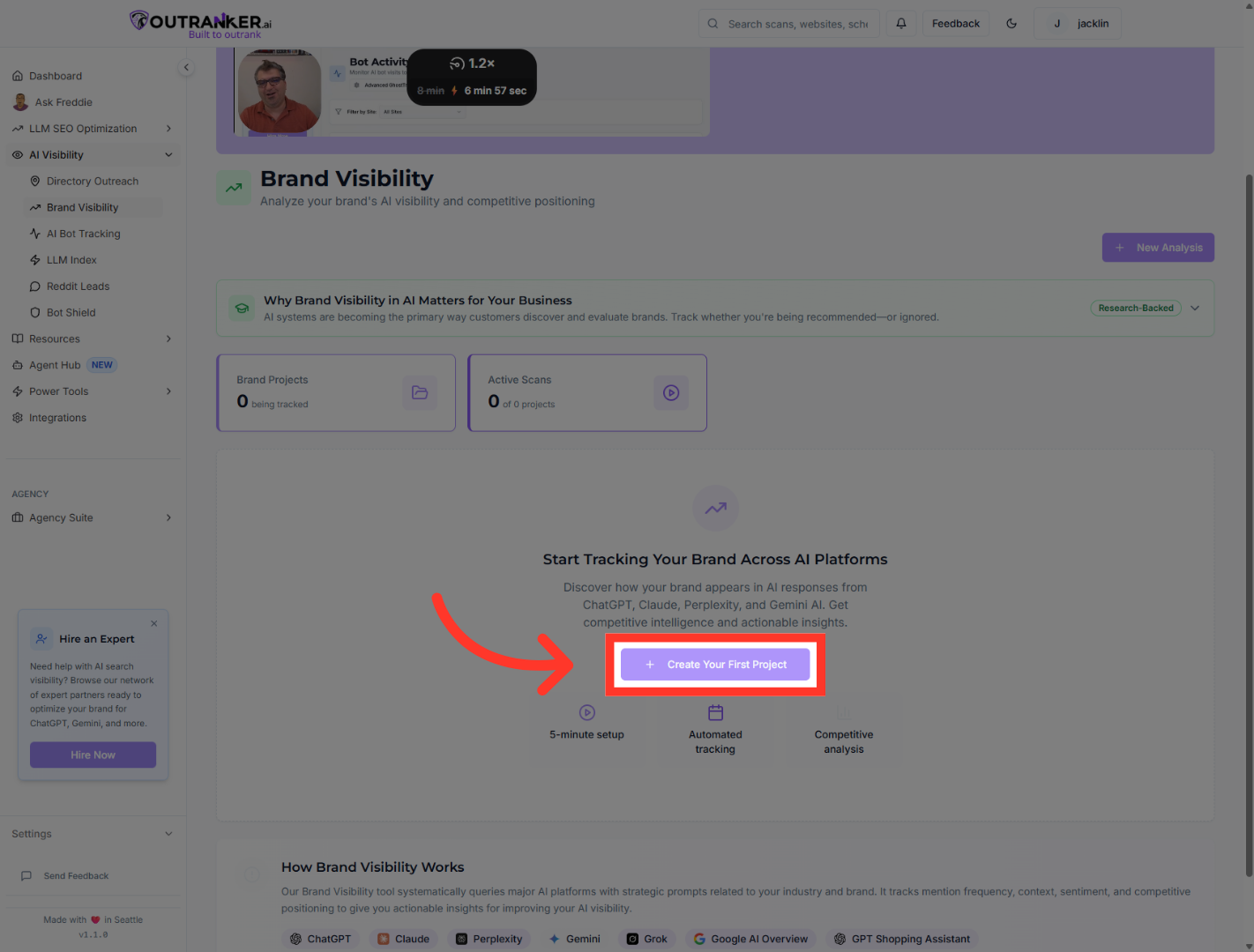
“Click Create Your First Project to begin setting up automated brand tracking.”
4. Select Brand Name Field
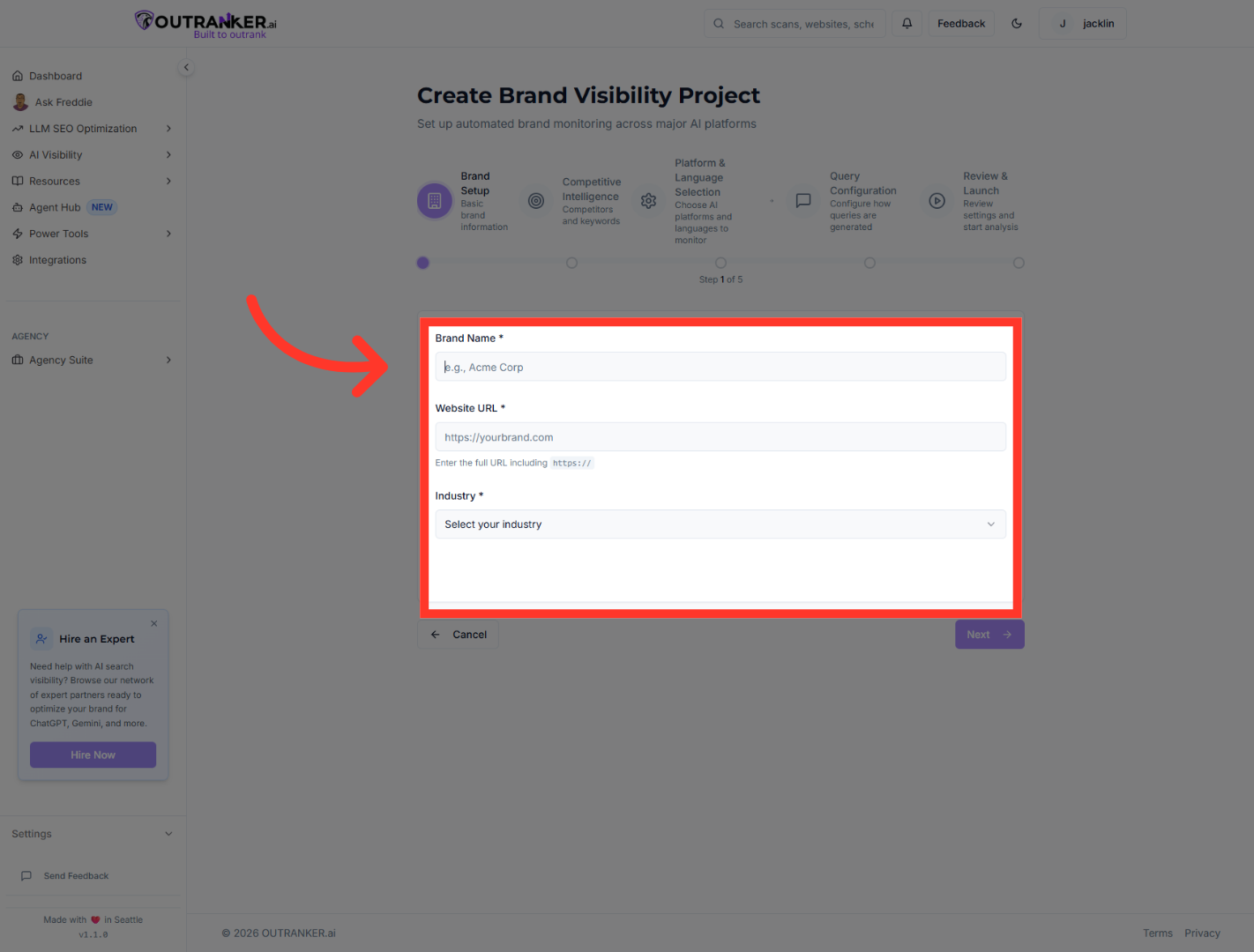
“Enter your Brand Name — this identifies the project.” “Next, enter your Website URL to connect monitoring to your official domain.” “Select the Industry Category that best represents your business.” “This helps tailor monitoring parameters and query generation.”
5. Proceed to Next Step
“Click Next to proceed.”
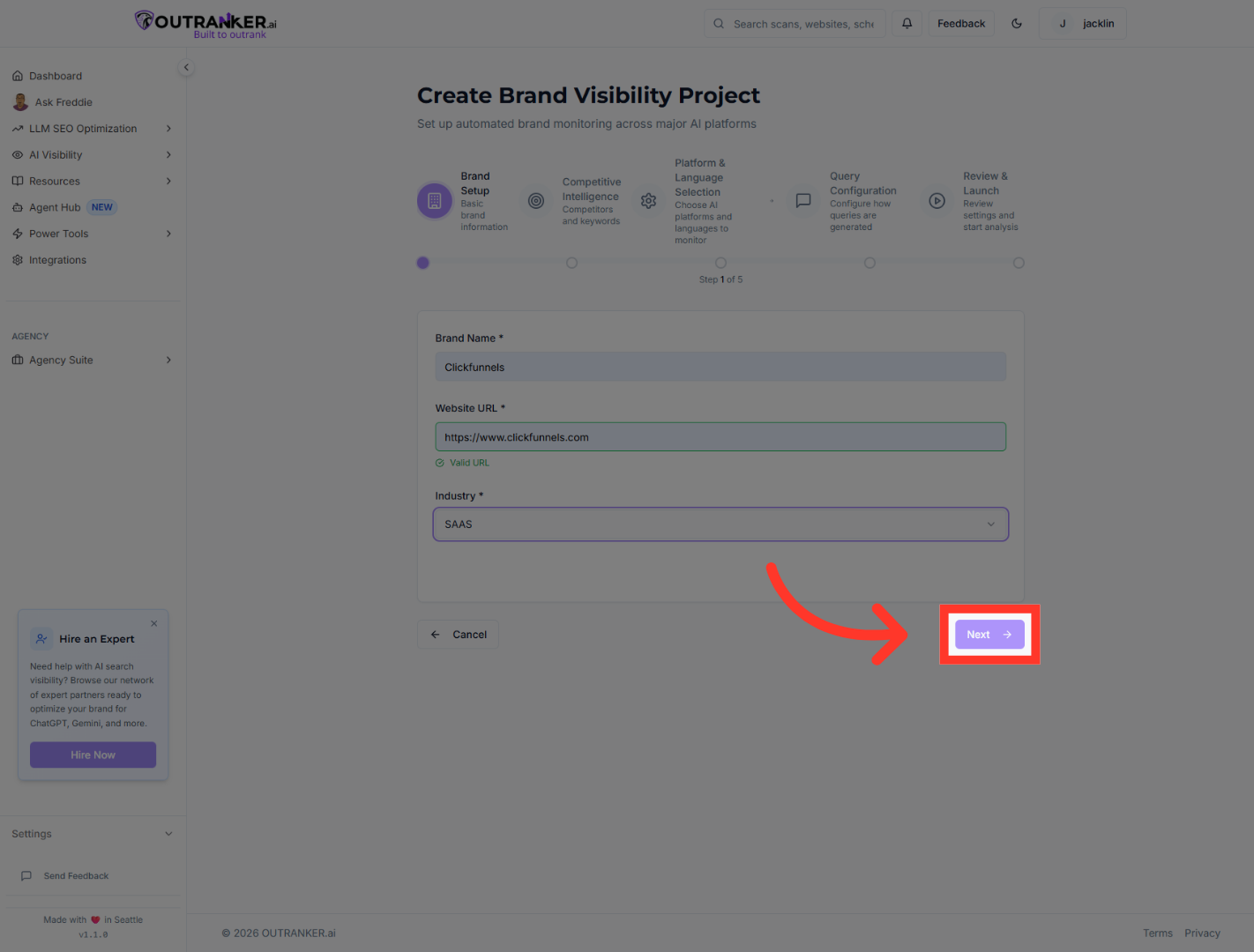
6. Advance to Platform Selection
Please allow a few moments on this stage for the system to automatically populate the competitor and keywords for you. Once done, you can include or exclude them as you want. Once everything looks good click next.
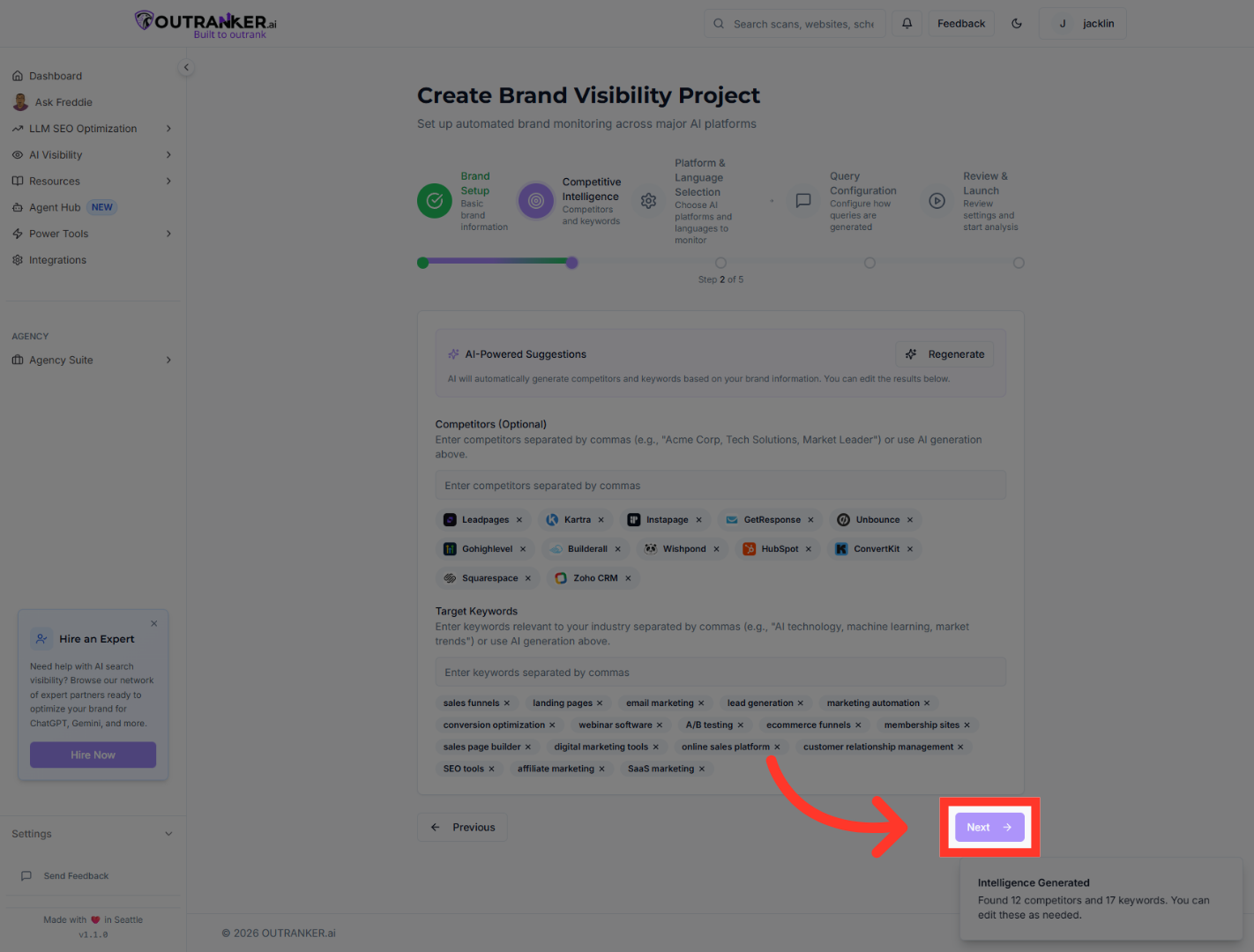
7. Enable Platform Option
“Now select the AI platforms you want to track.” “Enable monitoring for platforms like ChatGPT, Google Gemini, Claude, Perplexity, and others.” “Each toggle expands your brand tracking scope across that ecosystem.” “For example, enabling Google Gemini allows you to monitor visibility within Google’s AI environment.”
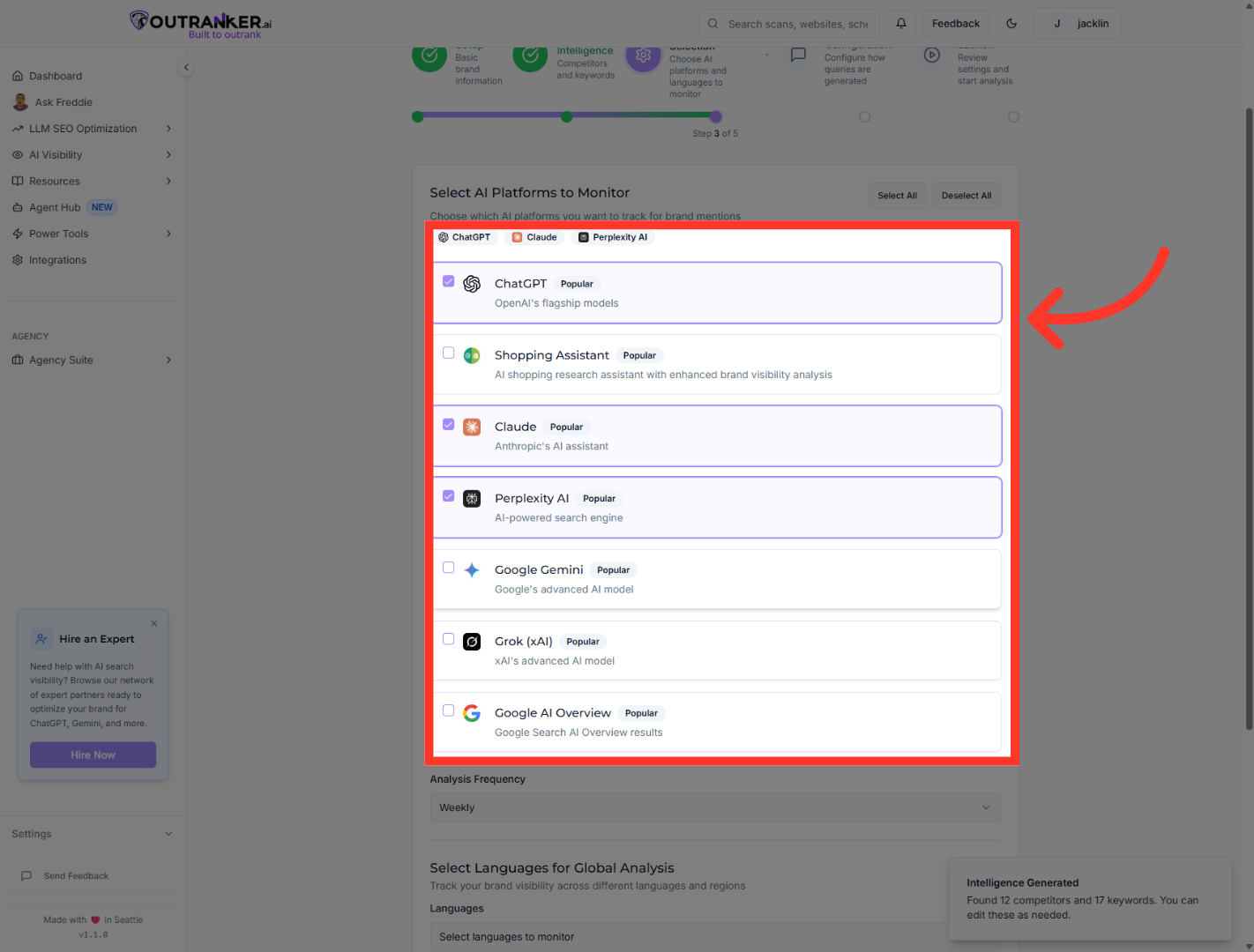
8. Confirm Theme Settings
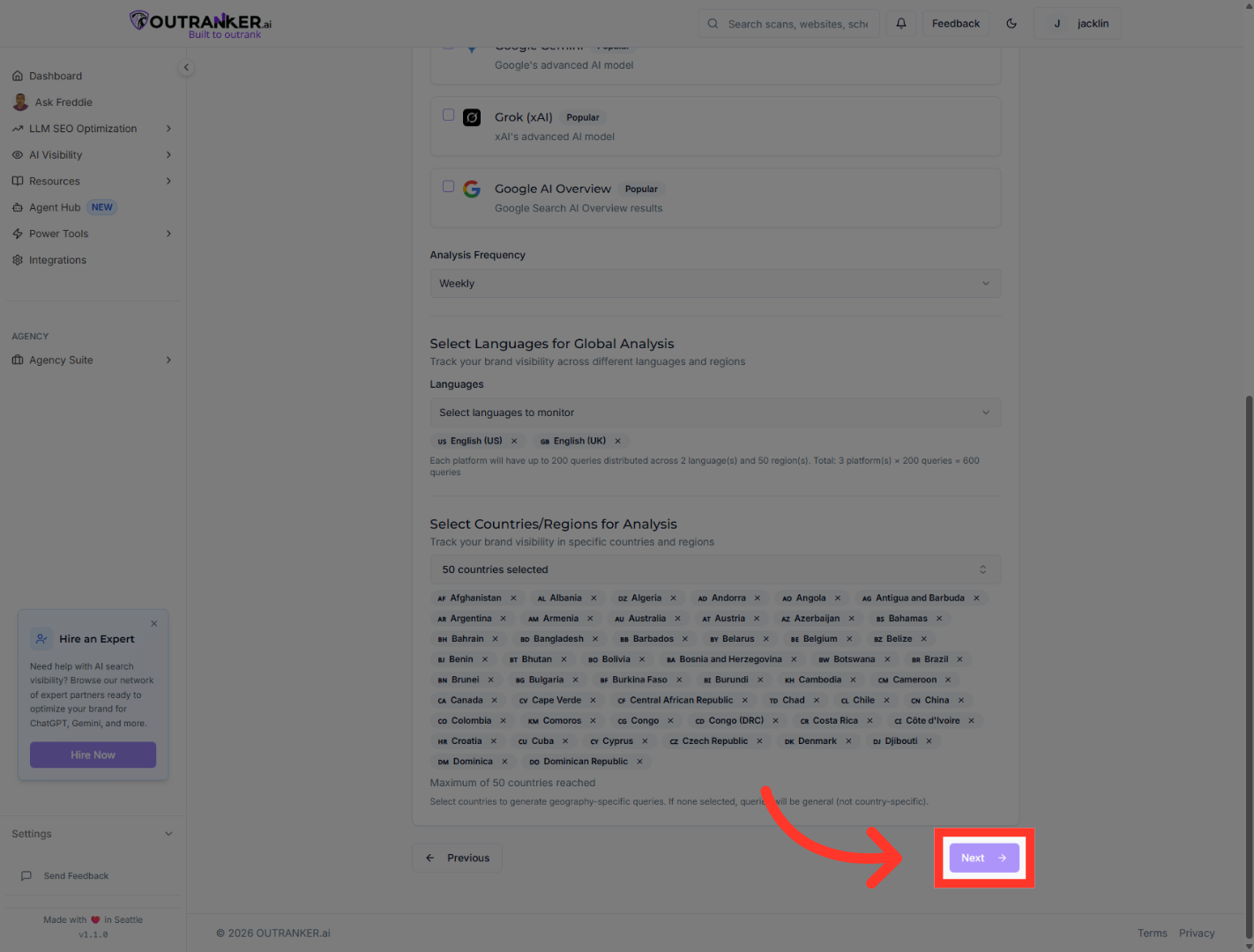
“Next, configure your monitoring geography.” “Select your preferred language, such as English.” “Then choose the countries or regions where you want analysis.” “You can select specific countries — or choose all available regions for global monitoring.”
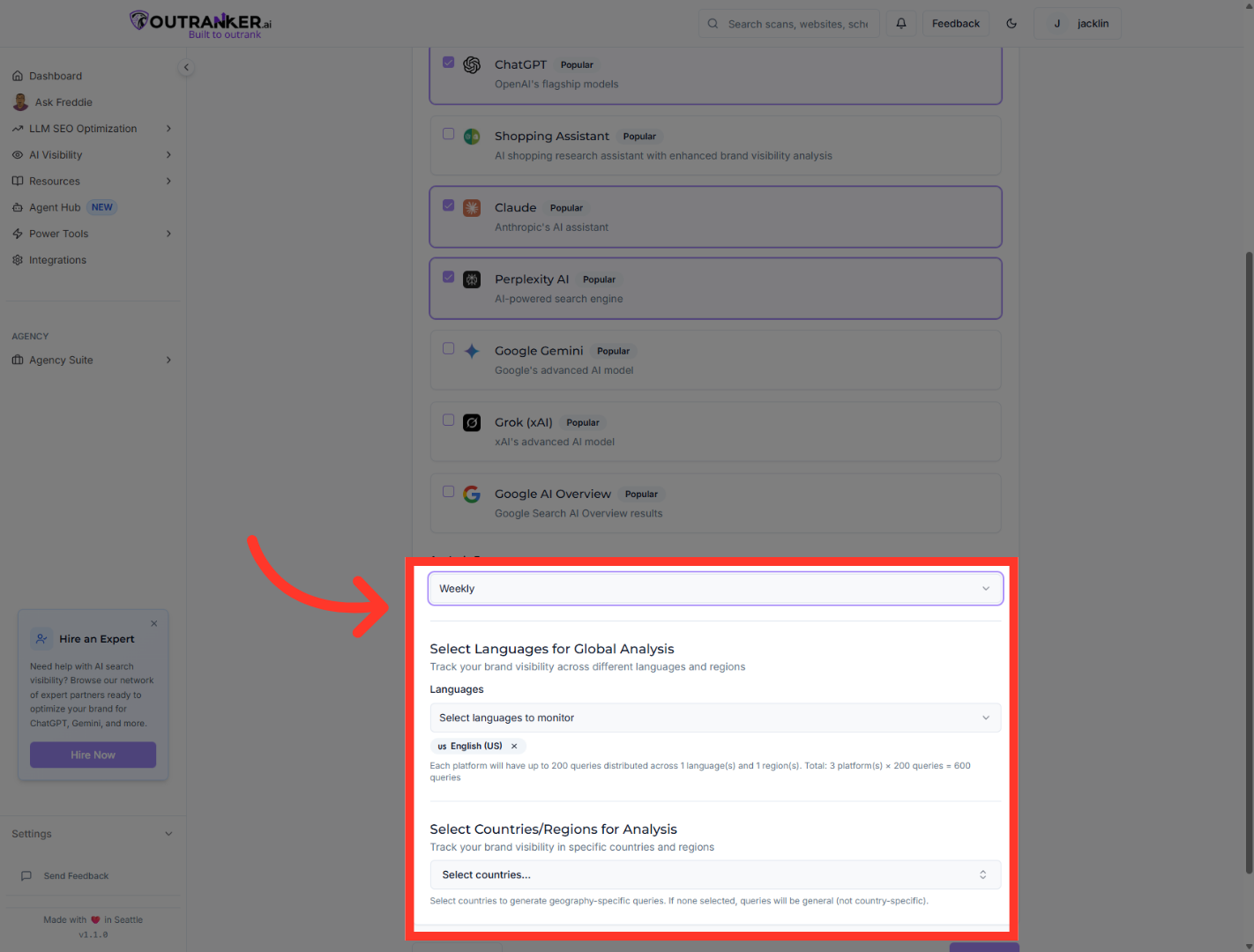
9. Proceed to Query Configuration
“Click Next to continue.”
10. Enable Query Generation
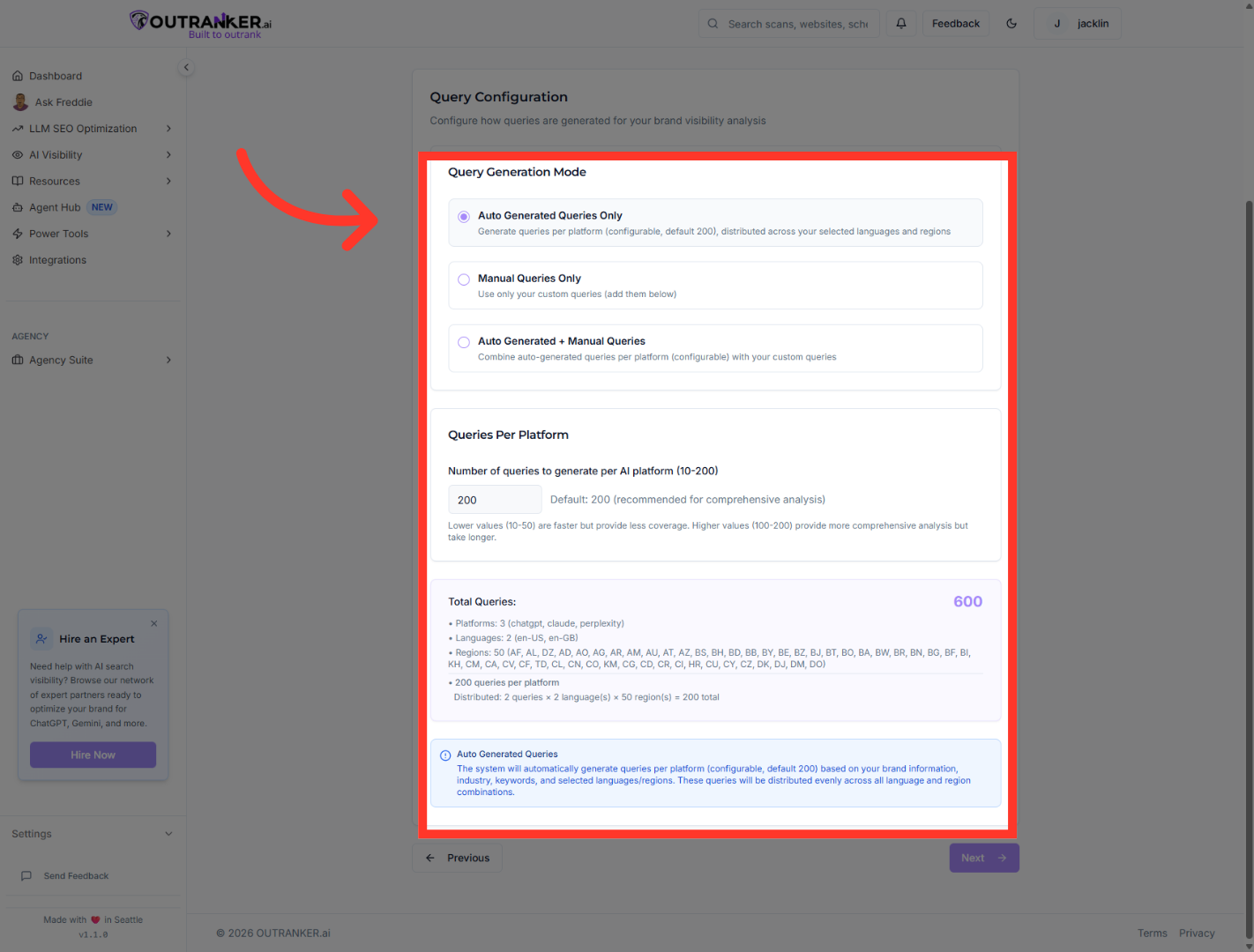
“Now you’ll configure how many AI queries are generated per platform.” “Enable automatic query generation to distribute relevant prompts across your selected languages and regions.” “Then set the number of queries per platform — anywhere between 10 and 200.” “More queries provide deeper visibility insights.”
11. Continue to Final Step
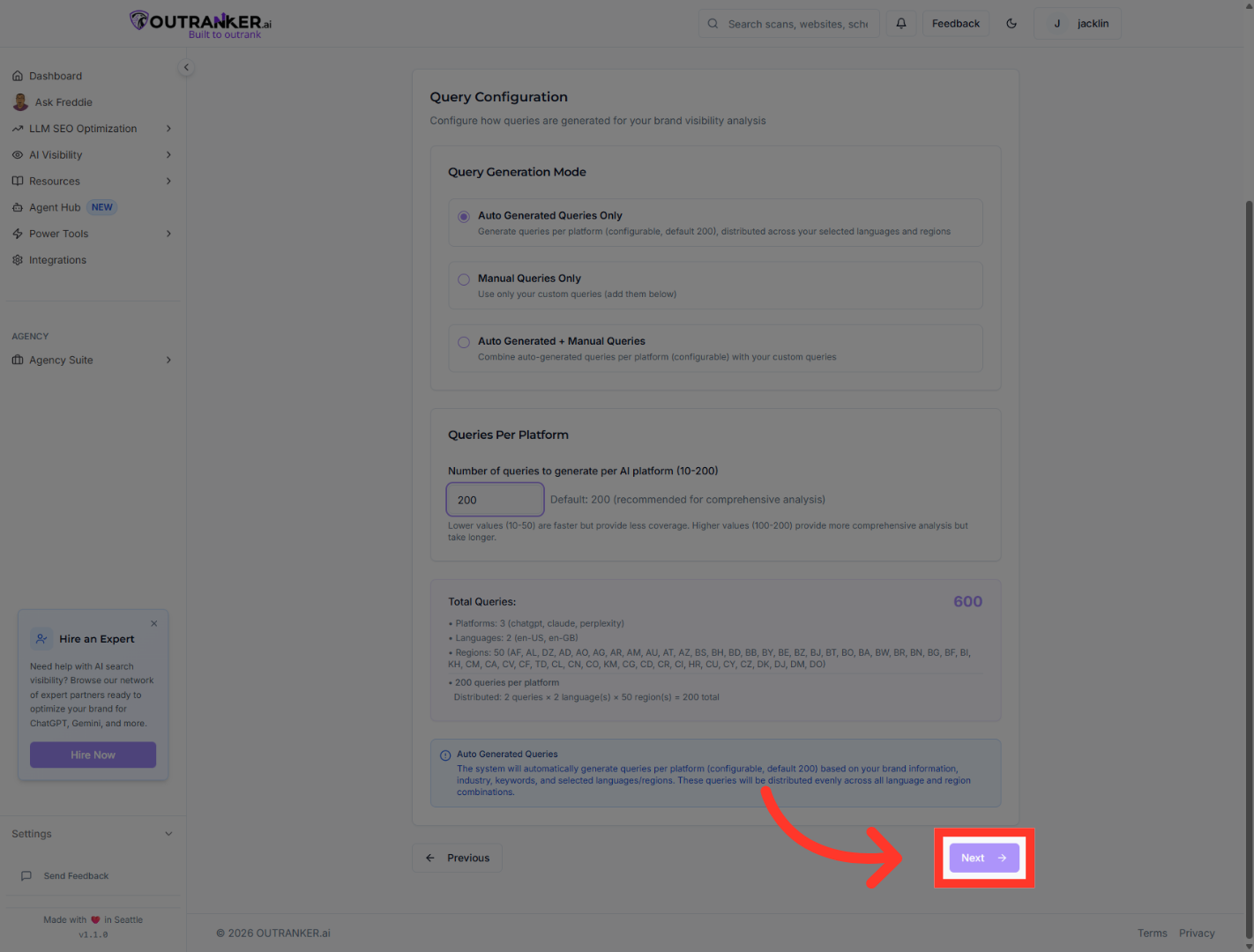
“Click Next to proceed to the final step.”
12. Launch Brand Analysis
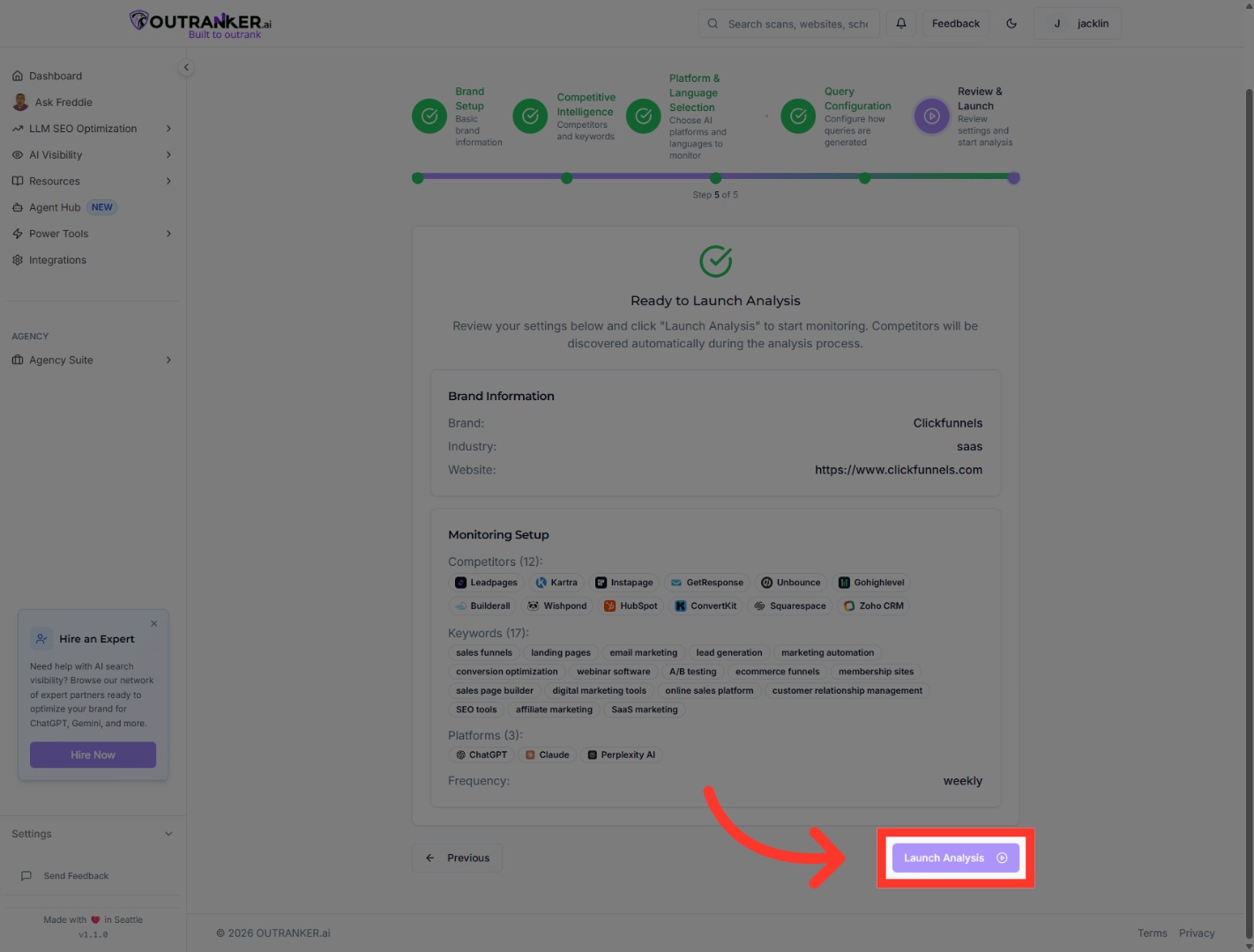
“Review your configuration summary.” “When everything looks correct, click Launch Analysis.” “Outranker will begin automated monitoring of your brand across the selected AI platforms.”
“You’ve successfully set up automated brand tracking across multiple AI platforms.” “This gives you real data on how visible your brand is in the AI-powered search era.” “In the next video, we’ll explore how to interpret your brand visibility results and optimize for stronger AI presence.”
