
This tutorial guides you through generating structured schema markup for your articles using OutRanker's Schema Management feature
Go to www.outranker.ai
1. Introduction
By following these steps, you'll create JSON-LD code that improves your articles' S.E.O performance and search engine visibility. Before starting, ensure you have your article data ready in CSV, Excel, or JSON format, and access to relevant content details such as headlines, authors, and publication dates.
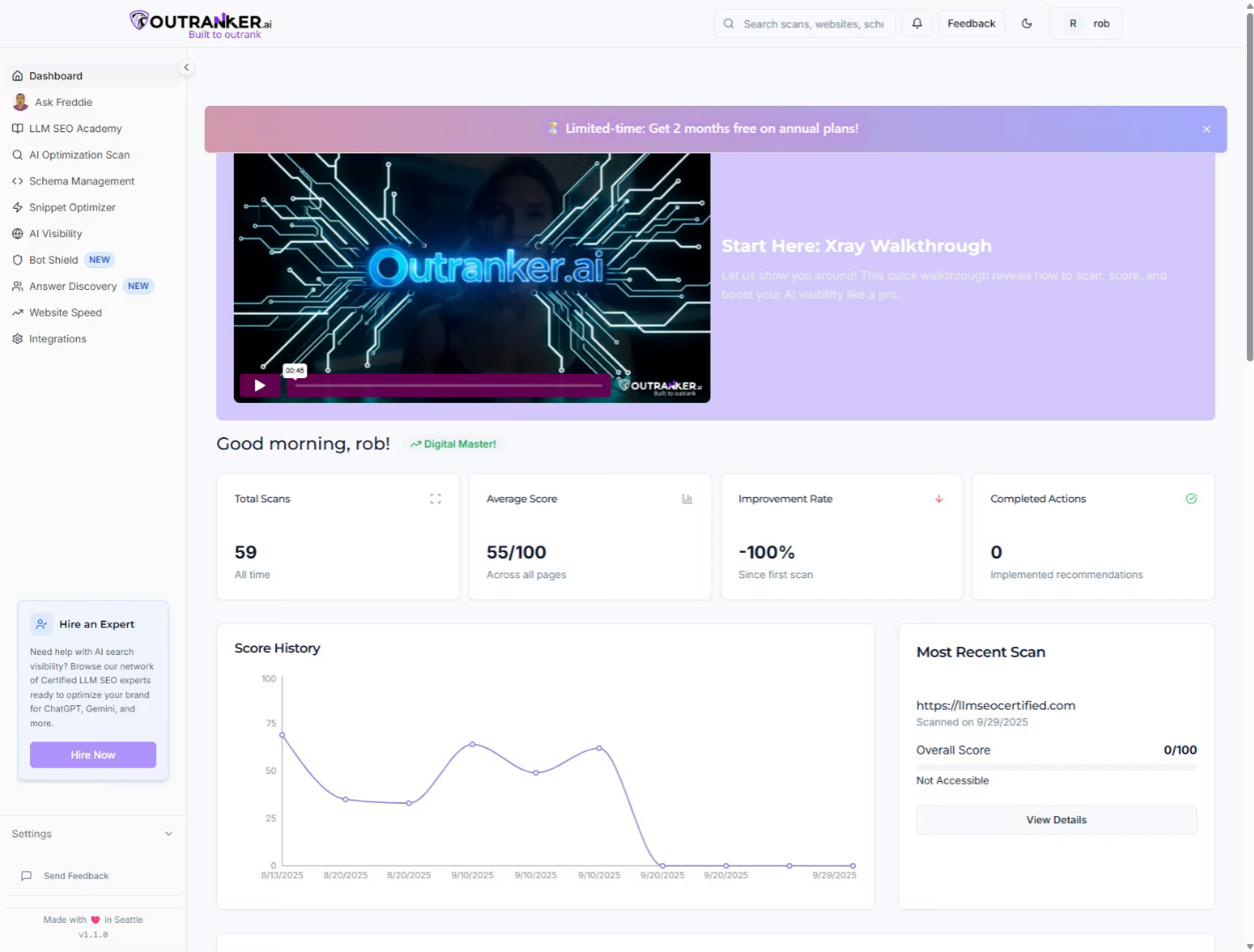
2. Click "Schema Management"
Access the Schema Management section in OutRanker to begin generating schema for your articles.
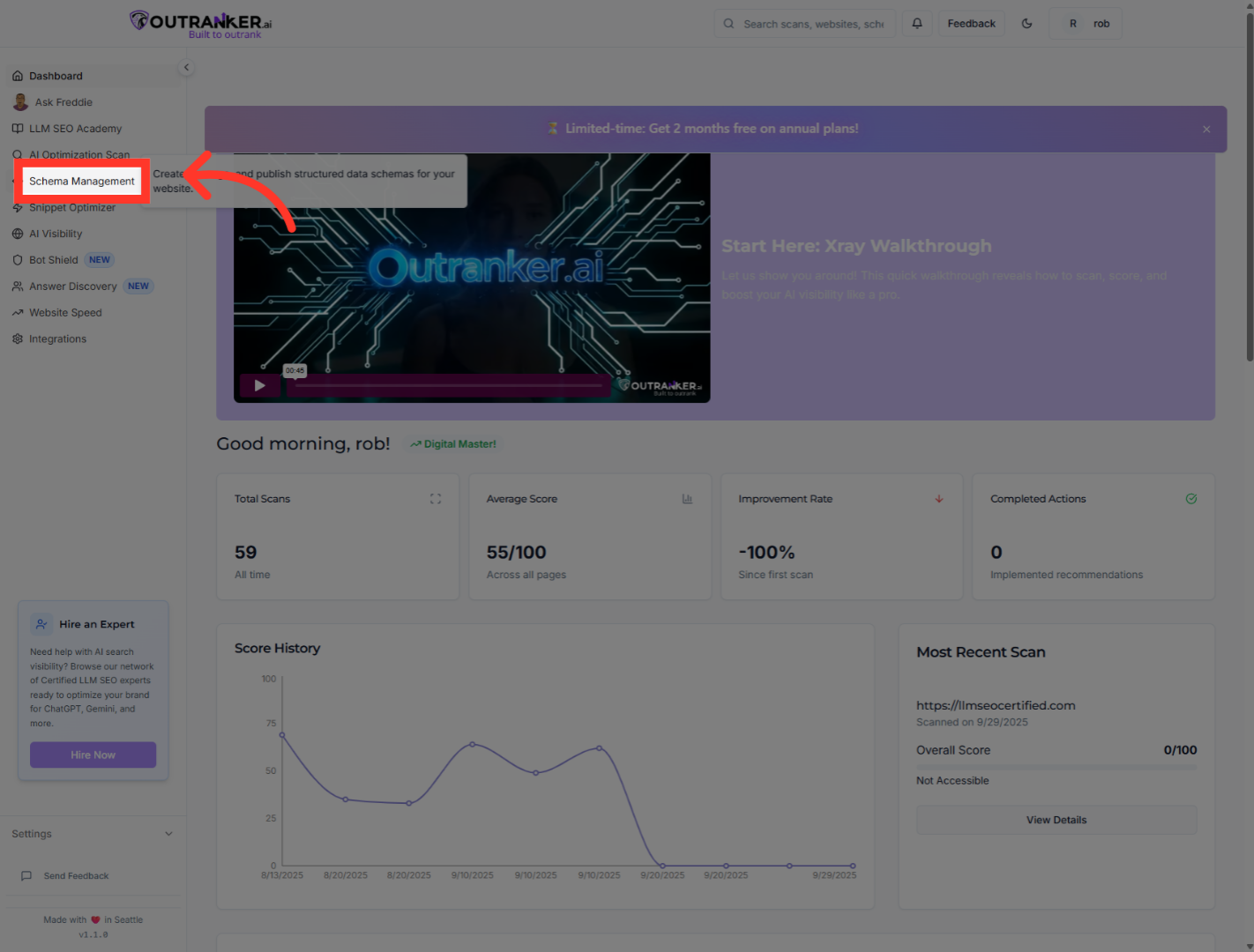
3. Click "Generator"
Navigate to the Generator tab within Schema Management to start the schema creation process.

4. Click "Article"
Select the 'Article' schema type to specify the content category for your schema.
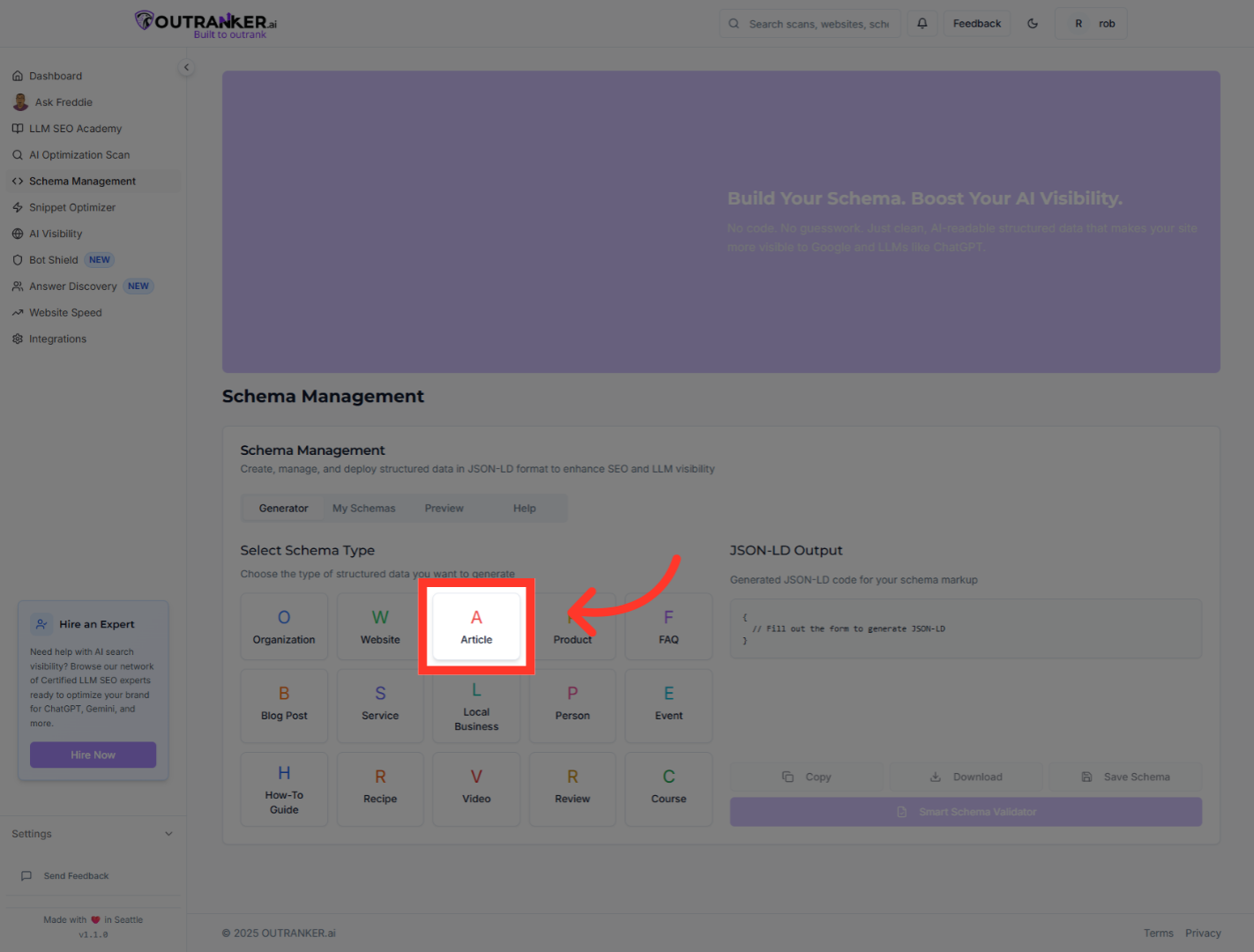
5. Click "Bulk Upload Articles"
Choose the Bulk Upload Articles option to add multiple articles at once for schema generation.
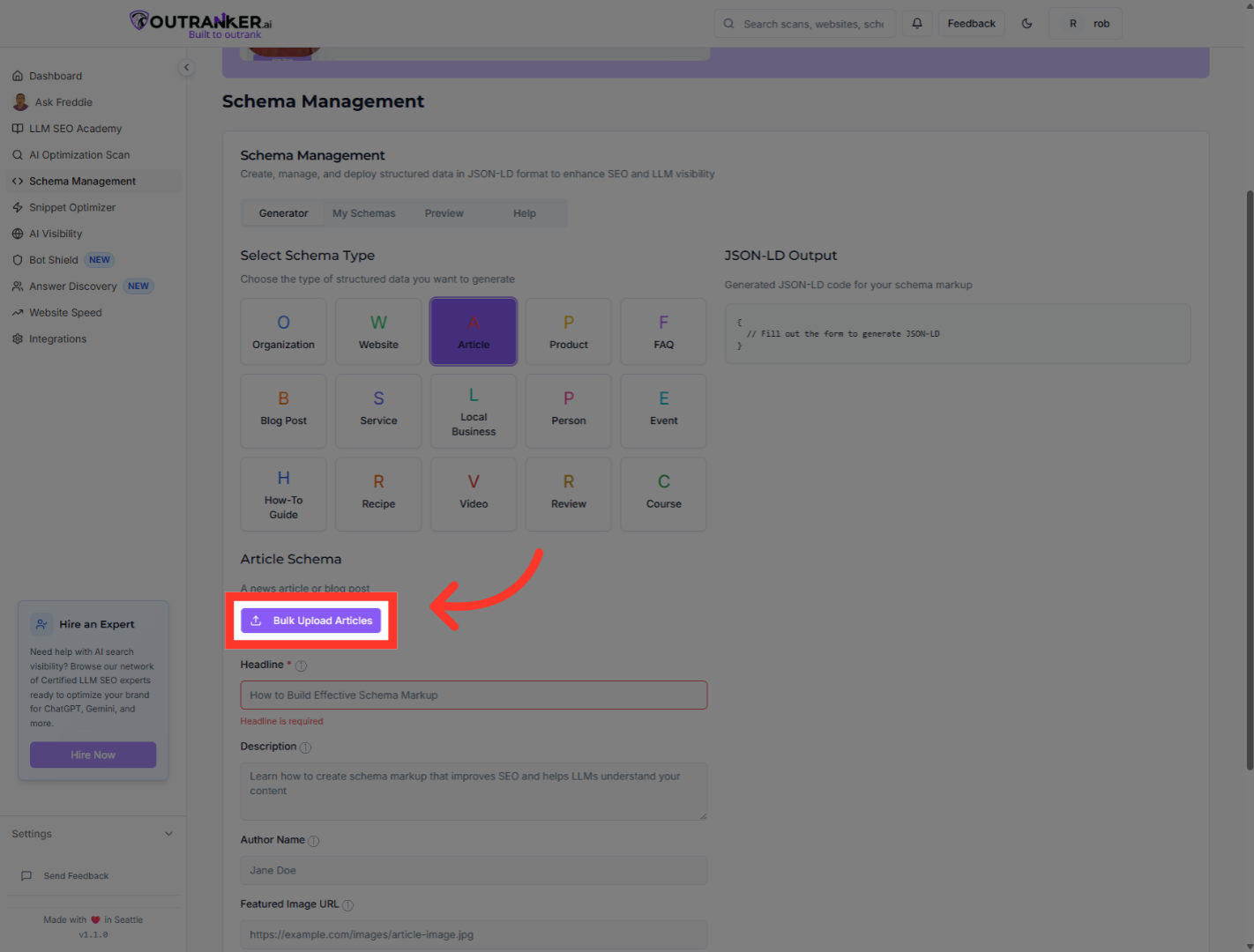
6. Click "Choose file (CSV, Excel, or JSON)"
Click the file selection button to upload your articles in CSV, Excel, or JSON format.
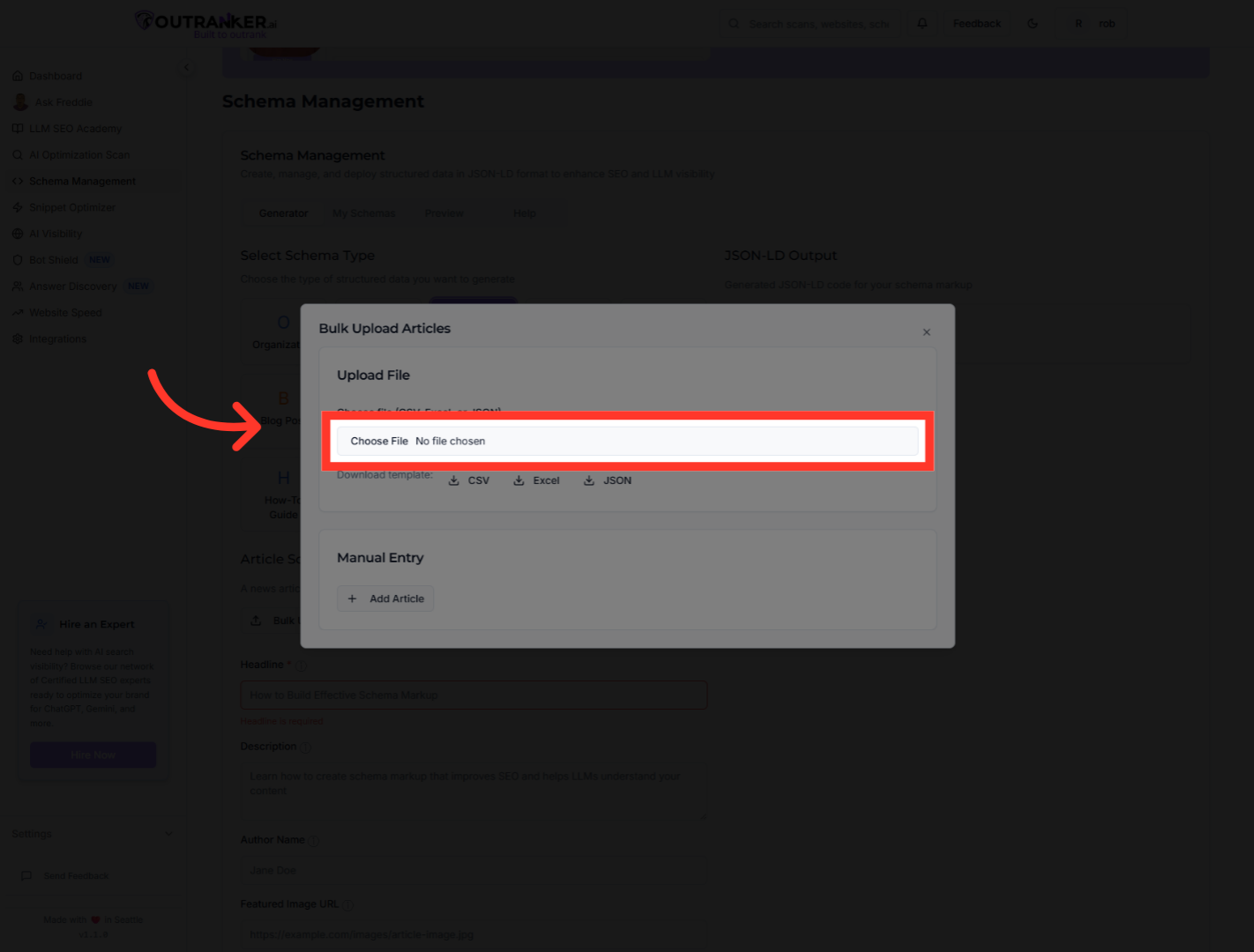
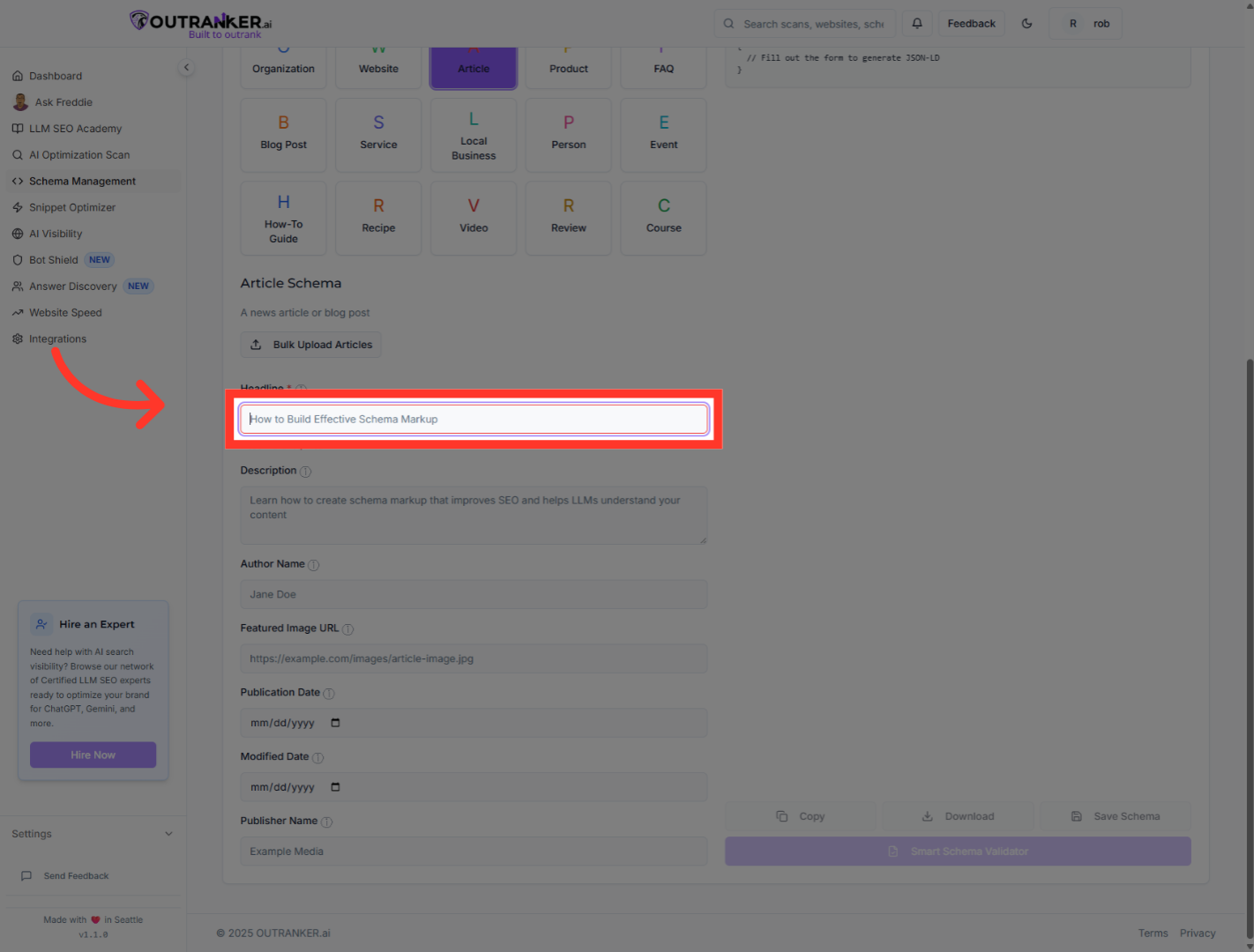
7. Click "Headline*"
Click the Headline field to prepare for entering the article's title.
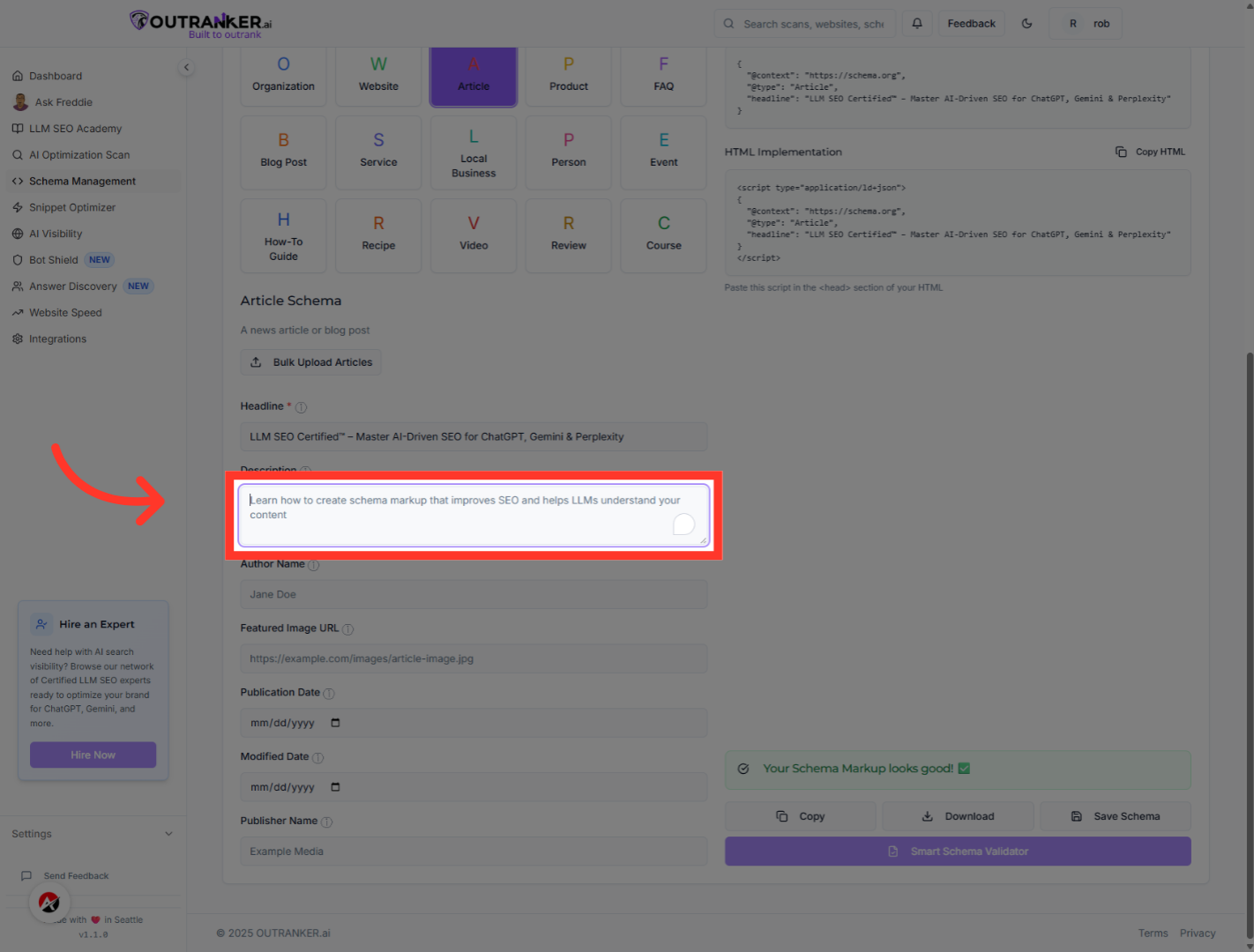
8. Click "Description"
Click the Description field to enter the article summary or overview.
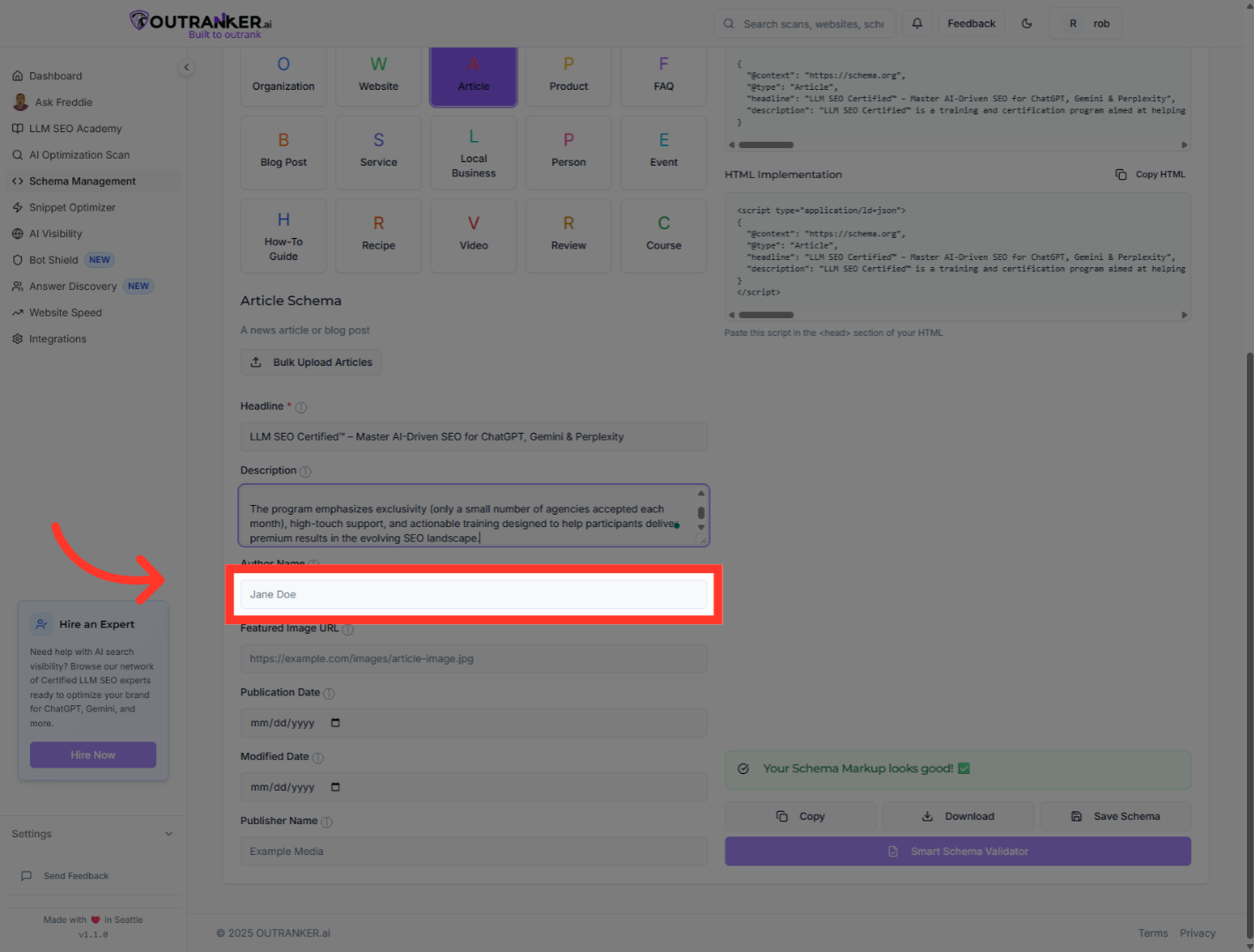
9. Click "Author Name"
Click the Author Name field to specify the article's author.
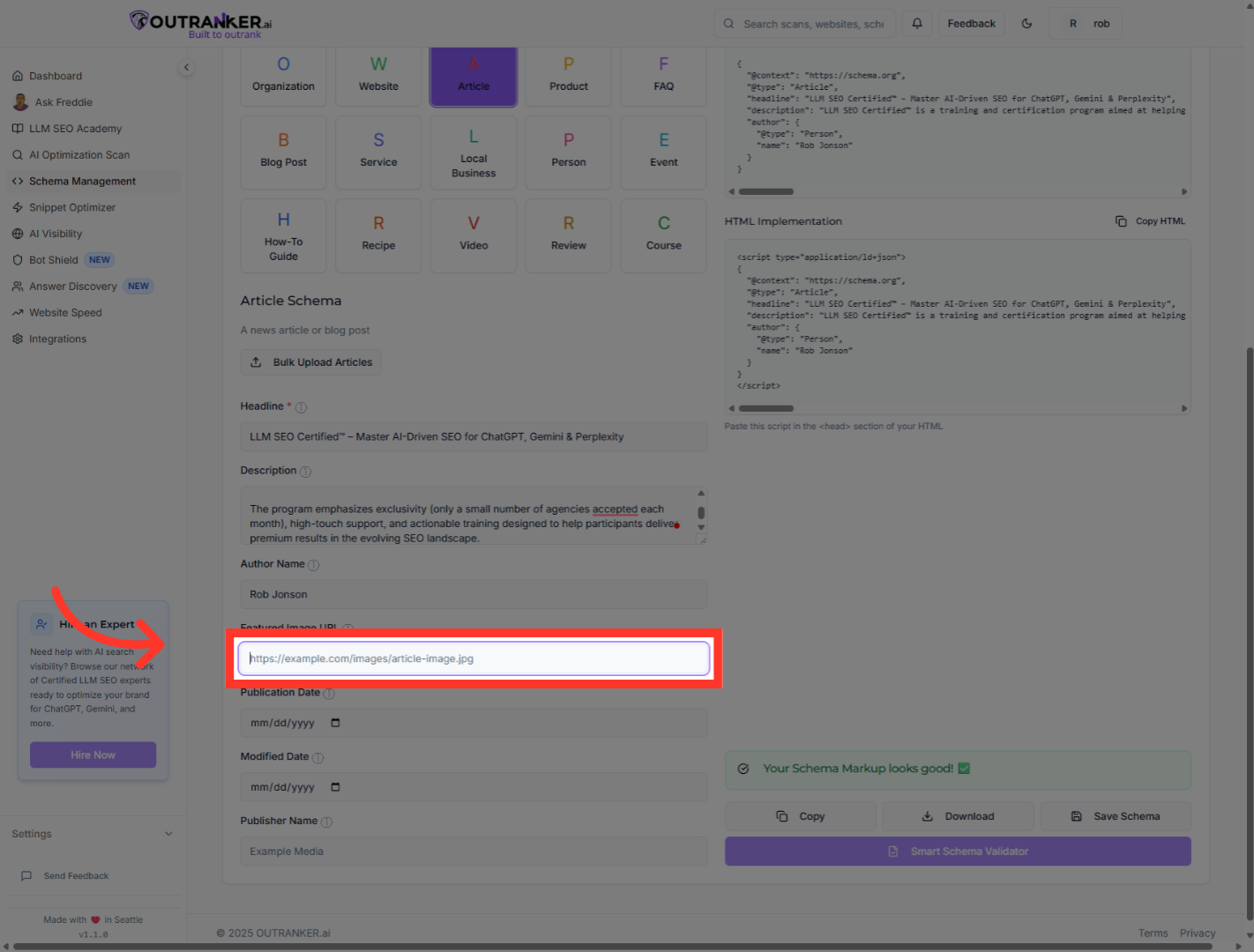
10. Click "Featured Image URL"
Click the Featured Image URL field to add the article's main image link.
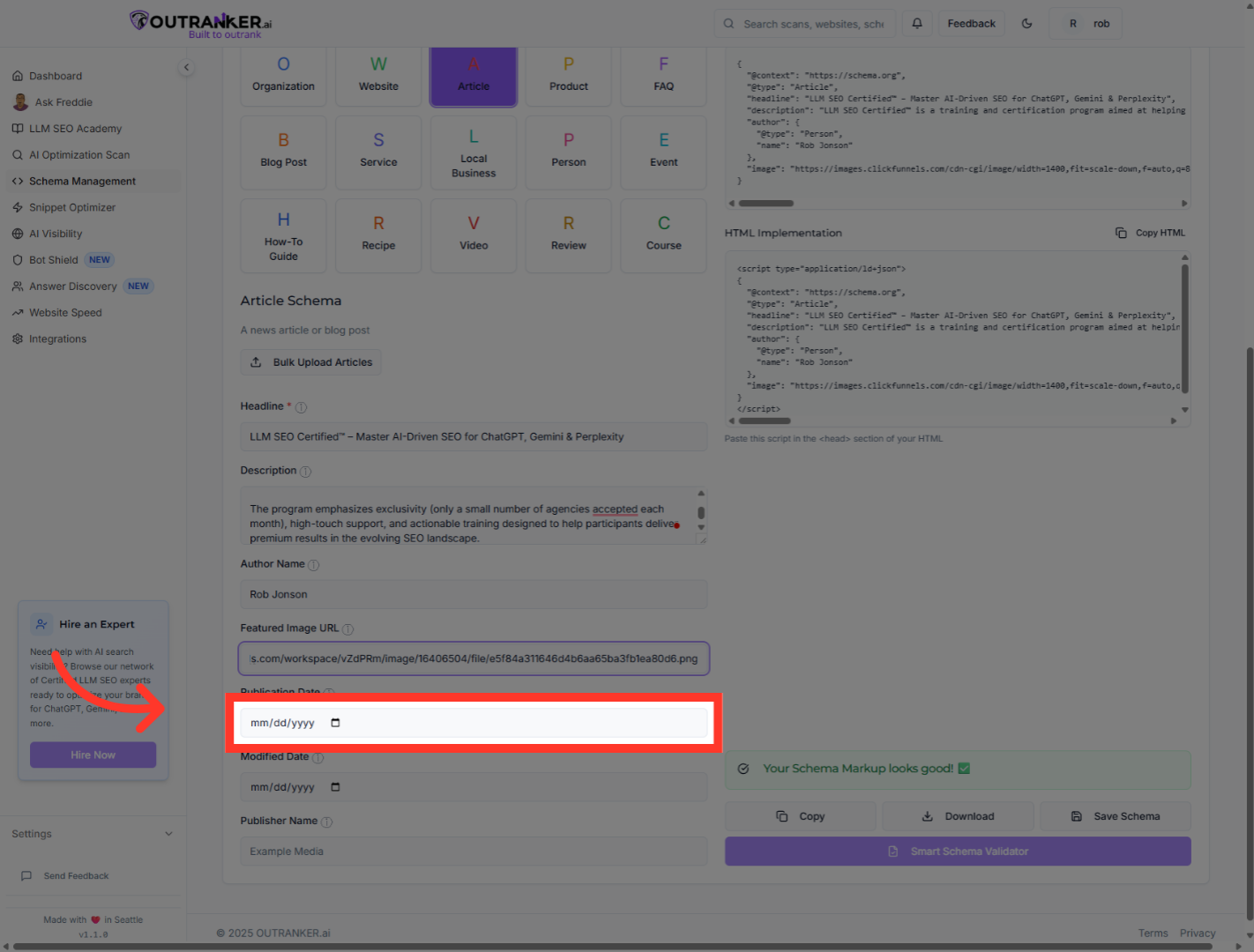
11. Click "Publication Date"
Click the Publication Date field to specify when the article was published.
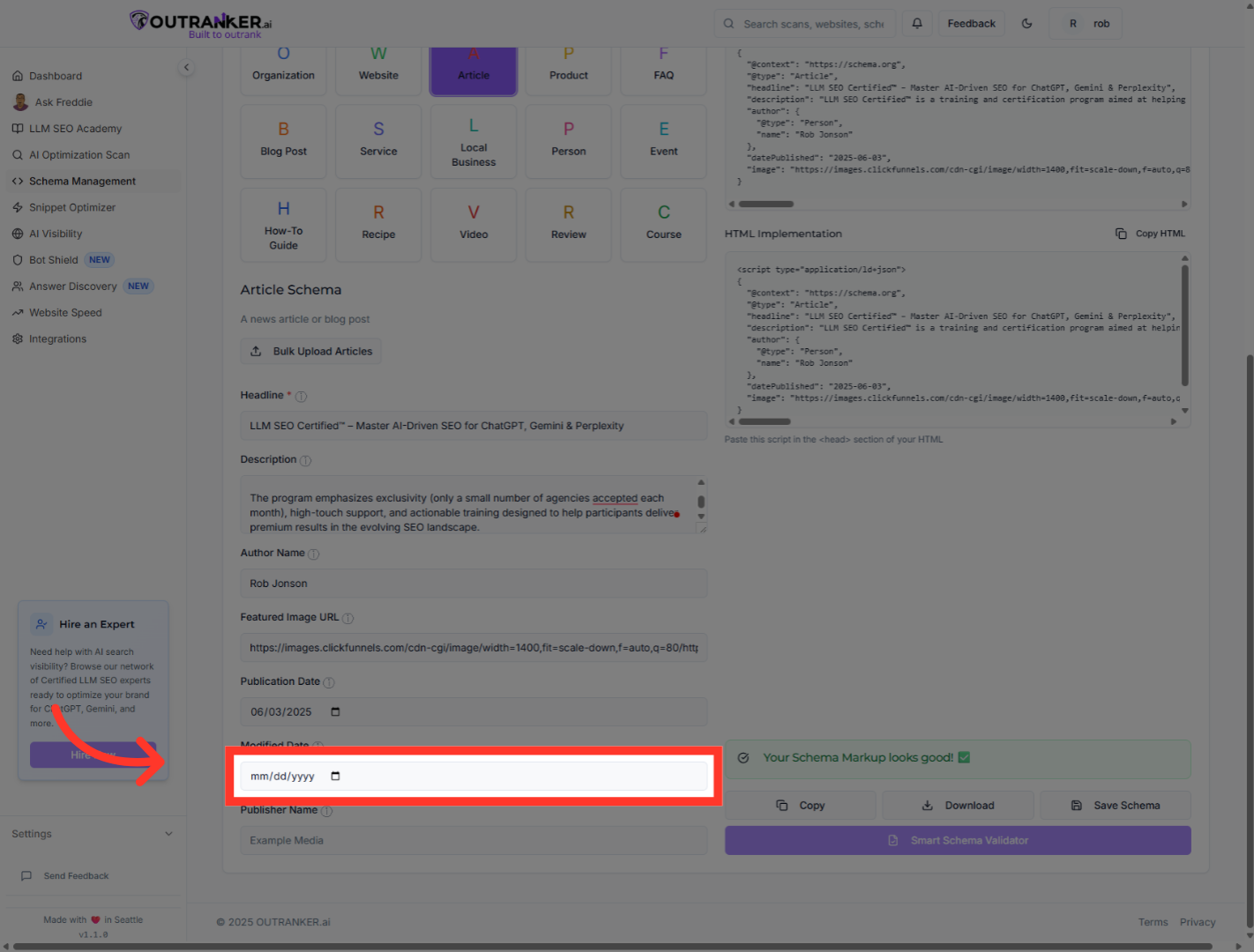
12. Click "Modified Date"
Click the Modified Date field to indicate the last update date of the article.
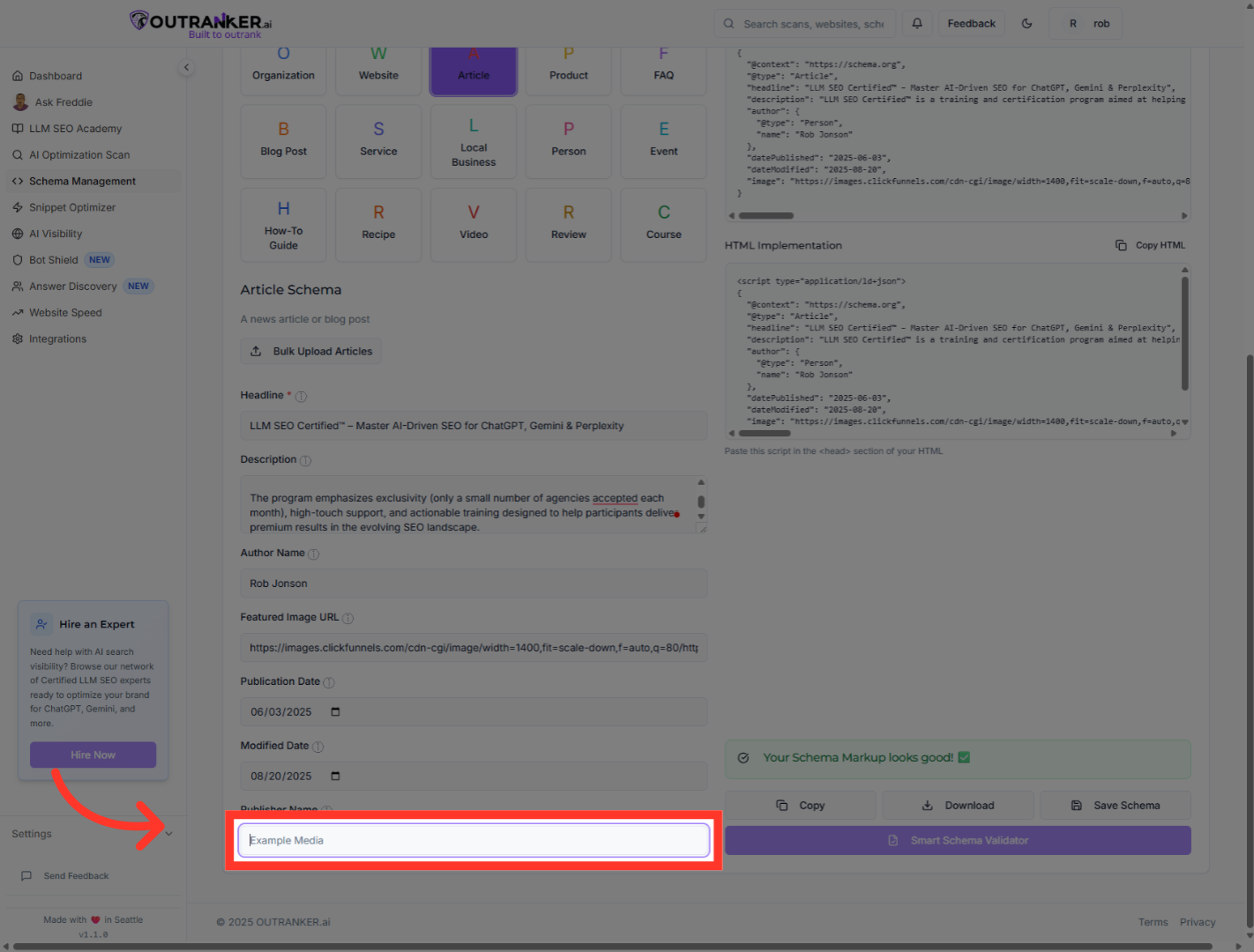
13. Click "Publisher Name"
Click the Publisher Name field to add the publisher's information.
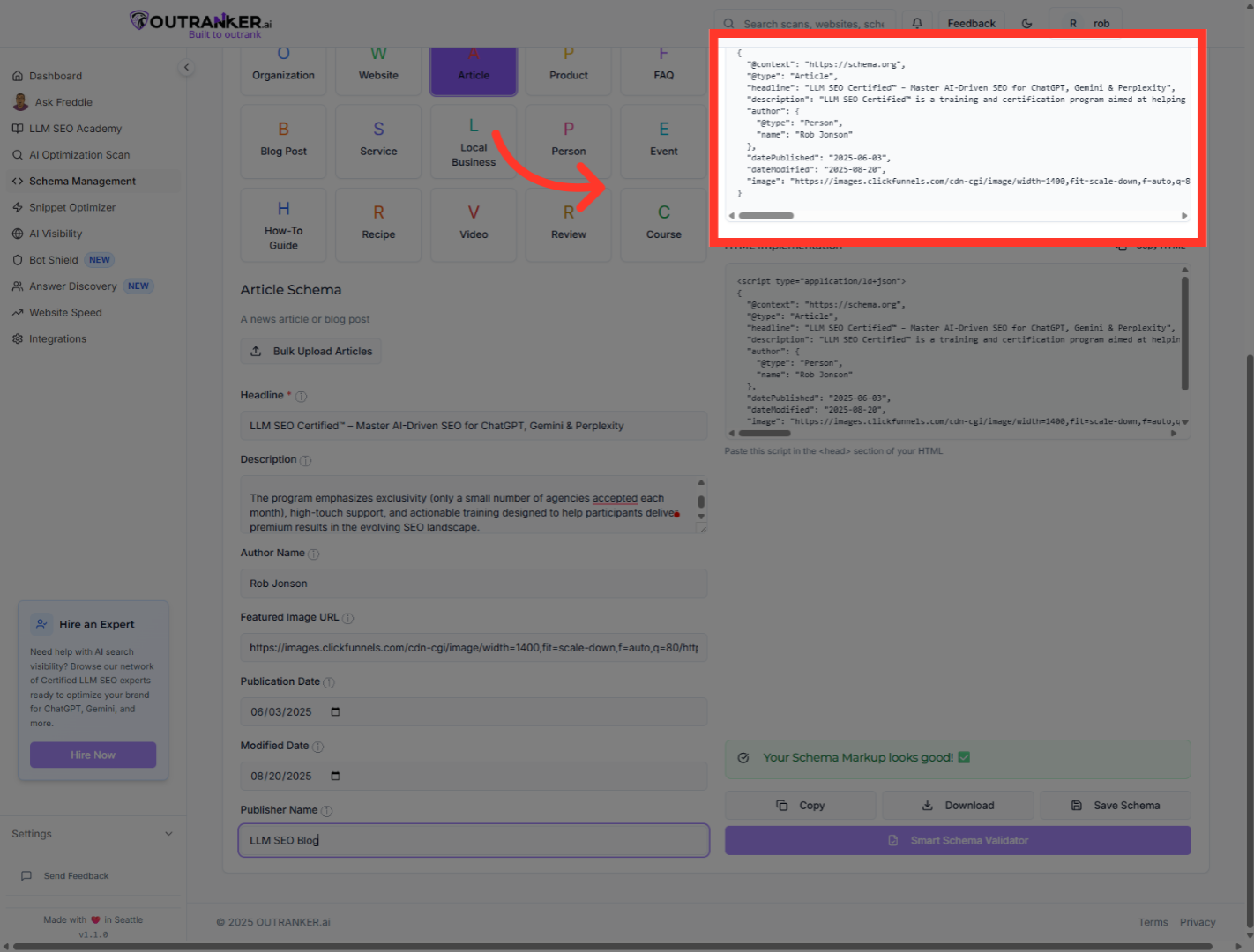
14. Click "JSON-LD OutputGenerated JSON-LD code for your schema markup"
Click the JSON-LD Output section to view the generated schema markup code for your article.
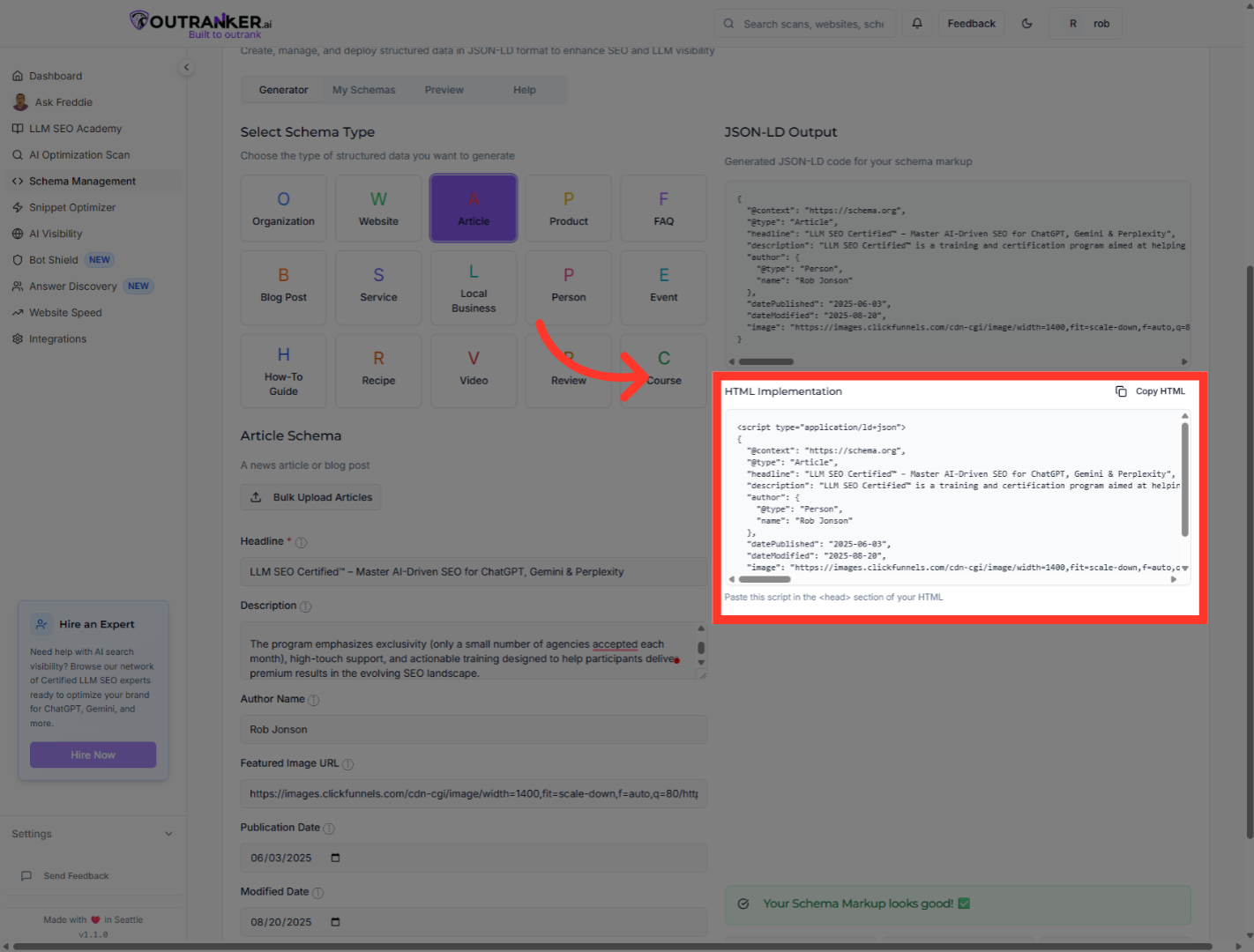
15. Click "HTML Implementation"
Click the HTML Implementation tab to see the generated HTML schema.
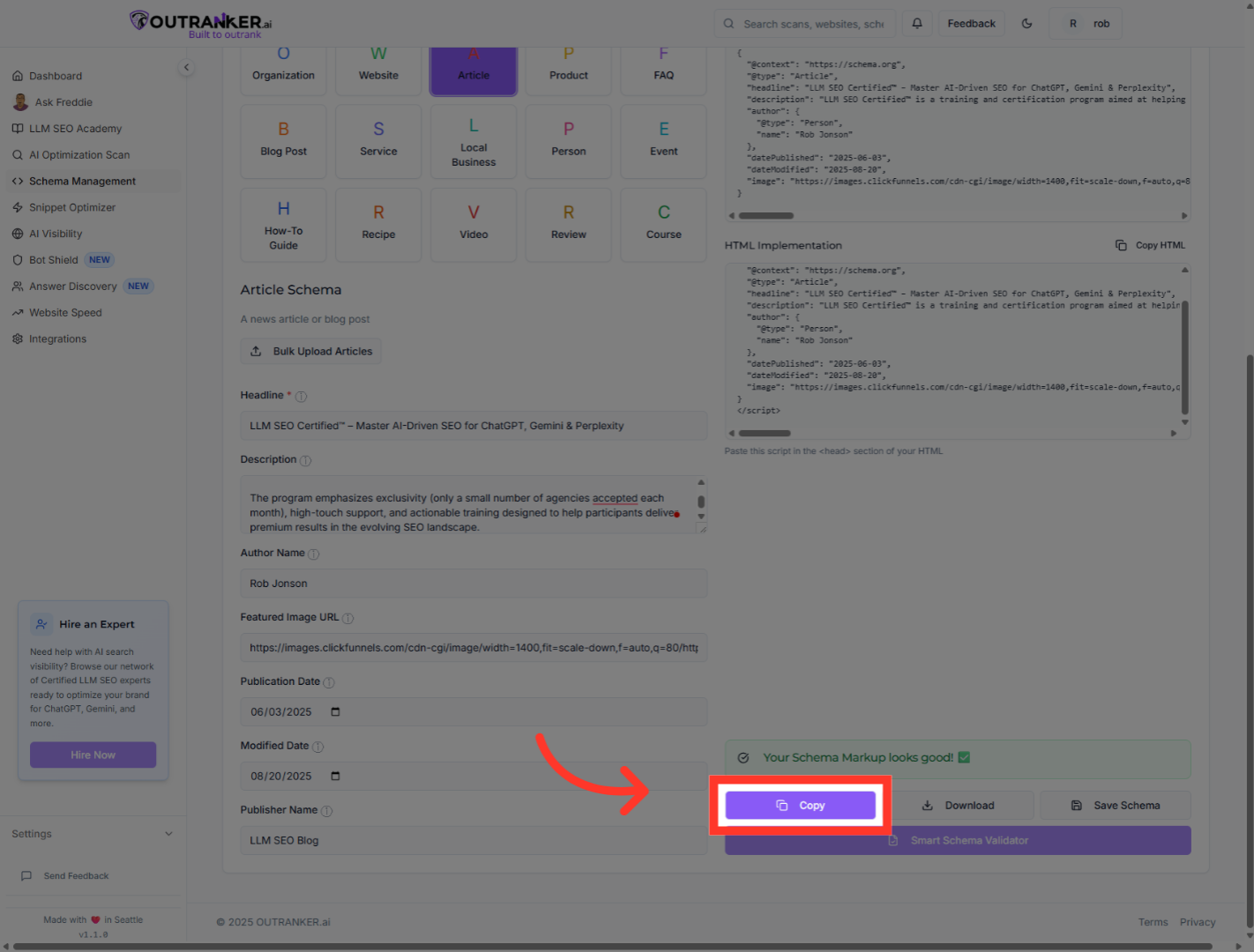
16. Click "CopyCopy"
Click the Copy button to copy the generated JSON-LD schema code to your clipboard.
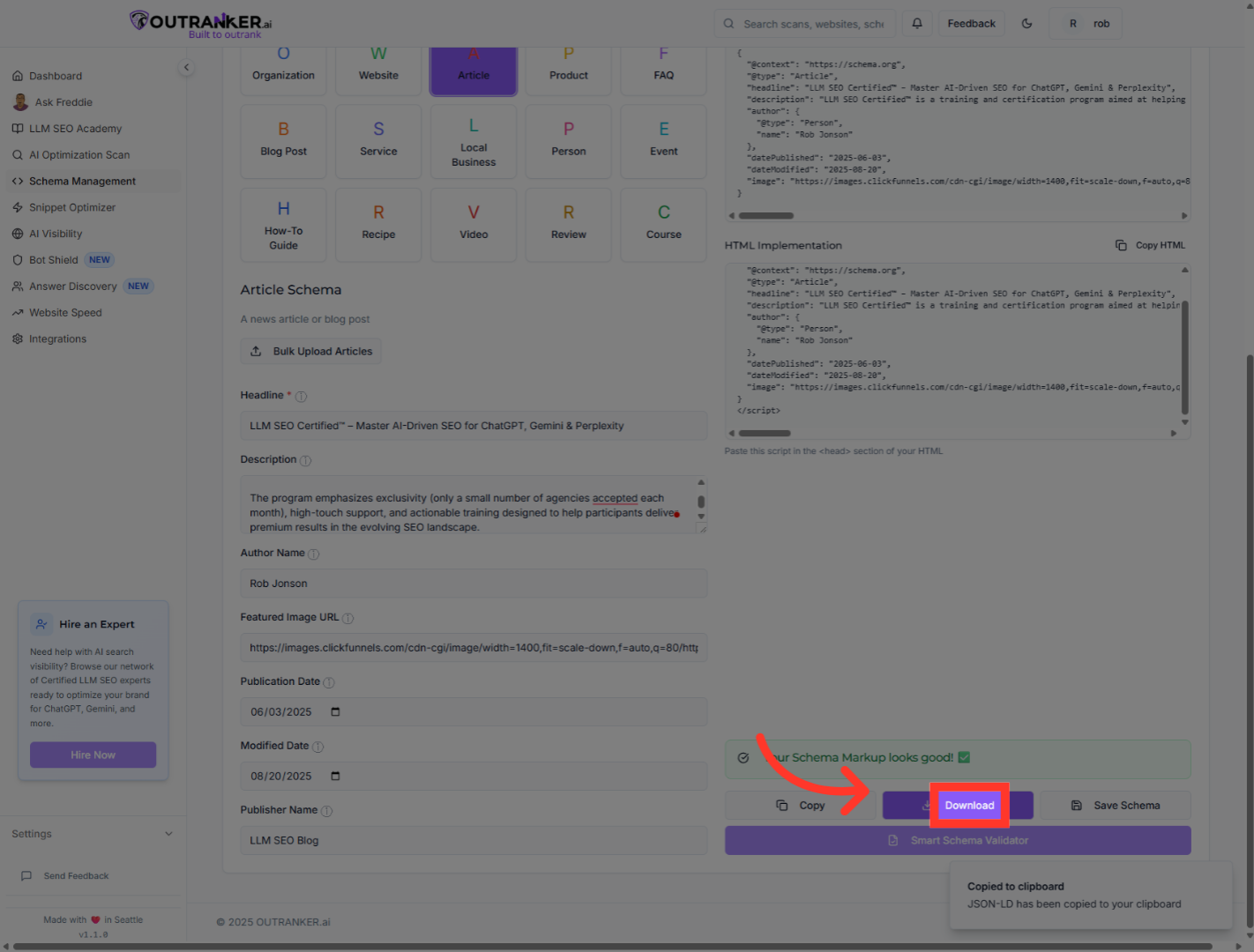
17. Click "Download"
Click the Download button to save the schema markup file locally for future use.
You have successfully generated and reviewed the JSON-LD schema markup for your articles using OutRanker's Schema Management. The schema code is now ready to be copied or downloaded for implementation on your website, enhancing your articles' SEO and visibility. For further optimization, consider exploring additional schema types or integrating this markup with your content management system.
