
This tutorial guides you through generating blog post schema markup using Outranker's Schema Management feature
Go to www.outranker.ai
1. Introduction
By following these steps, you'll create structured data that improves your blog's S E O and visibility. Before starting, ensure you have your blog post details ready in CSV, Excel, or JSON format for bulk upload.
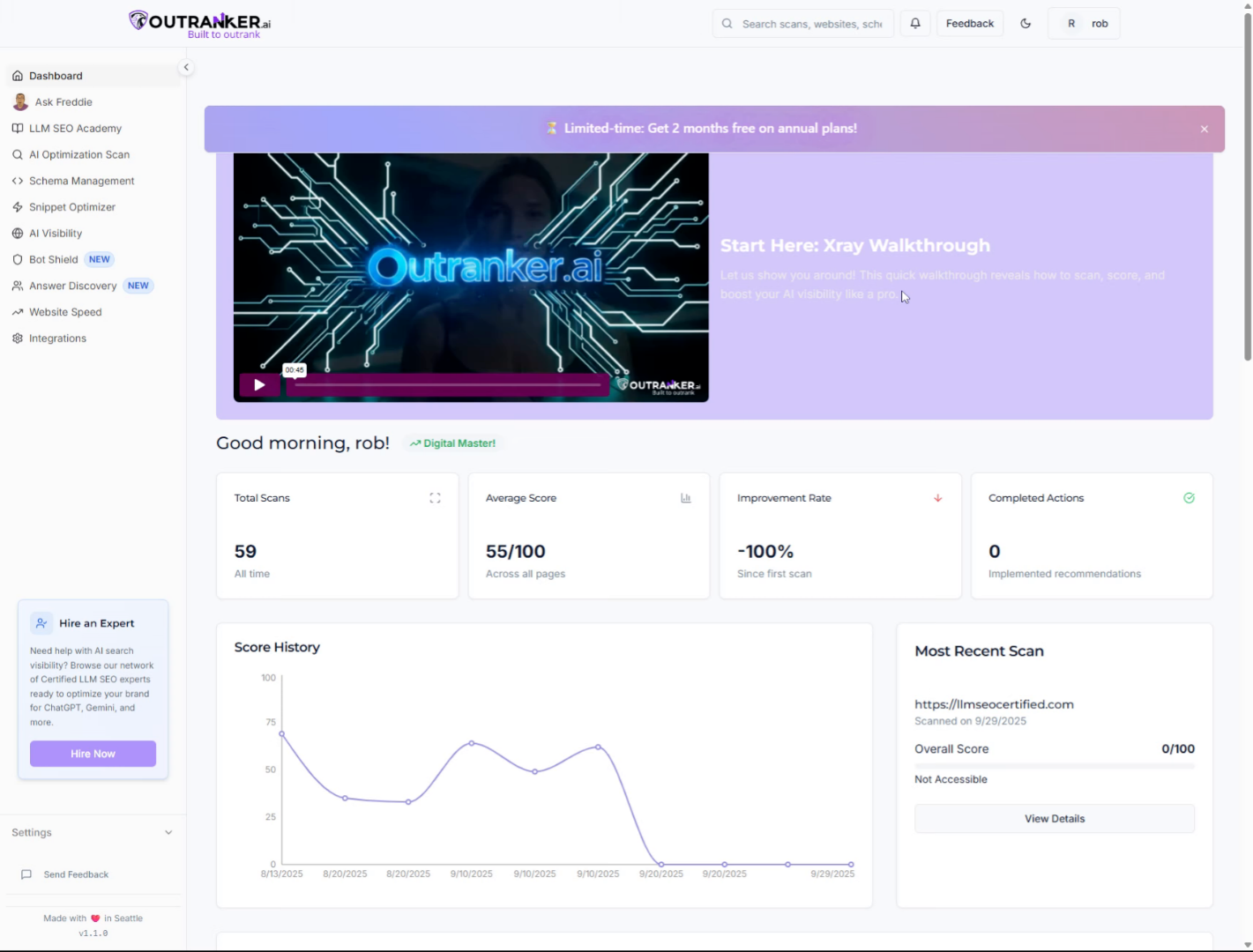
2. Click "Schema Management"
Access the Schema Management section in Outranker to begin generating your blog post schema.
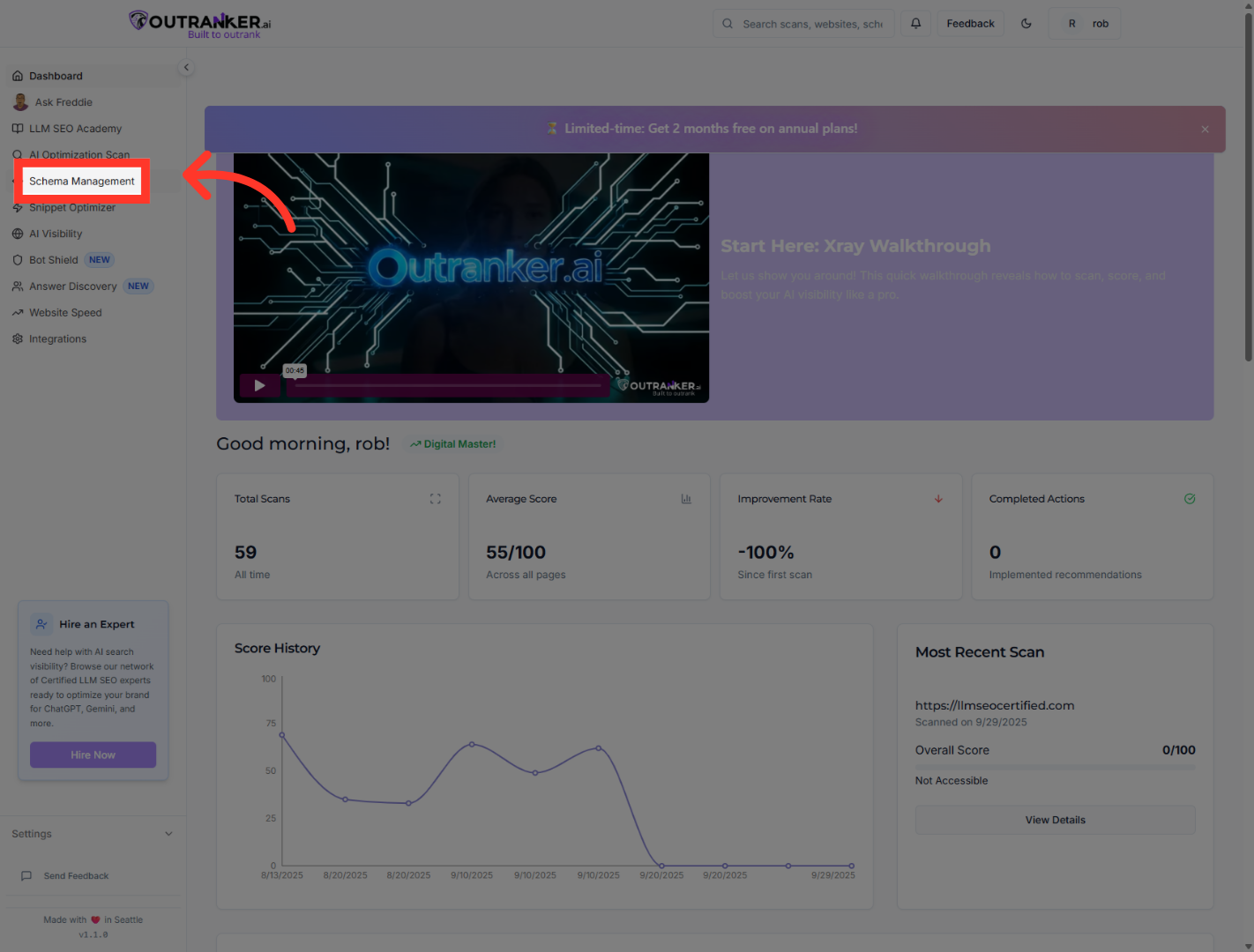
3. Click "Generator"
Navigate to the Generator tab within Schema Management to start creating schema markup.
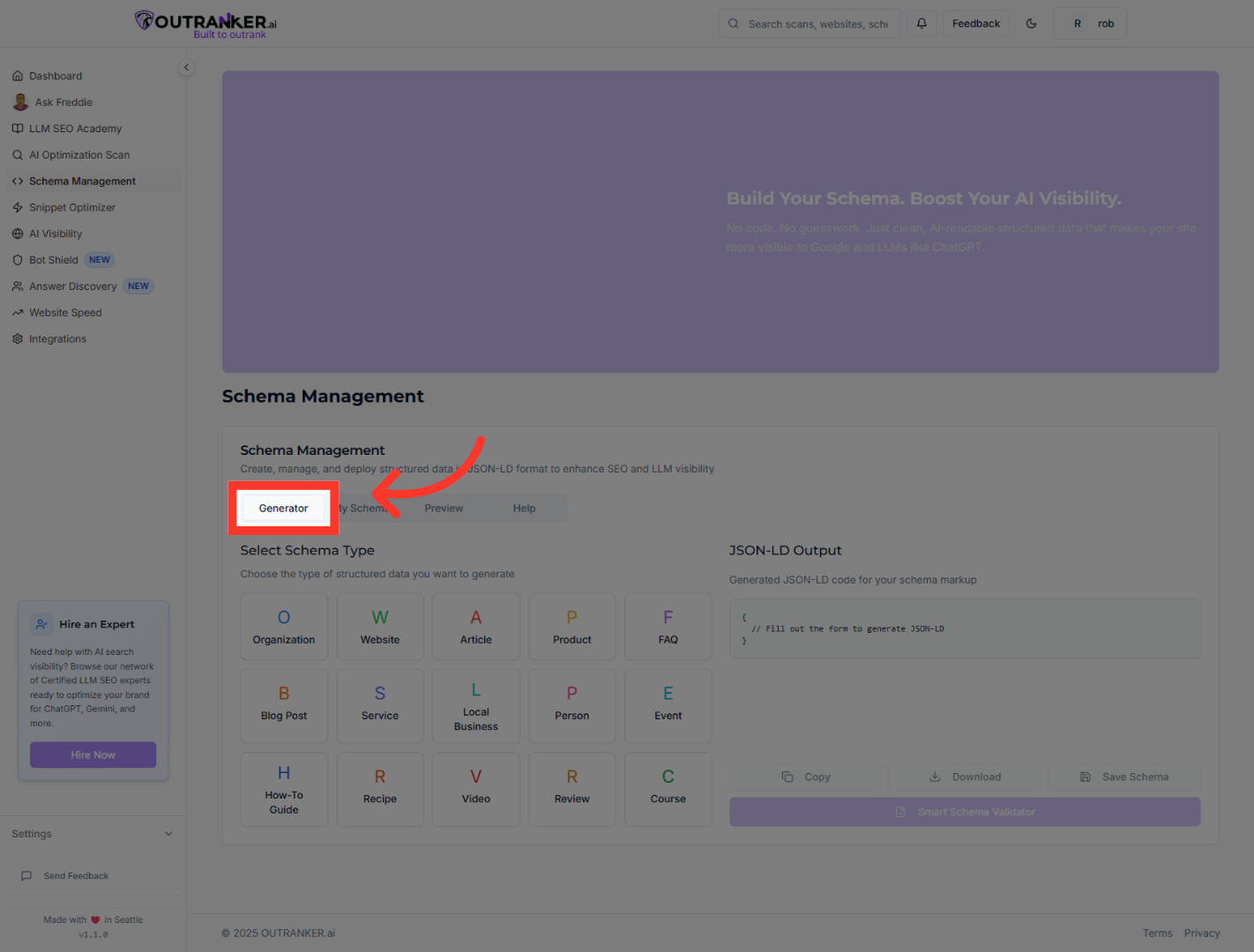
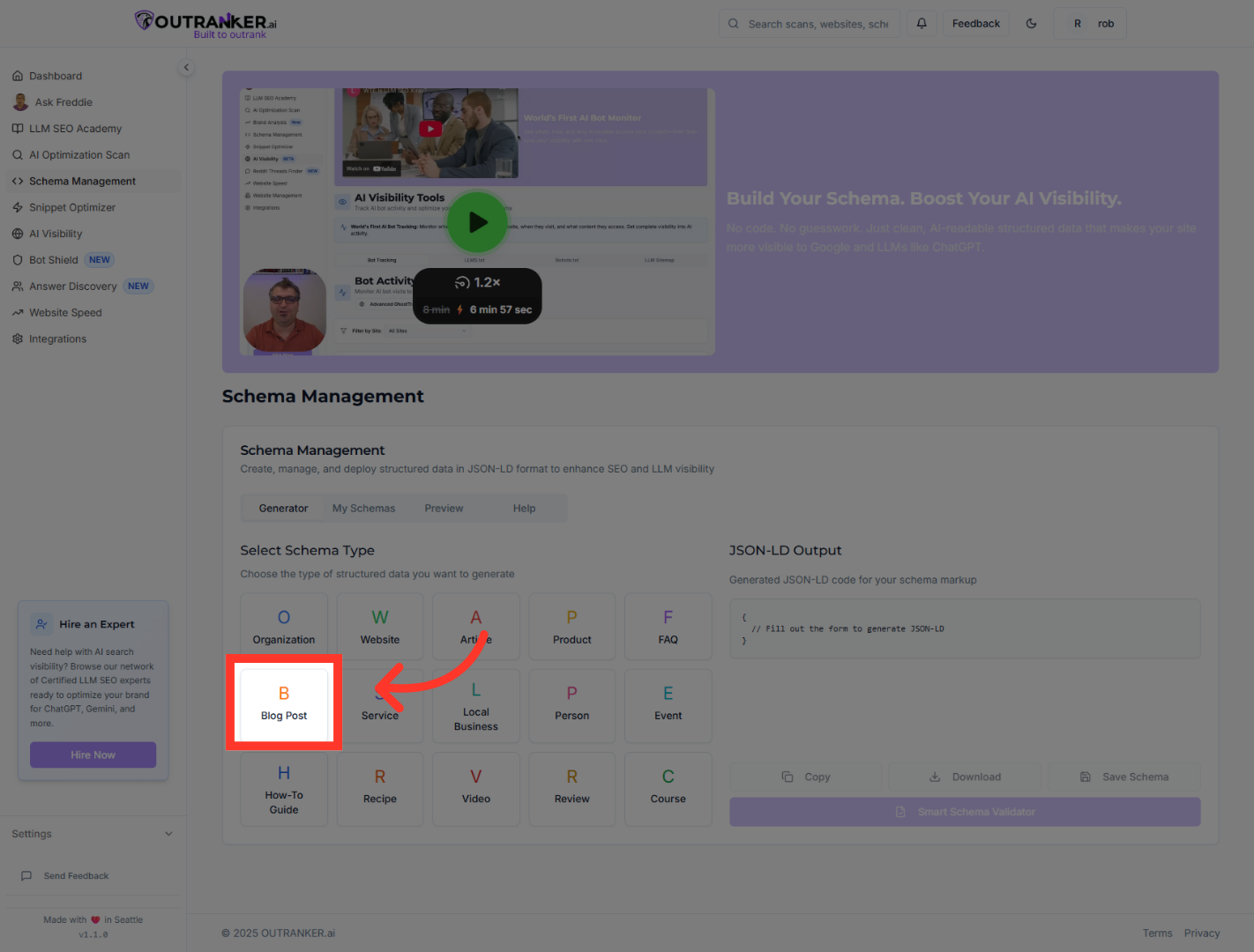
4. Click "BBlog Post"
Select the Blog Post option to specify the type of schema you want to generate.
5. Click "Bulk Upload Blog Posts"
Choose Bulk Upload Blog Posts to add multiple blog posts at once for schema generation.
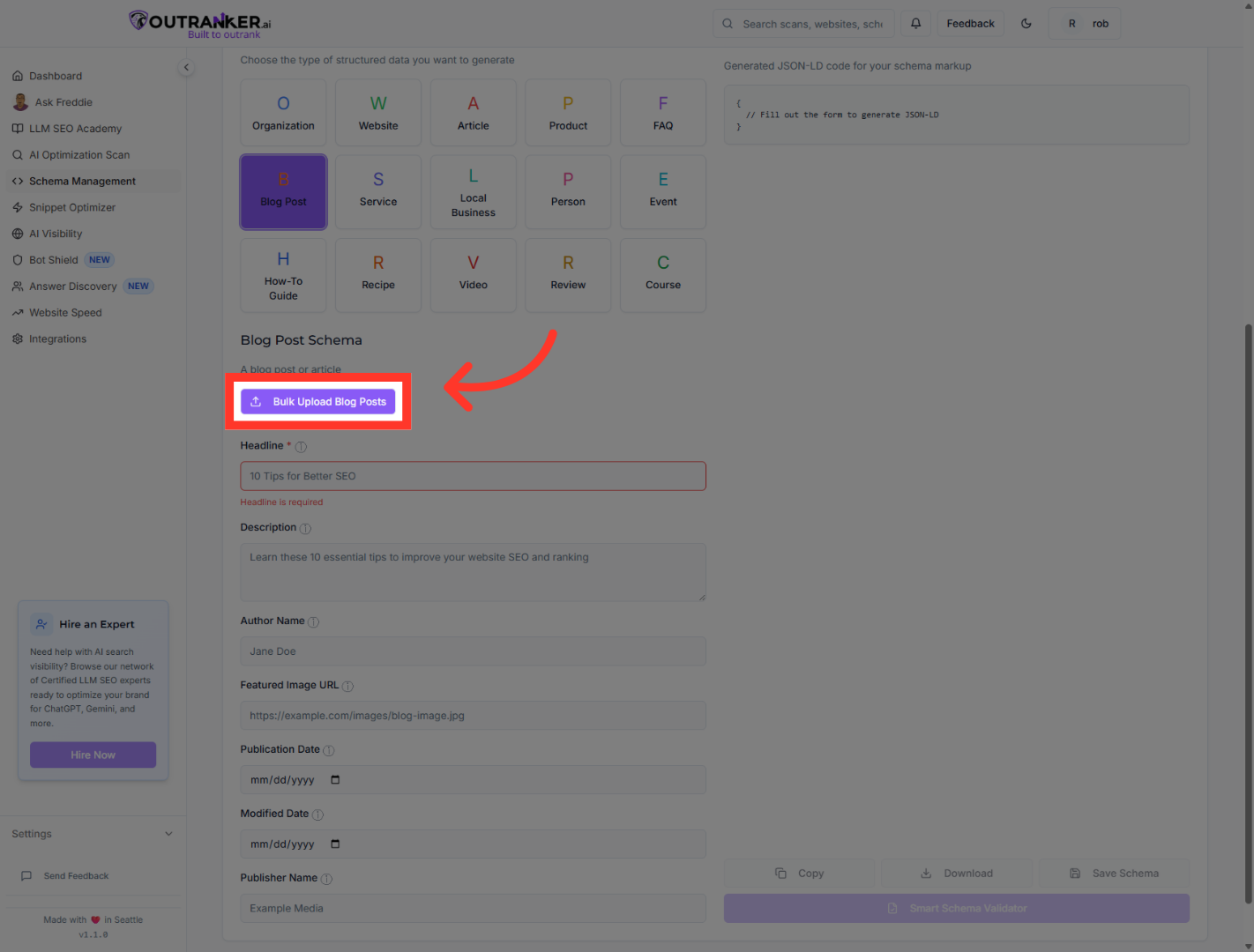
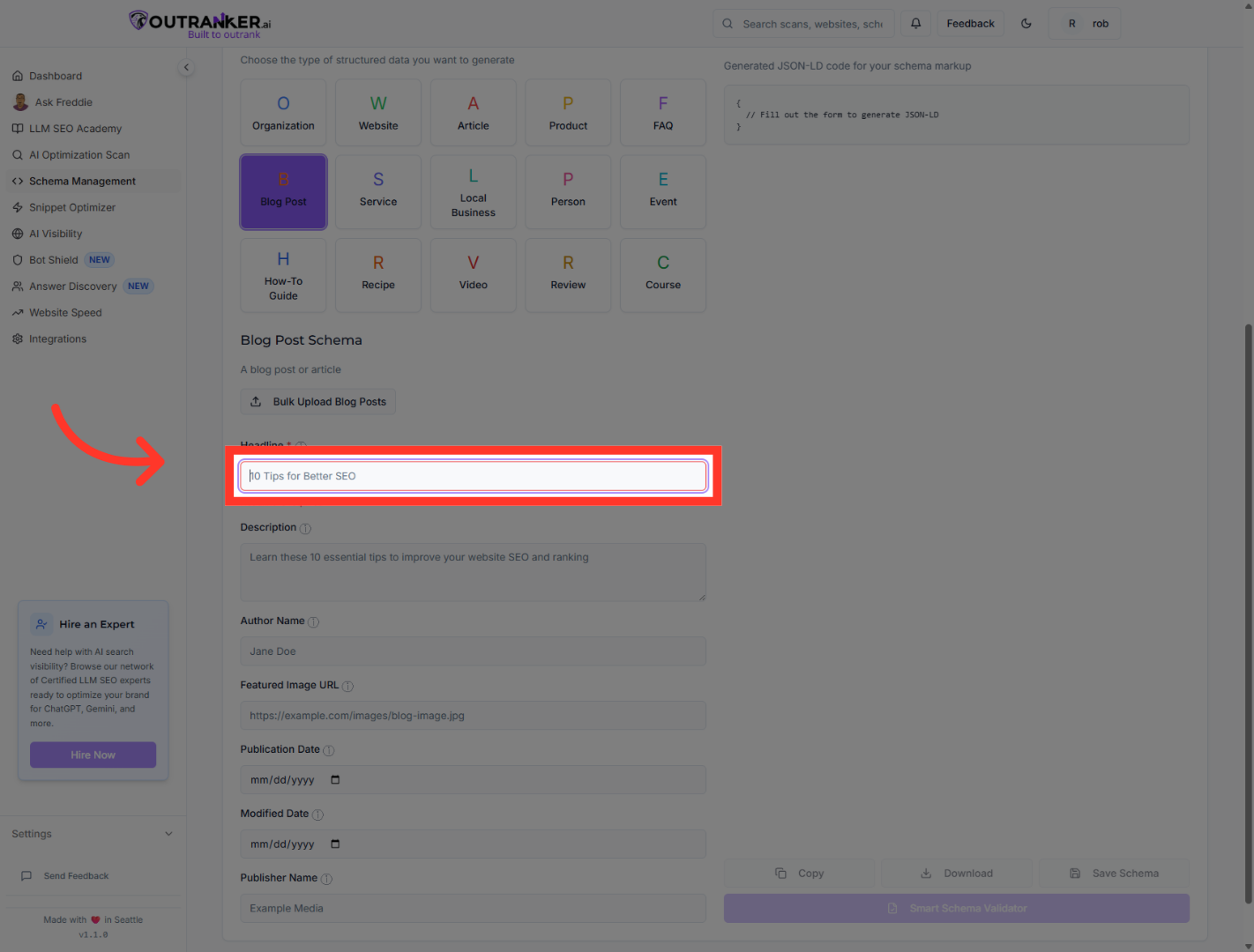
6. Click "Headline*"
Click the Headline* field to enter or edit the blog post headline.
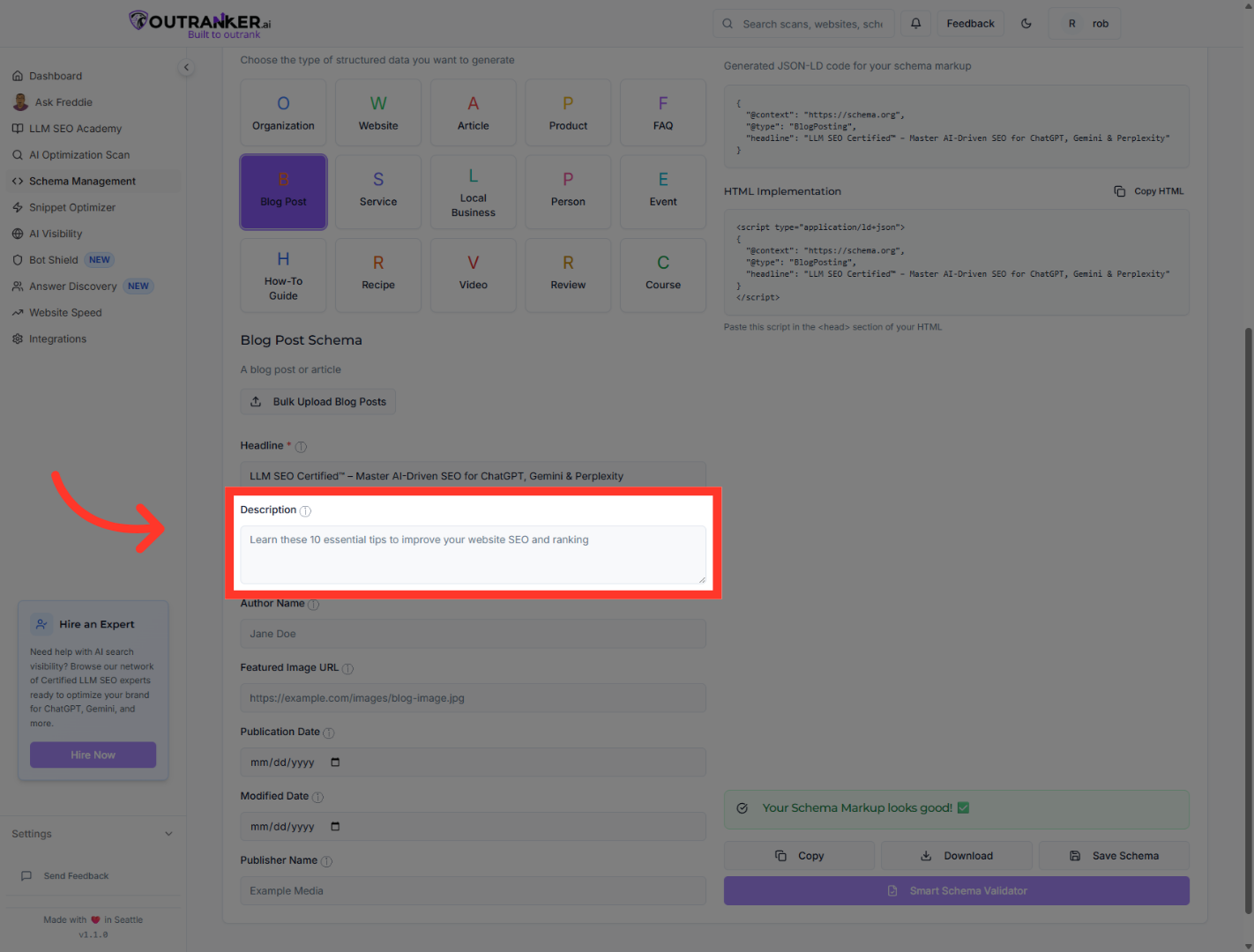
7. Click "Descriptionⓘ"
Click the Description field to add or modify the blog post description.
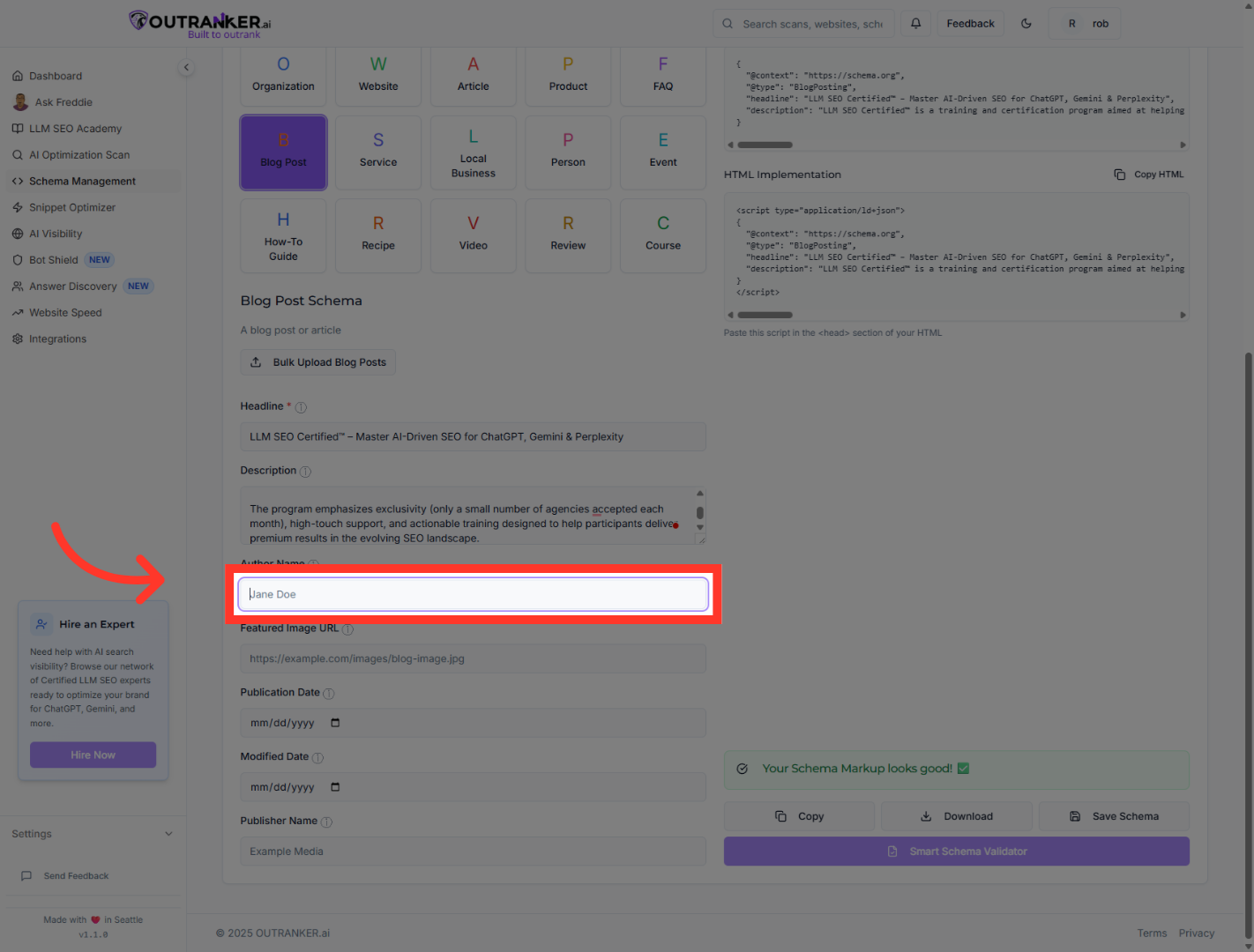
8. Click "Author Name"
Click the Author Name field to specify the blog post author.
9. Click "Featured Image URL"
Click the Featured Image URL field to enter the URL of the blog post’s featured image.
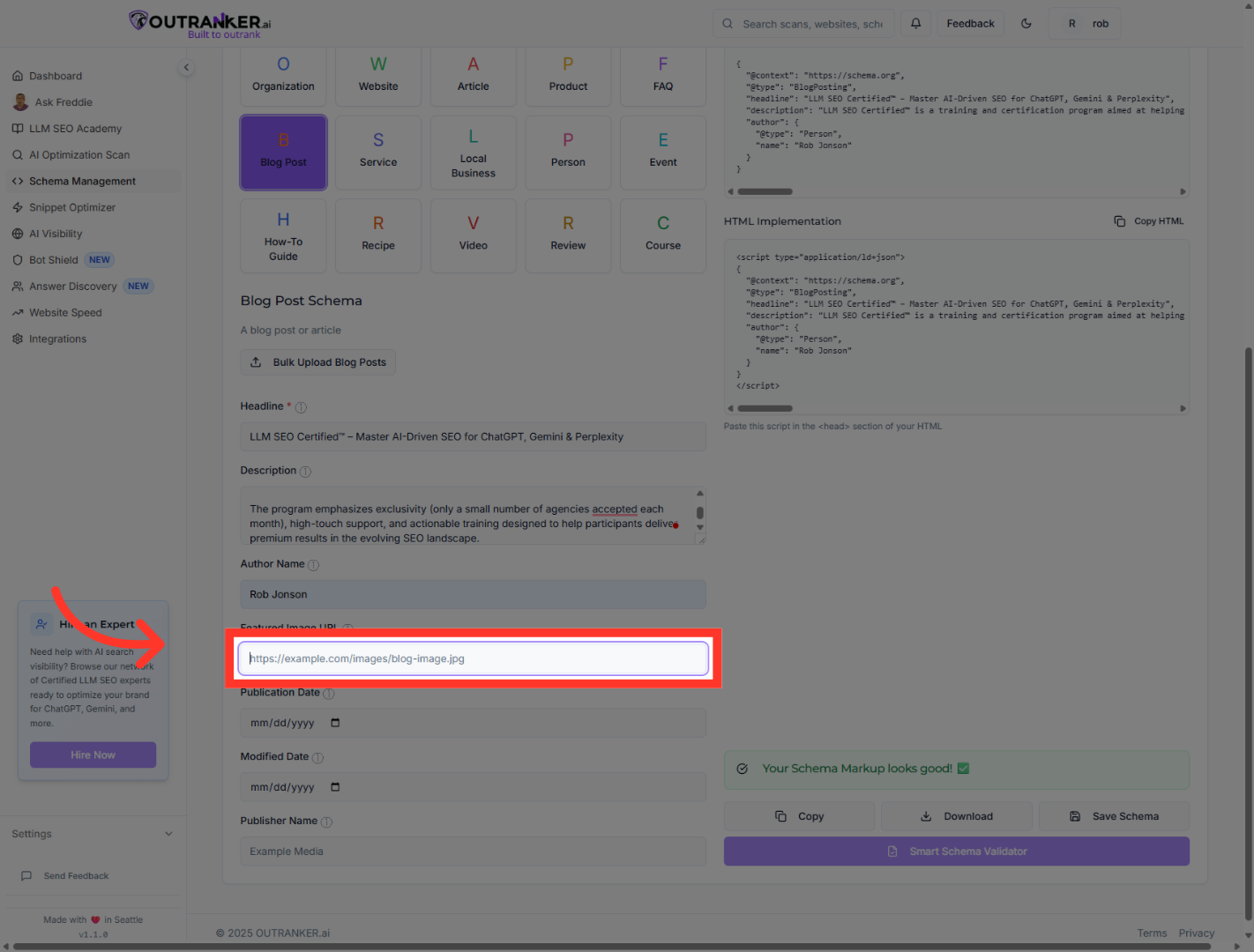
10. Click "Publication Date"
Click the Publication Date field to specify when the blog post was published.
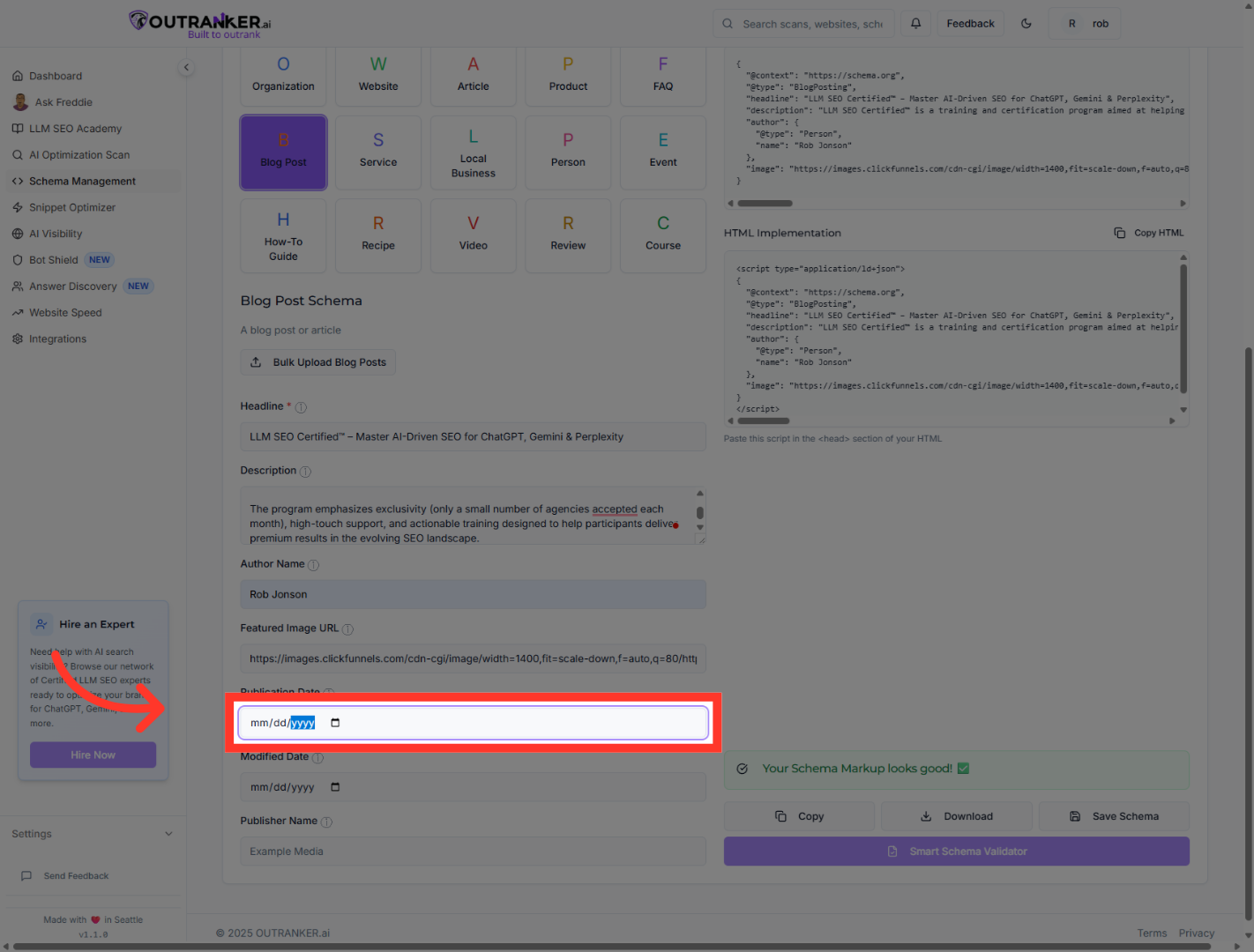
11. Click "Modified Date"
Click the Modified Date field to specify the last modification date of the blog post.
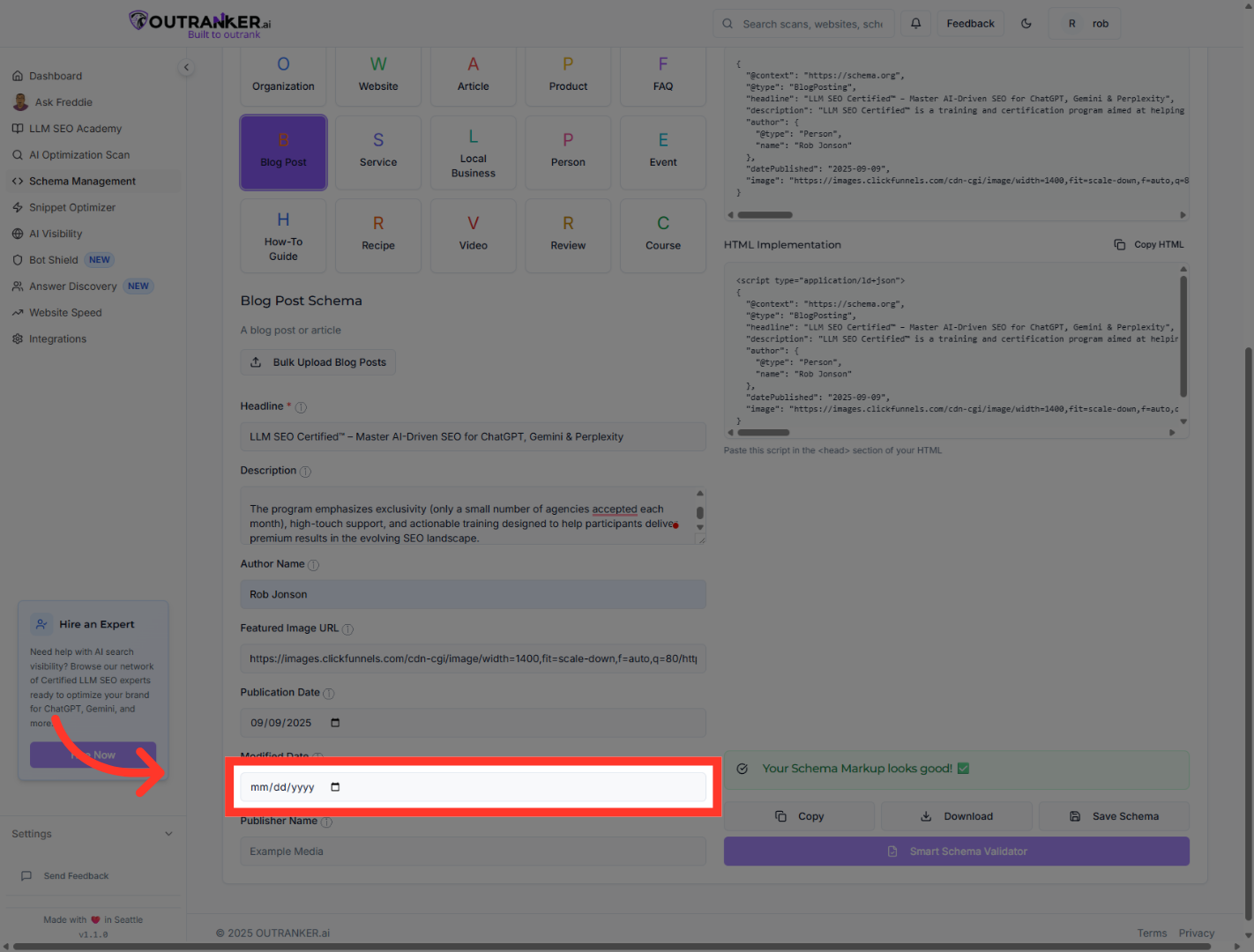
12. Click "Publisher Name"
Click the Publisher Name field to enter the name of the blog post publisher.
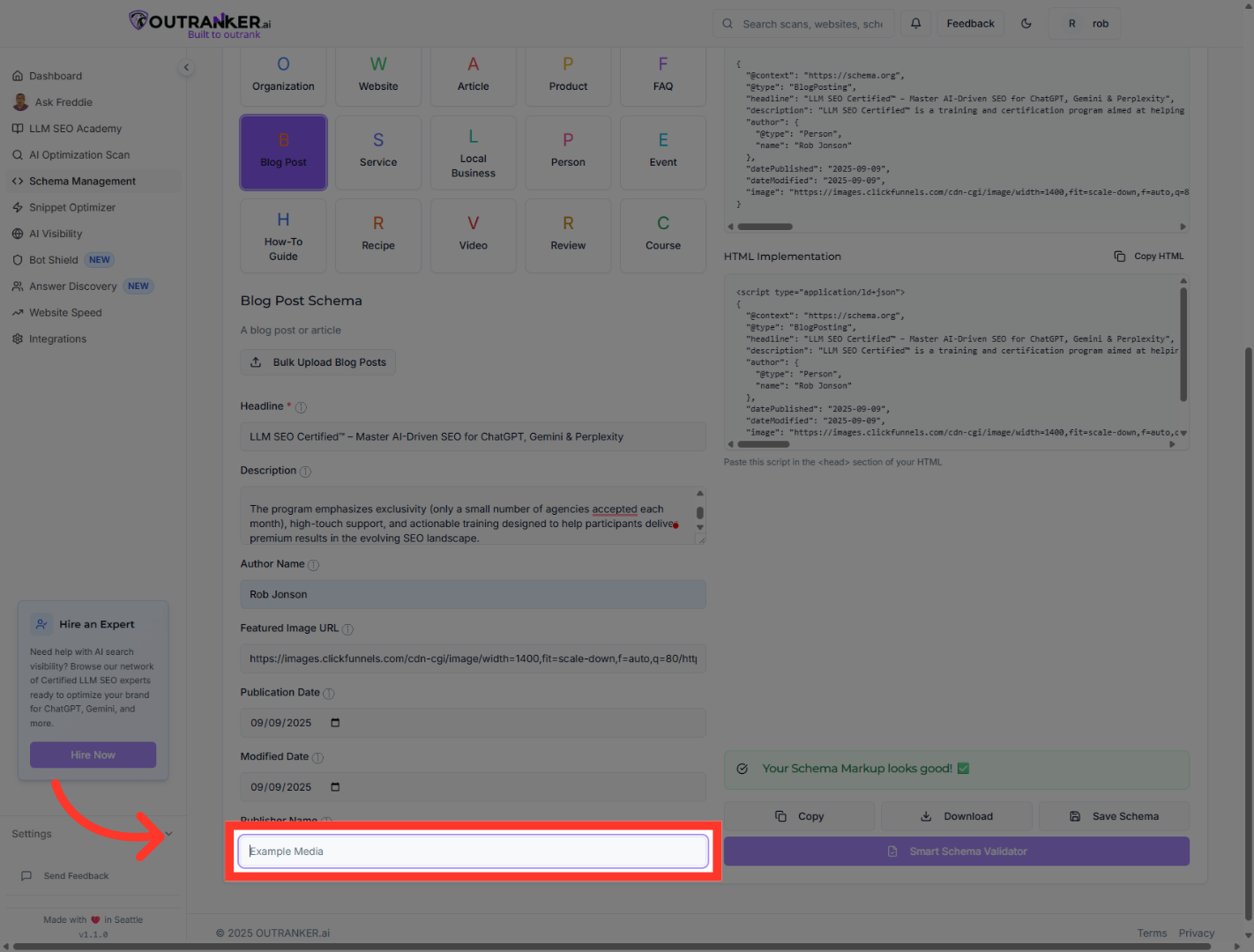
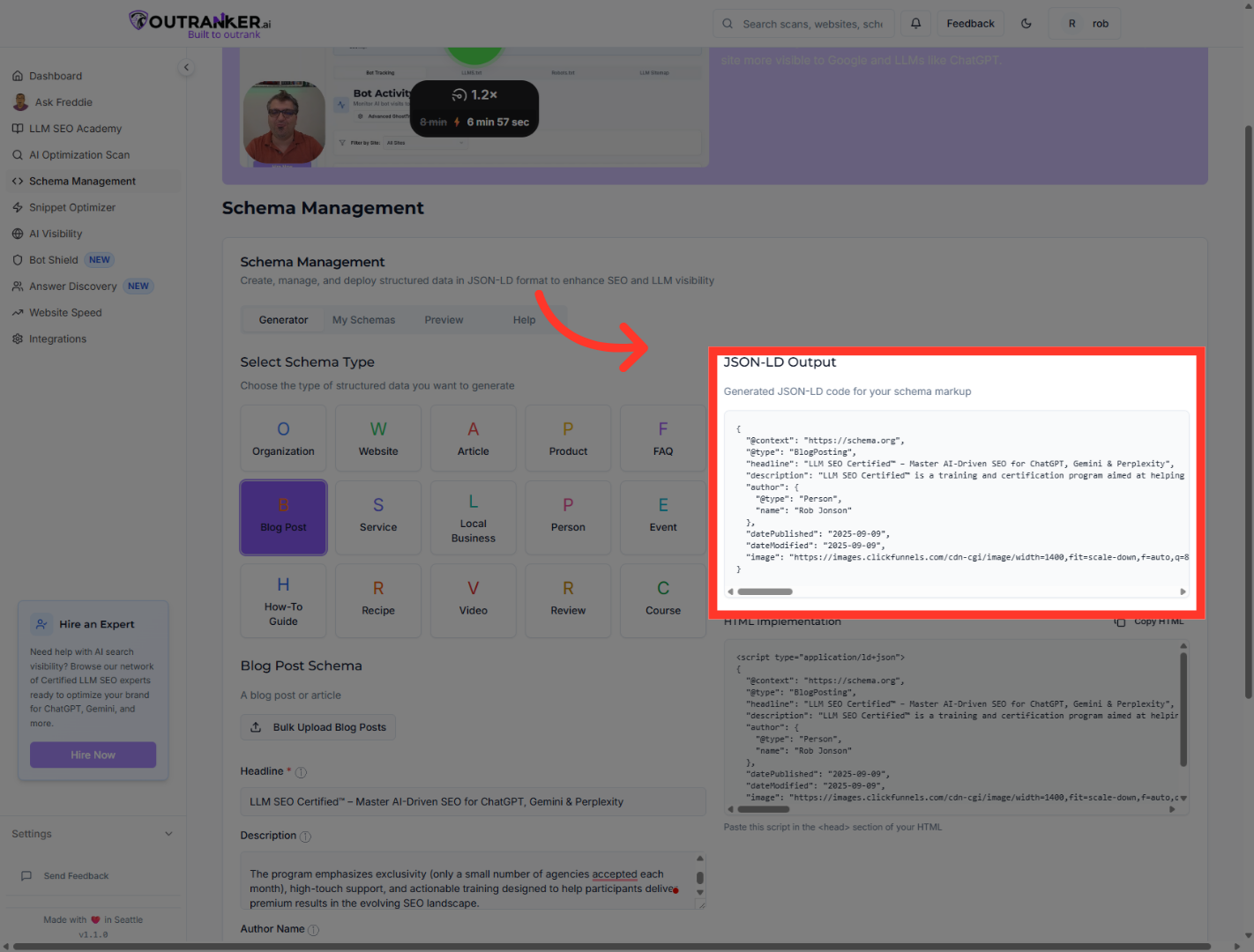
13. Click "JSON-LD Output"
Click the JSON-LD Output section to copy Generated JSON-LD Code.
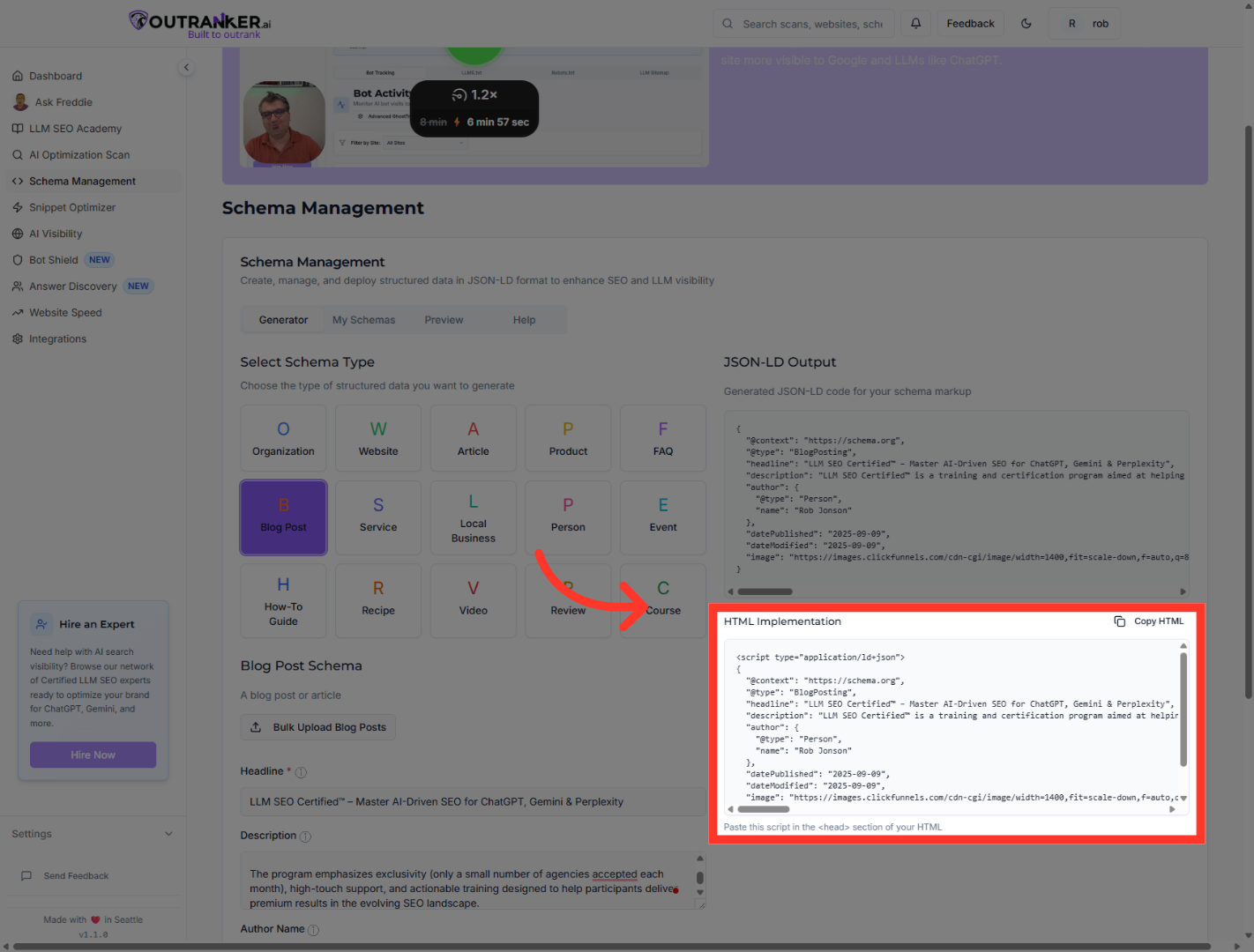
14. Click "HTML ImplementationCopy HTML"
Click the HTML ImplementationCopy HTML button to prepare the schema markup for embedding.
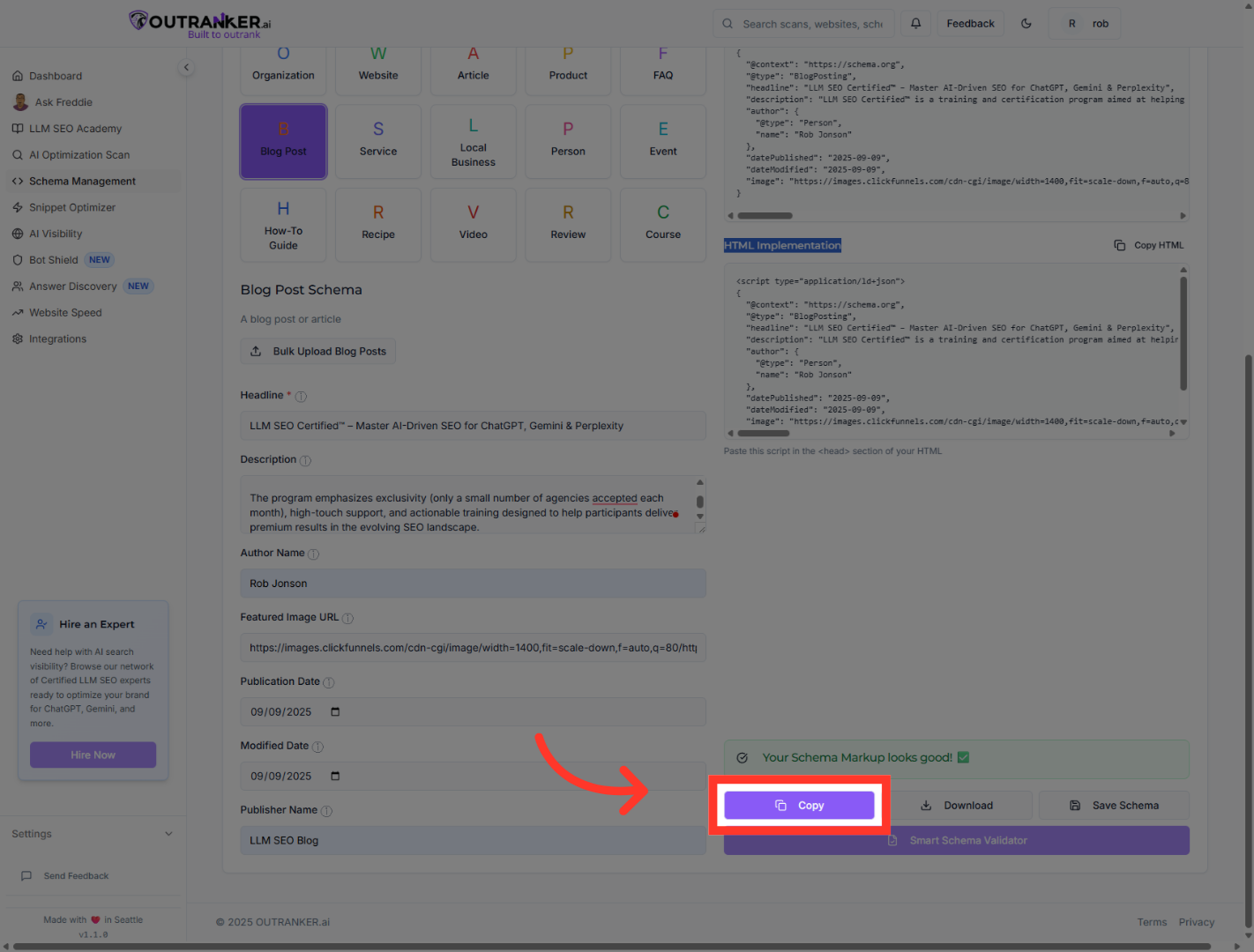
15. Click "CopyCopy"
Click the CopyCopy button to copy the schema markup to your clipboard for use.
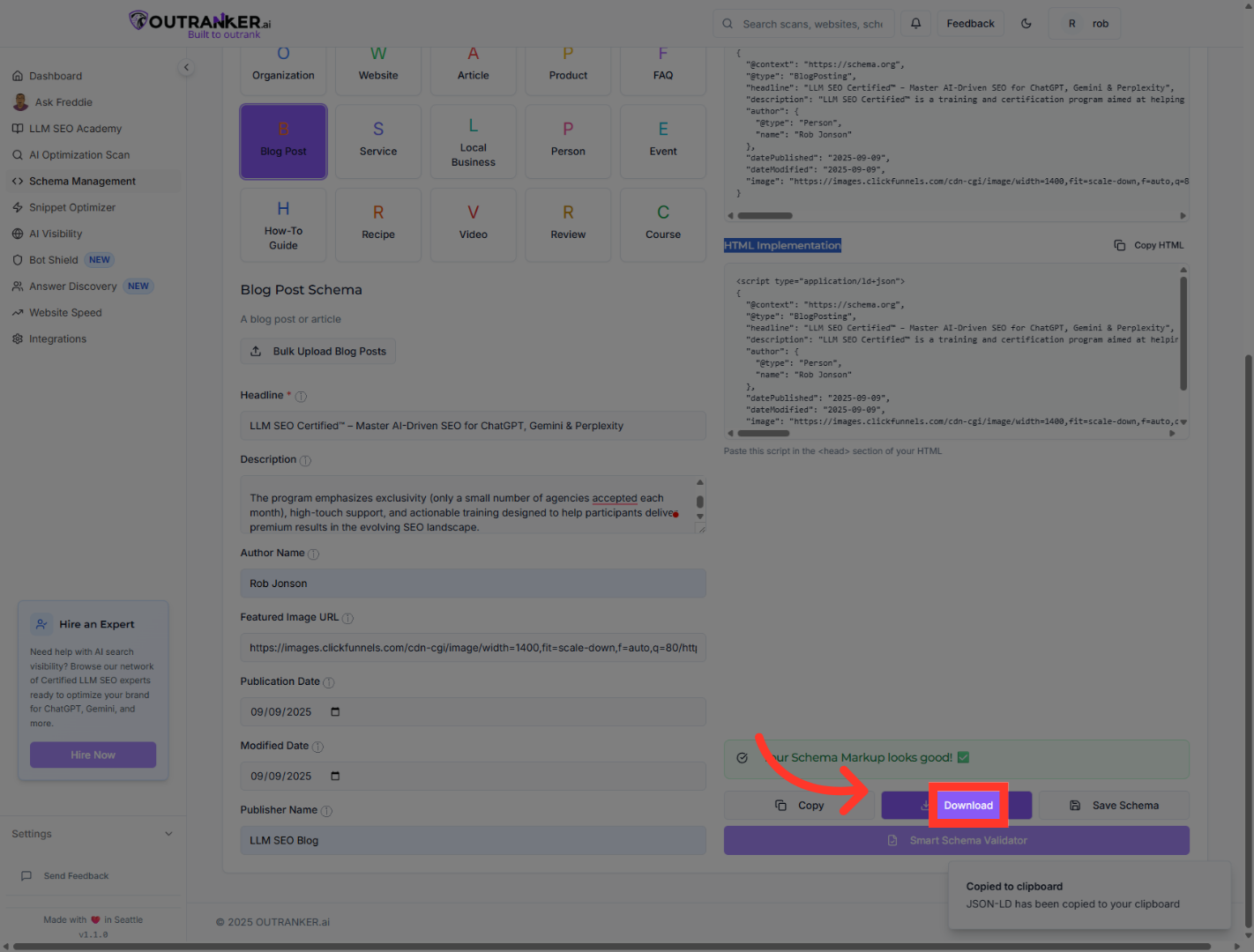
16. Click "Download"
Click the Download button to save the generated schema markup file to your device.
You have successfully generated and exported the blog post schema markup using Outranker's Schema Management. Verify the JSON-LD code accuracy and embed it into your website to enhance SEO. For further optimization, explore additional schema types or consult Outranker's resources.
