
This tutorial guides you through generating an event schema using Outranker's Schema Management feature
Go to www.outranker.ai
1. Introduction
You'll learn how to download templates, input event details, generate JSON-LD markup, and save your schema for website integration. Before starting, ensure you have your event information ready in a supported file format, such as CSV, Excel, or JSON, for bulk input.
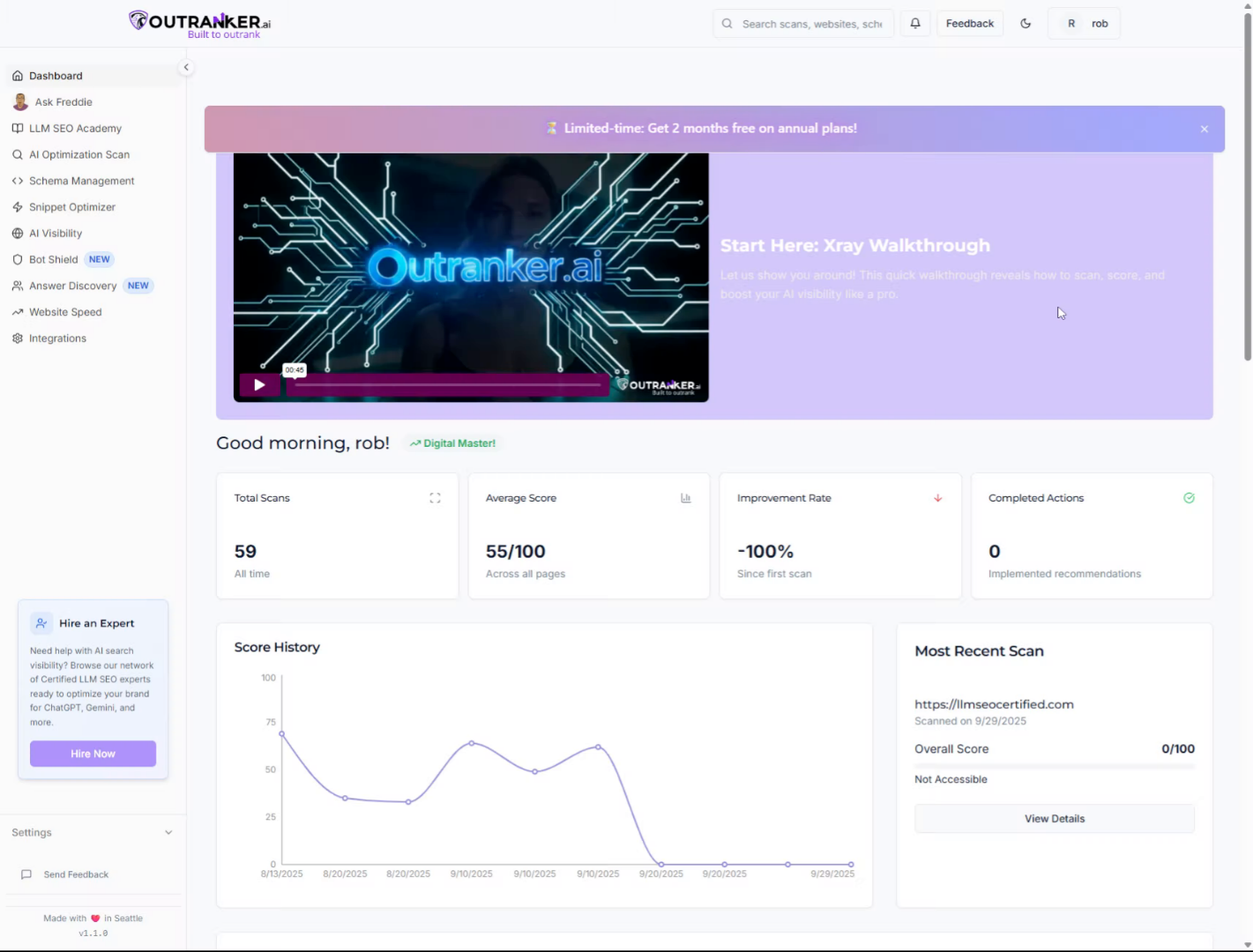
2. Click "Schema Management"
Access the Schema Management section in Outranker to begin managing your event schemas efficiently.
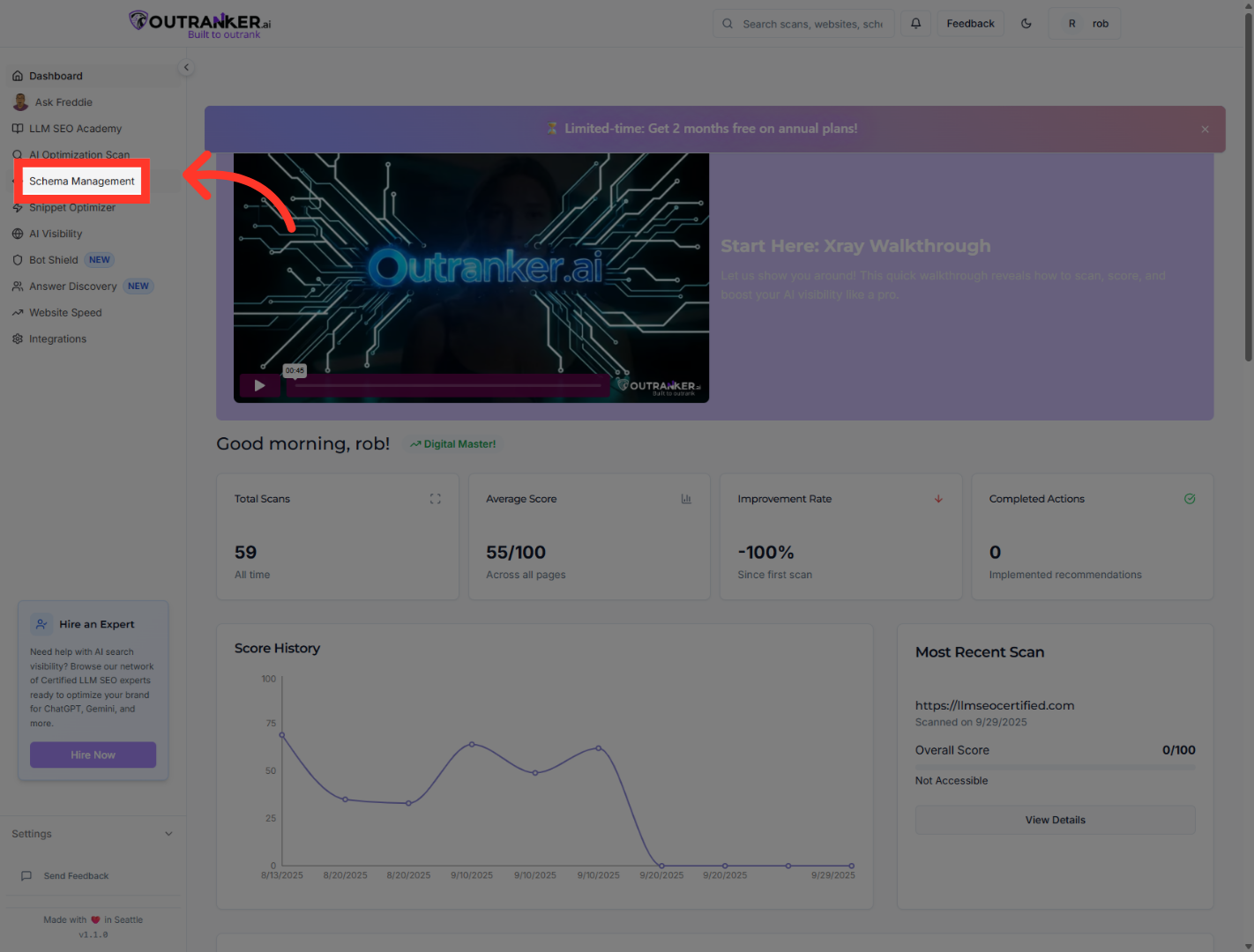
3. Click "Generator"
Navigate to the Generator tab to start creating a new event schema.
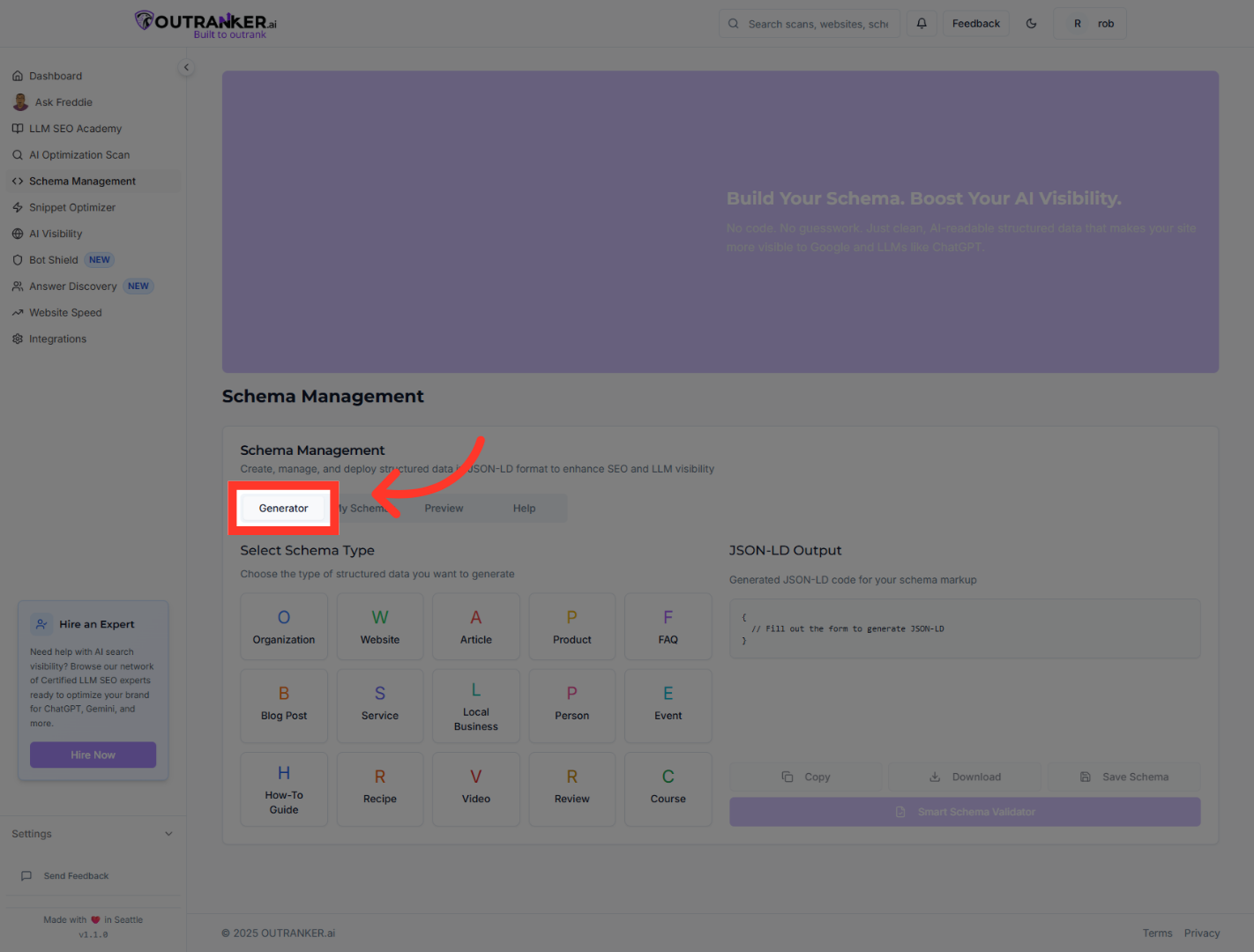
4. Click "Event"
Select the Event option to specify the type of schema you want to generate.
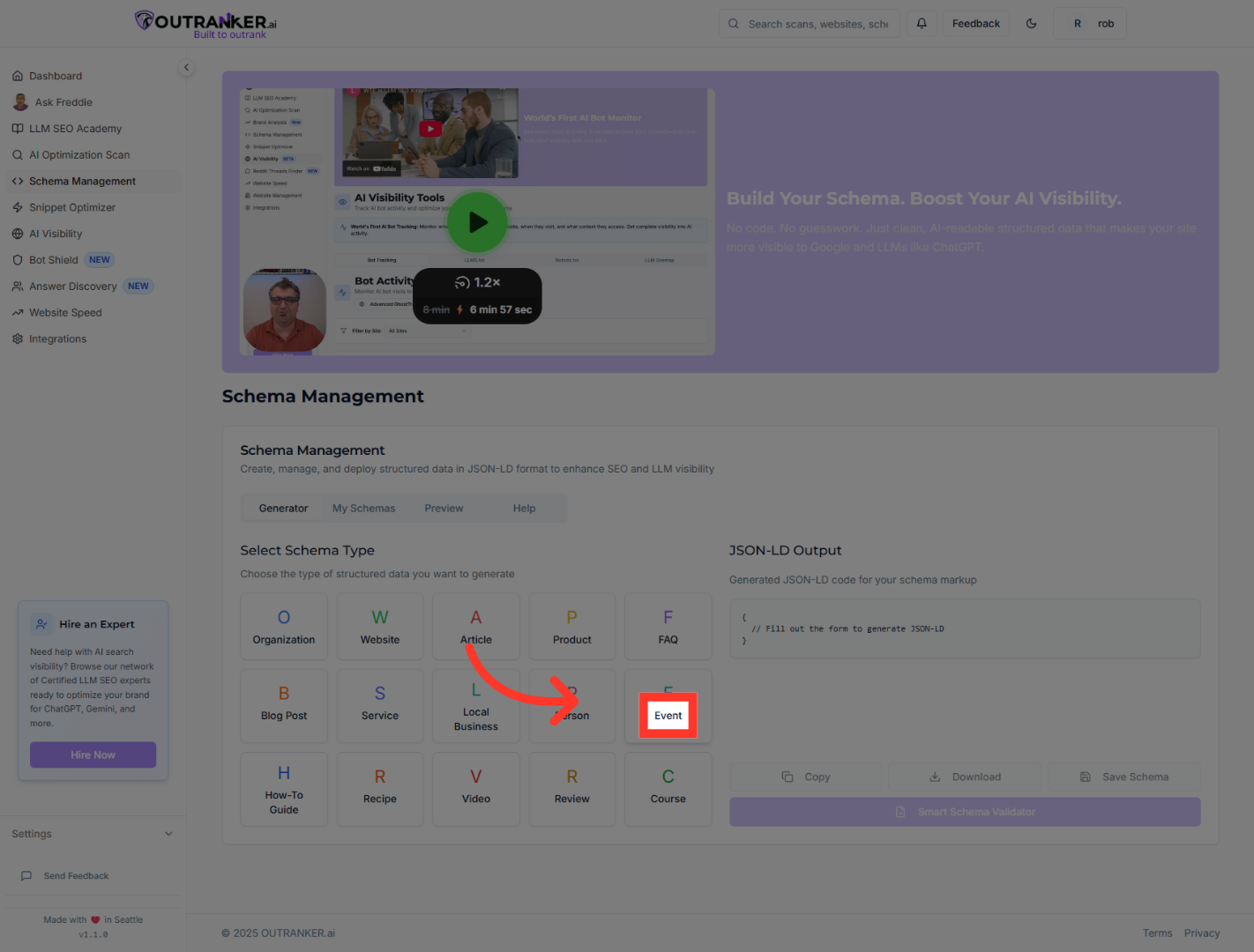
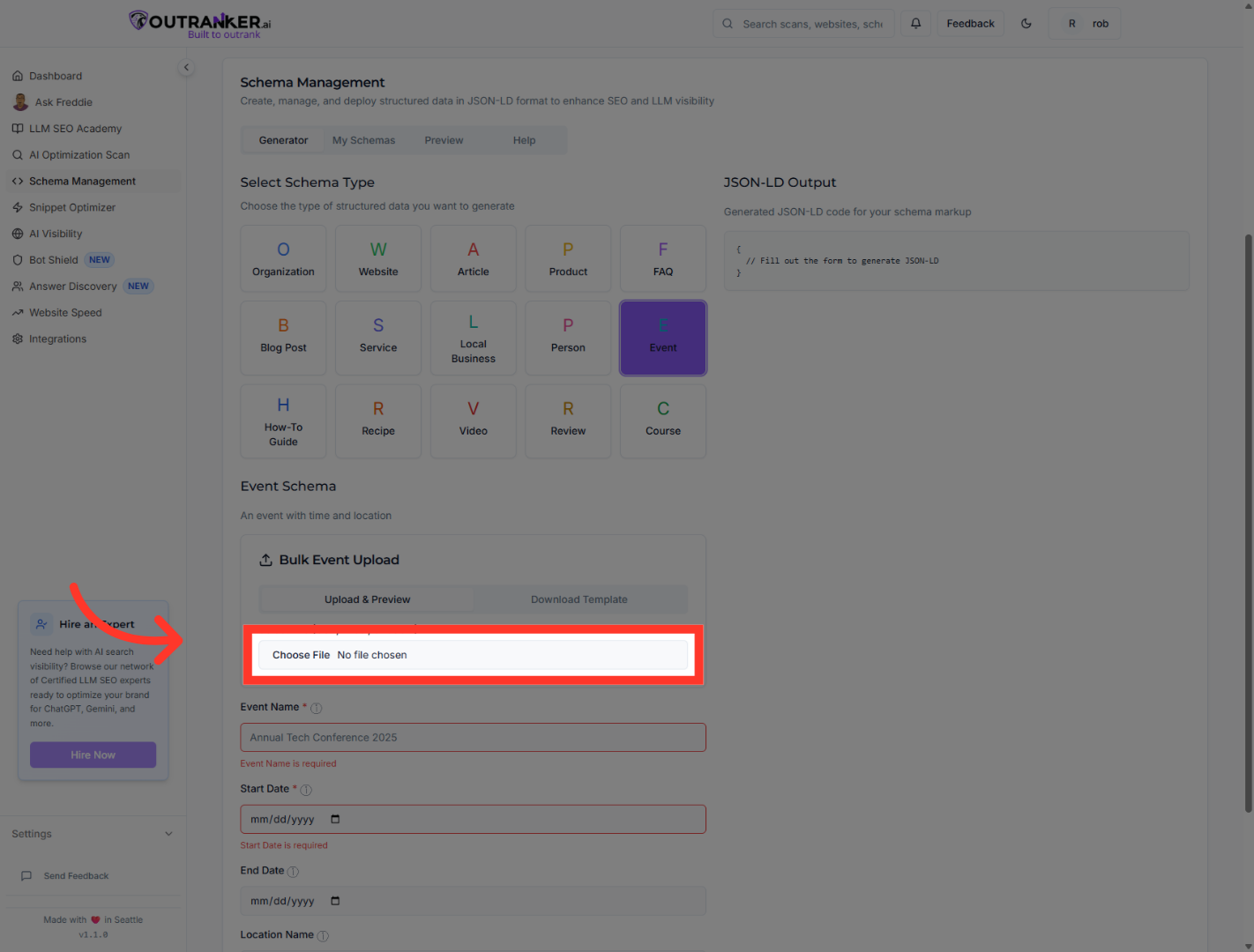
5. Click "Select File (CSV, Excel, or JSON)"
Open the file selection dialog to upload your event data in CSV, Excel, or JSON format.
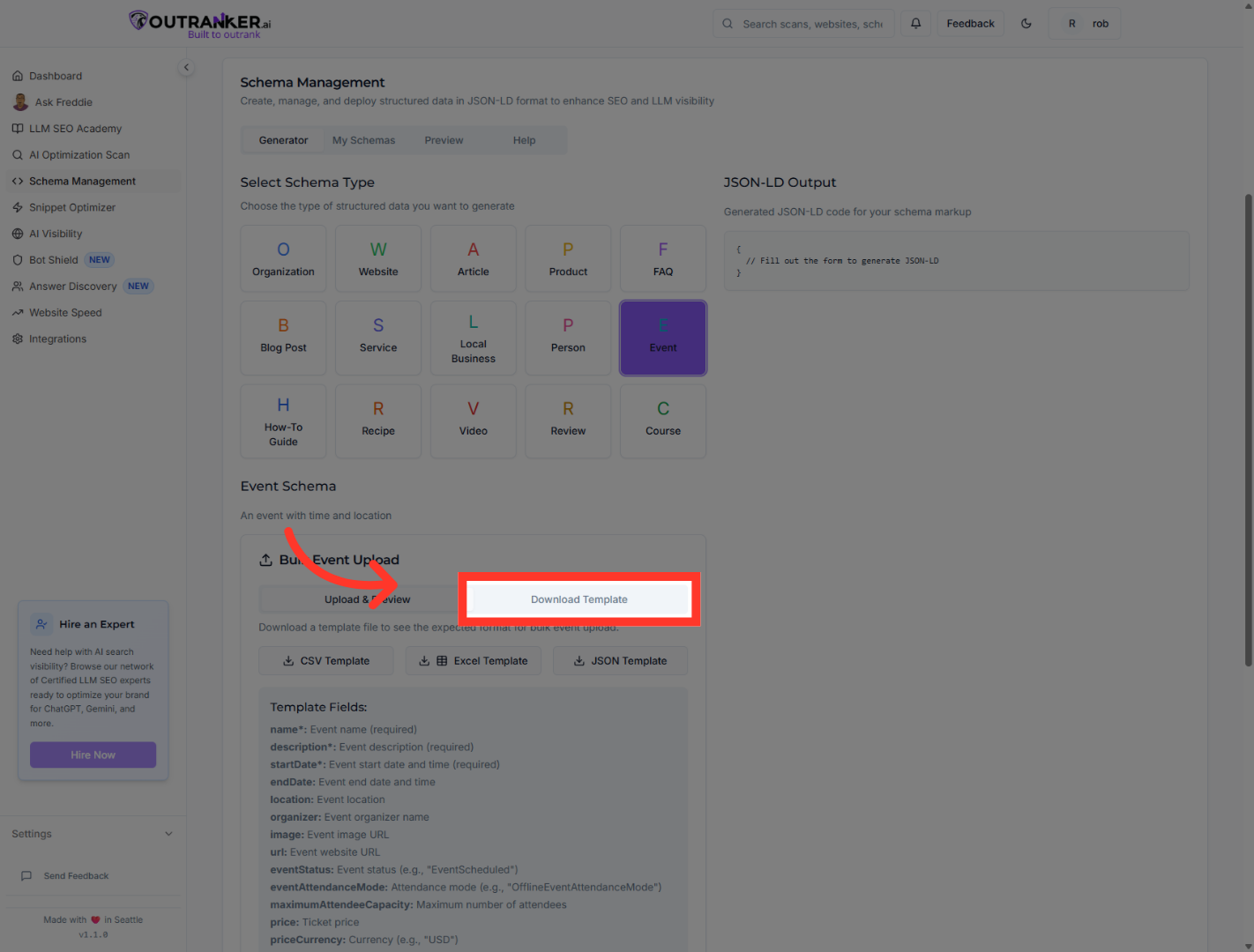
6. Click "Download Template"
Download a template file to ensure your data is formatted correctly for schema generation.
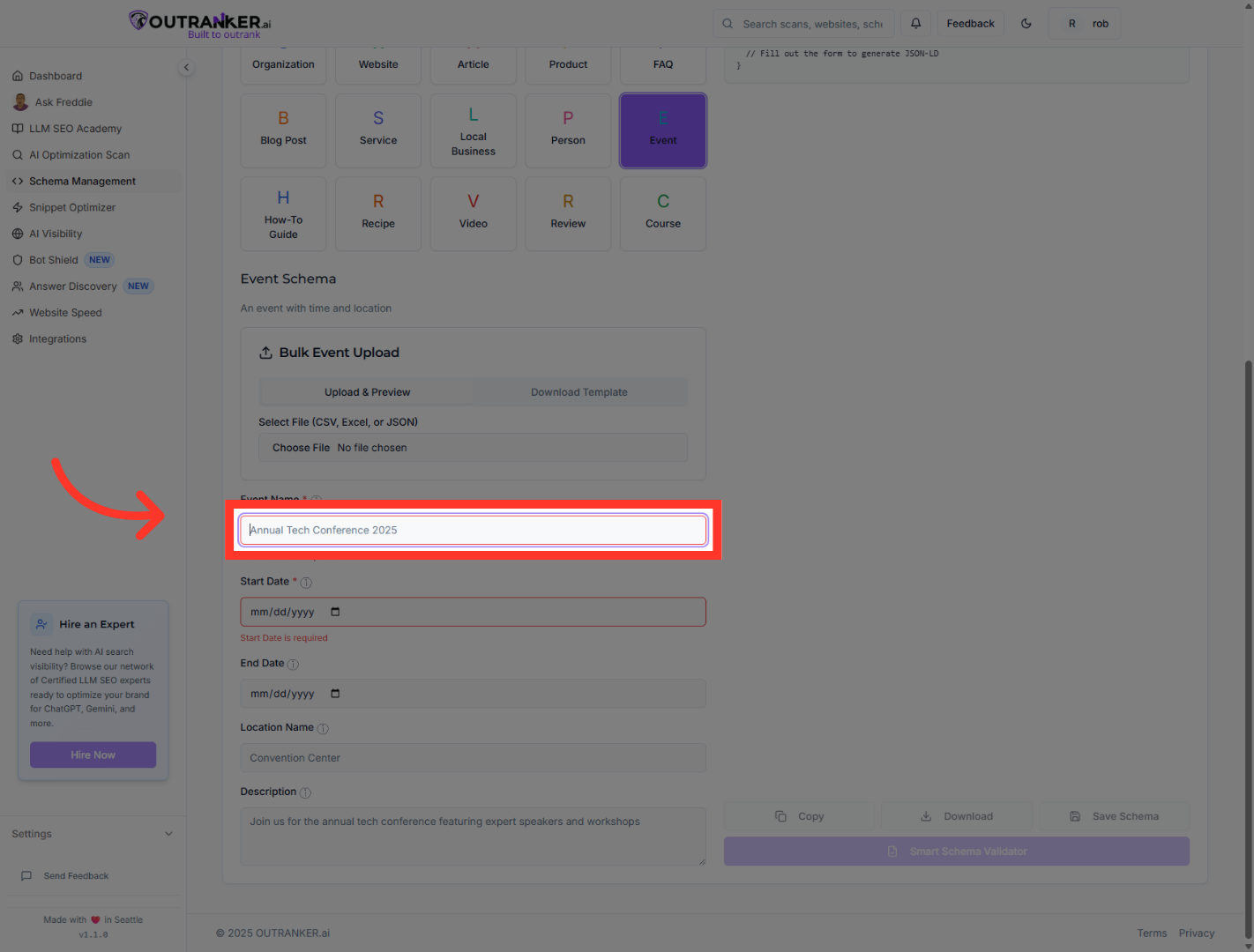
7. Click "Event Name*"
Click on the Event Name field to specify the name of your event.
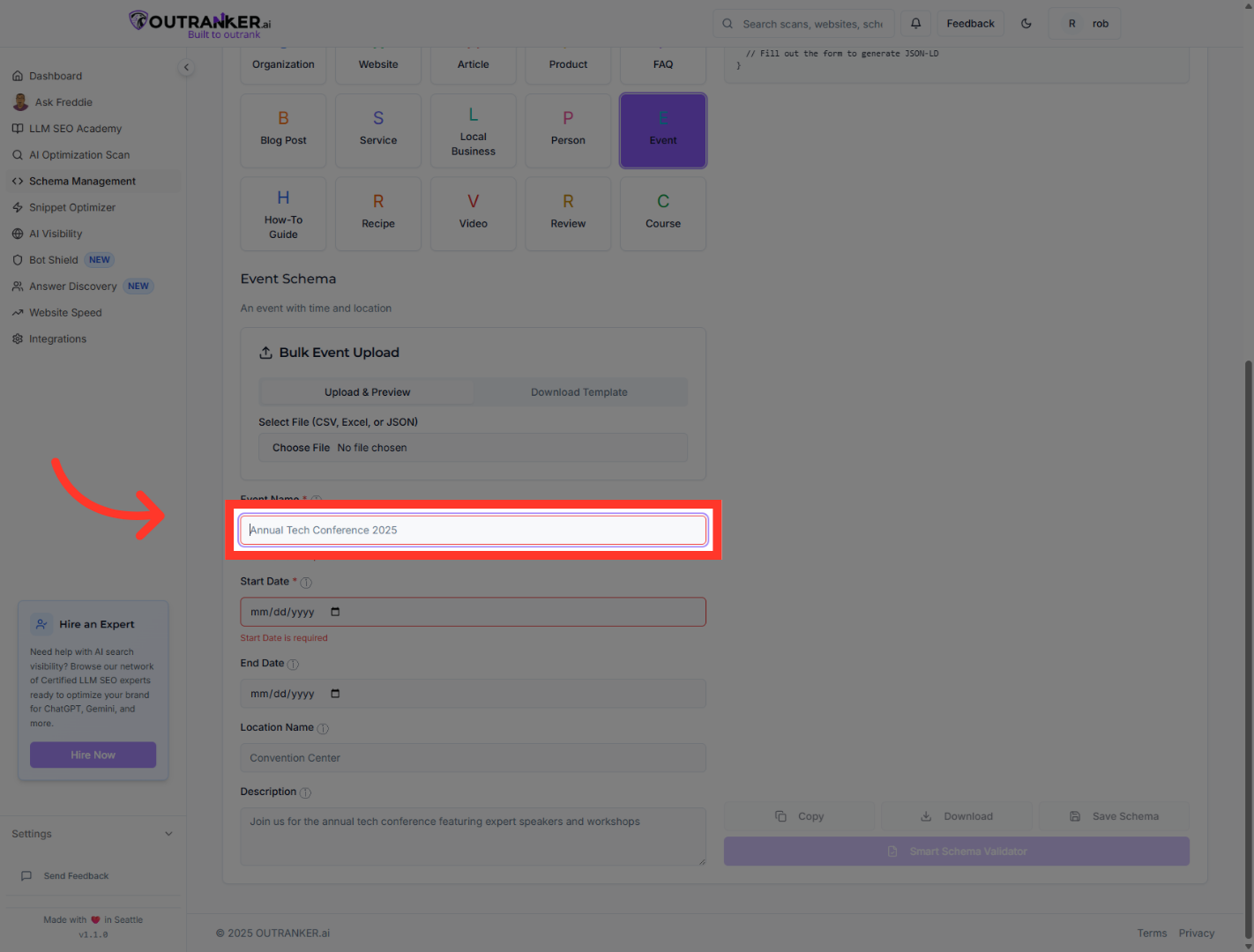
8. Click "Event Name*"
Click again on the Event Name field to enter or edit the event's title.
9. Click "Start Date*"
Select the Start Date field to define when your event begins.
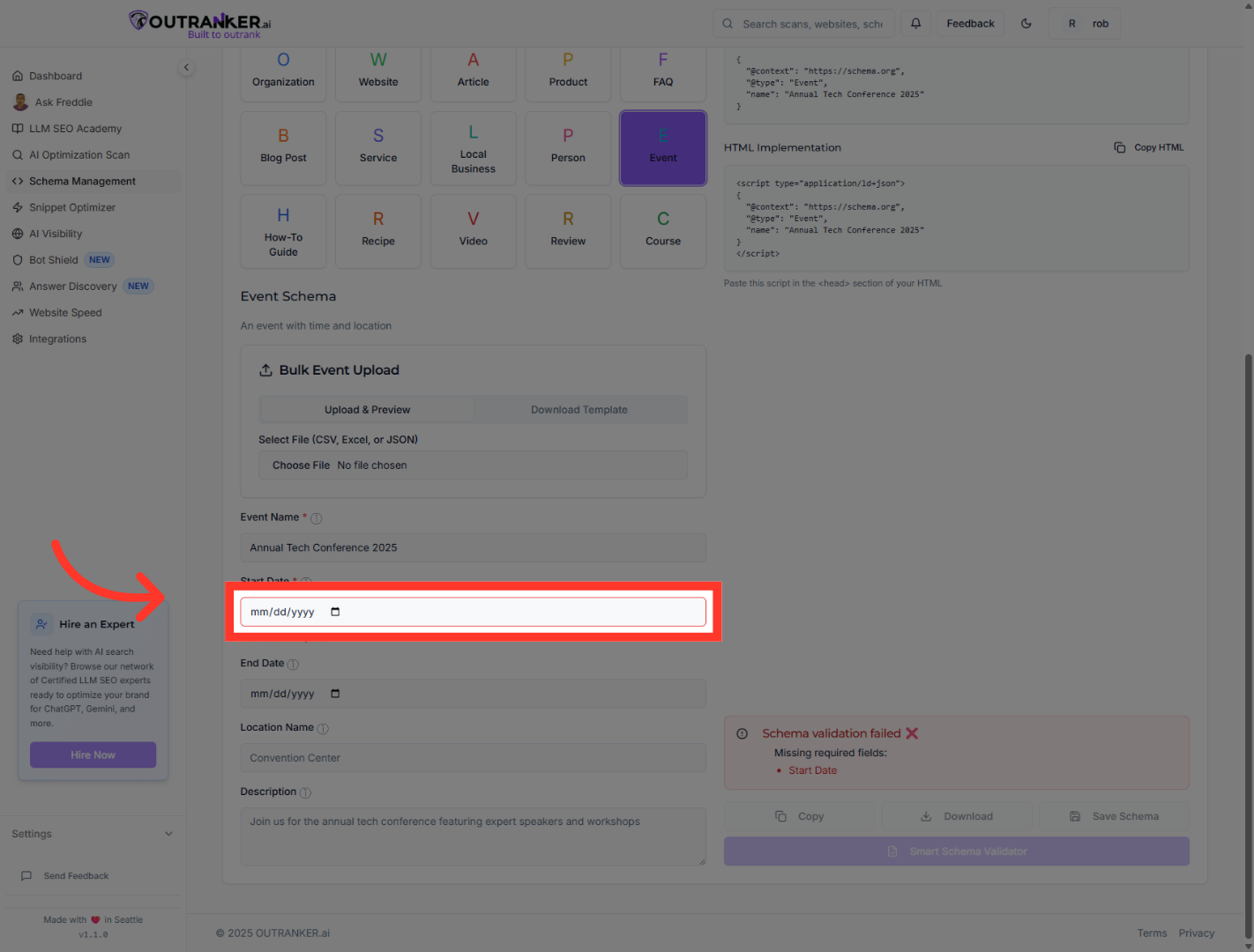
10. Click "End Date"
Click on the End Date field to specify when your event will conclude.
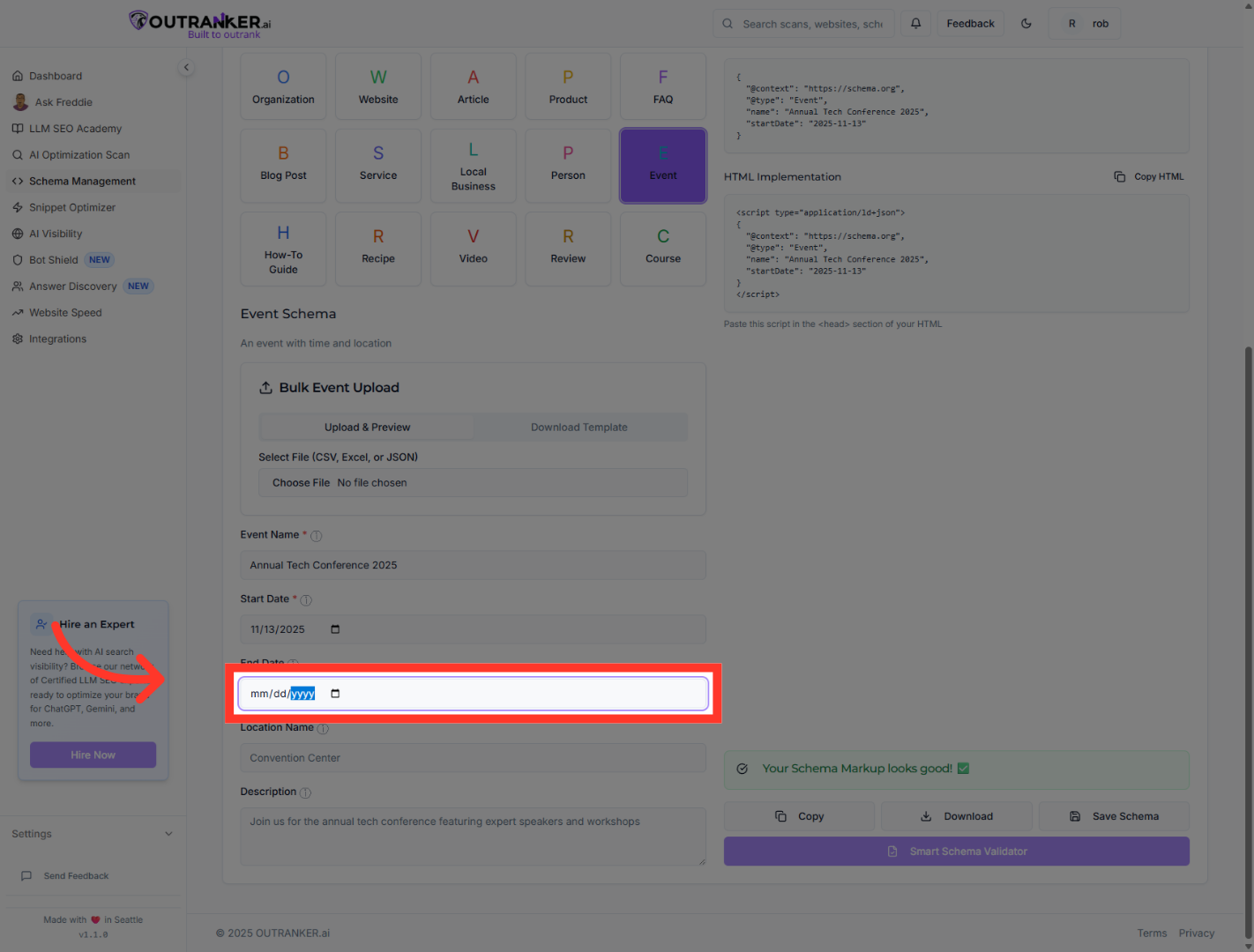
11. Click "Location Name"
Click the Location Name field to indicate where the event will take place.
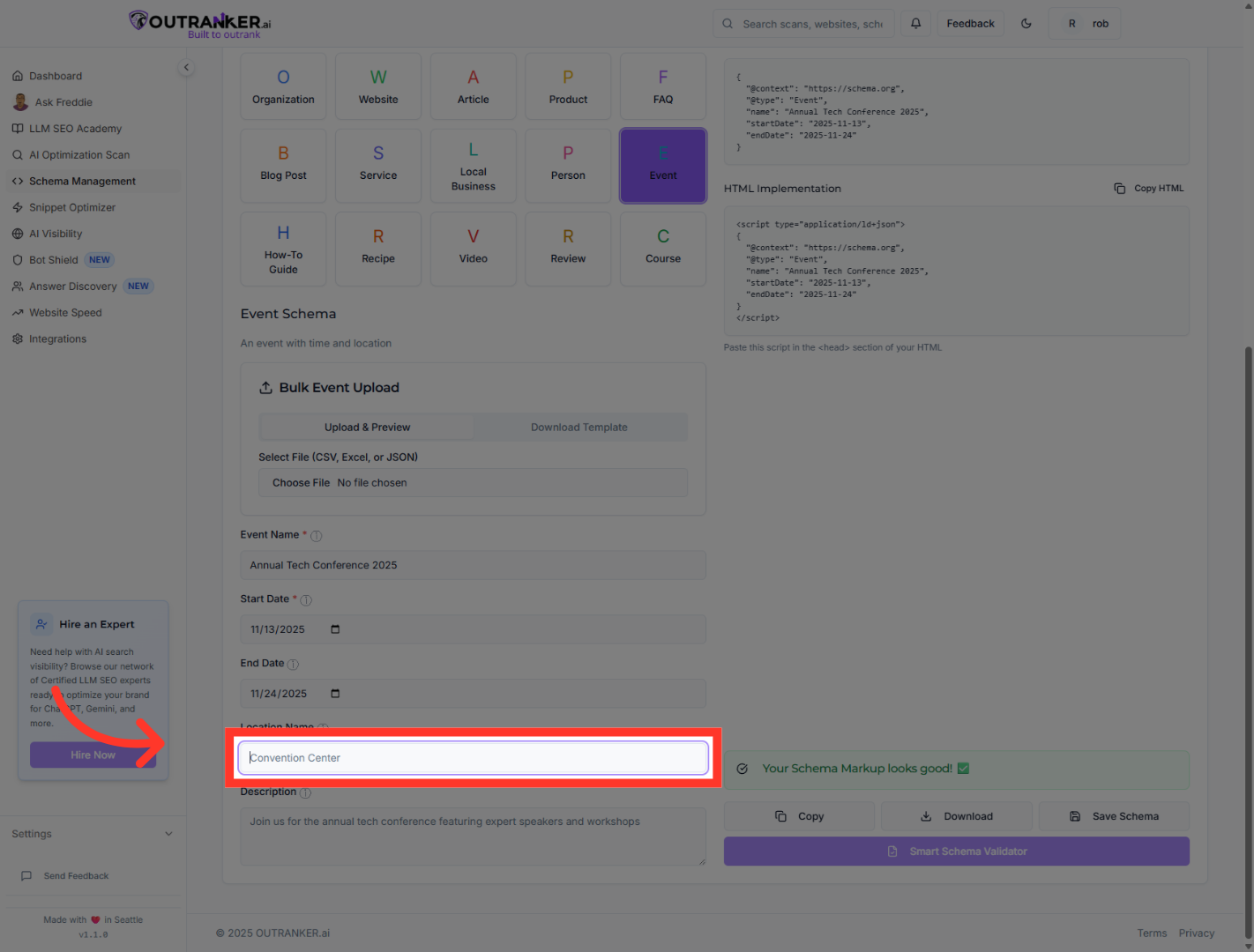
12. Click "Description"
Click the Description field to add details about your event.
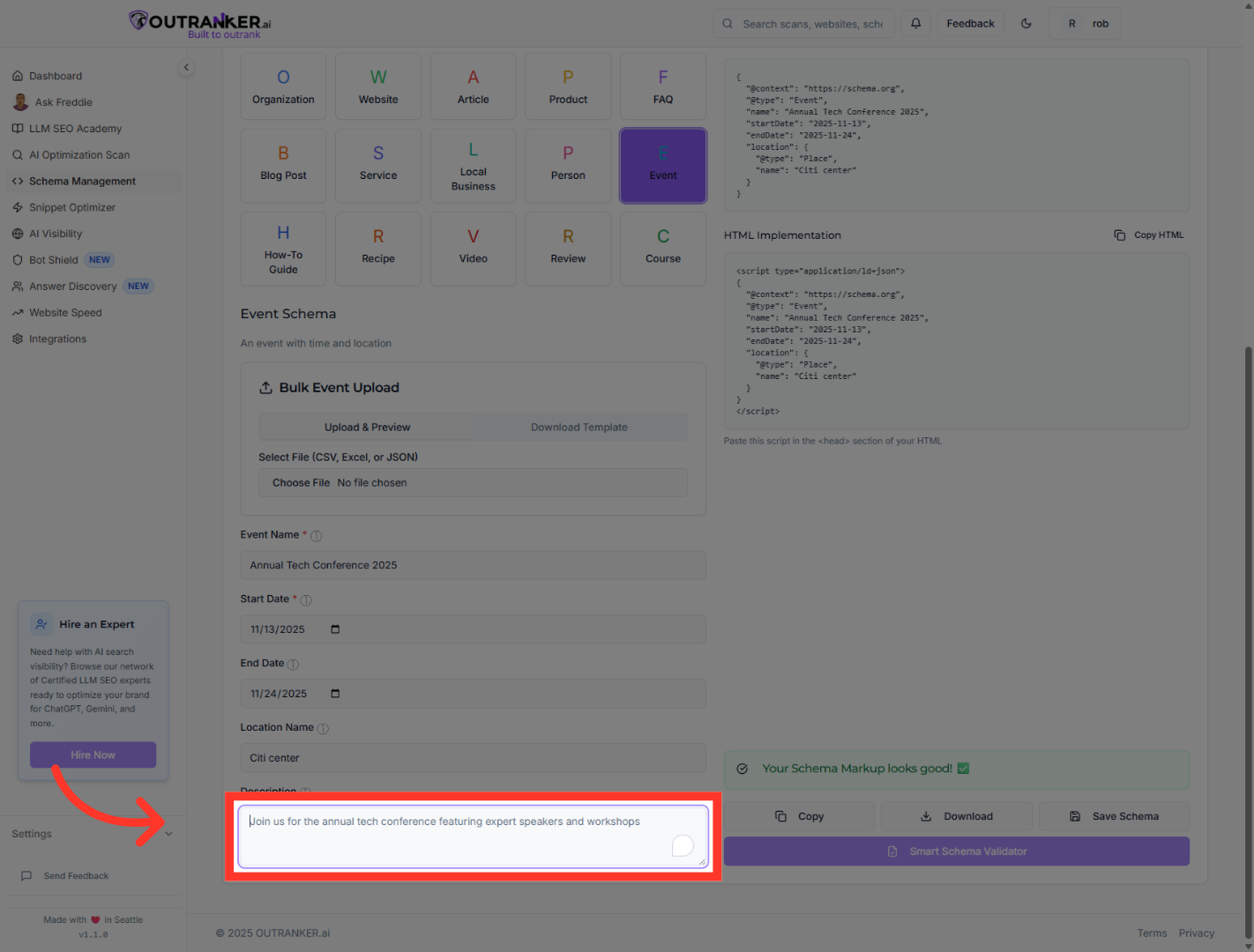
13. Click "Generated JSON-LD code for your schema markup"
Select the generated JSON-LD code display to examine the schema markup details.
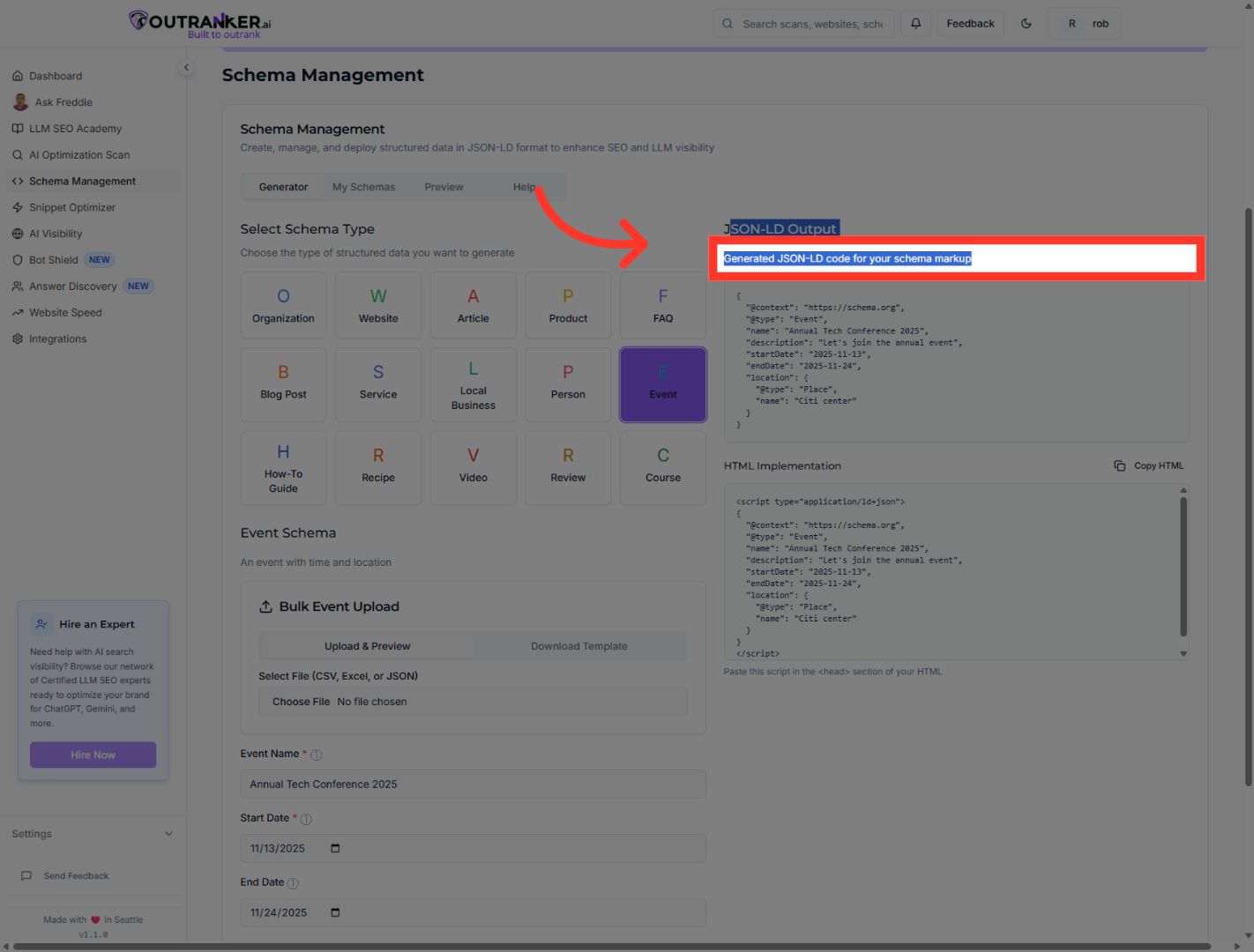
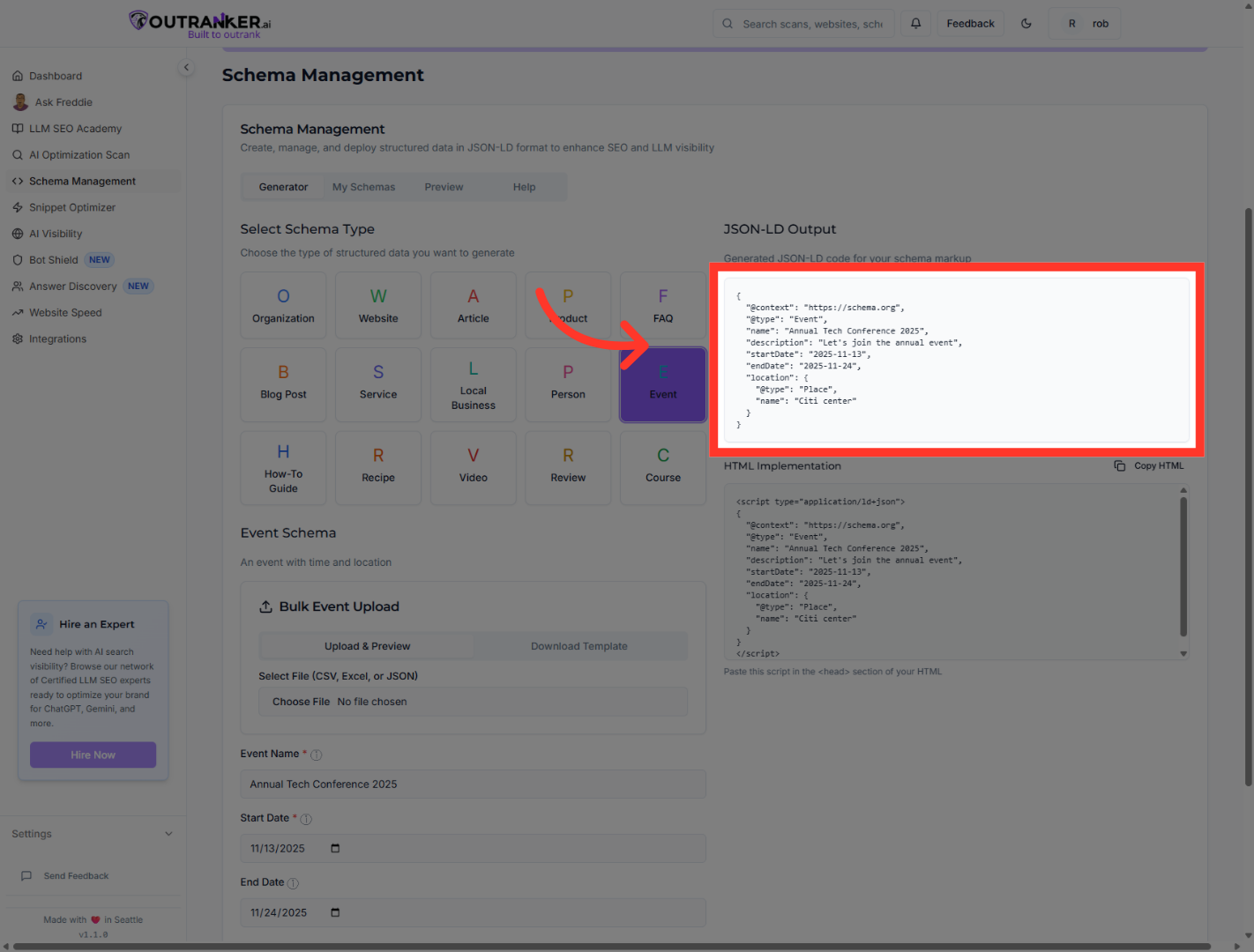
14. Click "JSON-LD Output"
Review the JSON-LD code snippet that includes context, type, name, description, startDate, and endDate.
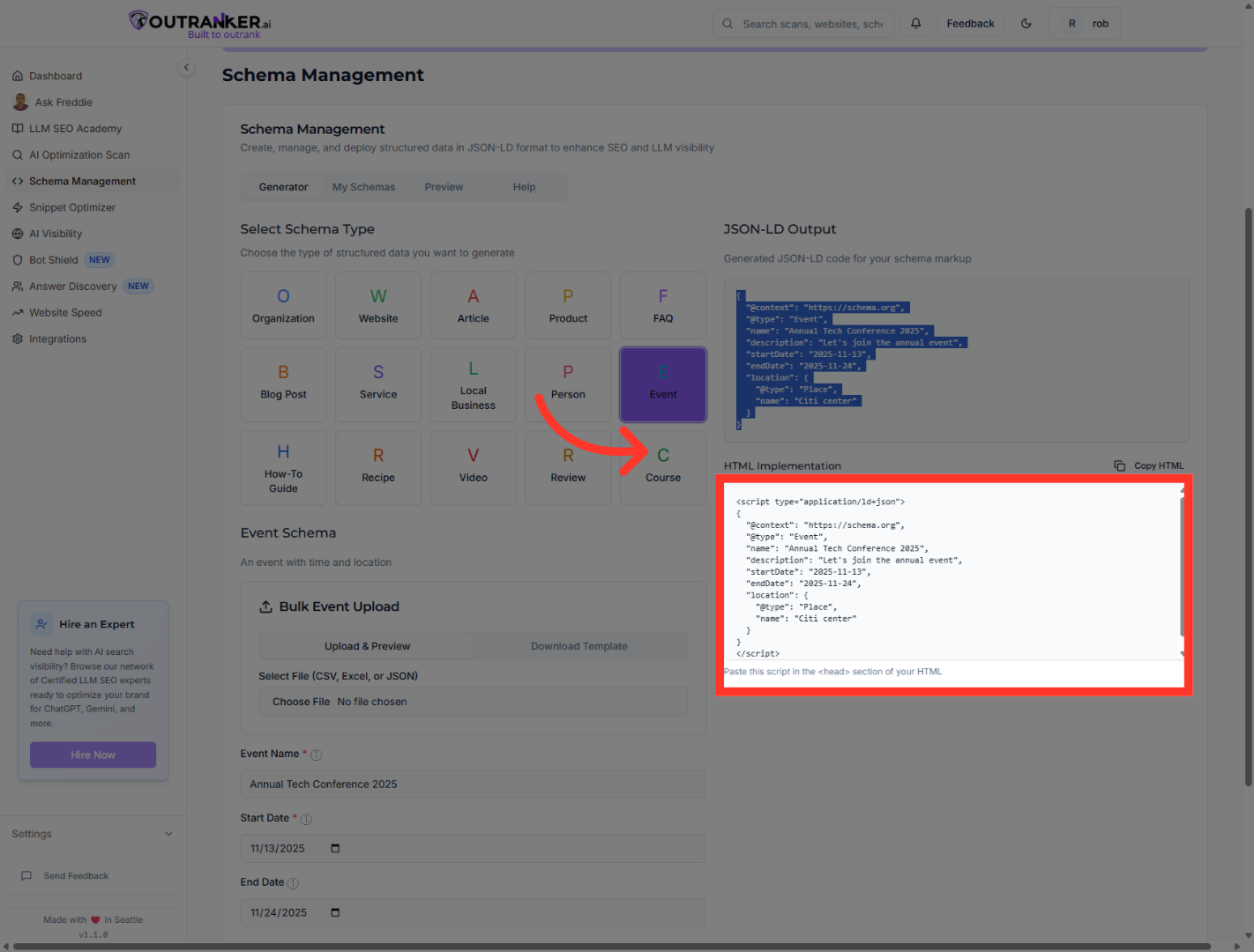
15. Click "HTML Implementation"
Open the HTML Implementation tab to see how to embed the schema markup into your website.
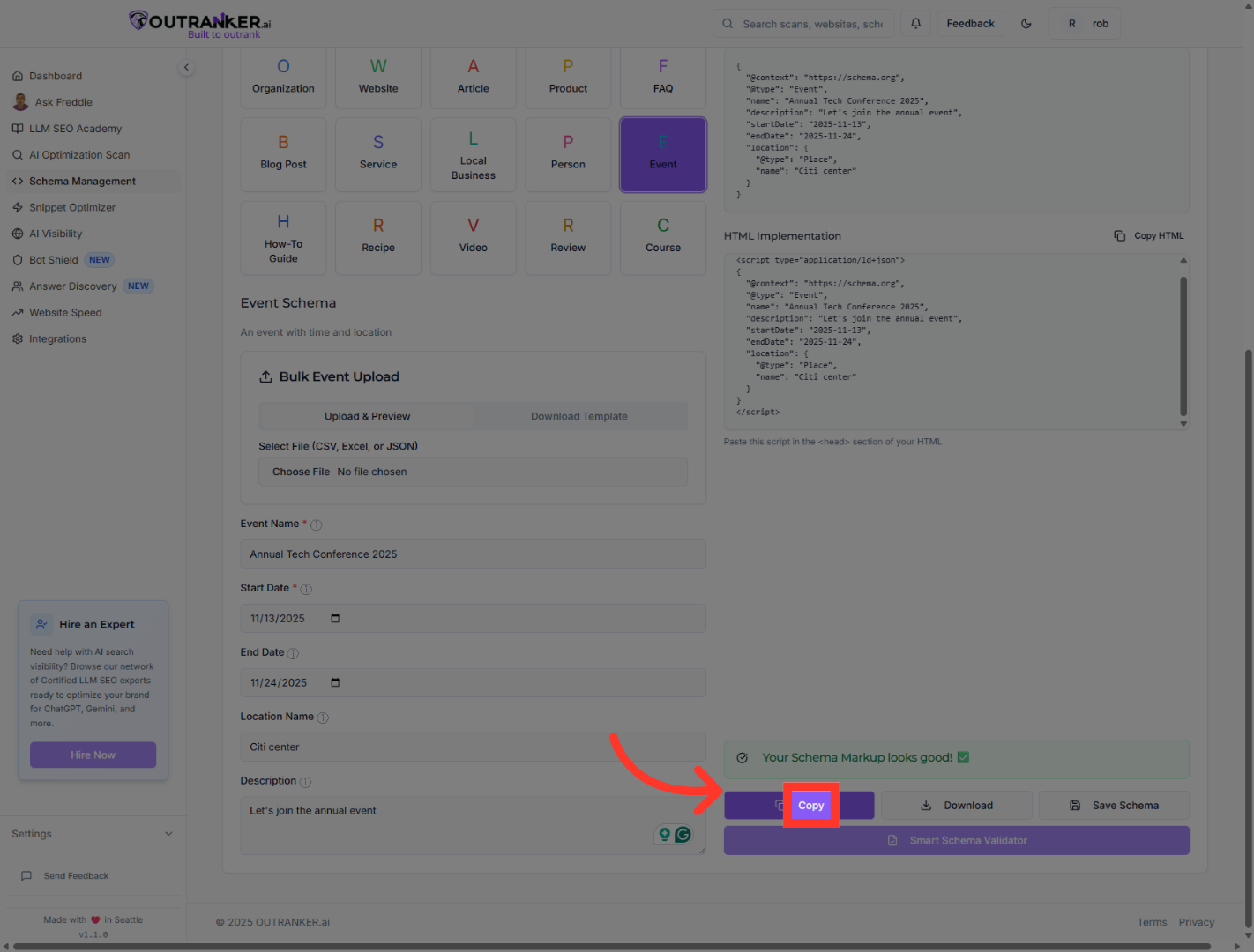
16. Click "Copy"
Use the Copy button to copy the JSON-LD schema markup to your clipboard for use.
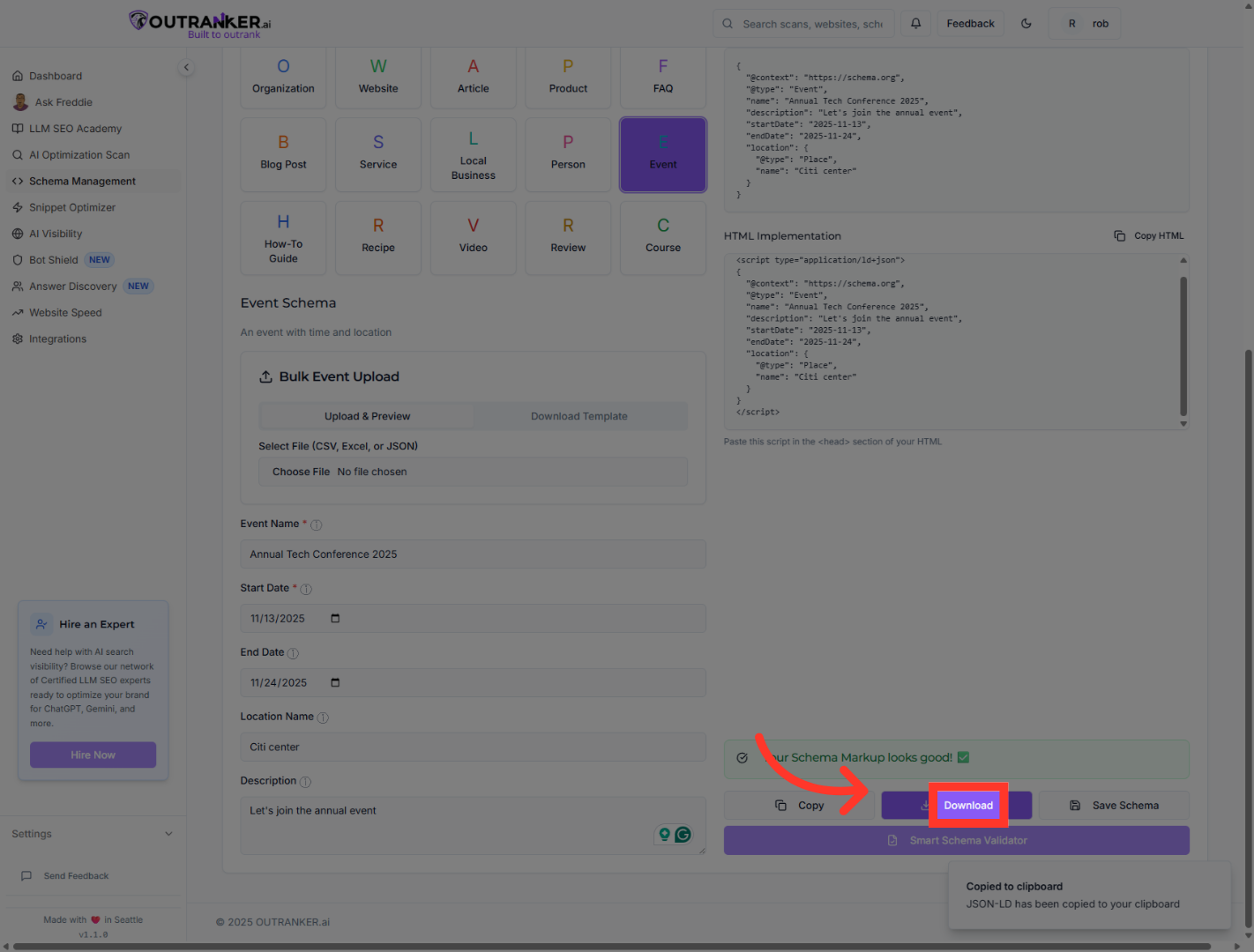
17. Click "Download"
Click the Download button to save the schema markup file locally for backup or sharing.
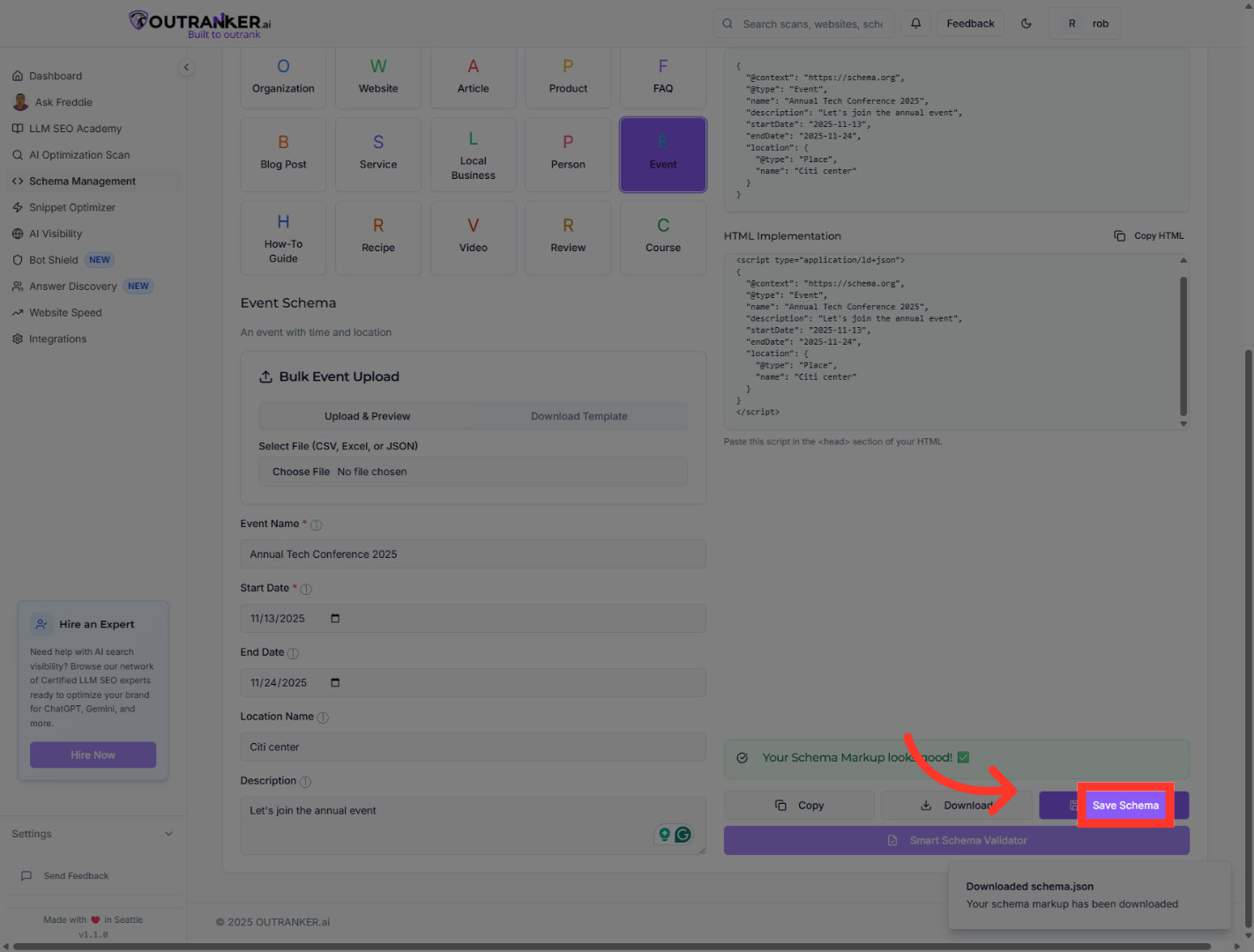
18. Click "Save Schema"
Click the Save Schema button to store your event schema within Outranker for future use.
You have successfully generated and saved an event schema using Outranker's Schema Management. The JSON-LD code is ready for implementation on your website to enhance search engine understanding of your event. For further customization, explore additional schema types or consult Outranker's documentation.
