
This tutorial guides you through generating a How-To Guide schema using Outranker's Schema Management feature
Go to www.outranker.ai
1. Introduction
By following these steps, you'll create structured data that improves your content's visibility and S E O performance. Before starting, ensure you have access to Outranker and relevant content details for your how-to guide.
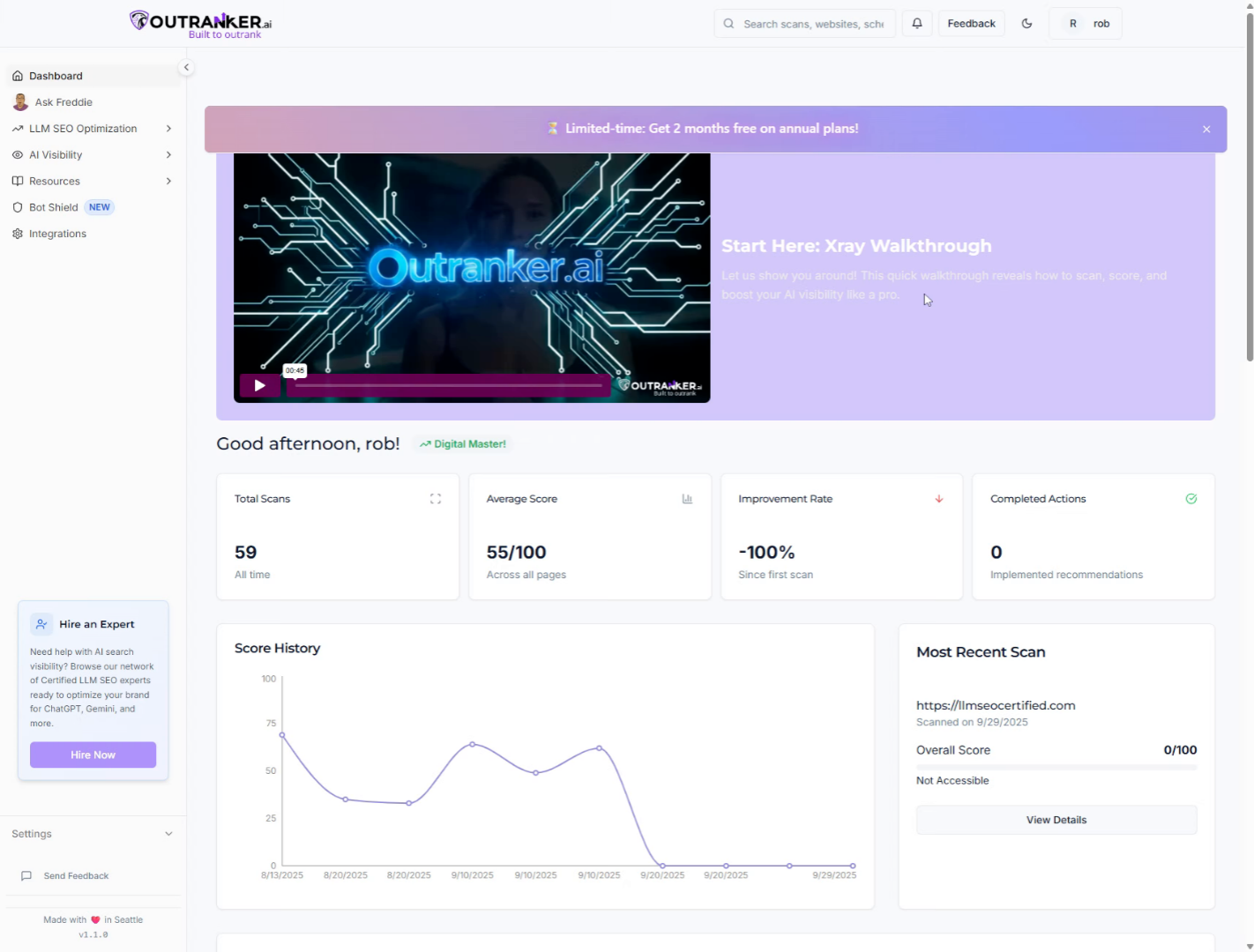
2. Click "LLM SEO Optimization"
Access the LLM S E O Optimization section within Outranker to begin configuring your schema management.
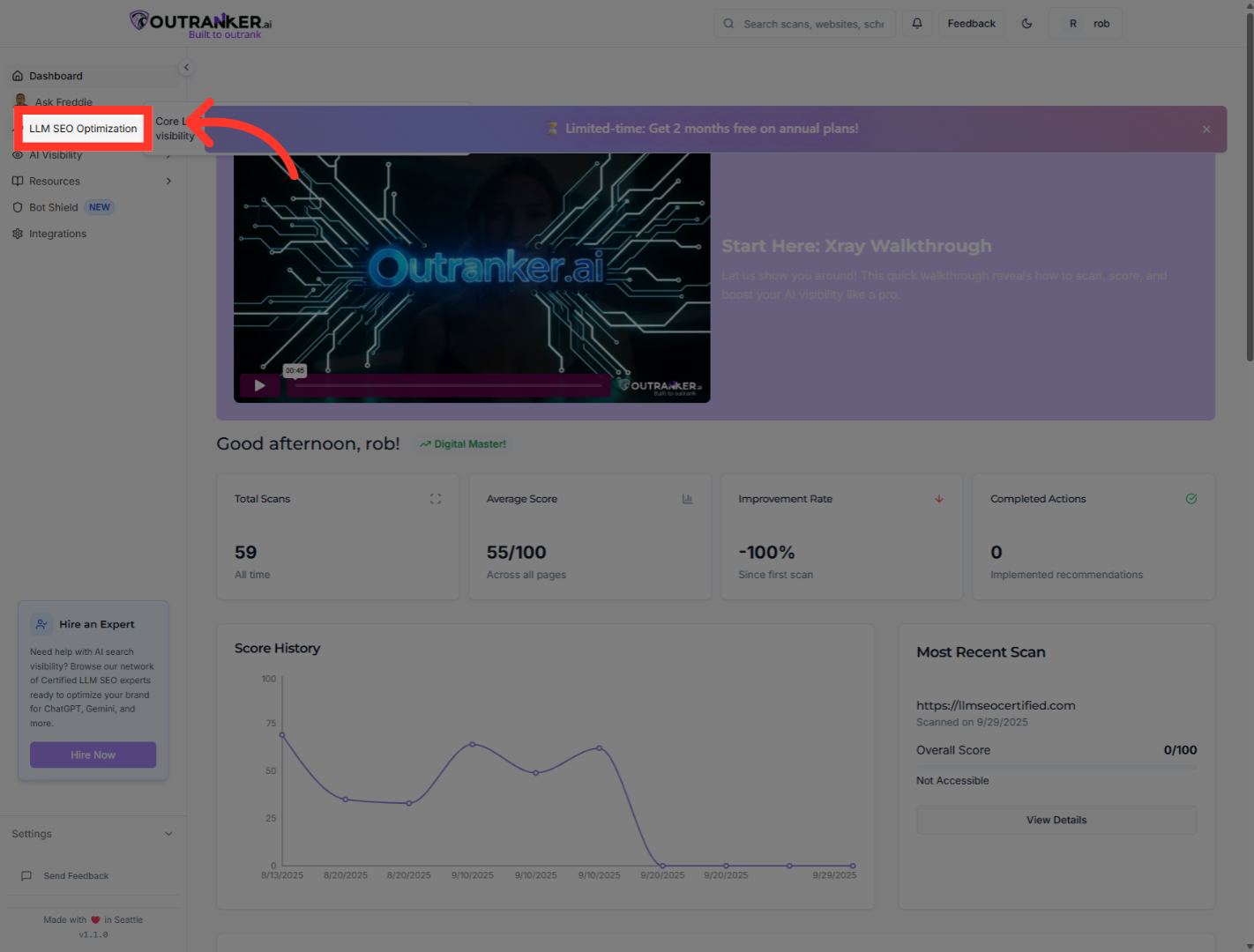
3. Click "Schema Management"
Navigate to the Schema Management area to manage your structured data settings.
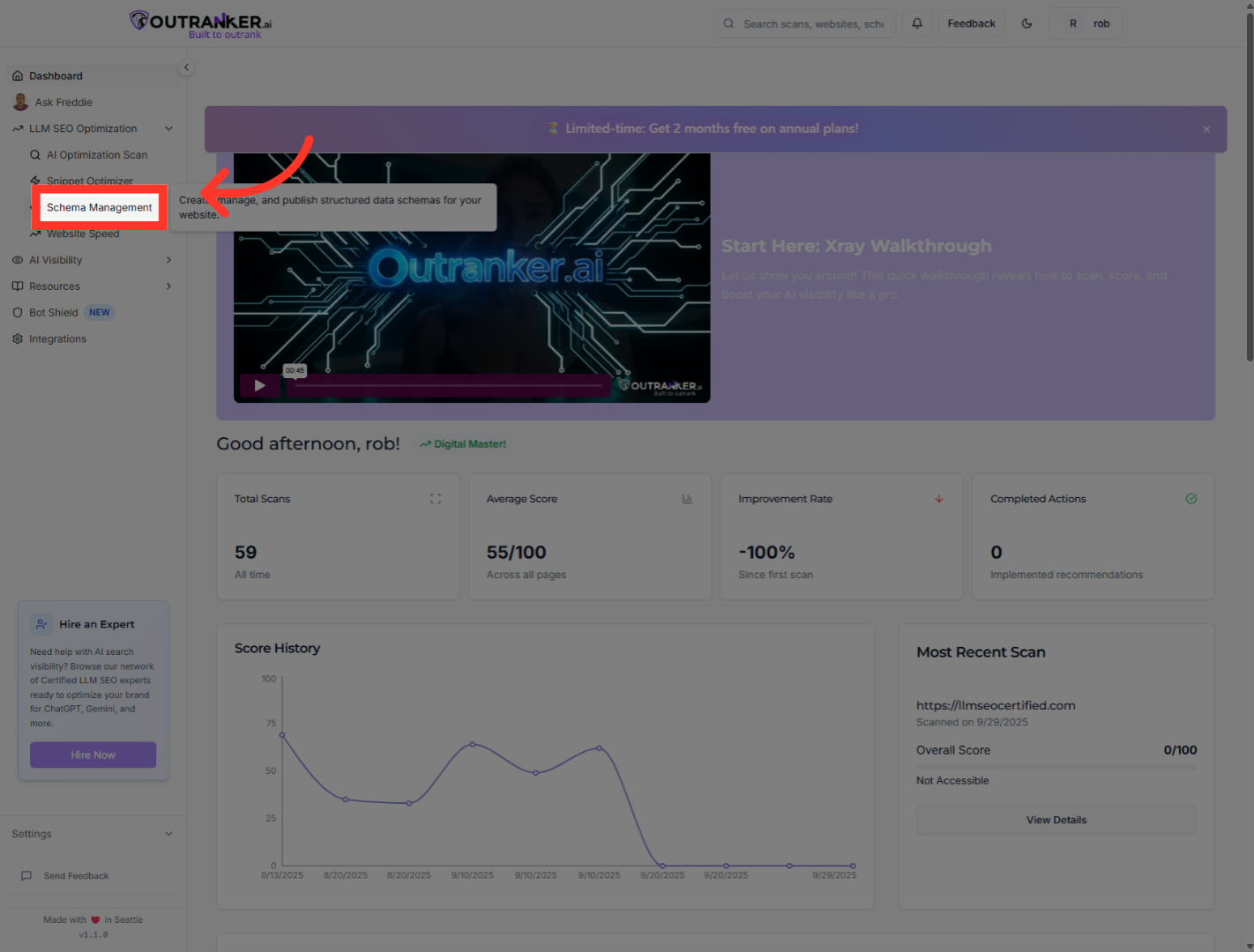
4. Click "Generator"
Open the Generator tool to start creating your schema markup.
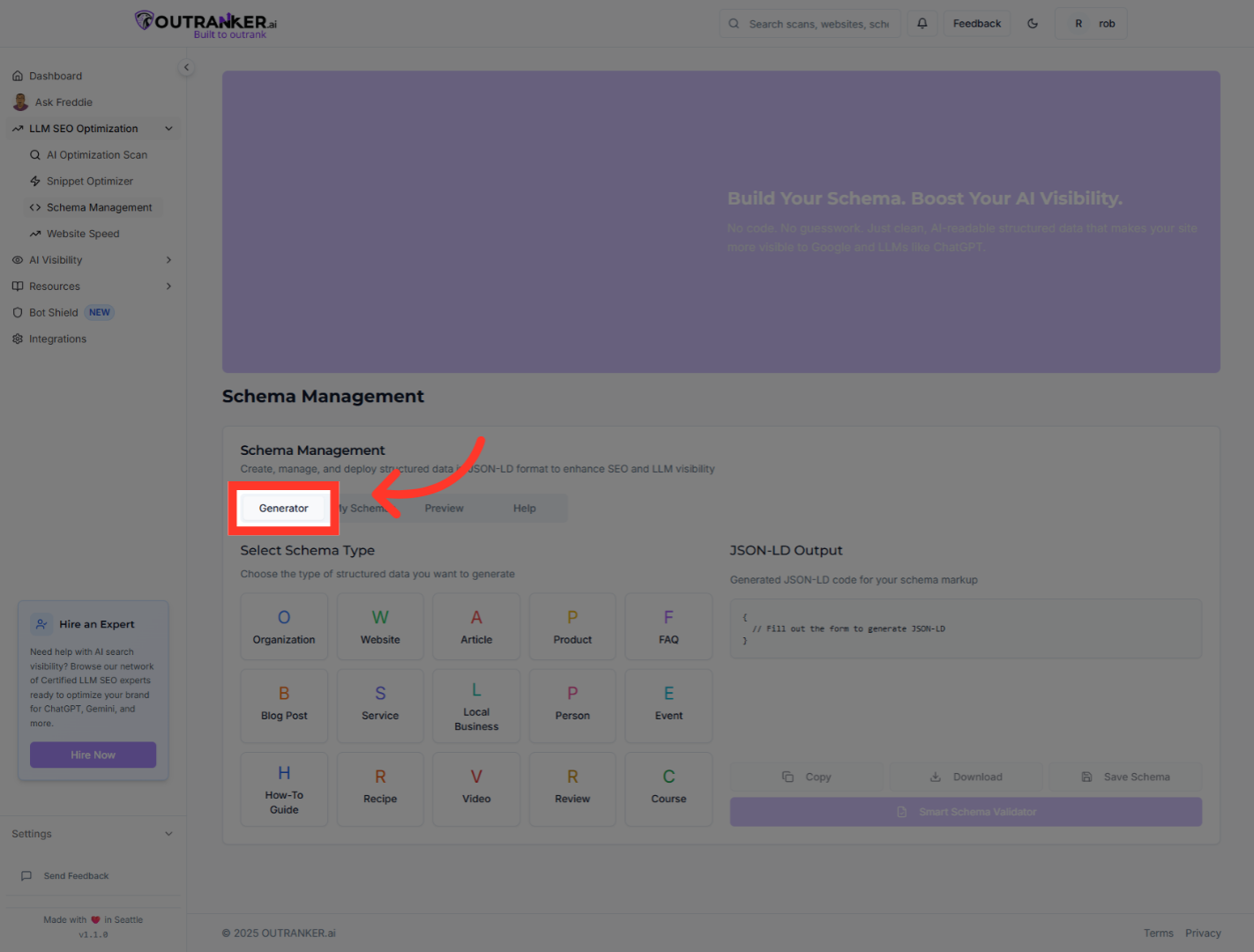
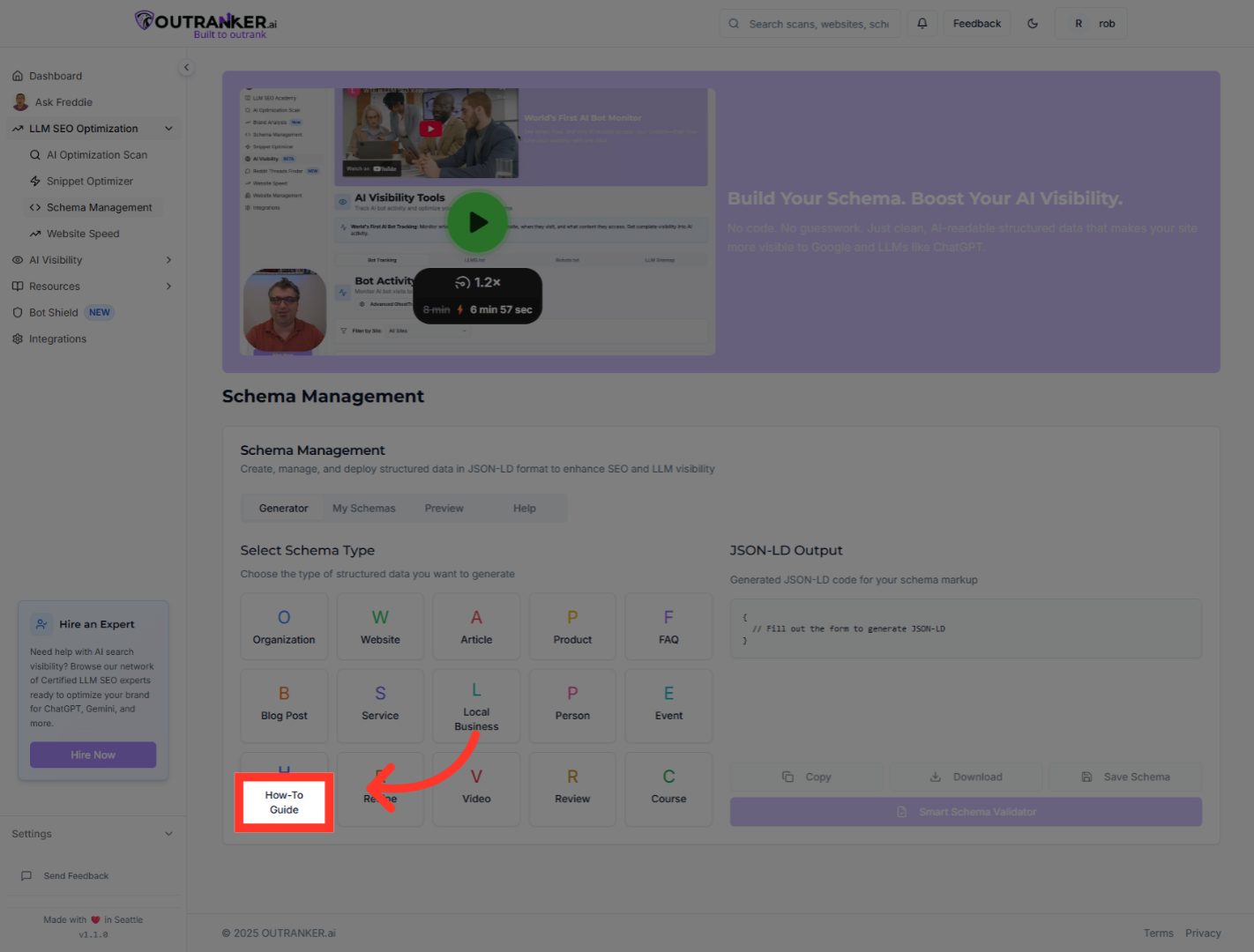
5. Click "How-To Guide"
Select the How-To Guide option to focus on generating how-to schema.
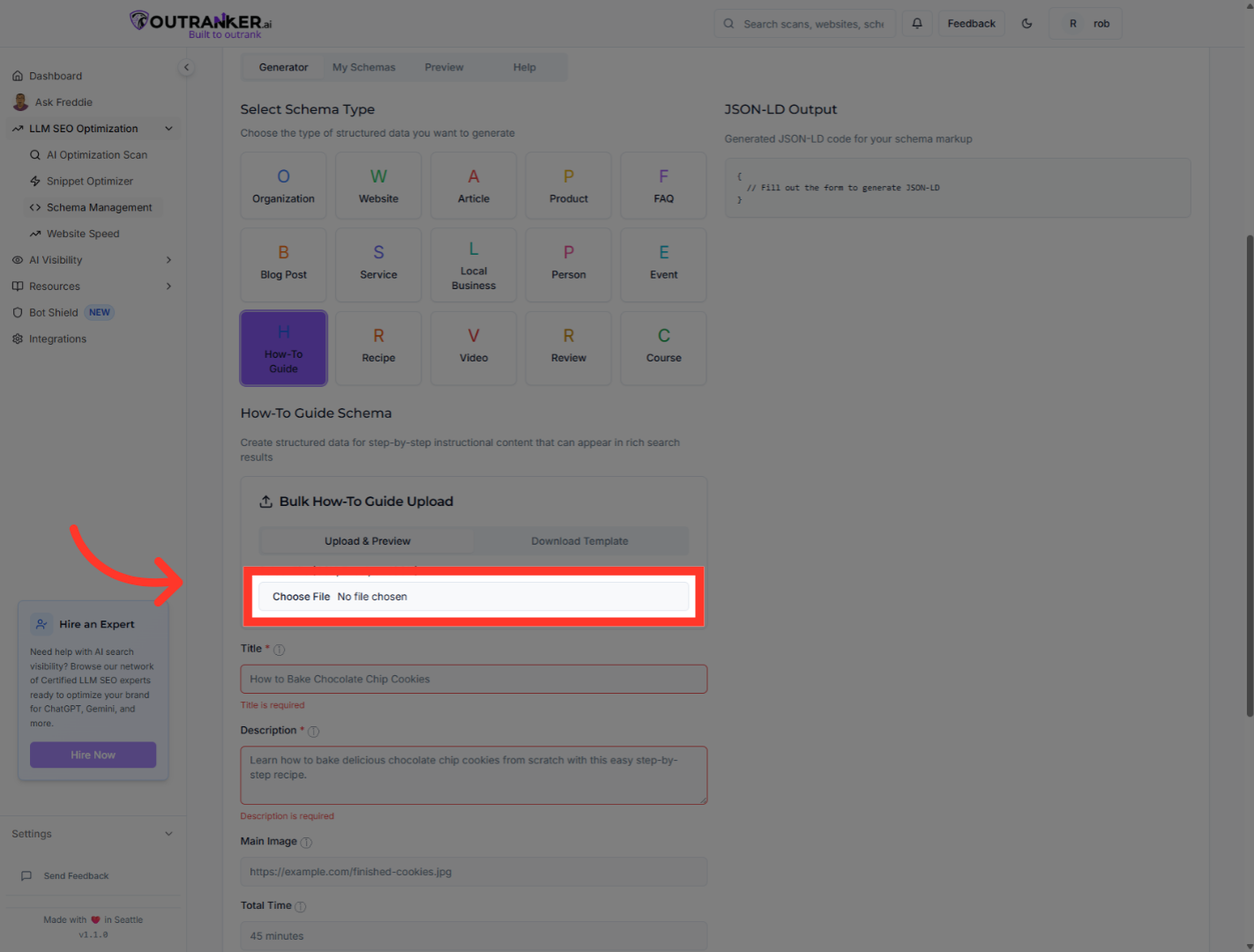
6. Click "Select File (CSV, Excel, or JSON)"
Choose the file type option to upload your data in CSV, Excel, or JSON format for bulk upload.
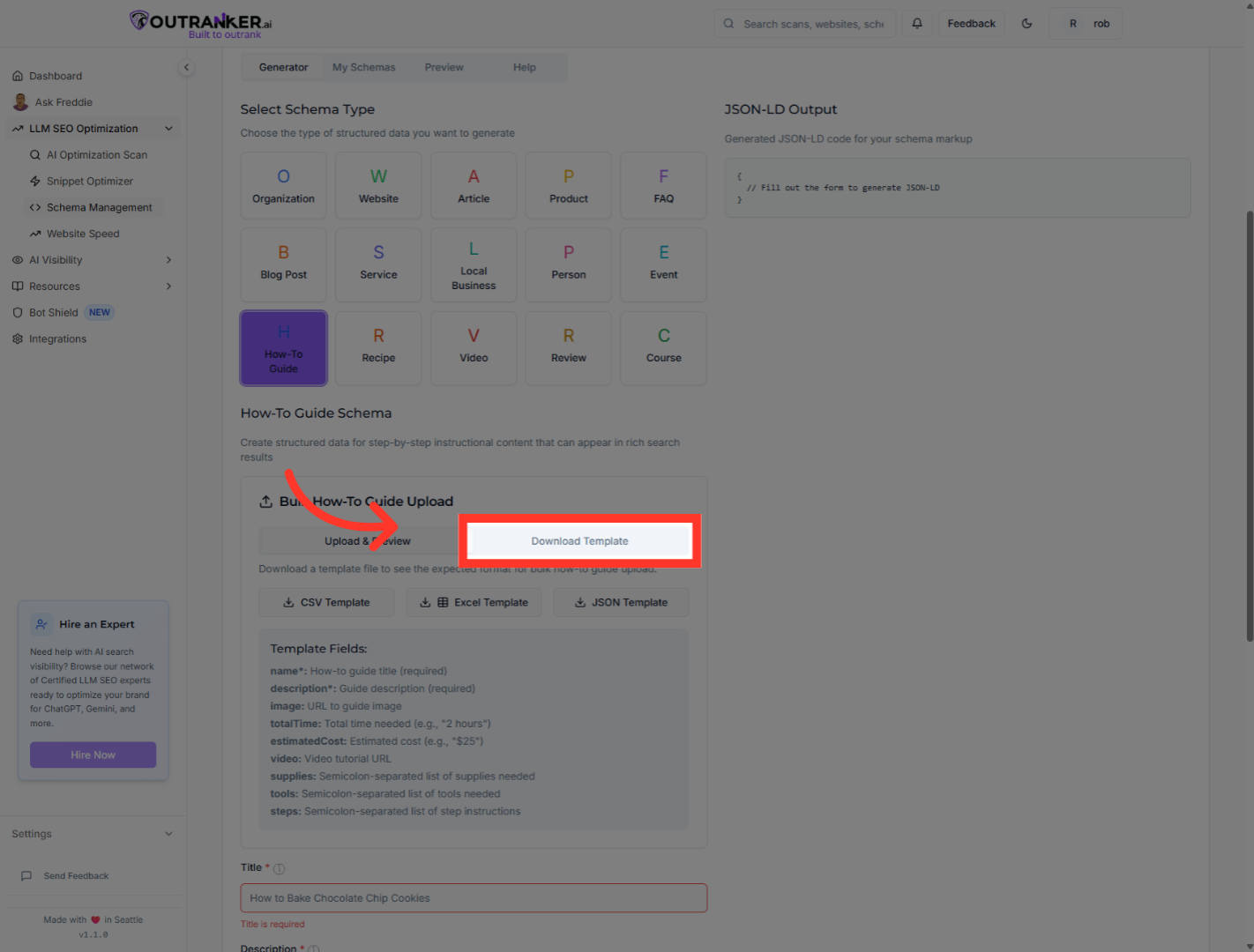
7. Click "Download Template"
Download the template file to ensure your data is formatted correctly for upload.
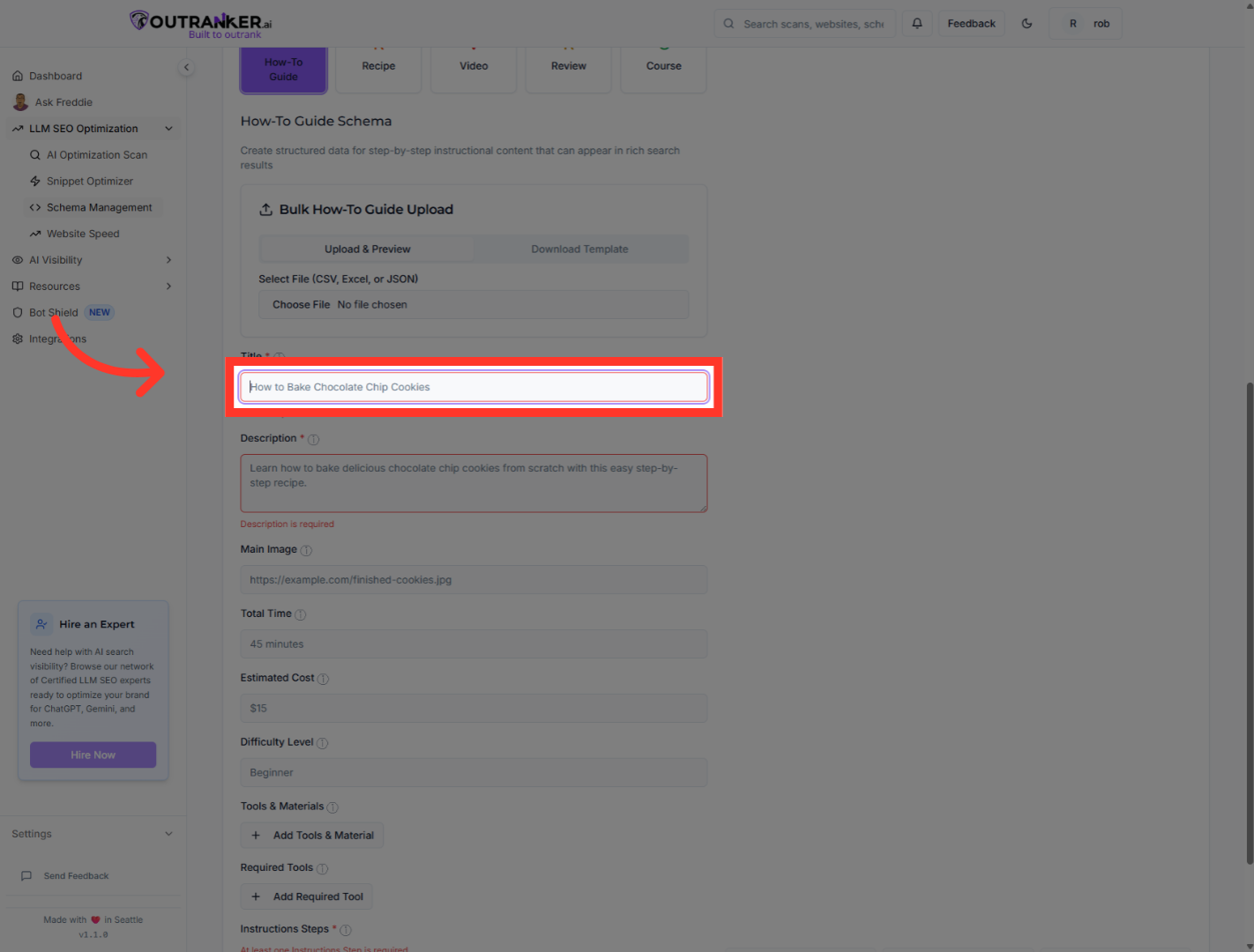
8. Click "Title*"
Click the Title* field to enter the main title for your how-to guide schema.
9. Click "Description*"
Click the Description* field to add a summary description for your how-to guide.
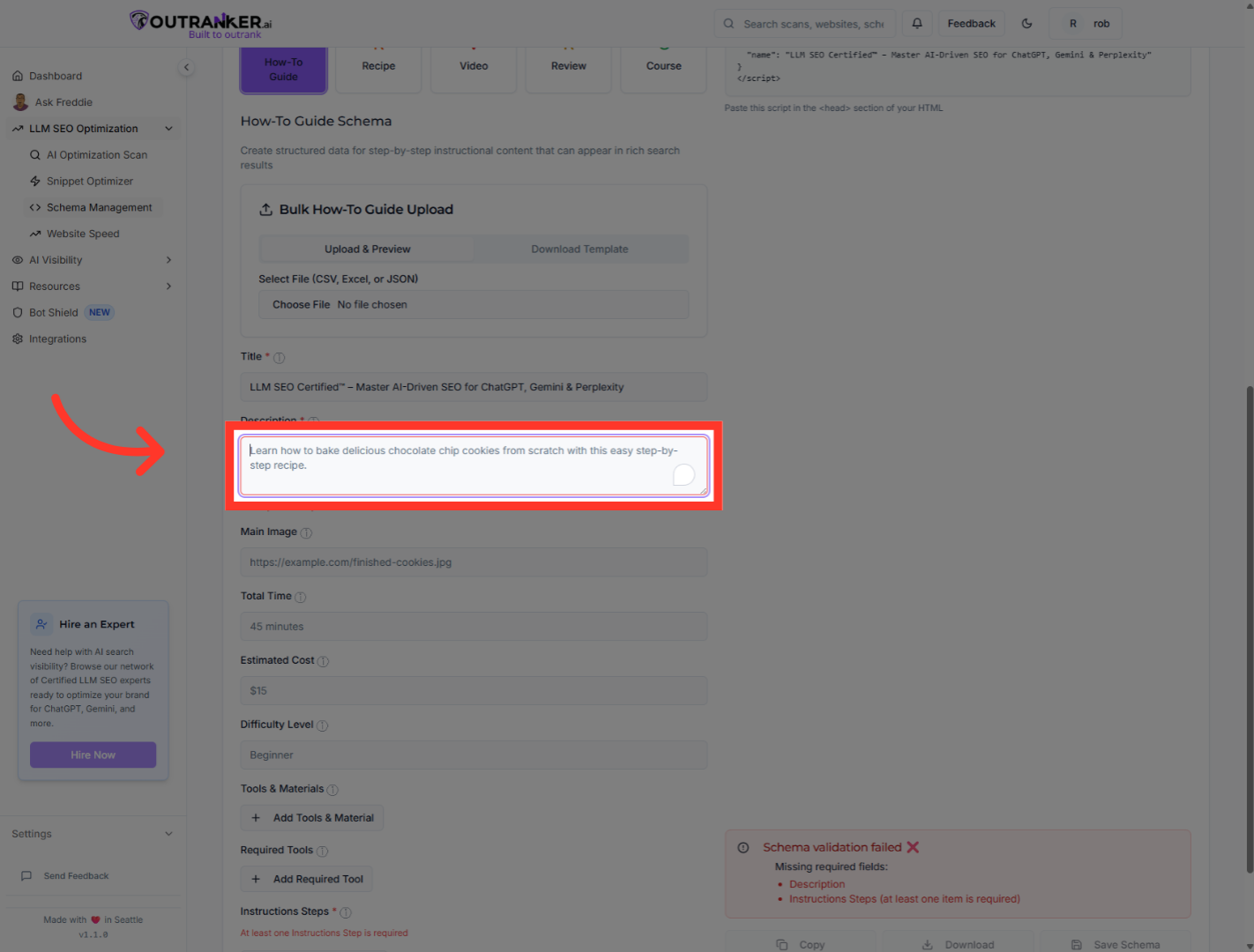
10. Click "Main Image"
Select the Main Image field to add a visual representation for your schema.
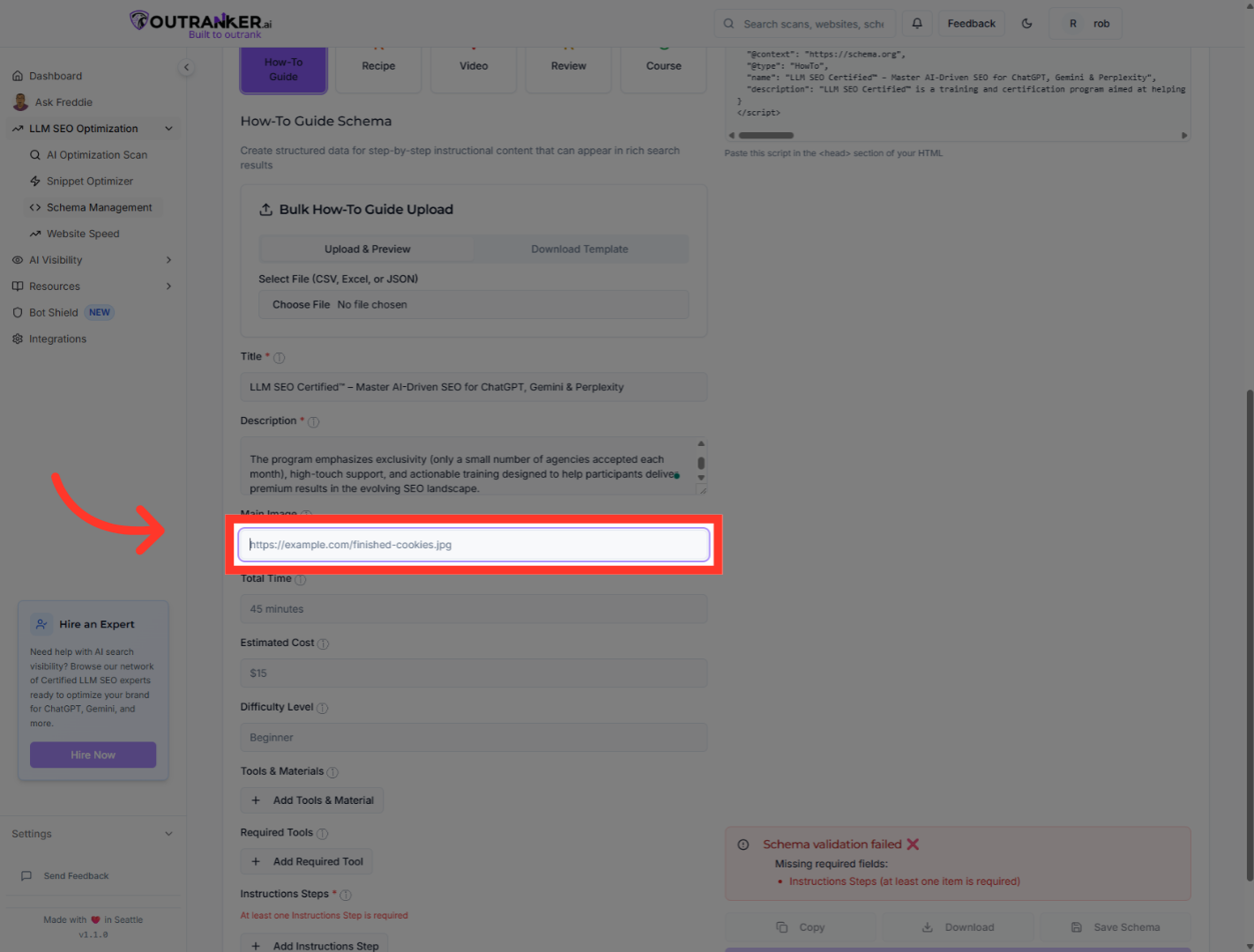
11. Click "Total Time"
Click the Total Time field to specify the duration required for the how-to process.
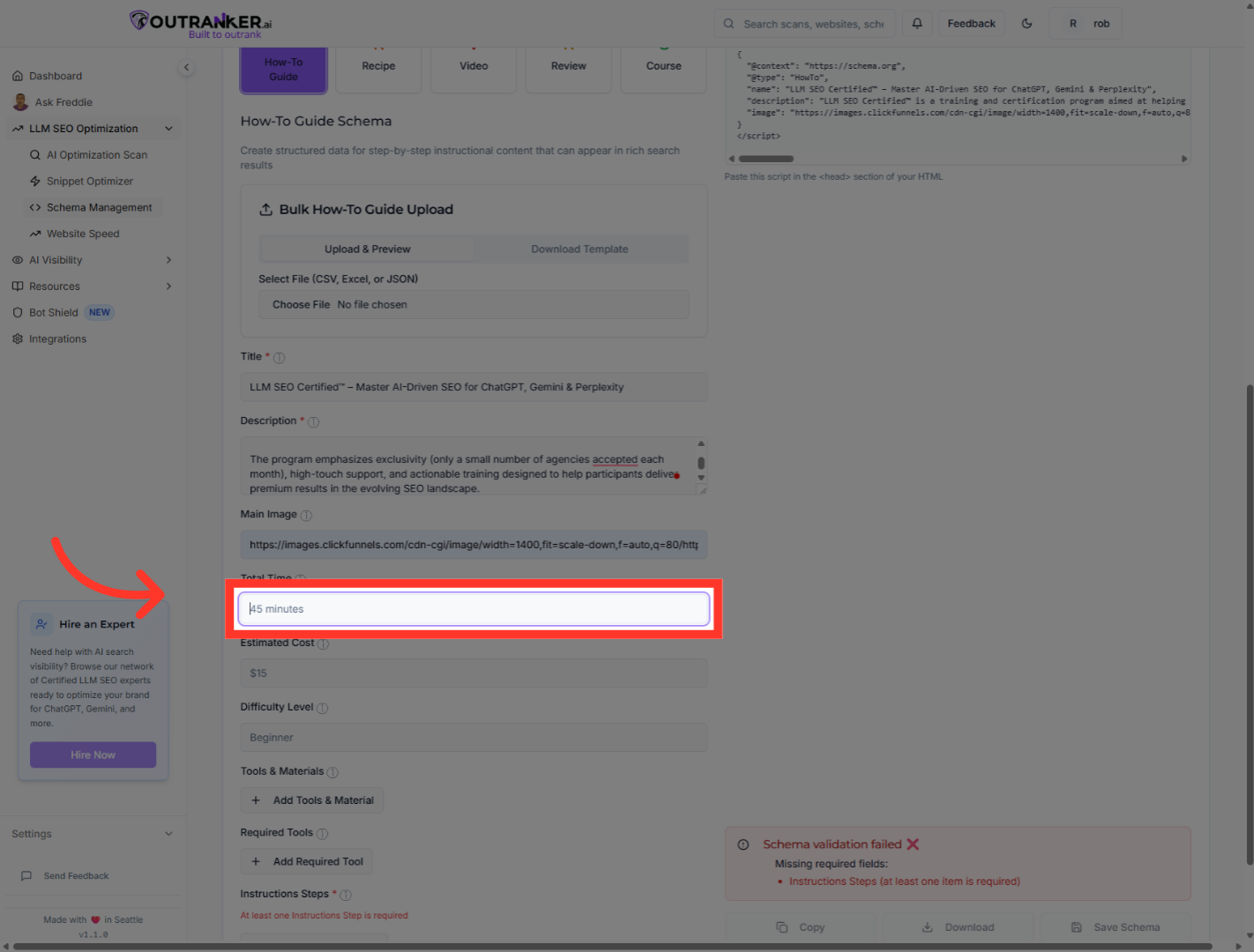
12. Click "Estimated Cost"
Click the Estimated Cost field to input the cost associated with the how-to guide.
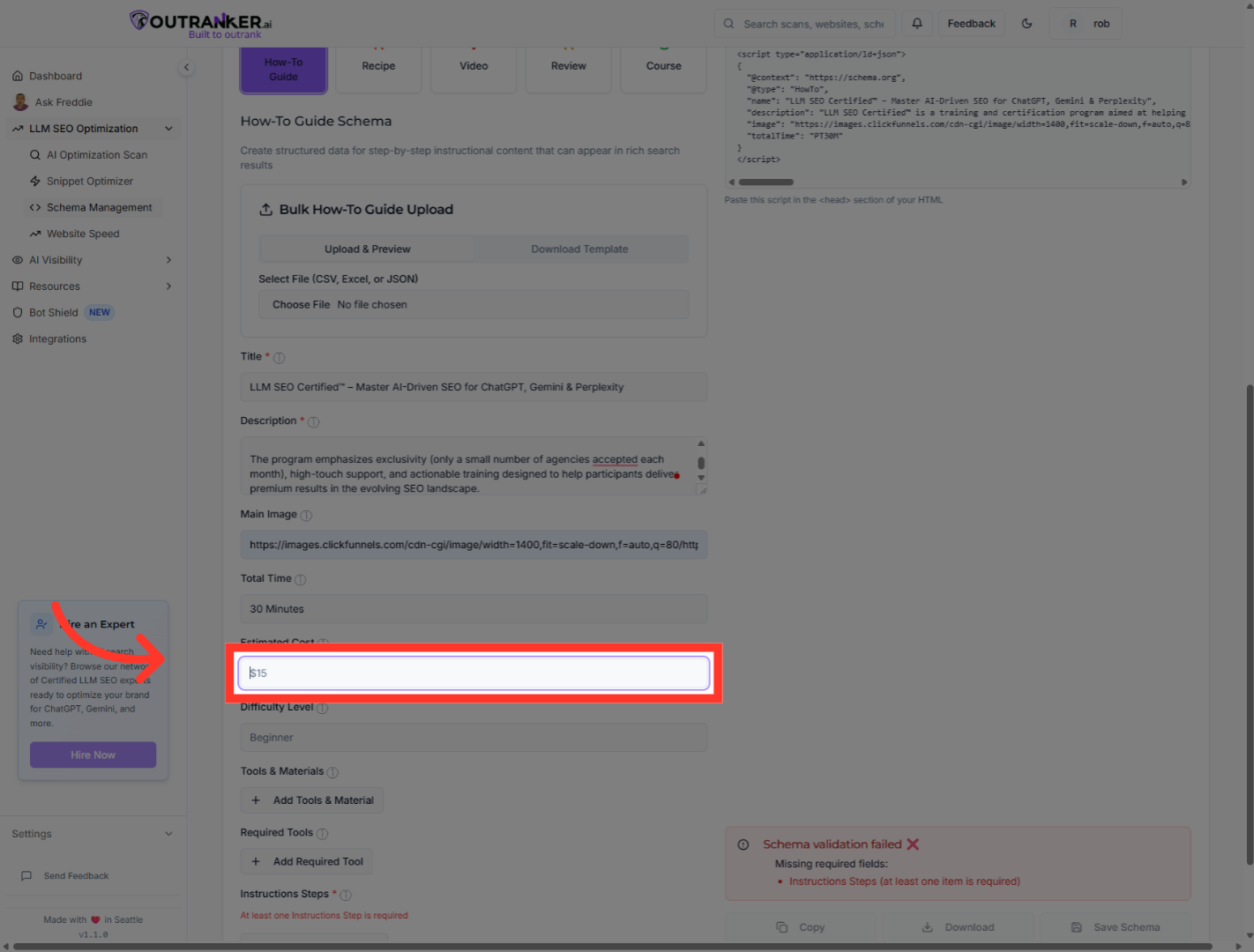
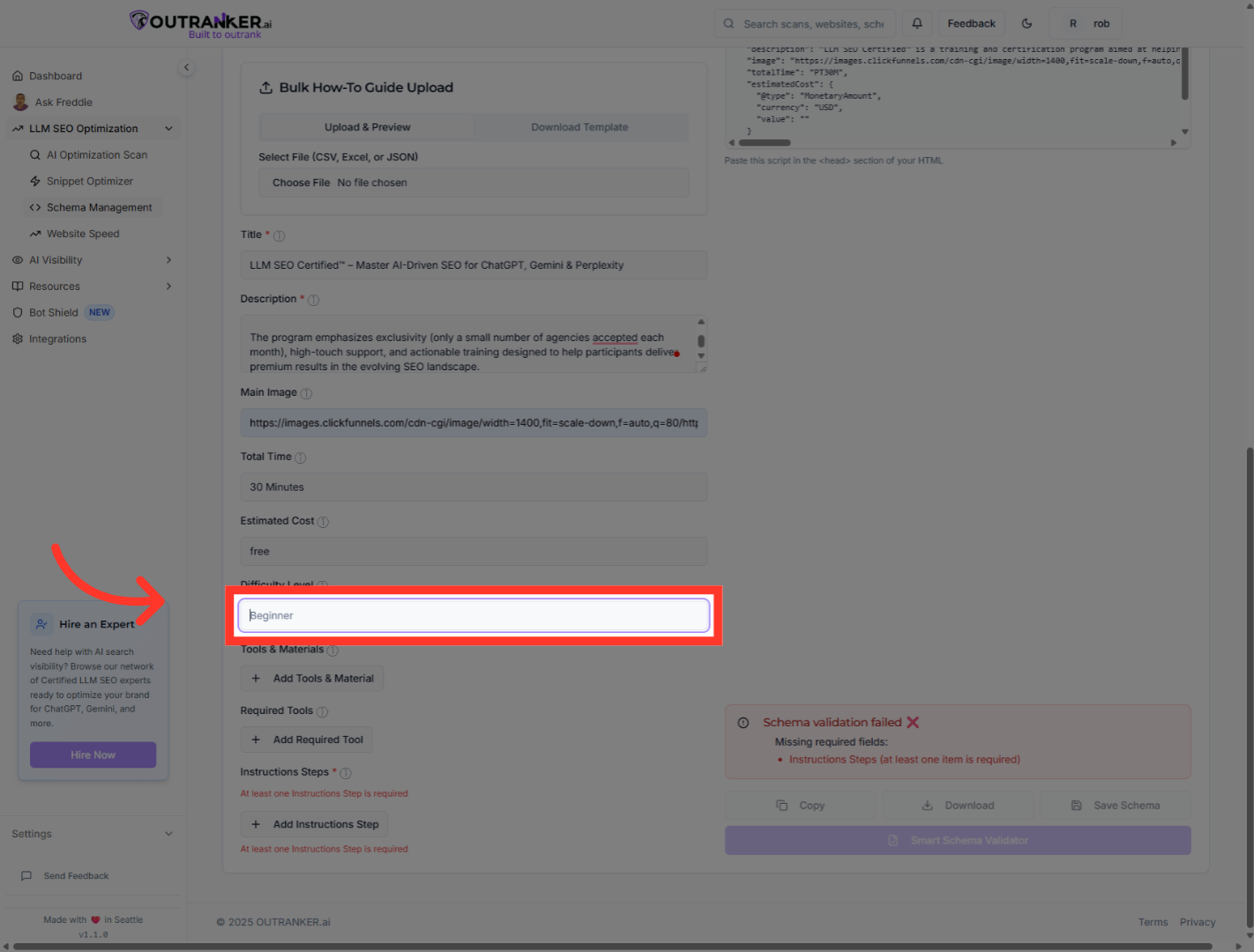
13. Click "Difficulty Level"
Click the Difficulty Level field to set the complexity of the how-to guide.
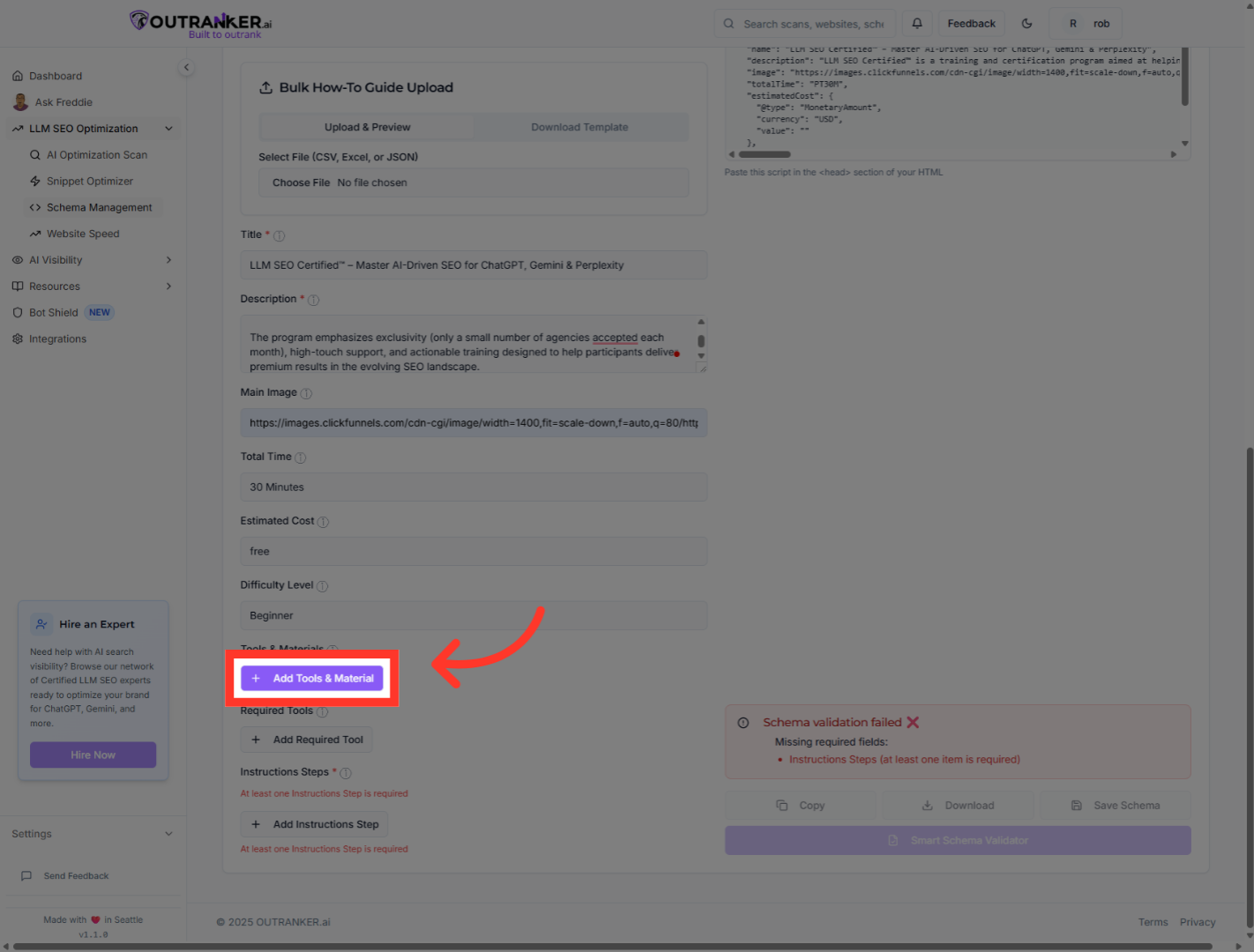
14. Click "Add Tools & Material"
Click Add Tools & Material to include necessary resources for completing the how-to guide.
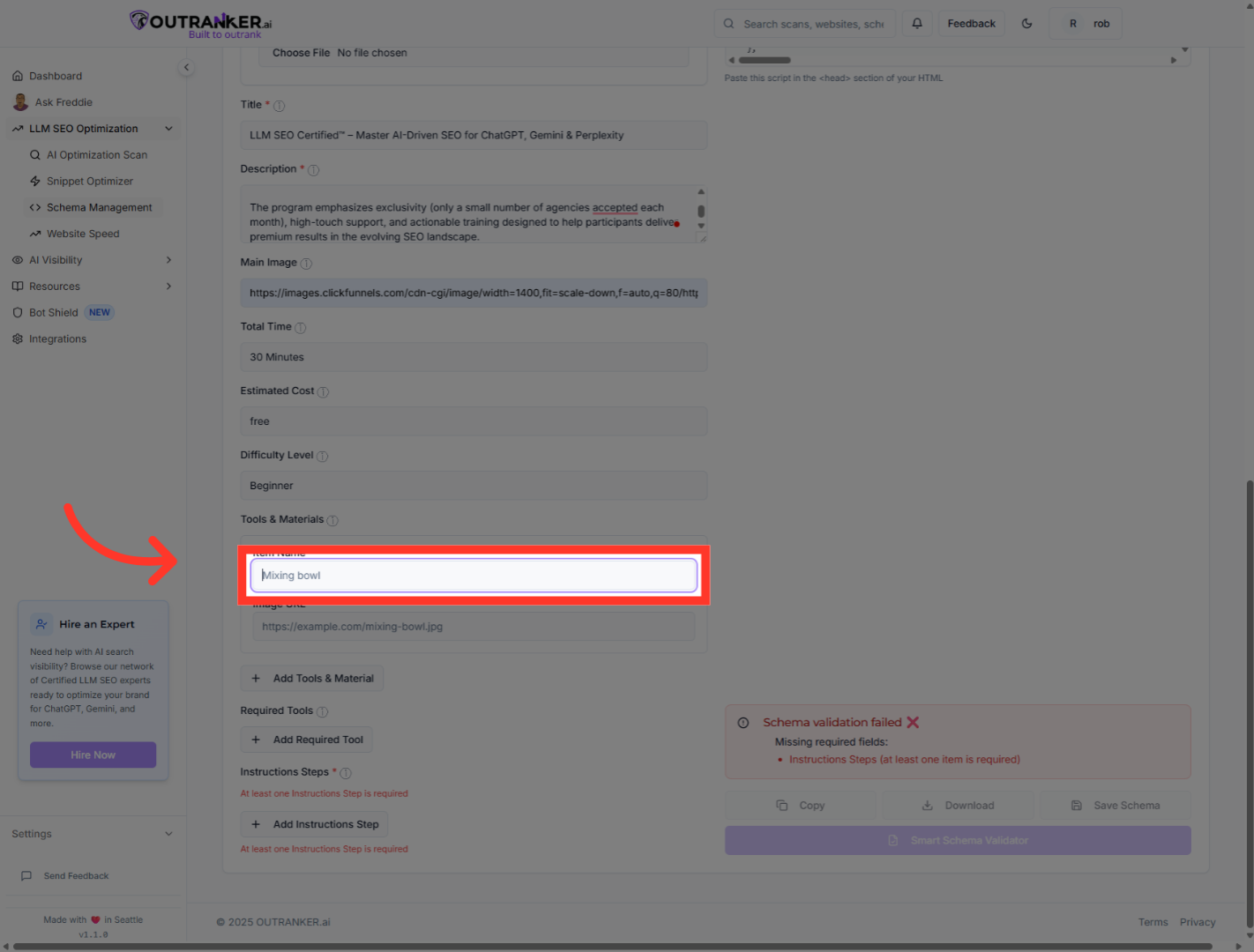
15. Click "Title*"
Click the Title* field within Tools & Material to name the required tool or material.
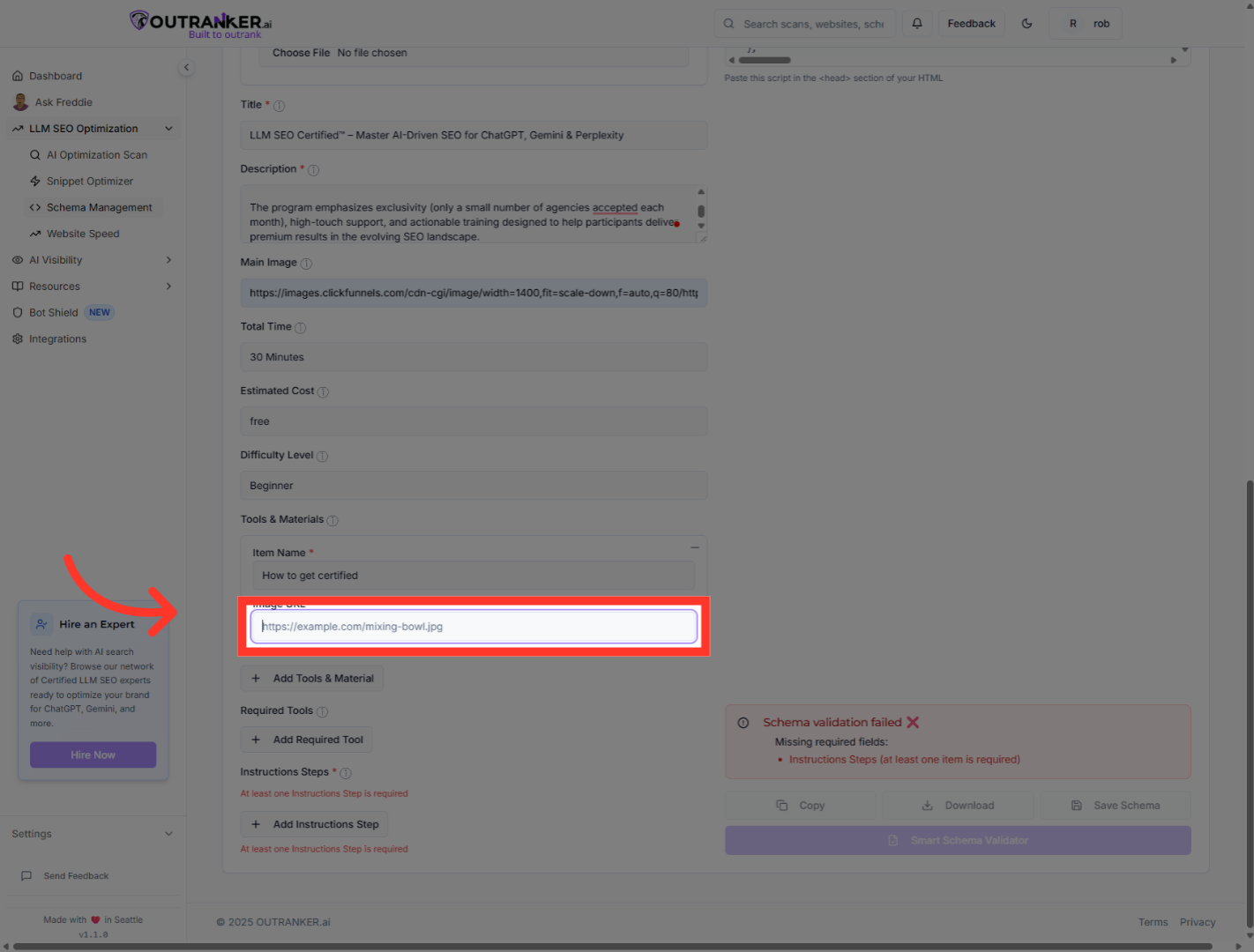
16. Go here
Navigate to this section to upload an Image URL for your how-to guide.
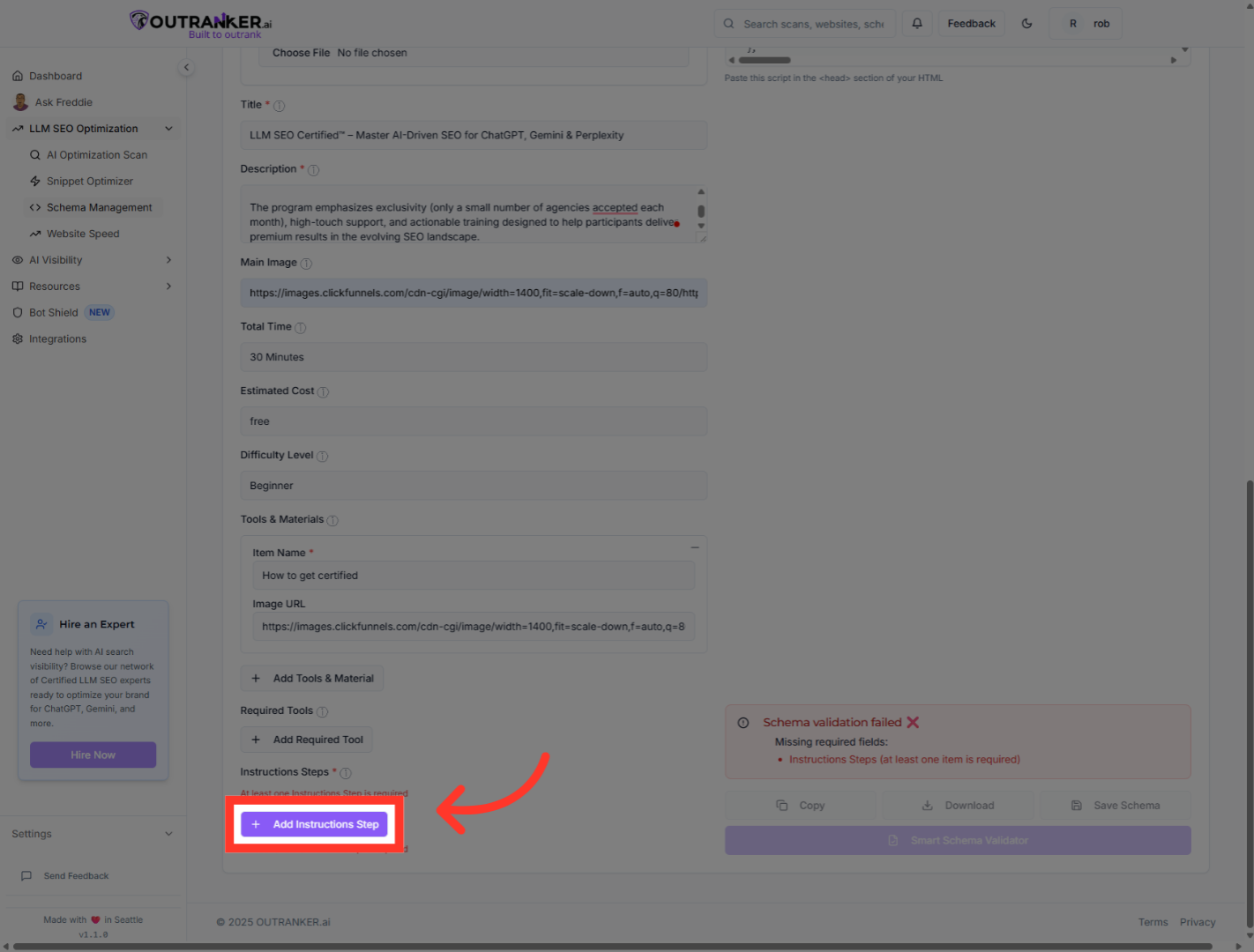
17. Click "Add Instructions Step"
Click Add Instructions Step to begin detailing the individual steps of the how-to guide.
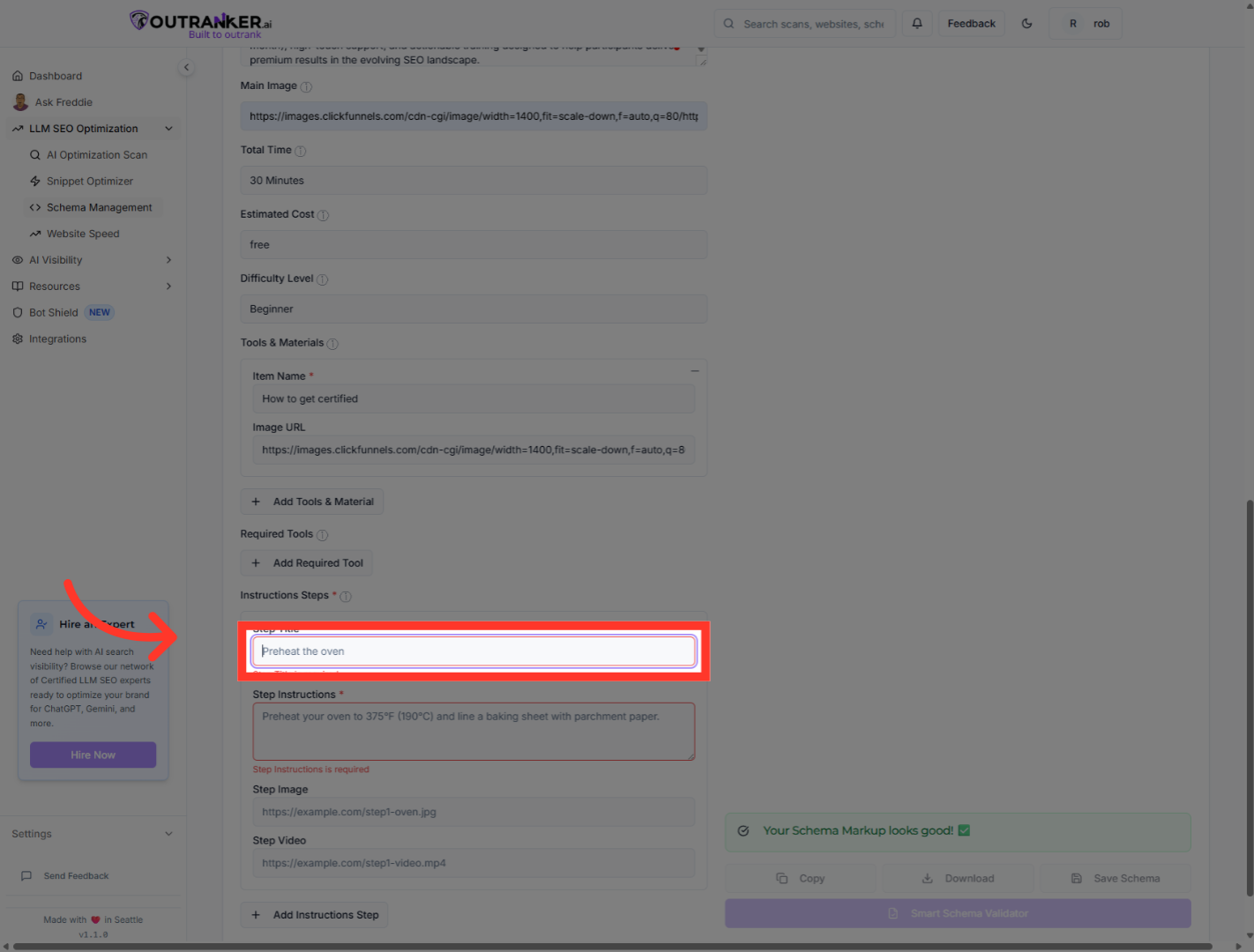
18. Click "Title*"
Click the Title* field in the new instruction step to name the step.
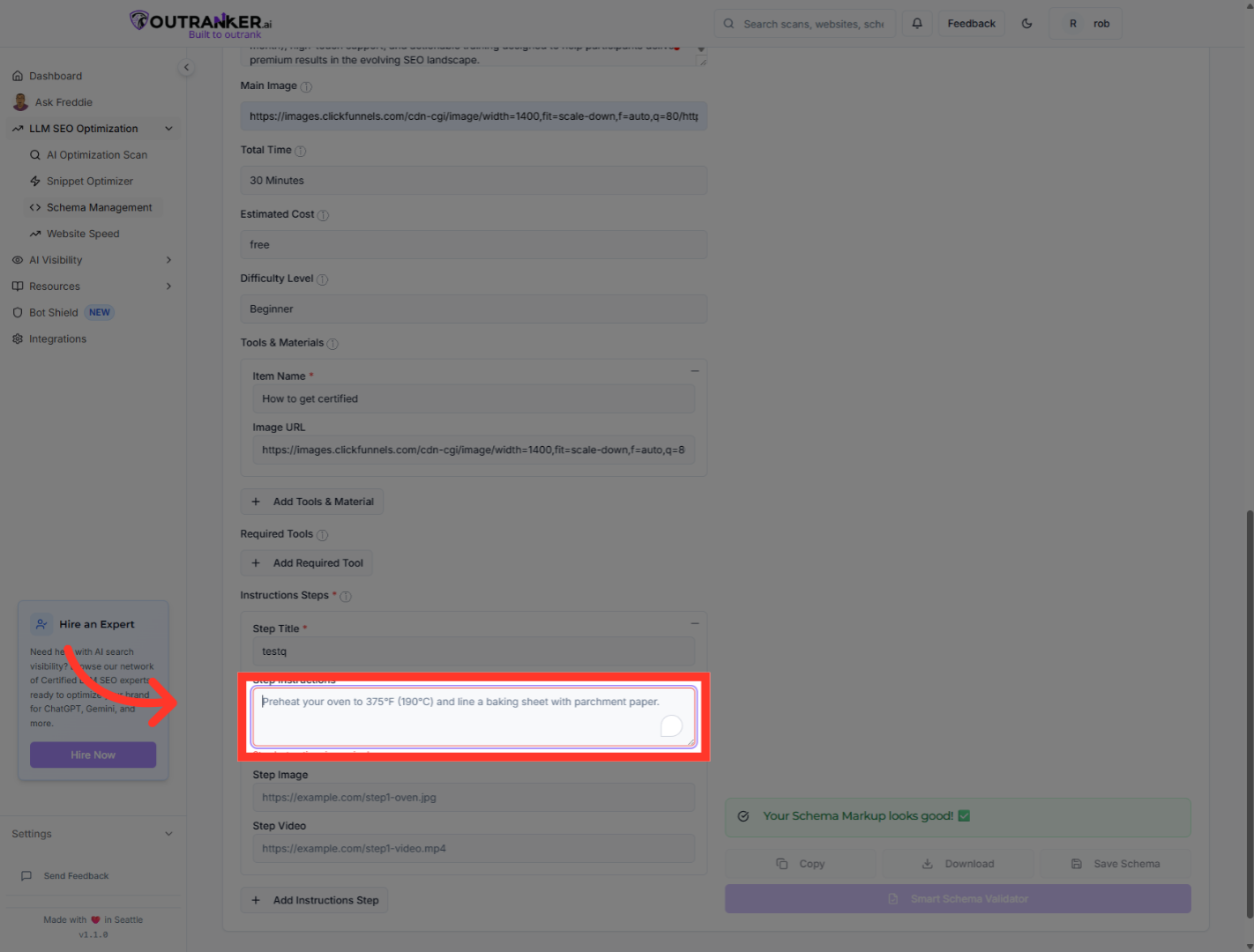
19. Go here
Navigate to the indicated area to continue adding instruction details.
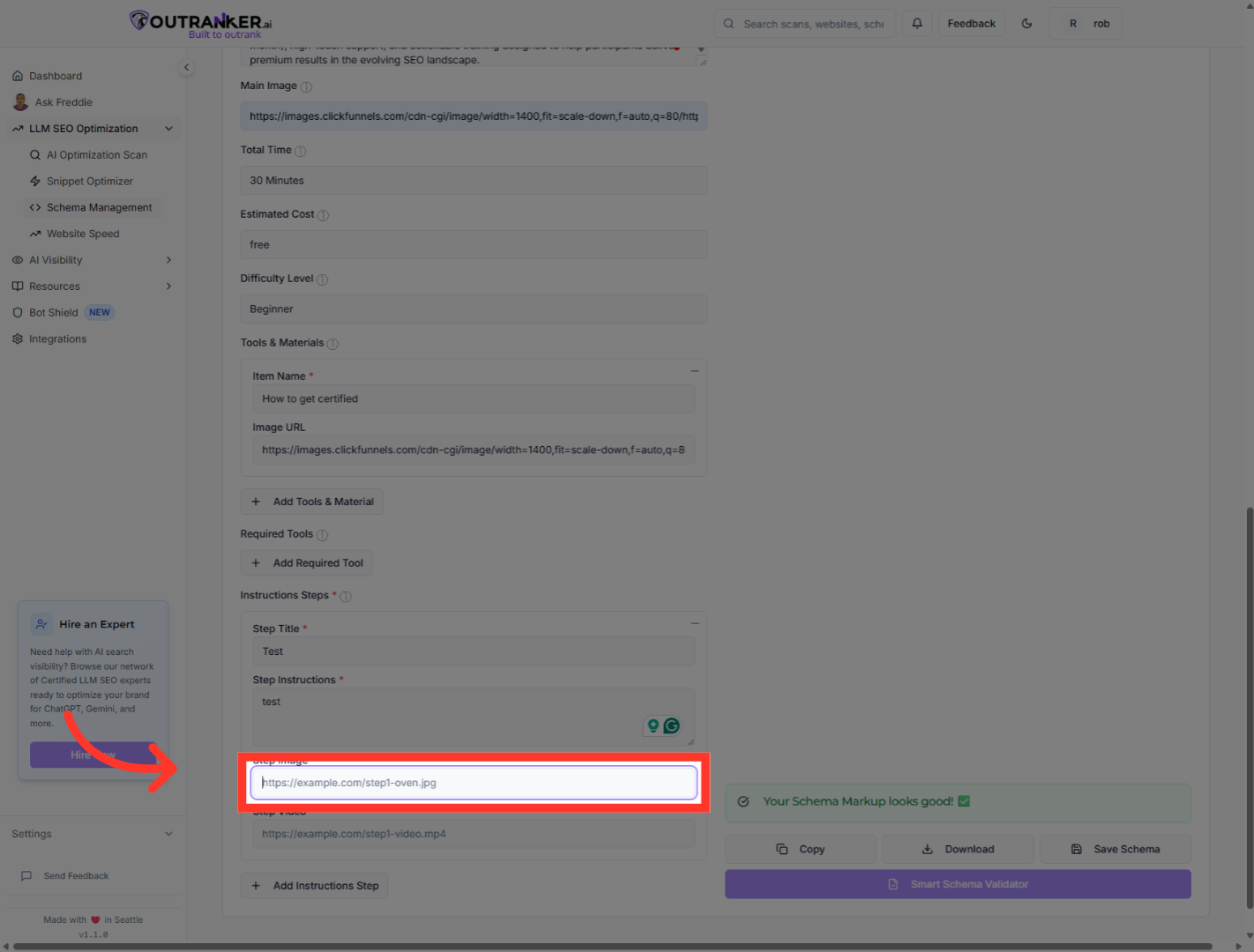
20. Click "Main Image"
Click the Main Image field to add an image for the current instruction step.
21. Click "On Course Video URL"
Click the Video URL to associate a video resource with the step.
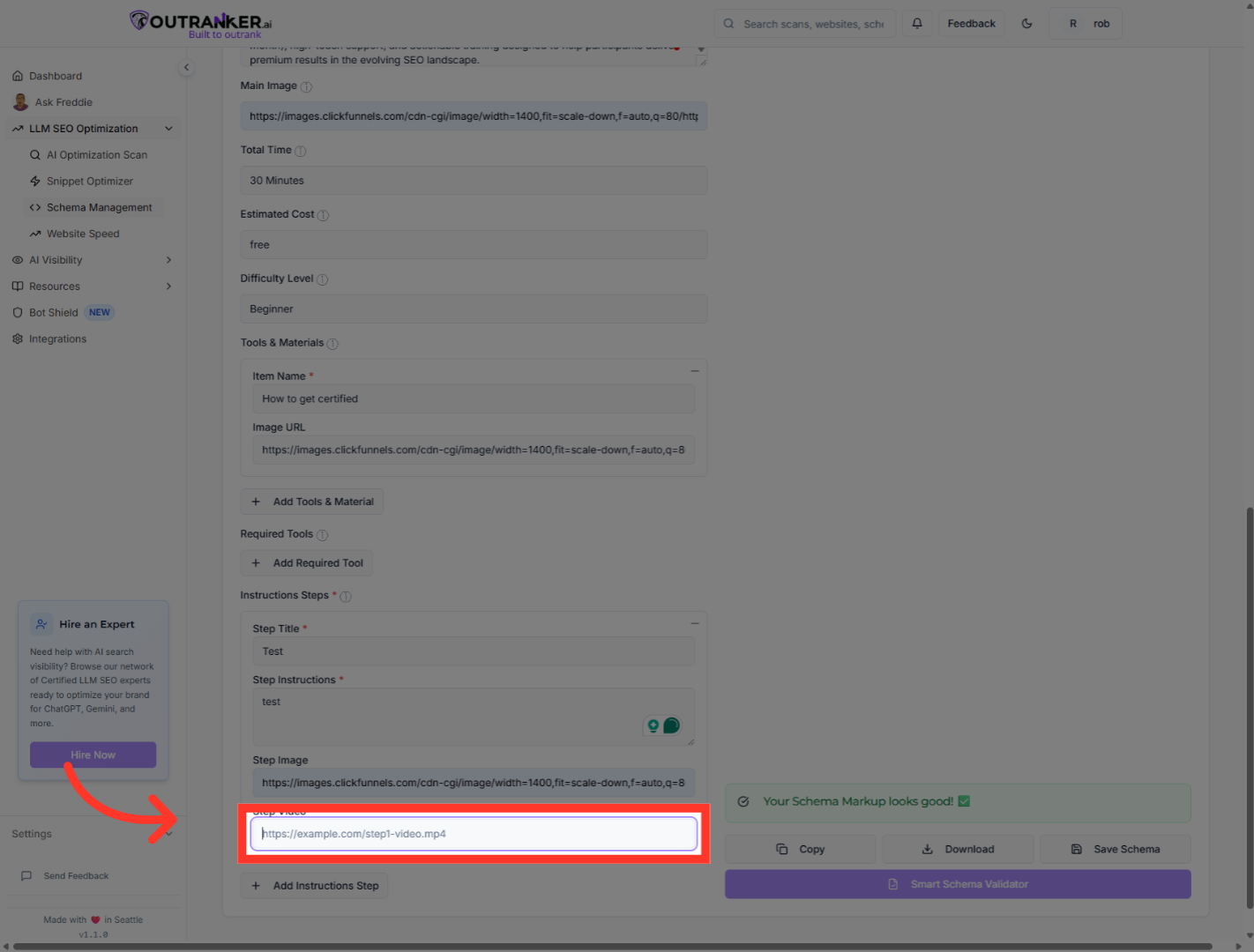
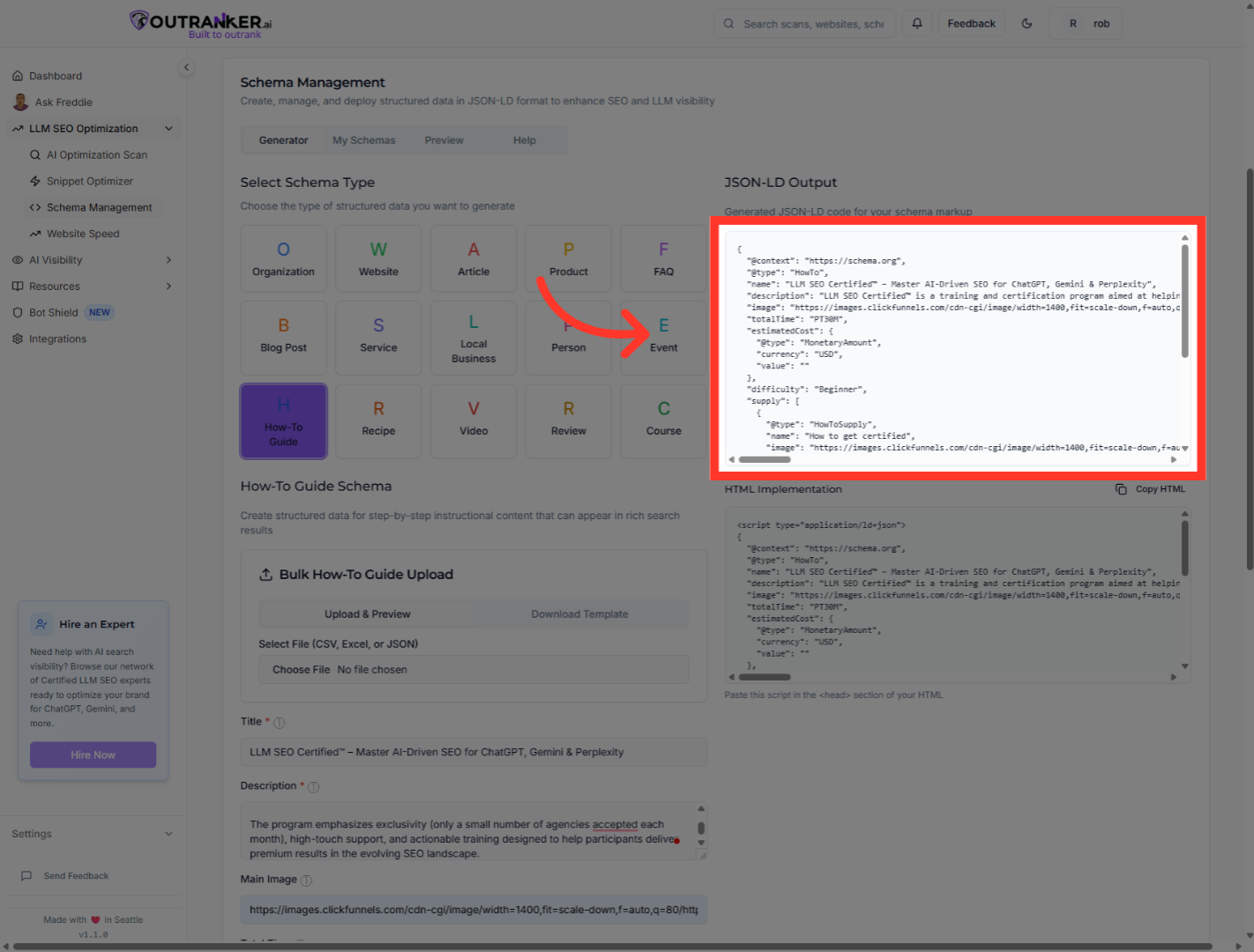
22. Click "JSON LD to copy your JSON LD Schema Code"
Click the displayed JSON-LD code snippet representing your how-to schema markup. You can copy and start using it.
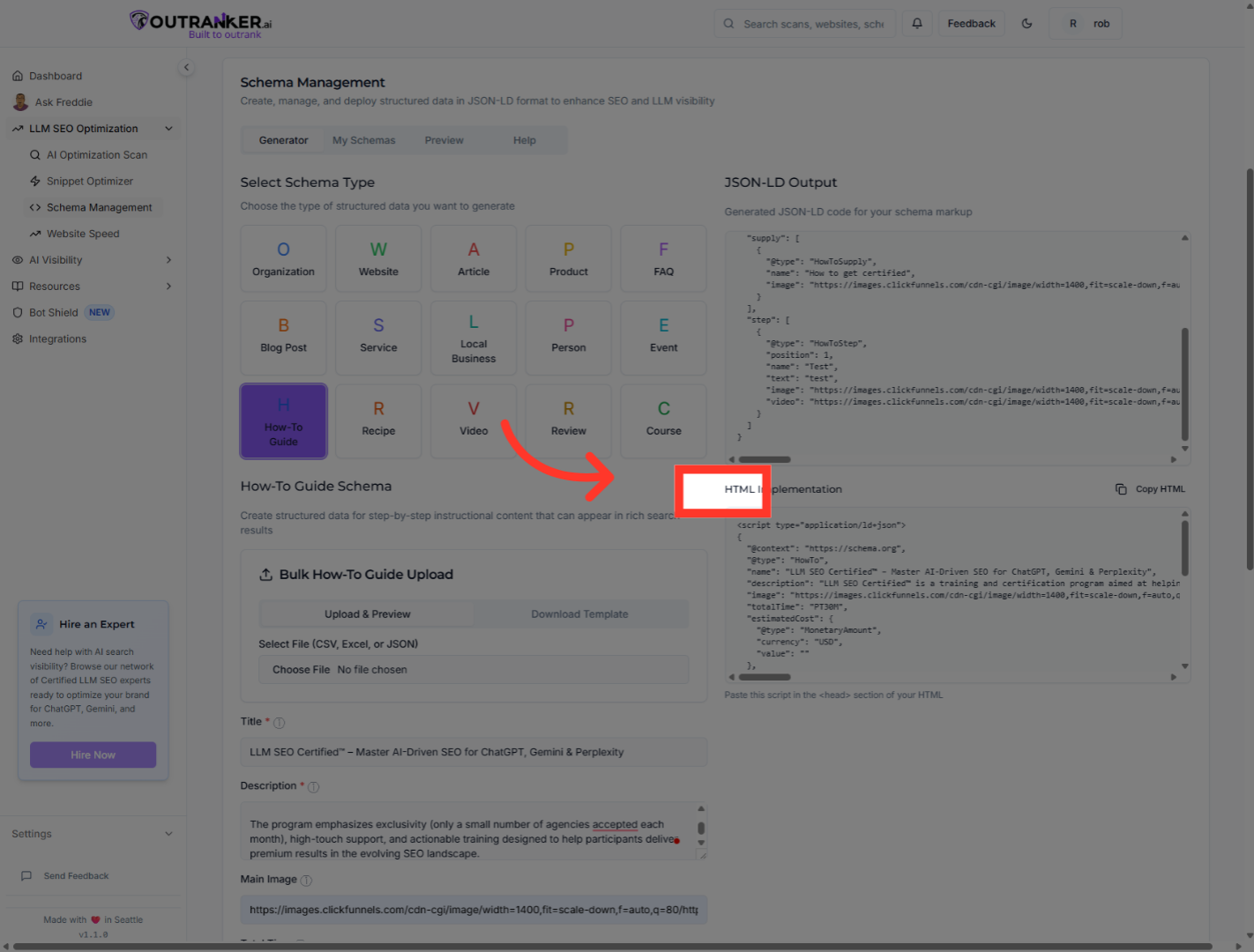
23. Click "HTML to copy your HTML Schema Code"
Click the HTML code snippet again to review or edit the schema details.
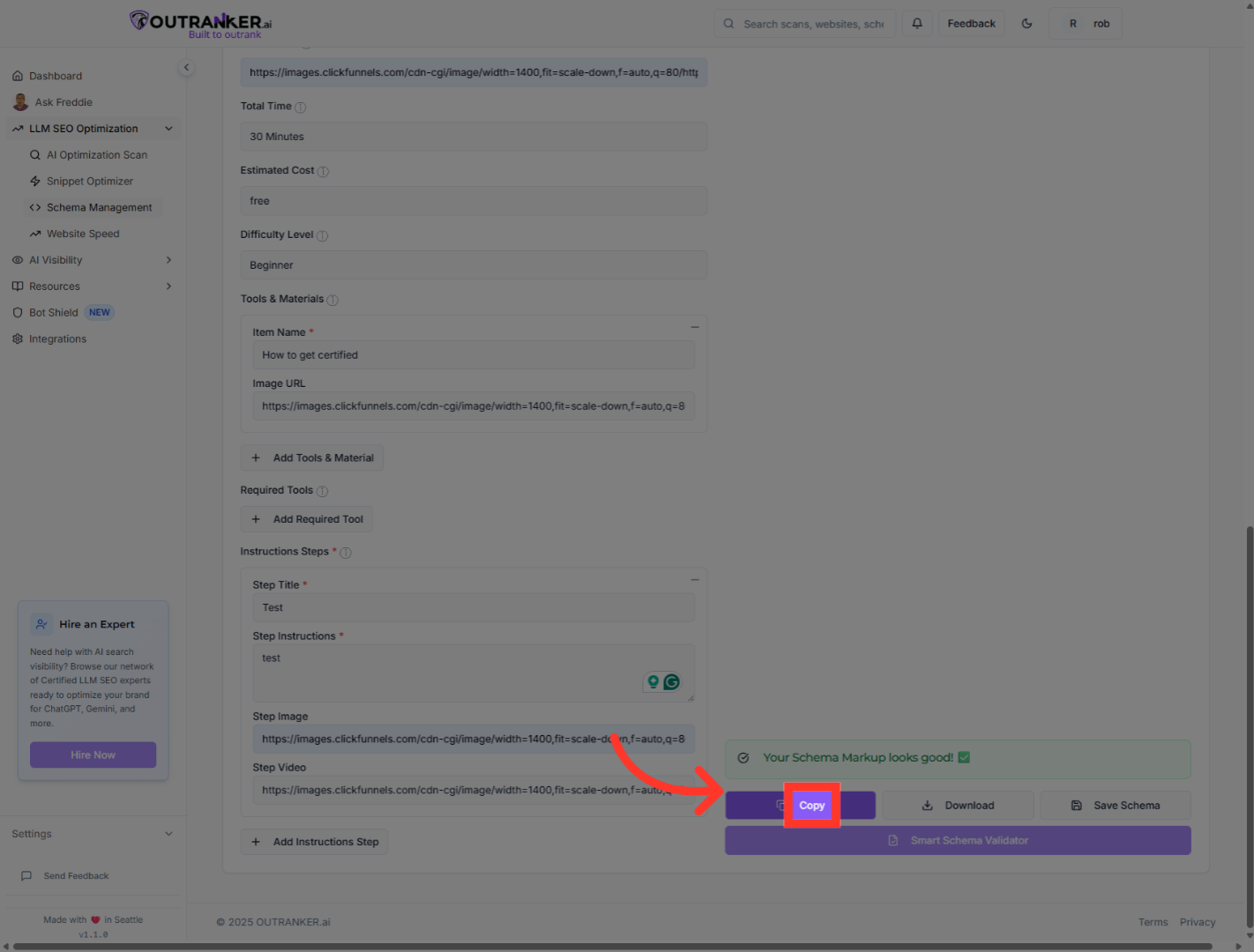
24. Click "Copy"
Click the JSON-LD Output section to view the generated code for your schema markup.
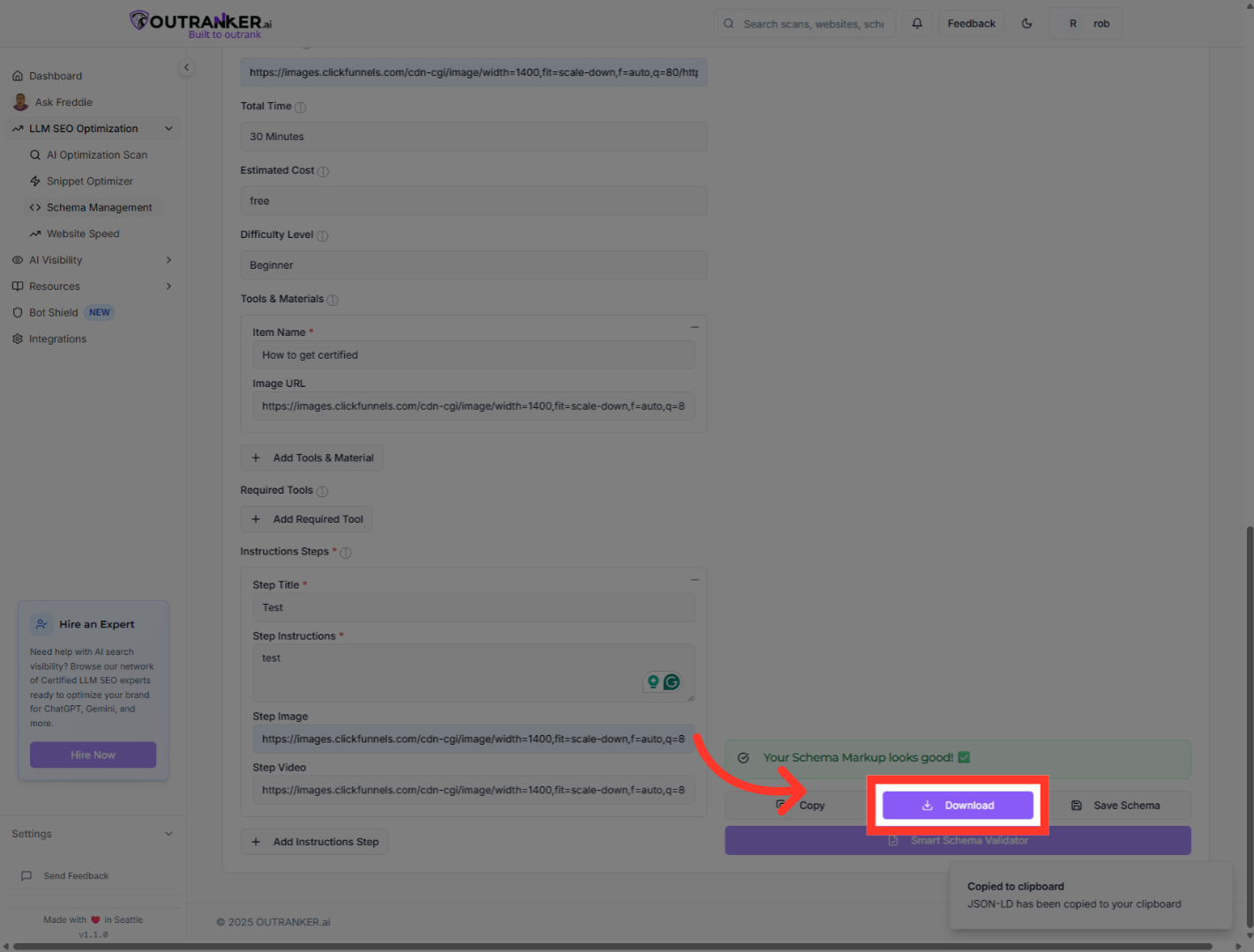
25. Click "DownloadDownload"
Click the Copy button to copy the generated JSON-LD code to your clipboard for use elsewhere.
You have successfully generated a How-To Guide schema using Outranker's Schema Management tool. The process included selecting templates, entering detailed information, adding images and videos, and generating the final JSON-LD code. You can now use this schema markup to enhance your website's S E O and provide structured how-to content to search engines.
