
This tutorial guides you through measuring your website speed using Outranker
Go to www.outranker.ai
1. Introduction
You will learn how to run a speed test, analyze performance metrics, and identify issues affecting your site's loading time. Before starting, ensure you have your website URL ready to input for testing.
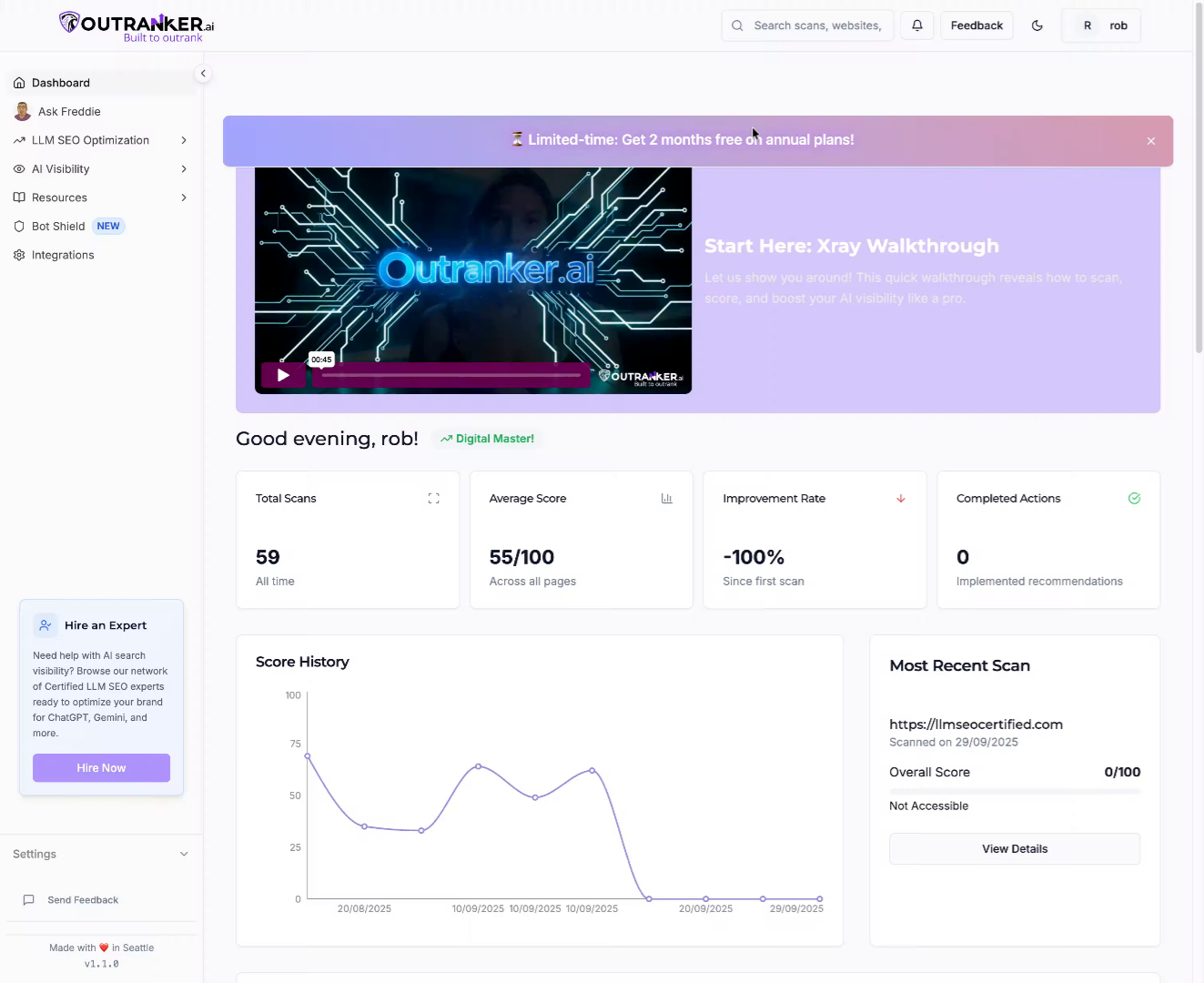
2. Click "LLM SEO Optimization"
Click "LLM SEO Optimization" to access the SEO optimization features within Outranker, which is the starting point for measuring your website speed.
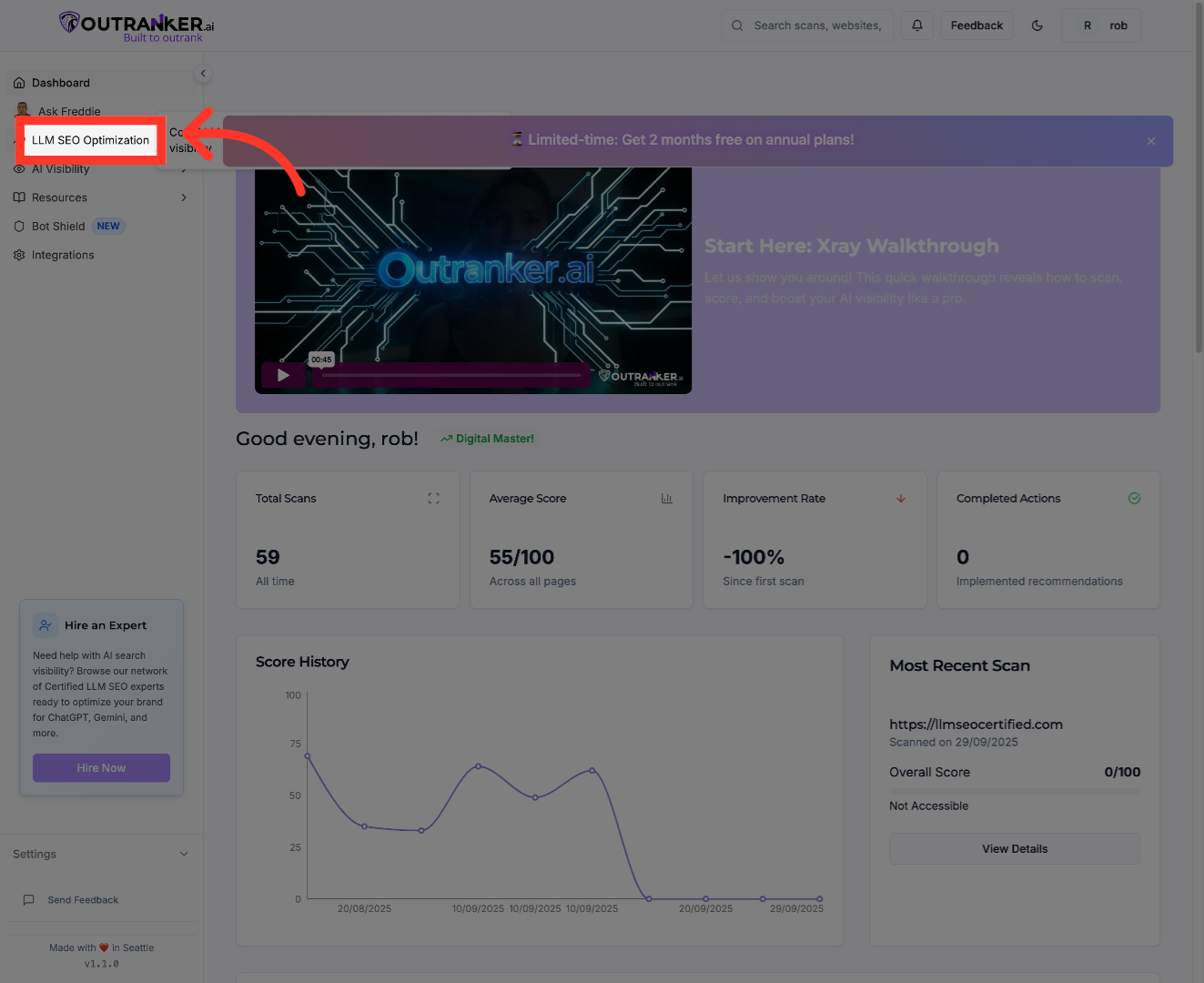
3. Click "Website Speed"
Click "Website Speed" to navigate to the section dedicated to analyzing and testing your website's loading performance.
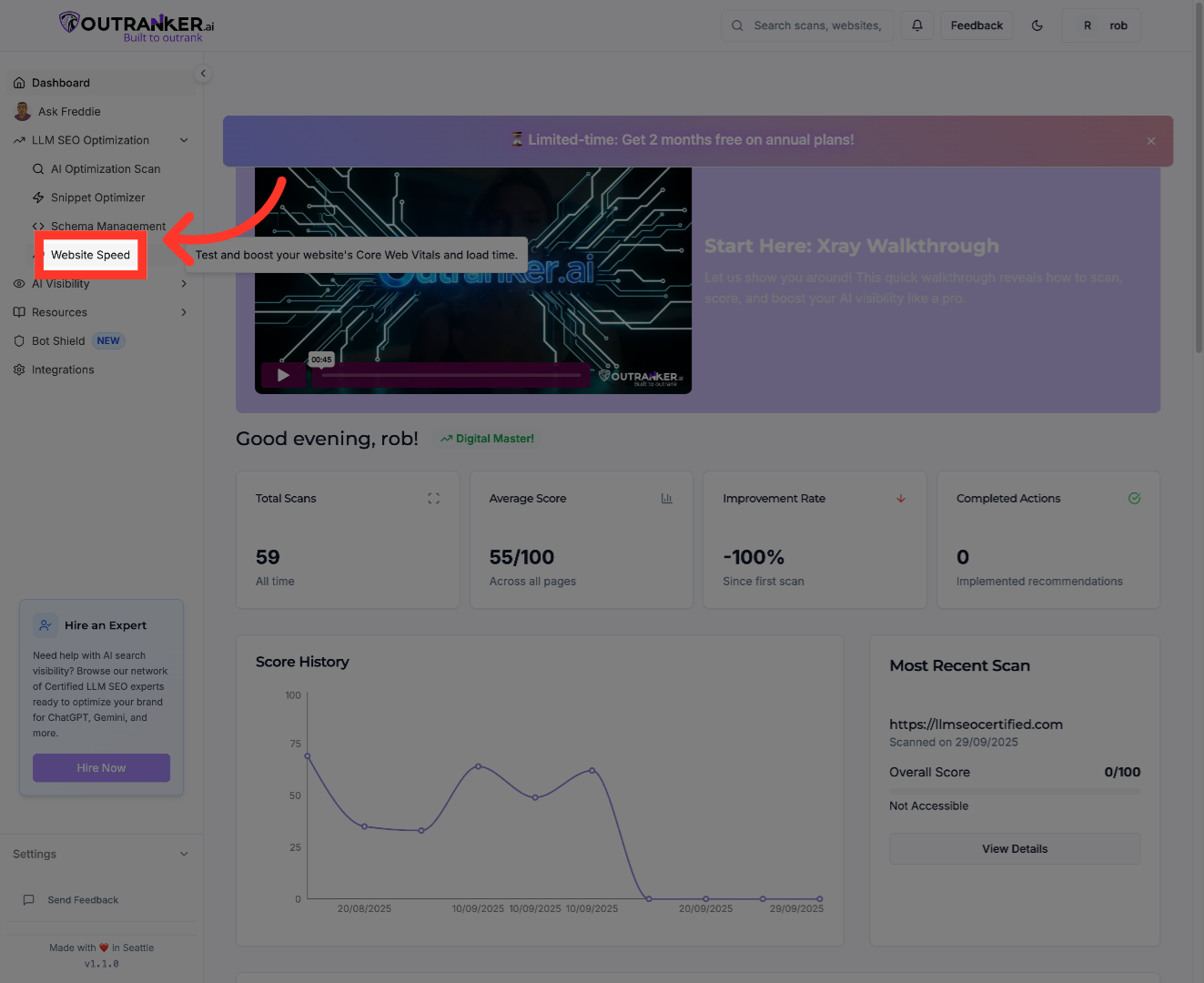
4. Click "Website URL"
Click "Website URL" to select the input field where you will enter the address of the website you want to test.
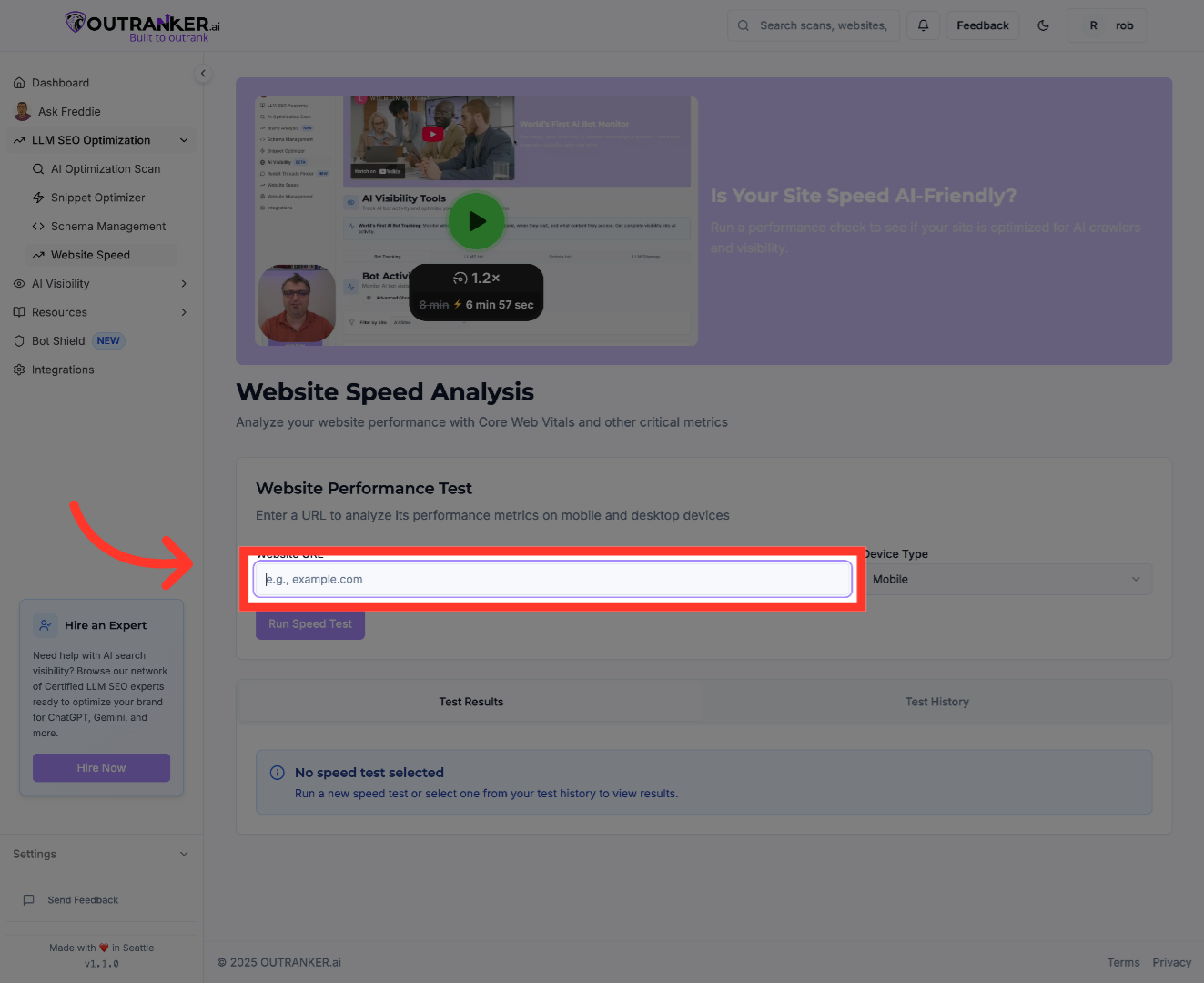
5. Fill "https://www.llmseodemo.com/"
Fill in the website URL field with your website's address to specify which site you want to analyze for speed performance.
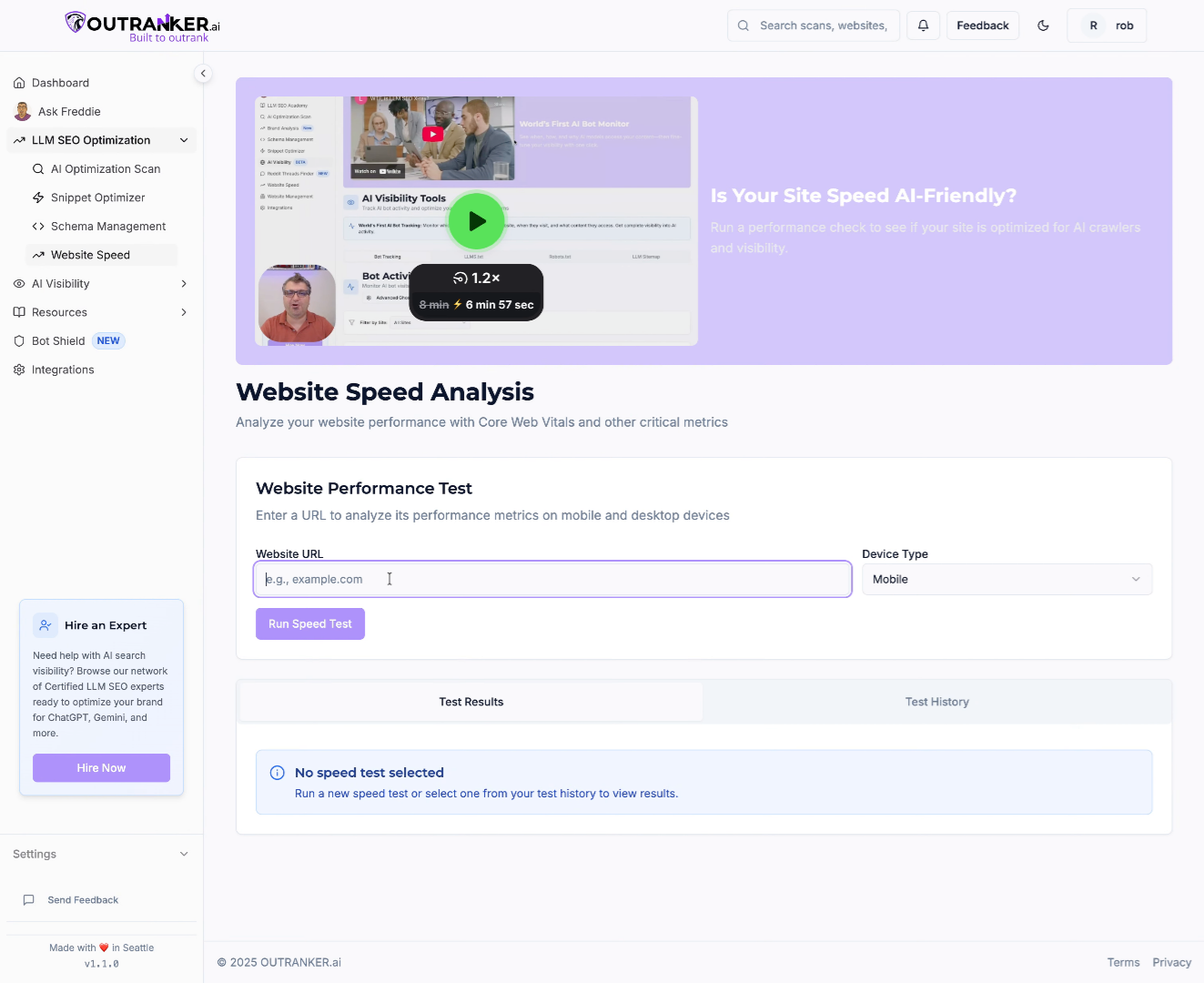
6. Click "Desktop"
Click "Desktop / Mobile" to choose the device type for the speed test, ensuring the results reflect desktop or mobile user experience.
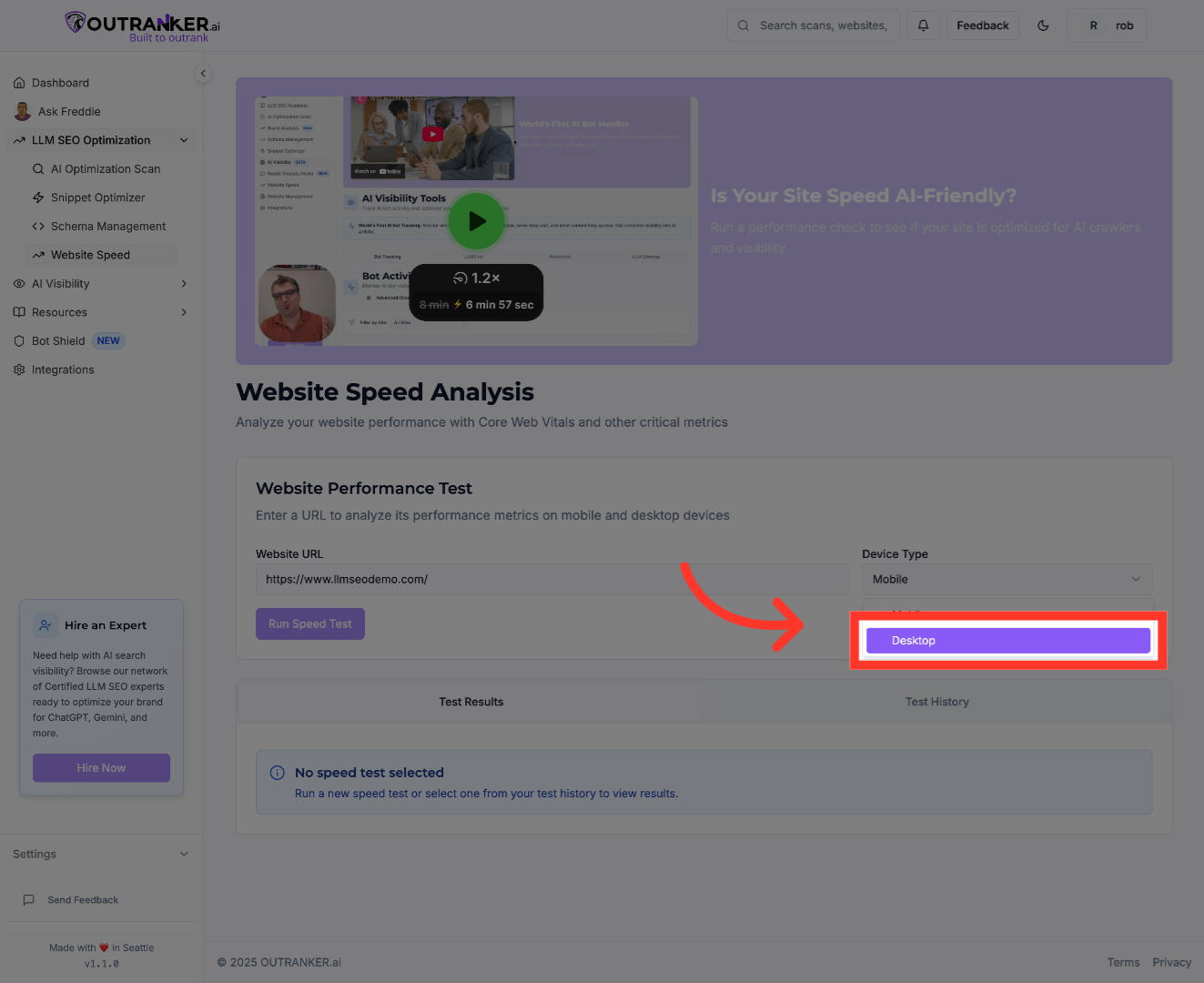
7. Click "Run Speed Test"
Click "Run Speed Test" to initiate the analysis of your website's loading speed and performance metrics.
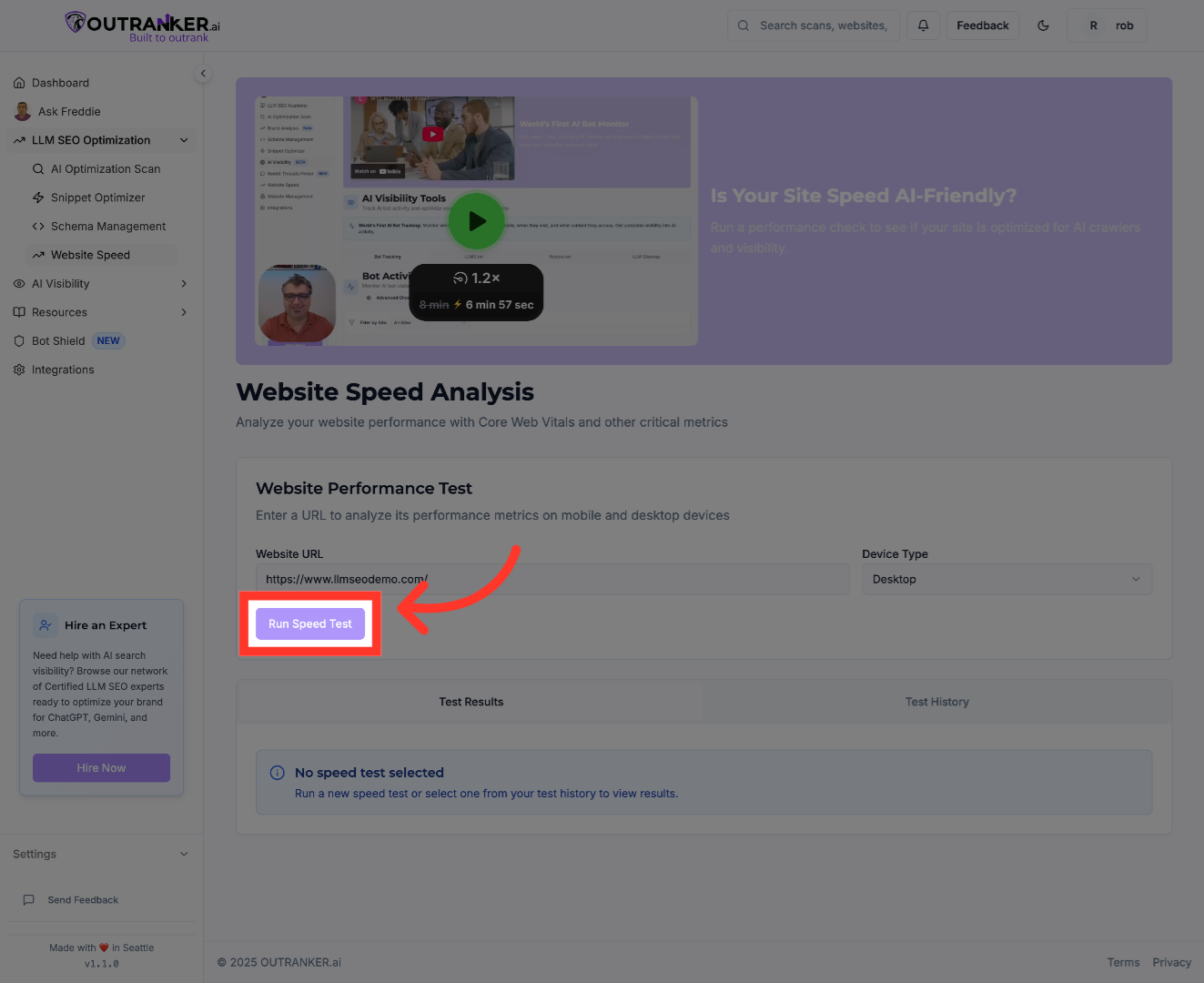
8. Click "Download Report"
Click "Download Report" to save a detailed report of the speed test results for further review and sharing.
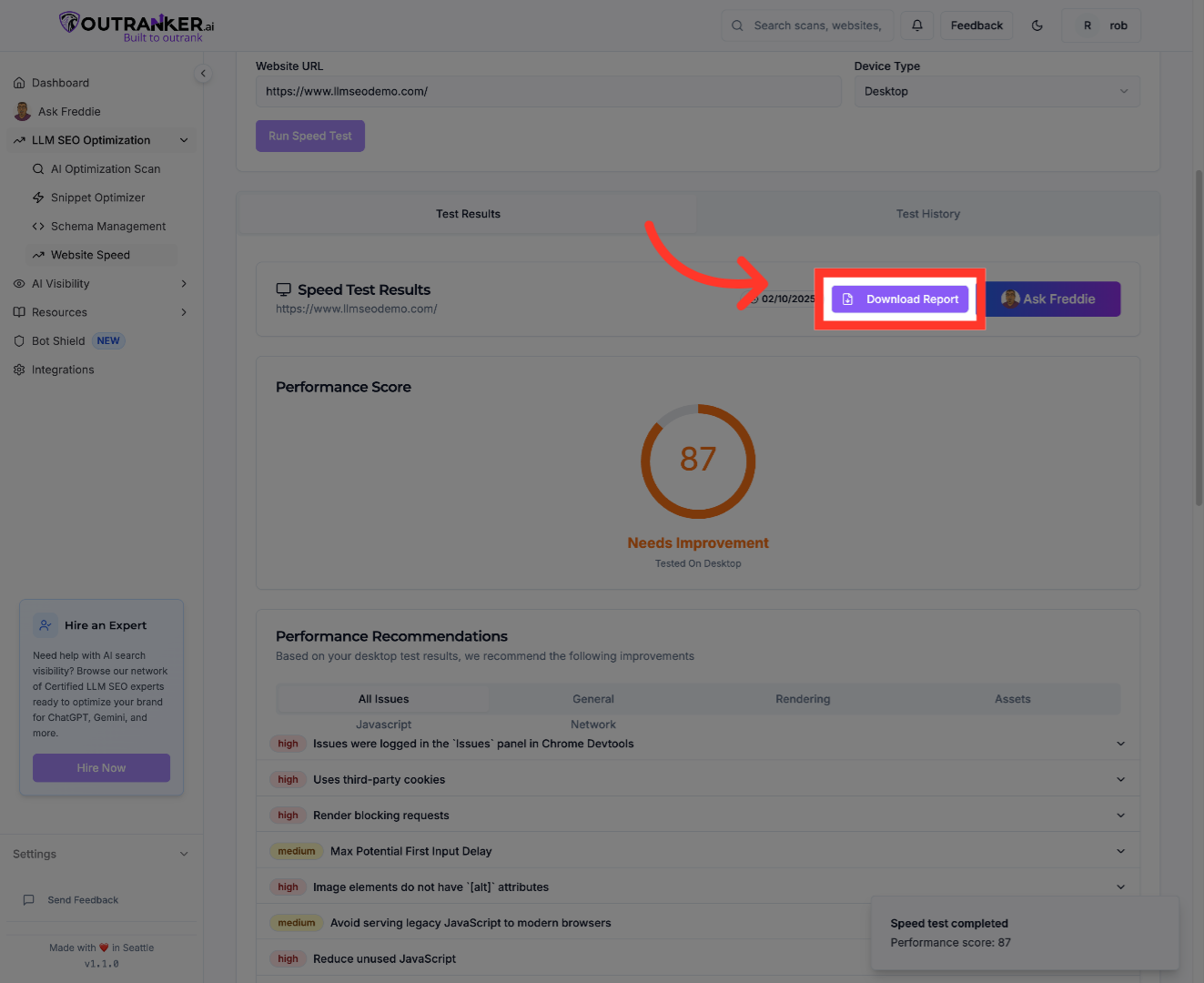
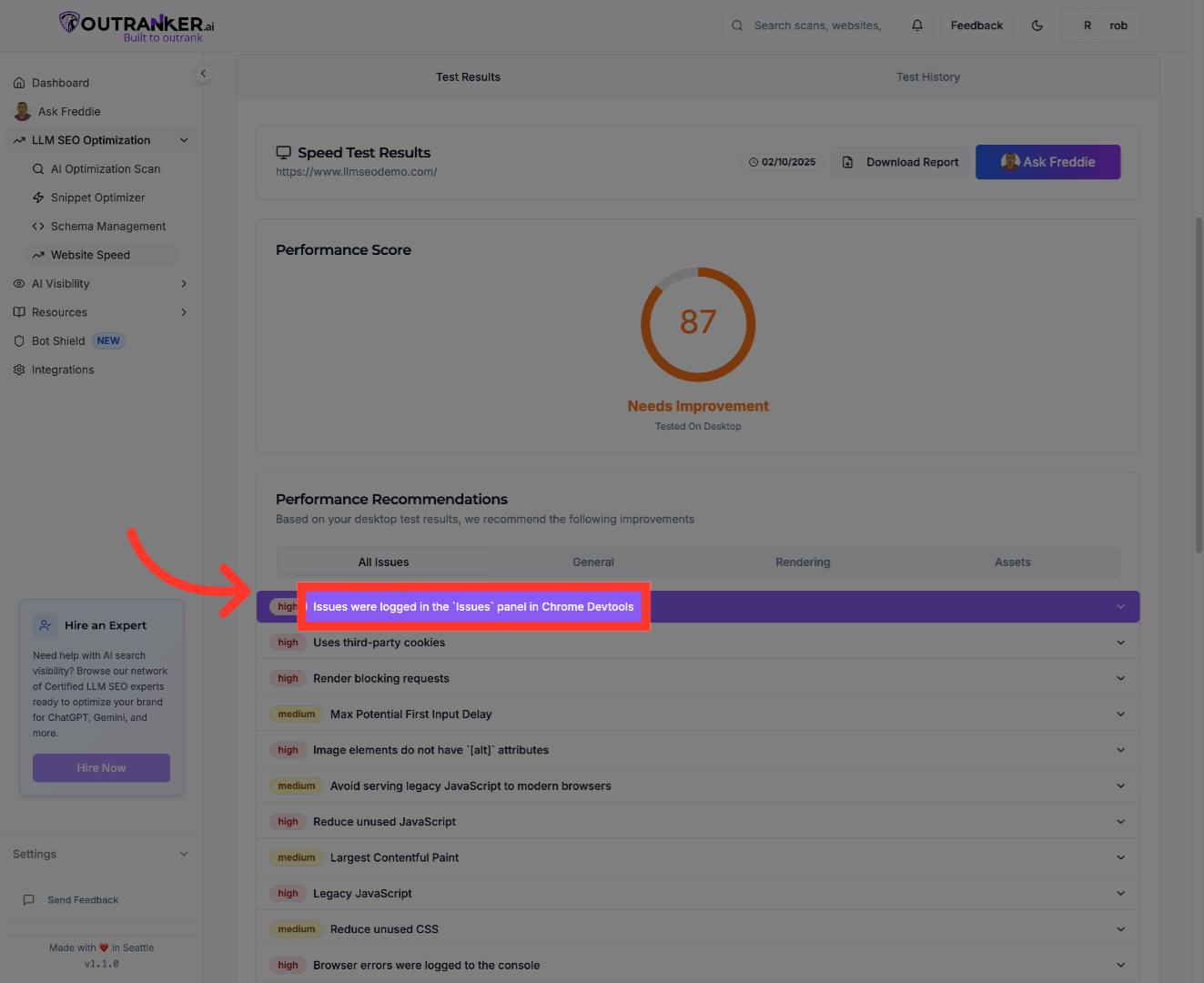
9. Click "Issues were logged in the Issues panel in Chrome Devtools"
Click "Issues were logged in the Issues panel in Chrome Devtools" to view detailed performance issues identified during the test.
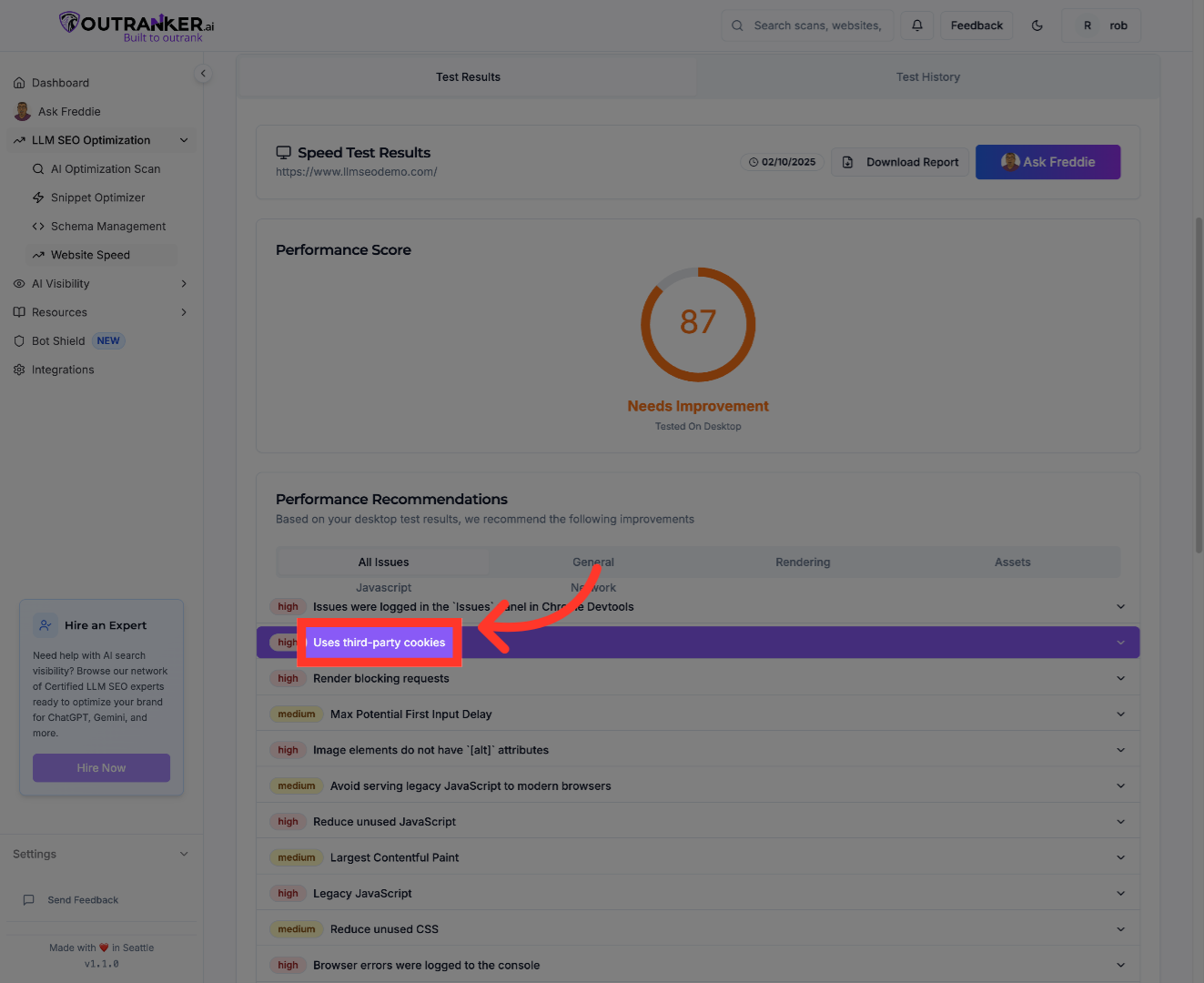
10. Click "Uses third-party cookies"
Click "Uses third-party cookies" to examine how third-party cookies might be affecting your website's speed and user privacy.
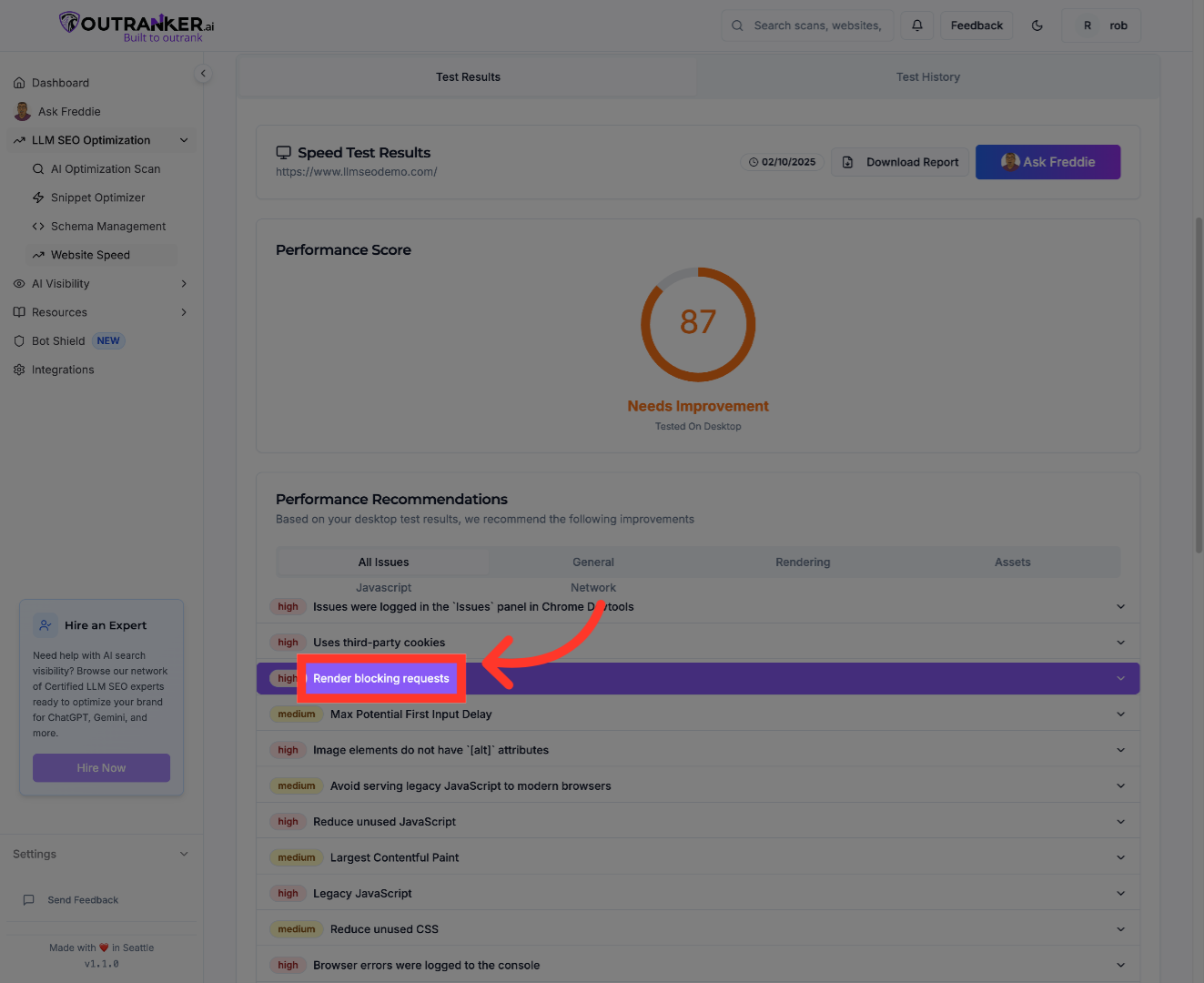
11. Click "Render blocking requests"
Click "Render blocking requests" to identify resources that delay page rendering and impact load times.
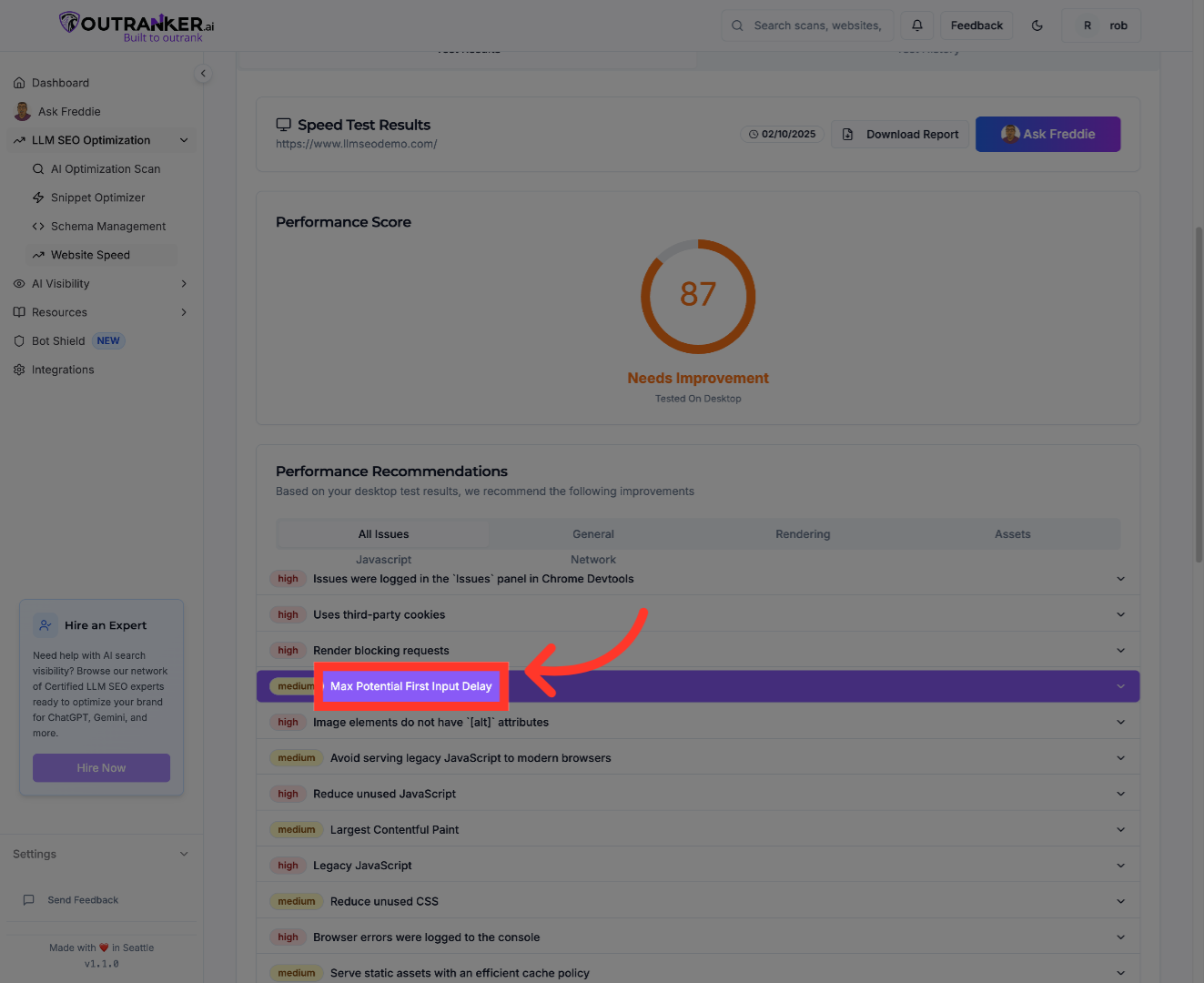
12. Click "Max Potential First Input Delay"
Click "Max Potential First Input Delay" to assess the maximum delay users might experience before interacting with your site.
13. Click "Image elements do not have [alt] attributes"
Click "Image elements do not have attributes" to find images missing alternative text, which can affect accessibility and S E O.
![Click 'Image elements do not have `[alt]` attributes'](https://static.guidde.com/v0/qg%2F5hSo4SJrSCONUzCsysvFXg0q34v1%2FpxB4Phk9AbznUPRNLYqaqo%2F7cYHY6pxMdx8wHWVTLvqLm_doc.png?alt=media&token=2da27249-5c79-4af2-b92c-230372429f11)
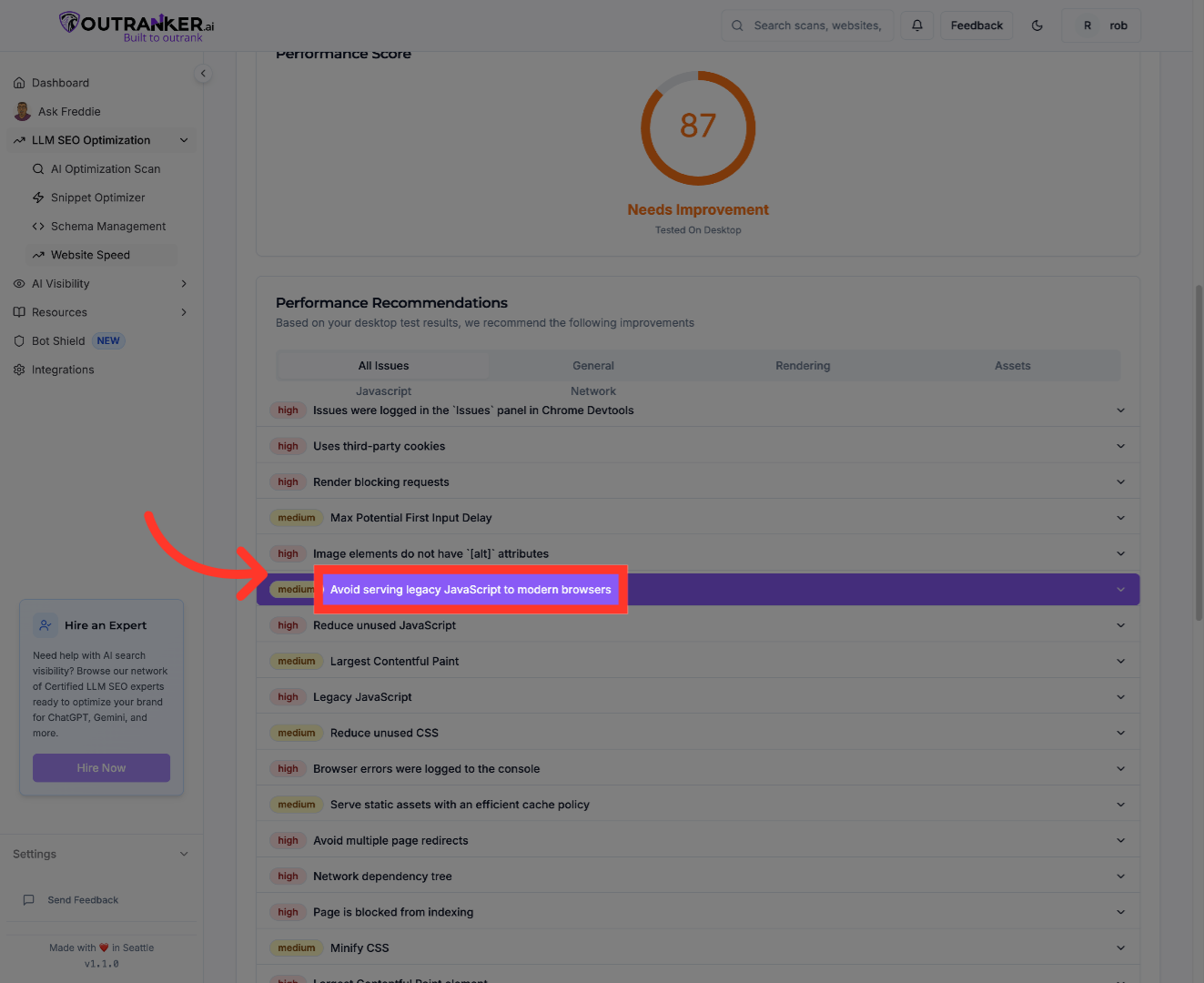
14. Click "Avoid serving legacy JavaScript to modern browsers"
Click "Avoid serving legacy JavaScript to modern browsers" to check if outdated JavaScript is being delivered unnecessarily, which can slow down your site.
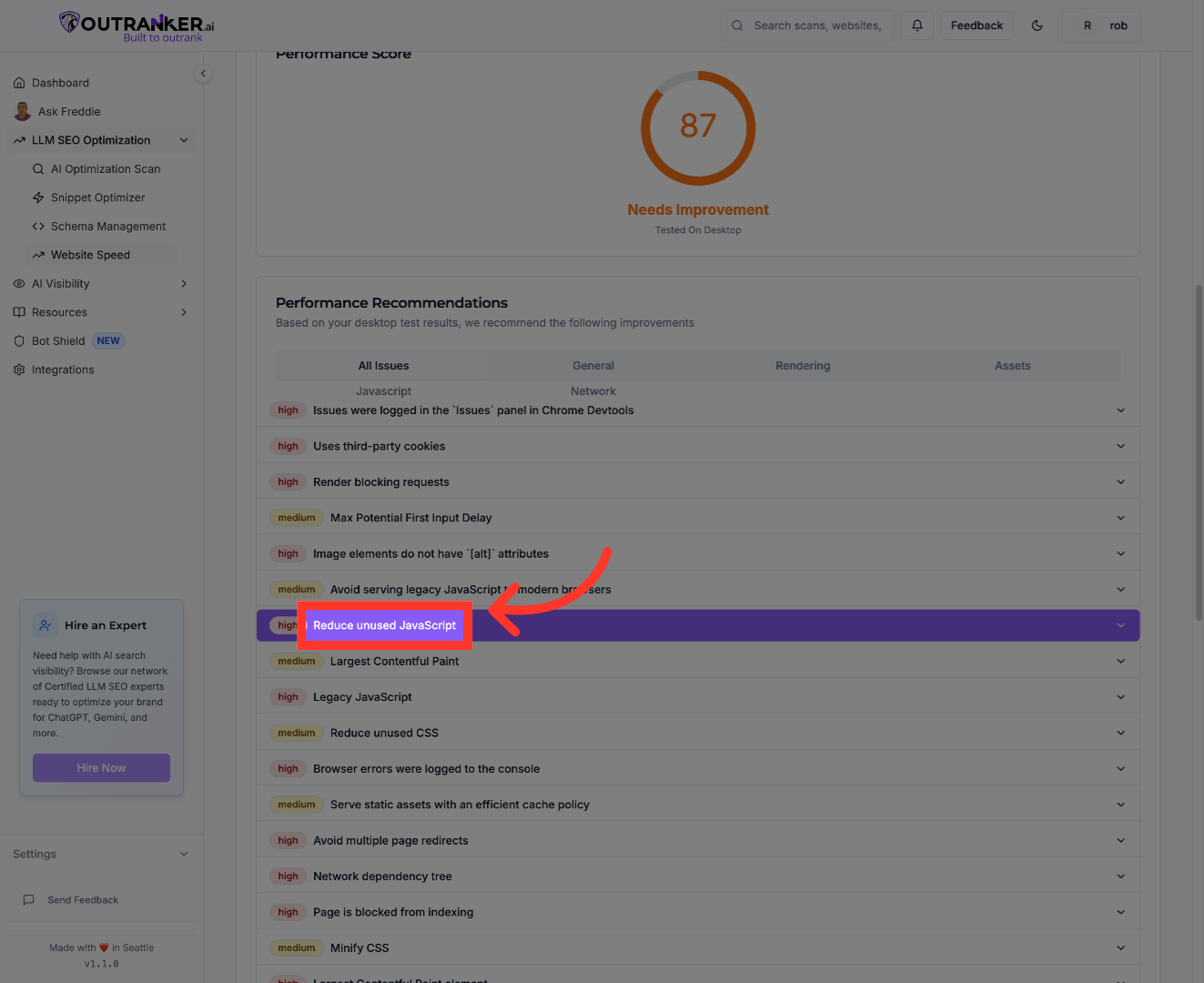
15. Click "Reduce unused JavaScript"
Click "Reduce unused JavaScript" to locate JavaScript code that is loaded but not used, which can be removed to improve speed.
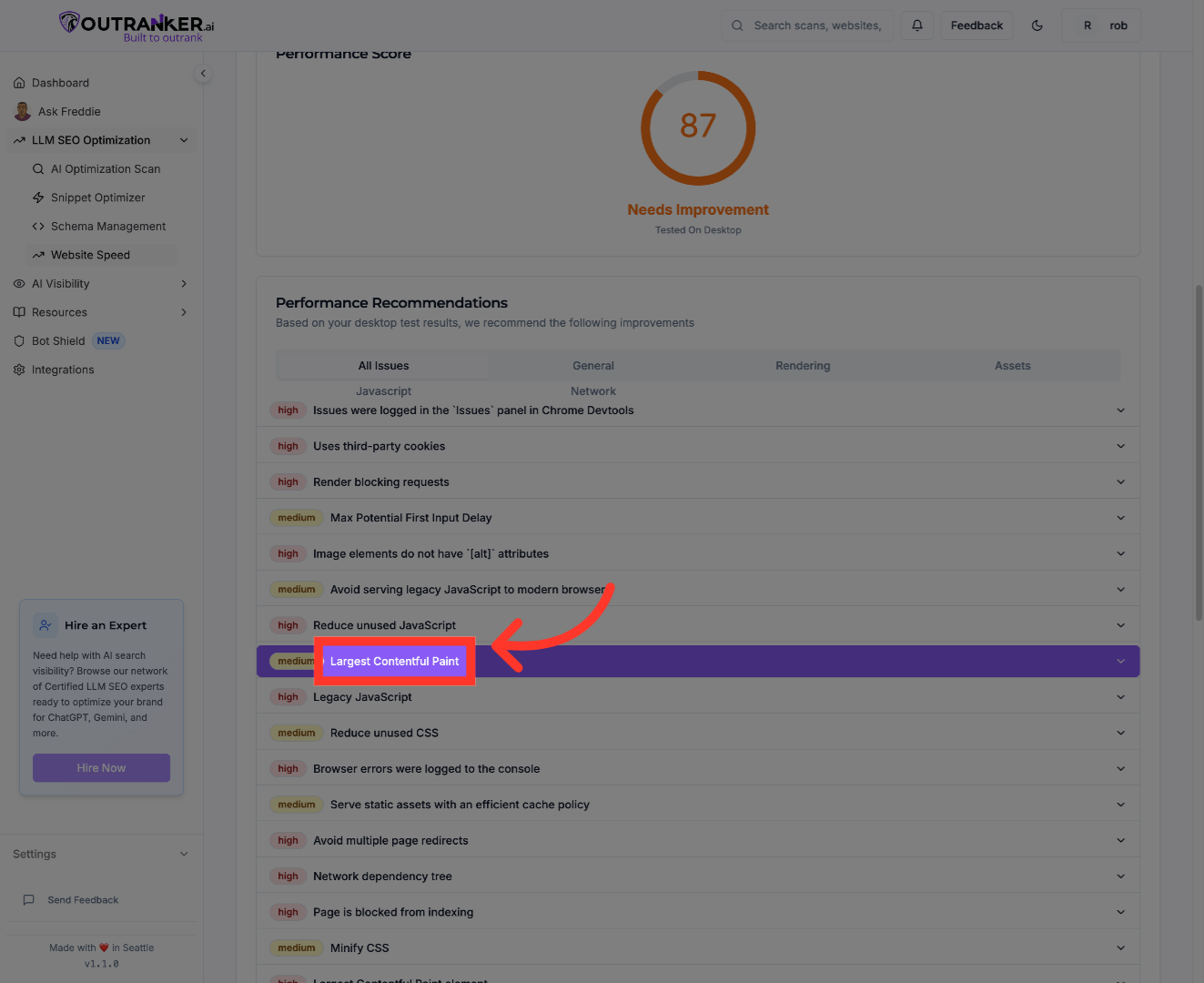
16. Click "Largest Contentful Paint"
Click "Largest Contentful Paint" to evaluate the time it takes for the largest visible content element to load, a key performance indicator.
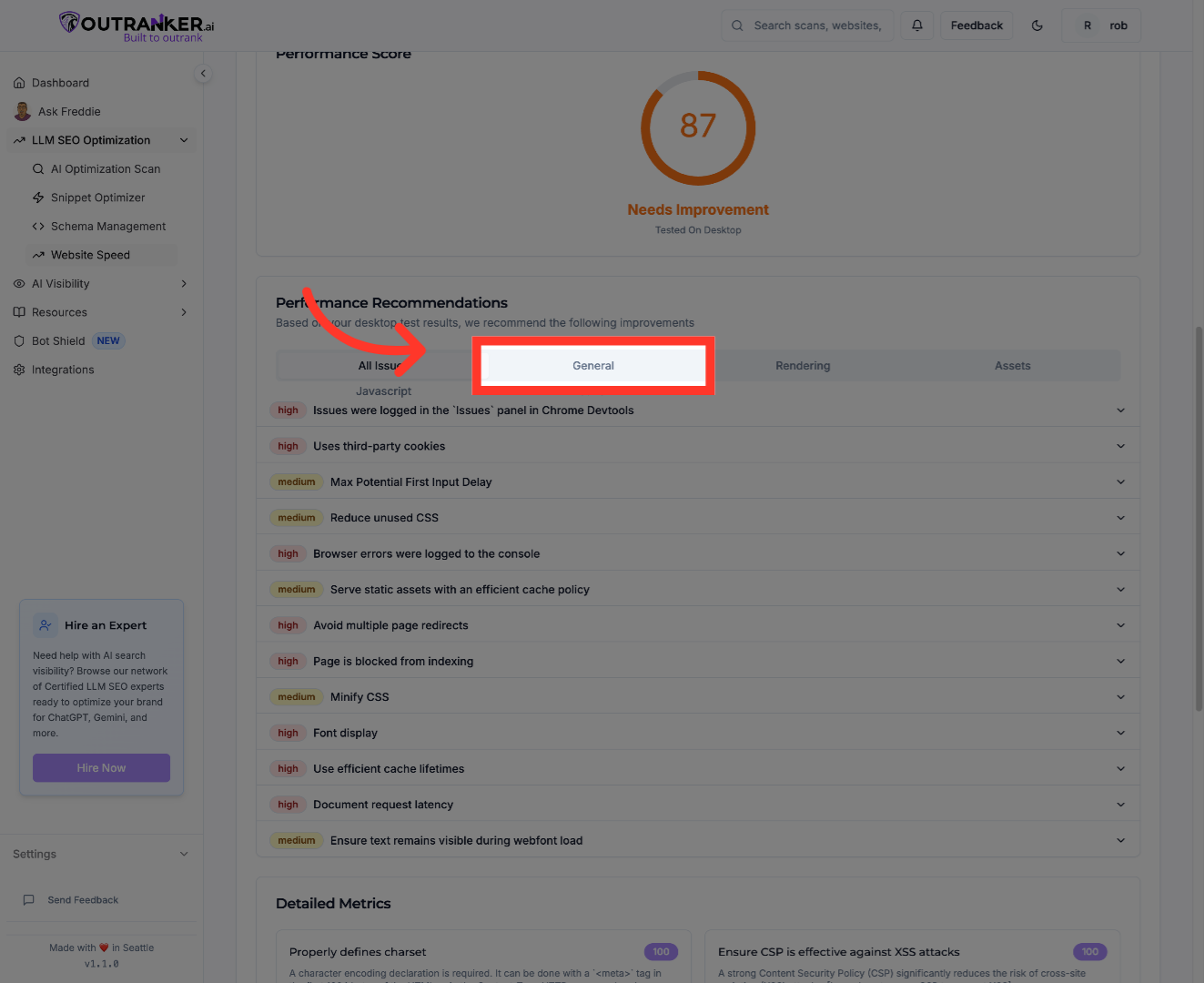
17. Click "general"
Click "general" to explore general performance metrics and settings related to your website speed analysis.
18. Click "rendering"
Click "rendering" to delve into rendering-specific details that affect how quickly your page content appears to users.
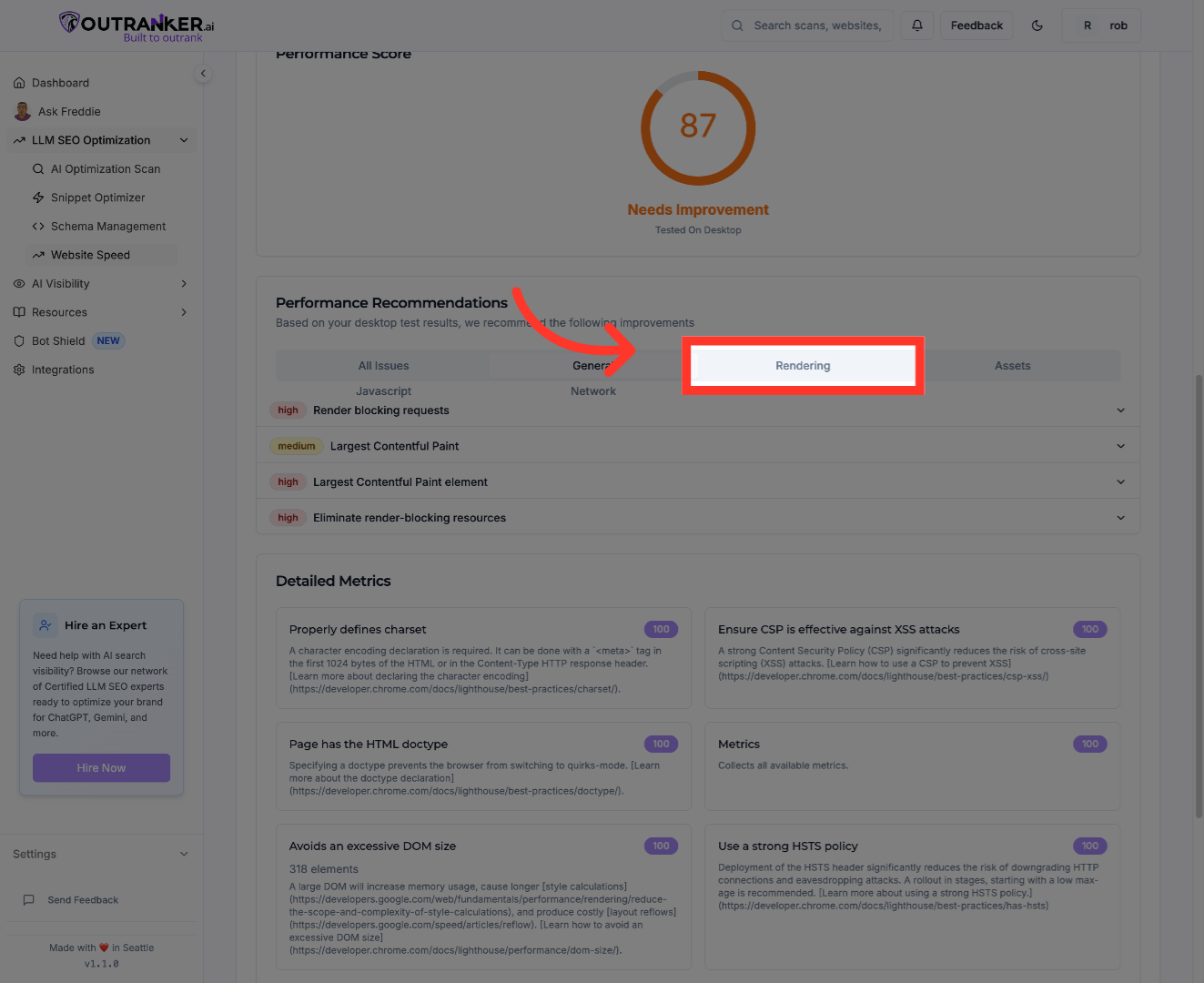
19. Click "assets"
Click "assets" to review the loading and optimization status of your website's assets such as images, scripts, and stylesheets.
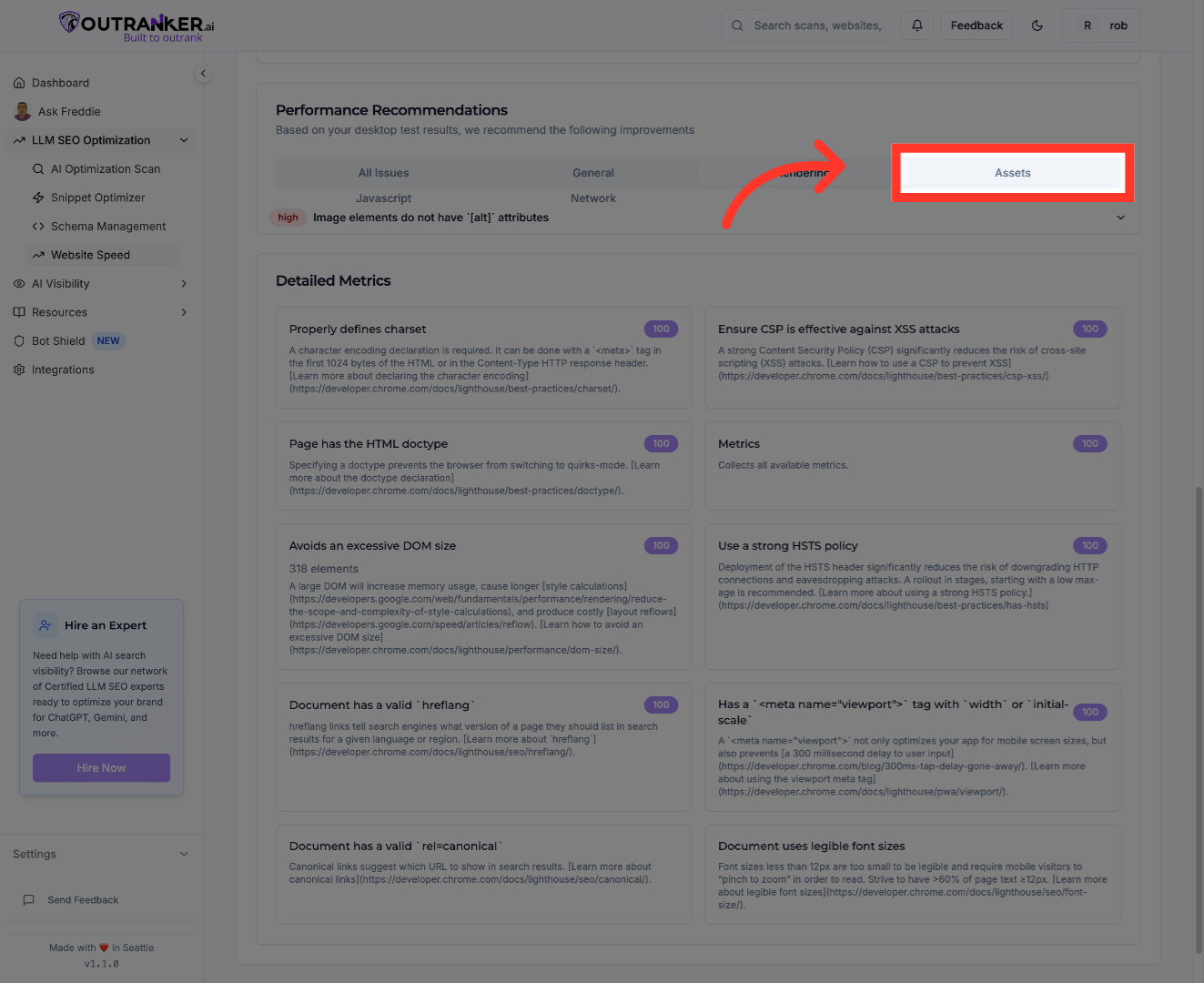
20. Click "javascript"
Click "javascript" to inspect JavaScript files and their impact on your website's loading speed and interactivity.
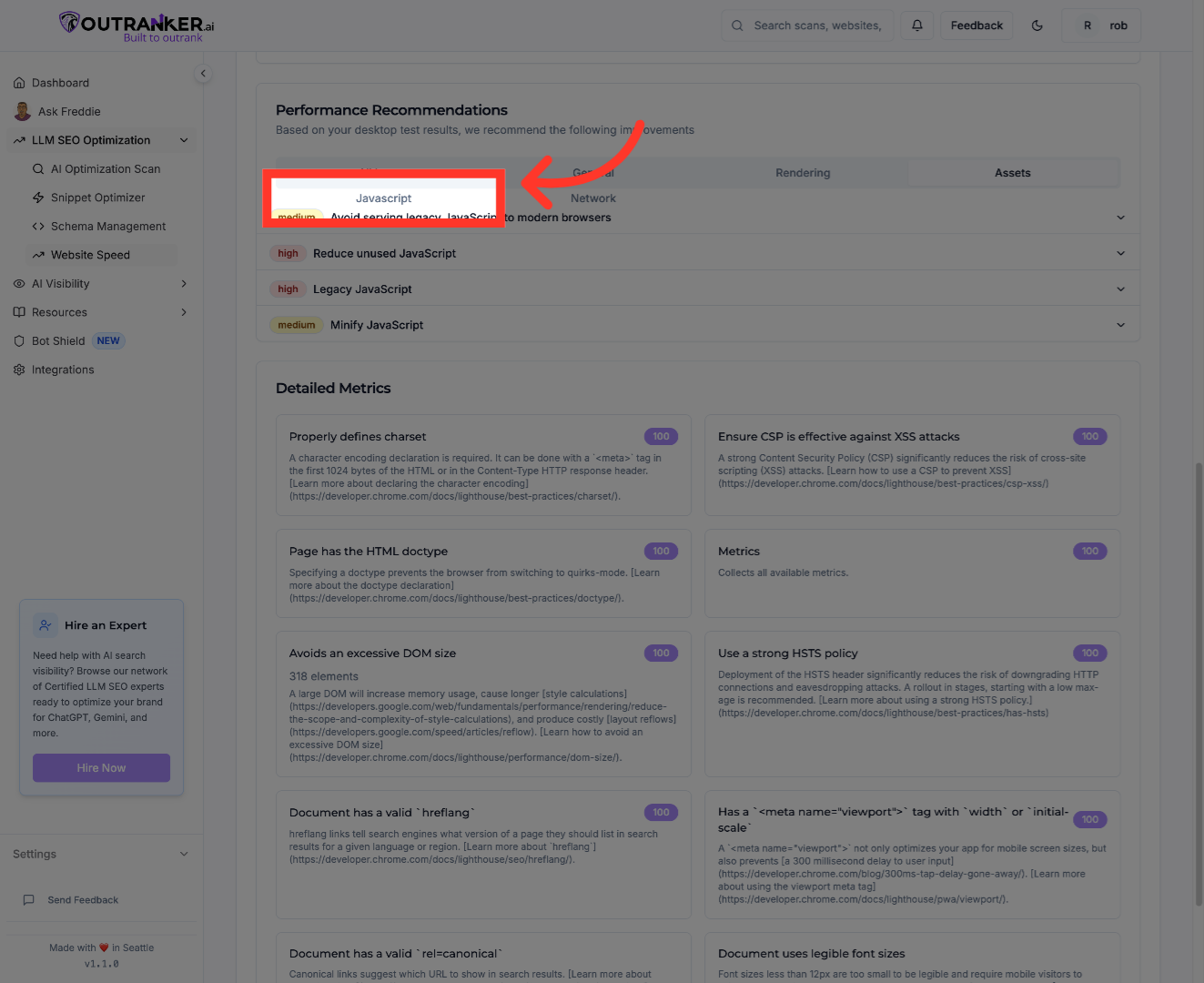
21. Click "network"
Click "network" to analyze network requests and responses that influence your website's overall performance and speed.
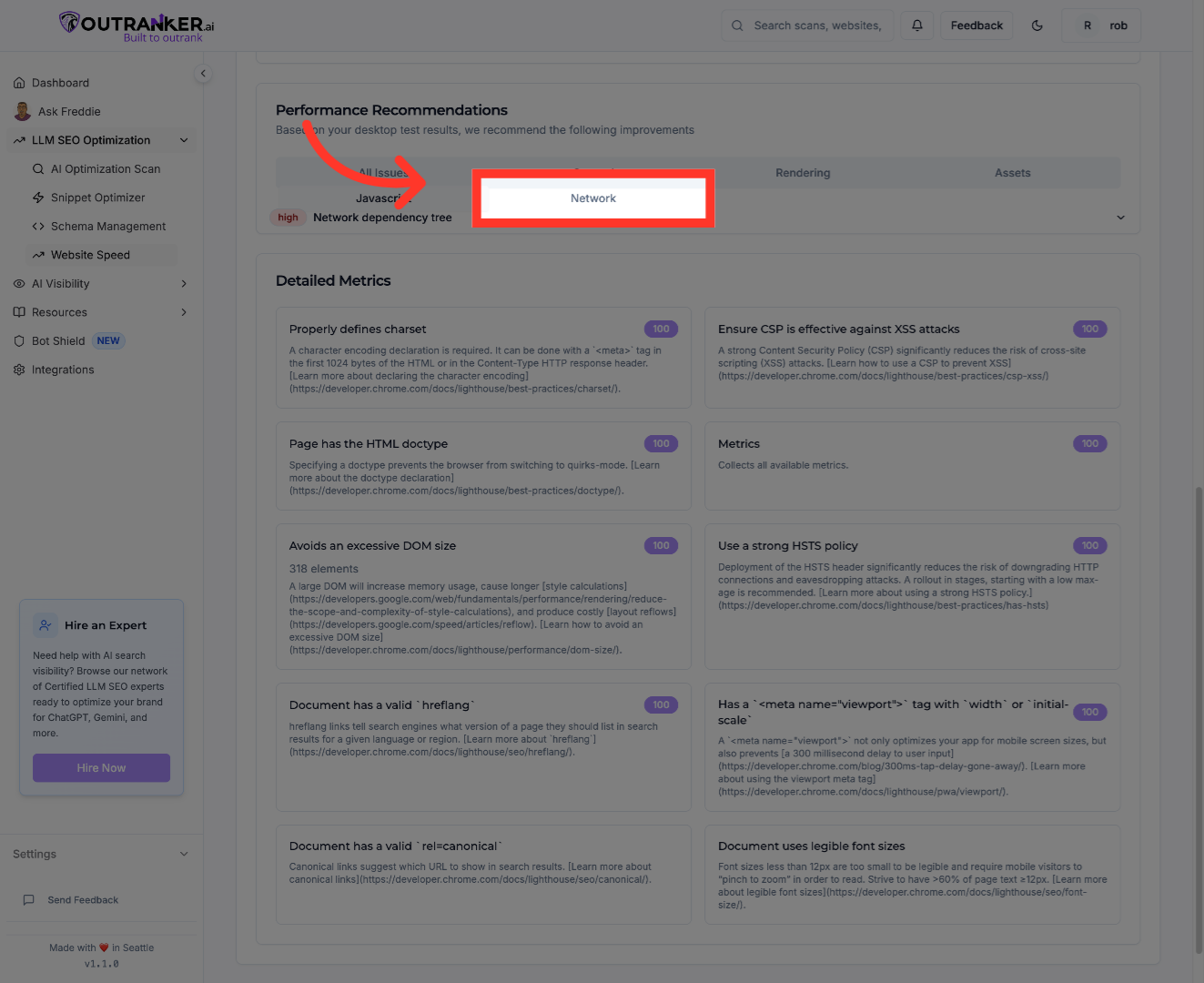
You have successfully measured your website speed using Outranker AI by running a detailed speed test, reviewing performance issues, and downloading a comprehensive report. To further improve your website's performance, consider addressing the identified issues such as render-blocking resources, unused JavaScript, and missing image alt attributes. For additional optimization, explore related features like S E O enhancements and user experience improvements within Outranker AI.
