
This tutorial guides you through managing your saved schemas using Outranker Schema Management
Go to www.outranker.ai
1. Introduction
You will learn how to access, preview, edit, and update your structured data schemas to enhance your website's S E O and content organization. Before starting, ensure you have access to your Outranker account and have existing schemas to manage.
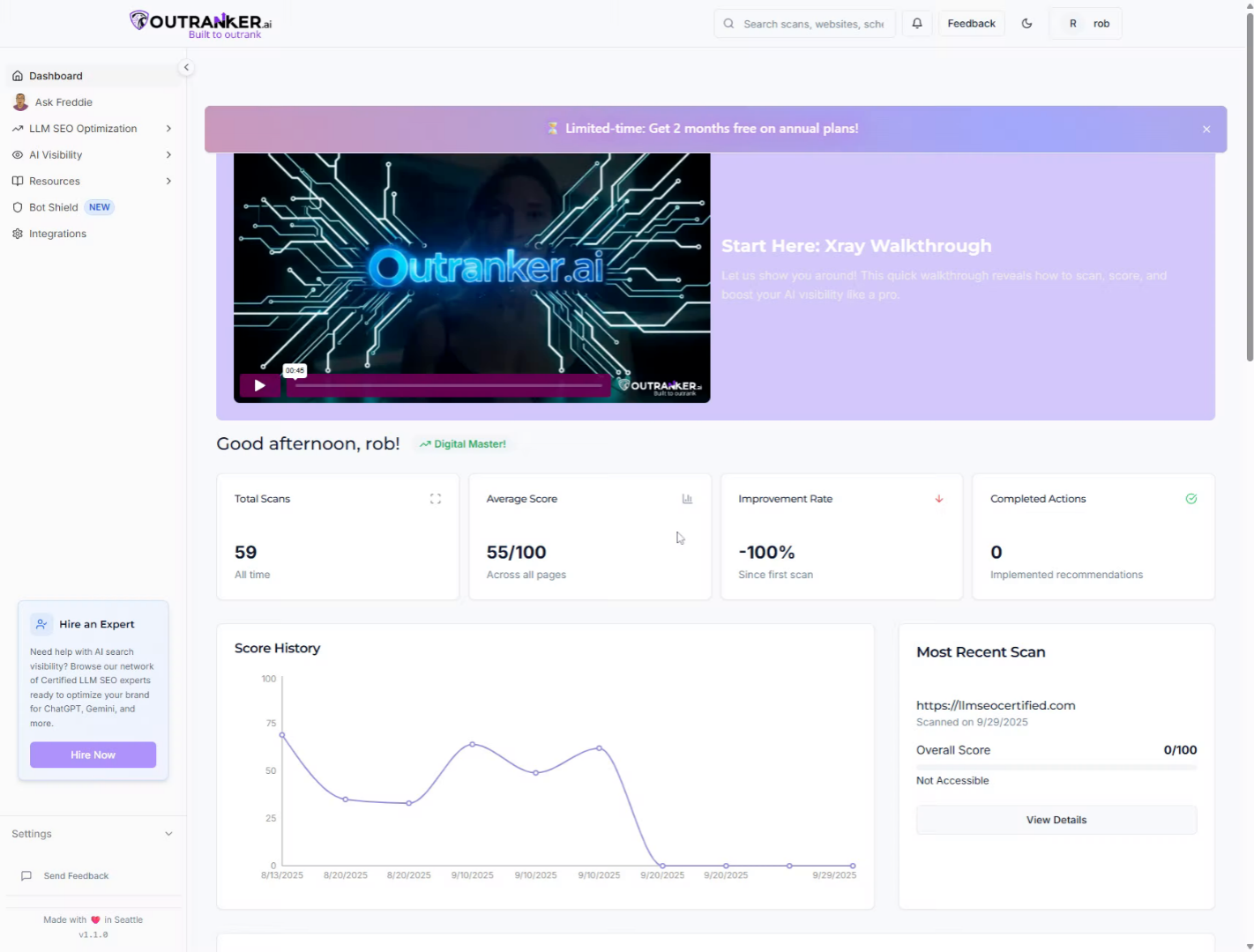
2. Click "LLM S E O Optimization"
Click "LLM S E O Optimization" to access the S E O optimization features within Outranker, which help improve your content's search engine performance.
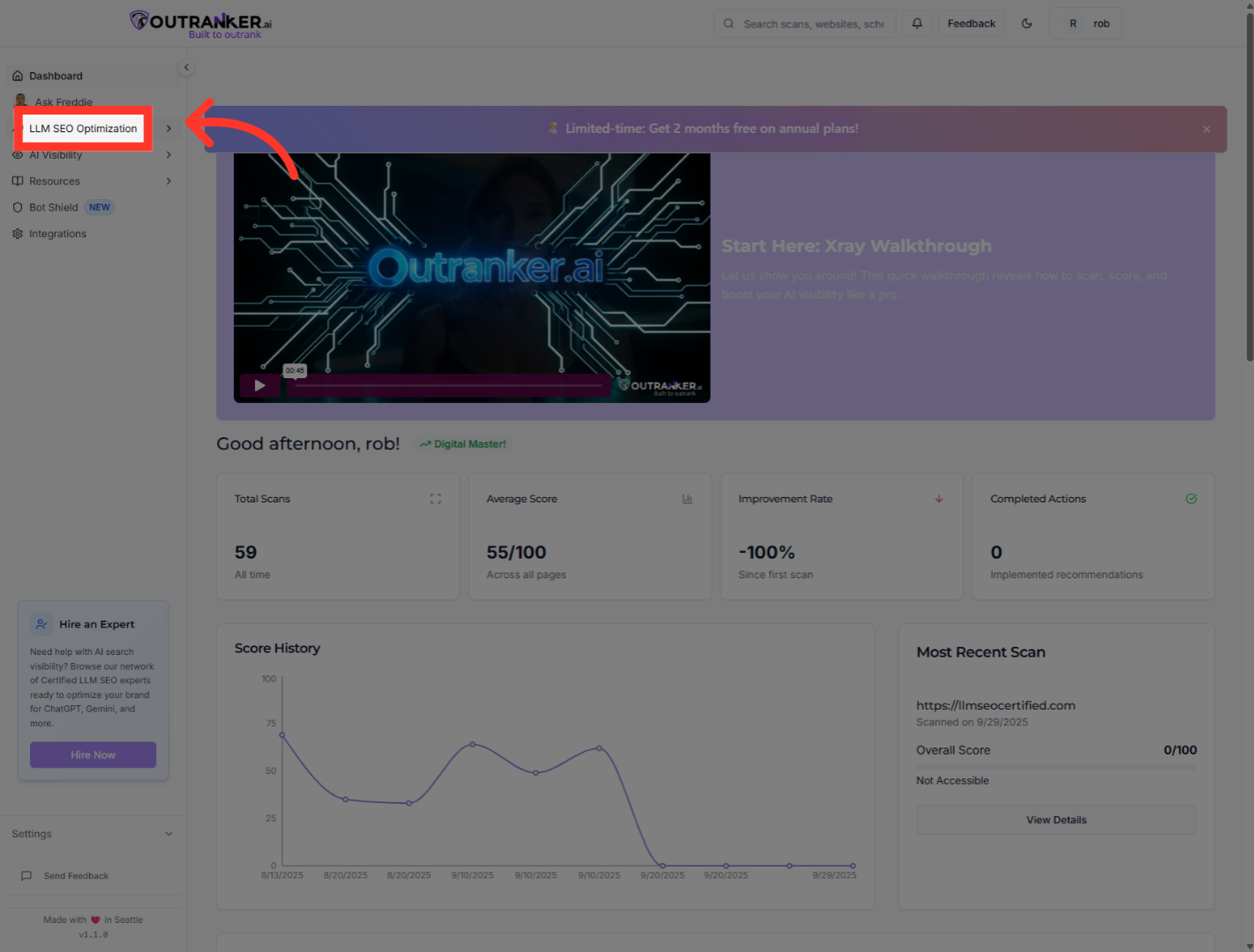
3. Click "Schema Management"
Click "Schema Management" to open the section where you can manage your saved schemas for structured data.
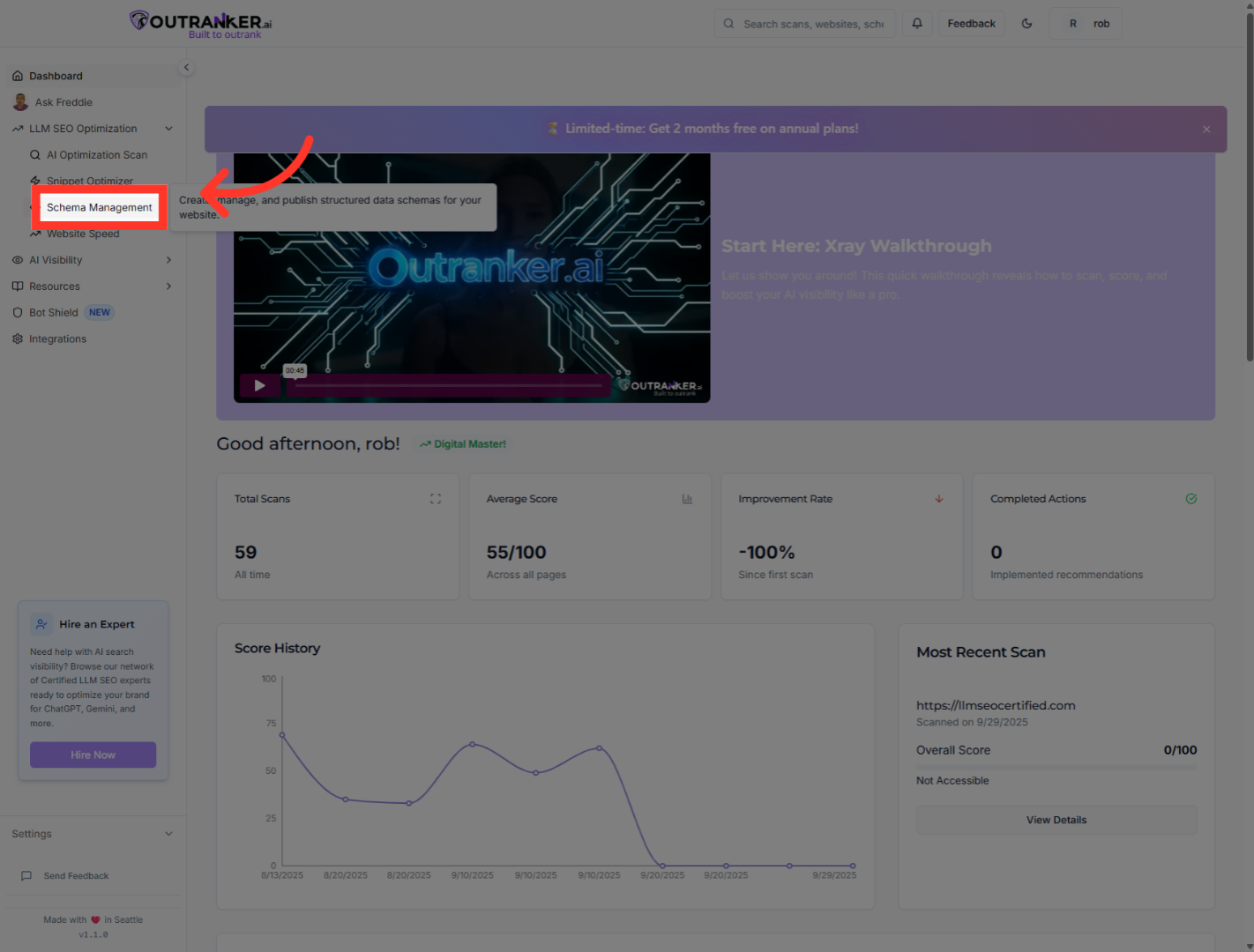
4. Click "My Schemas"
Click "My Schemas" to view the list of schemas you have previously saved and can edit or use.
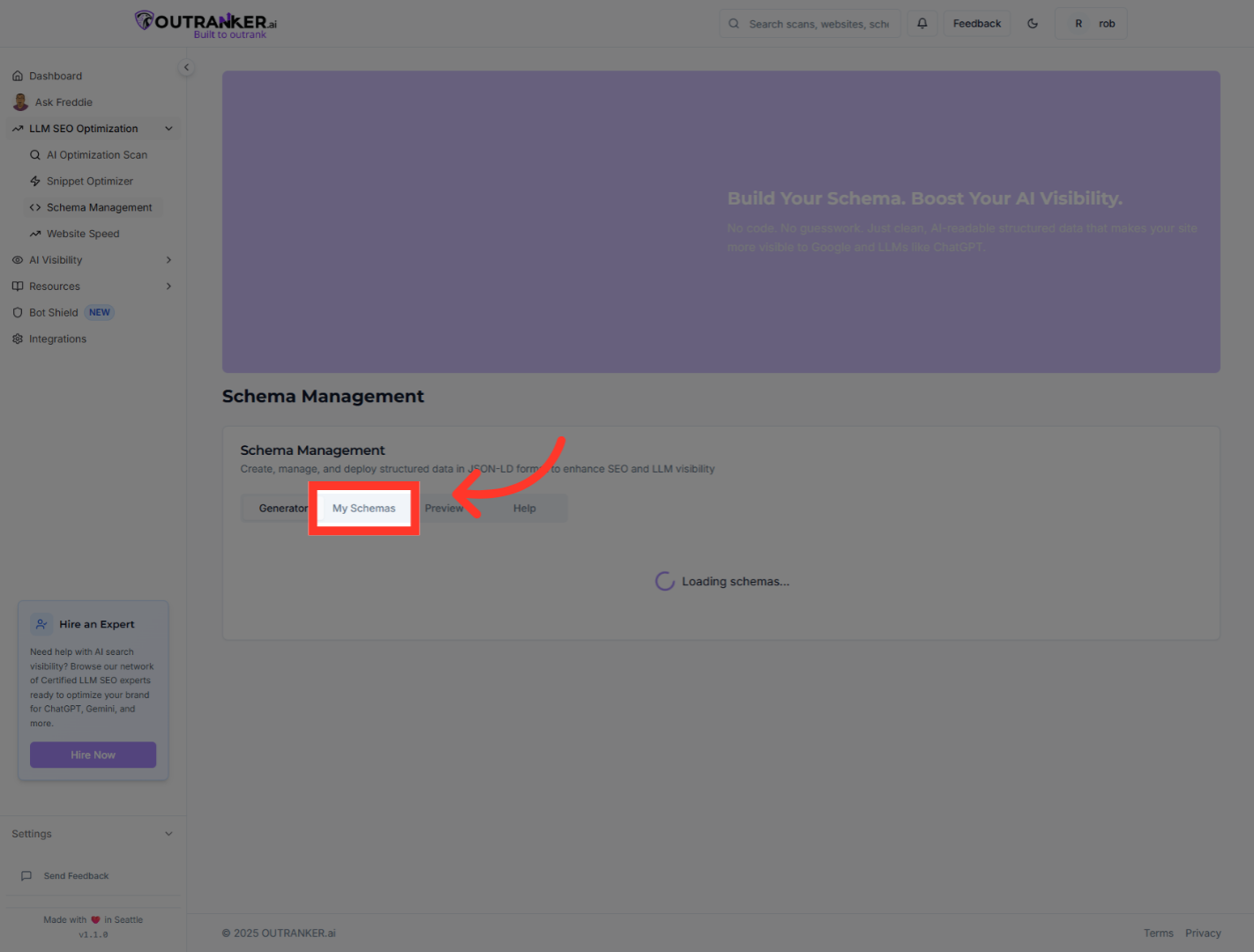
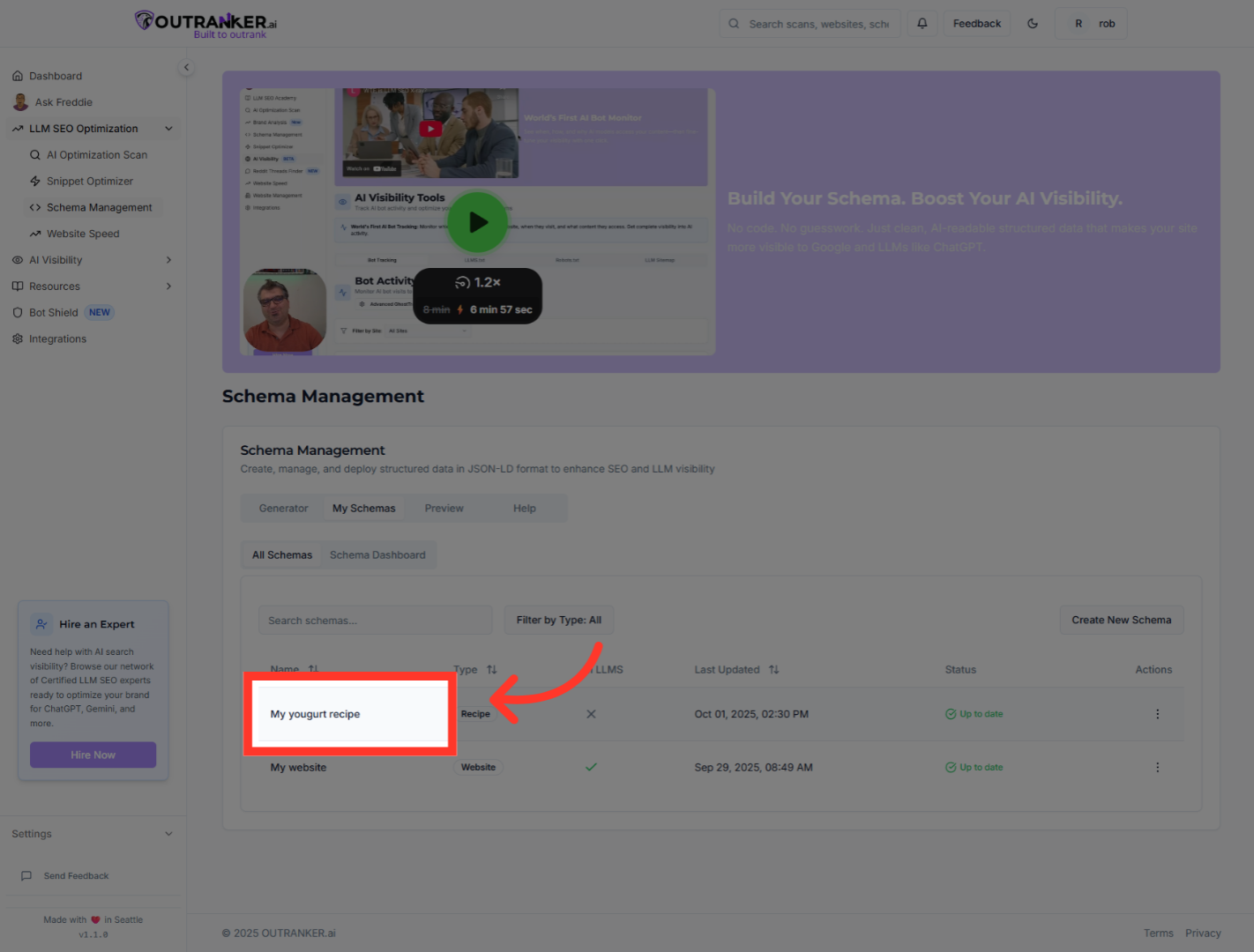
5. Click "My yougurt recipe"
Click "On your existing saved Schemas" to select the specific schema for further management.
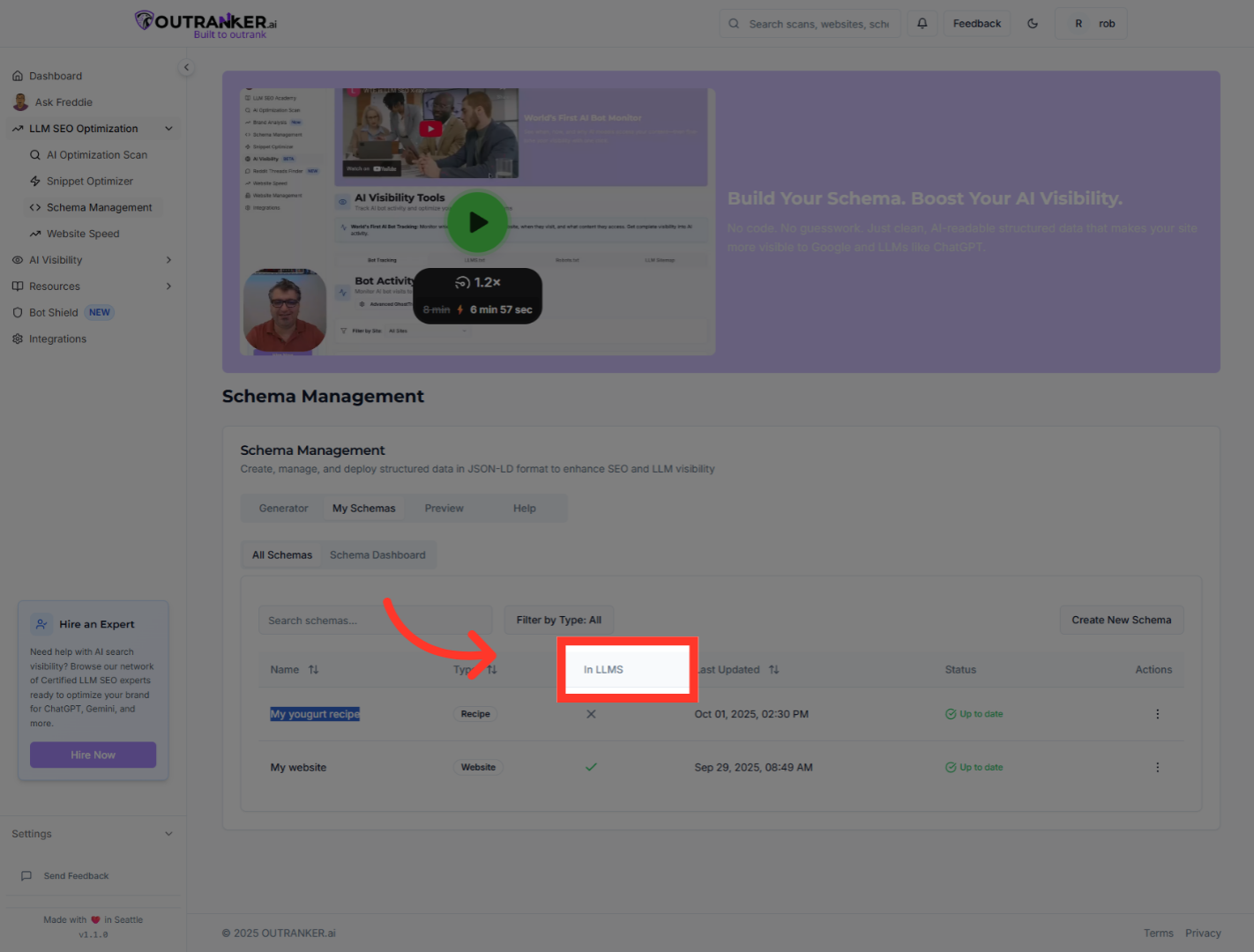
6. Click "In LLMS"
You will be able to find If this Schema is included on your LLM'S dot txt or not.
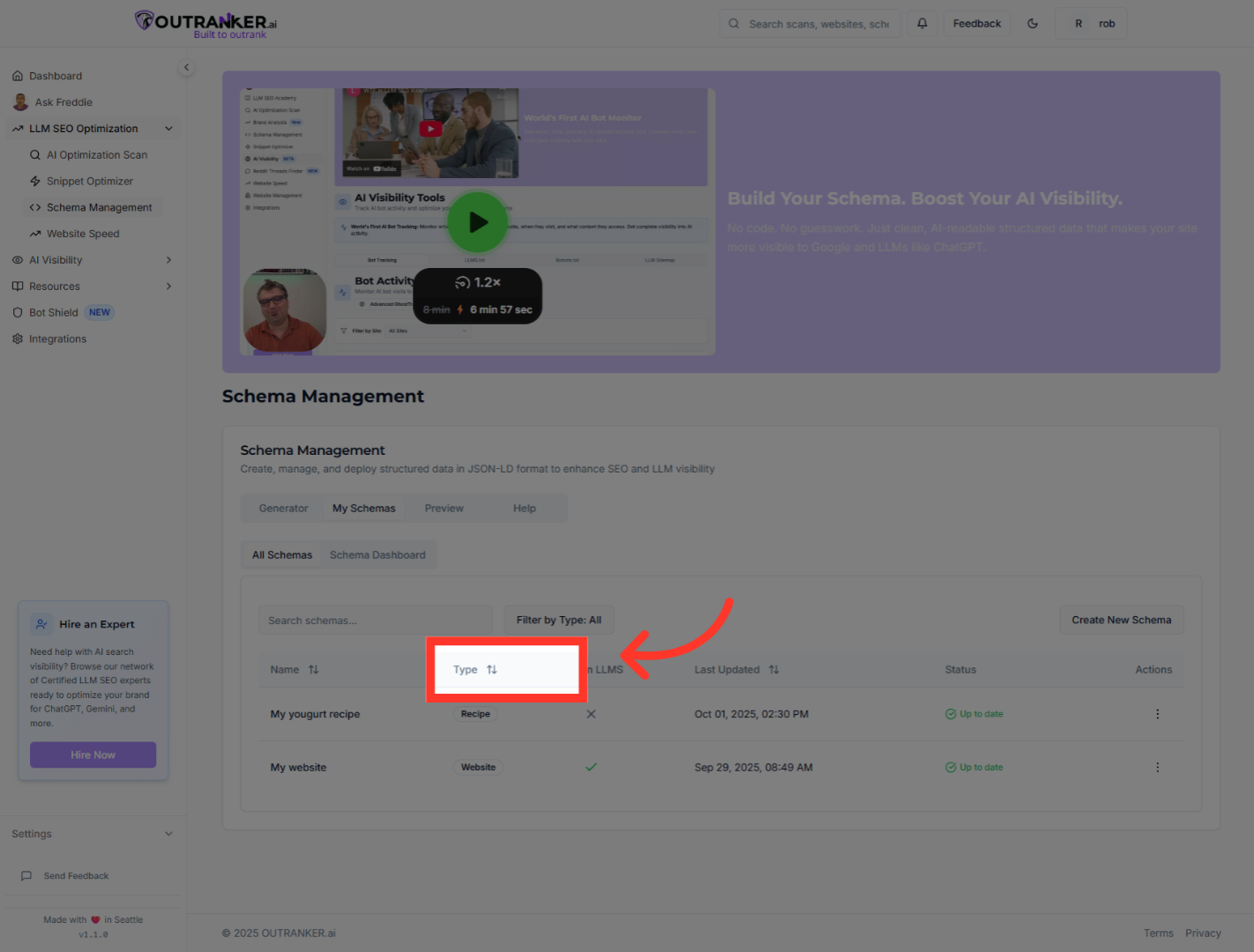
7. Click "Type"
Click "Type" to specify or change the type of schema you are working with, ensuring it matches your content.
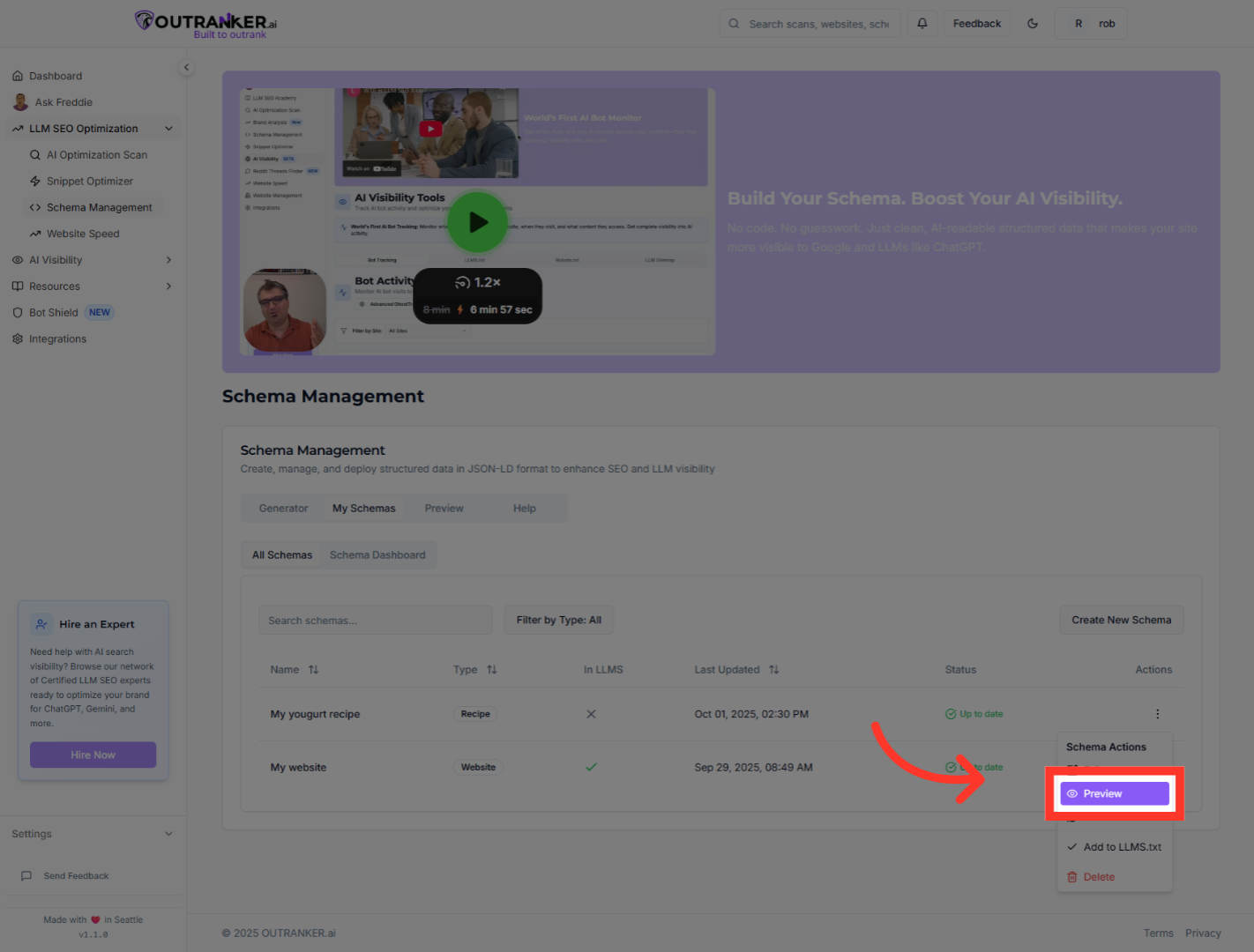
8. Click "Preview"
Click "Preview" to see a live preview of how your schema will appear when implemented on your LLM'S dot txt.
9. Click "Select Schema TypeChoose the type of structured data you want to generate"
Click "Select Schema TypeChoose the type of structured data you want to generate" to choose the appropriate schema type that fits your content's needs.
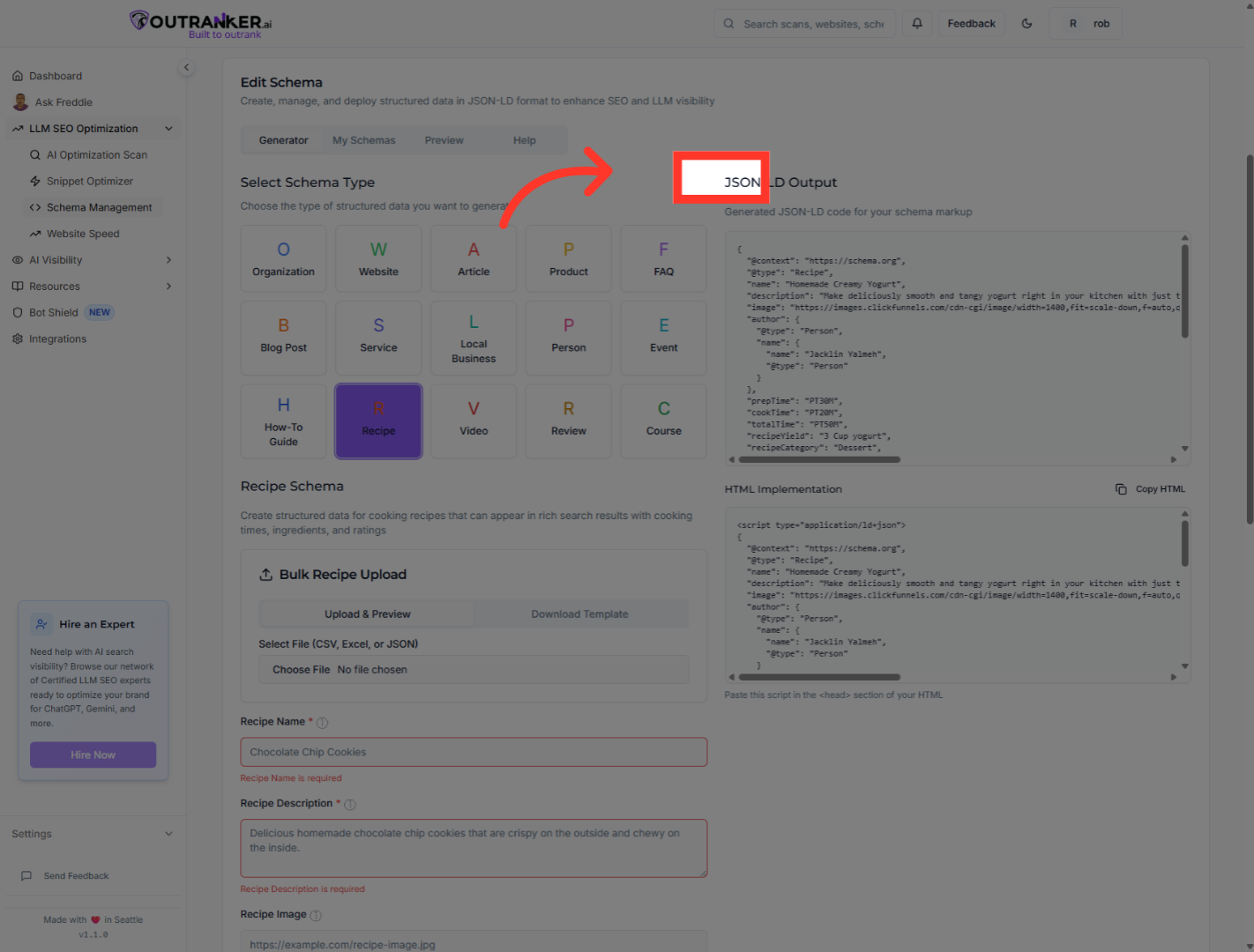
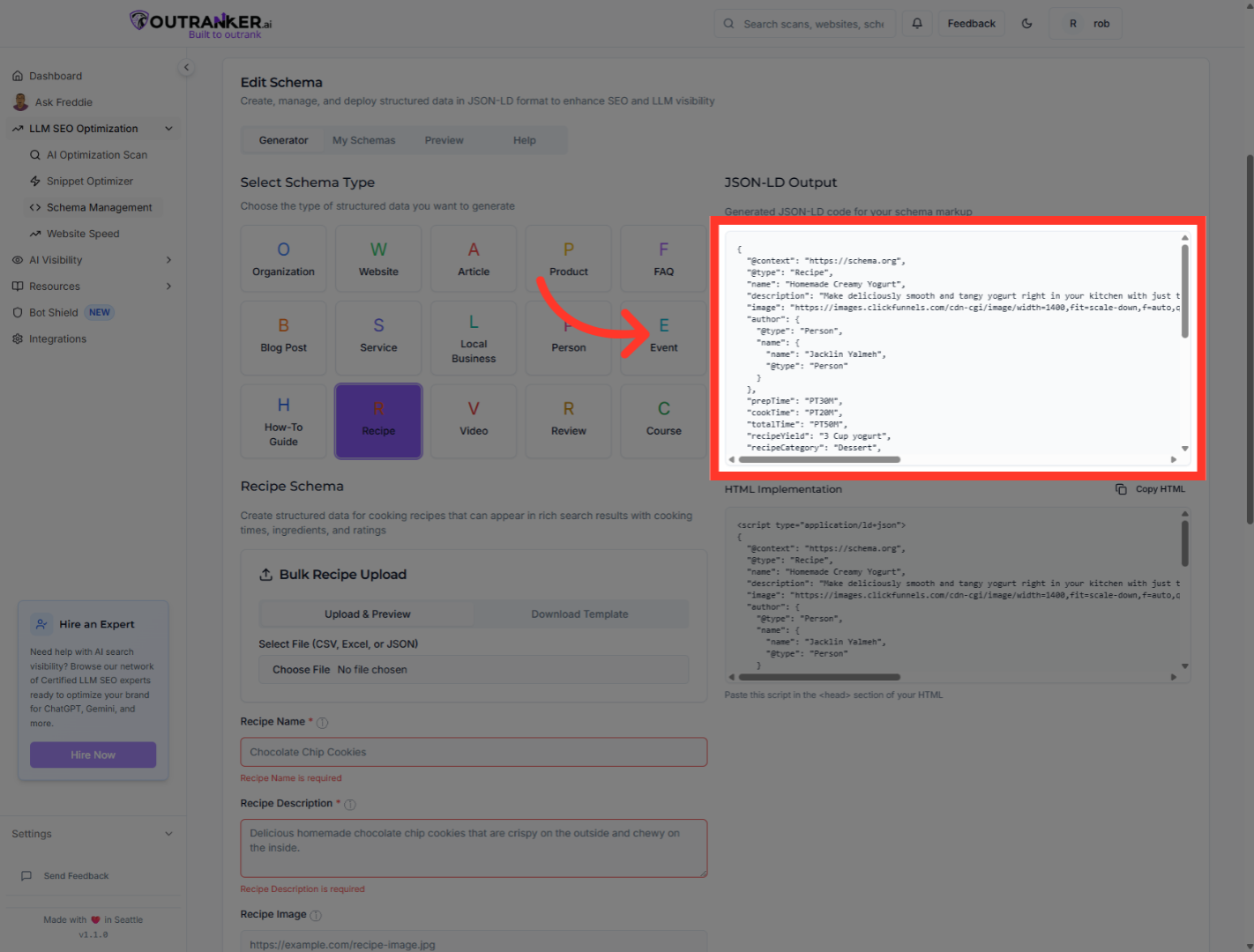
10. You can copy the JSON code for your Schema here
You can copy the JSON code for your Schema here
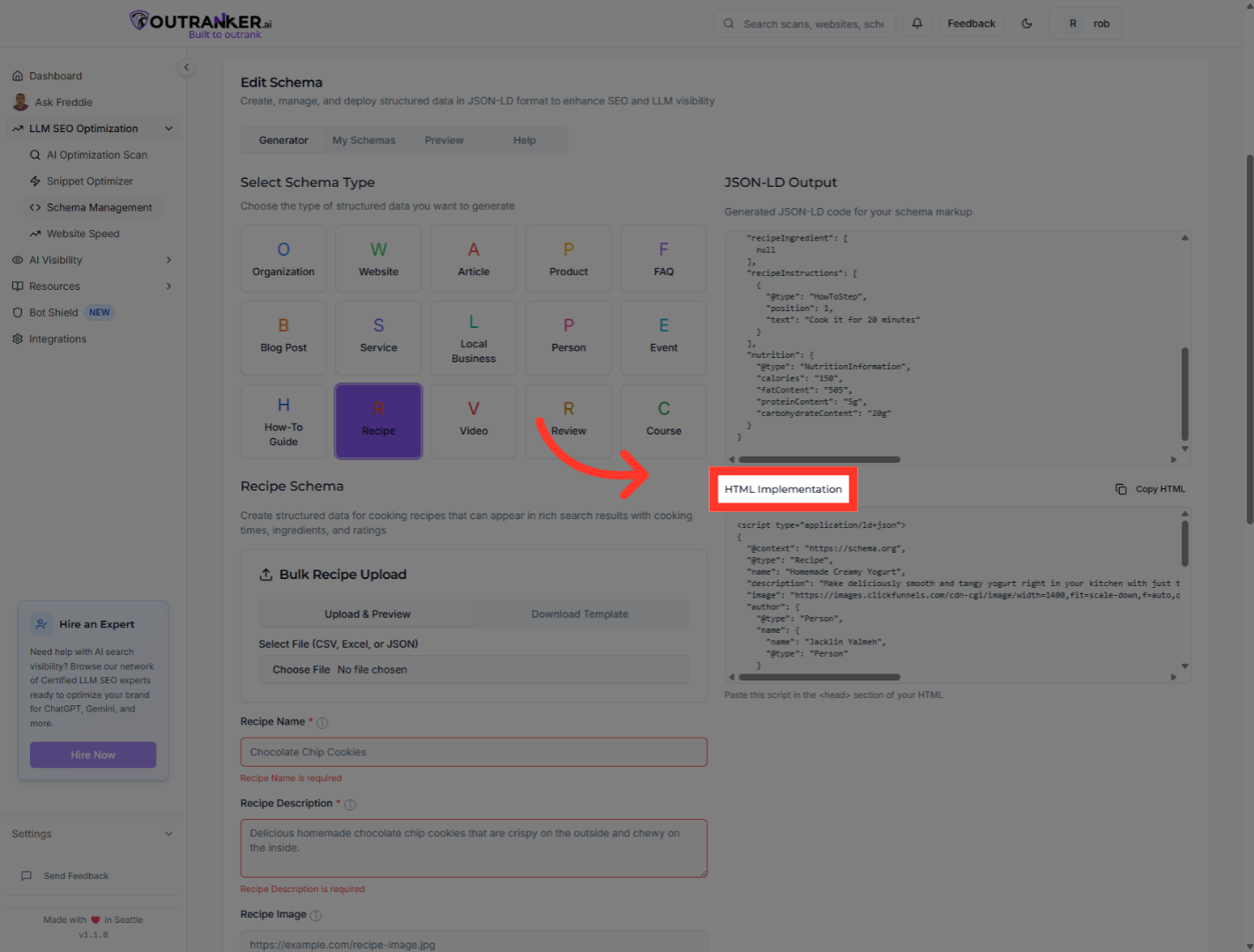
11. Click "HTML Implementation"
Click "HTML Implementation" to access the HTML code snippet that you can embed in your website to implement the schema.
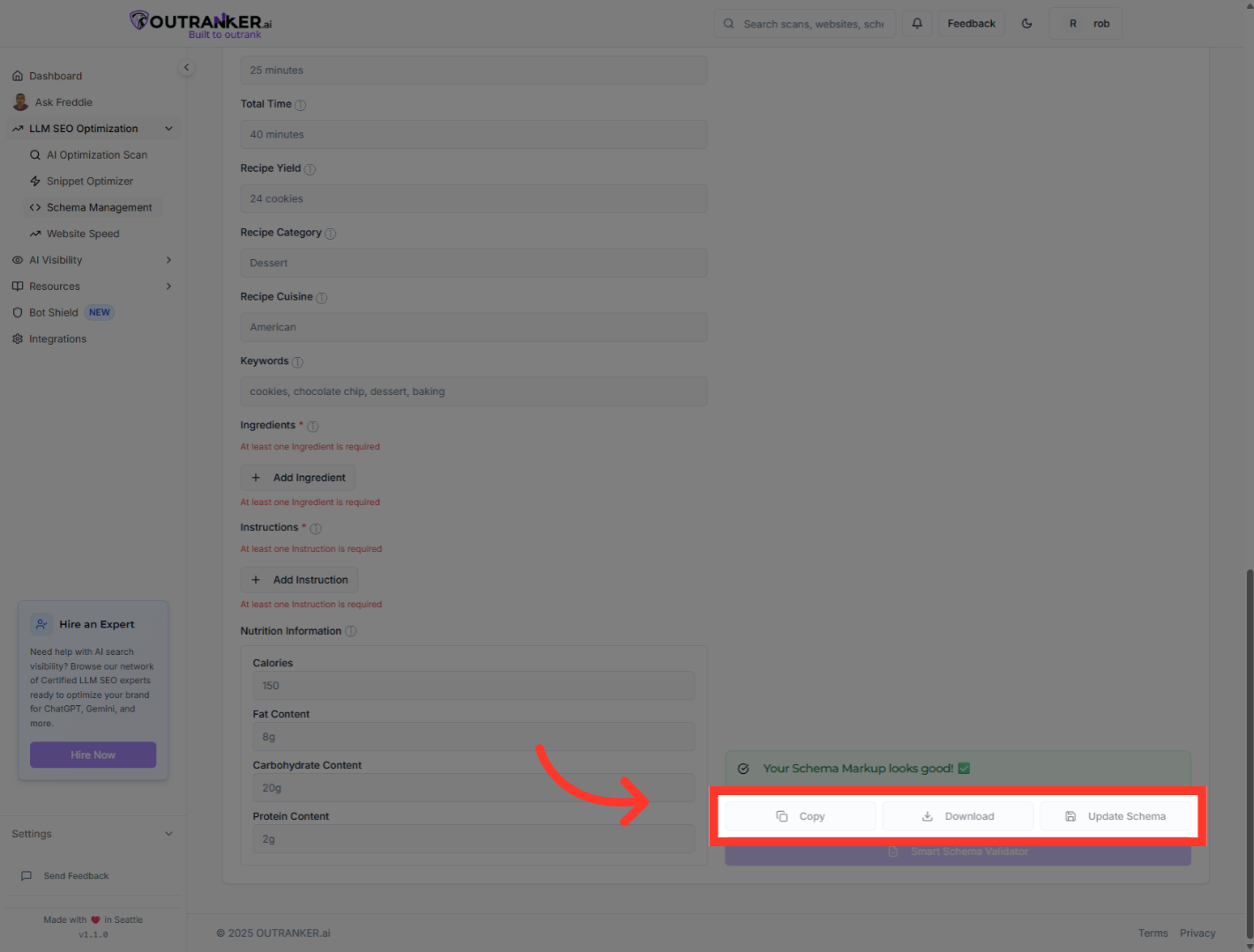
12. Click "Copy To copy the code, Download it Or Update Schema to updated the saved Schema"
Click "Copy To copy the code, Download it Or Update Schema to updated the saved Schema"
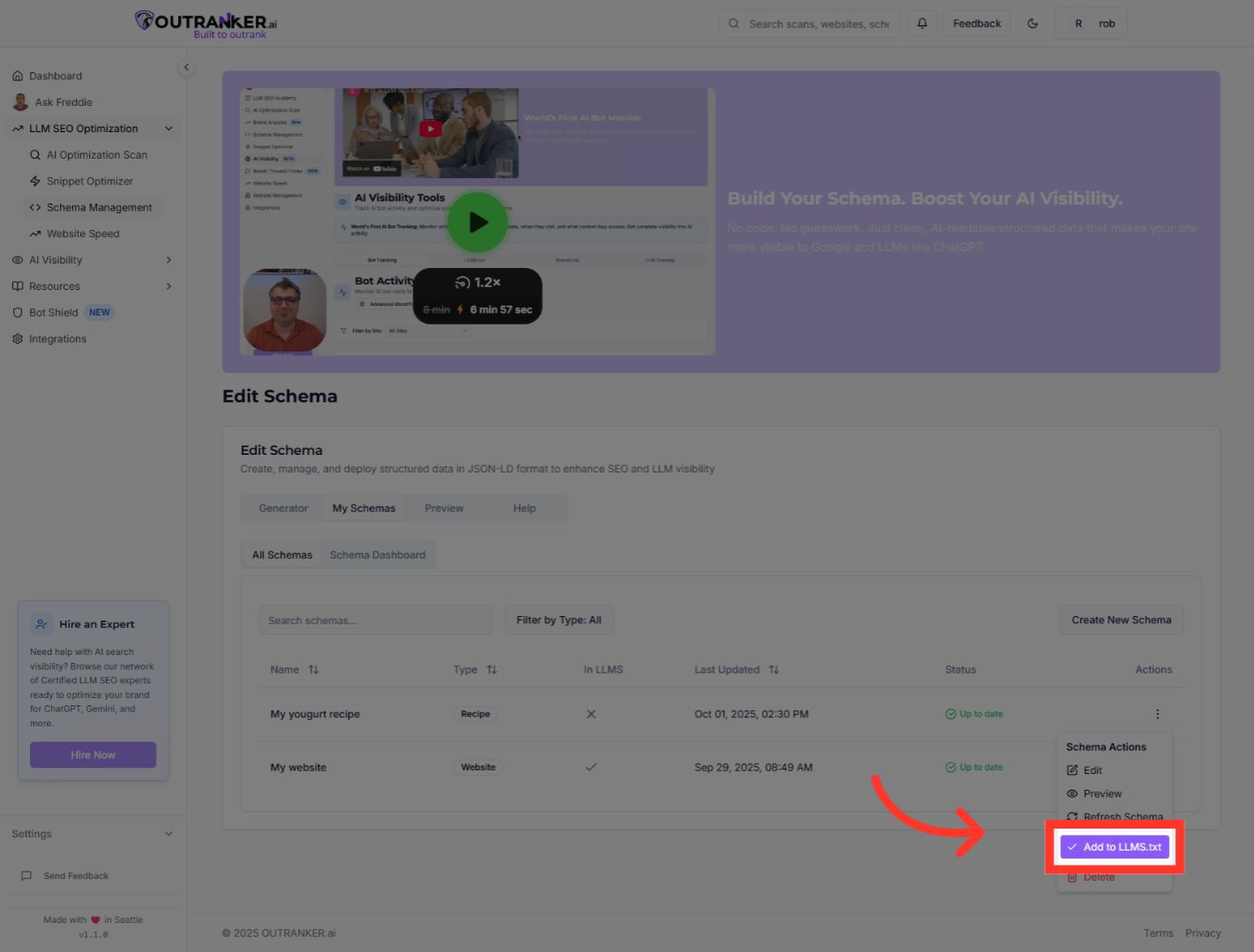
13. Click "Add to LLM'S.txt"
Click "Add to LLM'S.txt" to add the current schema to your Language Learning Management System text files for integration.
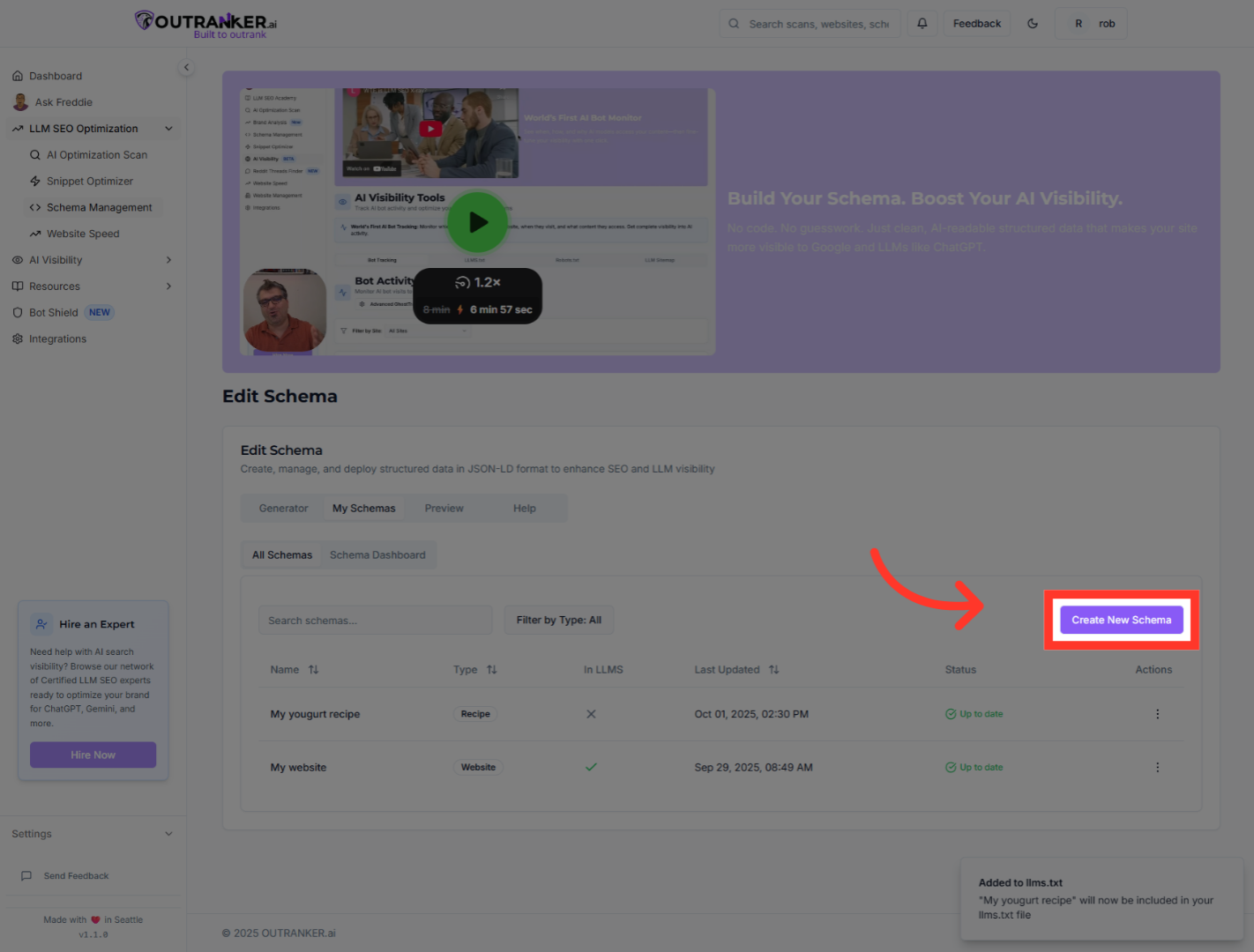
14. Click "Create New Schema"
Click "Create New Schema" to start creating a new schema from scratch for different content or purposes.
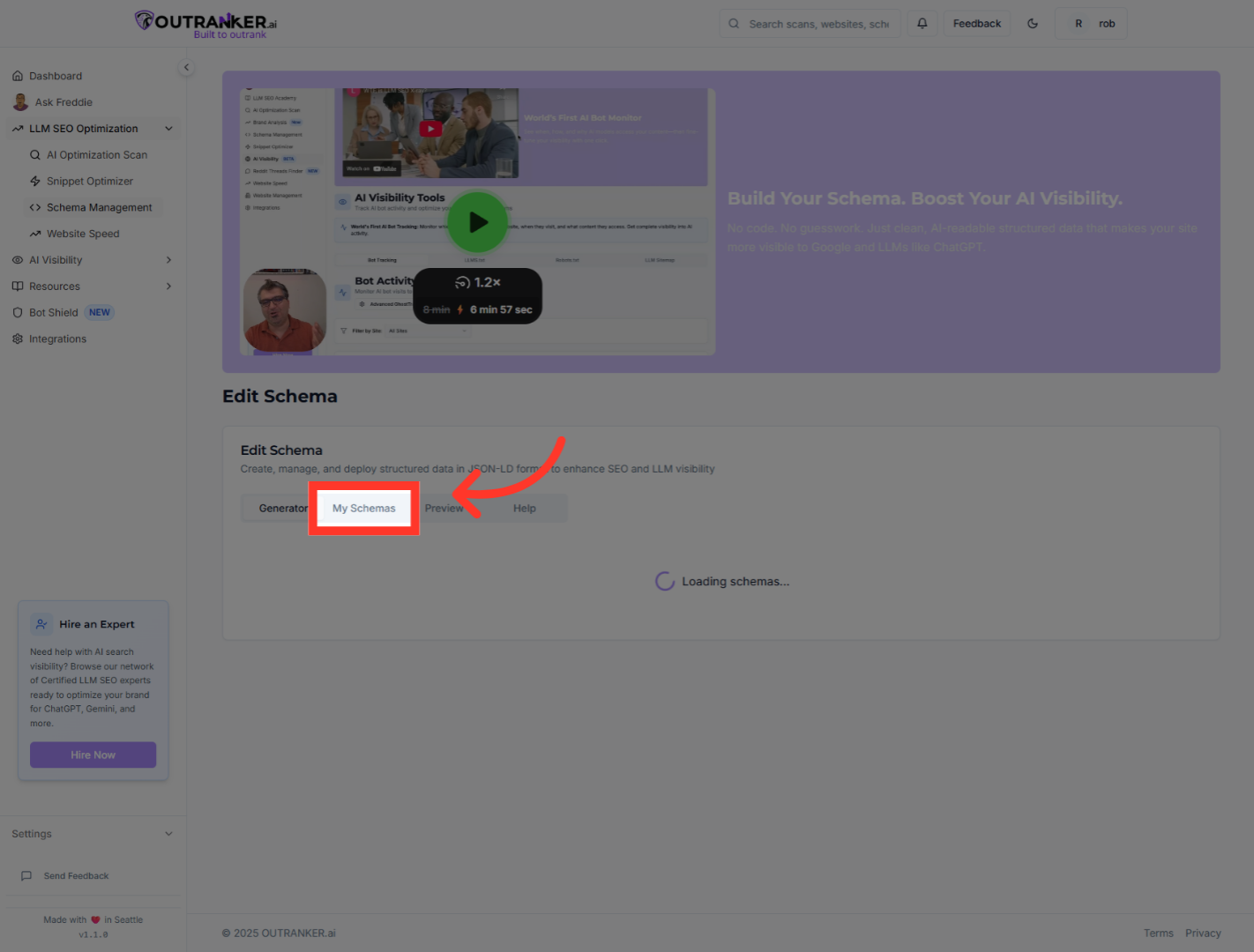
15. Click "My Schemas"
Click "My Schemas" to return to your collection of saved schemas after creating or editing.
You have successfully managed your saved schemas within Outranker Schema Management by viewing, editing, previewing, and updating your structured data. To confirm completion, verify that your schemas are correctly updated and refreshed in the dashboard. For further optimization, consider creating new schemas or bulk uploading multiple recipes to streamline your workflow.
