
This tutorial guides you through generating a Course schema using Outranker's Schema Management feature
Go to www.outranker.ai
1. Introduction
By following these steps, you will create structured data in JSON-LD format that enhances your course's S E O and visibility in search engines and language models. Before starting, ensure you have your course details ready, including name, description, provider information, credentials, duration, prerequisites, target audience, pricing, and availability status.
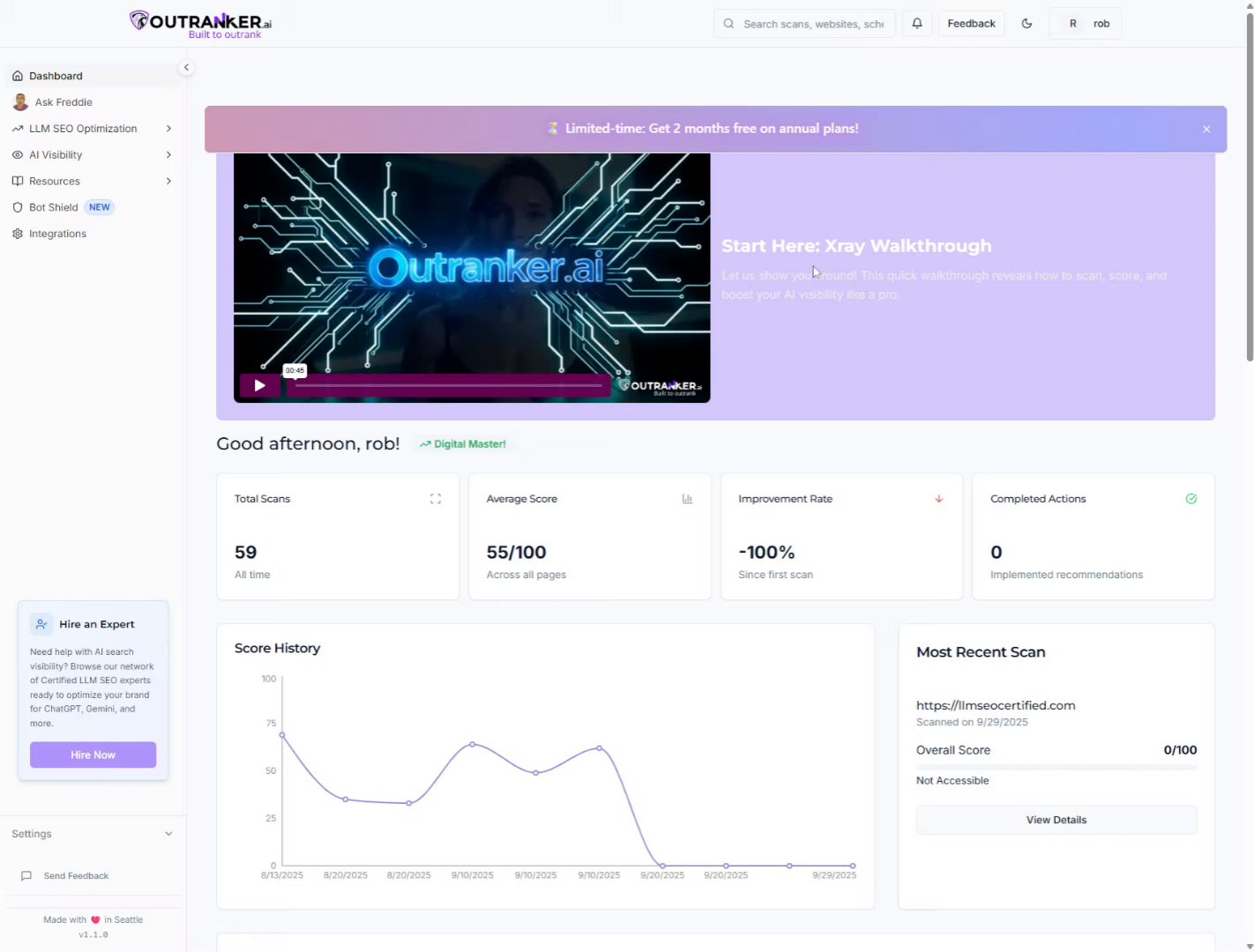
2. Click "LLM SEO Optimization"
Click "LLM S E O Optimization" to access the S E O optimization features within Outranker, enabling advanced content enhancement.
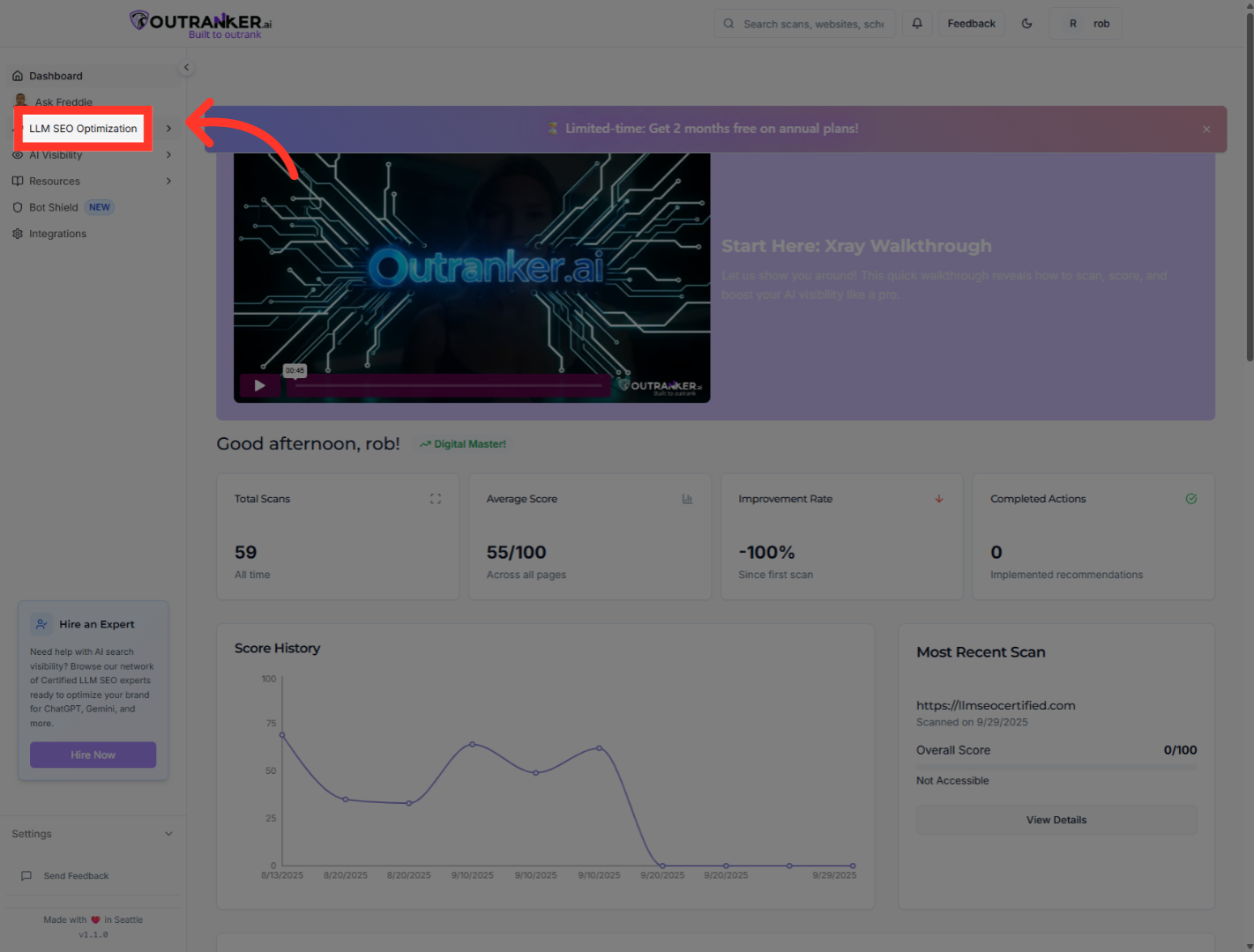
3. Click "Schema Management"
Click "Schema Management" to open the section where you can create, manage, and deploy structured data schemas.
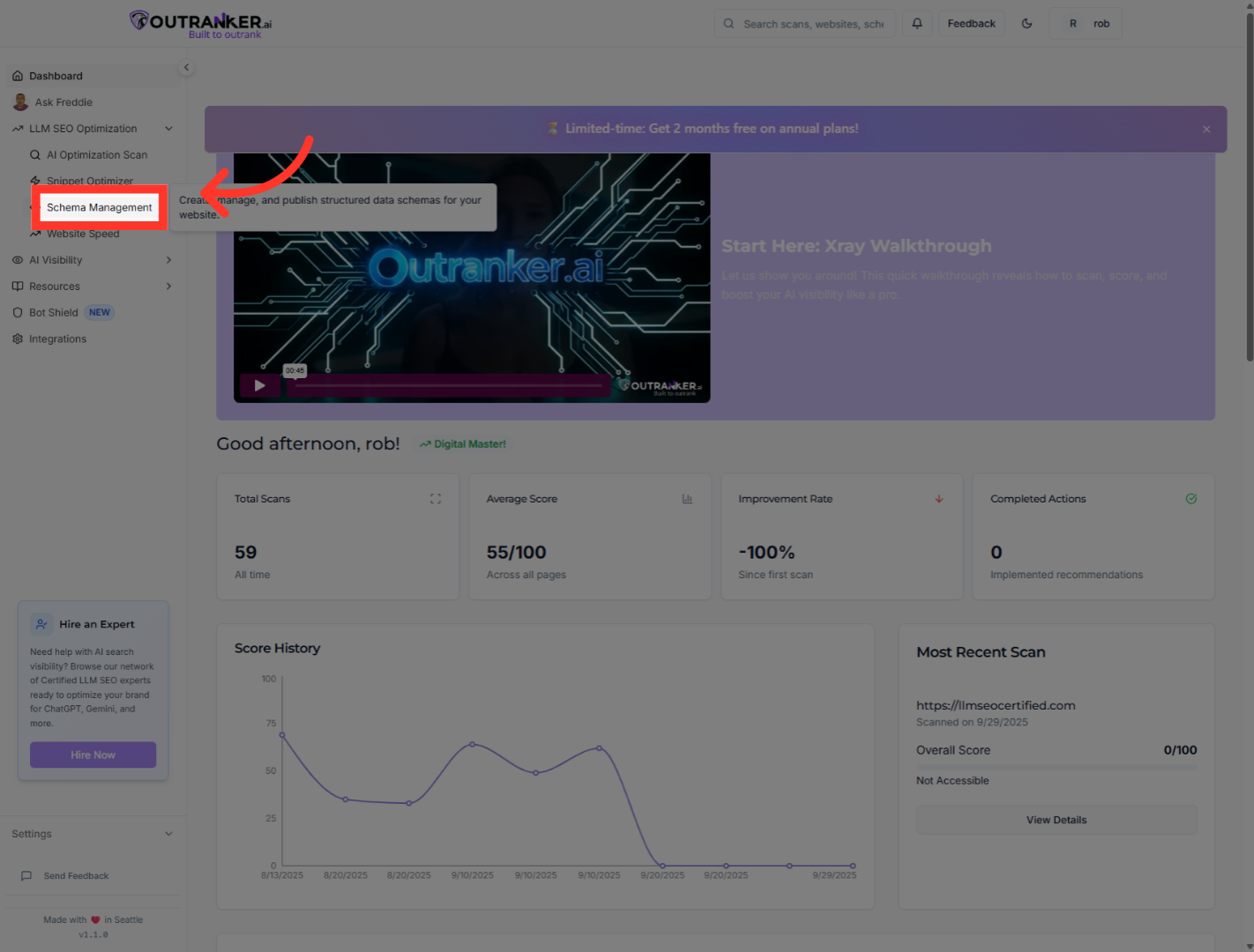
4. Click "Course"
Click "Course" to select the course schema type for structured data creation.
5. Click "Course Name*"
Click "Course Name" to input or edit the course name field in the schema form.
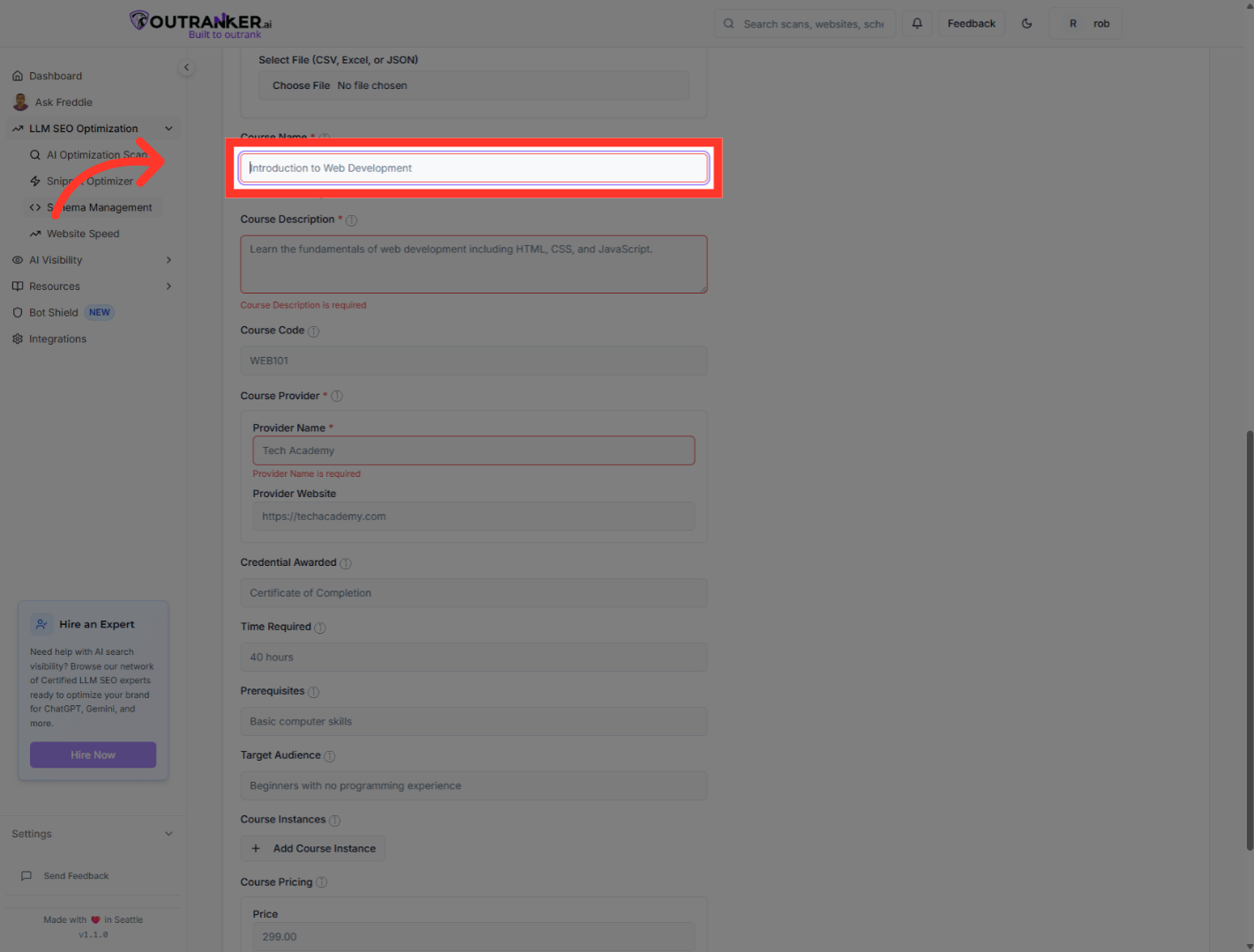
6. Click "Course Description*"
Click "Course Description" to fill in the course description field with the course description text.
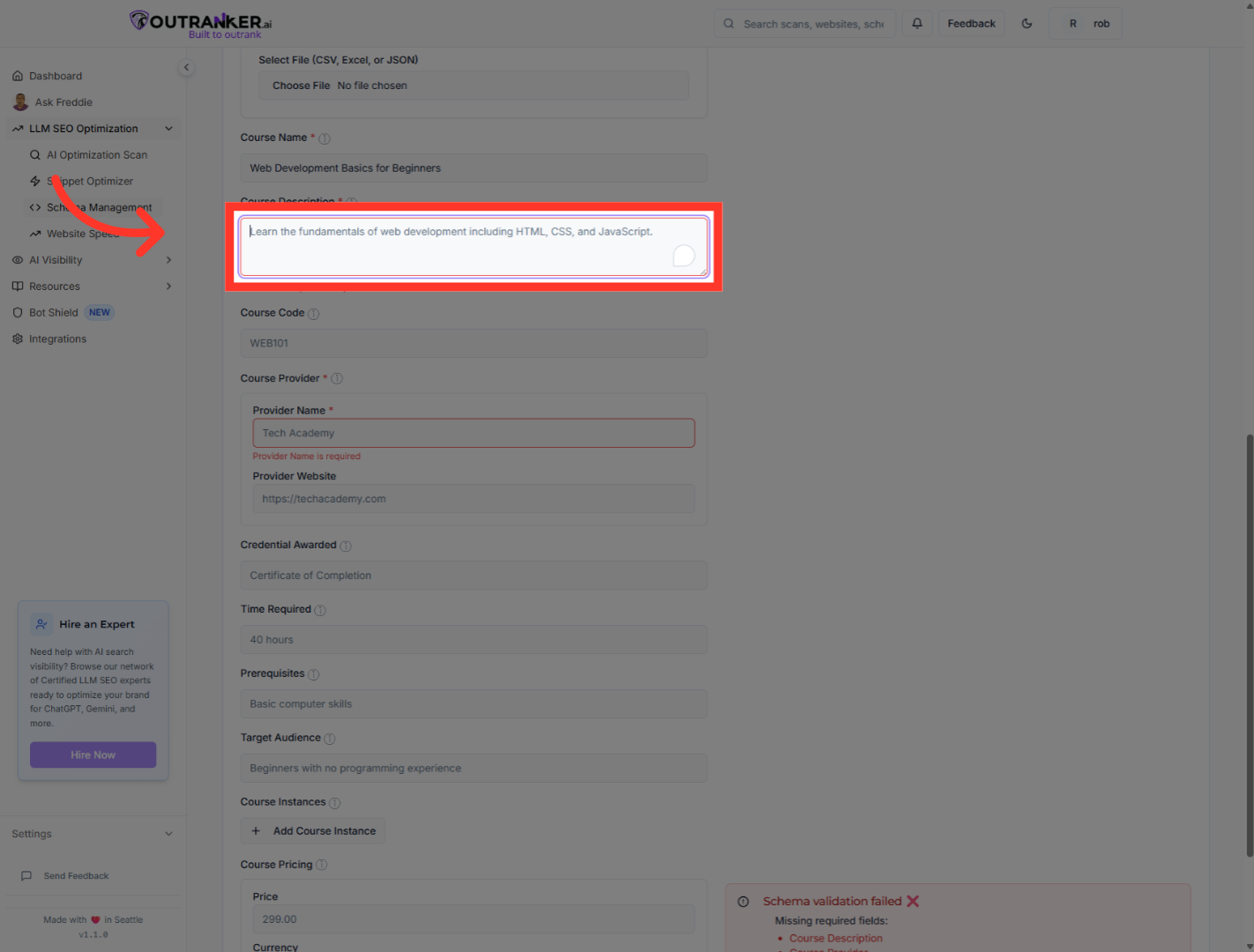
7. Click "Course Code"
Click "Course Code" to input the course code value into the designated field.
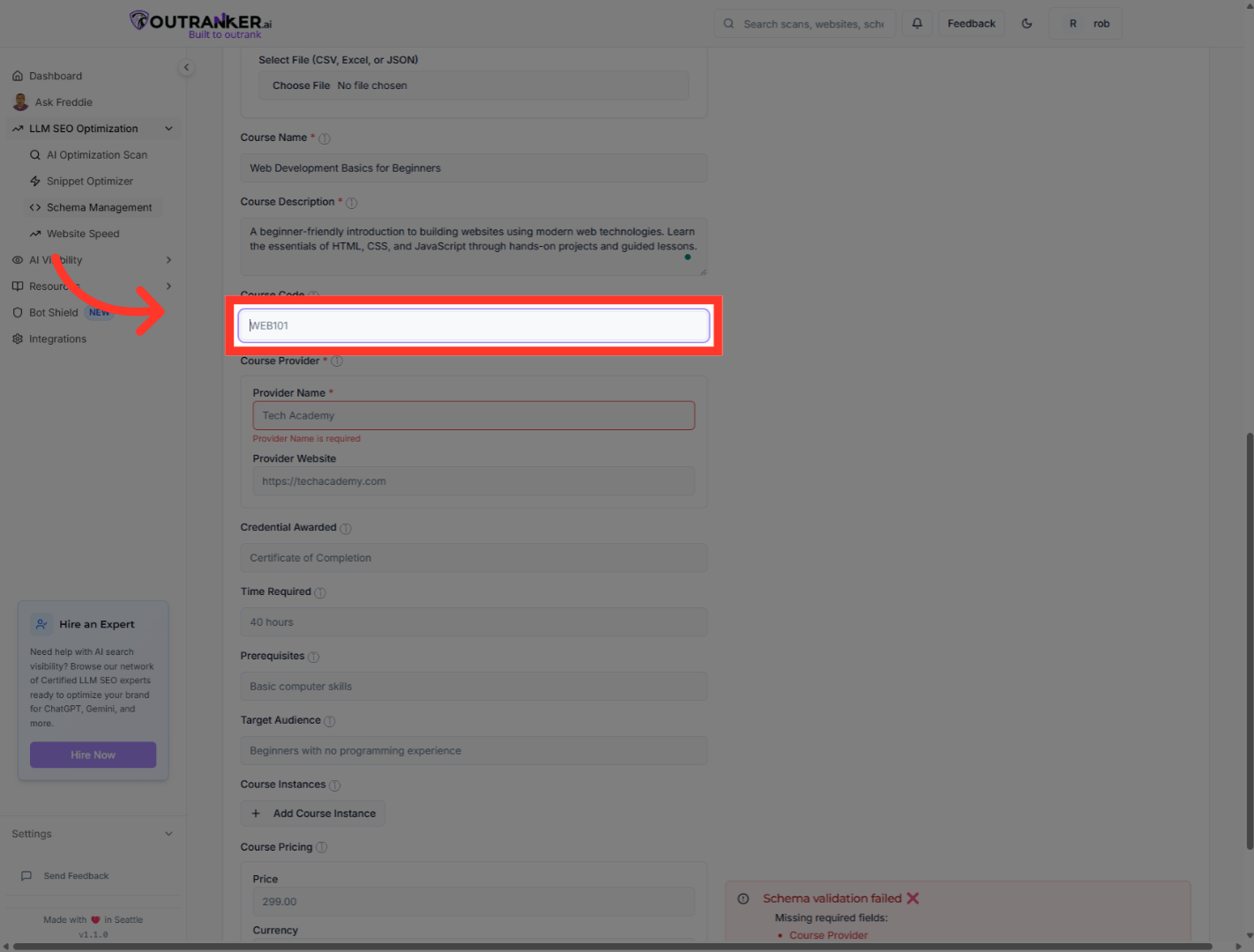
8. Click "Course Name*"
Click "Course Name*" to confirm or edit the course name field as needed.
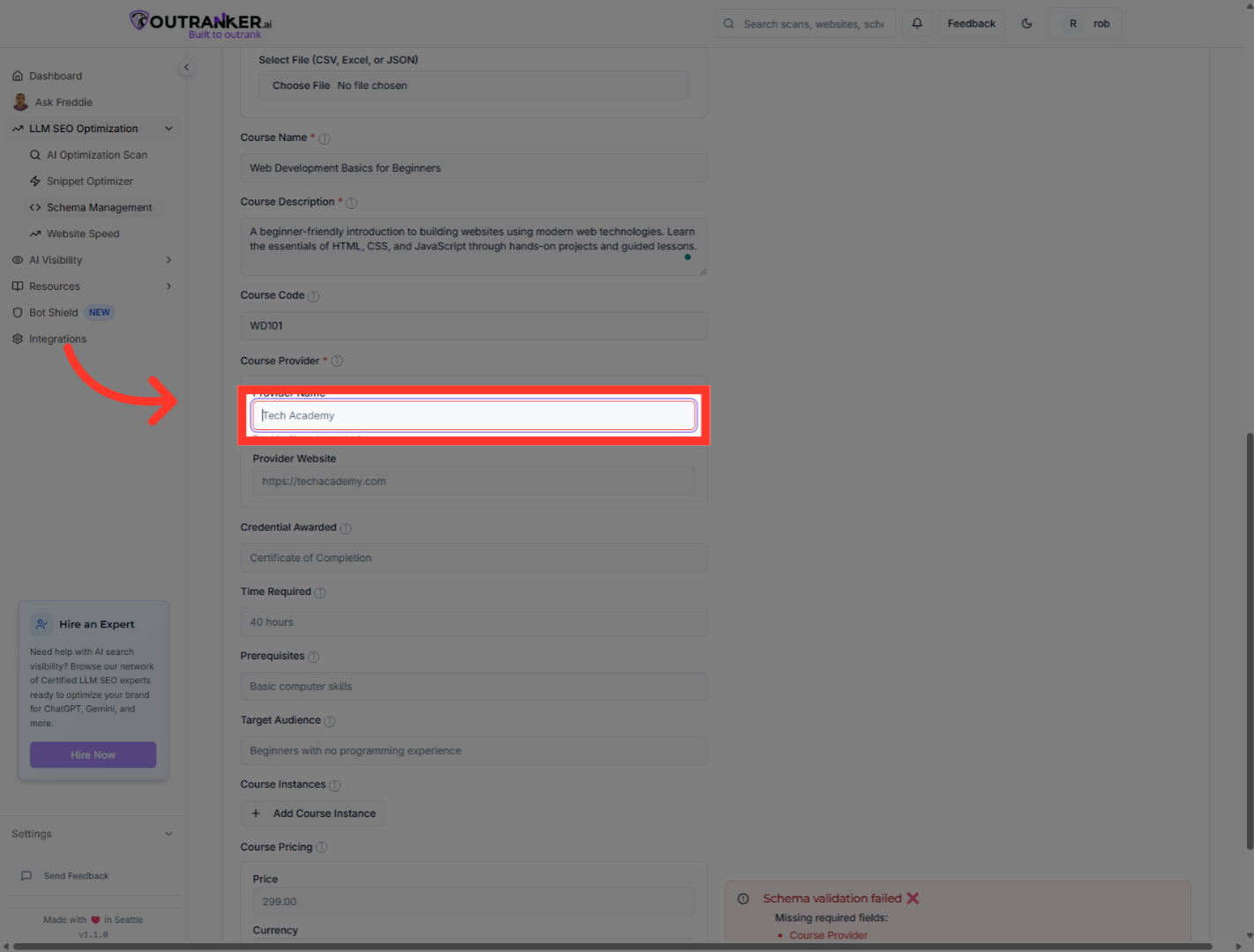
9. Click "On the website URL field to input your course URL"
Click "On the website URL field to input your course URL"
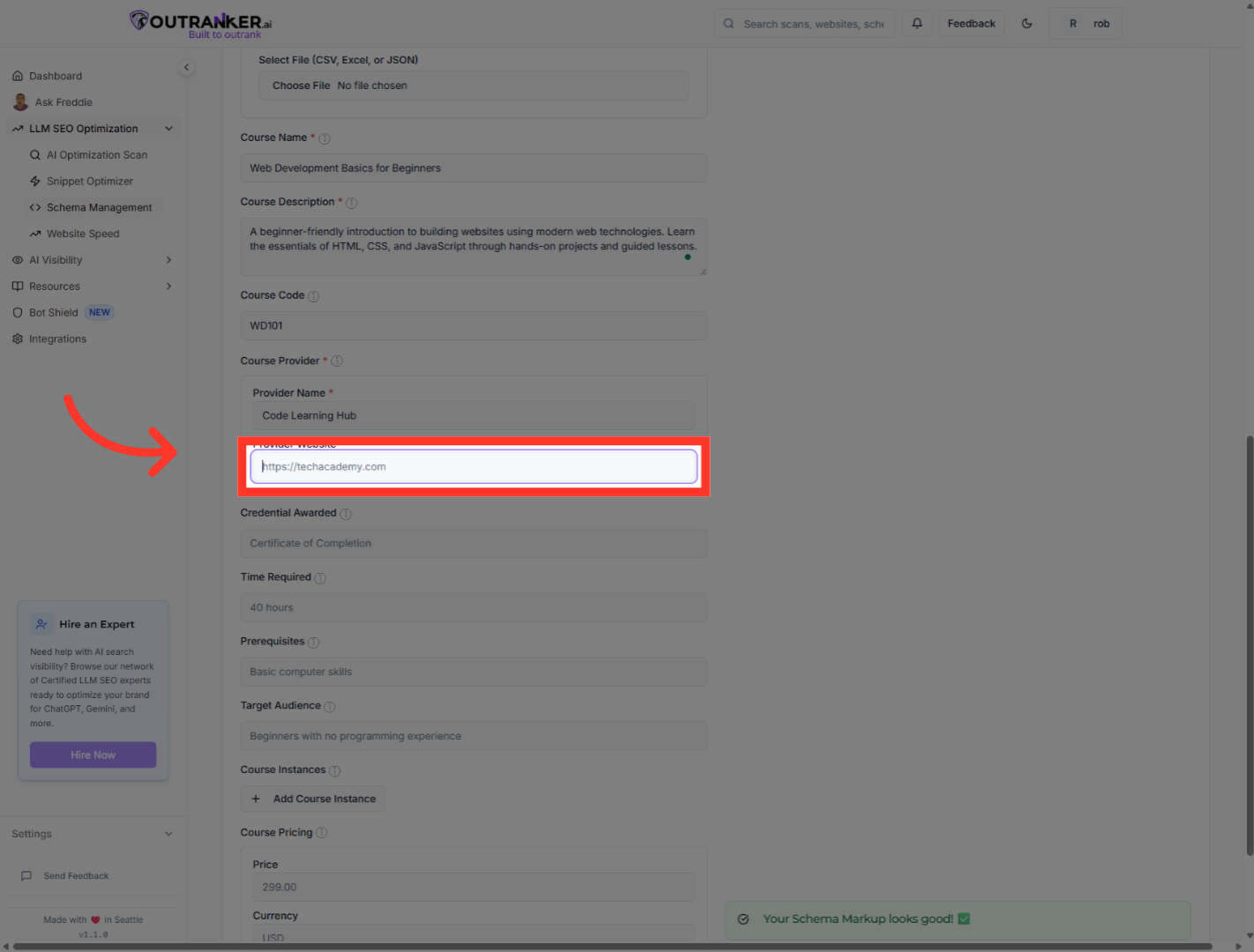
10. Click "Credential Awarded"
Click "Credential" to fill in the credential field with the appropriate text.
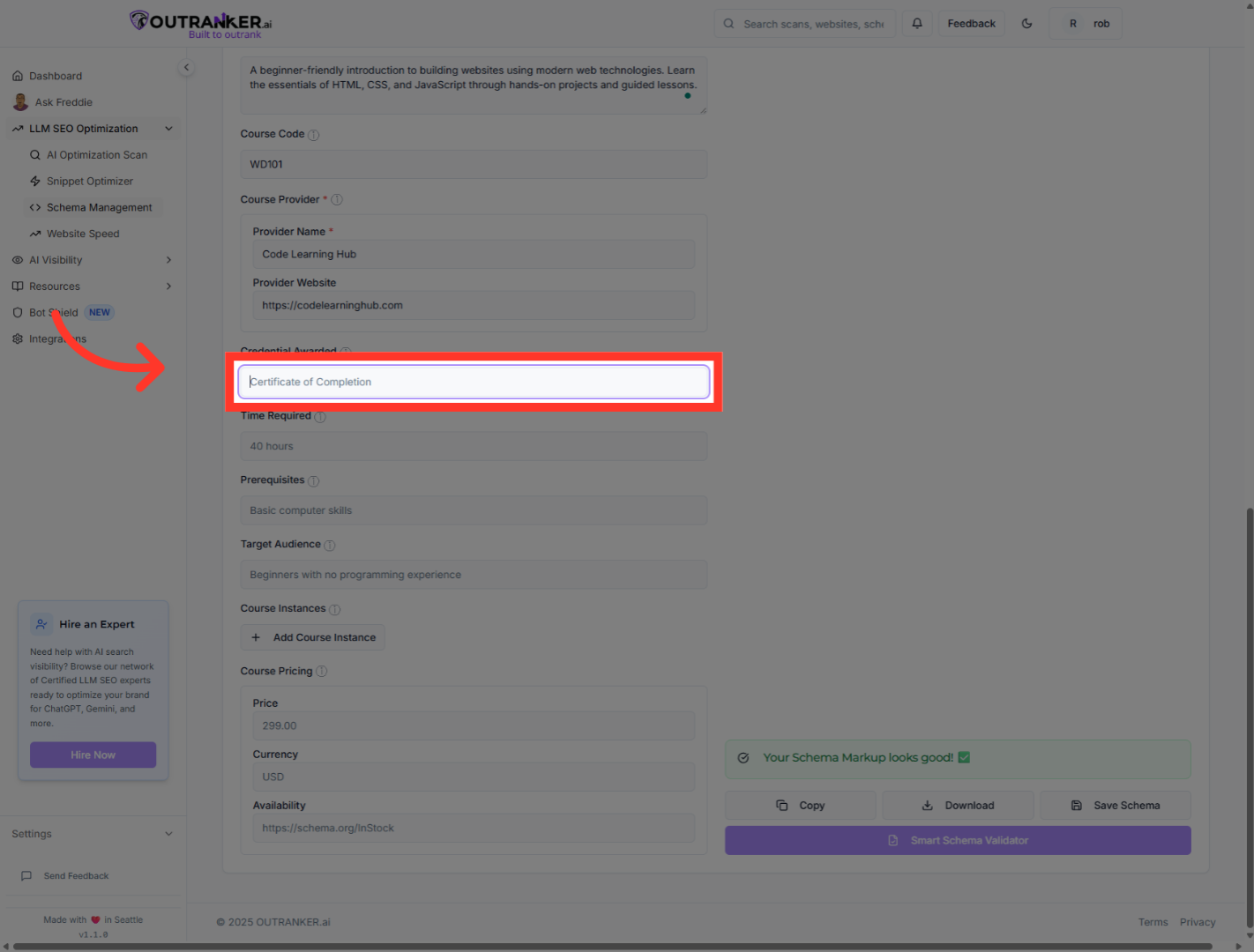
11. Click "Time Required"
Click "Time Required:" to input the course duration information.
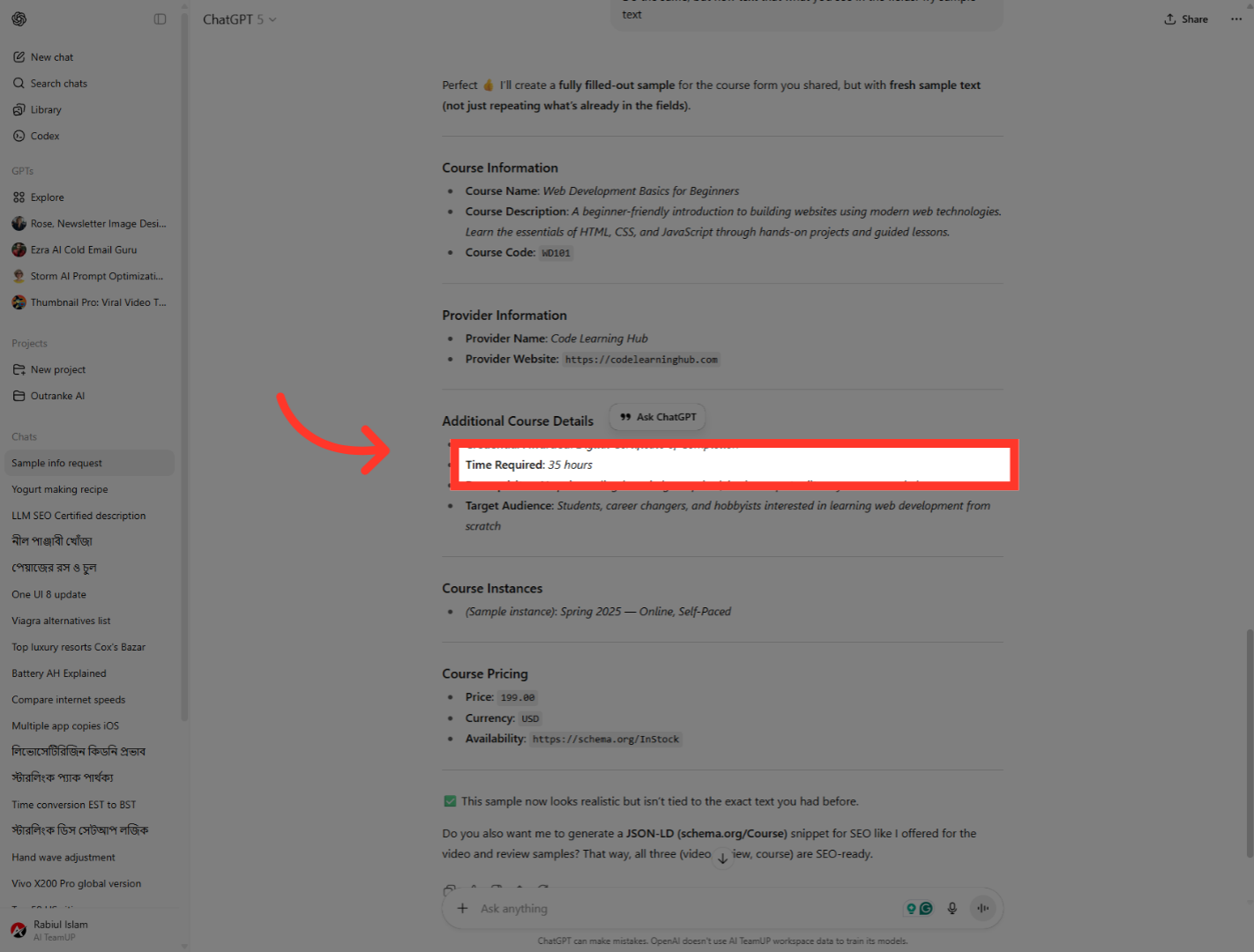
12. Click "Prerequisites"
Click "Prerequisites" to fill in the prerequisites with the proper information.
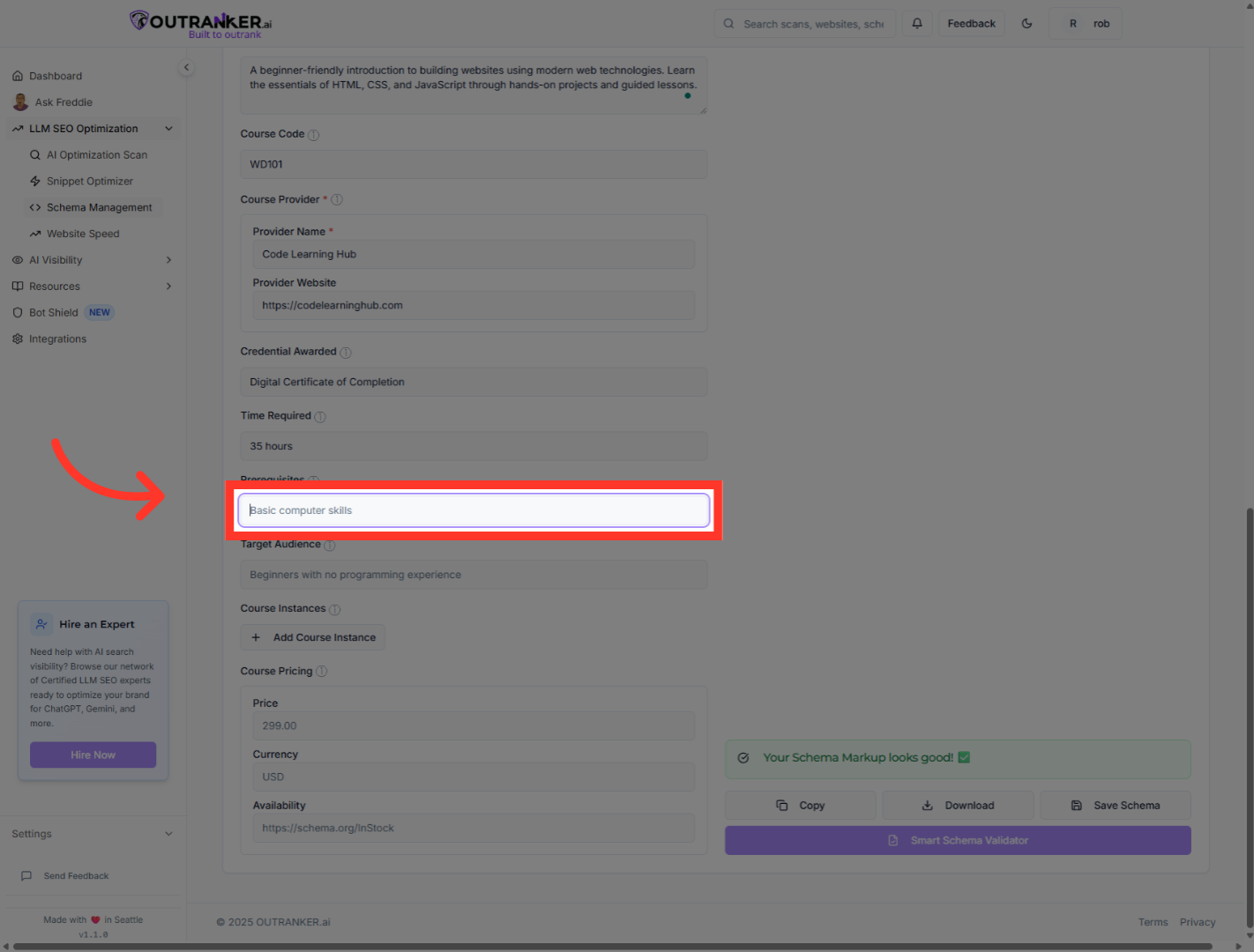
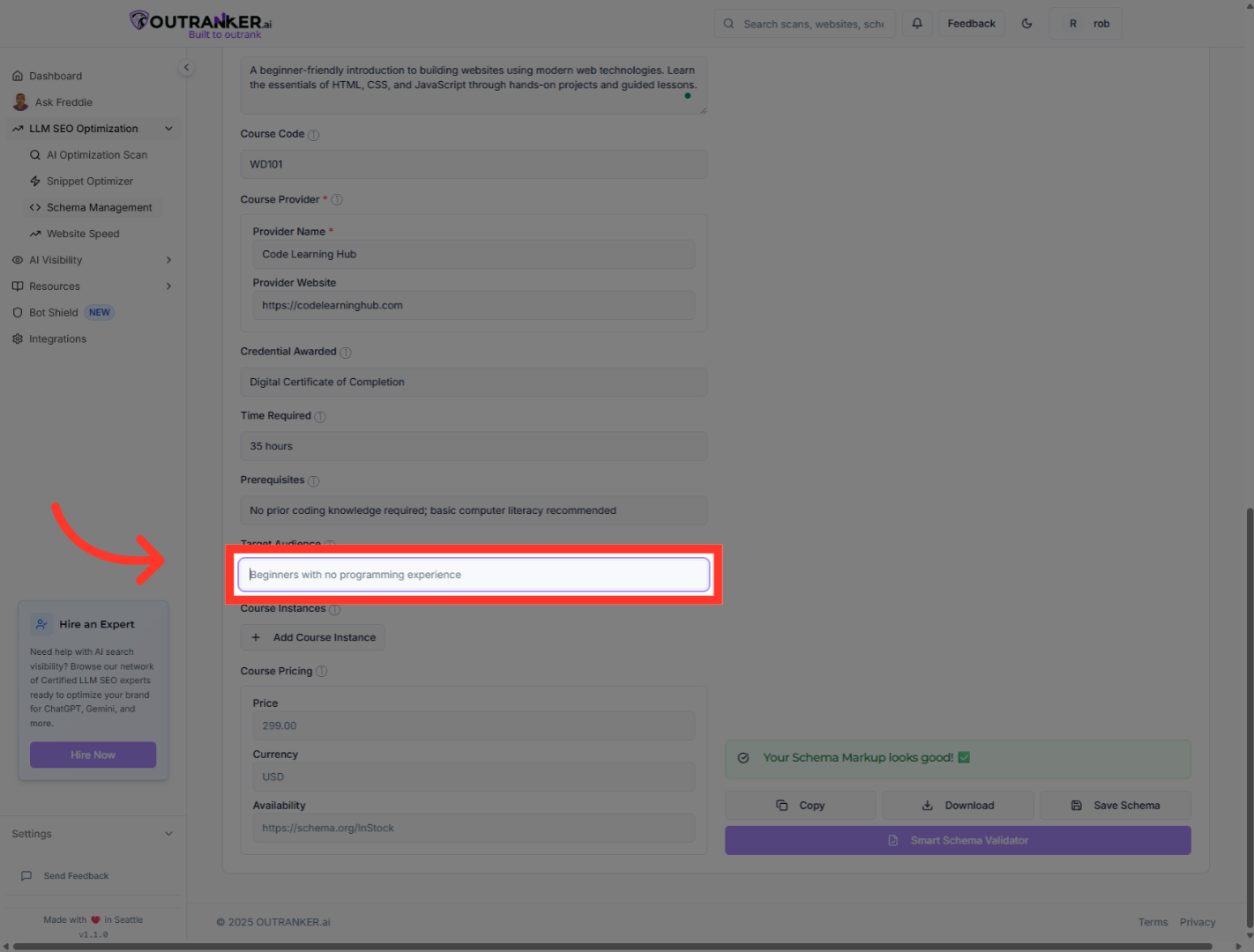
13. Click "Target Audience"
Click "Target Audience" to enter the target audience description in the designated field.
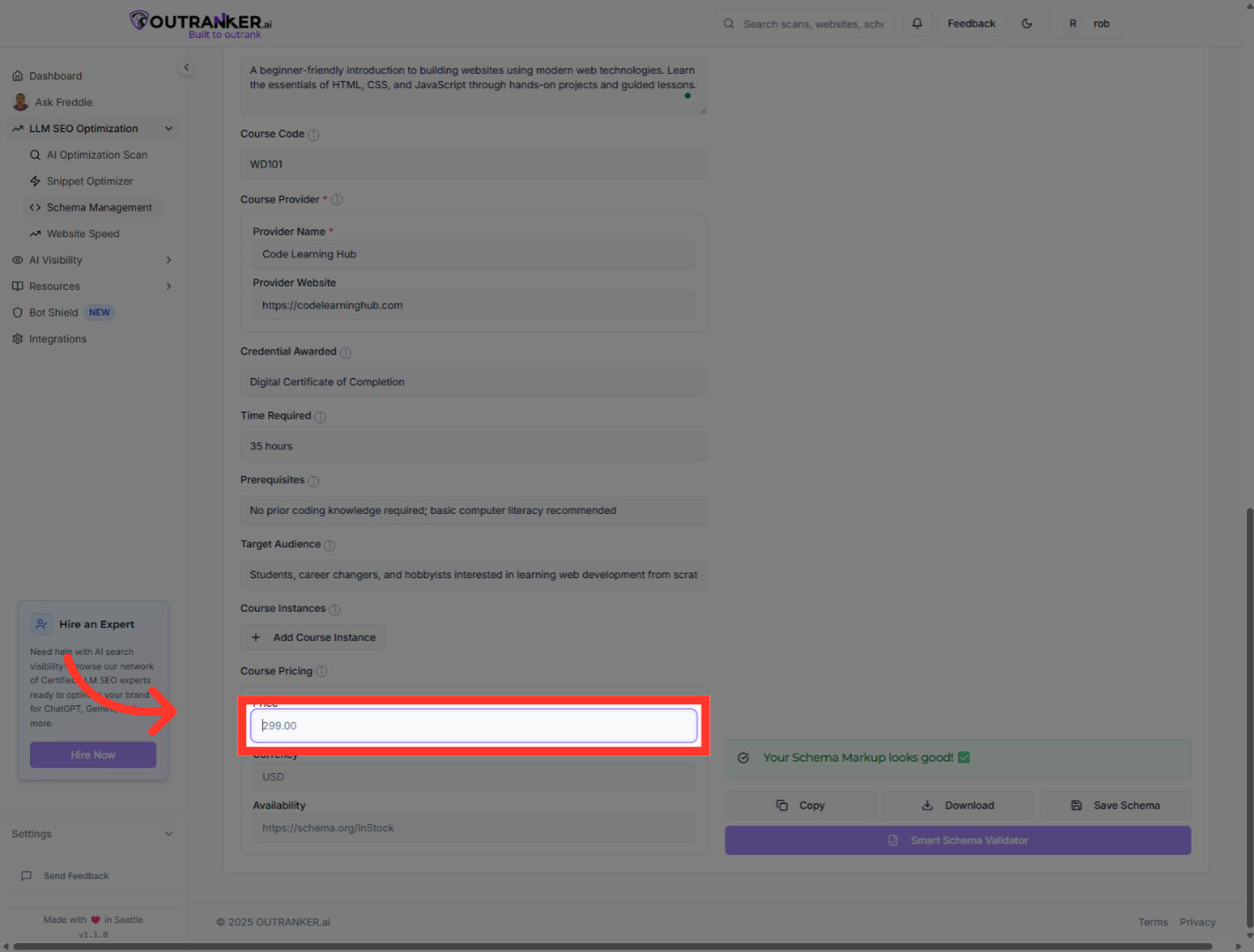
14. Click "Pricing"
Click "Pricing" to select the current course price.
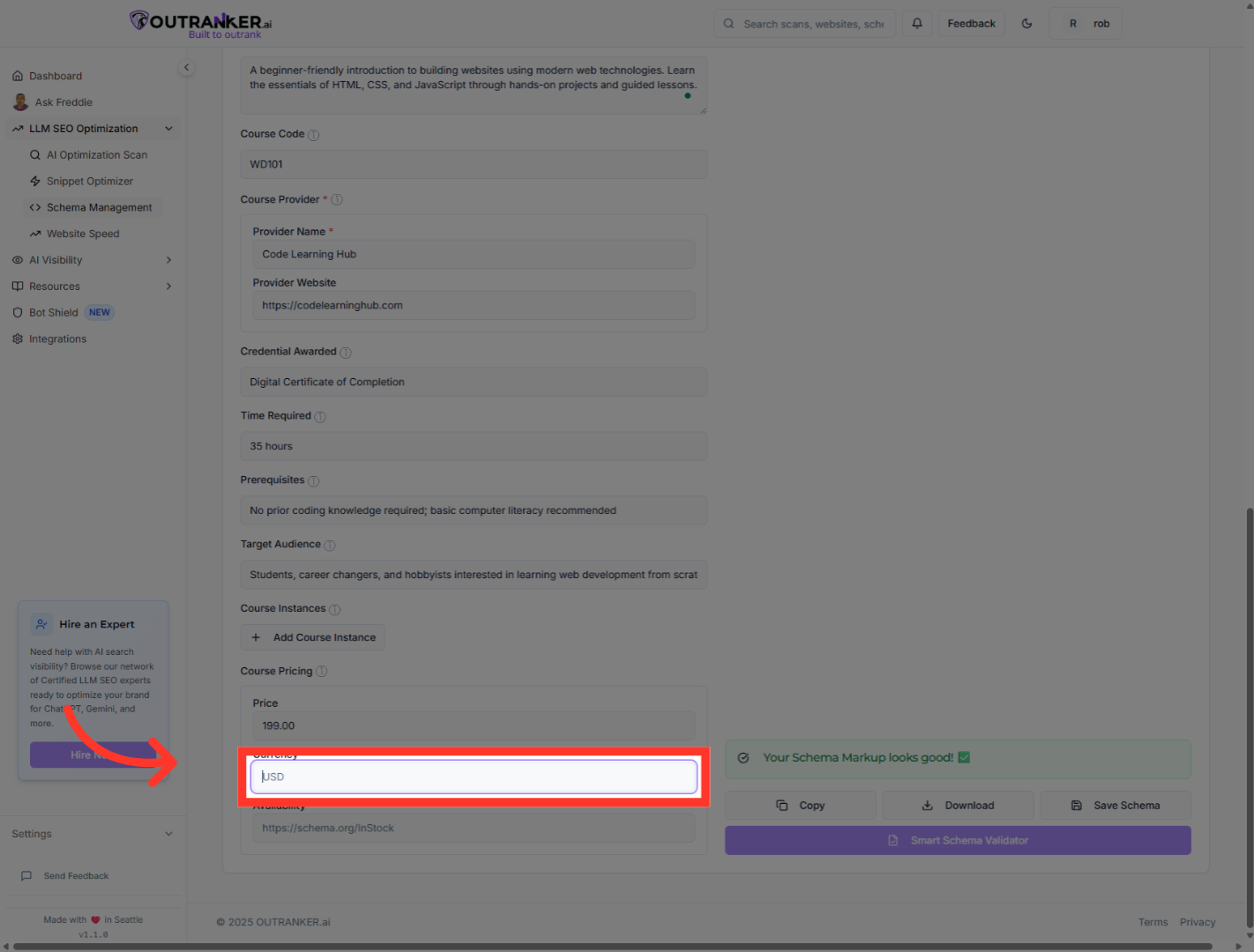
15. Click "USD"
Click "Currancy Type" to select the currency type for the course price.
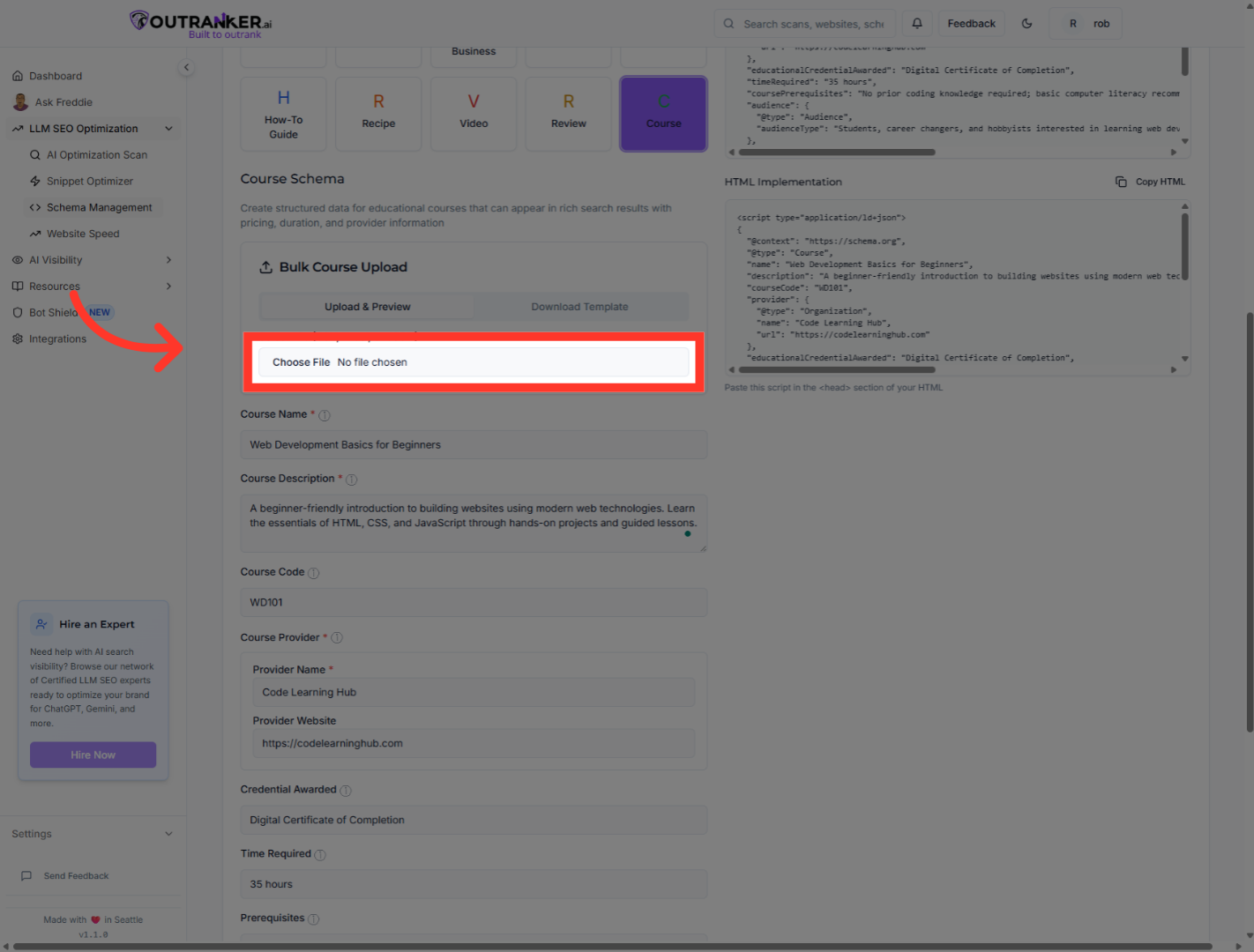
16. Click "Select File (CSV, Excel, or JSON)"
Click "Select File (CSV, Excel, or JSON)" to choose a file for importing or schema data in bulk.
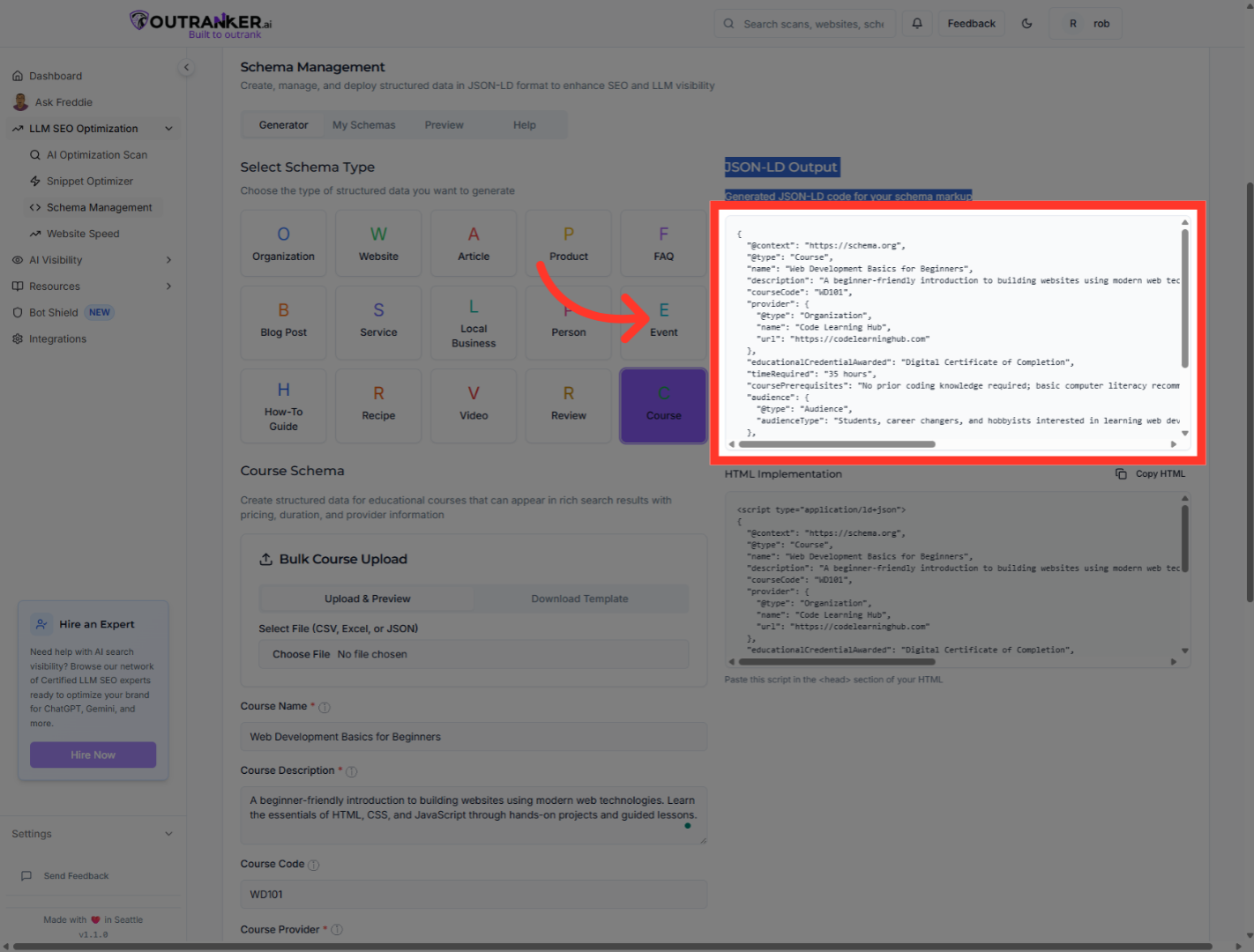
17. Copy JSON LD schema
You can copy the JSON LD Schema code.
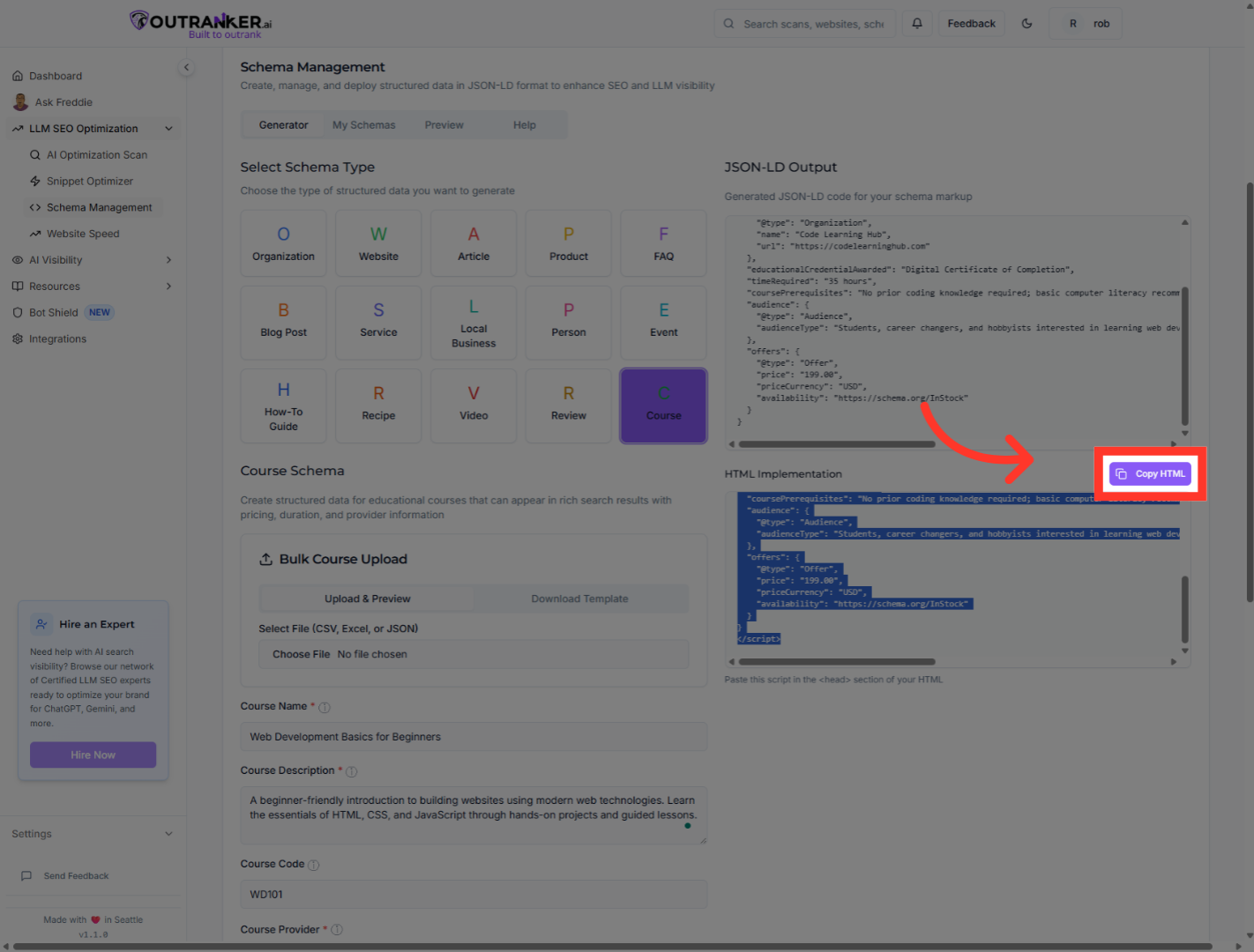
18. Click "Copy HTML"
Click "Copy HTML" to copy the complete HTML code for embedding the schema markup into your website.
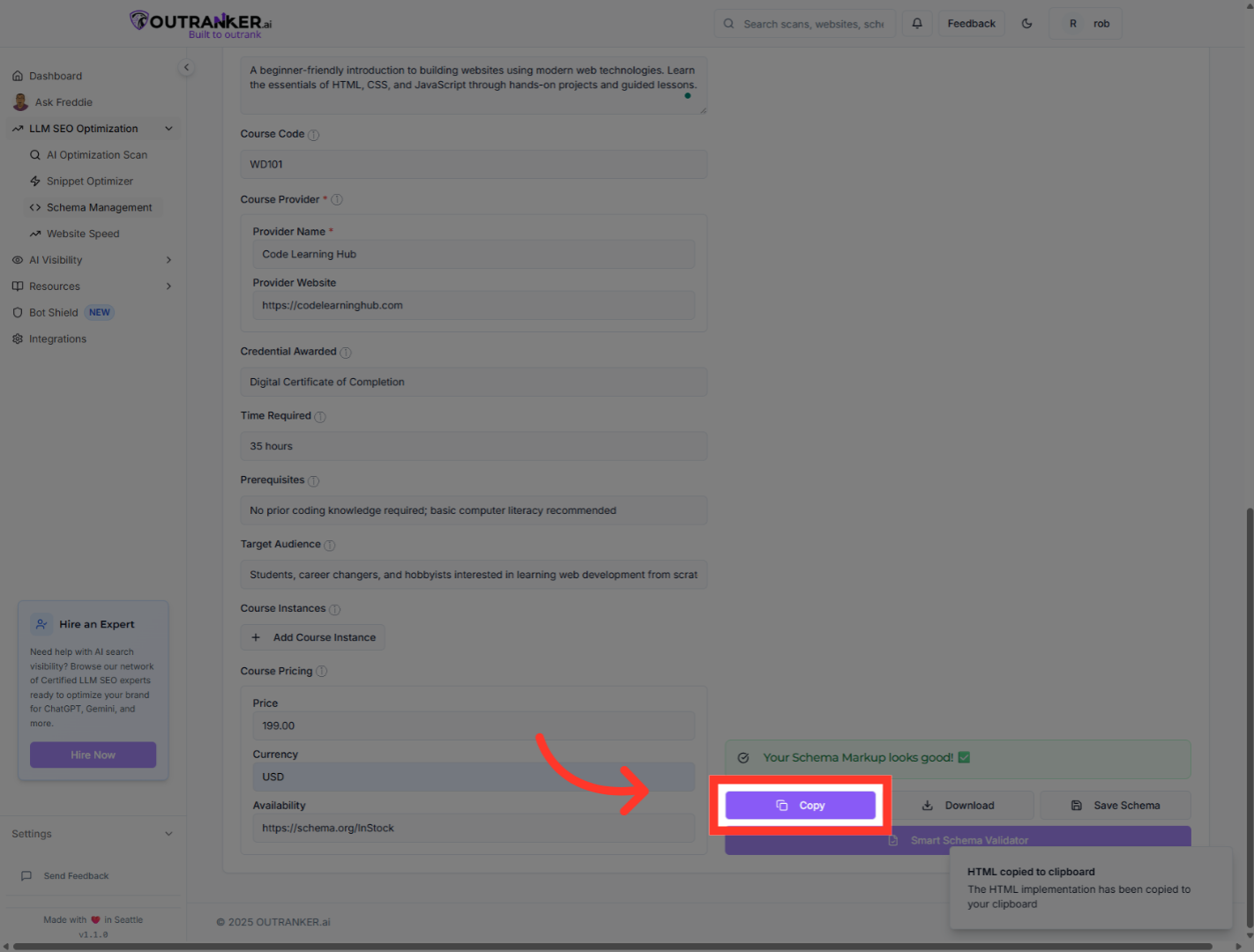
19. Click "CopyCopy"
Click "CopyCopy" to confirm the copying action and ensure the schema code is saved to your clipboard.
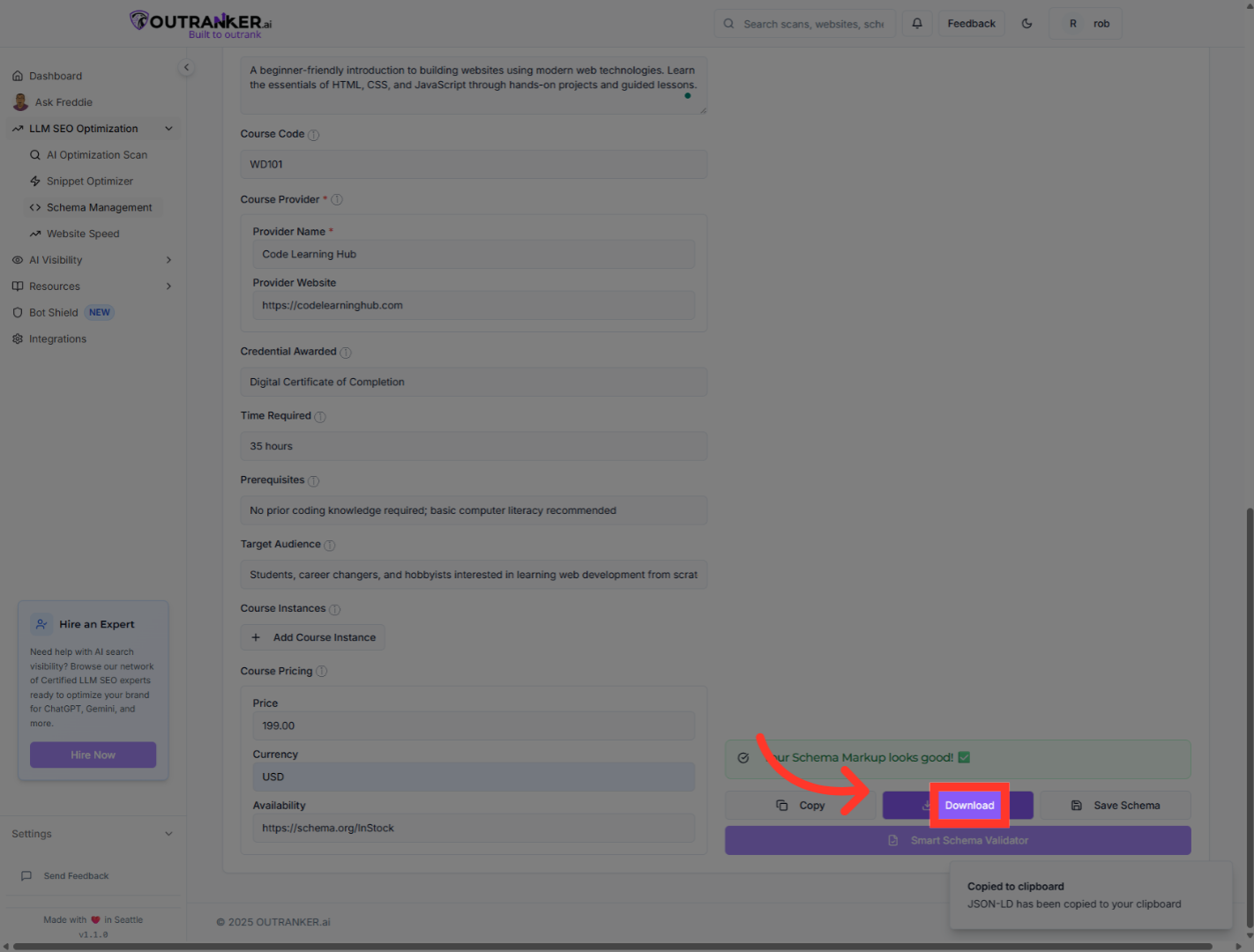
20. Click "Download"
Click "Download" to save the schema markup file locally for future use or upload.
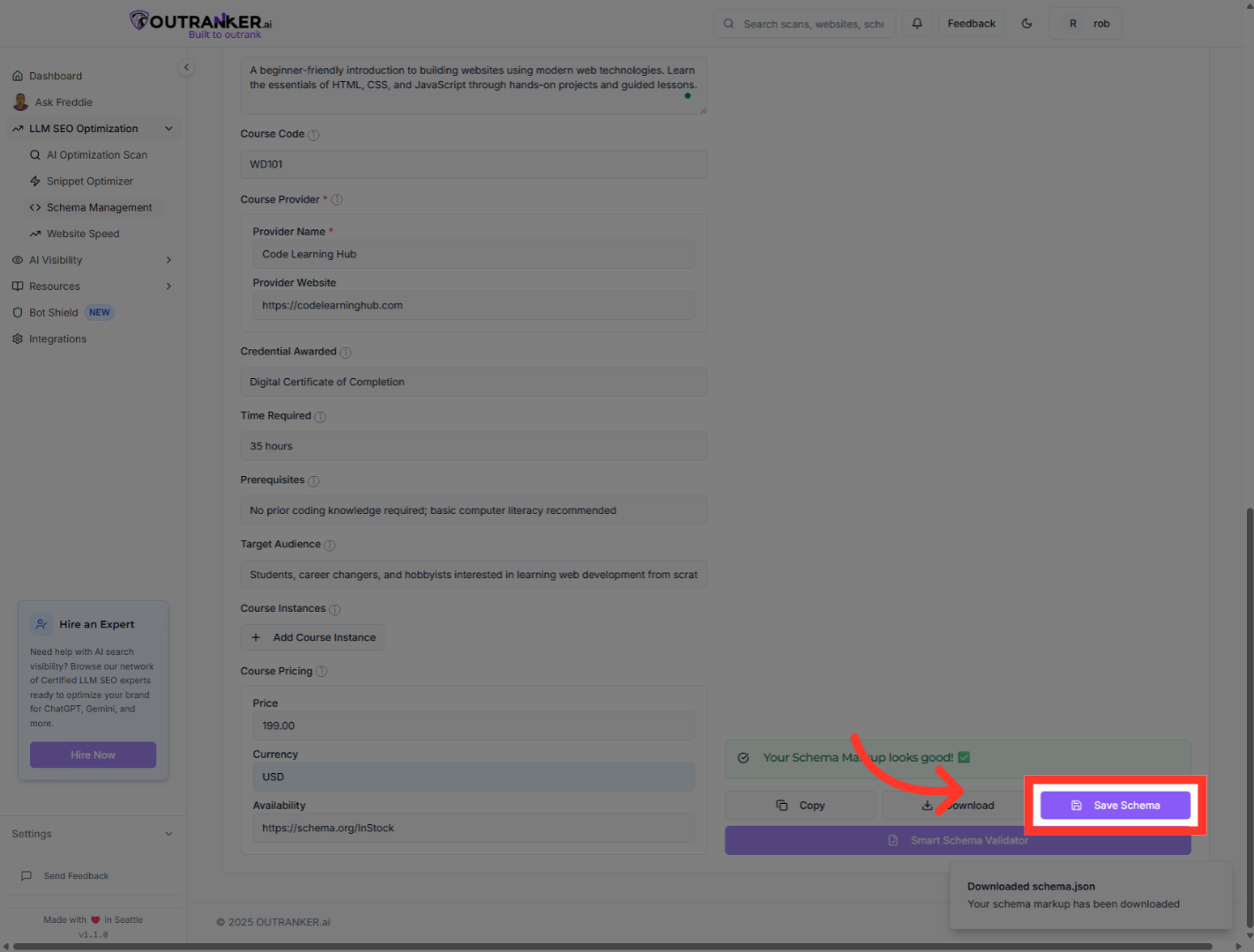
21. Click "Save Schema"
Click "Save Schema" to store the current schema configuration within Outranker for later deployment or editing.
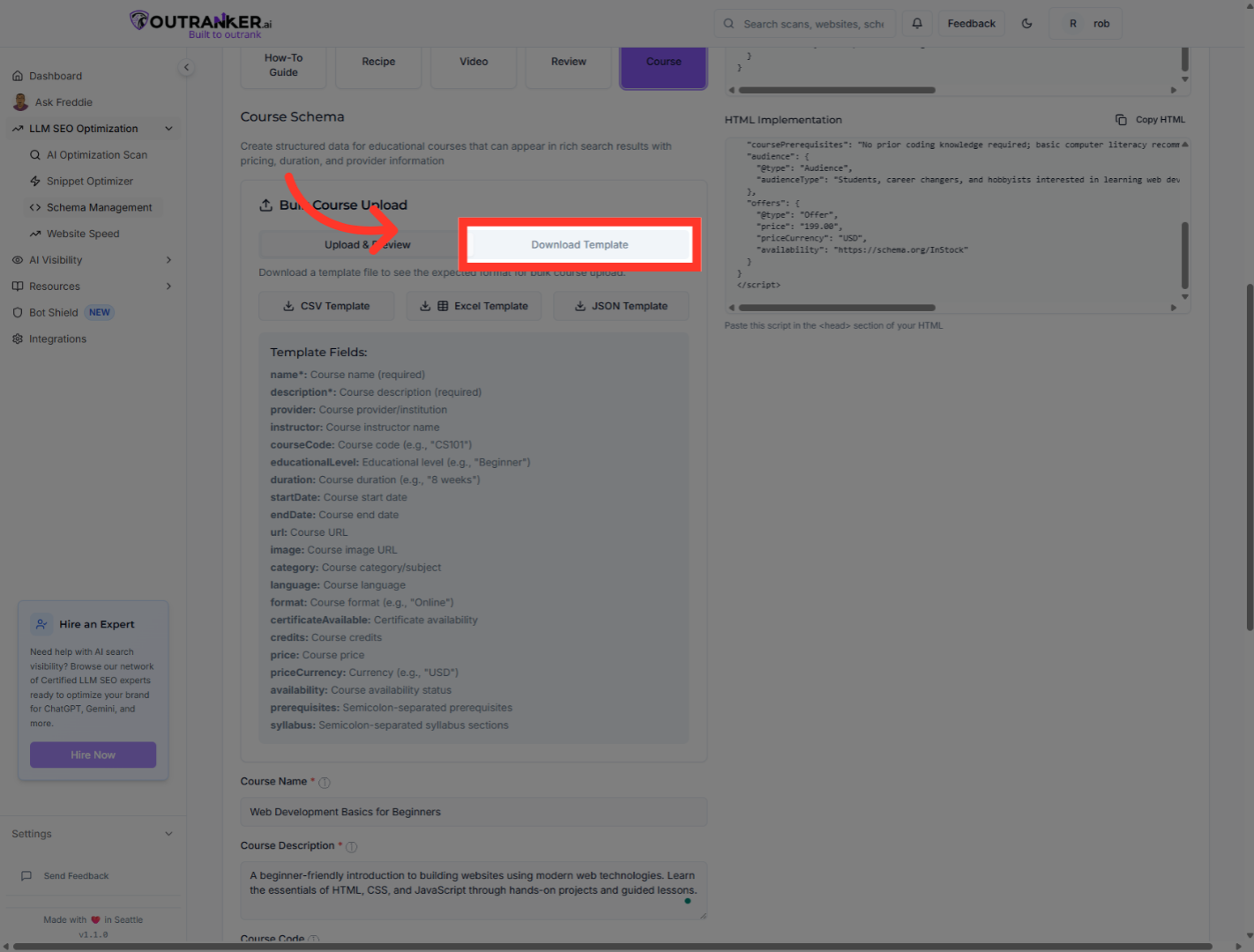
22. Click "Download Template"
Click "Download Template" to access pre-formatted schema templates for easier data entry in bulk.
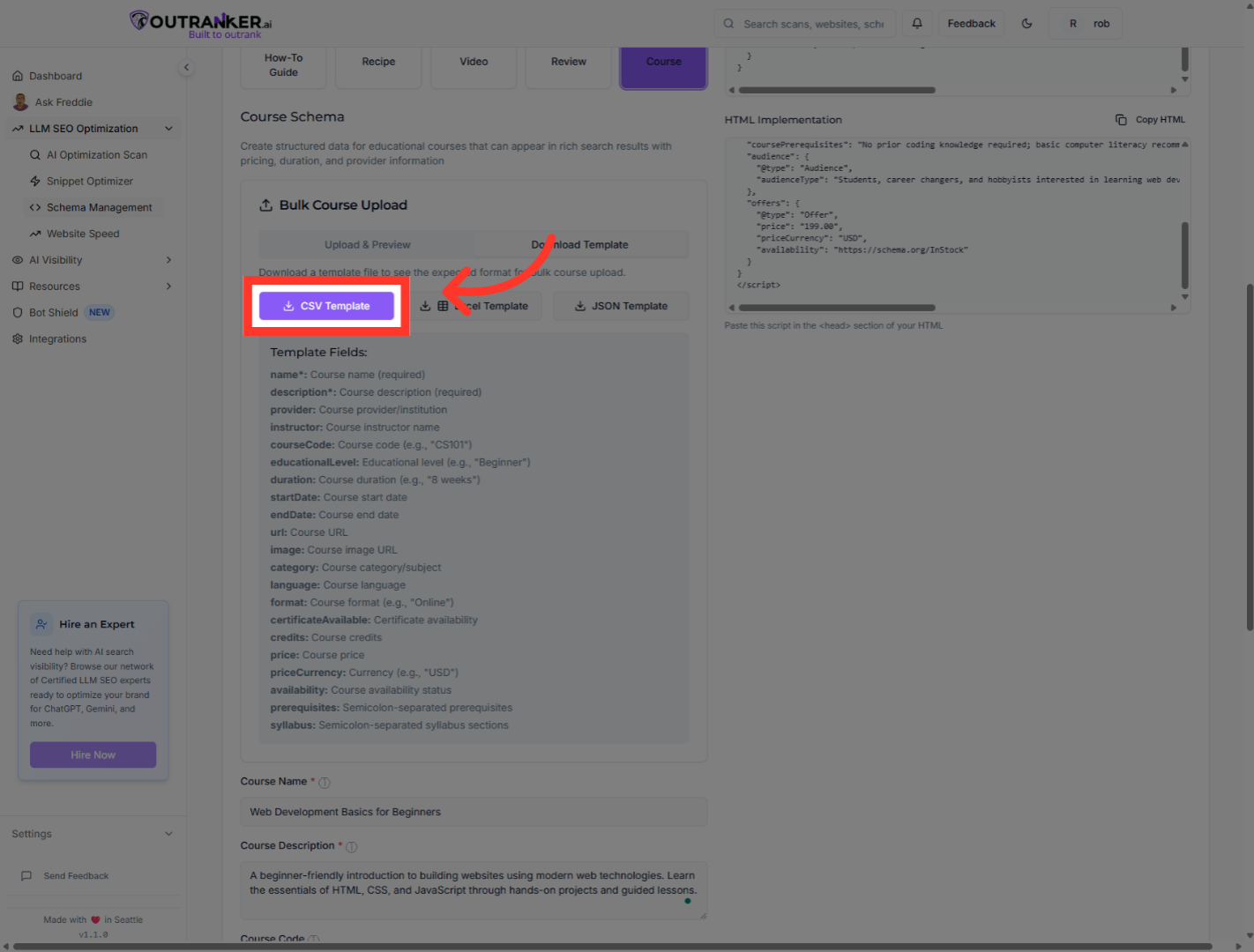
23. Click "CSV Template"
Click "CSV Template" to download a CSV format template for structured data input.
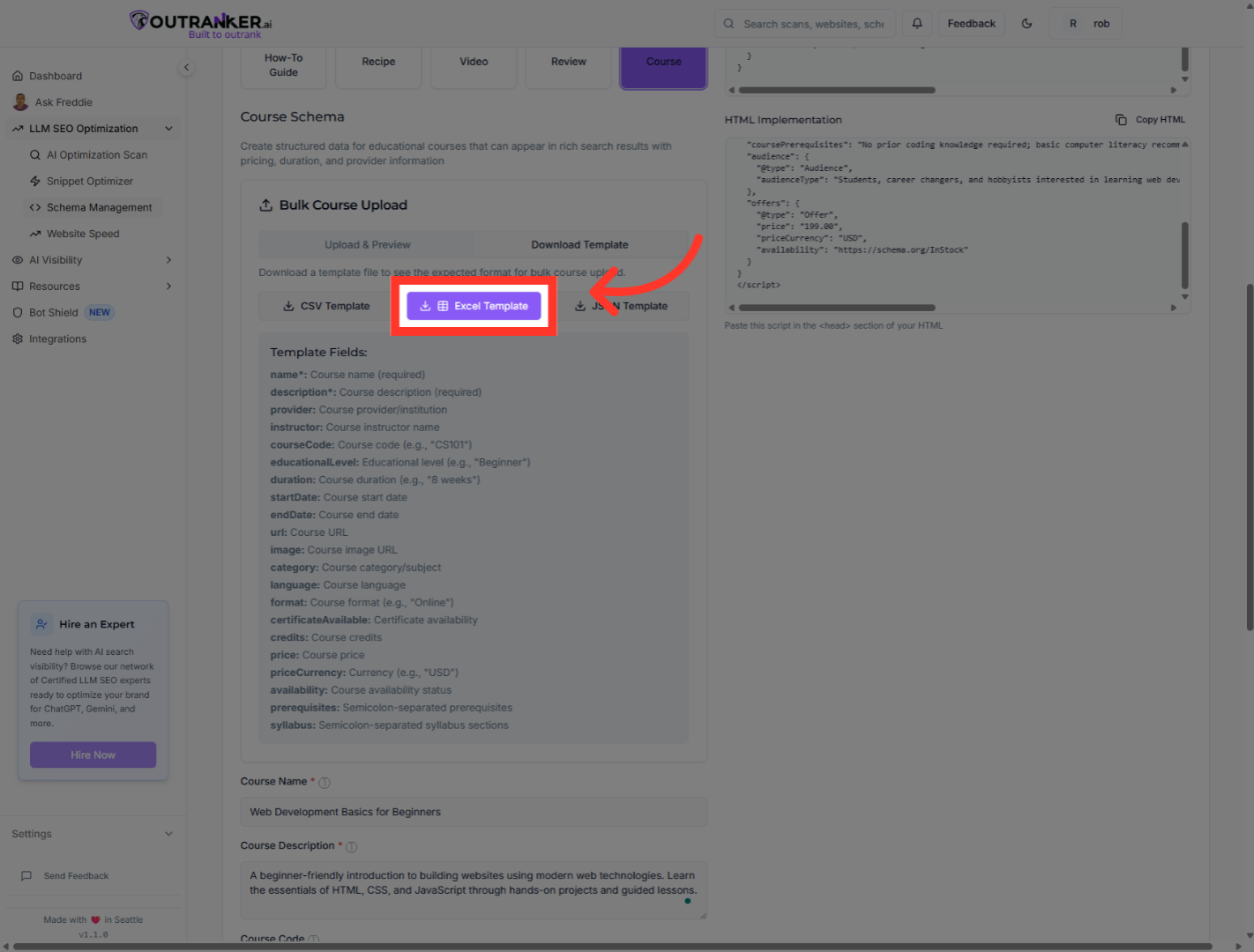
24. Click "Excel Template"
Click "Excel Template" to download an Excel spreadsheet template for schema data management.
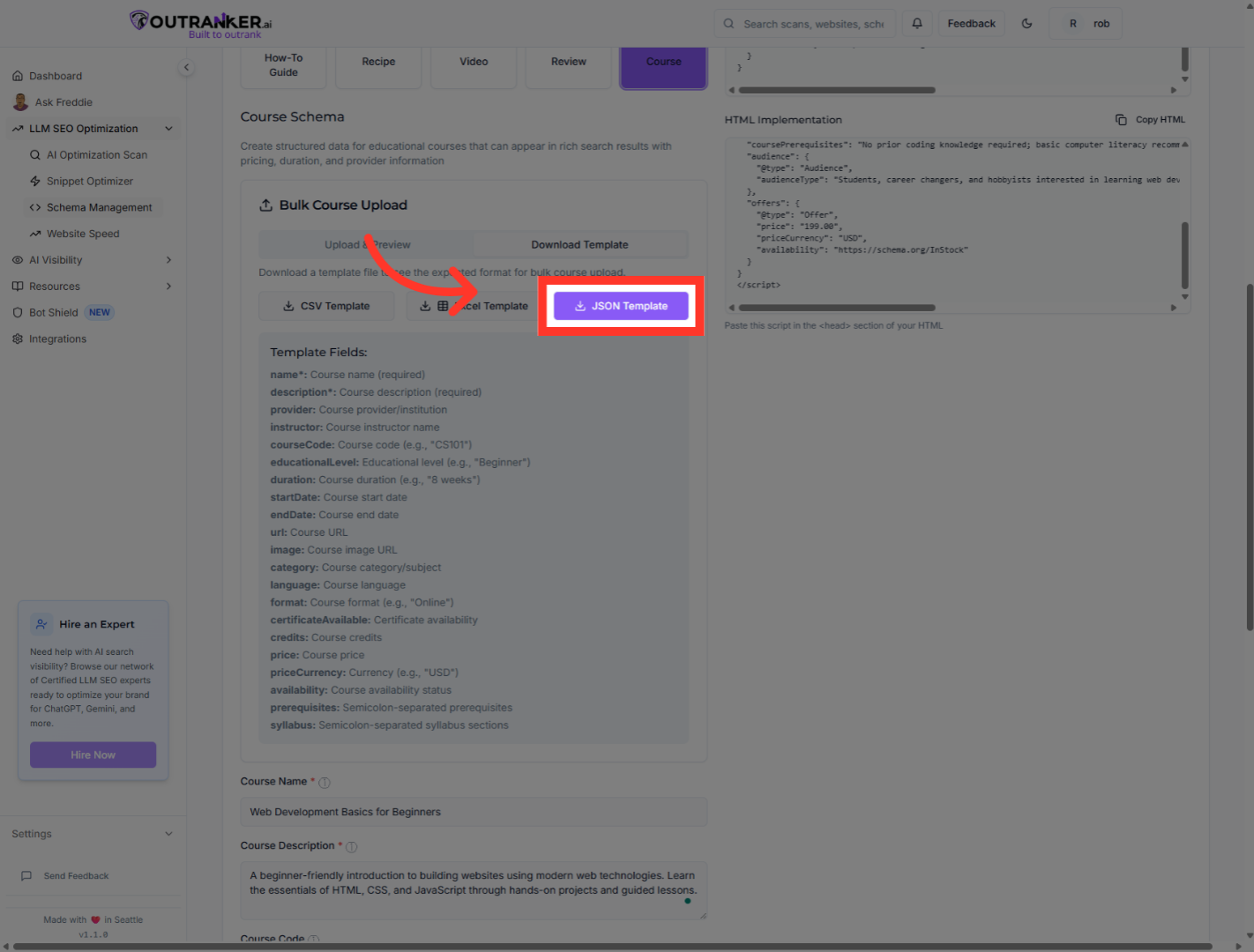
25. Click "JSON Template"
Click "JSON Template" to download a JSON format template to assist with schema creation and editing.
You have successfully generated and saved a Course schema using Outranker's Schema Management tool. The structured data includes all essential course details such as name, description, provider, credentials, duration, prerequisites, target audience, pricing, and availability. You can now embed this schema markup into your website to enhance S E O and improve visibility in search engines and language models. For further optimization, consider exploring additional schema types or integrating with your content management system.
