
This tutorial guides you through generating Video Schema using Outranker's Schema Management feature
Go to www.outranker.ai
1. Introduction
By following these steps, you'll create structured data markup that improves your video's S E O and visibility. Before starting, ensure you have your video metadata ready in CSV, Excel, JSON format or manual input.
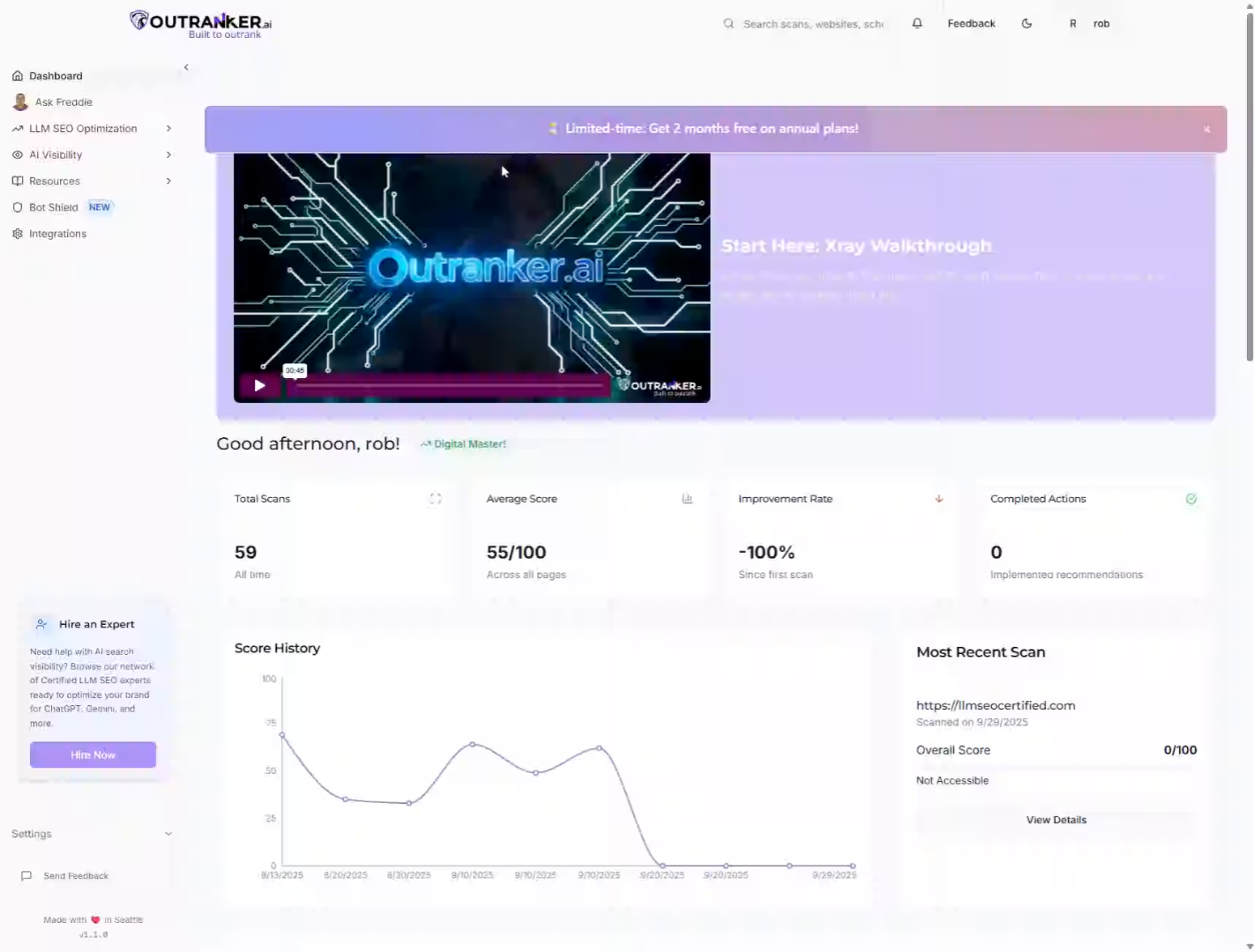
2. Click "LLM SEO Optimization"
Access the Outranker platform and click "LLM S E O Optimization" to begin optimizing your video schema.
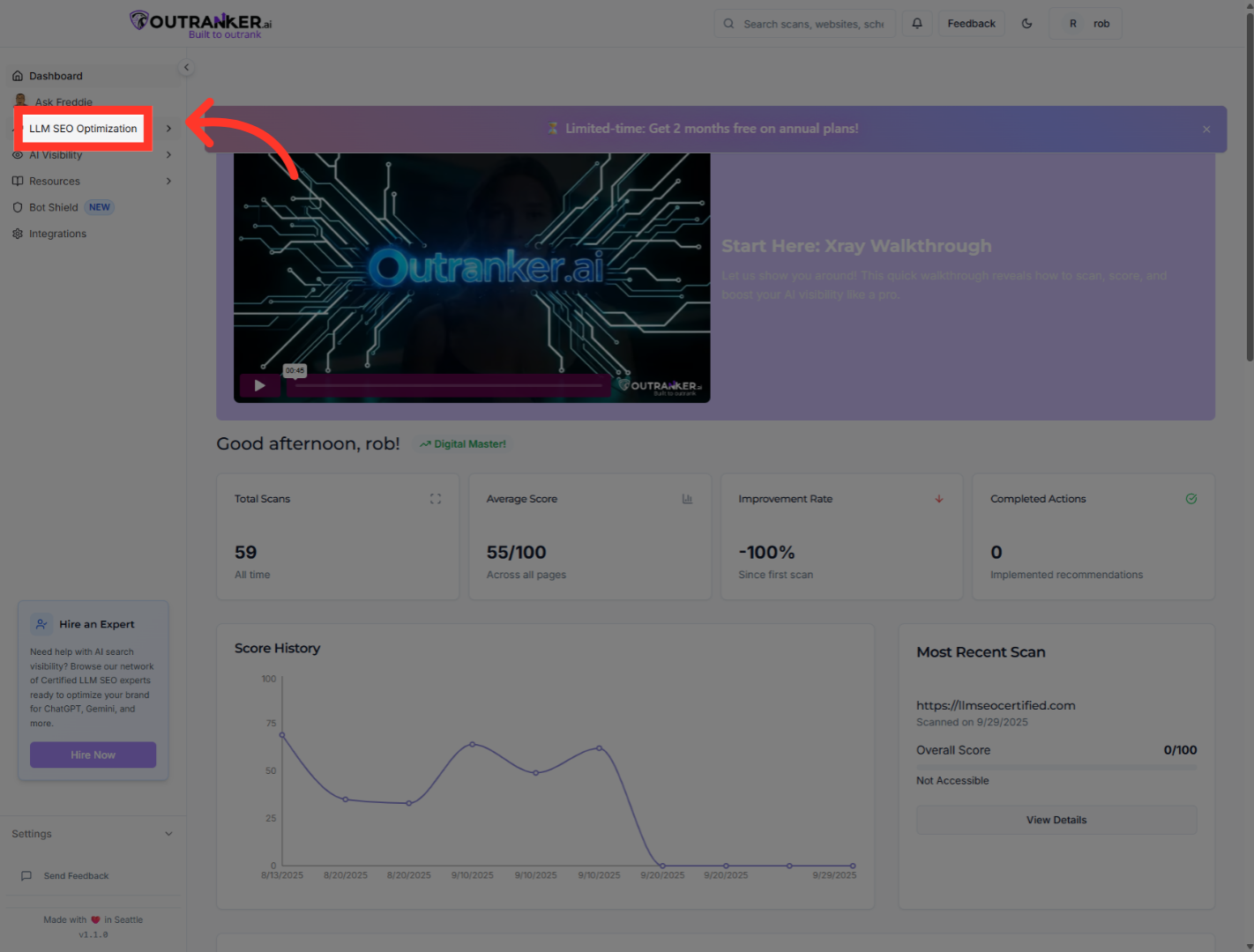
3. Click "Schema Management"
Navigate to the "Schema Management" section to manage your structured data settings.
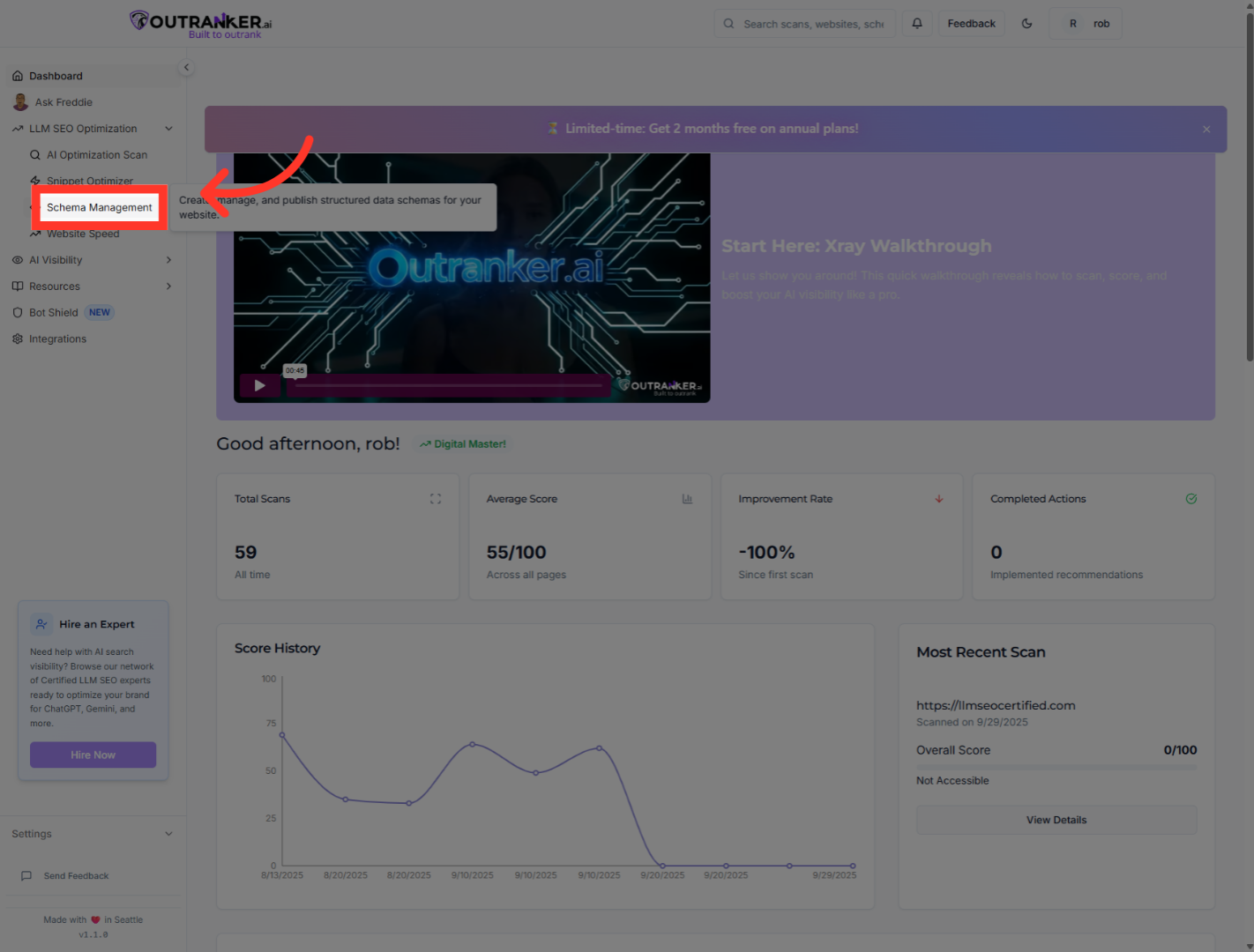
4. Click "Video"
Select the "Video" option to focus on video schema configurations.
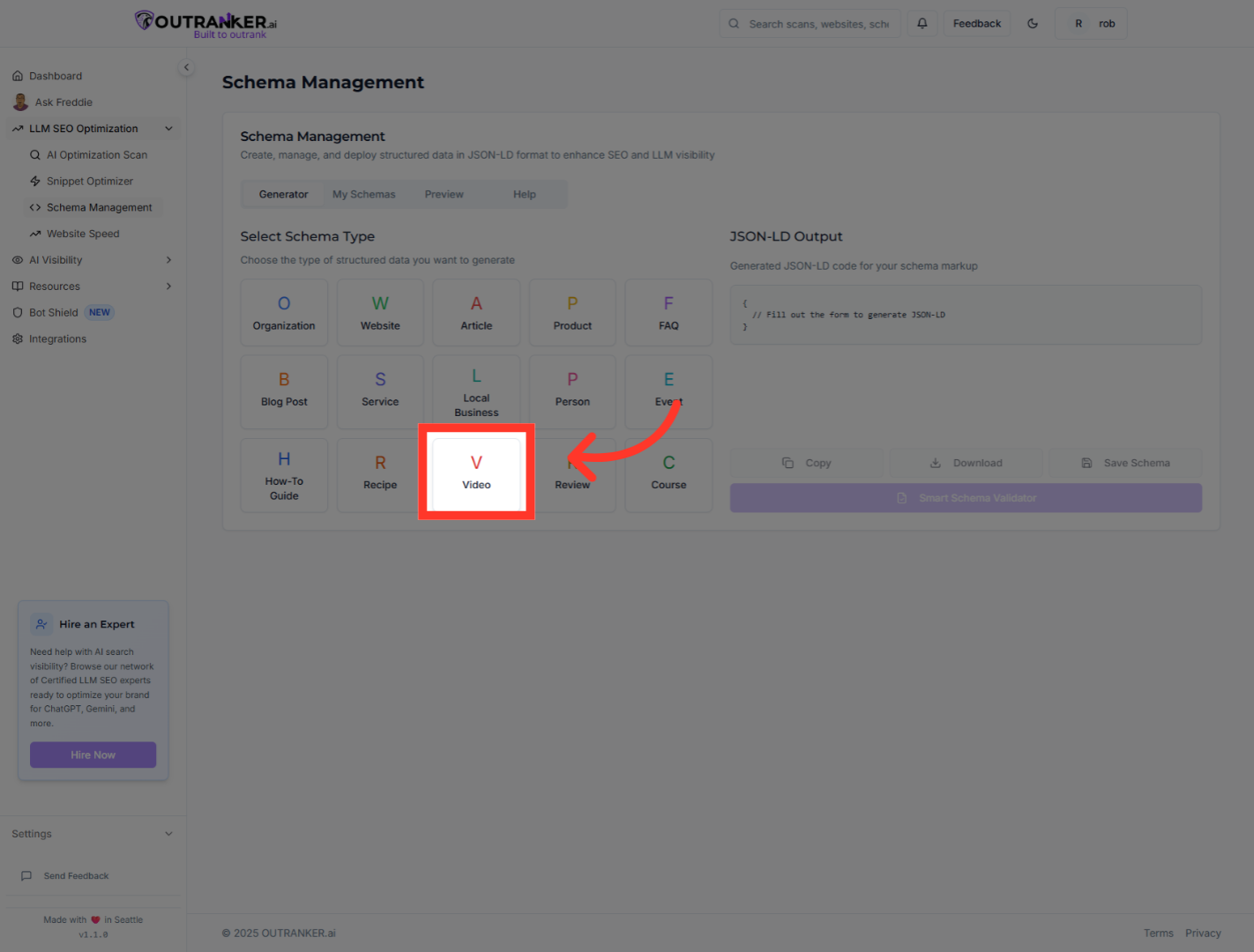
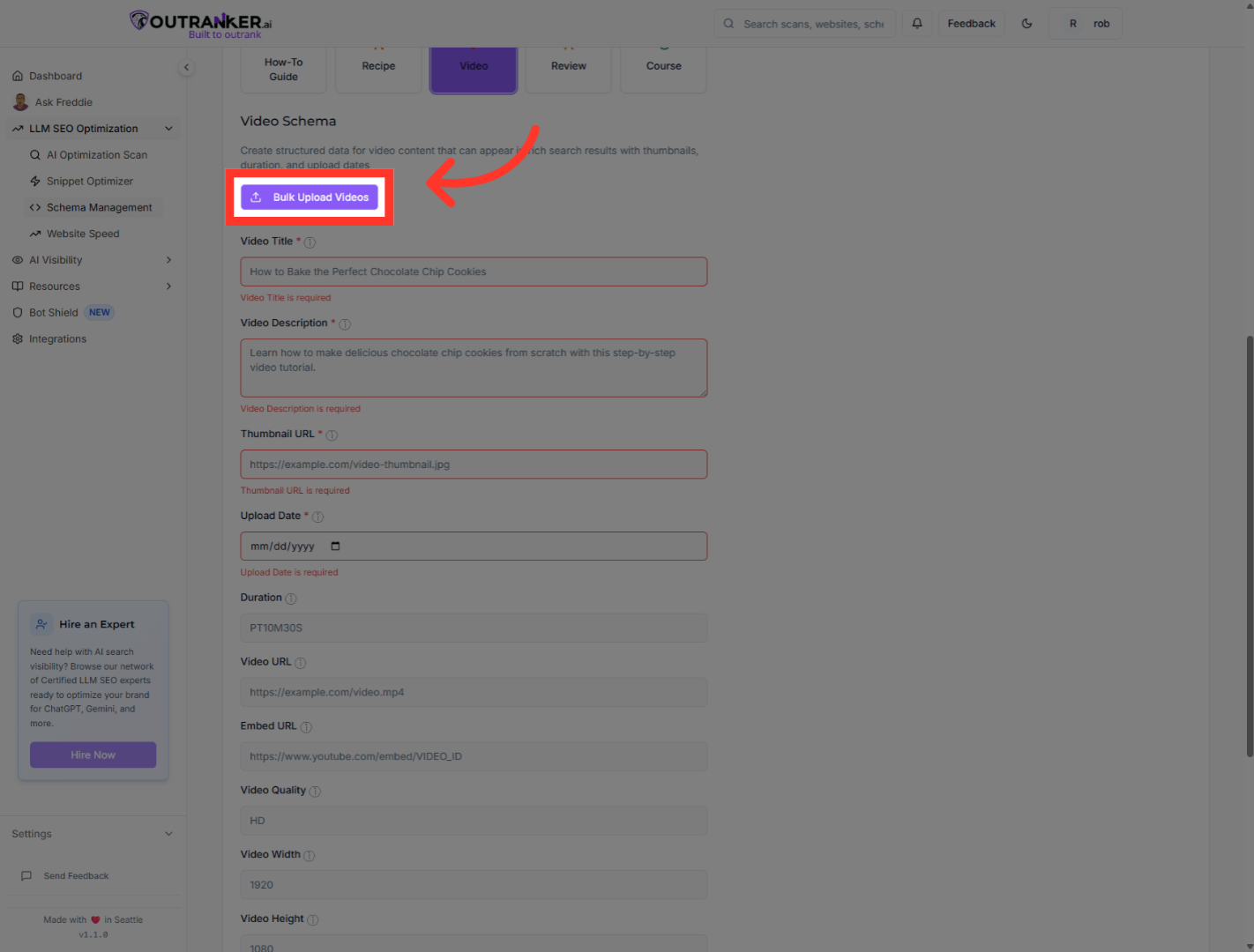
5. Click "Bulk Upload Videos"
Choose "Bulk Upload Videos" to upload multiple video entries efficiently.
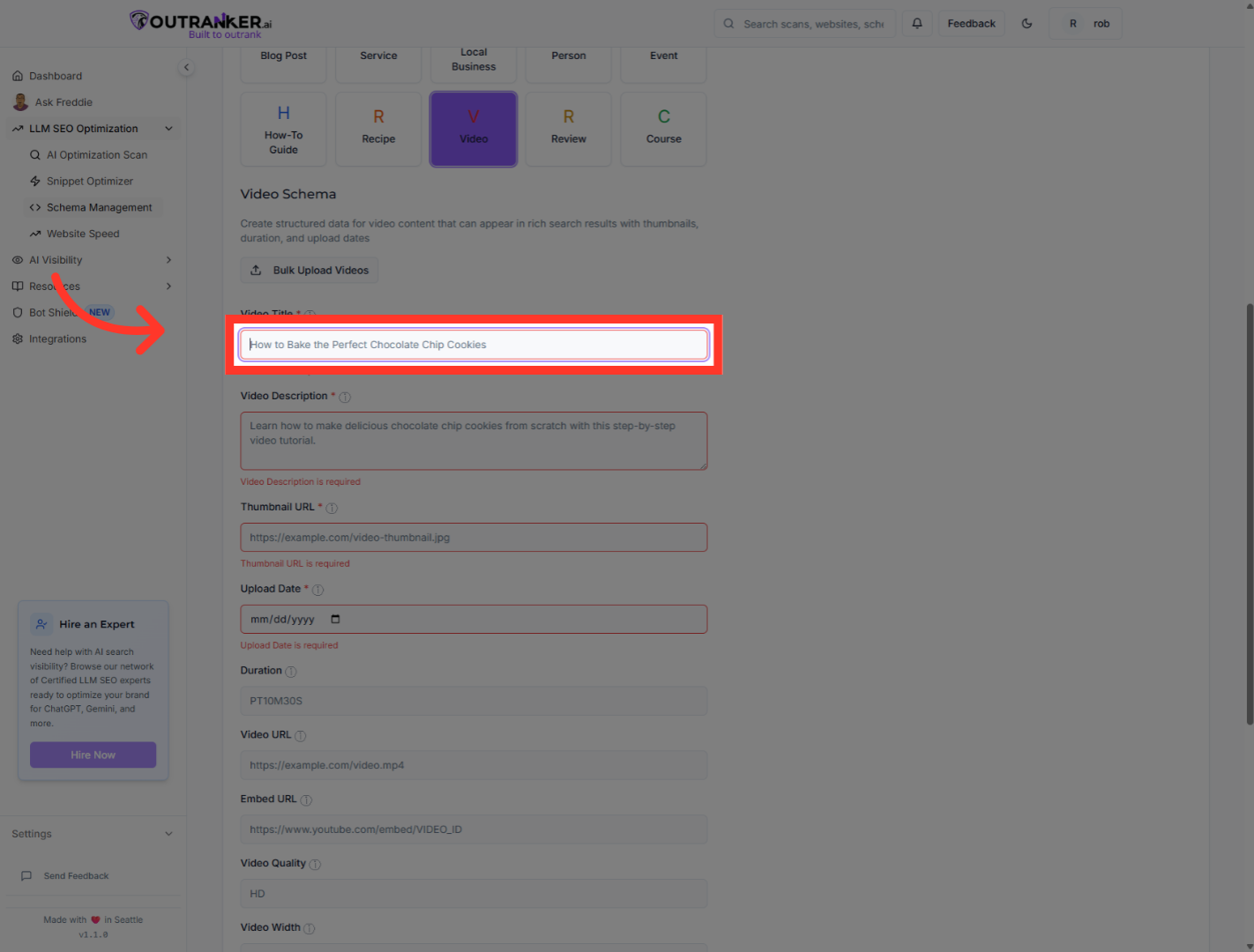
6. Click "Video Title*"
Click the "Video Title*" field to enter the video's title.
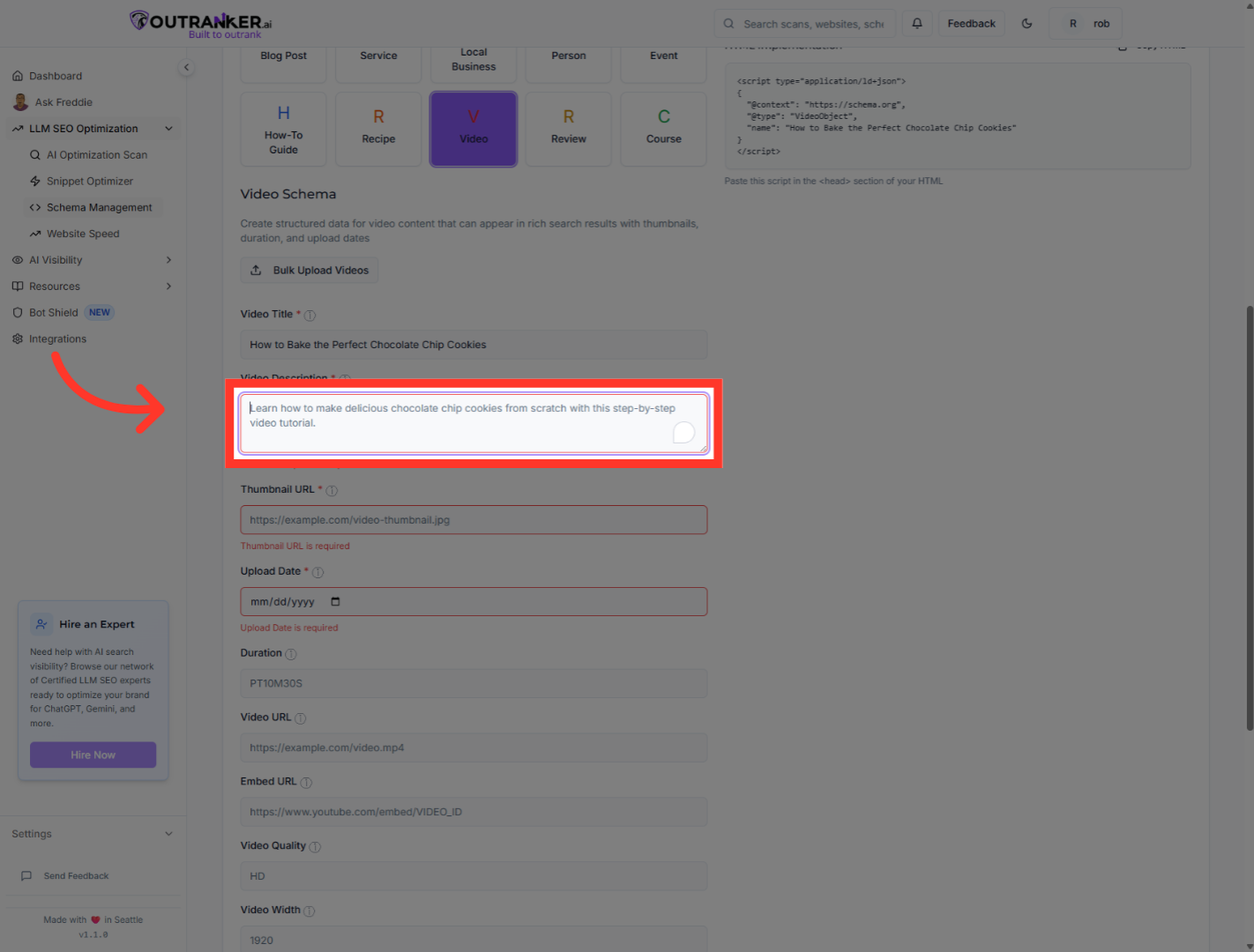
7. Click "Video Description*"
Click the "Video Description*" field to input the copied or written description.
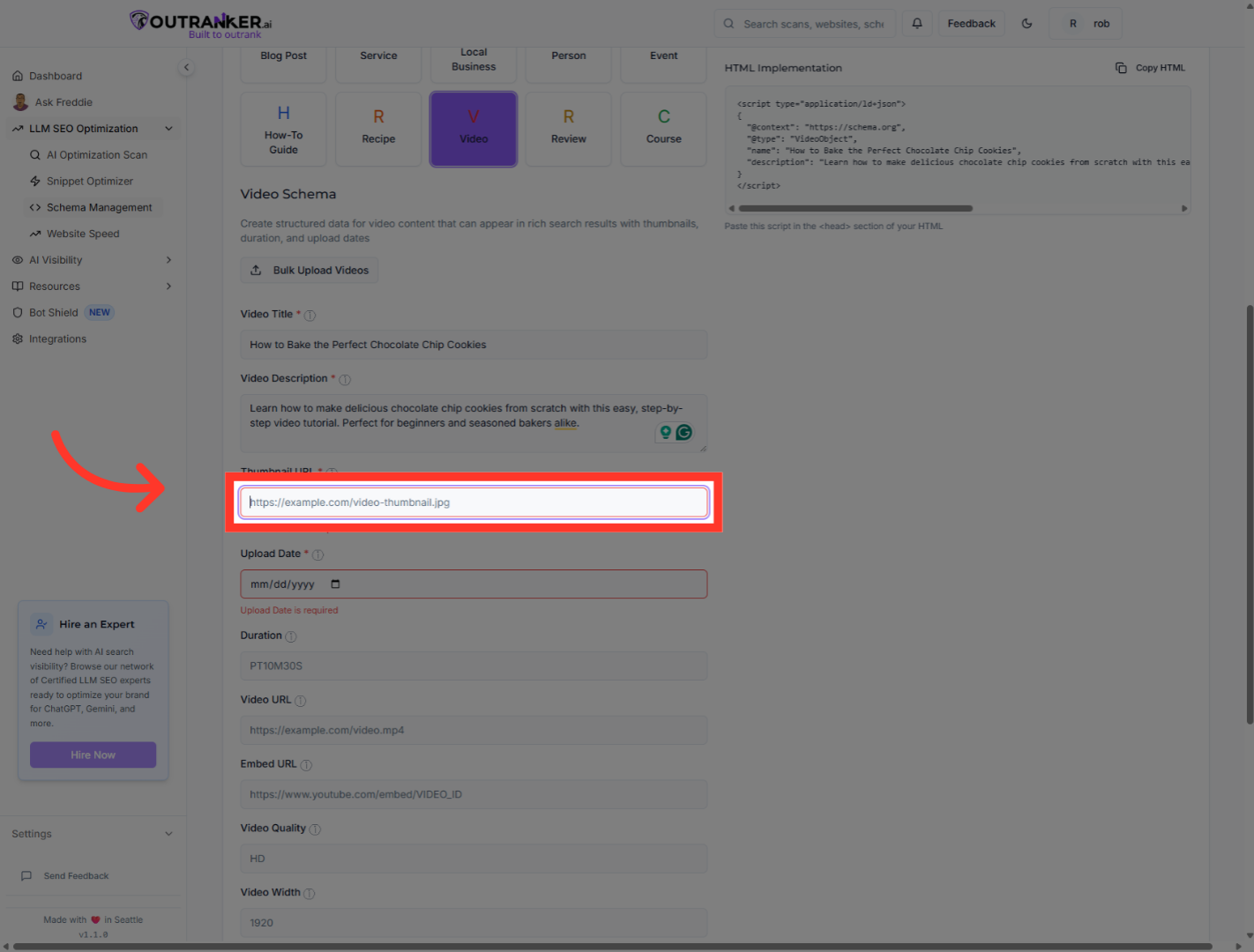
8. Click "Thumbnail URL*"
Upload your video thumbnail for the schema generation.
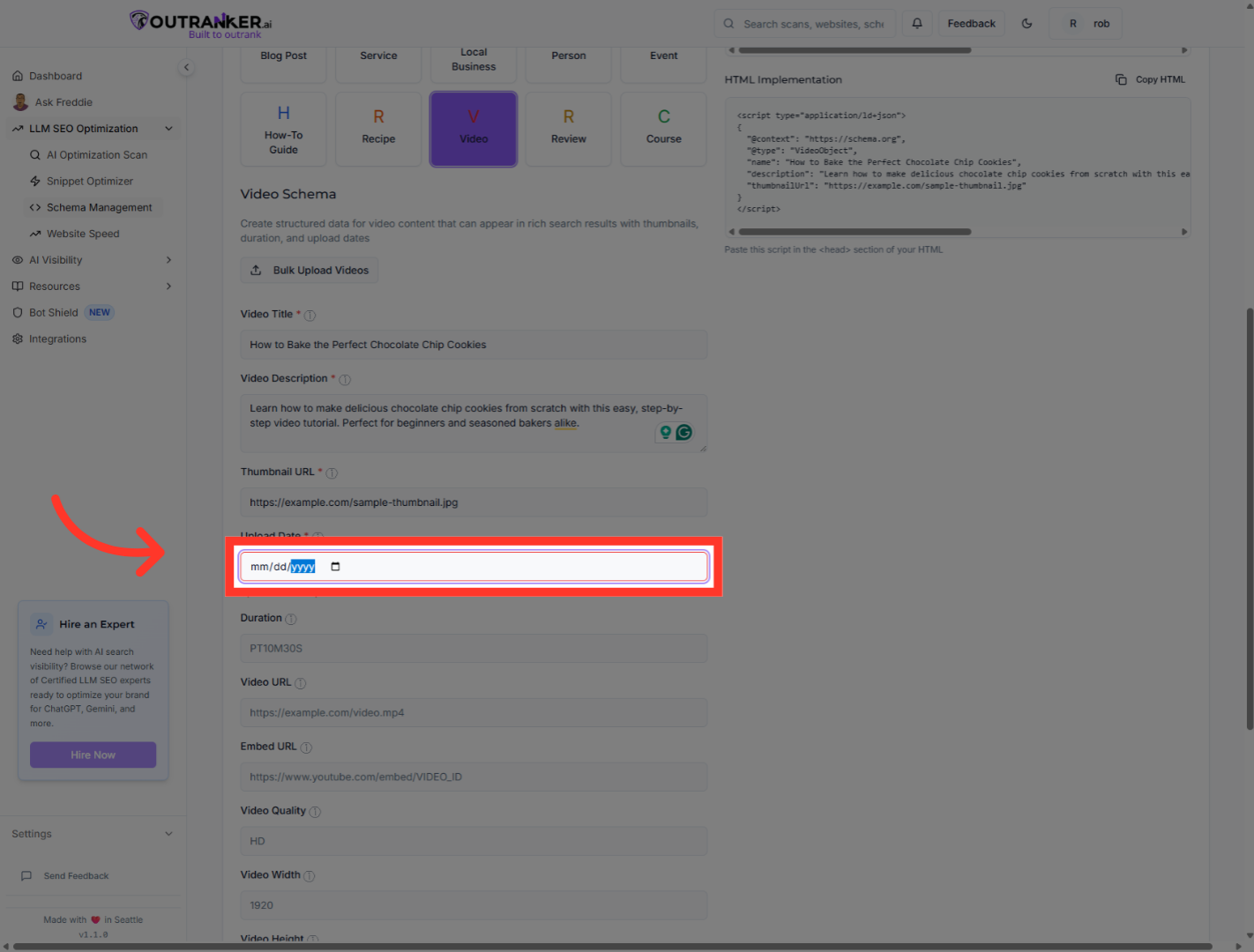
9. Click "Upload Date*"
Put the date of your video upload on this video upload date field.
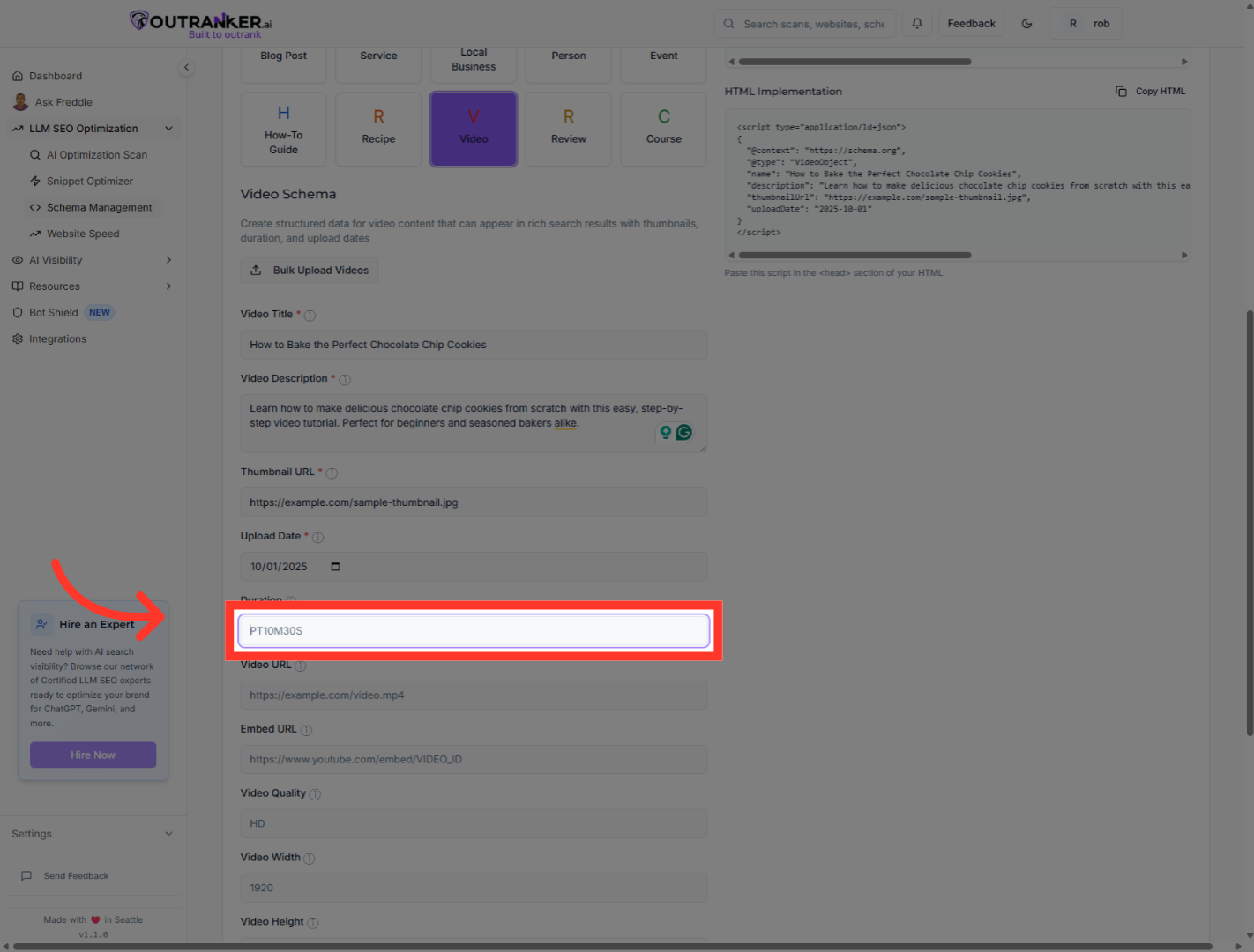
10. Click "Duration"
Pase your actual video duration on this duration field.
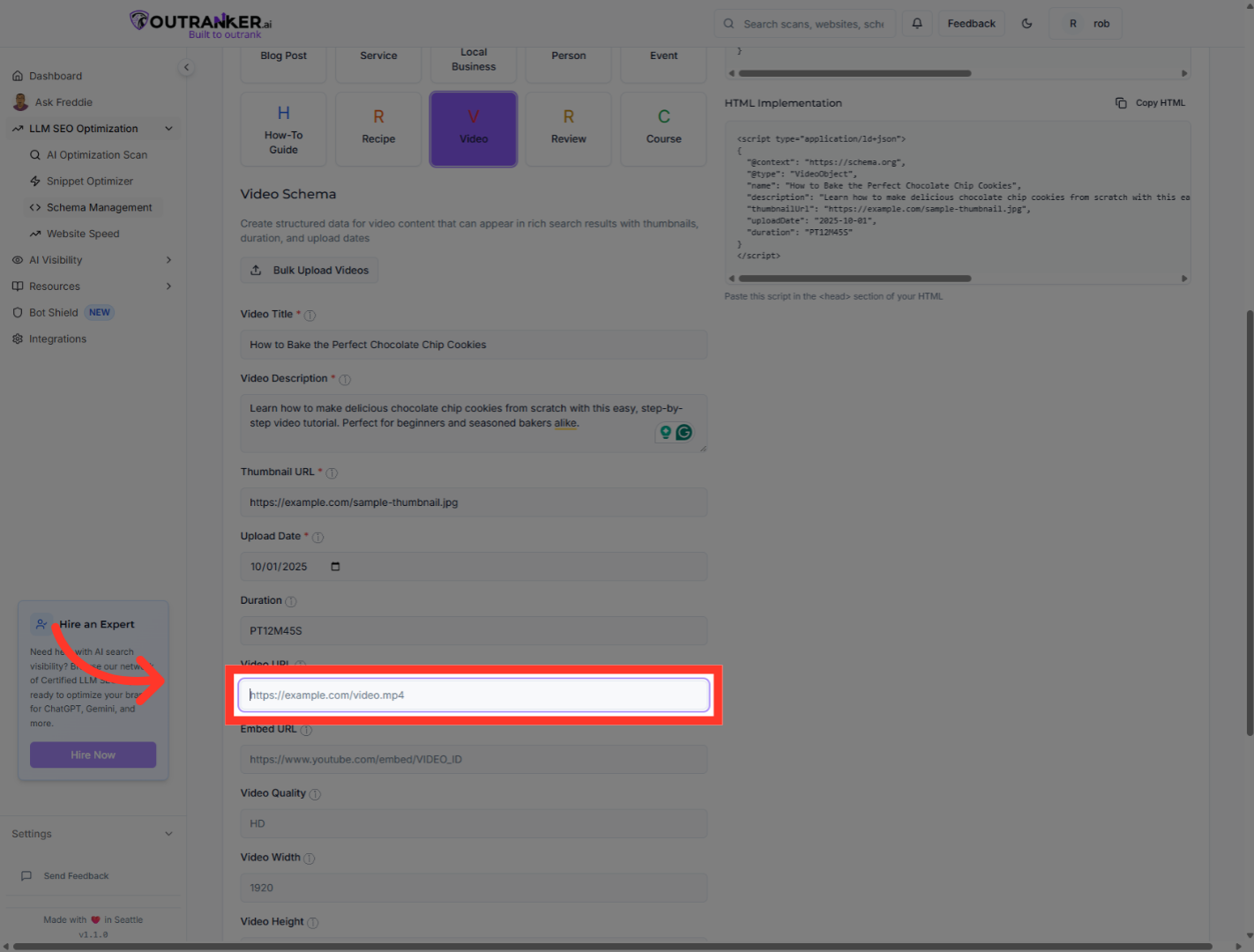
11. Click "Video URL"
In Outranker, click the "Embed URL" field to enter the embed URL.
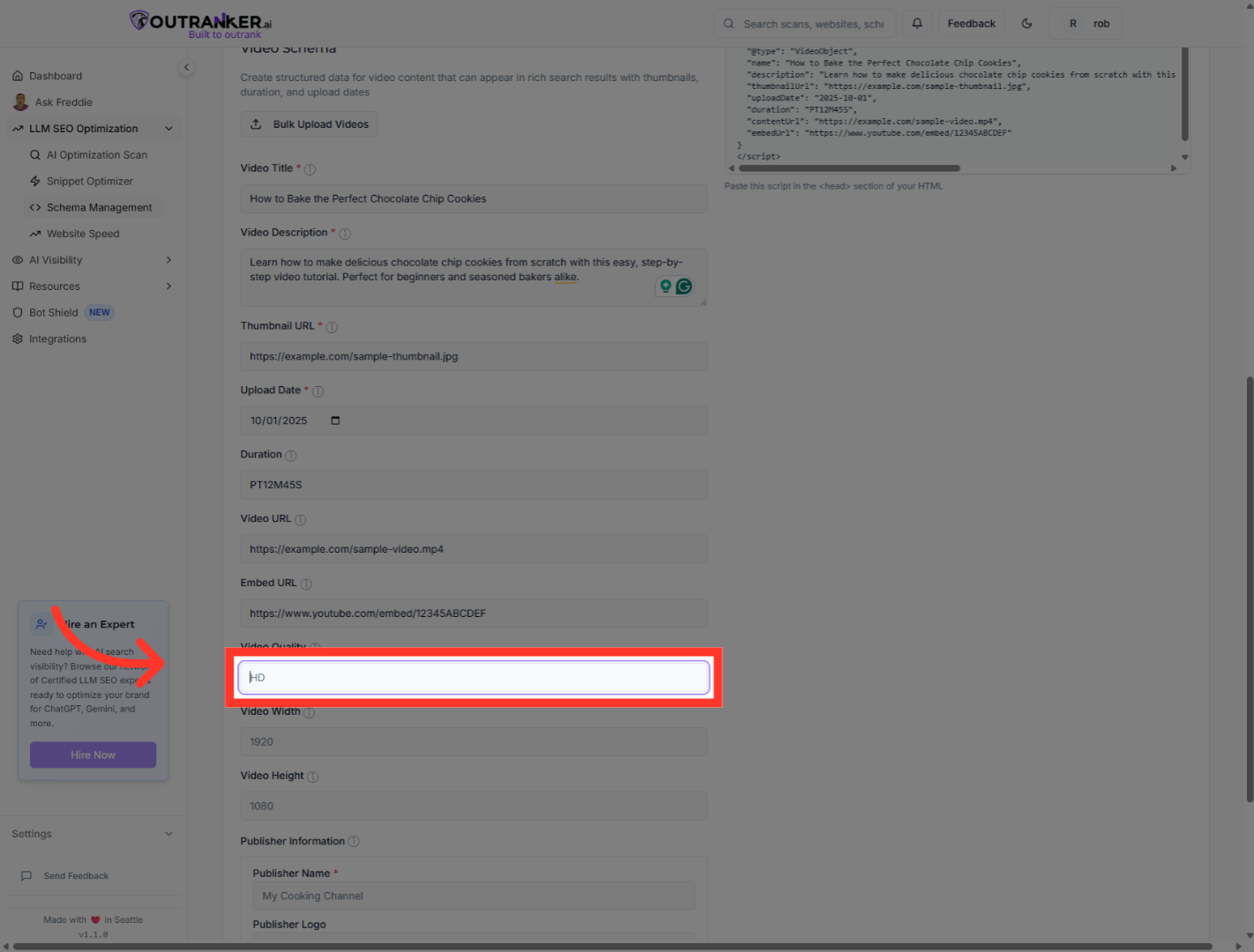
12. Click "Video Quality"
Fill in the video height with in pixels to complete the resolution settings.
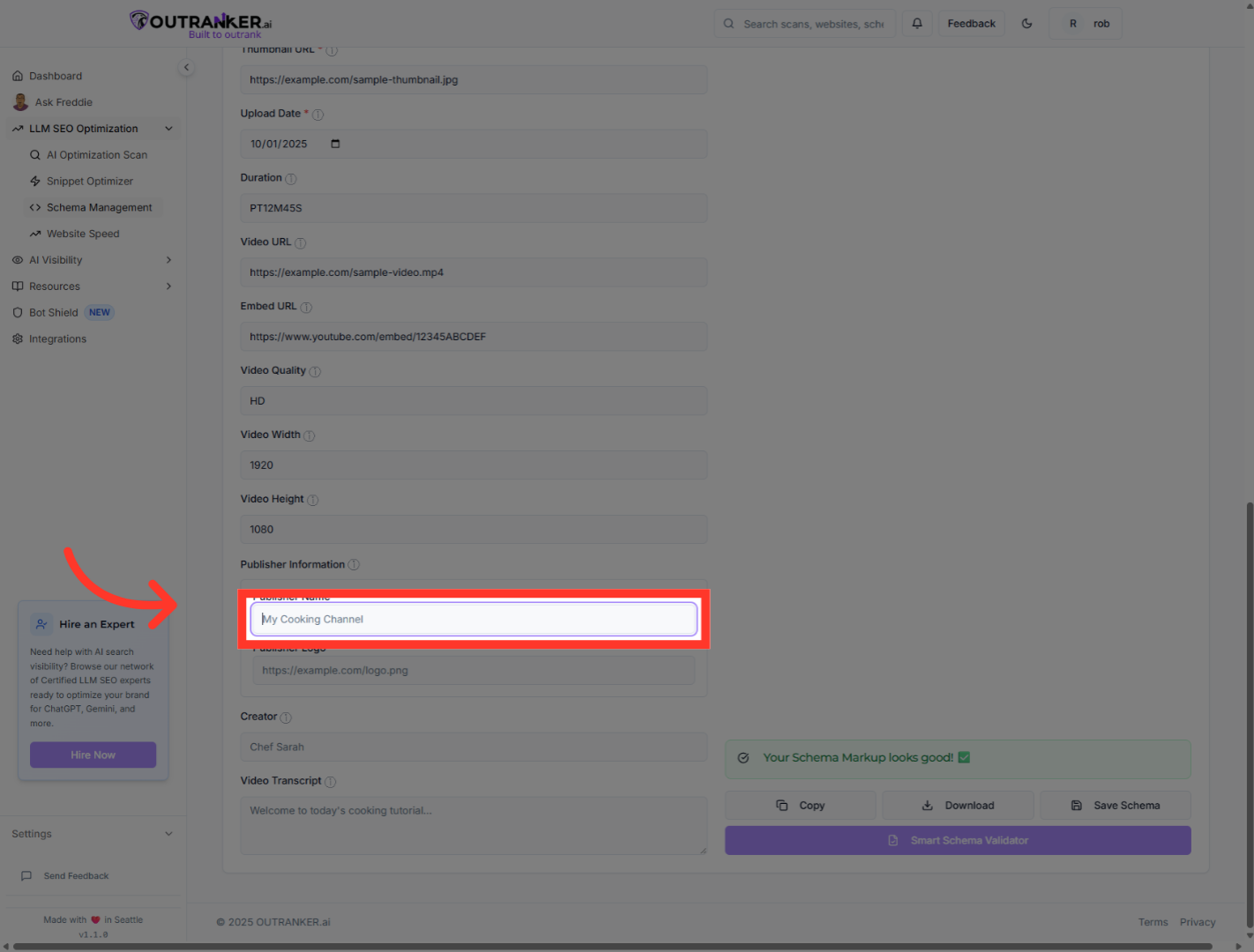
13. Click "Publisher Name*"
Input your channel or page name in the Publisher Name field.
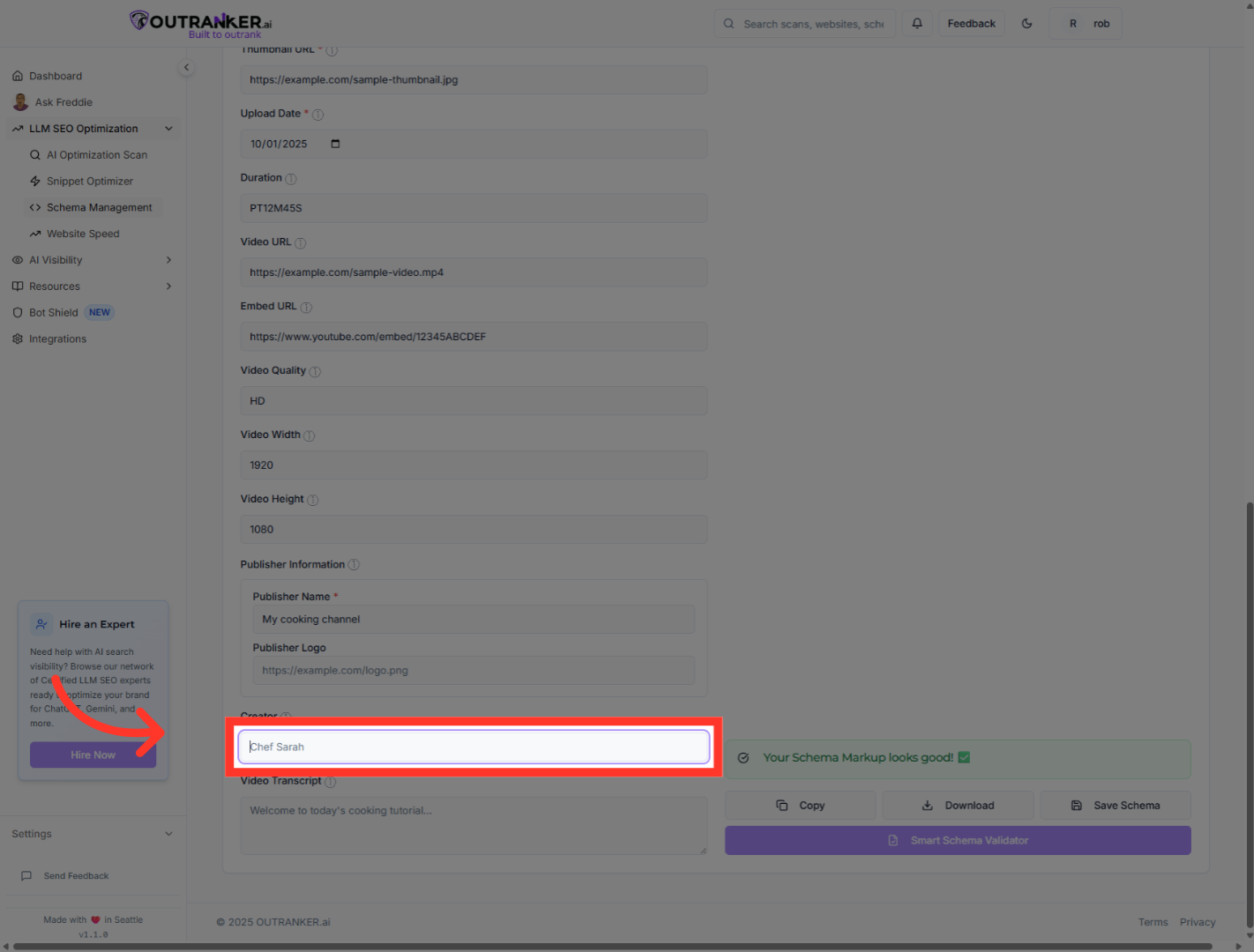
14. Click "Creator"
Click the "Creator" field to add the Creator name.
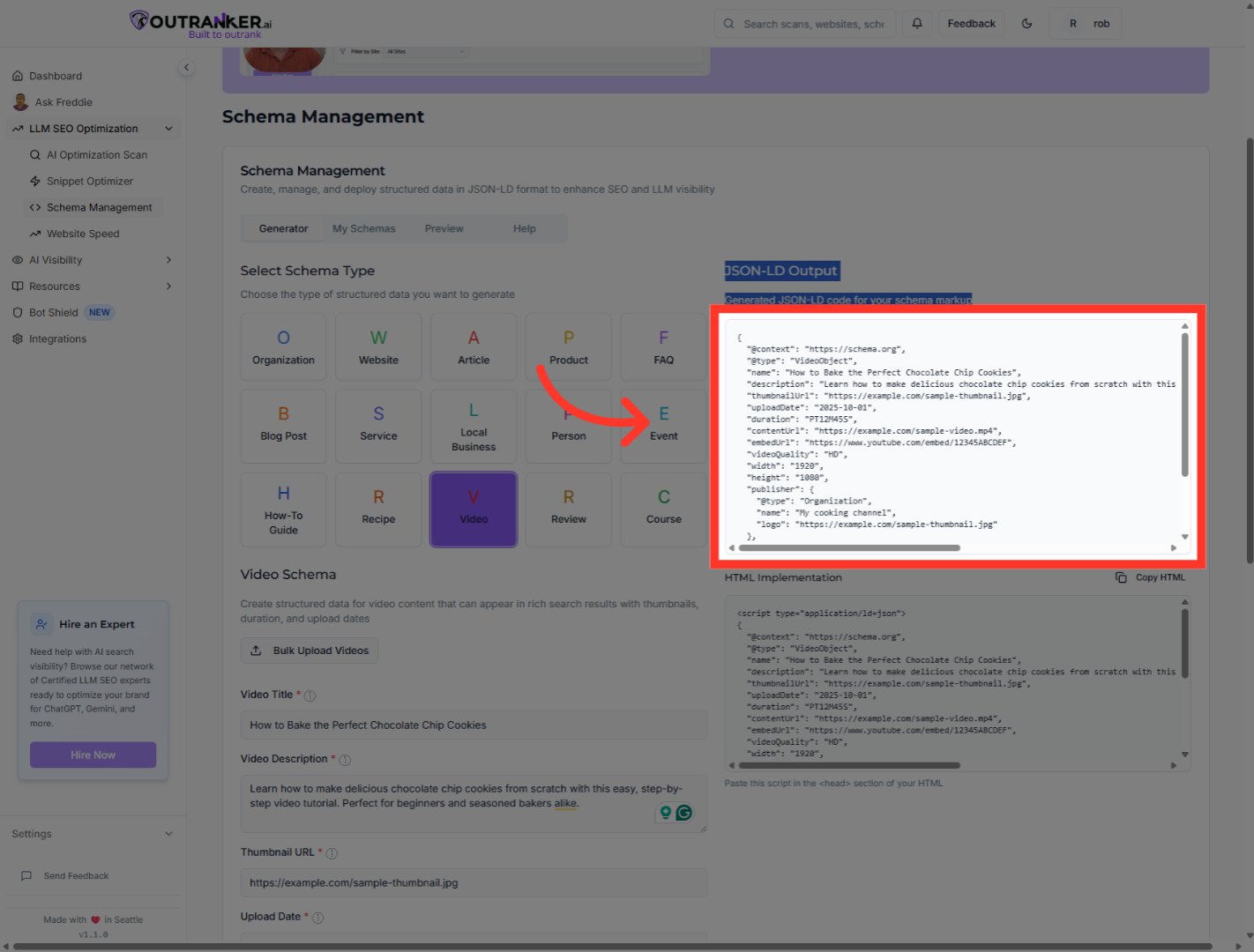
15. Click "Copy your JSON LD Schema code ffrom here"
Click "Copy your JSON LD Schema code ffrom here"
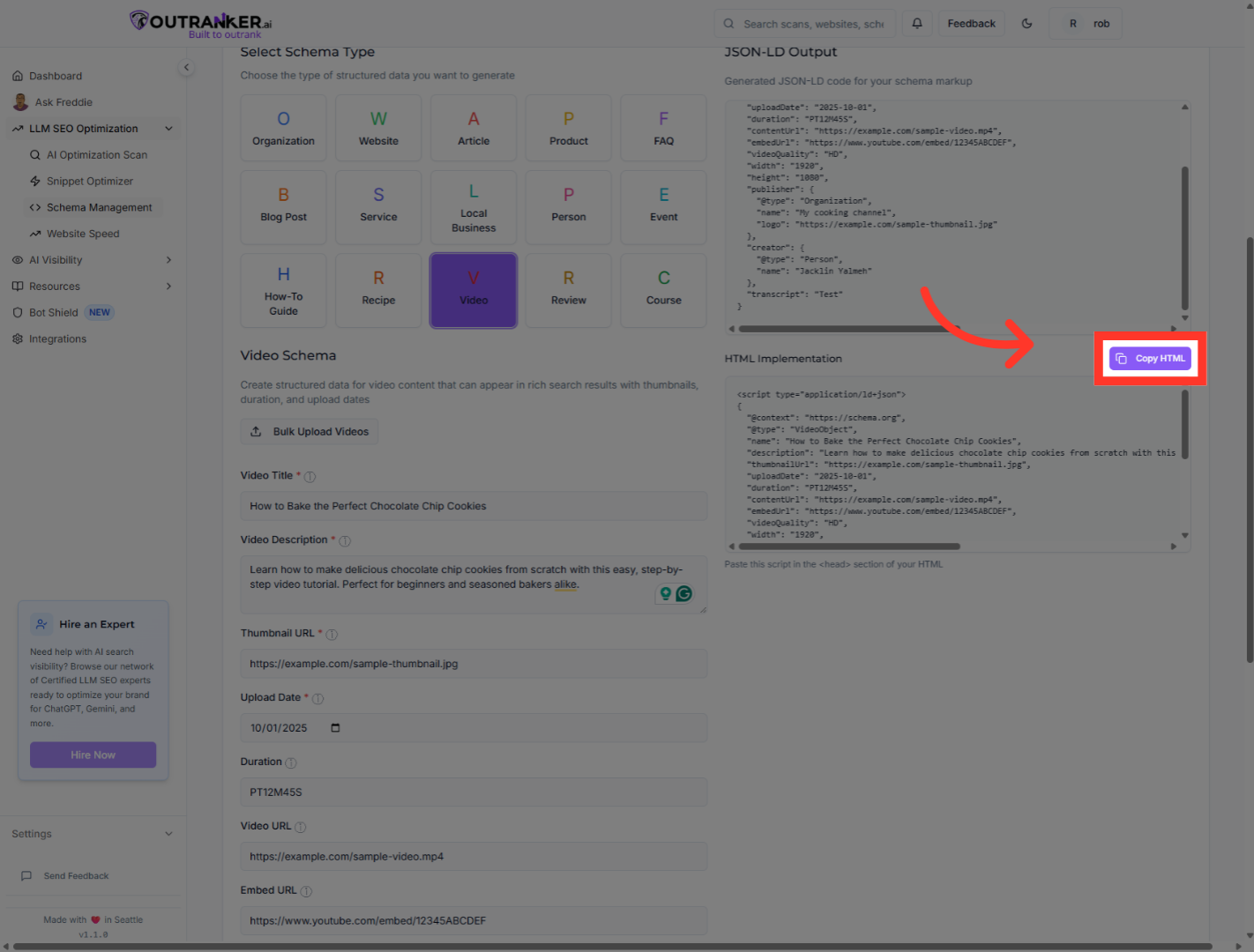
16. Click "Copy HTML"
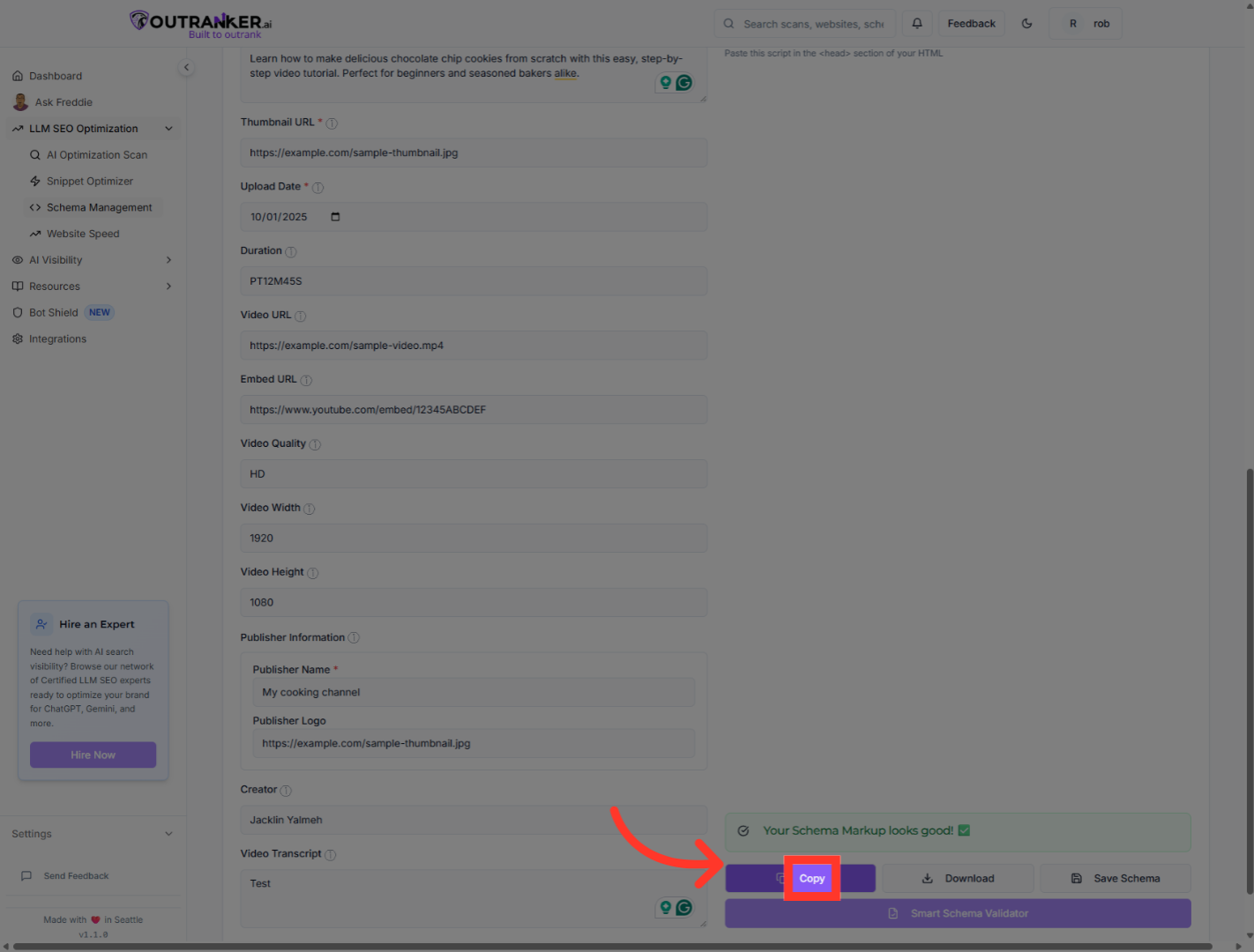
Click "Copy" to copy the finalized HTML schema markup to your clipboard.
17. Click "Copy"
Click "Copy your JSON LD Schema code ffrom here"
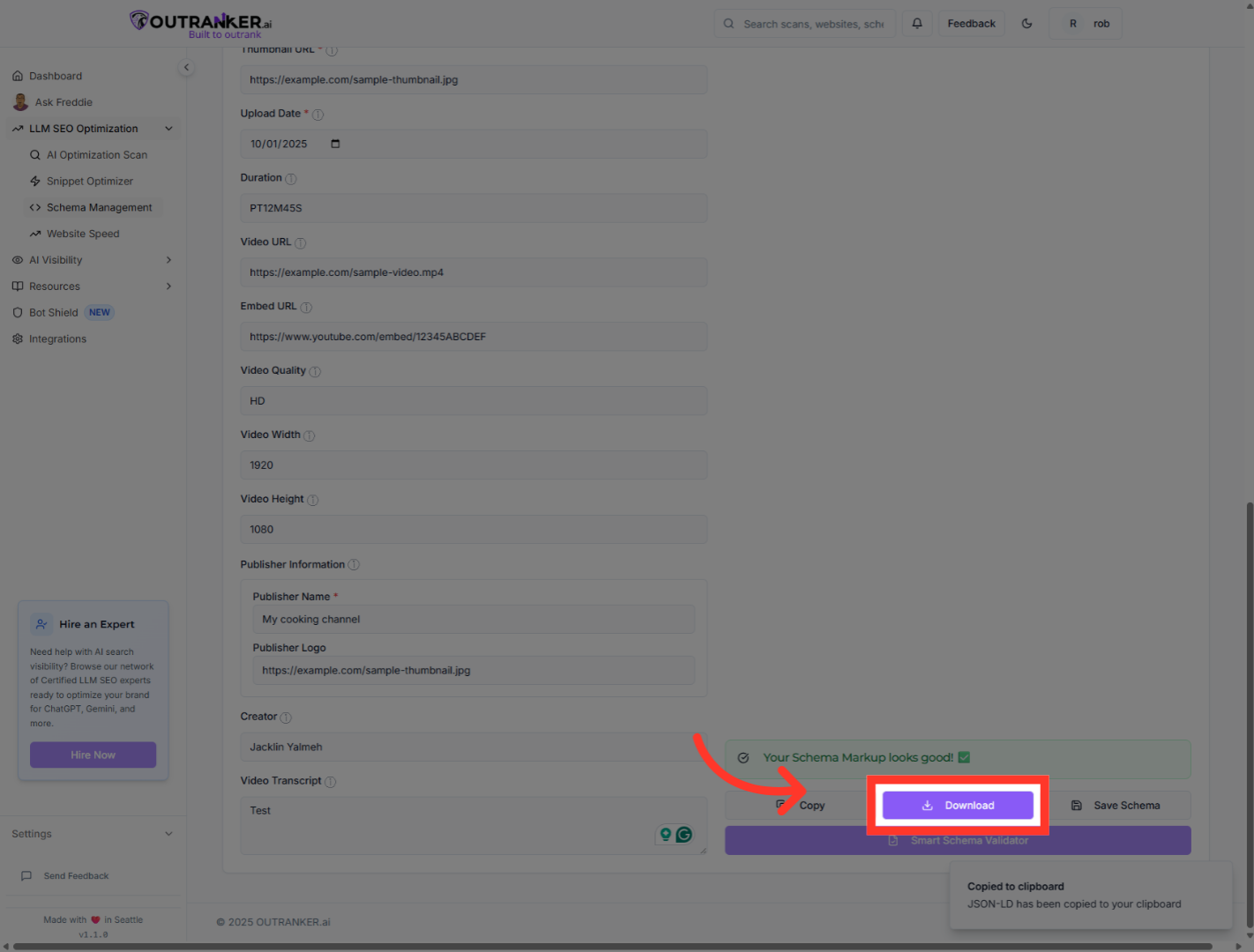
18. Click "Download"
Click "Download" to download your Schema markup. Or save it by clicking on Save Schema button
You have successfully generated and exported the Video Schema using Outranker's Schema Management. The JSON-LD markup is ready for implementation on your website to enhance video S E O. For further optimization, consider exploring additional schema types or integrating with your CMS.
