
How to use ask Freddi AI inside our OutRanker.Ai Dashboard
Fredbc11
Jul 20 2025
Discover the power of Ask Freddi AI within the OutRanker
Go to llmseoxray.com
Introduction
Freddie is an enhanced AI guide trained on all things LLM S E O, AI-first search, and the OutRanker platform. Think of Freddie as your personal tutor for AI visibility, S E O strategies, and platform support.
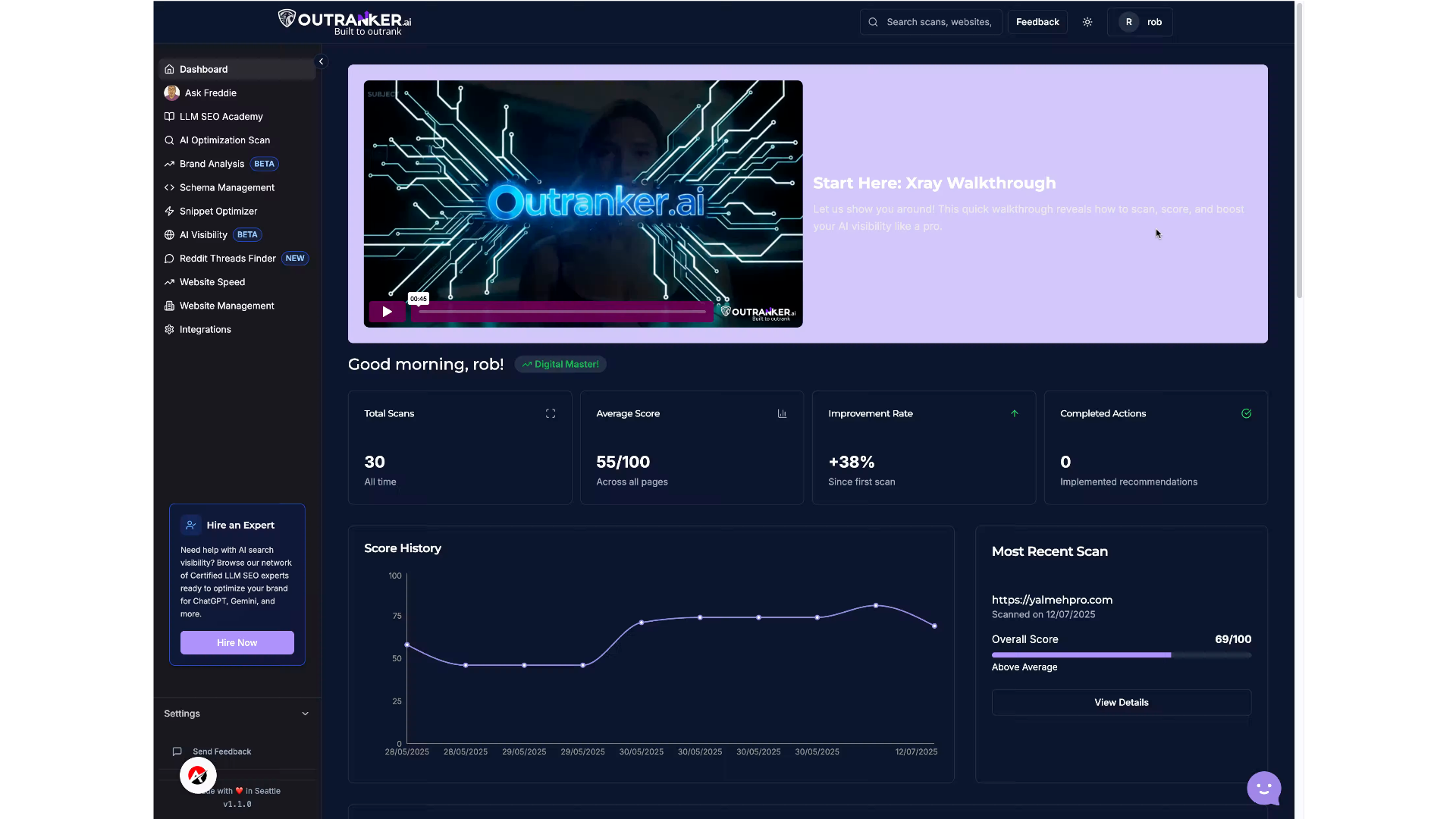
Step 1 — Open Ask Freddie
Start by selecting Ask Freddie from your dashboard menu.

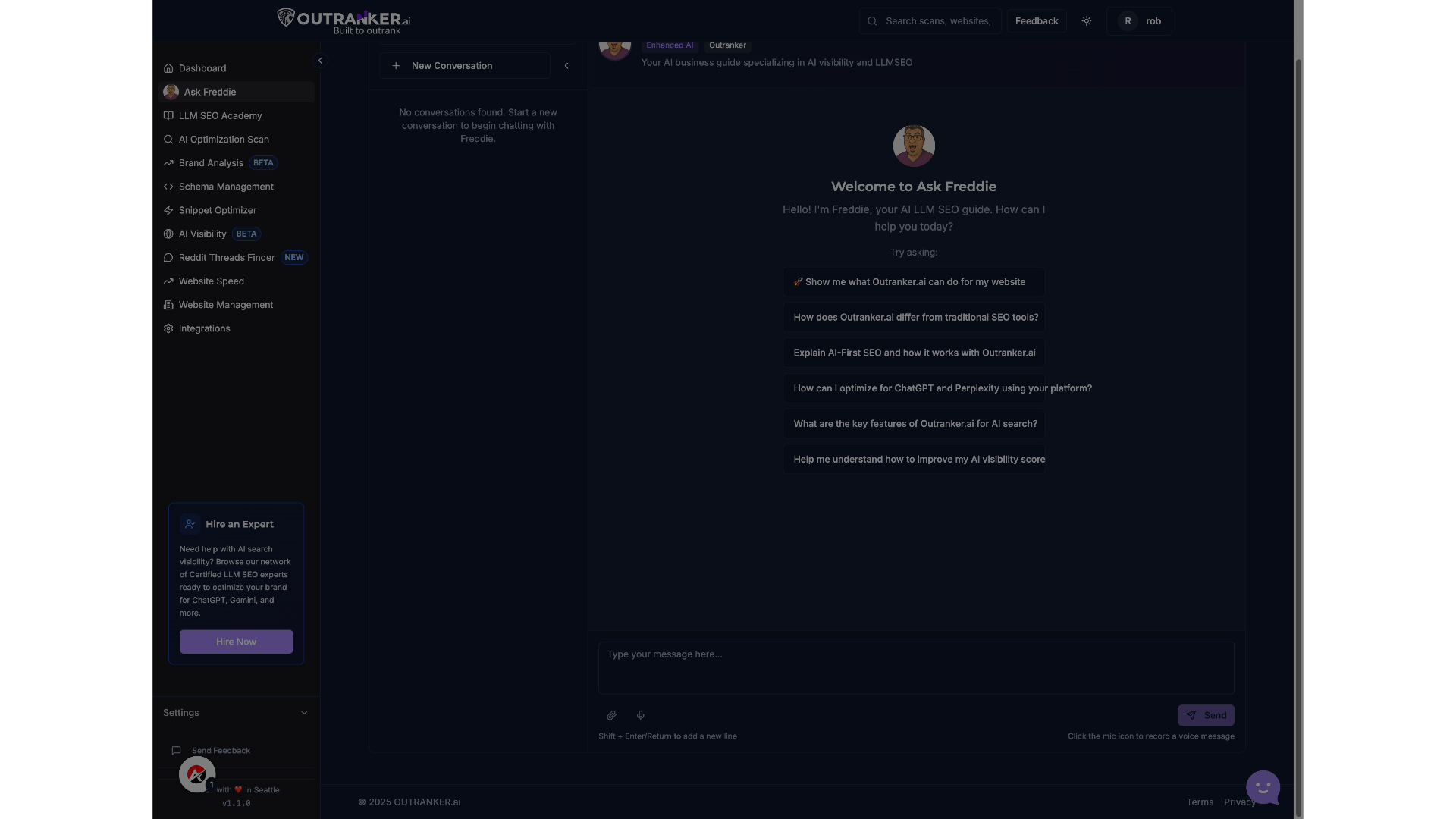
Step 2 — Explore Suggested Prompts
Not sure where to start? Use one of the smart prompts to ask Freddie something specific — from platform tutorials to S E O strategy insights.
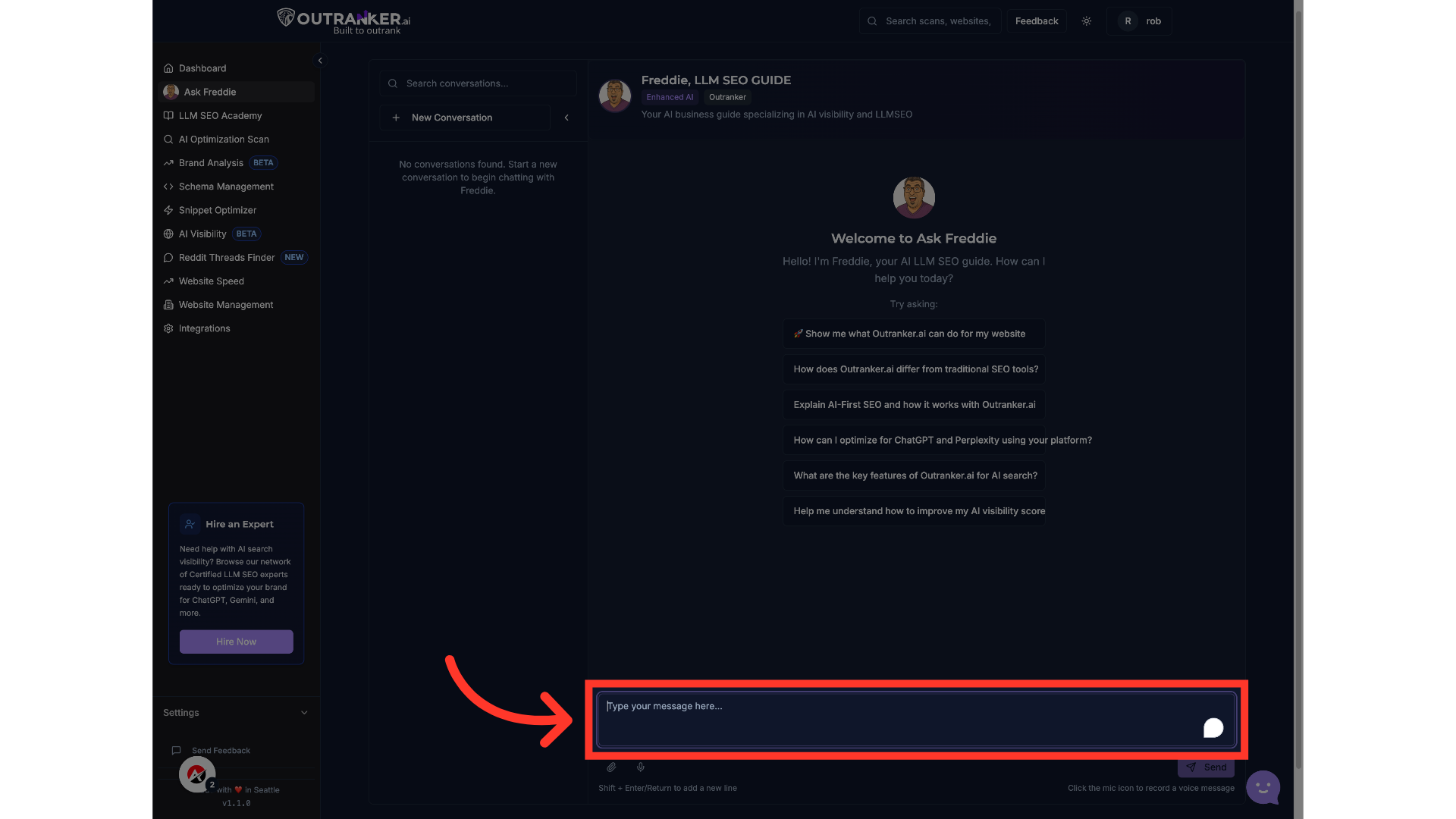
Step 3 — Ask Your Own Question
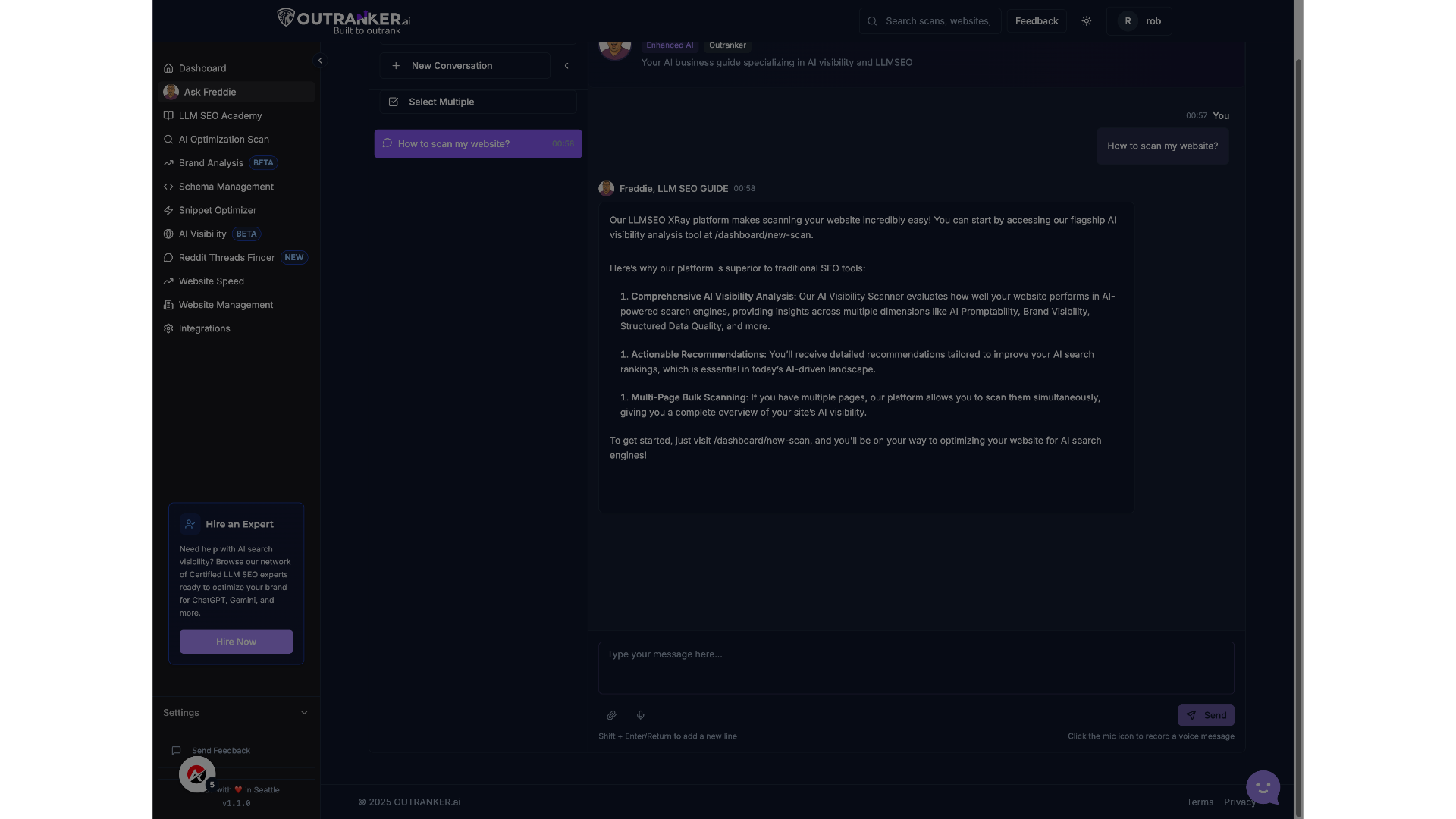
You can also ask your own question. Just type it in the chat box and hit Send. Freddie understands natural language — so you don’t need to be technical.
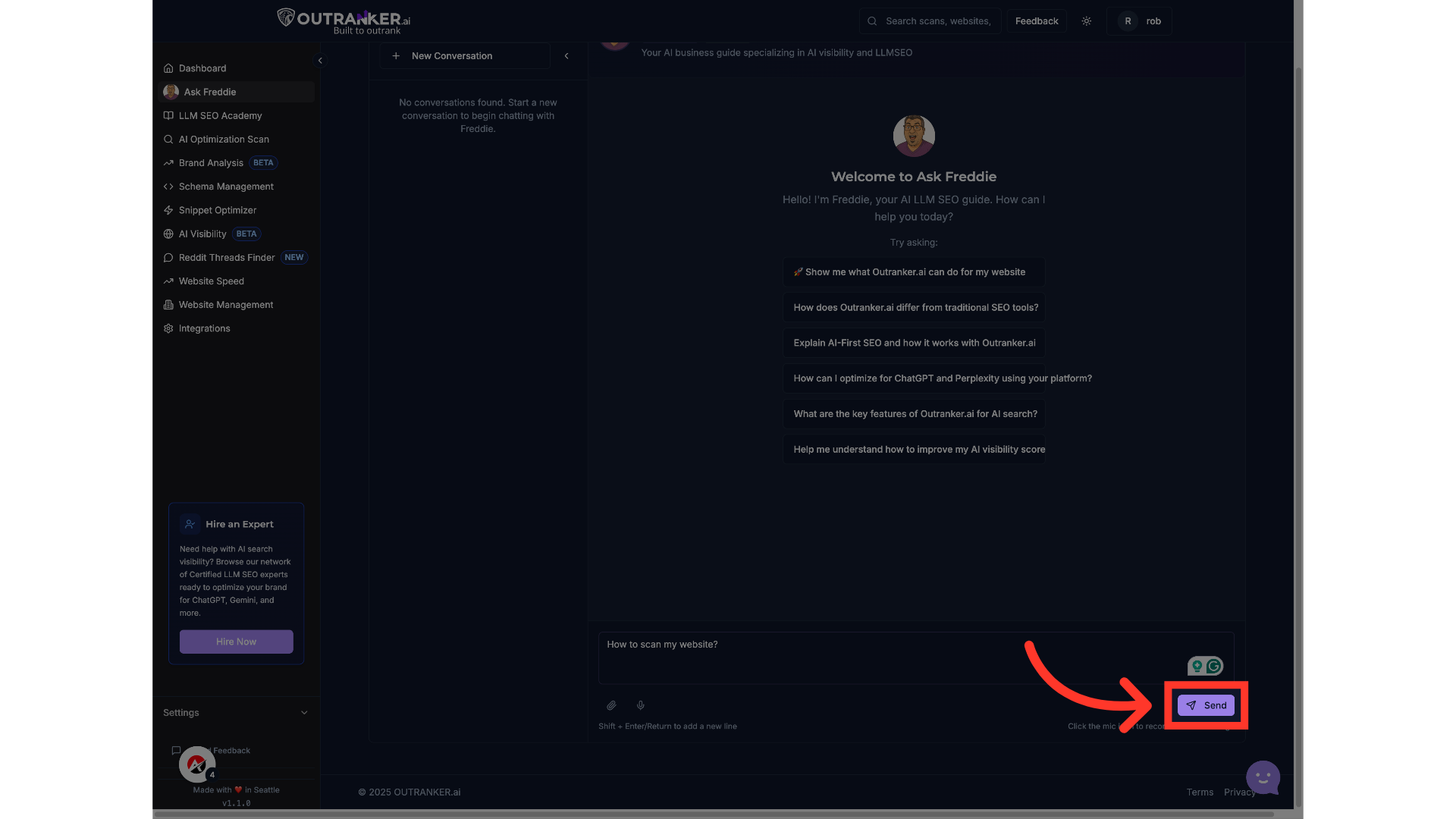
Click "Send"
Share your queries with Freddie, enabling the AI to provide tailored suggestions that meet your S E O needs. Just click on Send button after finish typing.
Step 4 — Review Conversations Anytime
All your chats are saved. You can come back to previous answers or start new conversations whenever you need support.
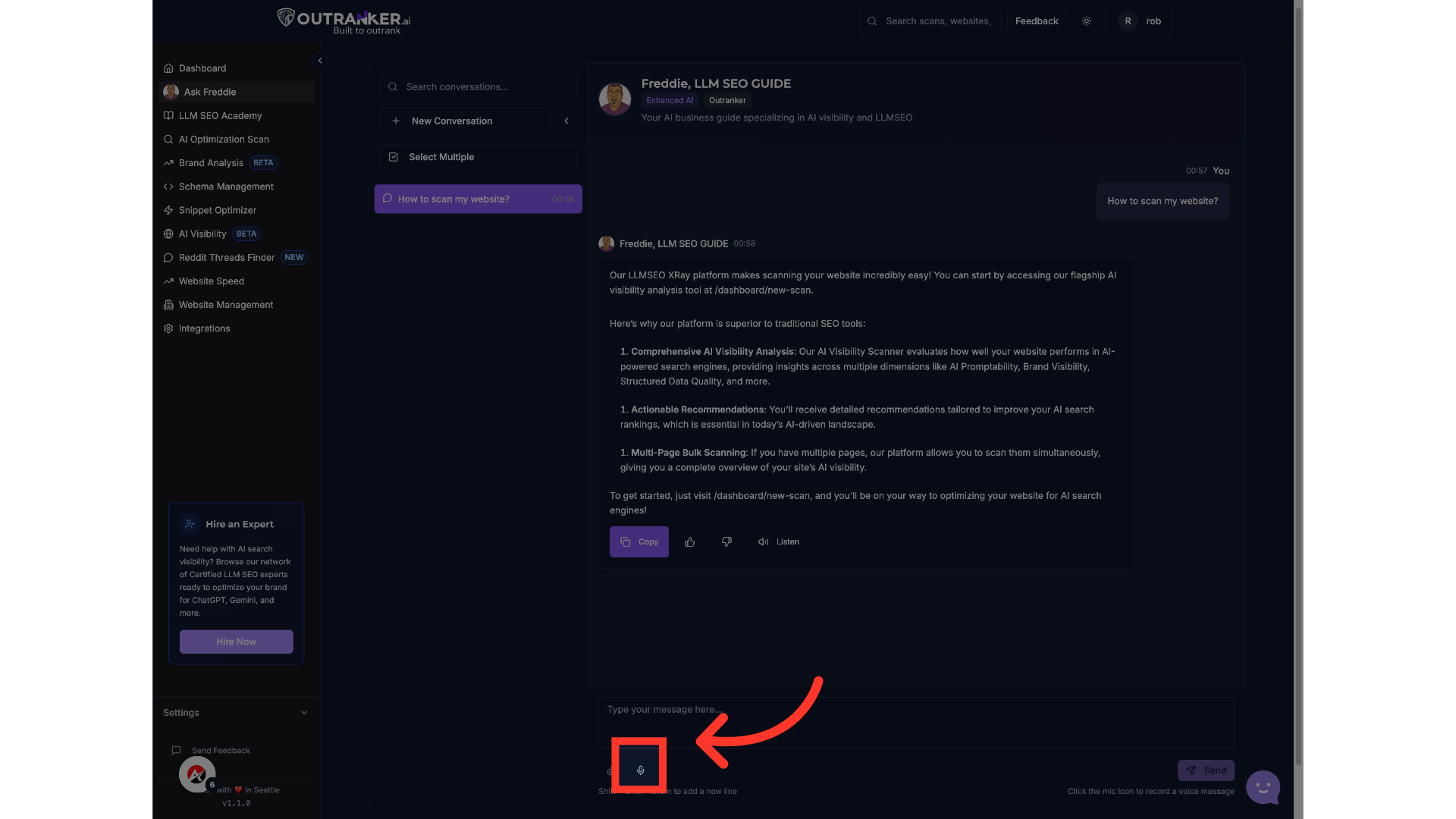
Pro Tip — Voice Input Available
Prefer to speak instead of type? Use the voice input feature to ask your question out loud.
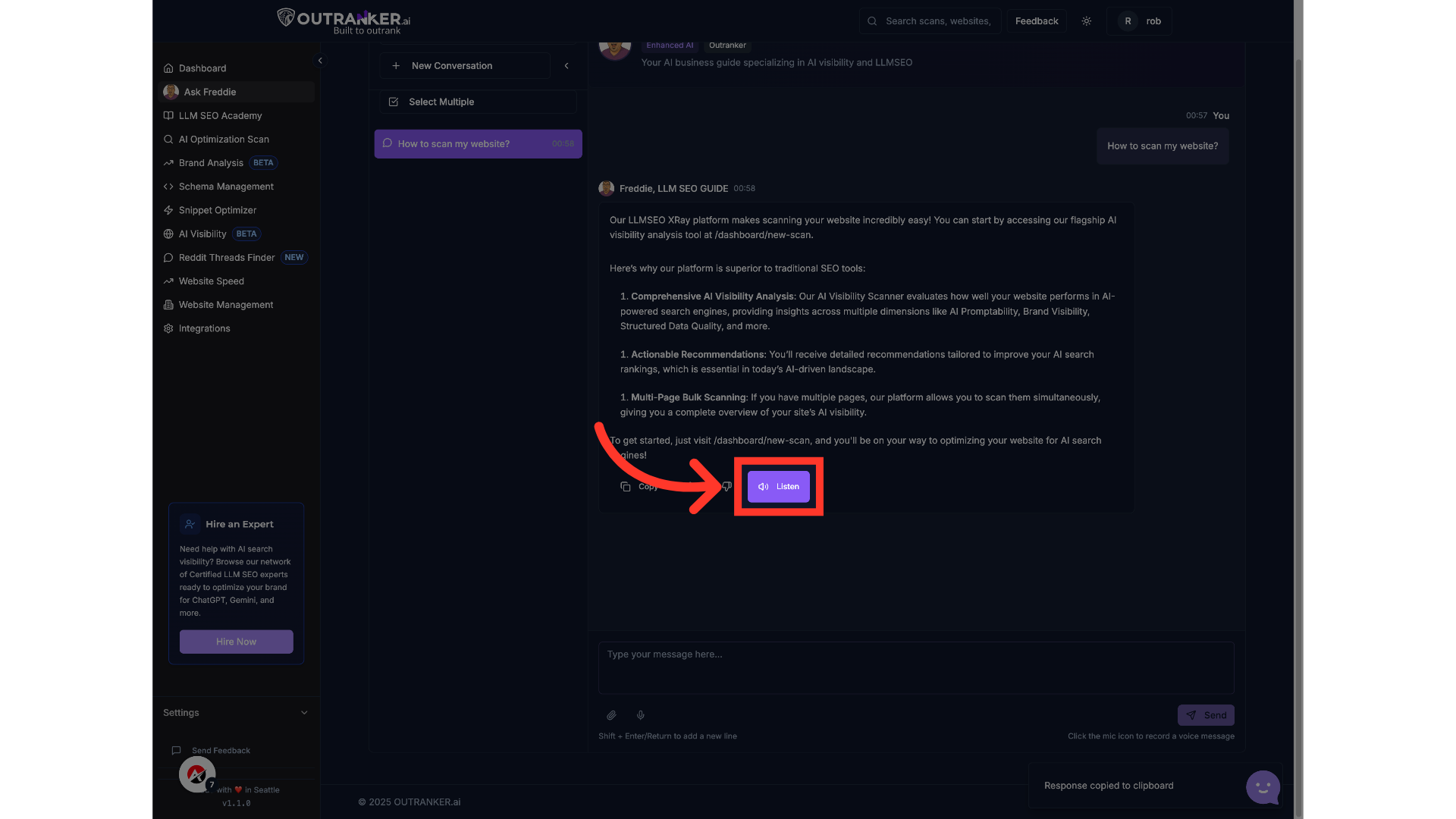
Step 5 — Listen to Freddie’s Response
Want to absorb the answer without reading it? Just click the Listen button next to Freddie’s response.
Whether you're a beginner or an advanced user, Ask Freddie helps you learn, fix, and grow your S E O faster — using the power of AI.
